Page 173 of 372

�Û�Ý
The top and bottom buttons adjust
thevolumeup( )ordown( ).
Press the proper button and hold it
until the desired volume is reached,
then release it.
The AUDIO/CH button has three
f unctions, depending on whether you
are listening to the radio, or playing a
cassette or CD.
If you are listening to the radio, use
the AUDIO/CH button to change
stations. Each time you press this
button, the system advances to the
next preset station on the band you
are listening to. You will see the
number of the selected Preset button
in the display. To change bands,
press the AM or FM button on the
audio system’s f ront panel. If you are playing a cassette, use the
AUDIO/CH button to advance to the
next selection. You will see ‘‘FF’’
blinking in the display when you
press the AUDIO/CH button. The
system f ast f orwards until it senses a
silent period, then goes back to
PLAY.
If youareplayingaCD,thesystem
skips to the beginning of the next
track each time you push the
AUDIO/CH button. You will see the
disc and track number in the display.
Two controls f or the audio system
are mounted in the steering wheel
hub. These let you control basic
f unctions without removing your
hand f rom the wheel. Remote Audio Controls
Audio System
Comf ort and Convenience Feat ures169
A A U
UD DI
IOO/ /C
CH H
B
BU UT TT
TO
ON N
01/09/07 12:22:00 31S3V610_174
Page 174 of 372

You will have to store your favorite
stations in the Preset buttons after
the system begins working. Your
original settings were lost when
power was disconnected.
If your vehicle’s battery is discon-
nected or goes dead, the audio
system will disable itself . If this
happens, you will see ‘‘Code’’ in the
frequencydisplaythenexttimeyou
turn on the system. Use the Preset
buttons to enter the five-digit code. If
it is entered correctly, the radio will
start playing.
If you make a mistake entering the
code, do not start over or try to
correct your mistake. Complete the
f ive-digit sequence, then enter the
correct code. You have ten tries to
enter the correct code. If you are
unsuccessful in ten attempts, you
must then leave the system on for
one hour bef ore trying again.
Your vehicle’s audio system will
disable itself if it is disconnected
f rom electrical power f or any reason.
To make it work again, the user
must enter a specif ic f ive-digit code
in the Preset buttons. Because there
are hundreds of number
combinations possible f rom f ive
digits, making the system work
without knowing the exact code is
nearly impossible.
Youshouldhavereceivedacardthat
lists your audio system’s code
number and serial number. It is best
tostorethiscardinasafeplaceat
home. In addition, you should write
the audio system’s serial number in
this Owner’s Manual. If you should
happen to lose the card, you must
obtain the code number f rom your
Acura dealer. To do this, you will
need the system’s serial number. Thef t Protection
Audio System
Comf ort and Convenience Feat ures170
01/09/07 12:22:09 31S3V610_175
Page 175 of 372

Once the security system is set,
opening any door (without using the
key or the remote transmitter), or
the hood, will cause it to alarm. It
also alarms if the radio is removed
f rom the dashboard or the wiring is
cut.
The security system sets auto-
matically fifteen seconds after you
lock the doors, hood, and trunk. For
the system to activate, you must lock
the doors f rom the outside with the
key, lock tab, door lock switch, or
remote transmitter. The security
system light next to the driver’s door
lock starts blinking immediately to
show you the system is setting itself . The security system helps to protect
your vehicle and valuables f rom thef t.
The horn sounds and a combination
of headlights, parking lights, side
marker lights and taillights f lashes if
someone attempts to break into your
vehicleorremovetheradio.This
alarm continues f or two minutes,
then the system resets. To reset an
alarming system before the two
minutes have elapsed, unlock the
driver’s f ront door with the key or
the remote transmitter.
Do not attempt to alter this system
or add other devices to it. The security system will not set if
the hood, tailgate, or any door is not
f ully closed. If the system will not set,
check the Door and Tailgate Open
Monitor on the instrument panel
(see page ), to see if the doors
and tailgate are f ully closed. Since it
isnotpartofthemonitordisplay,
manually check the hood.64
Security System
Comf ort and Convenience Feat ures171
S SE
EC
CU UR RIITT Y
Y S
SYYSSTTE
EM
M L
LIIGGH HT
T
01/09/07 12:22:17 31S3V610_176
Page 180 of 372
TheAvgdisplayshowsyouthe
average f uel economy since you
last reset the display.
The E/T is the elapsed time that
the ignition has been on. It
automatically resets to 0.0 when it
reaches twelve hours. This display
can be reset at any time.
The Trip display shows you the
total distance you have driven
since it was last reset. When it
passes 999.9, it stops displaying
tenths and goes to 1000. When it
passes 9999, it clears to 0.0.
The display also has manual
f unctions f or the Climate Control
System. Ref er to page . 125
Trip Computer
Comf ort and Convenience Feat ures176
T TR
RI IPP M
M E
ET
TE
ER
R
A
A V
VE
ER
RA A G
GE E F
FUUE EL
L
E
E C
CO ON NOOMM Y
Y
E
E
L
LAA P
PS
SE ED
D T
TI
IMM E
E
R
RA A N
NG GEE C
CLLOOC CKK C
CO
OM M P
PA
A S
SSS
I
IN NS STTA
A N
NT TA
A N
NE EO
OU USS F
FUUE EL
L M
M I
ILLE E A
A G
GE E
O
OU UTTS
SI IDD E
E T
TE
EM
M P
PE
ER
RA A T
TU
UR REE
01/09/07 12:23:06 31S3V610_181
Page 181 of 372
The display shows either the range
and Avg f uel economy, or the E/T
and Trip odometer. To change
between these, press and release the
TRIP button.
To reset the Avg f uel economy, E/T,
and Trip odometer, press and hold
the RESET button until you hear a
beep.The outside temperature, f uel
economy, range, and trip odometer
can be displayed in either English or
Metric units. To change between
units, press the TRIP button and
hold it f or f ive seconds.
Trip Computer
Changing and Resetting the
Display
Changing Units of Measurement
Comf ort and Convenience Feat ures177
01/09/07 12:23:13 31S3V610_182
Page 183 of 372

�µ�µ
You can also quickly set the time to
the nearest hour. Press the CLOCK
button, then press the RESET button.
If the displayed time is before the
half hour, it will reset back to the
previous hour. If the displayed time
is af ter the half hour, it will reset
f orward to the next hour.
For example:
1:06 will reset to 1:00
1:52 will reset to 2:00
The compass shows your direction
of travel. It indicates eight directions.
Compass operation can be af f ected
by driving near power lines or
stations, across bridges, through
tunnels, over railroad crossings, past
large vehicles, or driving near large
objects that can cause a magnetic
disturbance.
It can also be af f ected by accessories
such as antennas and roof racks that
are mounted by magnets.The compass may need to be
manually calibrated af ter exposure to
a strong magnetic field. If the
compassseemstobecontinually
showing the wrong direction and is
not self -calibrating, do the f ollowing.
NOTE: You should do this procedure
in an open area, away from buildings,
power lines, and other vehicles.
The compass is self -calibrating. If
you see ‘‘ ’’ in the direction
display and ‘‘Calibrate’’ is blinking,
the compass is self -calibrating.
CONT INUED
Trip Computer
Compass Operation
Compass Calibration
Comf ort and Convenience Feat ures179
01/09/07 12:23:38 31S3V610_184
Page 185 of 372
�µ�µ
Drivethevehicleslowlyintwo
complete circles. In most areas, there is a variation
between magnetic north and true
north. Zone selection is required so
the compass can compensate f or this
variation. To check and select the
zone set into the compass, do the
f ollowing.
Press and hold the CLOCK and
TRIP buttons until the display
changes (about 1 second).
When the display goes f rom
‘‘ ’’ to an actual heading, the
unit is calibrated.
Press the CLOCK, TRIP, or
RESET button to complete the
calibration and return the display
to normal. 1.
CONT INUED
Trip Computer
Comf ort and Convenience Feat ures
Compass Zone Select ion
181
01/09/07 12:23:56 31S3V610_186
Page 186 of 372
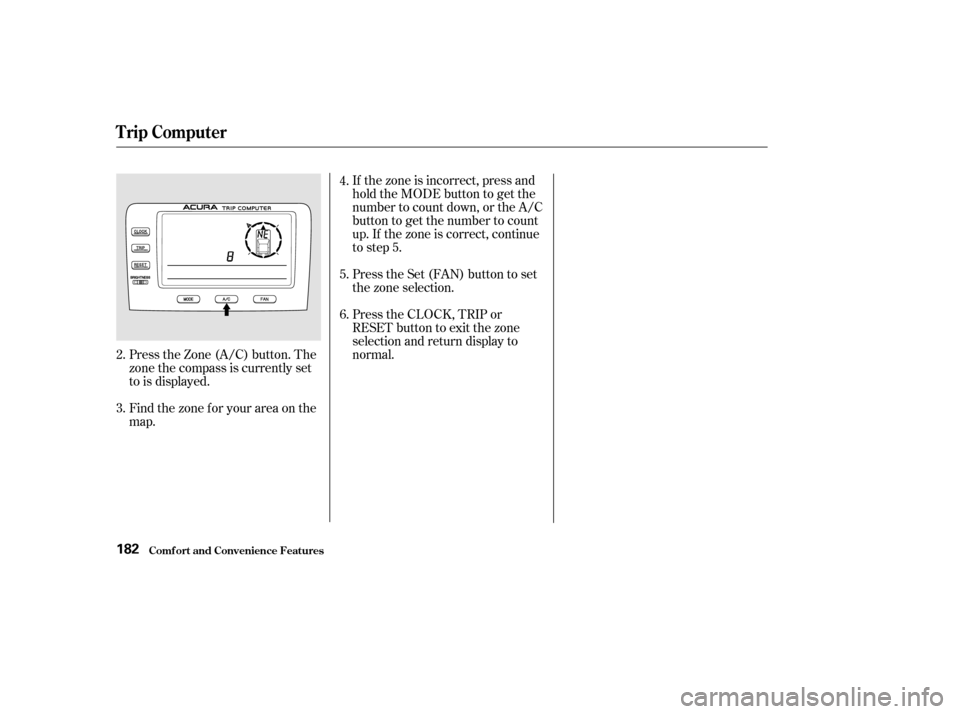
If the zone is incorrect, press and
hold the MODE button to get the
number to count down, or the A/C
button to get the number to count
up. If the zone is correct, continue
to step 5.
Press the Set (FAN) button to set
the zone selection.
Press the CLOCK, TRIP or
RESET button to exit the zone
selection and return display to
normal.
Press the Zone (A/C) button. The
zone the compass is currently set
to is displayed.
Find the zone f or your area on the
map.
2.
3. 4.
5.
6.
Trip Computer
Comf ort and Convenience Feat ures182
01/09/07 12:24:05 31S3V610_187