Page 96 of 341

93 Multifunction steering wheel, multifunction display
Technical
data Instruments
and controlsOperationDrivingInstrument
cluster displayPractical hints Car care Index Depending on your vehicle’s equipment, you may use
the buttons on the multifunction steering wheel to call
up, control and set the following systems in the
multifunction display:
1Trip odometer and main odometer, see page 96
Vehicle speed, see page 96
Flexible service system (FSS), see page 114
Engine oil level indicator, see page 117
2Audio systems, see page 97
Radio, see page 97
CD player (optional), see page 98
Cassette player, see page 99
3Navigation system (if so equipped), see page 105
4Malfunction message memory, see page 108
5Individual settings, see page 110
6Trip computer, see page 106
After start
After reset
Fuel tank content
7Telephone (if so equipped), see page 100Press the è or ÿ button repeatedly until the
required system is displayed.
Pressing the è button advances the display to the
next system.
Pressing the ÿ button returns the display to the
previous system.
You may call up additional displays within some of these
categories by pressing the j or k button.
Wa r n i n g !
A driver’s attention to the road must always be his /
her primary focus when driving. For your safety and the safety of others, selecting
features through the multifunction steering wheel
should only be done by the driver when traffic and
road conditions permit it to be done safely.
Programming individual settings in the system can
only be made while the vehicle is at standstill.
Page 100 of 341
97 Multifunction steering wheel, multifunction display
Technical
data Instruments
and controlsOperationDrivingInstrument
cluster displayPractical hints Car care Index Audio systems
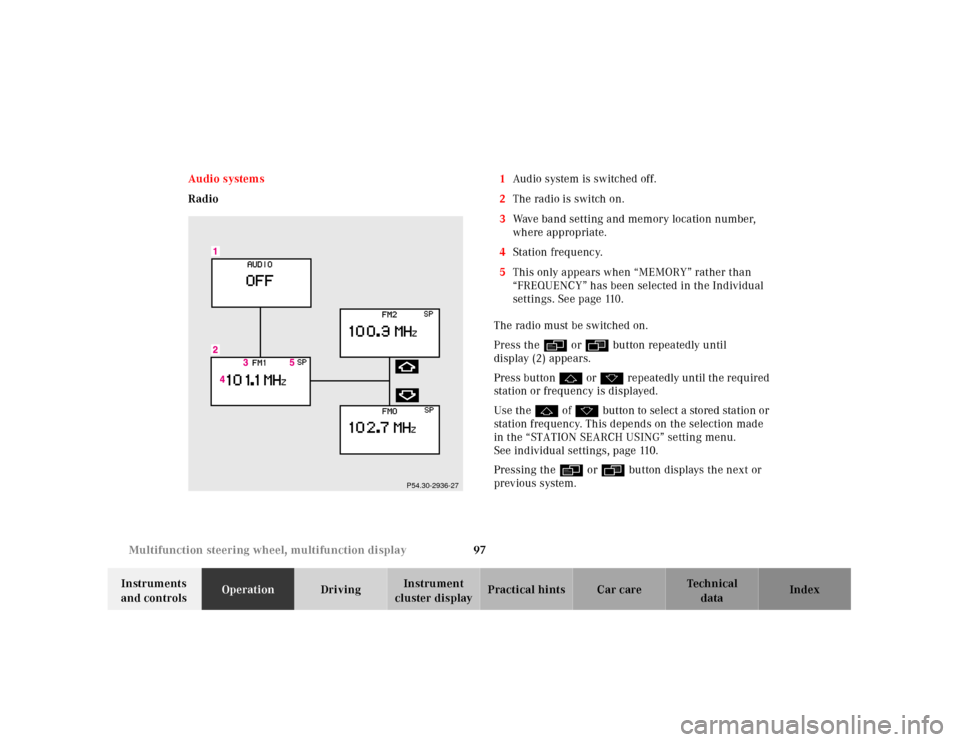
Radio1Audio system is switched off.
2The radio is switch on.
3Wave band setting and memory location number,
where appropriate.
4Station frequ enc y.
5This only appears when “MEMORY” rather than
“FREQUENCY” has been selected in the Individual
settings. See page 110.
The radio must be switched on.
Press the è or ÿ button repeatedly until
display (2) appears.
Press button j or k repeatedly until the required
station or frequency is displayed.
Use the j of k button to select a stored station or
station frequency. This depends on the selection made
in the “STATION SEARCH USING” setting menu.
See individual settings, page 110.
Pressing the è or ÿ button displays the next or
previous system.
P54.30-2936-27
Page 103 of 341
100 Multifunction steering wheel, multifunction display
Technical
data Instruments
and controlsOperationDrivingInstrument
cluster displayPractical hints Car care Index
Telephone
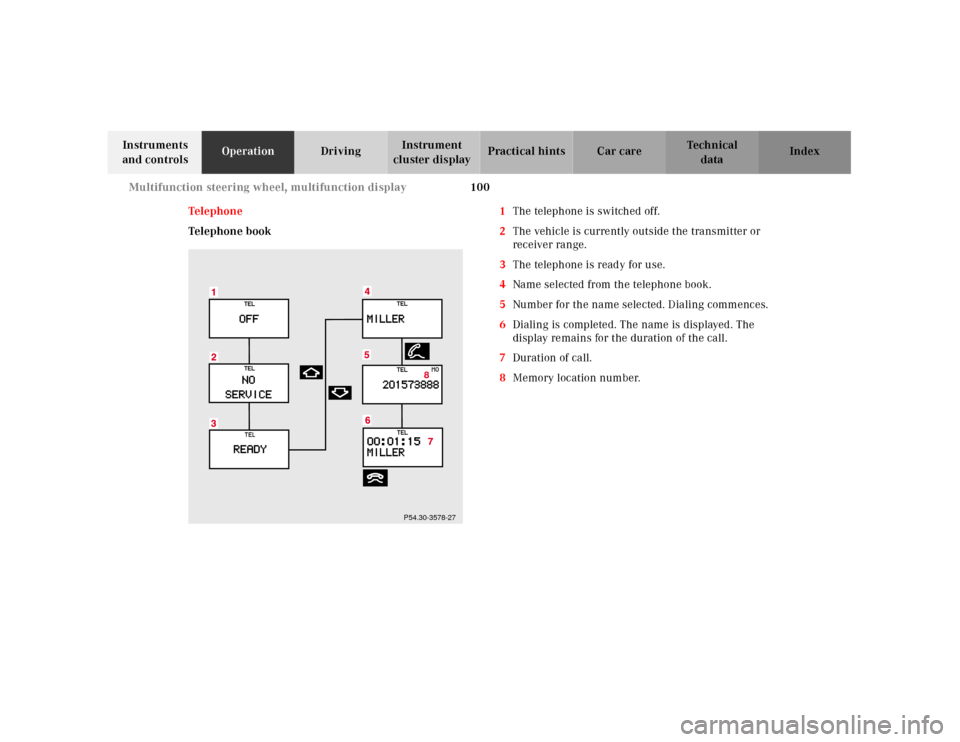
Telephone book1The telephone is switched off.
2The vehicle is currently outside the transmitter or
receiver range.
3The telephone is ready for use.
4Name selected from the telephone book.
5Number for the name selected. Dialing commences.
6Dialing is completed. The name is displayed. The
display remains for the duration of the call.
7Duration of call.
8Memory location number.
8
P54.30-3578-27
Page 105 of 341
102 Multifunction steering wheel, multifunction display
Technical
data Instruments
and controlsOperationDrivingInstrument
cluster displayPractical hints Car care Index
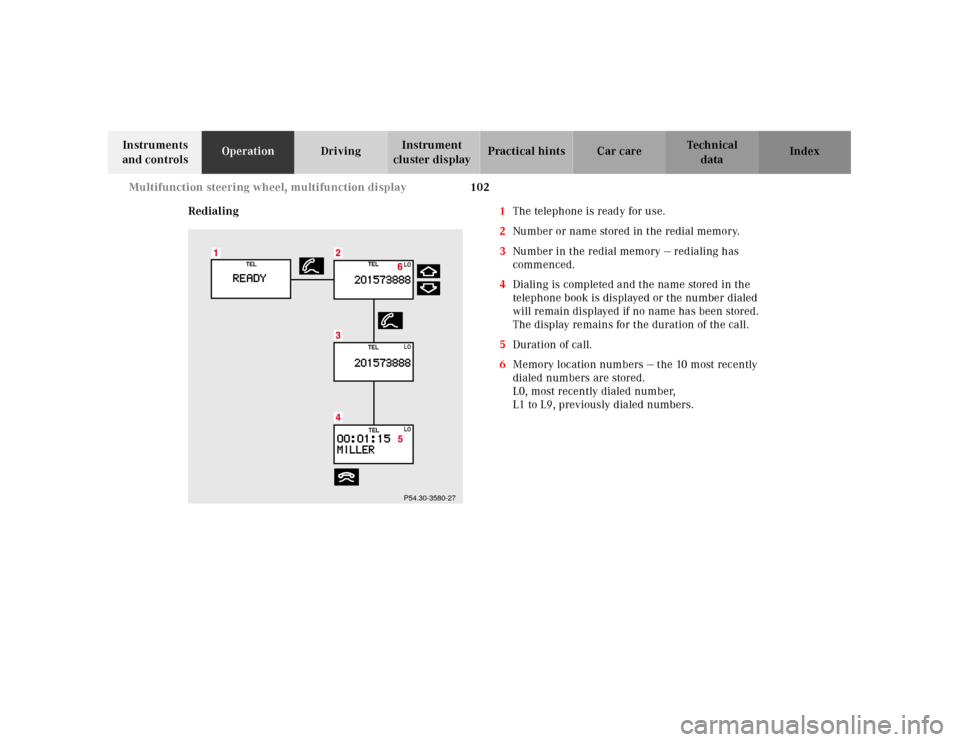
Redialing1The telephone is ready for use.
2Number or name stored in the redial memory.
3Number in the redial memory — redialing has
commenced.
4Dialing is completed and the name stored in the
telephone book is displayed or the number dialed
will remain displayed if no name has been stored.
The display remains for the duration of the call.
5Duration of call.
6Memory location numbers — the 10 most recently
dialed numbers are stored.
L0, most recently dialed number,
L1 to L9, previously dialed numbers.
P54.30-3580-27
Page 106 of 341
103 Multifunction steering wheel, multifunction display
Technical
data Instruments
and controlsOperationDrivingInstrument
cluster displayPractical hints Car care Index The telephone is switched on.
Press the è or ÿ button repeatedly until the
display (1) appears.
Pressing the í button activates the redial memory
and the most recently dialed number is displayed.
Pressing the j o r k button “browses” forwards or
backwards through the redial memory. The number
selected appears in the display.
Note:
Press the ì button if you do not wish to make a call.
The procedure is cancelled and display (1) appears.Press the í button when the required number or
name appears in the display (2).
The telephone number (3) is dialed.
Once dialing is completed the name (4) is displayed if
the name is stored in the telephone book; failing that
the number dialed will remain displayed. The display
remains for the duration of the call.
Pressing the ì button hangs up and display (1)
appears.
Pressing the è or ÿ button displays the next or
previous system.
Page 110 of 341
107 Multifunction steering wheel, multifunction display
Technical
data Instruments
and controlsOperationDrivingInstrument
cluster displayPractical hints Car care Index Press the button è or ÿ repeatedly until the
display (1) appears.
Press the j or k button until the display for trip
odometer memory “AFTER START” (1) and
“AFTER RESET” (2), or the display (3) for estimated
driving range remaining and fuel tank contents
appears.
Important!
The reading in the display “TANK CONTENT” might be
off by approximately +/– 2.2 US qt (2 l). Please refuel in
time.
Pressing the è or ÿ button displays the next or
previous system.
Note:
The “AFTER START” display (1) always appears when
the trip computer is called up.To reset the “AFTER START” (1) or “AFTER RESET” (2)
odometer memory at any time:
Call up the relevant display (1 or 2) using the j or
k button and press theJbutton in the instrument
cluster until the values are reset.
The “AFTER START” trip odometer reading is
automatically reset after four hours of electronic key not
being in steering lock position 2.
Page 111 of 341
108 Multifunction steering wheel, multifunction display
Technical
data Instruments
and controlsOperationDrivingInstrument
cluster displayPractical hints Car care Index
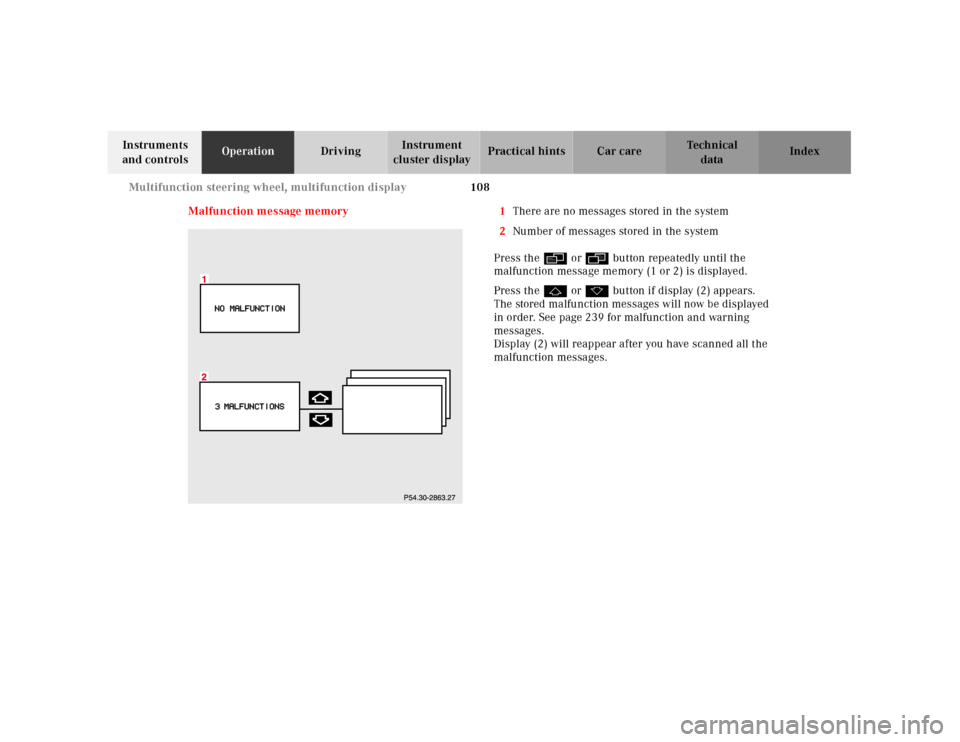
Malfunction message memory 1There are no messages stored in the system
2Number of messages stored in the system
Press the è or ÿ button repeatedly until the
malfunction message memory (1 or 2) is displayed.
Press the j or k button if display (2) appears.
The stored malfunction messages will now be displayed
in order. See page 239 for malfunction and warning
messages.
Display (2) will reappear after you have scanned all the
malfunction messages.
Page 112 of 341
109 Multifunction steering wheel, multifunction display
Technical
data Instruments
and controlsOperationDrivingInstrument
cluster displayPractical hints Car care Index Should any malfunctions be stored while driving, they
will reappear in the display (2) when the electronic key
is in steering lock position 0 or removed from the
steering lock.
Specific malfunctions can be recalled by pressing
buttonJ. Each malfunction or warning message must
be acknowledged by pressing buttonJ. Once all
messages are cancelled the odometer display should
reappear.
Pressing theJbutton in the instrument cluster
immediately switches to the next malfunction message.
The malfunction message memory will be cleared when
the electronic key is turned in the steering lock to
position 1 or 2. Should subsequent malfunctions occur,
they will be displayed in the malfunction message
memory.
Pressing the è or ÿ button displays the next or
previous system.Important!
Malfunctions and warning messages are only indicated
for certain systems and displayed to a low level of detail.
The malfunction and warning messages are simply a
reminder with respect to the operation of certain
systems and do not replace the driver’s responsibility to
maintain the vehicle’s operating safety by having all
required maintenance and safety checks performed on
the vehicle and by bringing the vehicle to an authorized
Mercedes-Benz Center to address the malfunction and
warning messages. See page 239.