Page 18 of 231
Page 19 of 231

Radio operation
17Contents - AudioCD operation ..................................... 40
Quick reference for CD drive
in the control unit and
CD changer operation ............... 40
General information on CD
playback ...................................... 42
CD playback ................................ 43
Loading a CD into the
CD drive ...................................... 44
Loading CDs in the
CD changer ................................. 45
Menu overview – CD operation 48
Switching on CD operation
(CD drive, CD changer) ............. 50Track select ................................ 51
Selecting CD’s ............................ 53
Fast forward / fast backward ... 55
CD track scan ............................. 56
Entering, altering and
deleting CD names .................... 57
Selecting playback mode .......... 60
CD playback mute ..................... 62
Error messages .......................... 63
Tips on caring for your CD’s .... 65
Multifunction steering wheel,
Multifunction display ............... 68
Sound settings .................................. 69
Adjust sound settings ............... 69
AudioContents – Audio ............................. 17
Radio operation ................................ 18
Quick reference – Radio ........... 18
Menu overview – Radio ............ 20
Switching radio operation on .. 22
Changing the Radio Band ........ 22
Selecting a station ..................... 24
Automatic Station Scan ............ 28
Memory functions ..................... 29
Radio playback mute ................. 38
Multifunction steering wheel,
Multifunction display ............... 39
Page 20 of 231
18
IntroductionAudioTelephone
Navigation
Index Info Services and
system settings
Radio operation
Quick reference – Radio
P82.85-6151-29
2
91
12
10
11
3
8
7
45
6
Page 21 of 231
Introduction
AudioTelephone
Navigation
Index Info Services and
system settings Radio operation
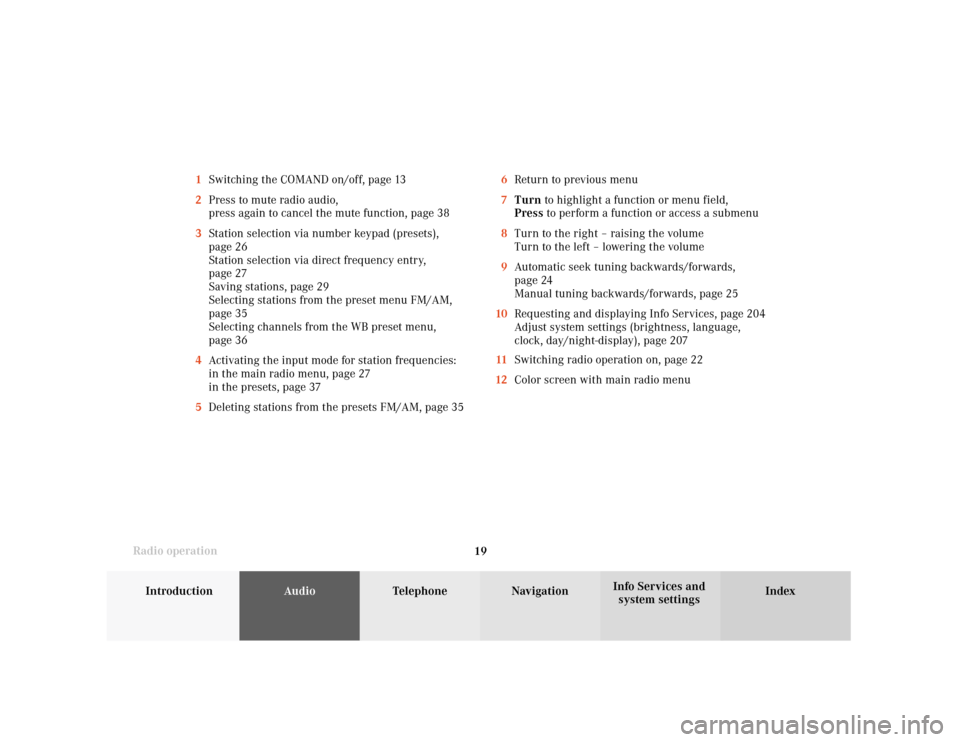
196Return to previous menu
7Turn to highlight a function or menu field,
Press to perform a function or access a submenu
8Turn to the right – raising the volume
Turn to the left – lowering the volume
9Automatic seek tuning backwards/forwards,
page 24
Manual tuning backwards/forwards, page 25
10Requesting and displaying Info Services, page 204
Adjust system settings (brightness, language,
clock, day/night-display), page 207
11Switching radio operation on, page 22
12Color screen with main radio menu 1Switching the COMAND on/off, page 13
2Press to mute radio audio,
press again to cancel the mute function, page 38
3Station selection via number keypad (presets),
page 26
Station selection via direct frequency entry,
page 27
Saving stations, page 29
Selecting stations from the preset menu FM/AM,
page 35
Selecting channels from the WB preset menu,
page 36
4Activating the input mode for station frequencies:
in the main radio menu, page 27
in the presets, page 37
5Deleting stations from the presets FM/AM, page 35
Page 22 of 231
20
IntroductionAudioTelephone
Navigation
Index Info Services and
system settings
Radio operation
Menu overview – Radio
8
7
5
4
3
21
6
P82.85-4810-29
9
Page 23 of 231
Introduction
AudioTelephone
Navigation
Index Info Services and
system settings Radio operation
21 1Main radio menu FM
2Current band (FM) and memory preset selected (1)
are displayed
3Current frequency
4 symbol indicates stereo reception
5Menu fields to activate submenus
6Main sound settings menu,
Adjust sound settings, page 697Auto preset
Save stations automatically, FM/AM, page 32
Select a station, page 33
8Main radio menu AM, page 23
Activate Weather band (WB), page 23
9Preset menu
Save stations manually FM, page 29
Save stations manually AM, page 31
Select a station, page 35
Page 24 of 231
22
IntroductionAudioTelephone
Navigation
Index Info Services and
system settings
Radio operation
Switching off the radio
Press
while the main radio menu is on the screen.
The following message will appear: “Radio off”.
To switch to another system, press the corresponding
button. Switching radio operation on and off
P82.85-2515-26
Switching on the radio
Press
. The radio will switch on.
The station last tuned to will begin to play. On FM and
AM frequency will appear in the display.
You can operate the telephone and navigation system
while the radio is on.
Page 25 of 231
Introduction
AudioTelephone
Navigation
Index Info Services and
system settings Radio operation
23
P82.85-2523-26
P82.85-2527-26
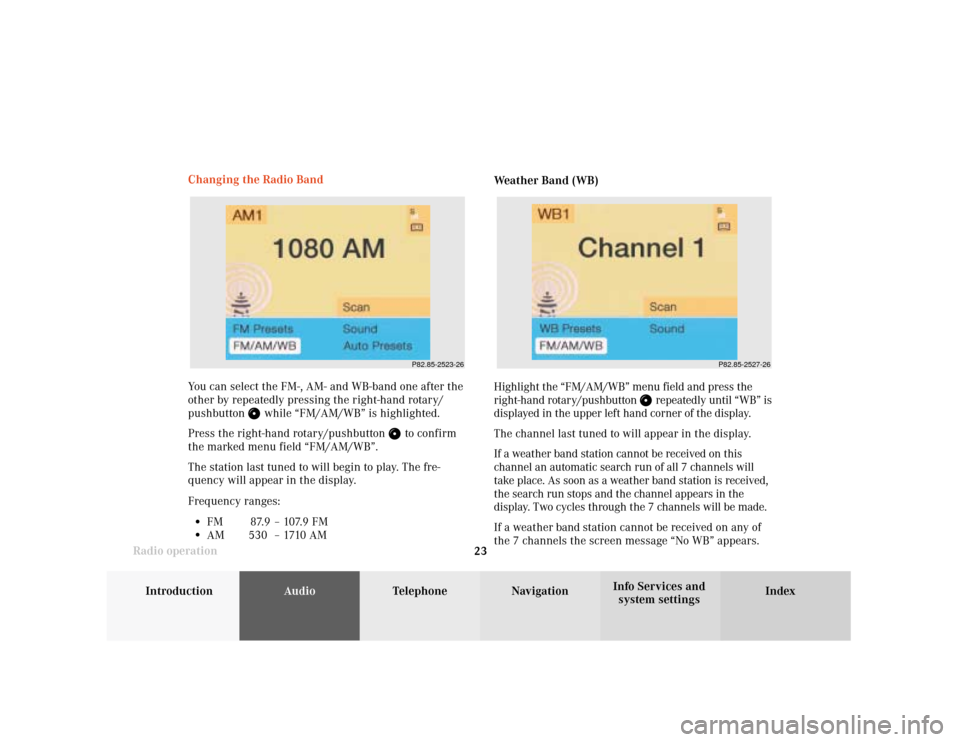
You can select the FM-, AM- and WB-band one after the
other by repeatedly pressing the right-hand rotary/
pushbutton
while “FM/AM/WB” is highlighted.
Press the right-hand rotary/pushbutton
to confirm
the marked menu field “FM/AM/WB”.
The station last tuned to will begin to play. The fre-
quency will appear in the display.
Frequency ranges:
•
FM 87.9 – 107.9 FM
•
AM 530 –1710AMWeather Band (WB)
Highlight the “FM/AM/WB” menu field and press the
right-hand rotary/pushbutton
repeatedly until “WB” is
displayed in the upper left hand corner of the display.
The channel last tuned to will appear in the display.
If a weather band station cannot be received on this
channel an automatic search run of all 7 channels will
take place. As soon as a weather band station is received,
the search run stops and the channel appears in the
display. Two cycles through the 7 channels will be made.
If a weather band station cannot be received on any of
the 7 channels the screen message “No WB” appears. Changing the Radio Band