2001 CADILLAC DEVILLE radio
[x] Cancel search: radioPage 147 of 397

2-77
The main components of the instrument panel are the following:
A. Air Outlets
B. Turn Signal/Multifunction Lever
C. HVAC Steering Wheel Controls (or Cellular
Telephone Controls, If Equipped)
D. Instrument Panel Cluster
E. Audio Steering Wheel Controls
F. Driver Information Center Buttons
G. Electronic Climate Controls
H. Lamp ControlsI. Night Vision Controls (Option)
J. Hood Release
K. Cruise Control
L. Horn
M. Cruise Control
N. Radio
O. Ashtray
P. Glove Box
Page 169 of 397

2-99
Driver Information Center (DIC) Messages
These messages will appear if there is a problem sensed
in one of your vehicle's systems. Vehicles that are first
sold in Canada will have a number after each message.
This number helps to identify the problem. You must
then press INFO or INFO RESET to clear the display
screen for further use. However, be sure to take any
message that appears on the display screen seriously
and remember that pressing the INFO or INFO RESET
button will only make the message disappear, not
the problem.
DIC messages can also be displayed in French, German,
Spanish and Japanese. Contact your dealer to have the
language display adjusted for your vehicle.
BATTERY NOT CHARGING
- 7: This message will
appear if the battery is not being charged. Have the
electrical system checked by your dealership at your
earliest convenience.BATTERY SAVER ACTIVE
- 27: This message
is displayed when the vehicle has detected that the
battery voltage is dropping beyond a reasonable point.
The battery saver system will start reducing certain
features of the vehicle that you may not be able to
notice. At the point that features are disabled, this
message is displayed. It means that the vehicle is trying
to save the charge in the battery. Turn off unnecessary
accessories to allow the battery to recharge.
BATTERY VOLTAGE HIGH
- 8: This message
shows that the electrical charging system is
overcharging (more than 16 volts). To avoid being
stranded, have the electrical system checked by your
dealership. You can reduce the charging overload by
using the accessories. Turn on the lamps and radio, set
the climate control on AUTO and the fan speed on HI,
and turn the rear window defogger on. You can monitor
battery voltage on the DIC by pressing the INFO button.
The normal range is 11.5 to 15.5 volts when the engine
is running.
Page 178 of 397

2-108
Vehicle Programming and
Personalization Features
(If Equipped)
If your vehicle is equipped with personalization,
you can program certain features to a preferred setting
for up to two people. If your vehicle does not have
personalization then some of the features on your
vehicle have been programmed for all drivers. On all
vehicles, other features such as HVAC settings, radio
preset settings, exterior lighting at unlock, remote lock
and unlock confirmation, and automatic door locks have
already been programmed for your convenience. If the
vehicle is equipped with personalization then the seat
position, steering column position (if equipped) and
outside mirror position can also be programmed.
The Navigation screen preferences (if equipped) will
remain at the last set position.
If your vehicle is equipped with personalization the
driver's preferences are recalled by pressing the unlock
button on the remote keyless entry transmitter or by
pressing the appropriate memory button ª1º or ª2º
located on the driver's door. Certain features can be
programmed not to recall until the key is placed in the
ignition. To change feature preferences you must enter
feature programming (see below).
Entering Feature Programming
To begin programming, the ignition must be in ON,
your vehicle in PARK (P), and if your vehicle has
memory, you must press the appropriate memory button
ª1º or ª2º, located on the driver's door panel, prior to
programming. The display will show either ª1º or ª2º,
depending on which was selected. Press the INFO
button one or more times until the FEATURE
PROGRAMMING prompt appears on the DIC display.
Press the ON/OFF button to enter FEATURE
PROGRAMMING. To exit, press the INFO RESET
or INFO buttons.
Remote Recall Memory (If Equipped)
To enter feature programming, follow the instructions
listed previously, then press the down arrow on the
INFO button one or more times until the REMOTE
RECALL MEMORY prompt appears. To turn the
feature on, press the ON/OFF button until ON is
displayed on the DIC. The seat and mirror memory
settings that have been previously programmed can be
recalled by pressing the unlock button on the remote
keyless entry transmitter. The steering column will
move when the key is inserted in the ignition and turned
to ON. To turn the feature off, press the ON/OFF button
until OFF is displayed.
Page 183 of 397
2-113
Comfort Controls and Radio
System Personalization
These features allow both drivers to personalize their
own climate control settings as well as their radio
settings. For more information, see ªClimate Control
Personalizationº and ªRadio Personalizationº in
the Index.
Continuous Variable Road Sensing
Suspension (CVRSS) (If Equipped)
The CVRSS automatically adjusts the ride of your
vehicle. Automatic ride control is achieved through a
computer used to control and monitor the suspension
system. The controller receives input from various
sensors to determine the proper system response.
If the controller detects a problem within the system,
the DIC will display a SERVICE SUSPENSION SYS
message. If this message appears, have your vehicle
serviced at your dealership.
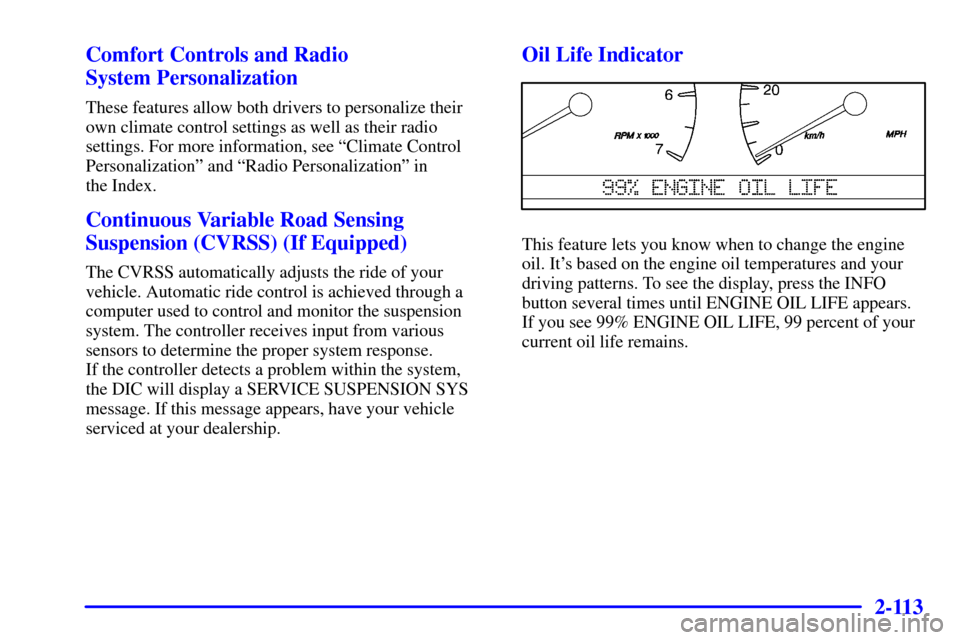
Oil Life Indicator
This feature lets you know when to change the engine
oil. It's based on the engine oil temperatures and your
driving patterns. To see the display, press the INFO
button several times until ENGINE OIL LIFE appears.
If you see 99% ENGINE OIL LIFE, 99 percent of your
current oil life remains.
Page 187 of 397

2-117
Navigation (Option)
Navigation Display Controls
The display screen is located in the center on the
instrument panel. There are seven ªhardº buttons
and a touch sensitive screen.Your vehicle may be equipped with a turn by turn
navigation guidance system that includes a CD ROM
map media covering nine regional areas throughout the
contiguous United States. In addition, the system
includes intersection and freeway entrances, route
planning, a programmable address book, points of
interest, a list of restaurants, emergency phone numbers,
and a list of hotels and motels for all of the major cities
on each regional CD. The navigation system can also
communicate with the radio data system to receive
broadcast announcements on traffic, weather
information and emergency alert communications.
For more information on how to use this system,
see ªNavigationº supplement.
Page 190 of 397

3-
3-1
Section 3 Comfort Controls and Audio Systems
In this section, you'll find out how to operate the comfort control and audio systems offered with your vehicle.
Be sure to read about the particular systems supplied with your vehicle.
3
-2 Comfort Controls
3
-2 Climate Control Panel
3
-6 Electronic Solar Sensor
3
-6 Air Conditioning
3
-6 Heating
3
-7 Defogging and Defrosting
3
-7 Rear Window Defogger
3
-8 Rear Climate Control
3
-9 Ventilation System
3
-10 HVAC Steering Wheel Controls (If Equipped)
3
-10 Climate Control Personalization (If Equipped)
3
-11 Audio Systems
3
-11 Setting the Clock
3
-11 AM-FM Stereo with Cassette Tape Player
3
-15 AM-FM Stereo with Cassette Tape and
Compact Disc Player
3
-19 AM-FM Stereo with Cassette Tape and
Compact Disc Player with Radio Data
Systems (RDS) and Digital Signal Processing
(DSP) (If Equipped)3
-29 AM-FM Stereo with Cassette Tape and
MiniDisc Player with Radio Data Systems
(RDS) and Digital Signal Processing (DSP)
(If Equipped)
3
-39 Radio Data Systems (RDS) Program
Type (PTY) Selections
3
-40 Navigation/Radio System (Option)
3
-40 CD Adapter Kits
3
-41 Glovebox-Mounted CD Changer (Option)
3
-44 Radio Personalization with Home and Away
Feature (If Equipped)
3
-44 Theft-Deterrent Feature
3
-45 Audio Steering Wheel Controls
3
-46 Understanding Radio Reception
3
-46 Tips About Your Audio System
3
-47 Care of Your Cassette Tape Player
3
-49 Care of Your Compact Discs
3
-49 Care of Your Compact Disc Player
3
-49 Diversity Antenna System
Page 200 of 397

3-11
Audio Systems
Your audio system has been designed to operate easily
and give years of listening pleasure. You will get the
most enjoyment out of it if you acquaint yourself with it
first. Find out what your audio system can do and how
to operate all its controls, to be sure you're getting the
most out of the advanced engineering that went into it.
Setting the Clock
Press and hold HR or MN until the time display begins
to change. Release the button as you get close to the
correct time. The time may be set anytime the clock is
displayed. There is a two
-second delay before the clock
goes into time
-set mode.
AM-FM Stereo with Cassette Tape Player
Playing the Radio
PWR/VOL: Press this knob lightly to turn the system
on. Press the knob again to turn the system off. To
increase volume, turn the knob clockwise. Turn it
counterclockwise to decrease volume.
HR or MN: Display the time with the ignition off by
pressing this button.
Page 201 of 397

3-12
SOURCE: Press this button to select a source. Sources
include cassette and compact disc. The audio source
must be loaded to play. Available loaded sources are
shown on the display. If a source is being used, it will be
underlined on the display. If none of the audio sources
are loaded, NO SOURCE LOADED will appear on the
display. Press this button again or press BAND to switch
back to the radio.
MUTE: Press this button to silence the system. Press it
again to turn on the sound.
Finding a Station
BAND: Press this button to select AM, FM1 or FM2.
TUNE
-SEEK: When this button is pressed it has
two positions. Press this button to the first position to
manually tune to higher or lower stations. If this button
is held at the first position for a few seconds, the radio
will continue tuning until this button is released. Press
this button to the second position and release to seek to
the next higher or lower radio station.
SCAN: Press this button for less than two seconds to
scan radio stations. The radio will go to a station, stop
for five seconds, then go on to the next station. Press
this button again to stop scanning.PUSHBUTTONS: The six numbered pushbuttons let
you return to your favorite stations. You can set up to
18 stations (six AM, six FM1 and six FM2). Just:
1. Turn the radio on.
2. Press BAND to select AM, FM1 or FM2.
3. Tune in the desired station.
4. Press and hold one of the six numbered buttons for
more than two seconds until you hear a beep.
Whenever you press that numbered button for less
than two seconds, the station you set will return.
5. Repeat the steps for each pushbutton.
When battery power is removed and later applied, you
will not have to reset your radio presets because the
radio remembers them.
PRESET SCAN: Press and hold SCAN for more than
two seconds until you hear a beep to listen to each of
your preset stations for five seconds. The radio will go
to the first preset station stored on your pushbuttons,
stop for five seconds, then go on to the next preset
station. Press SCAN again to stop scanning. If a preset
station has weak reception, the radio will not stop at the
preset station.