Page 84 of 299
Multifunction steering wheel, multifunction display
Te ch n ica l
data Instruments
and controlsOperationDrivingInstrument
cluster displayPractical hints Car care Index
Multifunction steering wheel, multifunction display
84
ProCarManuals.com
Page 85 of 299

Multifunction steering wheel, multifunction display
Te ch n ica l
data Instruments
and controlsOperationDrivingInstrument
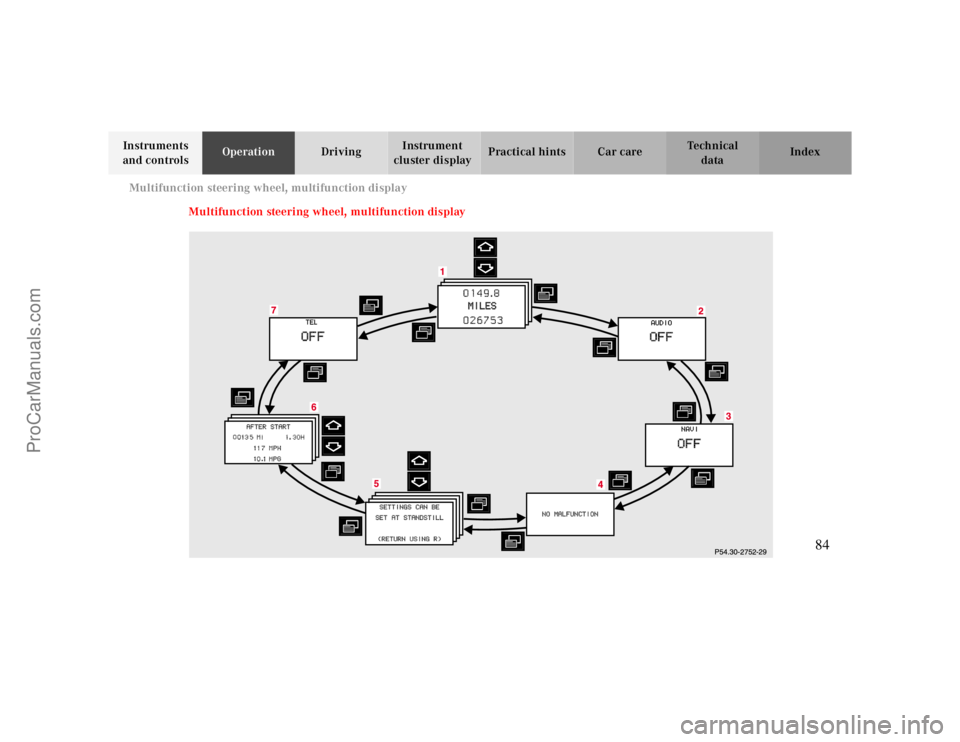
cluster displayPractical hints Car care Index Depending on your vehicle’s equipment, you may use
the buttons on the multifunction steering wheel to call
up, control and set the following systems in the
multifunction display:
1Trip odometer and main odometer, see page 88
Flexible service system (FSS), see page 105
Engine oil level indicator, see page 108
2Audio systems, see page 89
Radio, see page 89
CD player (optional), see page 90
Cassette player, see page 91
3Navigation system (optional), see page 97
4Malfunction message memory, see page 100
5Individual settings, see page 102
6Trip computer, see page 98
After start
After reset
Fuel tank content
7Telephone (if so equipped), see page 92Press the è or ÿ button repeatedly until the
required system is displayed.
Pressing the è button advances the display to the
ne xt system.
Pressing the ÿ button returns the display to the
previous system.
You may call up additional displays within some of these
categories by pressing the j or k button.
Wa r n i n g !
A driver’s attention to the road must always be his /
her primary focus when driving. For your safety and the safety of others,
programming and selecting
features through the
multifunction steering wheel should only be done
by the driver when traffic and road conditions
permit it to be done safely, including pulling over to a
safe location where that is required for safe operation.
85
ProCarManuals.com
Page 86 of 299
Multifunction steering wheel, multifunction display
Te ch n ica l
data Instruments
and controlsOperationDrivingInstrument
cluster displayPractical hints Car care Index
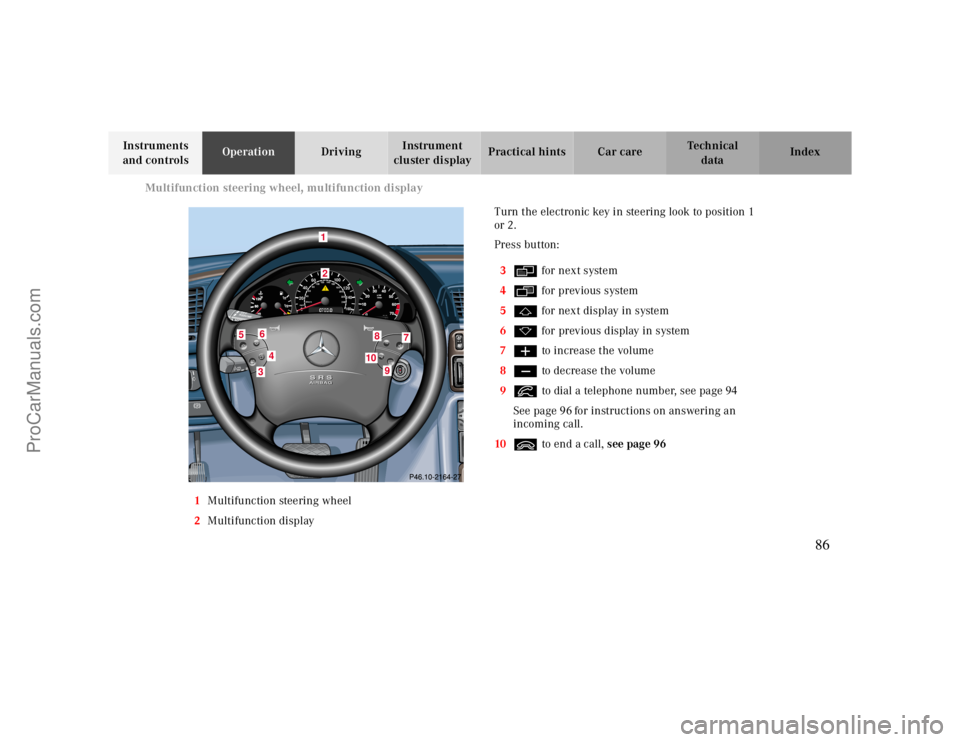
1Multifunction steering wheel
2Multifunction displayTurn the electronic key in steering look to position 1
or 2.
Press button:
3è for next system
4ÿ for previous system
5j for next display in system
6k for previous display in system
7æ to increase t he volume
8ç to decrease t he volume
9í to dial a telephone number, see page 94
See page96for instructions on answering an
incoming call.
10ì to end a call,see page 96
10
040608060
40mph20km/h20100
120
140160
80100VDO
180
200
220
240 160 120 140
9
9
T
E
L
OFF
RESUME
12
3
4
5
6
7
810
1
34
5
6
8
7
9
10
86
ProCarManuals.com
Page 87 of 299
Multifunction steering wheel, multifunction display
Te ch n ica l
data Instruments
and controlsOperationDrivingInstrument
cluster displayPractical hints Car care Index Press the è or ÿ button repeatedly until the
required system is displayed.
Pressing the è button advances the display to the
next system.
Pressing the ÿ button returns the display to the
previous system.
You may call up additional displays in some systems by
pressing the j or k button.Note:
The displays in the multifunction display can be set to
German, English, French, Italian or Spanish language.
See the “TEXT” individual setting on page 10
2
for
instructions on changing the language setting.
The displays for the audio systems (radio, CD player,
cassette player) will appear in English, regardless of the
language selected.
87
ProCarManuals.com
Page 88 of 299
Multifunction steering wheel, multifunction display
Te ch n ica l
data Instruments
and controlsOperationDrivingInstrument
cluster displayPractical hints Car care Index
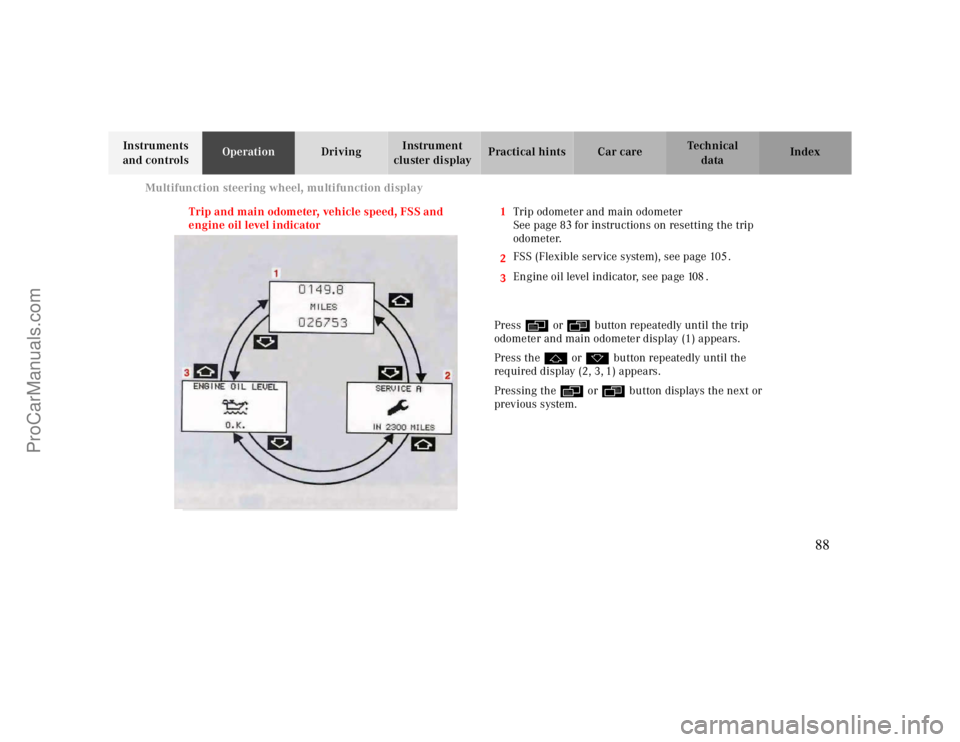
Trip and main odometer, vehicle speed, FSS and
engine oil level indicator1Trip odometer and main odometer
See page 8
3for instructions on resetting the trip
odometer.
2
3FSS (Flexible service system), see page 105.
Engine oil level indicator, see page 108.
Press è or ÿ button repeatedly until the trip
odometer and main odometer display (1) appears.
Press the j or k button repeatedly until the
required display (2, 3, 1) appears.
Pressing the è or ÿ button displays the next or
previous system.
88
ProCarManuals.com
Page 89 of 299
Multifunction steering wheel, multifunction display
Te ch n ica l
data Instruments
and controlsOperationDrivingInstrument
cluster displayPractical hints Car care Index Audio systems
Radio1Audio system is switched off.
2The radio is switched on.
3Wave band setting and memory location number,
where appropriate.
4Station frequ enc y.
5This only appears when “MEMORY” rather than
“FREQUENCY” has been selected in the individual
settings. See page 102.
The radio must be switched on.
Press the è or ÿ button repeatedly until
display (2) appears.
Press button j or k repeatedly until the required
station or frequency is displayed.
Use the j of k button to select a stored station or
station frequency. This depends on the selection made
in the “STATION SEARCH USING” setting menu.
See page 10
2.
Pressing the è or ÿ button displays the next or
previous system.
P54.30-2936-27
89
ProCarManuals.com
Page 90 of 299
Multifunction steering wheel, multifunction display
Te ch n ica l
data Instruments
and controlsOperationDrivingInstrument
cluster displayPractical hints Car care Index
CD player (optional)1Audio system is switched off.
2The CD player is switched on.
3The number of the CD currently playing is displayed
if you are using a CD changer.
4Track number.
The radio must be switched on.
The CD player must be switched on.
Press the è or ÿ button repeatedly until
display (2) appears.
Press the j or k button repeatedly until the
required track number (4) is displayed.
Pressing the è or ÿ button displays the next or
previous system.
Note:
To select a CD from the magazine, press a number on
the audio system or the (optional) COMAND system key
pad located in the center dashboard.
90
ProCarManuals.com
Page 91 of 299
Multifunction steering wheel, multifunction display
Te ch n ica l
data Instruments
and controlsOperationDrivingInstrument
cluster displayPractical hints Car care Index Cassette player1Audio system is switched off.
2The cassette player is switched on.
3Side being played.
The radio must be switched on.
The cassette player must be switched on.
Press the è or ÿ button repeatedly until
display (2) appears.
Pressing the j button fast forwards on to the next
track.
Pressing the k button rewinds the cassette to the
beginning of the current track.
Pressing the è or ÿ button displays the next or
previous system.
Note:
To select the reverse side of the tape, press button below
track number on the audio system display, or enter
request on the (optional) COMAND system located in
the center dashboard.
91
ProCarManuals.com