2000 CHEVROLET CORVETTE light
[x] Cancel search: lightPage 180 of 361

3-14
Finding a Station
AM
-FM: Press this button to switch between AM, FM1
and FM2. The display shows your selection.
TUNE: Press this knob lightly so it extends. Turn it to
choose radio stations. Push the knob back into its stored
position when you're not using it.
SEEK: Press the right or left arrow to go to the
next higher or lower station. The sound will mute
while seeking.
SCAN: Press one of the SEEK arrows for two seconds,
and SCAN will appear in the display. Use SCAN to
listen to stations for a few seconds. The radio will go to
a station, stop for a few seconds, then go on to the next
station. Press SEEK again to stop scanning. The sound
will mute while scanning.
PUSHBUTTONS: The six numbered pushbuttons let
you return to your favorite stations. You can set up to
18 stations (six AM, six FM1 and six FM2). Just:
1. Turn the radio on.
2. Press AM
-FM to select the band.
3. Tune in the desired station.4. Press AUTO TONE to select the equalization that
best suits the type of station selected.
5. Press and hold one of the six numbered buttons.
The sound will mute. When it returns, release the
button. Whenever you press that numbered button,
the station you set will return and the AUTO
TONE equalization that you selected will also be
automatically selected for that button.
6. Repeat the steps for each pushbutton.
P.SCAN: Press this button to listen to each of your
favorite stations stored on your pushbuttons for a few
seconds. The radio will scan through each of the stations
stored on your pushbuttons, except those stations with
weak reception. The AUTO TONE setting stored for
that pushbutton will be automatically chosen. Press
P.SCAN or one of the pushbuttons again to stop
scanning. P.SCAN will be displayed whenever the tuner
is in the P.SCAN mode. The channel number (P1
-P6)
will appear momentarily just before the frequency is
displayed. In FM mode, this function will scan through
both FM1 and FM2 preset stations and FM1 or FM2 will
appear on the display.
Page 181 of 361
3-15
Setting the Tone
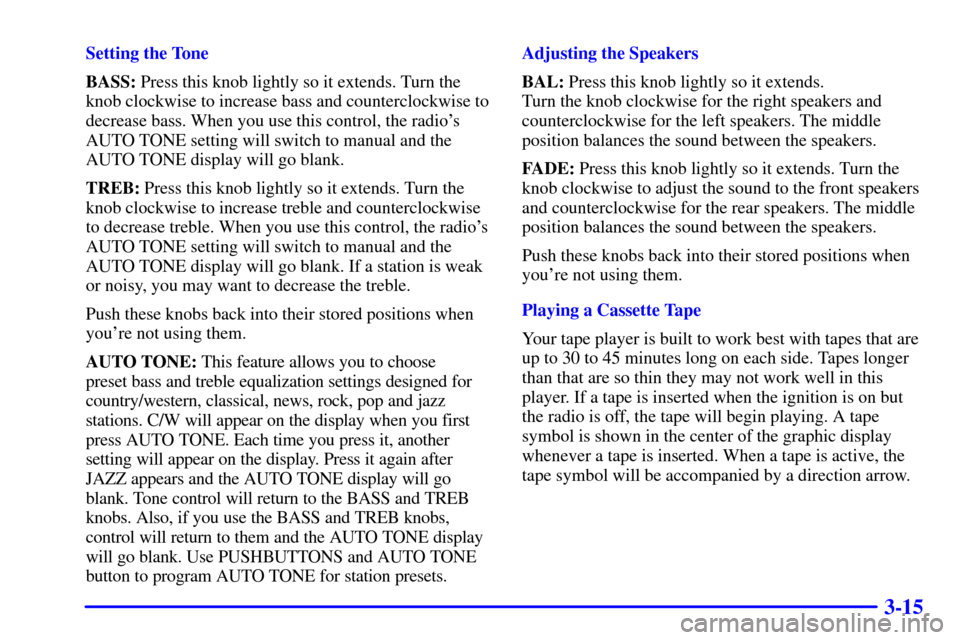
BASS: Press this knob lightly so it extends. Turn the
knob clockwise to increase bass and counterclockwise to
decrease bass. When you use this control, the radio's
AUTO TONE setting will switch to manual and the
AUTO TONE display will go blank.
TREB: Press this knob lightly so it extends. Turn the
knob clockwise to increase treble and counterclockwise
to decrease treble. When you use this control, the radio's
AUTO TONE setting will switch to manual and the
AUTO TONE display will go blank. If a station is weak
or noisy, you may want to decrease the treble.
Push these knobs back into their stored positions when
you're not using them.
AUTO TONE: This feature allows you to choose
preset bass and treble equalization settings designed for
country/western, classical, news, rock, pop and jazz
stations. C/W will appear on the display when you first
press AUTO TONE. Each time you press it, another
setting will appear on the display. Press it again after
JAZZ appears and the AUTO TONE display will go
blank. Tone control will return to the BASS and TREB
knobs. Also, if you use the BASS and TREB knobs,
control will return to them and the AUTO TONE display
will go blank. Use PUSHBUTTONS and AUTO TONE
button to program AUTO TONE for station presets.Adjusting the Speakers
BAL: Press this knob lightly so it extends.
Turn the knob clockwise for the right speakers and
counterclockwise for the left speakers. The middle
position balances the sound between the speakers.
FADE: Press this knob lightly so it extends. Turn the
knob clockwise to adjust the sound to the front speakers
and counterclockwise for the rear speakers. The middle
position balances the sound between the speakers.
Push these knobs back into their stored positions when
you're not using them.
Playing a Cassette Tape
Your tape player is built to work best with tapes that are
up to 30 to 45 minutes long on each side. Tapes longer
than that are so thin they may not work well in this
player. If a tape is inserted when the ignition is on but
the radio is off, the tape will begin playing. A tape
symbol is shown in the center of the graphic display
whenever a tape is inserted. When a tape is active, the
tape symbol will be accompanied by a direction arrow.
Page 185 of 361

3-19
Finding a Station
AM
-FM: Press this button to switch between AM, FM1
and FM2. The display shows your selection.
TUNE: Press this knob lightly so it extends. Turn it to
choose radio stations. Push the knob back into its stored
position when you're not using it.
SEEK: Press the right or left arrow to go to the
next higher or lower station. The sound will mute
while seeking.
SCAN: Press one of the SEEK arrows for two seconds,
and SCAN will appear on the display. Use SCAN to
listen to stations for a few seconds. The radio will go to
a station, stop for a few seconds, then go on to the next
station. Press SEEK again to stop scanning. The sound
will mute while scanning.
PUSHBUTTONS: The six numbered pushbuttons let
you return to your favorite stations. You can set up to
18 stations (six AM, six FM1 and six FM2). Just:
1. Turn the radio on.
2. Press AM
-FM to select the band.
3. Tune in the desired station.4. Press AUTO TONE to select the equalization that
best suits the type of station selected.
5. Press and hold one of the six numbered buttons.
The sound will mute. When it returns, release the
button. Whenever you press that numbered button,
the station you set will return and the AUTO
TONE equalization that you selected will also be
automatically selected for that button.
6. Repeat the steps for each pushbutton.
P.SCAN: Press this button to listen to each of your
favorite stations stored on your pushbuttons for a few
seconds. The radio will scan through each of the stations
stored on your pushbuttons, except those stations with
weak reception. The AUTO TONE setting stored for
that pushbutton will be automatically chosen. Press
P.SCAN or one of the pushbuttons again to stop
scanning. P.SCAN will be displayed whenever the tuner
is in the P.SCAN mode. The channel number (P1
-P6)
will appear momentarily just before the frequency is
displayed. In FM mode, this function will scan through
both FM1 and FM2 preset stations and FM1 or FM2 will
appear on the display.
Page 186 of 361
3-20
Setting the Tone
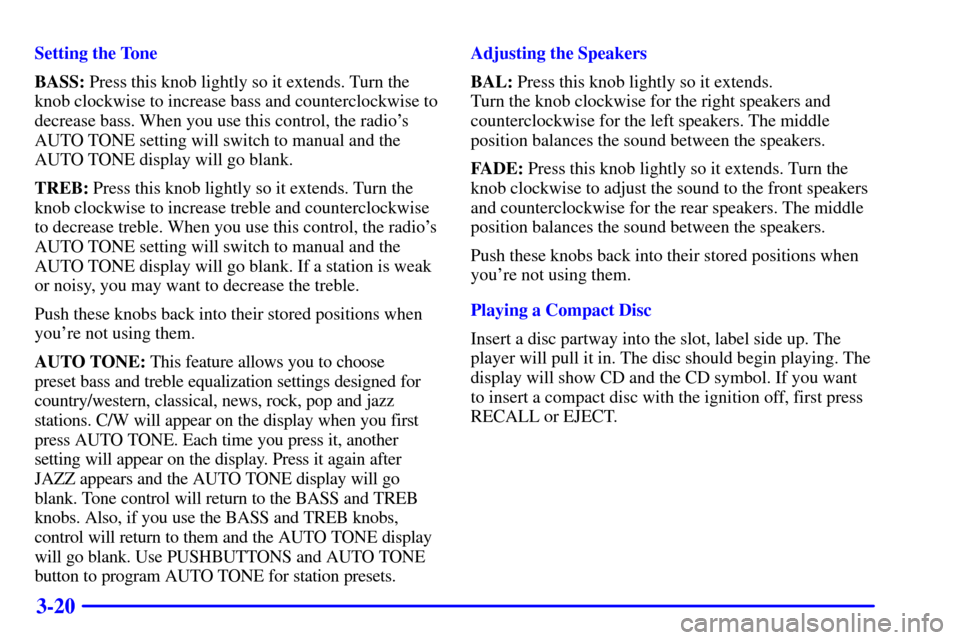
BASS: Press this knob lightly so it extends. Turn the
knob clockwise to increase bass and counterclockwise to
decrease bass. When you use this control, the radio's
AUTO TONE setting will switch to manual and the
AUTO TONE display will go blank.
TREB: Press this knob lightly so it extends. Turn the
knob clockwise to increase treble and counterclockwise
to decrease treble. When you use this control, the radio's
AUTO TONE setting will switch to manual and the
AUTO TONE display will go blank. If a station is weak
or noisy, you may want to decrease the treble.
Push these knobs back into their stored positions when
you're not using them.
AUTO TONE: This feature allows you to choose
preset bass and treble equalization settings designed for
country/western, classical, news, rock, pop and jazz
stations. C/W will appear on the display when you first
press AUTO TONE. Each time you press it, another
setting will appear on the display. Press it again after
JAZZ appears and the AUTO TONE display will go
blank. Tone control will return to the BASS and TREB
knobs. Also, if you use the BASS and TREB knobs,
control will return to them and the AUTO TONE display
will go blank. Use PUSHBUTTONS and AUTO TONE
button to program AUTO TONE for station presets.Adjusting the Speakers
BAL: Press this knob lightly so it extends.
Turn the knob clockwise for the right speakers and
counterclockwise for the left speakers. The middle
position balances the sound between the speakers.
FADE: Press this knob lightly so it extends. Turn the
knob clockwise to adjust the sound to the front speakers
and counterclockwise for the rear speakers. The middle
position balances the sound between the speakers.
Push these knobs back into their stored positions when
you're not using them.
Playing a Compact Disc
Insert a disc partway into the slot, label side up. The
player will pull it in. The disc should begin playing. The
display will show CD and the CD symbol. If you want
to insert a compact disc with the ignition off, first press
RECALL or EJECT.
Page 195 of 361

3-29 Care of Your Cassette Tape Player
A tape player that is not cleaned regularly can cause
reduced sound quality, ruined cassettes or a damaged
mechanism. Cassette tapes should be stored in their
cases away from contaminants, direct sunlight and
extreme heat. If they aren't, they may not operate
properly or may cause failure of the tape player.
Your tape player should be cleaned regularly after every
50 hours of use. Your radio may display CLN to indicate
that you have used your tape player for 50 hours without
resetting the tape clean timer. If this message appears
on the display, your cassette tape player needs to be
cleaned. It will still play tapes, but you should clean it as
soon as possible to prevent damage to your tapes and
player. If you notice a reduction in sound quality, try a
known good cassette to see if it is the tape or the tape
player at fault. If this other cassette has no improvement
in sound quality, clean the tape player.
The recommended cleaning method for your
cassette tape player is the use of a scrubbing action,
non
-abrasive cleaning cassette with pads which scrub
the tape head as the hubs of the cleaner cassette turn.
The recommended cleaning cassette is available through
your dealership (GM Part No. 12344789).When using a scrubbing action, non
-abrasive cleaning
cassette, it is normal for the cassette to eject because
your unit is equipped with a cut tape detection feature
and a cleaning cassette may appear as a broken tape.
To prevent the cleaning cassette from being ejected,
use the following steps.
1. Turn the ignition to ON or ACC.
2. Turn the radio off.
3. Press and hold the TAPE AUX button for five
seconds. The tape symbol on the display will flash
for two seconds.
4. Insert the scrubbing action cleaning cassette.
5. Eject the cleaning cassette after the manufacturer's
recommended cleaning time.
When the cleaning cassette has been ejected, the cut tape
detection feature is active again.
You may also choose a non
-scrubbing action, wet-type
cleaner which uses a cassette with a fabric belt to clean
the tape head. This type of cleaning cassette will not
eject on its own. A non
-scrubbing action cleaner may
not clean as thoroughly as the scrubbing type cleaner.
The use of a non
-scrubbing action, dry-type cleaning
cassette is not recommended.
Page 196 of 361
3-30
After you clean the player, press and hold EJECT for
five seconds to reset the CLN indicator. The radio will
display
--- to show the indicator was reset.
Cassettes are subject to wear and the sound quality may
degrade over time. Always make sure the cassette tape
is in good condition before you have your tape
player serviced.
Care of Your Compact Discs
Handle discs carefully. Store them in their original cases
or other protective cases and away from direct sunlight
and dust. If the surface of a disc is soiled, dampen a
clean, soft cloth in a mild, neutral detergent solution and
clean it, wiping from the center to the edge.
Be sure never to touch the signal surface when handling
discs. Pick up discs by grasping the outer edges or the
edge of the hole and the outer edge.
Care of Your Compact Disc Player
The use of CD lens cleaner discs is not advised, due to
the risk of contaminating the lens of the CD optics with
lubricants internal to the CD mechanism.
Fixed Mast Antenna
The fixed mast antenna can withstand most car washes
without being damaged. If the mast should ever become
slightly bent, you can straighten it out by hand. If the
mast is badly bent, as it might be by vandals, you should
replace it.
Check every once in a while to be sure the mast is still
tightened to the rear quarter panel.
Power Antenna Mast Care (If Equipped)
Your power antenna will look its best and work well
if it's cleaned from time to time. To clean the
antenna mast:
1. Turn on the ignition and radio to raise the antenna.
2. Dampen a clean cloth with mineral spirits or
equivalent solvent.
3. Wipe the cloth over the mast sections, removing
any dirt.
4. Wipe dry with a clean cloth.
5. Make the antenna go up and down by turning the
radio or ignition off and on.
6. Repeat if necessary.
Page 205 of 361
4-7
Avoid needless heavy braking. Some people drive
in spurts
-- heavy acceleration followed by heavy
braking
-- rather than keeping pace with traffic.
This is a mistake. Your brakes may not have time
to cool between hard stops. Your brakes will wear out
much faster if you do a lot of heavy braking. If you
keep pace with the traffic and allow realistic following
distances, you will eliminate a lot of unnecessary
braking. That means better braking and longer
brake life.
If your engine ever stops while you're driving, brake
normally but don't pump your brakes. If you do,
the pedal may get harder to push down. If your engine
stops, you will still have some power brake assist.
But you will use it when you brake. Once the power
assist is used up, it may take longer to stop and the
brake pedal will be harder to push.
Anti-Lock Brakes (ABS)
Your vehicle has anti-lock brakes (ABS). ABS is an
advanced electronic braking system that will help
prevent a braking skid.
When you start your engine and begin to drive away,
your anti
-lock brake system will check itself. You may
hear a momentary motor or clicking noise while this test
is going on, and you may even notice that your brake
pedal moves a little. This is normal.
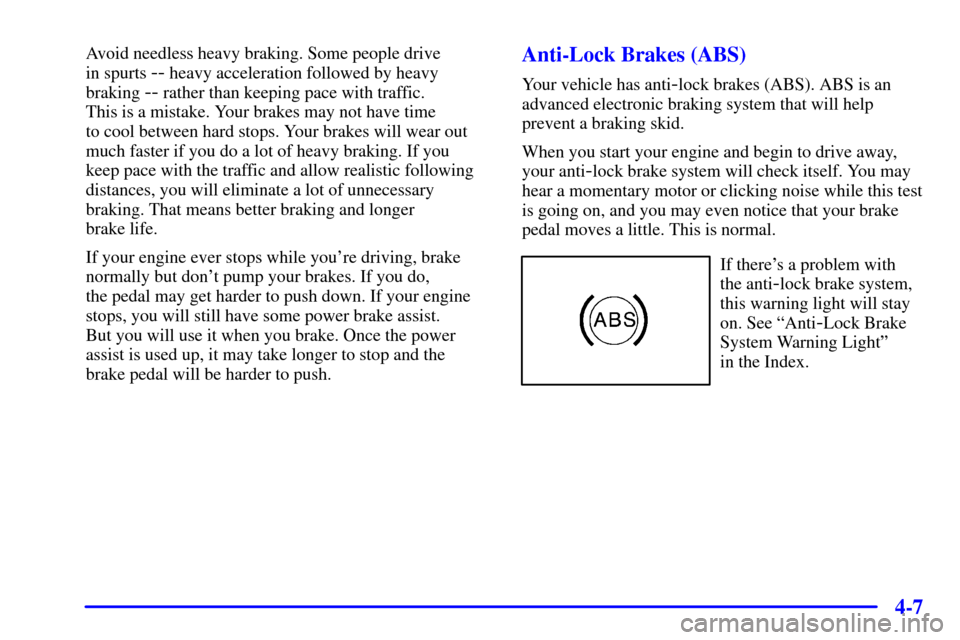
If there's a problem with
the anti
-lock brake system,
this warning light will stay
on. See ªAnti
-Lock Brake
System Warning Lightº
in the Index.
Page 208 of 361

4-10
The SERVICE TRACTION
SYSTEM message and the
TCS warning light will
come on to let you know
if there's a problem with
your TCS system. See
ªSERVICE TRACTION
SYSTEM Messageº
in the Index.
When this light and the SERVICE TRACTION
SYSTEM message are on, the system will not limit
wheel spin. Adjust your driving accordingly.The TCS system automatically comes on whenever
you start your vehicle. To limit wheel spin, especially
in slippery road conditions, you should always leave the
system on. But you can turn the TCS system off if
you ever need to.
To turn the system off,
press the button located
on the console. You can
turn the system ON or OFF
at any time by pressing the
TCS switch. The DIC will
display the appropriate
message when you push
the button.