Page 98 of 381

yellowblue
2-41
CAUTION:
�Cruise control can be dangerous where you
can't drive safely at a steady speed. So,
don't use your cruise control on winding
roads or in heavy traffic.
�Cruise control can be dangerous on
slippery roads. On such roads, fast changes
in tire traction can cause needless wheel
spinning, and you could lose control.
Don't use cruise control on slippery roads.
If your vehicle is in cruise control when the optional
traction control system begins to limit wheel spin,
the cruise control will automatically disengage.
(See ªTraction Control Systemº in the Index.)
When road conditions allow you to safely use it again,
you may turn the cruise control back on.Setting Cruise Control
CAUTION:
If you leave your cruise control switch on when
you're not using cruise, you might hit a button
and go into cruise when you don't want to. You
could be startled and even lose control. Keep the
cruise control switch off until you want to use
cruise control.
1. Press the ON/OFF button to turn cruise control on.
(The button is located on the bottom left of the
steering wheel.) An indicator light will come on to
show that the cruise control is on.
2. Get up to the speed you want.
3. Press the SET/COAST button, the CRUISE light on the
instrument panel cluster will illuminate. (The button is
located on the bottom right of the steering wheel.)
4. Take your foot off the accelerator pedal.
Page 120 of 381
yellowblue
2-63
A. Air Outlets
B. Driver Information Center Buttons (If Equipped)
C. Multifunction Lever
D. Steering Wheel Controls (If Equipped)
E. Hazard Warning Flashers
F. Instrument Cluster
G. Traction Control Button (If Equipped)H. Exterior Lamps
I. Head
-Up Display (HUD) Controls (If Equipped)
J. Hood Release
K. Parking Brake
L. Cruise Controls
M. Audio System
N. Climate Controls
O. Glove Box
Page 127 of 381

yellowblue
2-70
When the ignition is on, the brake system warning light
will also come on when you set your parking brake.
The light will stay on if your parking brake doesn't release
fully. If you try to drive off with the parking brake set, a
chime will also come on until you release the parking
brake. If the light and chime stay on after your parking
brake is fully released, it means you have a brake problem.
Anti-Lock Brake System Warning Light
With the anti-lock brake
system, the light(s) will
come on when you start
your engine and may stay
on for several seconds.
That's normal.
If the light stays on, turn the ignition to OFF. Or, if the
light comes on when you're driving, stop as soon as
possible and turn the ignition off. Then start the engine
again to reset the system. If the light still stays on, or
comes on again while you're driving, your vehicle needs
service. If the regular brake system warning light
isn't on, you still have brakes, but you don't have
anti
-lock brakes. If the regular brake system warning light is also on, you
don't have anti
-lock brakes and there's a problem with
your regular brakes. See ªBrake System Warning Lightº
earlier in this section.
The anti
-lock brake system warning light should come
on briefly when you turn the ignition key to RUN.
If the light doesn't come on then, have it fixed so it
will be ready to warn you if there is a problem.
Traction Control System Warning
Light (Option)
This warning light should
come on briefly as you
start the engine.
If the warning light doesn't come on then, have it fixed so it
will be ready to warn you if there's a problem. If it stays on, or
comes on when you're driving, there may be a problem with
your traction control system and your vehicle may need
service. When this warning light is on, the system will not
limit wheel spin. Adjust your driving accordingly.
Page 136 of 381

yellowblue
2-79
The HUD controls are located on the instrument panel to
the left of the steering wheel.
1. Start your engine and slide the HUD dimmer control
all the way up.
The brightness of the HUD image is determined by
an internal photo
-cell, and where you have the HUD
dimmer control set.
2. Adjust the seat to your driving position. Slide the
image height adjuster control all the way up, raising
the image as far as possible.3. Now push the image height adjuster control down so
the image is as low as possible but still in full view.
4. Slide the dimmer control downward until the HUD
image is no brighter than necessary.
To turn the HUD display off, slide the dimmer control
all the way down.
If the sun comes out and the sky becomes cloudy, you
may need to adjust the HUD brightness using the
dimmer control. Polarized sunglasses could make the
HUD image harder to see.
To change the display from English to metric units,
push the ENG/MET button located to the left of the
steering column.
Clean the inside of the windshield as necessary to
remove any dirt or film that reduces the sharpness or
clarity of the HUD image.
To clean the HUD lens, spray household glass cleaner
on a soft, clean cloth. Gently wipe and dry the HUD
lens. Do not spray cleaner directly on the lens to avoid
cleaner leaking inside the unit.
Page 148 of 381

3-
yellowblue
3-1
Section 3 Comfort Controls and Audio Systems
In this section, you'll find out how to operate the comfort control and audio systems offered with your vehicle.
Be sure to read about the particular systems supplied with your vehicle.
3
-2 Comfort Controls
3
-7 Air Conditioning
3
-8 Heating
3
-8 Defogging and Defrosting
3
-9 Rear Window Defogger
3
-9 Ventilation System
3
-11 Passenger Control (If Equipped)
3
-12 Steering Wheel Controls for Climate Control
(If Equipped)
3
-12 Audio Systems
3
-12 Setting the Clock
3
-13 AM-FM Stereo
3
-15 AM-FM Stereo with Cassette Tape Player
(If Equipped)
3
-18 AM-FM Stereo with Cassette Tape Player and
Automatic Tone Control (If Equipped)3
-22 AM-FM Stereo with Compact Disc Player and
Automatic Tone Control (If Equipped)
3
-26 AM-FM Stereo with Cassette Tape and
Compact Disc Player with Automatic Tone
Control (If Equipped)
3
-32 Trunk-Mounted CD Changer (Option)
3
-35 Personal Choice Radio Controls
(If Equipped)
3
-35 Theft-Deterrent Feature (If Equipped)
3
-36 Audio Steering Wheel Controls (If Equipped)
3
-37 Understanding Radio Reception
3
-37 Tips About Your Audio System
3
-38 Care of Your Cassette Tape Player
3
-39 Care of Your Compact Discs
3
-39 Care of Your Compact Disc Player
3
-39 Diversity Antenna System
Page 159 of 381
yellowblue
3-12 Steering Wheel Controls for Climate
Control (If Equipped)
If your vehicle has this feature, you can control the
temperature function by using the button located on
your steering wheel.
Press the TEMP up arrow to
increase the temperature
and the TEMP down arrow
to decrease the temperature.
Audio Systems
Your audio system has been designed to operate easily
and give years of listening pleasure. You will get the
most enjoyment out of it if you acquaint yourself with it
first. Find out what your audio system can do and how
to operate all its controls, to be sure you're getting the
most out of the advanced engineering that went into it.
Setting the Clock
Press and hold HRS until the correct hour appears.
Press and hold MIN until the correct minute appears.
You may set the clock with the ignition off if you
press RECALL first and follow the same procedure
described above.
Page 183 of 381
yellowblue
3-36 Audio Steering Wheel Controls
(If Equipped)
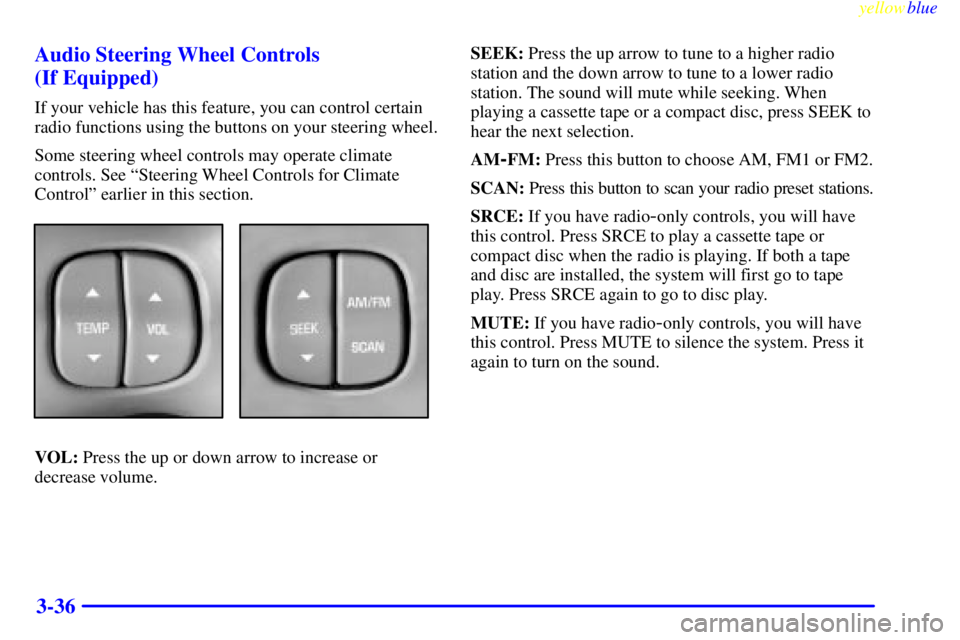
If your vehicle has this feature, you can control certain
radio functions using the buttons on your steering wheel.
Some steering wheel controls may operate climate
controls. See ªSteering Wheel Controls for Climate
Controlº earlier in this section.
VOL: Press the up or down arrow to increase or
decrease volume.SEEK: Press the up arrow to tune to a higher radio
station and the down arrow to tune to a lower radio
station. The sound will mute while seeking. When
playing a cassette tape or a compact disc, press SEEK to
hear the next selection.
AM
-FM: Press this button to choose AM, FM1 or FM2.
SCAN: Press this button to scan your radio preset stations.
SRCE: If you have radio
-only controls, you will have
this control. Press SRCE to play a cassette tape or
compact disc when the radio is playing. If both a tape
and disc are installed, the system will first go to tape
play. Press SRCE again to go to disc play.
MUTE: If you have radio
-only controls, you will have
this control. Press MUTE to silence the system. Press it
again to turn on the sound.
Page 195 of 381
yellowblue
4-8
Here's how anti-lock works. Let's say the road is wet.
You're driving safely. Suddenly an animal jumps out in
front of you.
You slam on the brakes. Here's what happens with ABS.
A computer senses that wheels are slowing down. If one
of the wheels is about to stop rolling, the computer will
separately work the brakes at each front wheel and at
both rear wheels.The anti
-lock system can change the brake pressure faster
than any driver could. The computer is programmed to
make the most of available tire and road conditions.
You can steer around the obstacle while braking hard.
As you brake, your computer keeps receiving updates on
wheel speed and controls braking pressure accordingly.


