1997 BUICK PARK AVENUE display
[x] Cancel search: displayPage 113 of 420
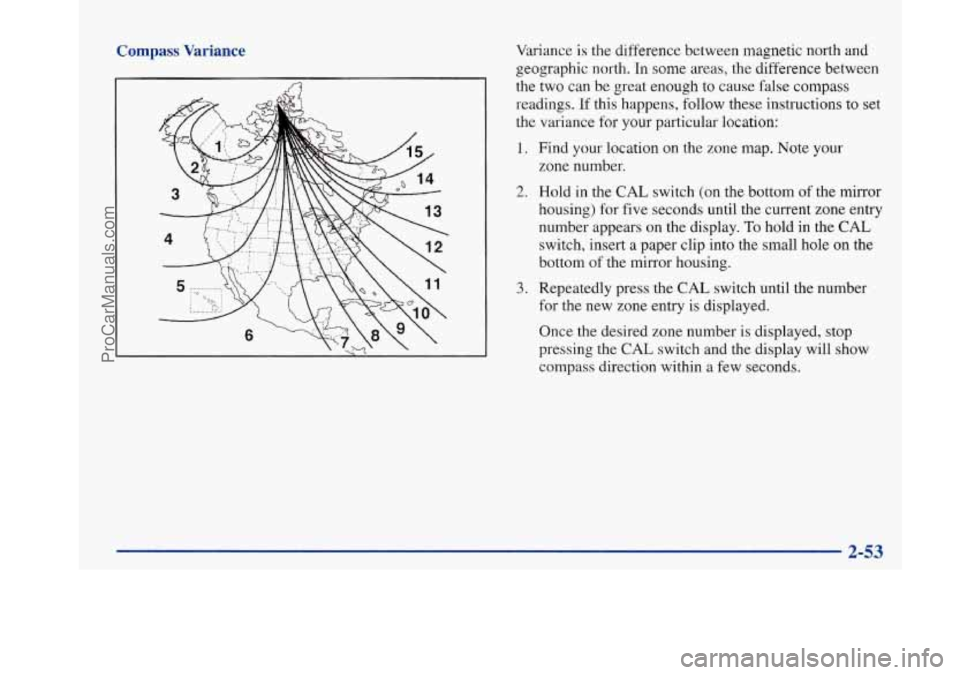
Compass Variance
I fa
Variance is the difference between magnetic north and
geographic north. In some areas, the difference between
the two can be great enough to cause false compass
readings.
If this happens, follow these instructions to set
the variance for your particular location:
1. Find your location on the zone map. Note your
zone number.
2. Hold in the CAL switch (on the bottom of the mirror
housing) for five seconds until the current zone entry
number appears on the display.
To hold in the CAL
switch, insert a paper clip into the small hole on the
bottom
of the mirror housing.
3. Repeatedly press the CAL switch until the number
for the new zone entry is displayed.
Once the desired zone number is displayed, stop
pressing the
CAL switch and the display will show
compass direction within a few seconds.
2-53
ProCarManuals.com
Page 132 of 420

Speedometer and Odometer
Your speedometer lets you see your speed in both miles
per hour (mph) and kilometers per hour (km/h).
Your
odometer shows how far your vehicle has been driven,
in either miles (used in the United States)
or kilometers
(used in Canada).
Your Buick has a tamper-resistant odometer. You may
wonder what happens
if your vehicle needs a new
odometer installed.
If possible, the new one has to be set
to the same reading the old one had.
If it can’t be, then
it’s set at zero and a label must be put on the driver’s
door to show the old mileage reading and when the new
odometer was installed.
Trip Odometer
A trip odometer can tell how far you’ve driven since
you last set it back to zero. To reset it, push the TRIP
RESET button. The trip odometer
is reset through the
DIC if your vehicle is equipped with this feature.
Tachometer
The tachometer tells you
how fast the engine is
running. It displays
engine speed
in
thousands of revolutions
per minute (rpm).
NOTICE:
Do not operate the engine with the tachometer in
the red area, or engine damage may occur.
2-72
ProCarManuals.com
Page 142 of 420
Head-Up Display (HUD)
(If Equipped)
If the HUD image is too bright, or too high in
your field
of view, it may take you more time to
see things you need to see when it's dark outside,
Be sure to keep the
HUD image dim and placed
low in your field
of view.
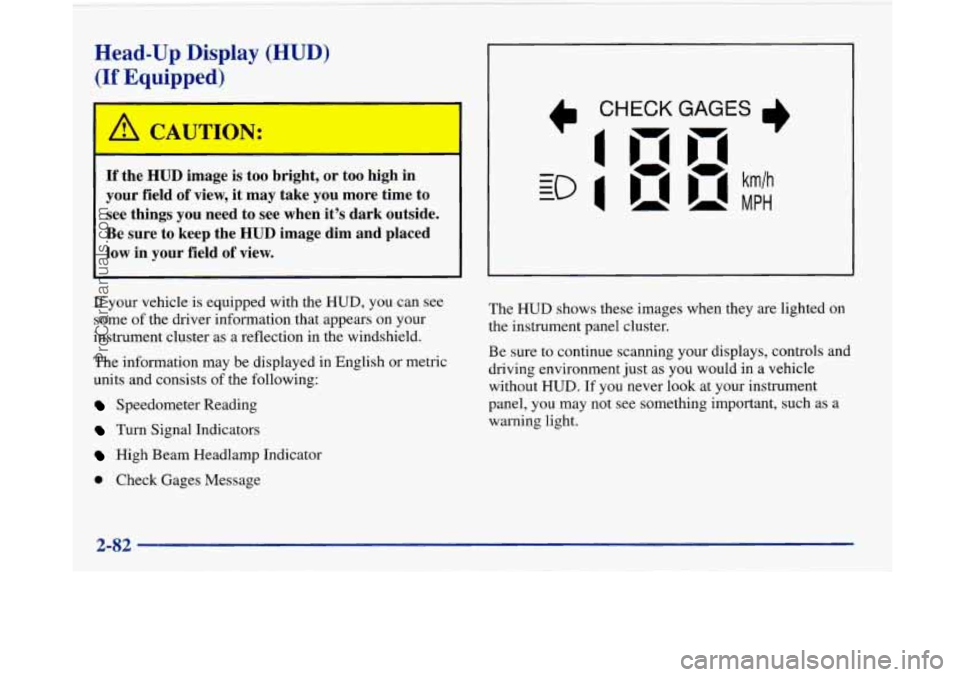
If your vehicle is equipped with the HUD, you can see
some of the driver information that appears on your
instrument cluster as a reflection in the windshield.
The information may be displayed
in English or metric
units and consists of the following:
Speedometer Reading
Turn Signal Indicators
High Beam Headlamp Indicator
Check Gages Message The
HUD shows these images
when they are lighted on
the instrument panel cluster.
Be sure to continue scanning your displays, controls and
driving environment just as you would in a vehicle
without
HUD. If you never look at your instrument
panel, you may not see something important, such as a
warning light.
2-82
ProCarManuals.com
Page 143 of 420
I NOTICE:
Although the HUD image appears to be near the
front
of the vehicle, do not use it as a parking aid.
The
HUD was not designed for that purpose. If
you try to use the display as a marker for the
front of your vehicle, such as in a parking
lot, you
may misjudge distance and hit an obstacle or
another vehicle.
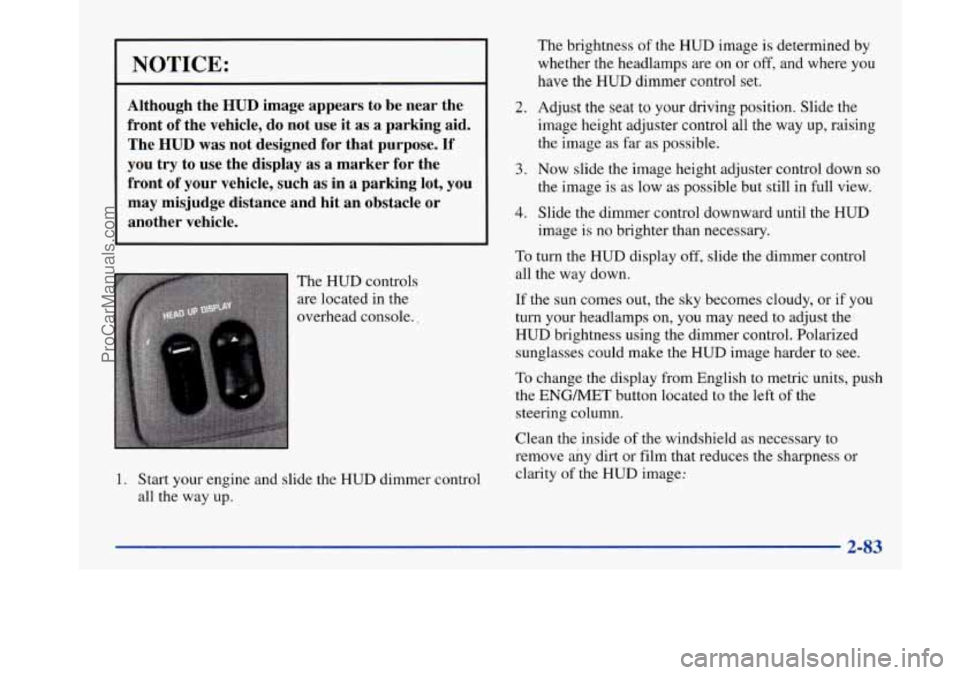
The HUD controls
are located in the
overhead console..
1. Start your engine and slide the HUD dimmer control
all the way up.
2.
3.
4.
The brightness of the HUD image is determined by
whether the headlamps are on or
off, and where you
have the
HUD dimmer control set.
Adjust the seat
to your driving position. Slide the
image height adjuster control all the way
up, raising
the image
as far as possible.
Now slide the image height adjuster control down so
the image is as low as possible but still in full view.
Slide the dimmer control downward until the HUD
image is no brighter than necessary.
To turn the HUD display off, slide the dimmer control
all the way down.
If the sun comes out, the sky becomes cloudy, or if you
turn your headlamps
on, you may need to adjust the
HUD brightness using the dimmer control. Polarized
sunglasses could make the HUD image harder to see.
To change the display from English to metric units, push
the ENGMET button located to the left of the
steering column.
Clean the inside of the windshield as necessary to
remove any dirt or film that reduces the sharpness or
clarity of the
HUD image:
2-83
ProCarManuals.com
Page 144 of 420

To clean the HUD lens, spray household glass cleaner
on a soft, clean cloth. Gently wipe
and dry the HUD
lens. Do not spray cleaner directly on the lens to avoid
cleaner leaking inside the unit.
If the ignition is on and you can’t see the HUD image,
check to see
if
The headlamps are on.
Something is covering the HUD unit.
The HUD dimmer control is adjusted properly.
The HUD image is adjusted to the proper height.
A fuse is blown. See “Fuses and Circuit Breakers” in
the Index.
Keep in mind that your windshield is part of the HUD
system. If you ever have to have your windshield
replaced, be sure to get one that is designed for HUD or
your HUD image may look blurred or out of focus.
Driver Information Center (DIC)
(If Equipped)
Your Park Avenue may be equipped with a Driver
Information Center (DIC). The DIC will display
information about how your vehicle is functioning,
as well as warning messages if a system problem
is detected. The
following buttons
are
on the DIC control panel
which
is located to the left
of the steering column:
ODOKRIP: Use this button to display your total and
trip miles.
FUEL INFO: Press this button to display fuel
information such as, fuel used, fuel range and fuel
economy.
GAGE INFO: Use this button to display oil pressure,
oil life, coolant temperature, tire pressure and battery
information.
RESET: This button, used along with other buttons,
will reset system functions.
ENGMET: Use this button to change the display
between English and metric units.
ProCarManuals.com
Page 145 of 420

Personal Choice DIC Display
This feature allows two different drivers to store and
recall their own preferred display mode. The Personal
Choice settings displayed on the DIC
are determined by
the transmitter used to enter the vehicle. After the
UNLOCK button of a remote keyless entry transmitter
is pressed and the ignition is in RUN, the DIC will
display the last settings of the identified driver. The
settings can also be changed by briefly pressing one of
the MEMORY buttons located on the driver’s door.
The DIC can also be used to program personal choice
features available with your vehicle, such as, memory
seats, memory door locks, security feedback, delayed
locking and perimeter lighting.
See “Personal Choice
Features” in the Index and “DIC Personal Choice
Programming” later
in this part. The DIC is used to
program information for DRIVER
#1 and DRIVER #2.
The DIC will identify a person as UNKNOWN
DRIVER
if they are neither DRIVER #1 nor DRIVER
#2.
Driver Information Center Controls
and Displays
There are two lines in the DIC display. The bottom line
of the display area is left blank. You can have your
dealer program your name to appear on this display line.
See your dealer for more information.
When you turn the ignition on, the DIC will display
your DRIVER NUMBER. The system will then perform
a status check and display any messages if a problem
is detected.
If there are
no problems detected, the display will return
to the mode selected by that driver the last time the
ignition was turned
off.
If a problem is detected, a diagnostic message will
appear in the display. The following pages will show the
messages you may see on the DIC display.
The message center is continuously updated with the
vehicle’s performance status.
ProCarManuals.com
Page 146 of 420

ODO/TRIP
When this button is pressed, the display will show the
total mileage, and Trip
1 or Trip 2 miles. Trip 1 and
Trip
2 will display the miles traveled since the last reset.
To reset the trip odometer, press the ODO/TRIP button
until the trip miles are shown in the DIC display, then
press the RESET button. The trip odometer will now
accumulate miles until the next reset.
FUEL INFO
Average Fuel Economy:
Press the FUEL button until
the display shows FUEL ECONOMY AVERAGE.
Average fuel economy is viewed as a long term
approximation of your overall driving and driving
conditions. To learn the average fuel economy from a
new starting point, press the RESET button while the
average fuel economy is displayed in the DIC.
Instantaneous Fuel Economy: Press the FUEL button
until the display shows FUEL ECONOMY INST.
Instantaneous fuel economy varies with your driving
conditions, such as acceleration, braking and the grade
of
the road being traveled. The RESET button does not
function in this mode.
Fuel Range: Press the FUEL button until the display
shows FUEL RANGE. The fuel range will calculate the
remaining distance you can drive without refueling. This
calculation is based on the average fuel economy for the
last
25 miles driven, and the fuel remaining in the fuel
tank. The
RESET button does not function in this mode.
Fuel Used: Press the FUEL button until the display
shows FUEL USED. This display will show you how
much fuel has been used since the last reset. To learn
how much fuel is used from a new starting point, press
the RESET button while the fuel used is displayed in
the DIC.
GAGES
Oil Pressure:
Press the GAGES button until OIL
PRESSURE appears in the display. If there are no
problems detected with the oil pressure, the display will
show OIL PRESSURE NORMAL. If a low oil pressure
condition
is detected, the display will show OIL
PRESSURE LOW. If you see the OIL PRESSURE
LOW message, you could be low on oil or your oil is
not going through the engine properly. See your dealer
for service.
2-86
ProCarManuals.com
Page 147 of 420

Coolant Temperature: Press the GAGES button until
COOLANT TEMP appears in the display. If there are no
problems detected with the temperature, COOLANT
TEMP NORMAL will appear
in the display. If the
temperature is too high, COOLANT TEMP HOT will
appear in the display. If you see the COOLANT TEMP
HOT message, your engine is overheated. You should
pull off the road, stop your vehicle and turn off your
engine as soon as possible. This manual explains what to
do. See “Engine Overheating” in the Index.
Battery Volts: Press the GAGES button until the
display shows BATTERY STATE.
If the voltage is
normal the display will show BATTERY STATE
NORMAL.
If the voltage drops below 10.5 volts, the
display will show BATTERY STATE LOW. If the
voltage is above
16 volts, the display will show
BATTERY STATE HIGH. If the display shows the high
or low message, you need to have your battery checked.
Oil Life Index: Press the GAGES button until OIL
LIFE INDEX appears in the display. The OIL LIFE
INDEX NORMAL display will show an estimate of
the oil’s remaining useful life. When the oil life index
is less than
lo%, the display will show OIL LIFE INDEX CHANGE
OIL. When you have the oil
changed according to the maintenance schedule (see
“Maintenance Schedule” in the Index), you will have
to reset the oil life index. To do this, press and hold the
RESET button for more than five seconds while the oil
life index is being displayed on the DIC. The oil life
will change to
100%.
Tire Pressure Status: Press the GAGES button
until TIRE PRESSURE appears in the display.
TIRE
PRESSURE NORMAL is displayed when the Check
Tire Pressure System believes your vehicle’s tire
pressures are normal. If a potential tire pressure
problem is detected, the display will show TIRE
PRESSURE LOW: CHECK TIRES.
If you see the
TIRE PRESSURE LOW: CHECK TIRES message, you
should stop as soon as you can and check all your tires
for damage. (If a tire is flat, see “If a Tire Goes Flat”
in
the Index.) Also check the tire pressure in all four tires
as soon as you can. See “Inflation
- Tire Pressure” and
“Check Tire Pressure System”
in the Index.
There are times when you will have to reset (calibrate)
the Check Tire Pressure System. See “Check Tire
Pressure System” in the Index.
2-87
ProCarManuals.com