2024 GMC SIERRA DENALI infotainment
[x] Cancel search: infotainmentPage 300 of 440

GMC Sierra/Sierra Denali 2500 HD/3500 HD Owner Manual (GMNA-
Localizing-U.S./Canada-16908340) - 2024 - CRC - 12/13/22
298 Driving and Operating
TTPMS must learn the location of the
installed tire sensors to show correct air
pressure and temperature for each tire. To
set up, use one of the following options or
see a tire or trailer dealer for service. The
learning process must be repeated when the
trailer tires are rotated or replaced.
Tool Method: A TTPMS activation tool can
be purchased separately to learn the sensor
locations.
Manual Method: Without the tool, the air
pressure can be increased or decreased in
each tire for 10 seconds. Do not exceed the
maximum inflation pressure found on the
tire sidewalls. Make sure to readjust tire
pressure to the recommended level when
the process is complete.
Sensor Learning Steps
To complete the sensor-to-vehicle learn
process:1. Touch Start on the Learn Sensors screen. The horn chirps twice and the Learning
Active screen appears on the
infotainment screen.
2. Start with the driver side front trailer tire. 3. Activate the tool near the valve stem or
adjust the air pressure of this tire until
the horn chirps and all working vehicle
and trailer lights flash.
The process stops without saving the
sensor locations if this step takes more
than two minutes.
4. Move to the next tire and repeat Step 3 for each sensor. The horn chirps twice
when all sensors are completed.
5. Return to the vehicle to complete the setup.
Maintenance Reminders
To set up maintenance reminders, touch the
Trailer Maintenance icon. Follow the
on-screen prompts. The maximum number
of reminders is 50.
Towing Assist
To set up towing assist features,
if equipped, touch the towing assist icon.
1. Select the number of axles on the trailer.
2. Enter trailer dimensions as prompted.
Follow the on-screen instructions to
complete setup for available features. Certain trailer features require a compatible
trailer profile be configured and selected.
A compatible trailer is a box type trailer
(cargo, camper, etc.) with a conventional
hitch.
Transparent Trailer Setup
If equipped, a rear trailer camera must be
mounted on the trailer and electrically
connected to the vehicle before transparent
trailer feature can be used. See
Assistance
Systems for Parking or Backing 0253.
Follow the on-screen instructions to enter
trailer dimensions.
Trailer dimensions must be in range and
transparent trailer must be calibrated prior
to use: 1. If trailer dimensions are out of range, this feature will be unavailable.
2. Ensure rear trailer camera is connected.
3. Follow the on-screen instructions to drive forward to complete calibration.
Dimensions for a conventional hitch trailer:
.Trailer Length: 300 cm (118.1 in) –970 cm
(381.8 in). Measure from the center of the
coupler to the furthest rear point on the
trailer.
Page 302 of 440
GMC Sierra/Sierra Denali 2500 HD/3500 HD Owner Manual (GMNA-
Localizing-U.S./Canada-16908340) - 2024 - CRC - 12/13/22
300 Driving and Operating
If trailer dimensions are out of range, this
feature will be unavailable.
Status View
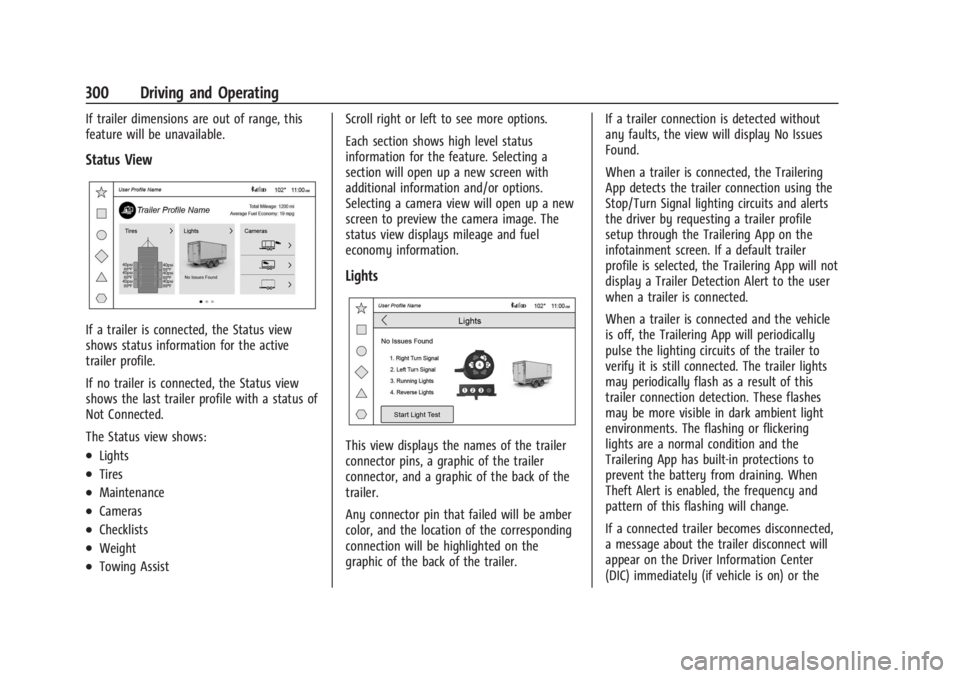
If a trailer is connected, the Status view
shows status information for the active
trailer profile.
If no trailer is connected, the Status view
shows the last trailer profile with a status of
Not Connected.
The Status view shows:
.Lights
.Tires
.Maintenance
.Cameras
.Checklists
.Weight
.Towing AssistScroll right or left to see more options.
Each section shows high level status
information for the feature. Selecting a
section will open up a new screen with
additional information and/or options.
Selecting a camera view will open up a new
screen to preview the camera image. The
status view displays mileage and fuel
economy information.
Lights
This view displays the names of the trailer
connector pins, a graphic of the trailer
connector, and a graphic of the back of the
trailer.
Any connector pin that failed will be amber
color, and the location of the corresponding
connection will be highlighted on the
graphic of the back of the trailer.
If a trailer connection is detected without
any faults, the view will display No Issues
Found.
When a trailer is connected, the Trailering
App detects the trailer connection using the
Stop/Turn Signal lighting circuits and alerts
the driver by requesting a trailer profile
setup through the Trailering App on the
infotainment screen. If a default trailer
profile is selected, the Trailering App will not
display a Trailer Detection Alert to the user
when a trailer is connected.
When a trailer is connected and the vehicle
is off, the Trailering App will periodically
pulse the lighting circuits of the trailer to
verify it is still connected. The trailer lights
may periodically flash as a result of this
trailer connection detection. These flashes
may be more visible in dark ambient light
environments. The flashing or flickering
lights are a normal condition and the
Trailering App has built-in protections to
prevent the battery from draining. When
Theft Alert is enabled, the frequency and
pattern of this flashing will change.
If a connected trailer becomes disconnected,
a message about the trailer disconnect will
appear on the Driver Information Center
(DIC) immediately (if vehicle is on) or the
Page 303 of 440

GMC Sierra/Sierra Denali 2500 HD/3500 HD Owner Manual (GMNA-
Localizing-U.S./Canada-16908340) - 2024 - CRC - 12/13/22
Driving and Operating 301
next time the vehicle is turned on (if trailer
was disconnected while vehicle is off). Check
your trailer connection if needed.
Connection Problem
If any of the trailer connections are lost, a
message about the connection issue appears
on the DIC. The infotainment screen will also
show the connection issue in the Lights
Status view.
Connection Trailer Lighting Faults Detected
The Trailering App monitors for electrical
faults on the trailer lights. A message about
the lighting issue appears on the DIC. The
infotainment screen will also show the
lighting issue in the Lights Status view.
Repair your trailer lights if needed. A trailer
lighting issue is not covered by your GM
warranty.
The Running Lights connection may not
detect partial outages. Activate the light test
to check all trailer lamps. See“Light Test”
following. Light Test
Touch Start Light Test to cycle the trailer
lights on and off to determine if they are
working. The test follows this sequence:
1. The running lights turn on first and remain on throughout the sequence.
2. The brake lights turn on for about two seconds.
3. The left turn signal light flashes three times.
4. The right turn signal light flashes three times.
5. The reverse lights turn on for about two seconds.
6. Steps 2-5 repeat for approximately one minute and 45 seconds, or until the
test deactivates.
Touch Stop to stop the test. The test will
automatically end after one minute and
45 seconds.
The sequence also deactivates when any of
the following occur:
.The vehicle is turned off.
.The transmission is shifted out of
P (Park).
.The brake pedal is pressed.
.The turn signal is activated.
.The hazard warning lights are activated.
Tires
Tire Pressure and Temperature
If the TTPMS sensor-to-vehicle learn process
was completed, the status view will display
the current tire pressure and temperature of
the trailer tires related to the active Trailer
Profile. If a tire’s pressure is low or high, the
color of the pressure value will be amber.
If a sensor malfunctions, the values are
dashed lines. If the screen displays “Service
Tire Pressure Monitoring System,” the
vehicle needs to be taken to a dealer for
service.
Touch to set up the TTPMS for the Trailer
Profile. See “Trailer Tire Pressure Setup”
previously in this section for details on the
setup. Also, touch Sensor Setup if the trailer
Page 407 of 440
GMC Sierra/Sierra Denali 2500 HD/3500 HD Owner Manual (GMNA-
Localizing-U.S./Canada-16908340) - 2024 - CRC - 12/7/22
Customer Information 405
Customer Information
Customer Information
Customer Satisfaction Procedure . . . . . . 405
Customer Assistance Offices . . . . . . . . . . . 407
Customer Assistance for Text Telephone(TTY) Users . . . . . . . . . . . . . . . . . . . . . . . . . . 407
Online Account . . . . . . . . . . . . . . . . . . . . . . . . 407
GM Mobility Reimbursement Program . . . . . . . . . . . . . . . . . . . . . . . . . . . . 408
Roadside Assistance Program . . . . . . . . . 408
Scheduling Service Appointments . . . . . . 410
Courtesy Transportation Program . . . . . 410
Collision Damage Repair . . . . . . . . . . . . . . . 411
Publication Ordering Information . . . . . . 413
Radio Frequency Statement . . . . . . . . . . . . 413
Reporting Safety Defects
Reporting Safety Defects to the United States Government . . . . . . . . . . . . . . . . . . 414
Reporting Safety Defects to the Canadian Government . . . . . . . . . . . . . . . 414
Reporting Safety Defects to General Motors . . . . . . . . . . . . . . . . . . . . . . . . . . . . . . 414
Vehicle Data Recording and Privacy
Vehicle Data Recording and Privacy . . . . 415
Cybersecurity . . . . . . . . . . . . . . . . . . . . . . . . . . 415
Event Data Recorders . . . . . . . . . . . . . . . . . . 415
OnStar . . . . . . . . . . . . . . . . . . . . . . . . . . . . . . . . 416
Infotainment System . . . . . . . . . . . . . . . . . . 416Customer Information
Customer Satisfaction Procedure
Your satisfaction and goodwill are important
to your dealer and to GMC. Normally, any
concerns with the sales transaction or the
operation of the vehicle will be resolved by
your dealer's sales or service departments.
Sometimes, however, despite the best
intentions of all concerned,
misunderstandings can occur. If your concern
has not been resolved to your satisfaction,
the following steps should be taken:
STEP ONE : Discuss your concern with a
member of dealership management.
Normally, concerns can be quickly resolved
at that level. If the matter has already been
reviewed with the sales, service, or parts
manager, contact the owner of your
dealership or the general manager.
STEP TWO : If after contacting a member of
dealership management, it appears your
concern cannot be resolved by your
dealership without further help, in the U.S.,
call 1-800-462-8782. In Canada, call General
Motors of Canada Customer Care Centre at
1-800-263-3777 (English), or 1-800-263-7854
(French).
Page 418 of 440
GMC Sierra/Sierra Denali 2500 HD/3500 HD Owner Manual (GMNA-
Localizing-U.S./Canada-16908340) - 2024 - CRC - 12/7/22
416 Customer Information
driving conditions and no personal data
(e.g., name, gender, age, and crash location)
are recorded. However, other parties, such
as law enforcement, could combine the EDR
data with the type of personally identifying
data routinely acquired during a crash
investigation.
To read data recorded by an EDR, special
equipment is required, and access to the
vehicle or the EDR is needed. In addition to
the vehicle manufacturer, other parties, such
as law enforcement, that have the special
equipment, can read the information if they
have access to the vehicle or the EDR.
GM will not access these data or share it
with others except: with the consent of the
vehicle owner or, if the vehicle is leased,
with the consent of the lessee; in response
to an official request by police or similar
government office; as part of GM's defense
of litigation through the discovery process;
or, as permitted by law. Data that GM
collects or receives may also be used for GM
research needs or may be made available to
others for research purposes, where a need
is shown and the data is not tied to a
specific vehicle or vehicle owner.OnStar
If the vehicle is equipped with OnStar and
has an active service plan, additional data
may be collected and transmitted through
the OnStar system. This includes information
about the vehicle’s operation; collisions
involving the vehicle; the use of the vehicle
and its features, including infotainment; and
the location and approximate GPS speed of
the vehicle. Refer to the OnStar Terms and
Conditions and Privacy Statement on the
OnStar website.
SeeOnStar Additional Information 0419.
Infotainment System
If the vehicle is equipped with a navigation
system as part of the infotainment system,
use of the system may result in the storage
of destinations, addresses, telephone
numbers, and other trip information. See the
infotainment section for information on
stored data and for deletion instructions.
Page 419 of 440

GMC Sierra/Sierra Denali 2500 HD/3500 HD Owner Manual (GMNA-
Localizing-U.S./Canada-16908340) - 2024 - CRC - 12/7/22
OnStar 417
OnStar
OnStar Overview
OnStar Overview . . . . . . . . . . . . . . . . . . . . . . 417
OnStar Services
Emergency . . . . . . . . . . . . . . . . . . . . . . . . . . . . 418
Security . . . . . . . . . . . . . . . . . . . . . . . . . . . . . . . 418
OnStar Additional Information
OnStar Additional Information . . . . . . . . . 419
OnStar Overview
=Voice Command Button
QBlue OnStar Button
>Red Emergency Button
This vehicle may be equipped with a
comprehensive, in-vehicle system that can
connect to an OnStar Advisor for Emergency,
Security, Navigation, Connections, and
Diagnostics Services. OnStar services may
require a paid service plan and data plan.
OnStar requires the vehicle battery and
electrical system, cellular service, and GPS
satellite signals to be available and
operating. OnStar acts as a link to existing
emergency service providers. OnStar may
collect information about you and your
vehicle, including location information. See
OnStar User Terms, Privacy Statement, and
Software Terms for more details including
system limitations at www.onstar.com (U.S.)
or www.onstar.ca (Canada). The OnStar system status light is next to
the OnStar buttons. If the status light is:
.Solid Green: System is ready.
.Flashing Green: On a call.
.Red: Indicates a problem.
.Off: System is off. PressQtwice to
speak with an OnStar Advisor.
Press
Qor call 1-888-4ONSTAR
(1-888-466-7827) to speak to an Advisor.
Functionality of the Voice Command button
may vary by vehicle and region.
Press
=to:
.Open the OnStar app on the infotainment
display. If equipped, the infotainment
system has OnStar controls in the
embedded OnStar app on the Home Page.
Most OnStar functions that can be
performed with the buttons can be done
using the app. To open the app, touch the
OnStar icon on the Home Page. App
updates require a corresponding service
plan. Features vary by region and model.
Features are subject to change. For more
information, see my.gmc.com/learn or
press
Q.
Page 422 of 440

GMC Sierra/Sierra Denali 2500 HD/3500 HD Owner Manual (GMNA-
Localizing-U.S./Canada-16908340) - 2024 - CRC - 12/7/22
420 OnStar
TTY Users
OnStar has the ability to communicate to
deaf, hard-of-hearing, or speech-impaired
customers while in the vehicle. The available
TTY system can provide in-vehicle access to
all OnStar services, except Virtual Advisor
and OnStar Turn-by-Turn Navigation.
If equipped, TTY mode can be turned on or
off by touching Settings, then Apps, and
then Phone. When TTY mode is on, phone
calls can be made or received with OnStar
using the infotainment display.
OnStar Personal Identification
Number (PIN)
A PIN is needed to access some OnStar
services. The PIN will need to be changed
the first time when speaking with an
Advisor. To change the OnStar PIN, contact
an OnStar Advisor by pressing
Qor calling
1-888-4ONSTAR.
Warranty
OnStar equipment may be warranted as part
of the vehicle warranty.
Languages
The vehicle can be programmed to respond
in multiple languages. Press
Qand ask for
an Advisor. Advisors are available in English,
Spanish, and French. Available languages
may vary by country.
Potential Issues
OnStar cannot perform Remote Door Unlock
or Stolen Vehicle Assistance after the vehicle
has been off continuously for an extended
period of time without an ignition cycle. To
find out the duration of time that applies
for the vehicle, contact an OnStar Advisor by
pressing
Qor calling 1-888-4ONSTAR. If the
vehicle has not been started for an extended
period of time, OnStar can contact Roadside
Assistance or a locksmith to help gain access
to the vehicle.
Global Positioning System (GPS)
.Obstruction of the GPS can occur in a
large city with tall buildings; in parking
garages; around airports; in tunnels and
underpasses; or in an area with very
dense trees. If GPS signals are not
available, the OnStar system should still operate to call OnStar. However, OnStar
could have difficulty identifying the exact
location.
.In emergency situations, OnStar can use
the last stored GPS location to send to
emergency responders.
A temporary loss of GPS can cause loss of
the ability to send a Turn-by-Turn
Navigation route. The Advisor may give a
verbal route or may ask for a call back after
the vehicle is driven into an open area.
Cellular and GPS Antennas
Cellular reception is required for OnStar to
send remote signals to the vehicle. Do not
place items over or near the antenna to
prevent blocking cellular and GPS signal
reception.
Unable to Connect to OnStar Message
If there is limited cellular coverage or the
cellular network has reached maximum
capacity, this message may come on. Press
Qto try the call again or try again after
driving a few miles into another
cellular area.
Page 424 of 440
GMC Sierra/Sierra Denali 2500 HD/3500 HD Owner Manual (GMNA-
Localizing-U.S./Canada-16908340) - 2024 - CRC - 12/7/22
422 Connected Services
Connected Services
Connected Services
Navigation . . . . . . . . . . . . . . . . . . . . . . . . . . . . 422
Connections . . . . . . . . . . . . . . . . . . . . . . . . . . . 422
Diagnostics . . . . . . . . . . . . . . . . . . . . . . . . . . . . 424
Connected Services
Navigation
Navigation requires a specific OnStar or
connected service plan.
Press
Qto receive Turn-by-Turn directions
or have them sent to the vehicle’s
navigation screen, if equipped. Select
Turn-by-Turn Directions from the Services
tab of the OnStar app to call an Advisor or
select a recent or favorite destination. Touch
the navigation icons to select home, address,
or place. A destination transfer from OnStar
will show the detail view of the destination
when it is transferred from OnStar to the
Navigation application. See www.onstar.com
for a coverage map. Services vary by model.
Map coverage is available in the United
States and Canada.
Turn-by-Turn Navigation
1. PressQto connect to an Advisor.
2. Request directions to be downloaded to the vehicle.
3. Follow the voice-guided commands.
Using Voice Commands During a
Planned Route
Functionality of the Voice Command button,
if equipped, may vary by vehicle and region.
For some vehicles, press
=to open the
OnStar app on the infotainment display.
Send Destination to Vehicle
Directions can be sent to the vehicle’s
navigation screen, if equipped.
Press
Q, then ask the Advisor to download
directions to the vehicle’s navigation system,
if equipped. After the call ends, the
navigation screen will provide prompts to
begin driving directions. Routes that are sent
to the navigation screen can only be
canceled through the navigation system.
See www.onstar.com (U.S.) or www.onstar.ca
(Canada).
Connections
The following services help with staying
connected.
For coverage maps, see www.onstar.com
(U.S.) or www.onstar.ca (Canada).