2024 CHEVROLET CORVETTE radio controls
[x] Cancel search: radio controlsPage 118 of 362
Chevrolet Corvette Owner Manual (GMNA-Localizing-U.S./Canada/Mexico-
17272984) - 2024 - CRC - 2/20/23
Infotainment System 117
Before driving:
.Become familiar with the operation,
center stack controls, steering wheel
controls, and infotainment display.
.Set up the audio by presetting favorite
stations, setting the tone, and adjusting
the speakers.
.Set up phone numbers in advance so they
can be called easily by pressing a single
control or by using a single voice
command.
See Distracted Driving 0156.
Active Noise Cancellation (ANC)
If equipped, ANC reduces engine noise in the
vehicle’s interior. ANC requires the
factory-installed audio system, radio,
speakers, amplifier (if equipped), induction
system, and exhaust system to work
properly. Deactivation is required by your
dealer if related aftermarket equipment is
installed.
Overview
Infotainment System
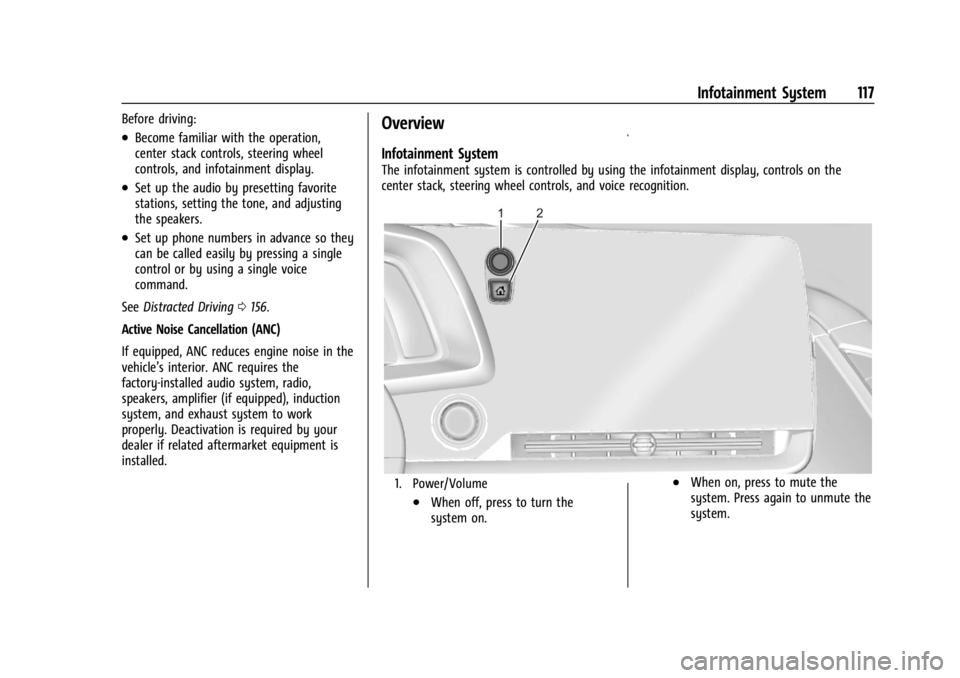
The infotainment system is controlled by using the infotainment display, controls on the
center stack, steering wheel controls, and voice recognition.
1. Power/Volume
.When off, press to turn the
system on.
.When on, press to mute the
system. Press again to unmute the
system.
Page 120 of 362
Chevrolet Corvette Owner Manual (GMNA-Localizing-U.S./Canada/Mexico-
17272984) - 2024 - CRC - 2/20/23
Infotainment System 119
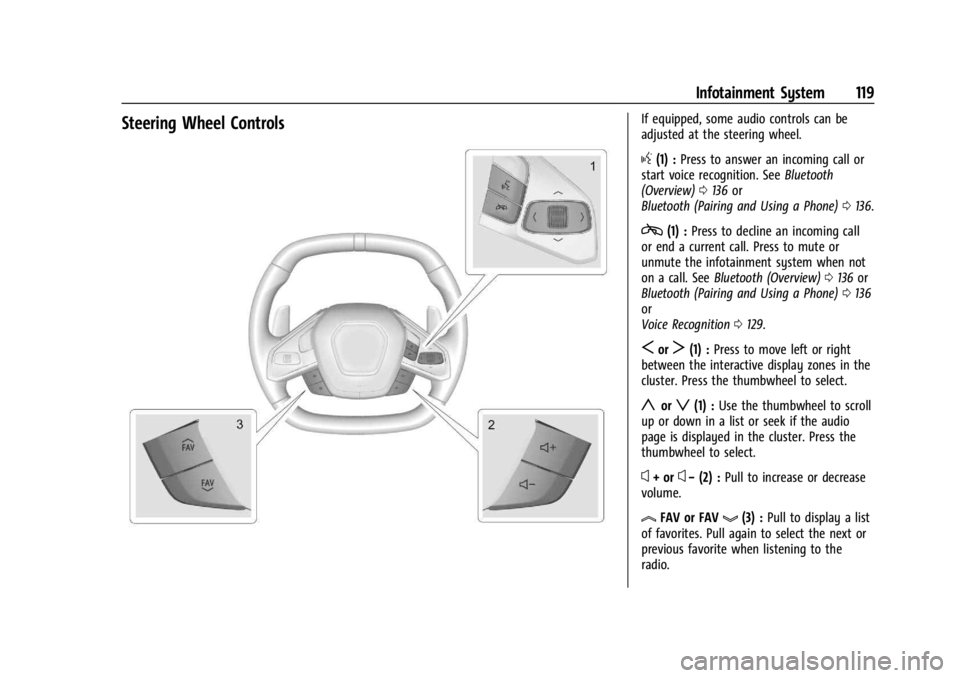
Steering Wheel ControlsIf equipped, some audio controls can be
adjusted at the steering wheel.
g(1) :Press to answer an incoming call or
start voice recognition. See Bluetooth
(Overview) 0136 or
Bluetooth (Pairing and Using a Phone) 0136.
c(1) : Press to decline an incoming call
or end a current call. Press to mute or
unmute the infotainment system when not
on a call. See Bluetooth (Overview) 0136 or
Bluetooth (Pairing and Using a Phone) 0136
or
Voice Recognition 0129.
SorT(1) : Press to move left or right
between the interactive display zones in the
cluster. Press the thumbwheel to select.
yorz(1) : Use the thumbwheel to scroll
up or down in a list or seek if the audio
page is displayed in the cluster. Press the
thumbwheel to select.
x+ orx− (2) : Pull to increase or decrease
volume.
lFAV or FAVg(3) : Pull to display a list
of favorites. Pull again to select the next or
previous favorite when listening to the
radio.
Page 126 of 362
Chevrolet Corvette Owner Manual (GMNA-Localizing-U.S./Canada/Mexico-
17272984) - 2024 - CRC - 2/20/23
Infotainment System 125
USB Audio
To play music via USB:1. On the audio now playing page, touch source and select USB.
2. If there is no device connected, follow the screen prompts to connect the
device.
3. Supported media content will appear on the display.
Auxiliary Jack
If equipped, this vehicle has an auxiliary
input jack in the center console. Possible
auxiliary audio sources include:
.Laptop computer
.Audio music player
This jack is not an audio output. Do not
plug headphones into the auxiliary input
jack. Set up an auxiliary device while the
vehicle is in P (Park).
Connect a 3.5 mm (1/8 in) cable from the
auxiliary device to the auxiliary input jack.
When a device is connected, the system can
play audio from the device over the vehicle
speakers. If an auxiliary device has already been
connected, but a different source is currently
active, touch More and then touch AUX to
make the source active.
Shuffle and Browse are not available in the
AUX source menu.
Bluetooth Audio
Music may be played from a connected
Bluetooth device.
Volume and song selection may be
controlled by using the infotainment
controls. If Bluetooth is selected and no
volume is present, check the volume setting
on the infotainment system or the
connected phone.
To play music via Bluetooth:
1. On the audio now playing page, touch source and select the desired Bluetooth
device.
2. If there is no device connected, follow the screen prompts to pair the device.
3. Supported media content will appear on the display. Manage Bluetooth Devices
Managing Bluetooth devices allows you to
add, delete, or select another paired device.
Only one Bluetooth device can be active at
a time.
Some smartphones support sending
Bluetooth music information to display on
the radio. When the radio receives this
information, it will check to see if any is
available and display it. For more
information about supported Bluetooth
features, visit your brand website. See
Online Account
0332 for details.
See Radio Frequency Statement 0337.
Navigation
Using the Navigation System
The Navigation software is provided by
Google Maps. The information provided in
this section is a general overview and is
subject to change. For the latest functional
information, see g.co/mapsincar.
Accept the Terms and Conditions to use.
Page 130 of 362
Chevrolet Corvette Owner Manual (GMNA-Localizing-U.S./Canada/Mexico-
17272984) - 2024 - CRC - 2/20/23
Infotainment System 129
.The route prohibits the entry of a vehicle
due to a regulation by time or season or
any other regulation which may be given.
.Some routes might not be searched.
.The route to the destination might not be
shown if there are new roads, if roads
have recently changed, or if certain roads
are not listed in Maps.
To recalibrate the vehicle's position on the
map, park with the vehicle running for two
to five minutes, until the vehicle position
updates. Make sure the vehicle is parked in
a location that is safe and has a clear view
of the sky and away from large
obstructions.
Voice Recognition
If equipped, Google Assistant allows for
hands-free use of media and messaging,
navigation and climate control functionality
in the vehicle. This feature can be started by
pressing
gon the steering wheel, touching
Google Assistant on the Home screen, or by
using the wake up words “Hey Google”or
“OK Google.”
However, not all features within these areas
are supported by voice commands and
requires the user to have a valid data subscription plan or connected to WiFi in
order to use some of the Google Assistant
features.
Using Voice Recognition
Voice recognition becomes available once
the system is initialized. This begins when
the vehicle is turned on. Initialization may
take a few moments.
1. Press
gon the steering wheel controls,
touch Google Assistant on the Home
screen, or use the wake up words “Hey
Google” or“OK Google” to activate voice
recognition. Google Assistant must be set
as the Default Assistant for the
gand
the wake word options to work.
2. Clearly speak one of the commands described later in this section.
Canceling Google Assistant
.Presscon the steering wheel controls
to cancel the Google Assistant request.
Helpful Hints for Speaking Commands
Voice recognition identifies commands that
are naturally stated in sentence form,
or direct commands that state the
application and the task. For best results:
.Speak the command naturally, not too
fast, not too slow.
.Use direct commands without a lot of
extra words. For example,
“Call
at work,” “Play” followed by the artist or
song name, or “Play”followed by the
radio station number.
Direct commands are more clearly
understood by the system. An example of a
direct command is “Dial
If a cell phone number was saved with a
name and a place, the direct command
should include both. For example “Call
Voice Recognition for the Radio
When voice is started, the voice recognition
commands for AM, FM, SiriusXM (if
equipped), and media apps (if supported) are
available.
“Play
radio station frequency identified in the
command (like “nine fifty”).
“Play
radio station frequency identified in the
command (like “one oh one point one”).
Page 131 of 362
Chevrolet Corvette Owner Manual (GMNA-Localizing-U.S./Canada/Mexico-
17272984) - 2024 - CRC - 2/20/23
130 Infotainment System
“Play channel
SiriusXM”:Tune to the SiriusXM radio
station channel number identified in the
command. This command may require an
online connection.
“Play
Tune to the SiriusXM radio station channel
name identified in the command. This
command may require an online connection.
“Play
Page 340 of 362
Chevrolet Corvette Owner Manual (GMNA-Localizing-U.S./Canada/Mexico-
17272984) - 2024 - CRC - 2/20/23
Customer Information 339
Vehicle Data Recording and
Privacy
The vehicle has a number of computers that
record information about the vehicle’s
performance and how it is driven or used.
For example, the vehicle uses computer
modules to monitor and control engine and
transmission performance, to monitor the
conditions for airbag deployment and
deploy them in a crash, and, if equipped, to
provide antilock braking to help the driver
control the vehicle. These modules may
store data to help the dealer technician
service the vehicle or to help GM improve
safety or features. Some modules may also
store data about how the vehicle is
operated, such as rate of fuel consumption
or average speed. These modules may retain
personal preferences, such as radio presets,
seat positions, and temperature settings.
Cybersecurity
GM collects information about the use of
your vehicle including operational and safety
related information. We collect this
information to provide, evaluate, improve,
and troubleshoot our products and services
and to develop new products and services.
The protection of vehicle electronics systems
and customer data from unauthorized
outside electronic access or control is
important to GM. GM maintains appropriate
security standards, practices, guidelines and
controls aimed at defending the vehicle and
the vehicle service ecosystem against
unauthorized electronic access, detecting
possible malicious activity in related
networks, and responding to suspected
cybersecurity incidents in a timely,
coordinated and effective manner. Security
incidents could impact your safety or
compromise your private data. To minimize
security risks, please do not connect your
vehicle electronic systems to unauthorized
devices or connect your vehicle to any
unknown or untrusted networks (such as
Bluetooth, WIFI or similar technology). In
the event you suspect any security incident
impacting your data or the safe operation of
your vehicle, please stop operating your
vehicle and contact your dealer.
Event Data Recorders
This vehicle is equipped with an Event Data
Recorder (EDR). The main purpose of an EDR
is to record, in certain crash or near
crash-like situations, such as an air bag
deployment or hitting a road obstacle, data
that will assist in understanding how a
vehicle’s systems performed. The EDR is
designed to record data related to vehicle
dynamics and safety systems for a short
period of time, typically 30 seconds or less.
The EDR in this vehicle is designed to record
such data as:
.How various systems in your vehicle were
operating;
.Whether or not the driver and passenger
safety belts were buckled/fastened;
.How far (if at all) the driver was
depressing the accelerator and/or brake
pedal; and,
.How fast the vehicle was traveling.
These data can help provide a better
understanding of the circumstances in which
crashes and injuries occur.
Note
EDR data are recorded by your vehicle only
if a non-trivial crash situation occurs; no
data are recorded by the EDR under normal