2023 RAM 1500 ignition
[x] Cancel search: ignitionPage 153 of 416
STARTING AND OPERATING151
SERVICE ACC/FCW WARNING
If the system turns off, and the instrument cluster displays
“ACC/FCW Unavailable Service Required” or “Cruise/FCW
Unavailable Service Required”, there may be an internal
system fault or a temporary malfunction that limits ACC
functionality. Although the vehicle is still drivable under
normal conditions, ACC will be temporarily unavailable.
If this occurs, try activating ACC again later, following an
ignition cycle. If the problem persists, see an authorized
dealer.
Precautions While Driving With ACC
NOTE:
Aftermarket add-ons such as snowplows, lift kits, and
brush/grille bars can hinder module performance.
Ensure the radar/camera has no obstructions in the
field of view.
Height modifications can limit module performance
and functionality.
Do not put stickers or easy passes over the camera/
radar field of view.
Any modifications to the vehicle that may obstruct the
field of view of the radar/camera are not recom -
mended.
In certain driving situations, ACC may have detection
issues. In these cases, ACC may brake late or
unexpectedly. The driver needs to stay alert and may need
to intervene. The following are examples of these types of
situations:
TOWING A TRAILER
ACC while towing a trailer is recommended only with an
Integrated Trailer Brake Controller. Aftermarket trailer
brake controllers will not activate the trailer brakes when
ACC is braking.
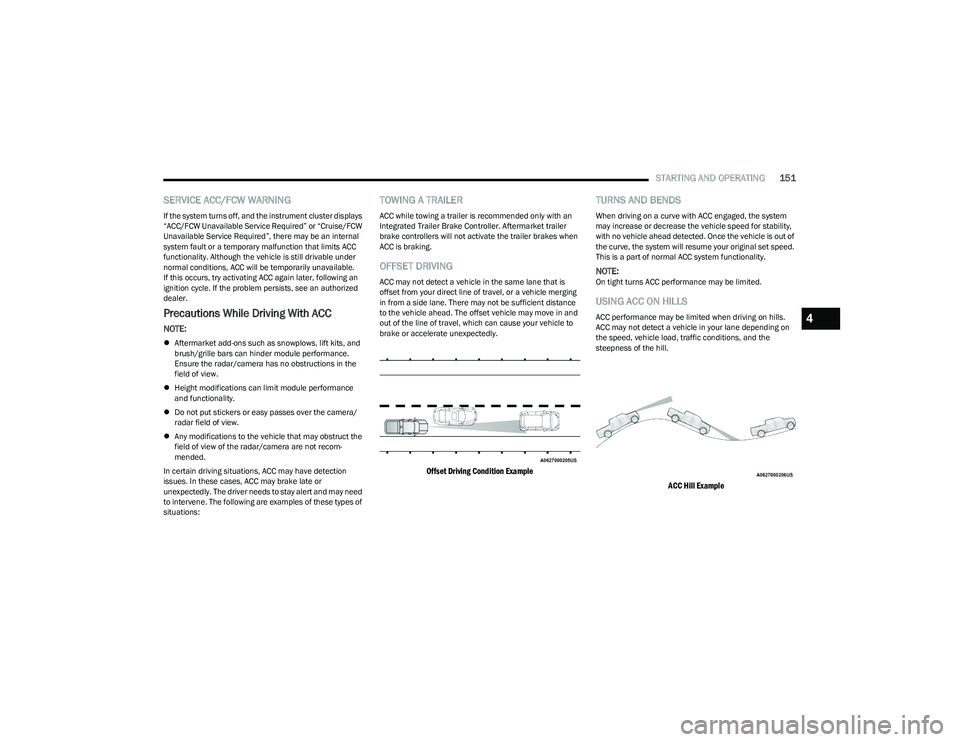
OFFSET DRIVING
ACC may not detect a vehicle in the same lane that is
offset from your direct line of travel, or a vehicle merging
in from a side lane. There may not be sufficient distance
to the vehicle ahead. The offset vehicle may move in and
out of the line of travel, which can cause your vehicle to
brake or accelerate unexpectedly.
Offset Driving Condition Example
TURNS AND BENDS
When driving on a curve with ACC engaged, the system
may increase or decrease the vehicle speed for stability,
with no vehicle ahead detected. Once the vehicle is out of
the curve, the system will resume your original set speed.
This is a part of normal ACC system functionality.
NOTE:On tight turns ACC performance may be limited.
USING ACC ON HILLS
ACC performance may be limited when driving on hills.
ACC may not detect a vehicle in your lane depending on
the speed, vehicle load, traffic conditions, and the
steepness of the hill.
ACC Hill Example
4
23_DT_OM_EN_USC_t.book Page 151
Page 155 of 416

STARTING AND OPERATING153
NOTE:
The driver can disable the automatic braking function by
turning ParkSense off via the ParkSense switch. The
driver can also override automatic braking by changing
the gear or by pressing the gas pedal over 90% of its
capacity during the braking event.
Automatic brakes will not be available if the vehicle is in
4WD Low.
Automatic brakes will not be available if there is a fault
in the brake module.
Automatic brakes will not be available if there is a faulted
condition detected with the ParkSense Park Assist
system or the Braking System.
The automatic braking function may only be applied if
the vehicle deceleration is not enough to avoid colliding
with a detected obstacle.
The automatic braking function may not be applied fast
enough for obstacles that move toward the rear of the
vehicle from the left and/or right sides.
The automatic braking function can be enabled/
disabled from the Customer Programmable Features
section of the Uconnect system.
ParkSense will retain its last known configuration state
for the automatic braking function through ignition
cycles.
Trailer hitch ball assembly may cause false braking
events if left attached after towing.
The automatic braking function is intended to assist the
driver in avoiding possible collisions with detected obstacles
when backing up in REVERSE gear.
NOTE:
The system is designed to assist the driver and not to
substitute the driver.
The driver must stay in full control of the vehicle's accel -
eration and braking and is responsible for the vehicle's
movements.
For limitations of this system and usage precautions, see
Ú
page 156.
ParkSense will retain the last system state (enabled or
disabled) from the last ignition cycle when the ignition is
placed in the ON/RUN position.
ParkSense can be active only when the gear selector is in
REVERSE or DRIVE. If ParkSense is enabled while in one of
these gears, the system will remain active until the vehicle
speed is increased to approximately 7 mph (11 km/h) or above. A warning will appear in the instrument cluster
display indicating the vehicle speed is above ParkSense
operating speed while in REVERSE. The system will become
active again if the vehicle speed is decreased to less than
approximately 6 mph (9 km/h).
PARKSENSE SENSORS
The four ParkSense sensors (six if equipped with Active
Parksense), located in the front fascia/bumper, monitor
the area in front of the vehicle that is within the sensors’
field of view, and the four ParkSense sensors, located in
the rear fascia/bumper, monitor the area behind the
vehicle that is within the sensors’ field of view. The front
sensors can detect obstacles from approximately
12 inches (30 cm) up to 47 inches (120 cm) from the front fascia/bumper. The rear sensors can detect obstacles from approximately
12 inches (30 cm) up to 79 inches (200 cm). These
distances depend on the location, type and orientation of
the obstacle in the horizontal direction.
PARKSENSE WARNING DISPLAY
The ParkSense Warning screen is located within the
instrument cluster display Úpage 98. It provides visual
warnings to indicate the distance between the rear fascia/
bumper and/or front fascia/bumper and the detected
obstacle.
PARKSENSE DISPLAY
The warning display will turn on indicating the system status
when the vehicle is in REVERSE or when the vehicle is in
DRIVE and an obstacle has been detected.
The system will indicate a detected obstacle by showing a
single arc in the left, right, or center regions based on the
obstacle’s distance and location relative to the vehicle.
If an obstacle is detected in the center front region, the
display will show a single solid arc in the center front region
with no chime. As the vehicle moves closer to the obstacle,
the display will show the single arc moving closer to the
vehicle and a fast chime will be heard and will change from
fast to continuous.
If an obstacle is detected in the left and/or right front region,
the display will show a single flashing arc in the left and/or
right front region and will produce a fast chime. As the
vehicle moves closer to the obstacle, the display will show
the single arc moving closer to the vehicle and the tone will
change from fast to continuous.
4
23_DT_OM_EN_USC_t.book Page 153
Page 158 of 416

156STARTING AND OPERATING
Front Park Assist Audible Alerts
ParkSense will turn off the Front Park Assist audible alert
(chime) after approximately three seconds when an
obstacle has been detected, the vehicle is stationary, and
brake pedal is applied.
Adjustable Chime Volume Settings
The Front and Rear chime volume settings are
programmable through the Uconnect system
Ú
page 191.
ENABLING AND DISABLING FRONT
A
ND/OR REAR PARKSENSE
Front ParkSense can be enabled and disabled
with the Front ParkSense switch.
Rear ParkSense can be enabled and disabled
with the Rear ParkSense switch.
When the Front or Rear ParkSense switch is pushed to
disable the system, the instrument cluster display
Úpage 98 will show a vehicle graphic of the Front or Rear
ParkSense on/off state for two seconds.
When the gear selector is moved to REVERSE and the
Front or Rear system is disabled, the instrument cluster
display will show a vehicle graphic with “OFF” on the
corresponding side. This vehicle graphic will be displayed
for as long as the vehicle is in REVERSE.
NOTE:Arc alerts from the enabled ParkSense system, will
interrupt the five second messages, and the instrument
cluster display will show the vehicle graphic with the corre-
sponding arcs and “OFF” message. The Front or Rear ParkSense switch LED will be on when
Front or Rear ParkSense is disabled or requires service.
The Front or Rear ParkSense switch LED will be off when
the Front or Rear system is enabled. If the Front or Rear
ParkSense switch is pushed, and the system requires
service, the Front or Rear ParkSense switch LED will blink
momentarily, and then the LED will be on.
SERVICE THE PARKSENSE PARK ASSIST
S
YSTEM
During vehicle start up, when the ParkSense System has
detected a faulted condition, the instrument cluster will
actuate a single chime, once per ignition cycle, and it will
display the "PARKSENSE UNAVAILABLE WIPE REAR
SENSORS", "PARKSENSE UNAVAILABLE WIPE FRONT
SENSORS", or the "PARKSENSE UNAVAILABLE SERVICE
REQUIRED" message for five seconds. When the gear
selector is moved to REVERSE and the system has
detected a faulted condition, the instrument cluster
display will display a "WIPE OFF" message on the
corresponding blocked system while the vehicle is in
REVERSE. The system will continue to provide arc alerts
for the side that is functioning properly.
If "PARKSENSE UNAVAILABLE WIPE REAR SENSORS" or
"PARKSENSE UNAVAILABLE WIPE FRONT SENSORS"
appears in the instrument cluster display make sure the
outer surface and the underside of the rear fascia/
bumper and/or front fascia/bumper is clean and clear of
snow, ice, mud, dirt or other obstruction and then cycle the
ignition. If the message continues to appear see an
authorized dealer.
NOTE:Water from a car wash or road slush in freezing weather
may also cause sensors to become blocked.
If the "PARKSENSE UNAVAILABLE SERVICE REQUIRED"
message appears in the instrument cluster display, see
your authorized dealer.
CLEANING THE PARKSENSE SYSTEM
Clean the ParkSense sensors with water, car wash soap
and a soft cloth. Do not use rough or hard cloths. Do not
scratch or poke the sensors.
PARKSENSE SYSTEM USAGE
P
RECAUTIONS
NOTE:
Ensure that the front and rear fascias/bumpers are
free of snow, ice, mud, dirt and debris to keep the
ParkSense system operating properly.
Jackhammers, large trucks, and other vibrations could
affect the performance of ParkSense.
When you turn Front or Rear ParkSense off, the instru -
ment cluster display will show a vehicle graphic of the
Front or Rear ParkSense on/off state for two seconds.
Furthermore, once you turn Front or Rear ParkSense
off, it remains off until you turn it on again, even if you
cycle the ignition.
23_DT_OM_EN_USC_t.book Page 156
Page 160 of 416

158STARTING AND OPERATING
NOTE:
The driver is always responsible for controlling the
vehicle, responsible for any surrounding objects, and
must intervene as required.
The system is provided to assist the driver and not to
substitute the driver.
During a semi-automatic maneuver, if the driver
touches the steering wheel after being instructed to
remove their hands from the steering wheel, the
system will cancel, and the driver will be required to
manually complete the parking maneuver.
The system may not work in all conditions
(e.g. environmental conditions such as heavy rain,
snow, etc., or if searching for a parking space that has
surfaces that will absorb the ultrasonic sensor waves).
New vehicles from the dealership must have at least
30 miles (48 km) accumulated before the ParkSense
Active Park Assist system is fully calibrated and
performs accurately. This is due to the system’s
dynamic vehicle calibration to improve the perfor -
mance of the feature.
The driver must control the vehicle’s brakes. The auto -
matic emergency braking feature is NOT intended to
substitute for the driver during REVERSE maneuvers.ENABLING AND DISABLING THE
P
ARKSENSE ACTIVE PARK ASSIST
S
YSTEM
The ParkSense Active Park Assist system can
be enabled and disabled with the ParkSense
Active Park Assist switch, located on the switch
panel below the Uconnect display.
NOTE:If your vehicle is equipped with a 12-inch Uconnect
display, the ParkSense Active Park Assist switch is located
above the display.
To enable or disable the ParkSense Active Park Assist
system, push the ParkSense Active Park Assist switch
once (LED turns on). Pushing the switch a second time will
disable the system (LED turns off).
The ParkSense Active Park Assist system will turn off
automatically for any of the following conditions:
Parking maneuver is completed.
Vehicle speed is greater than 18 mph (30 km/h) when
searching for a parking space.
Vehicle speed is greater than 5 mph (7 km/h) during
active steering guidance into the parking space.
Steering wheel is touched during active steering guid -
ance into the parking space.
ParkSense Front/Rear Park Assist switch is pushed.
Driver's door is opened.
Tailgate is opened.
Electronic Stability Control/Anti-Lock Braking System
intervention.
Vehicle is in 4WD Low.
Axle Locker is active.
Trailer is connected.
Trailer Reverse Steering Control (TRSC) is active.
Snowplow is connected.
NOTE:The ParkSense Active Park Assist system will allow a
maximum of eight shifts between DRIVE and REVERSE. If
the maneuver cannot be completed within eight shifts, the
system will cancel and the instrument cluster display will
instruct the driver to complete the maneuver manually.
The ParkSense Active Park Assist system will only operate
and search for a parking space when the following
conditions are present:
Gear selector is in DRIVE.
The ignition is in the ON/RUN position.
The ParkSense Active Park Assist switch is activated.
Driver's door is closed.
Tailgate is closed.
Vehicle speed is less than 15 mph (25 km/h).
The outer surface and the underside of the front and
rear fascias/bumpers are clean and clear of snow, ice,
mud, dirt or other obstruction.
NOTE:If the vehicle is driven above approximately 15 mph
(25 km/h), the instrument cluster display will instruct the
driver to slow down. If the vehicle is driven above approxi -
mately 18 mph (30 km/h), the system will cancel. The driver must then reactivate the system by pushing the
ParkSense Active Park Assist switch.
23_DT_OM_EN_USC_t.book Page 158
Page 163 of 416

STARTING AND OPERATING161
LANESENSE — IF EQUIPPED
LANESENSE OPERATION
The LaneSense system is operational at speeds above
37 mph (60 km/h) and below 112 mph (180 km/h).
The LaneSense system uses a forward looking camera to
detect lane markings and measure vehicle position within
the lane boundaries.
When both lane markings are detected and the driver
drifts out of the lane (no turn signal applied), the
LaneSense system provides a haptic warning in the form
of torque applied to the steering wheel, as well as a visual
warning in the instrument cluster display, to prompt the
driver to remain within the lane boundaries.
The driver may manually override the haptic warning by
applying force to the steering wheel at any time.
When only a single lane marking is detected and the driver
drifts across the lane marking (no turn signal applied), the
LaneSense system provides a visual warning through the
instrument cluster display to prompt the driver to remain
within the lane.
When only a single lane marking is detected, a haptic or a
torque warning will not be provided.
NOTE:
When operating conditions have been met, the Lane -
Sense system will monitor if the driver’s hands are on
the steering wheel and provide an audible and visual
warning to the driver if removed. The system will cancel
if the driver does not return their hands to the wheel.
LaneSense will disable when a snowplow is connected
to the vehicle.
TURNING LANESENSE ON OR OFF
The LaneSense button is located on the switch
panel below the Uconnect display.
NOTE:If your vehicle is equipped with a 12-inch Uconnect Display
screen, the LaneSense button is located above the
display.
To turn the LaneSense system on, push the LaneSense
button (LED turns off). A “LaneSense On” message is
shown in the instrument cluster display.
To turn the LaneSense system off, push the LaneSense
button again (LED turns on).
NOTE:The LaneSense system will retain the last system state on
or off from the last ignition cycle when the ignition is
placed in the ON/RUN position.
LANESENSE WARNING MESSAGE
The LaneSense system will indicate the current lane drift
condition through the instrument cluster display.
When the LaneSense system is on, the lane lines are gray
when both of the lane boundaries have not been detected
and the LaneSense telltale is solid white.
System ON (Gray Lines) With White Telltale
4
23_DT_OM_EN_USC_t.book Page 161
Page 166 of 416
164STARTING AND OPERATING
When the vehicle is shifted out of REVERSE with camera
delay turned off, the rear camera mode is exited and the
previous screen appears. When the vehicle is shifted out
of REVERSE with camera delay turned on, the camera
image will continue to be displayed for up to 10 seconds
after shifting out of REVERSE unless the following
conditions occur: The vehicle speed exceeds 8 mph
(13 km/h), the vehicle is shifted into PARK, the vehicle’s
ignition is placed in the OFF position, or the user presses
the touchscreen X button to exit out of the camera video
display.
Whenever the Rear View Camera image is activated
through the Back Up Camera button in the Controls menu,
and the vehicle speed is greater than, or equal to, 8 mph
(13 km/h), a display timer for the image is initiated.
The image will continue to be displayed until the display
timer exceeds 10 seconds.
NOTE:
If the vehicle speed remains below 8 mph (13 km/h),
the Rear View Camera image will be displayed continu -
ously until deactivated via the touchscreen X button,
the transmission is shifted into PARK, or the ignition is
placed in the OFF position.
The touchscreen X button to disable the camera image
is made available ONLY when the vehicle is not in
REVERSE. When enabled, active guidelines are overlaid on the image
to illustrate the width of the vehicle and its projected back
up path based on the steering wheel position. A dashed
centerline overlay indicates the center of the vehicle to
assist with parking or aligning to a hitch/receiver.
Different colored zones indicate the distance to the rear of
the vehicle. The following table shows the approximate
distances for each zone:
NOTE:If snow, ice, mud, or any foreign substance builds up on
the camera lens, clean the lens, rinse with water, and dry
with a soft cloth. Do not cover the lens.
Zoom View
When the Rear View Camera image is being displayed, and
the vehicle speed is below 8 mph (13 km/h) while in any
gear, Zoom View is available. By pressing the “magnifying
glass” icon in the upper left of the display screen, the
image will zoom in to four times the standard view.
Pressing the icon a second time will return the view to the
standard Back Up Camera display.
Zones
Distance To The Rear Of
The Vehicle
Red 0 - 1 ft
(0 - 30 cm)
Yellow 1 ft - 6.5 ft
(30 cm - 2 m)
Green 6.5 ft or greater
(2 m or greater)
WARNING!
Drivers must be careful when backing up even when
using the ParkView Rear Back Up Camera. Always
check carefully behind your vehicle, and be sure to
check for pedestrians, animals, other vehicles,
obstructions, or blind spots before backing up. You are
responsible for the safety of your surroundings and
must continue to pay attention while backing up.
Failure to do so can result in serious injury or death.
CAUTION!
To avoid vehicle damage, ParkView should only be
used as a parking aid. The ParkView camera is
unable to view every obstacle or object in your
drive path.
To avoid vehicle damage, the vehicle must be driven
slowly when using ParkView to be able to stop in time
when an obstacle is seen. It is recommended that
the driver look frequently over his/her shoulder when
using ParkView.
23_DT_OM_EN_USC_t.book Page 164
Page 167 of 416

STARTING AND OPERATING165
When Zoom View is selected while the vehicle is in
REVERSE, then shifted to DRIVE, the camera delay view
will display the standard Back Up Camera view. If the
vehicle is then returned to REVERSE gear from DRIVE, the
Zoom View selection will automatically resume.
NOTE:The Zoom View button and AUX button (if equipped) will
not be available when the vehicle is shifted into REVERSE
and the Trailer Reverse Steering Control (TRSC) feature
(if equipped) is activated.
Shifting to NEUTRAL from any gear will maintain the
selected view (Zoom or Standard) as long as the vehicle is
below 8 mph (13 km/h).
If the vehicle is in PARK, Zoom View is available until the
gear selector is placed in DRIVE or REVERSE and speeds
are at or above 8 mph (13 km/h).
NOTE:
If the vehicle is in DRIVE, NEUTRAL, or REVERSE, and
speed is greater than or equal to 8 mph (13 km/h),
Zoom View is unavailable and the icon will appear grey.
While in Zoom View, the guidelines will not be visible.
For information on Auxiliary Cameras (if equipped), see
Úpage 170.
SURROUND VIEW CAMERA SYSTEM —
IF EQUIPPED
The Surround View Camera system allows you to see an
on-screen image of the surroundings and the Top View of
your vehicle. This occurs whenever the gear selector is in
REVERSE or when enabled through the Uconnect system.
The Top View of the vehicle will also show if any doors are
open. The image will be displayed on the touchscreen
along with a caution note “Check Entire Surroundings”.
After five seconds, this note will disappear. The Surround
View Camera system is comprised of four cameras located
in the front grille, rear tailgate and side mirrors.
NOTE:
Removing the tailgate will disable the Rear View
Camera function.
The Surround View Camera system has programmable
settings that may be selected through the Uconnect
system
Úpage 191.
Press this button on the touchscreen to enter
the Surround View Camera menu in the
Uconnect system.
When the vehicle is shifted into REVERSE, the Rear View
and Top View is the default view of the system. If the camera delay is turned on, the camera image will
display for up to 10 seconds after shifting out of REVERSE.
The camera image will stop displaying, close, and display
the previous screen if the vehicle speed exceeds 8 mph
(13 km/h), the vehicle is shifted into PARK, or the ignition
is placed in the OFF position. The touchscreen X button on
the touchscreen disables the display of the camera image.
If the camera delay is turned off, the camera image will
close and display the previous screen after shifting out of
REVERSE.
If active guidelines are enabled, the lines are overlaid on
the image in the Rear View and Top View to illustrate the
width of the vehicle and its projected path based on
steering wheel position.
The guidelines have different colored zones to indicate the
distance an object in the view is from the rear of the
vehicle. Refer to the chart below:
Modes Of Operation
Standard Rear View can be manually activated by
selecting “Back Up Camera” through the Controls menu
within the Uconnect system.Zone
Distance To The Rear Of The
Vehicle
Red 0 - 1 ft
(0 - 30 cm)
Yellow 1 ft - 6.5 ft
(30 cm - 2 m)
Green 6.5 ft or greater
(2 m or greater)
4
23_DT_OM_EN_USC_t.book Page 165
Page 169 of 416

STARTING AND OPERATING167
(Continued)
If the vehicle is in PARK, Zoom View is available until the
gear selector is placed in DRIVE or REVERSE and speeds
are at or above 8 mph (13 km/h).
NOTE:
If the vehicle is in DRIVE, NEUTRAL, or REVERSE, and
speed is greater than or equal to 8 mph (13 km/h),
Zoom View is unavailable and the icon will appear grey.
While in Zoom View, the guidelines will not be visible.
Deactivation
The system is deactivated in the following conditions if it
was activated automatically:
When the vehicle is shifted out of REVERSE with
camera delay turned on, the camera image will
continue to be displayed for up to 10 seconds after
shifting out of REVERSE unless the vehicle speed
exceeds 8 mph (13 km/h), the vehicle is shifted into
PARK or the ignition is placed in the OFF position. There
is a touchscreen X button to disable the display of the
camera image.
When the vehicle is shifted out of REVERSE with
camera delay turned off, the Surround View Camera
mode is exited and the last known screen appears
again.
The system is deactivated in the following conditions if it
was activated manually from the Uconnect controls menu
via Surround View button or Back Up Camera button:
The touchscreen X button is pressed
Vehicle is shifted into PARK
Ignition is placed in the OFF position
Vehicle speed is over 8 mph (13 km/h) for 10 seconds
NOTE:If the Surround View Camera is activated manually, and
the vehicle is shifted into REVERSE, deactivation methods
for automatic activation are assumed.
The camera delay system is turned off manually through
the Uconnect settings menu
Úpage 191.
NOTE:
If snow, ice, mud, or any foreign substance builds up on
the camera lenses, clean the lenses, rinse with water,
and dry with a soft cloth. Do not cover the lenses.
If a malfunction with the system has occurred, see an
authorized dealer. For information on Auxiliary Cameras (if equipped), see
Úpage 170.
FORWARD FACING CAMERA WITH TIRE
L
INES — IF EQUIPPED
The Forward Facing Camera displays a front view image of
the road ahead, along with tire lines to guide the driver
when driving on narrow roads. Tire lines can be activated/
deactivated through the Uconnect Settings.
Activation
The Forward Facing Camera can be activated in the
following ways:
Pressing the Forward Facing Camera button in the
Controls screen or Apps menu
Pressing the Forward Facing Camera button located in
the upper left corner of the Back Up camera display
Once activated, the camera image will remain on as long
as the vehicle speed is below 8 mph (13 km/h).WARNING!
Drivers must be careful when backing up even when
using the Surround View Camera. Always check
carefully behind your vehicle, and be sure to check for
pedestrians, animals, other vehicles, obstructions, or
blind spots before backing up. You are responsible for
the safety of your surroundings and must continue to
pay attention while backing up. Failure to do so can
result in serious injury or death.
CAUTION!
To avoid vehicle damage, Surround View should only
be used as a parking aid. The Surround View camera
is unable to view every obstacle or object in your
drive path.
To avoid vehicle damage, the vehicle must be driven
slowly when using Surround View to be able to stop
in time when an obstacle is seen. It is recommended
that the driver look frequently over his/her shoulder
when using Surround View.
CAUTION!
4
23_DT_OM_EN_USC_t.book Page 167