Page 252 of 644
Refer to the digital NissanConnect® Own-
er’s manual using the QR code on this
page, or your printed NissanConnect®
Owner’s manual (if so equipped). This
manual includes the following information:
• NissanConnect® Services (if so equipped)
• Navigation system (if so equipped)
• Audio system
• Apple CarPlay®
• Android Auto™
• Bluetooth® Hands-Free Phone system
• Viewing information
• Other settings• Voice recognition
• General system information
LHA5688
NISSANCONNECT® OWNER’S
MANUAL
4-2Monitor, climate, audio, phone and voice recognition systems
Page 303 of 644
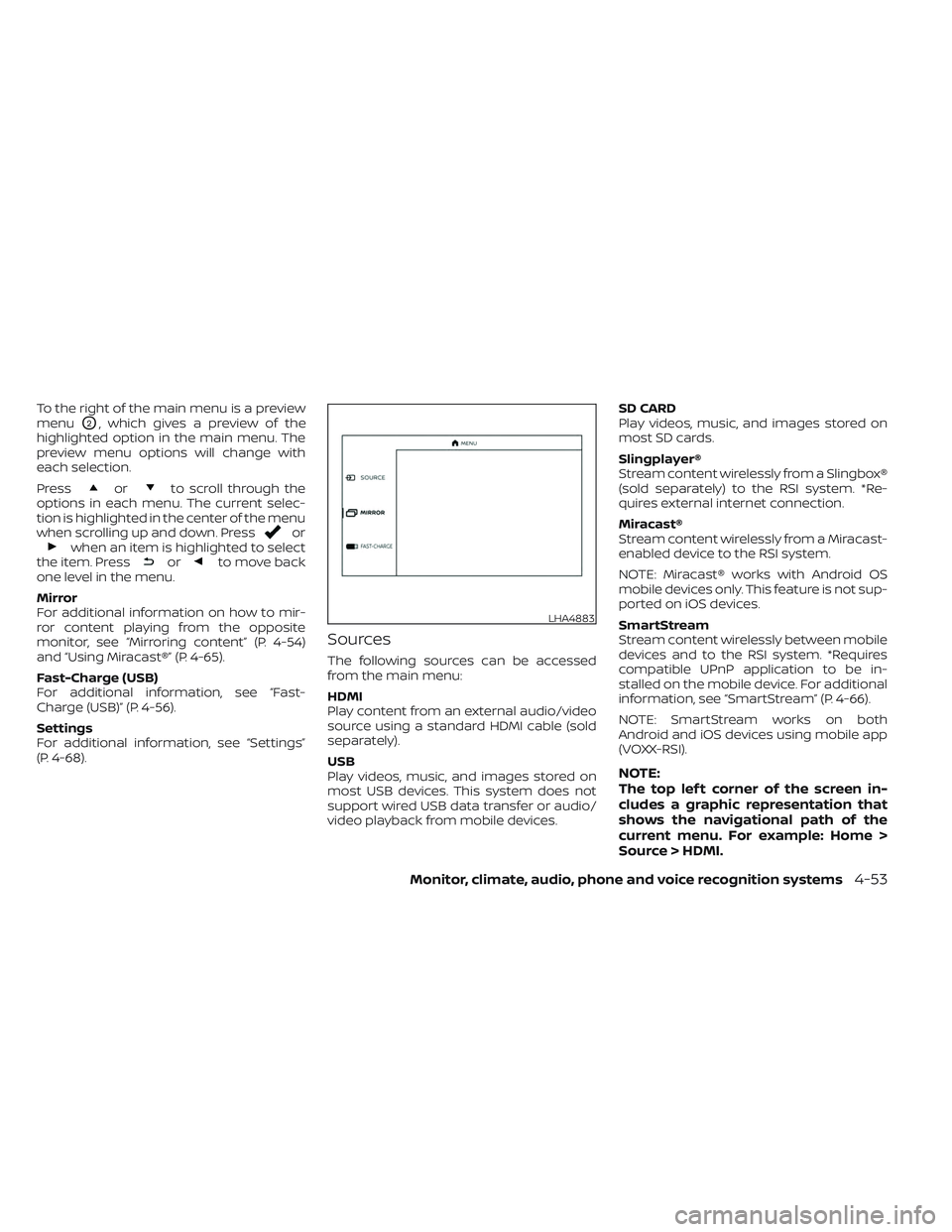
To the right of the main menu is a preview
menu
O2, which gives a preview of the
highlighted option in the main menu. The
preview menu options will change with
each selection.
Press
orto scroll through the
options in each menu. The current selec-
tion is highlighted in the center of the menu
when scrolling up and down. Press
orwhen an item is highlighted to select
the item. Pressorto move back
one level in the menu.
Mirror
For additional information on how to mir-
ror content playing from the opposite
monitor, see “Mirroring content” (P. 4-54)
and “Using Miracast®” (P. 4-65).
Fast-Charge (USB)
For additional information, see “Fast-
Charge (USB)” (P. 4-56).
Settings
For additional information, see “Settings”
(P. 4-68).
Sources
The following sources can be accessed
from the main menu:
HDMI
Play content from an external audio/video
source using a standard HDMI cable (sold
separately).
USB
Play videos, music, and images stored on
most USB devices. This system does not
support wired USB data transfer or audio/
video playback from mobile devices. SD CARD
Play videos, music, and images stored on
most SD cards.
Slingplayer®
Stream content wirelessly from a Slingbox®
(sold separately) to the RSI system. *Re-
quires external internet connection.
Miracast®
Stream content wirelessly from a Miracast-
enabled device to the RSI system.
NOTE: Miracast® works with Android OS
mobile devices only. This feature is not sup-
ported on iOS devices.
SmartStream
Stream content wirelessly between mobile
devices and to the RSI system. *Requires
compatible UPnP application to be in-
stalled on the mobile device. For additional
information, see “SmartStream” (P. 4-66).
NOTE: SmartStream works on both
Android and iOS devices using mobile app
(VOXX-RSI).
NOTE:
The top lef t corner of the screen in-
cludes a graphic representation that
shows the navigational path of the
current menu. For example: Home >
Source > HDMI.
LHA4883
Monitor, climate, audio, phone and voice recognition systems4-53
Page 315 of 644
NOTE: Miracast® works with Android OS
mobile devices only. This feature is not sup-
ported on iOS devices.
Using Miracast®
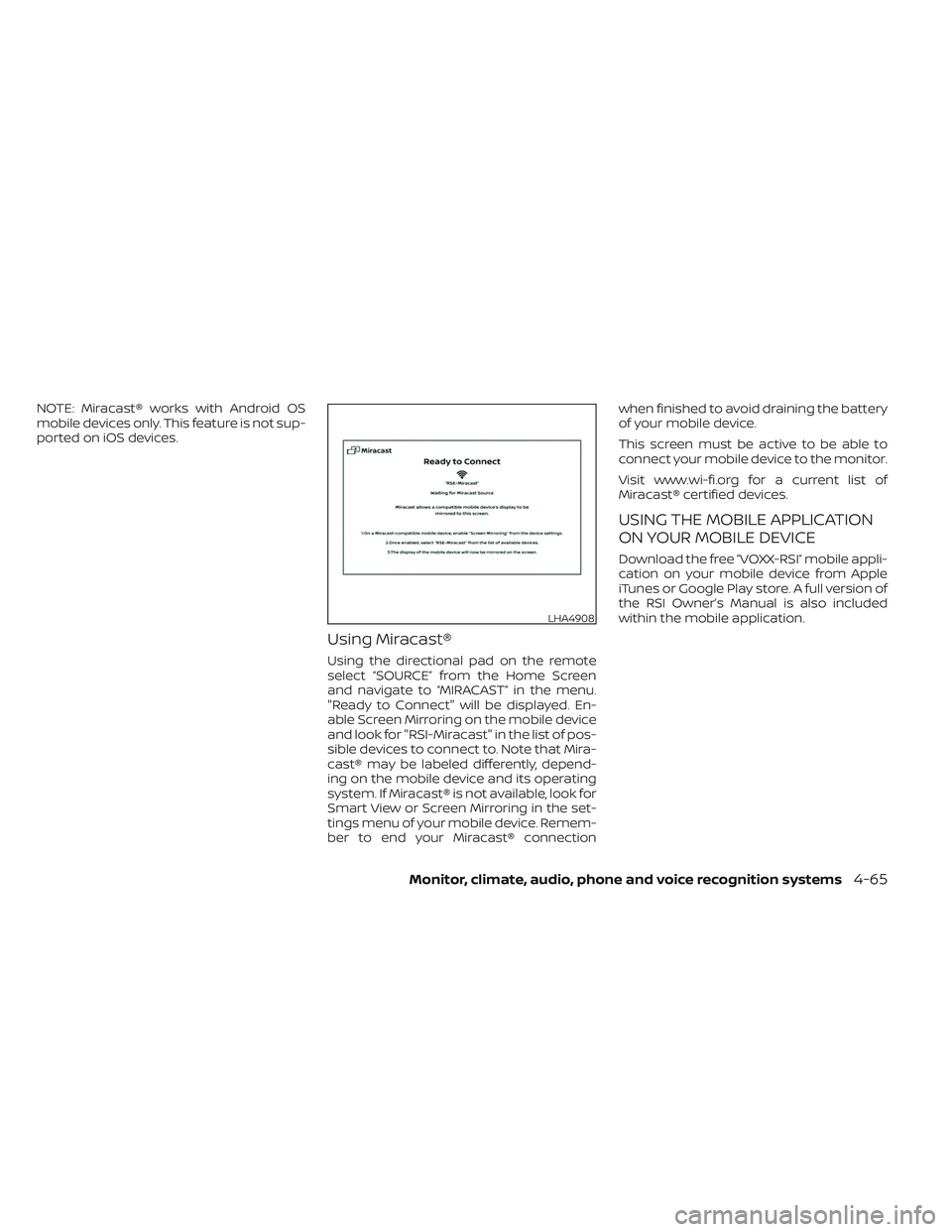
Using the directional pad on the remote
select “SOURCE” from the Home Screen
and navigate to “MIRACAST” in the menu.
"Ready to Connect" will be displayed. En-
able Screen Mirroring on the mobile device
and look for "RSI-Miracast" in the list of pos-
sible devices to connect to. Note that Mira-
cast® may be labeled differently, depend-
ing on the mobile device and its operating
system. If Miracast® is not available, look for
Smart View or Screen Mirroring in the set-
tings menu of your mobile device. Remem-
ber to end your Miracast® connectionwhen finished to avoid draining the battery
of your mobile device.
This screen must be active to be able to
connect your mobile device to the monitor.
Visit www.wi-fi.org for a current list of
Miracast® certified devices.
USING THE MOBILE APPLICATION
ON YOUR MOBILE DEVICE
Download the free ”VOXX-RSI” mobile appli-
cation on your mobile device from Apple
iTunes or Google Play store. A full version of
the RSI Owner’s Manual is also included
within the mobile application.
LHA4908
Monitor, climate, audio, phone and voice recognition systems4-65