2023 NISSAN TITAN ESP
[x] Cancel search: ESPPage 168 of 644
EMERGENCY SUPPORT
NissanConnect® Services provide various
services to support dealing with emergen-
cies of the subscribed vehicle and the
driver.
For example, in case of an illness or serious
injury, you can seek support by pressing
the in-vehicle Emergency Call (SOS) button
and connecting to the NissanConnect®
Services Response Center. The
NissanConnect® Services Response Cen-
ter can specif y the location of the vehicle
via GPS, and the information will be sent to
the police or other agencies as needed.
For information about other
NissanConnect® Services emergency sup-
port related services, contact the
NissanConnect® Customer Support line at
1–855–426–6628 or refer to the
NissanConnect® Services website
www.nissanusa.com/connect (for U.S.) or
www.nissan.ca/nissanconnect (English) /
www.nissan.ca/nissanconnect/fr (French)
(for Canada).
WARNING
• Please note that the Automatic Colli-
sion Notification service and Emer-
gency Call function cannot be used in
the following conditions:
– Emergency functions and ser- vices will not be available without
a paid subscription to
NissanConnect® Services.
– The NissanConnect® Services net- work system is disabled.
– The vehicle moves outside the service area where the TCU
(Telematics Control Unit) is con-
nected to the system.
– The vehicle is outside the area where the cellular network service
is receivable.
– The vehicle is in a location with poor signal reception such as tun-
nels, underground parking ga-
rages, behind buildings or in
mountainous areas.
– The line is busy.
– The TCU (Telematics Control Unit) or other systems of your vehicle
are not working properly. – It may not be possible to make an
emergency call depending on the
severity of a collision and/or
emergency.
• Park the vehicle in a safe location and
set the parking brake before operat-
ing the Emergency Call (SOS) button.
• Only use this service in case of an
emergency. There may be a penalty
for inappropriate use of the service.
• Radio waves could adversely affect
electric medical equipment. Indi-
viduals who use a pacemaker should
contact the device manufacturer re-
garding any possible effects before
using the system.
• The TCU (Telematics Control Unit) an-
tenna is installed inside the upper
central part of the instrument panel.
An occupant should not get any
closer to the antenna than specified
by the pacemaker manufacturer. The
radio waves from the TCU antenna
may adversely affect the operation
of the pacemaker while using the
NissanConnect® Services.
EMERGENCY CALL (SOS) BUTTON (if
so equipped)
2-64Instruments and controls
Page 169 of 644
Making an emergency call
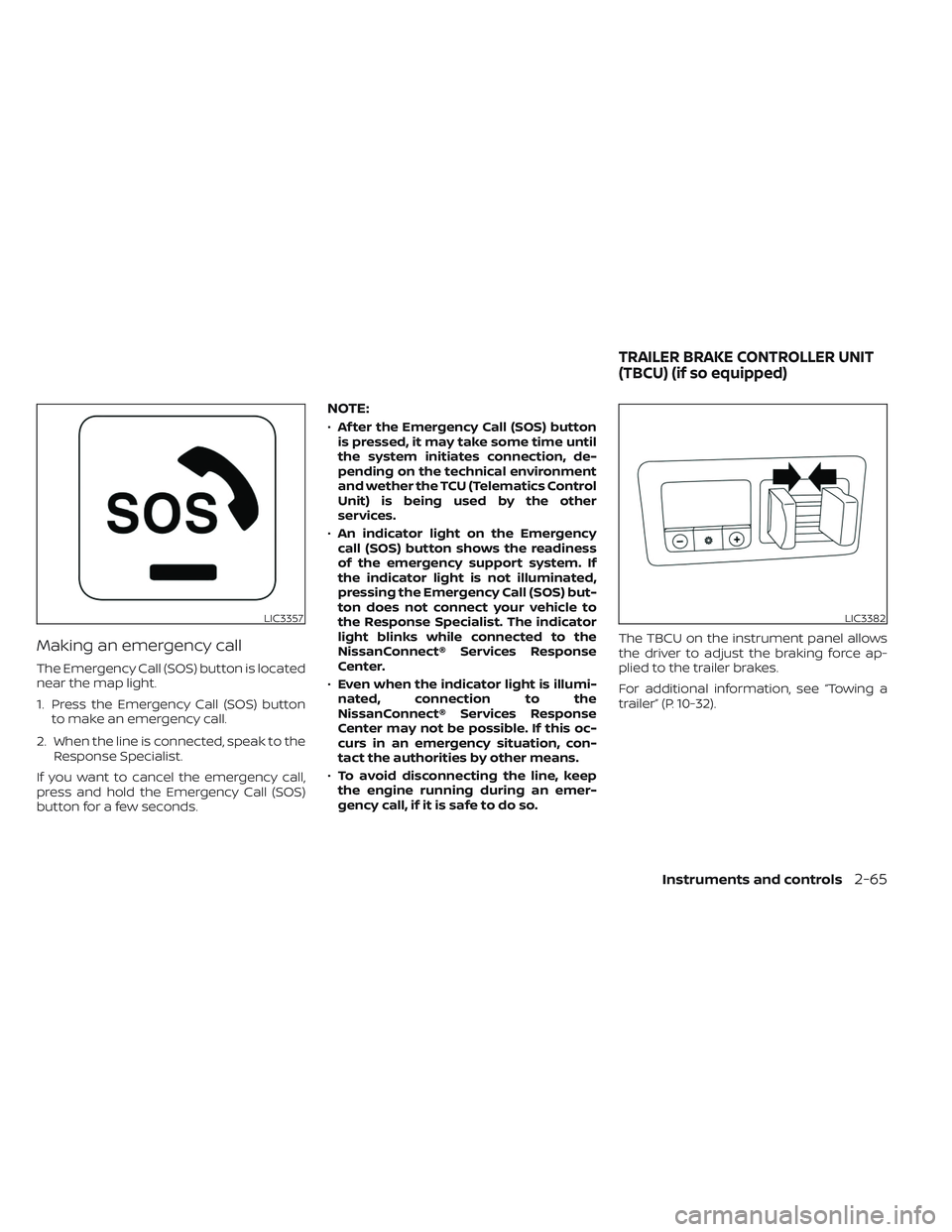
The Emergency Call (SOS) button is located
near the map light.
1. Press the Emergency Call (SOS) buttonto make an emergency call.
2. When the line is connected, speak to the Response Specialist.
If you want to cancel the emergency call,
press and hold the Emergency Call (SOS)
button for a few seconds.
NOTE:
• Af ter the Emergency Call (SOS) button
is pressed, it may take some time until
the system initiates connection, de-
pending on the technical environment
and wether the TCU (Telematics Control
Unit) is being used by the other
services.
• An indicator light on the Emergency
call (SOS) button shows the readiness
of the emergency support system. If
the indicator light is not illuminated,
pressing the Emergency Call (SOS) but-
ton does not connect your vehicle to
the Response Specialist. The indicator
light blinks while connected to the
NissanConnect® Services Response
Center.
• Even when the indicator light is illumi-
nated, connection to the
NissanConnect® Services Response
Center may not be possible. If this oc-
curs in an emergency situation, con-
tact the authorities by other means.
• To avoid disconnecting the line, keep
the engine running during an emer-
gency call, if it is safe to do so. The TBCU on the instrument panel allows
the driver to adjust the braking force ap-
plied to the trailer brakes.
For additional information, see “Towing a
trailer” (P. 10-32).
LIC3357LIC3382
TRAILER BRAKE CONTROLLER UNIT
(TBCU) (if so equipped)
Instruments and controls2-65
Page 189 of 644
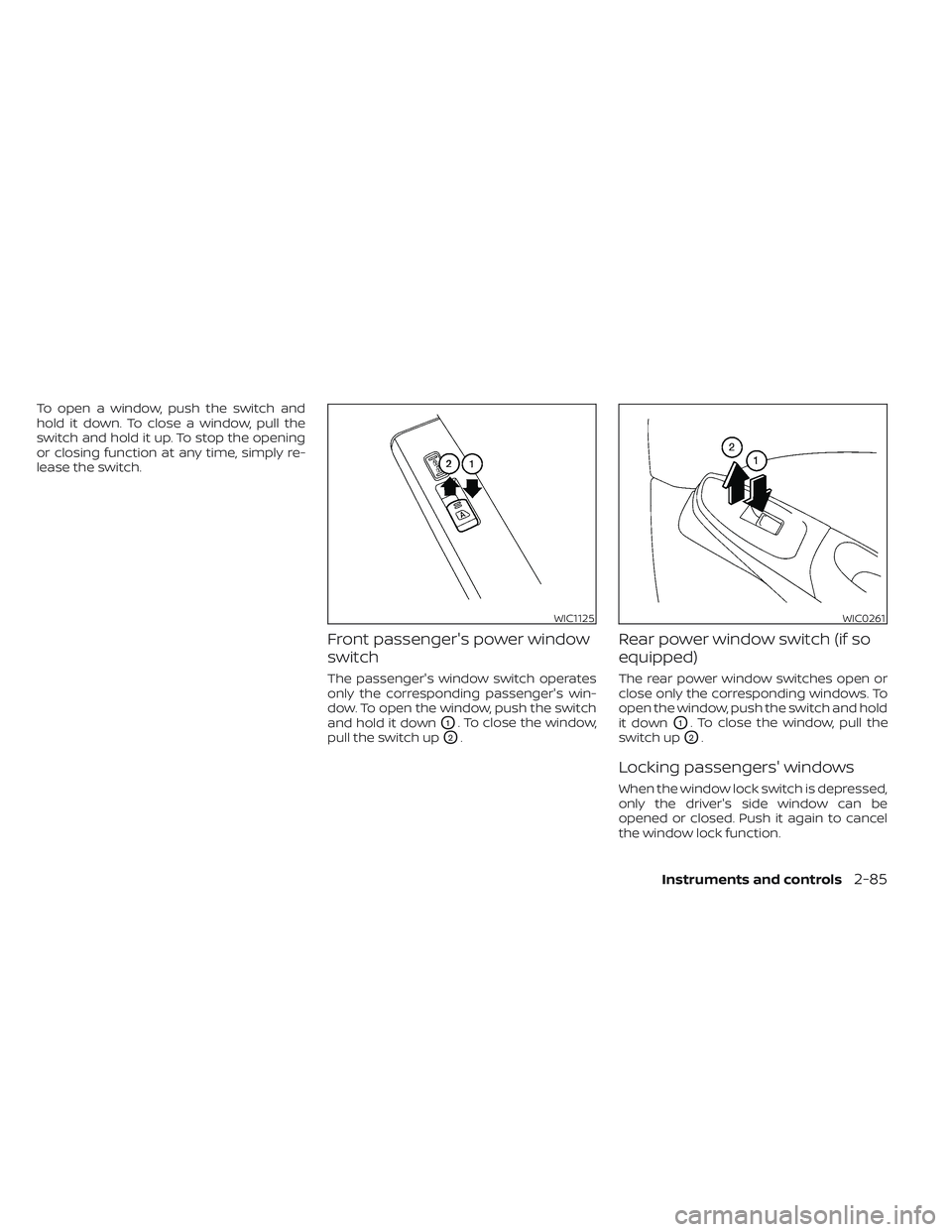
To open a window, push the switch and
hold it down. To close a window, pull the
switch and hold it up. To stop the opening
or closing function at any time, simply re-
lease the switch.
Front passenger's power window
switch
The passenger's window switch operates
only the corresponding passenger's win-
dow. To open the window, push the switch
and hold it down
O1. To close the window,
pull the switch up
O2.
Rear power window switch (if so
equipped)
The rear power window switches open or
close only the corresponding windows. To
open the window, push the switch and hold
it down
O1. To close the window, pull the
switch up
O2.
Locking passengers' windows
When the window lock switch is depressed,
only the driver's side window can be
opened or closed. Push it again to cancel
the window lock function.
WIC1125WIC0261
Instruments and controls2-85
Page 200 of 644
REPROGRAMMING A SINGLE
HOMELINK® BUTTON
To reprogram a HomeLink® Universal
Transceiver button, complete the following:
1. Press and hold the desired HomeLink®button. DO NOT release the button.
2. The indicator light will begin to flash af- ter 20 seconds. Without releasing the
HomeLink® button, proceed with “Pro-
gramming HomeLink®” - Step 1 (P. 2-93).
For questions or comments, contact
HomeLink® at: www.homelink.com or
1–800–355–3515 (except Mexico).
The HomeLink® Universal Transceiver but-
ton has now been reprogrammed. The
new device can be activated by pressing
the HomeLink® button that was just pro-
grammed. This procedure will not affect
any other programmed HomeLink®
buttons.
IF YOUR VEHICLE IS STOLEN
If your vehicle is stolen, you should change
the codes of any non-rolling code device
that has been programmed into
HomeLink®. Consult the Owner's Manual of
each device or call the manufacturer or
dealer of those devices for additional
information.
When your vehicle is recovered, you will
need to reprogram the HomeLink® Uni-
versal Transceiver with your new trans-
mitter information.
FCC Notice:
For USA:
This device complies with Part 15 of the
FCC Rules. Operation is subject to the fol-
lowing two conditions: (1) This device
may not cause harmful interference, and
(2) this device must accept any interfer-
ence received, including interference
that may cause undesired operation.
NOTE:
Changes or modifications not expressly
approved by the party responsible for
compliance could void the user’s author-
ity to operate the equipment. For Canada:
This device contains license-exempt
transmitter(s)/receiver(s) that comply
with Innovation, Science and Economic
Development Canada’s licence-exempt
RSS(s). Operation is subject to the fol-
lowing two conditions: (1) This device
may not cause interference. (2) This de-
vice must accept any interference, in-
cluding interference that may cause un-
desired operation of the device.
2-96Instruments and controls
Page 205 of 644
To clear all programming
1. Press and hold the two outer HomeLink®buttons until the indicator light begins to
flash in green, in approximately 10 sec-
onds. Do not hold for longer than 20
seconds.
2. Release both buttons.
HomeLink® is now in the programming
mode and can be programmed at any
time beginning with “Programming
HomeLink®” - Step 1.
REPROGRAMMING A SINGLE
HOMELINK® BUTTON
To reprogram a HomeLink® button, com-
plete the following:
1. Press and hold the desired HomeLink® button. DO NOT release the button.
2. The indicator light will illuminate in green, and af ter 20 seconds it will begin
to flash in orange.
3. Release the HomeLink® button and pro- ceed with “ Programming HomeLink®” —
Step 3.
For questions or comments, contact
HomeLink® at: www.homelink.com/nissan
or 1–800–355–3515. The HomeLink® button has now been re-
programmed. The new device can be acti-
vated by pressing the HomeLink® button
that was just programmed. This procedure
will not affect any other programmed
HomeLink® buttons.
If a new device is not programmed to the
HomeLink® button, it will revert to the pre-
viously stored programming.
IF YOUR VEHICLE IS STOLEN
If your vehicle is stolen, you should change
the codes of any non-rolling code device
that has been programmed into
HomeLink®. Consult the Owner's Manual of
each device or call the manufacturer or
dealer of those devices for additional
information.
When your vehicle is recovered, you will
need to reprogram the HomeLink® Uni-
versal Transceiver with your new trans-
mitter information.
FCC Notice:
For USA:
This device complies with Part 15 of the
FCC Rules. Operation is subject to the fol-
lowing two conditions: (1) This device
may not cause harmful interference, and
(2) this device must accept any interfer-
ence received, including interference
that may cause undesired operation.
NOTE:
Changes or modifications not expressly
approved by the party responsible for
compliance could void the user’s author-
ity to operate the equipment.
For Canada:
This device contains licence-exempt
transmitter(s)/receiver(s) that comply
with Innovation, Science and Economic
Development Canada’s licence-exempt
RSS(s). Operation is subject to the fol-
lowing two conditions: (1) This device
may not cause interference. (2) This de-
vice must accept any interference, in-
cluding interference that may cause un-
desired operation of the device.
Instruments and controls2-101
Page 226 of 644
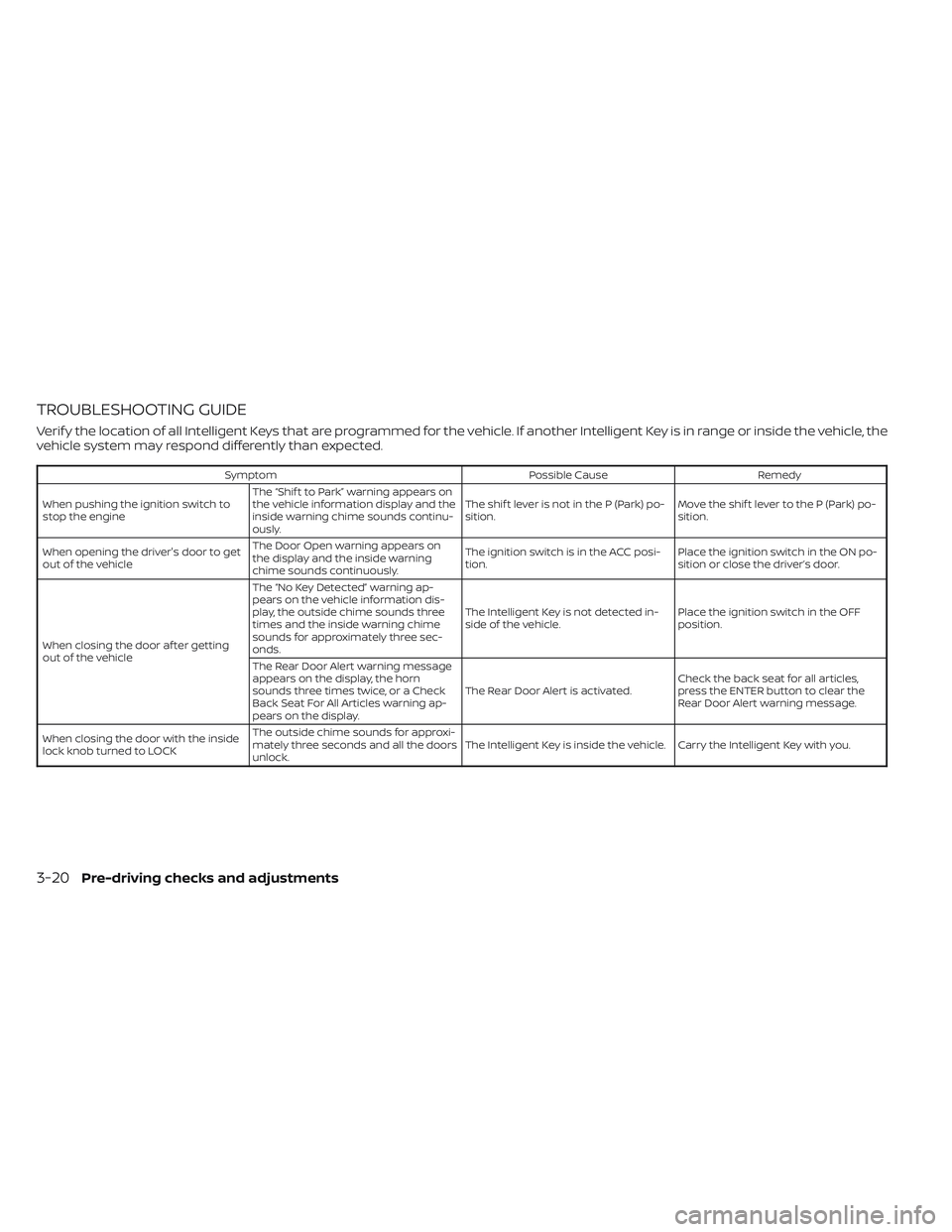
TROUBLESHOOTING GUIDE
Verif y the location of all Intelligent Keys that are programmed for the vehicle. If another Intelligent Key is in range or inside the vehicle, the
vehicle system may respond differently than expected.
SymptomPossible CauseRemedy
When pushing the ignition switch to
stop the engine The “Shif t to Park” warning appears on
the vehicle information display and the
inside warning chime sounds continu-
ously. The shif t lever is not in the P (Park) po-
sition.
Move the shif t lever to the P (Park) po-
sition.
When opening the driver's door to get
out of the vehicle The Door Open warning appears on
the display and the inside warning
chime sounds continuously. The ignition switch is in the ACC posi-
tion.
Place the ignition switch in the ON po-
sition or close the driver’s door.
When closing the door af ter getting
out of the vehicle The “No Key Detected” warning ap-
pears on the vehicle information dis-
play, the outside chime sounds three
times and the inside warning chime
sounds for approximately three sec-
onds.
The Intelligent Key is not detected in-
side of the vehicle.
Place the ignition switch in the OFF
position.
The Rear Door Alert warning message
appears on the display, the horn
sounds three times twice, or a Check
Back Seat For All Articles warning ap-
pears on the display. The Rear Door Alert is activated.
Check the back seat for all articles,
press the ENTER button to clear the
Rear Door Alert warning message.
When closing the door with the inside
lock knob turned to LOCK The outside chime sounds for approxi-
mately three seconds and all the doors
unlock.
The Intelligent Key is inside the vehicle. Carry the Intelligent Key with you.
3-20Pre-driving checks and adjustments
Page 248 of 644
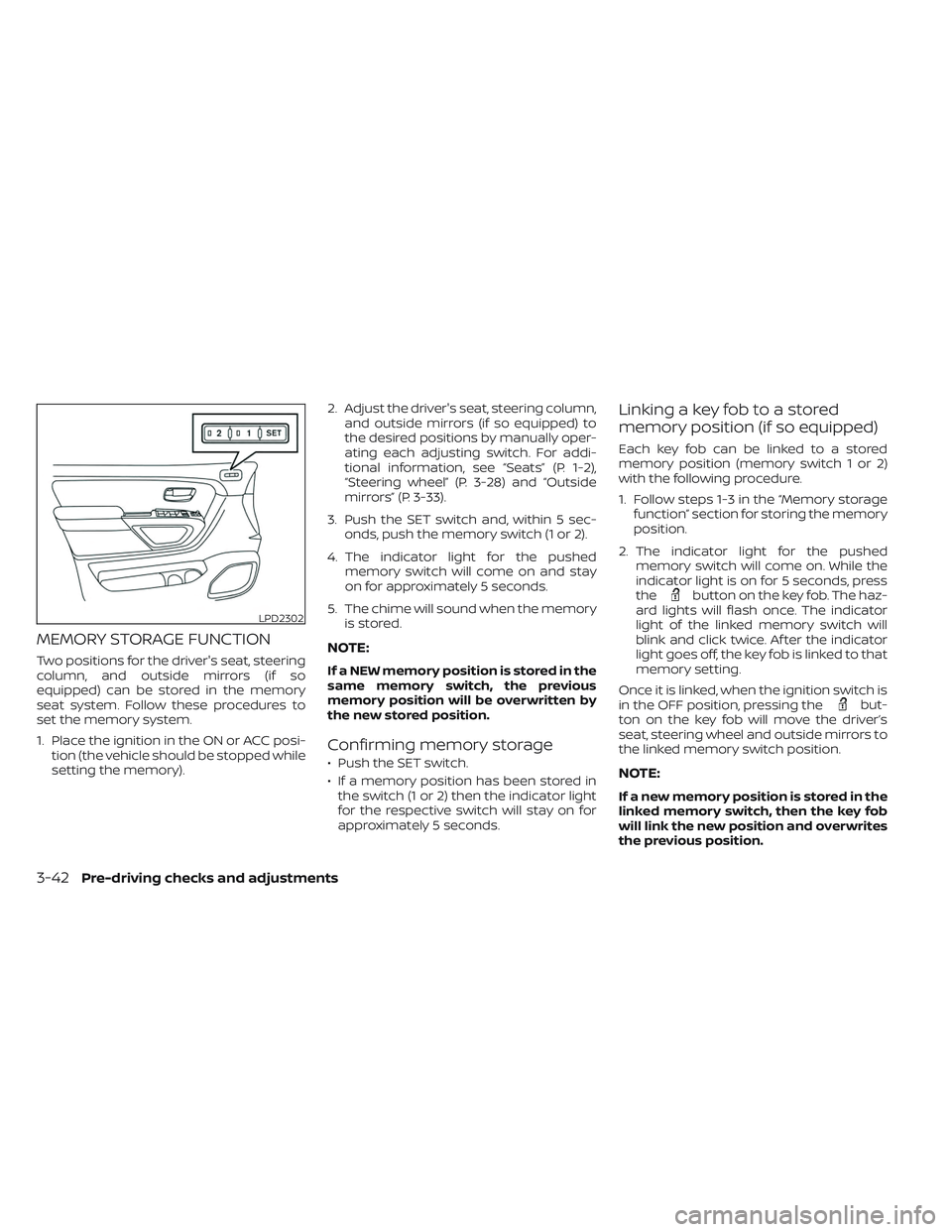
MEMORY STORAGE FUNCTION
Two positions for the driver's seat, steering
column, and outside mirrors (if so
equipped) can be stored in the memory
seat system. Follow these procedures to
set the memory system.
1. Place the ignition in the ON or ACC posi-tion (the vehicle should be stopped while
setting the memory). 2. Adjust the driver's seat, steering column,
and outside mirrors (if so equipped) to
the desired positions by manually oper-
ating each adjusting switch. For addi-
tional information, see “Seats” (P. 1-2),
“Steering wheel” (P. 3-28) and “Outside
mirrors” (P. 3-33).
3. Push the SET switch and, within 5 sec- onds, push the memory switch (1 or 2).
4. The indicator light for the pushed memory switch will come on and stay
on for approximately 5 seconds.
5. The chime will sound when the memory is stored.NOTE:
If a NEW memory position is stored in the
same memory switch, the previous
memory position will be overwritten by
the new stored position.
Confirming memory storage
• Push the SET switch.
• If a memory position has been stored inthe switch (1 or 2) then the indicator light
for the respective switch will stay on for
approximately 5 seconds.
Linking a key fob to a stored
memory position (if so equipped)
Each key fob can be linked to a stored
memory position (memory switch 1 or 2)
with the following procedure.
1. Follow steps 1-3 in the “Memory storage function” section for storing the memory
position.
2. The indicator light for the pushed memory switch will come on. While the
indicator light is on for 5 seconds, press
the
button on the key fob. The haz-
ard lights will flash once. The indicator
light of the linked memory switch will
blink and click twice. Af ter the indicator
light goes off, the key fob is linked to that
memory setting.
Once it is linked, when the ignition switch is
in the OFF position, pressing the
but-
ton on the key fob will move the driver’s
seat, steering wheel and outside mirrors to
the linked memory switch position.
NOTE:
If a new memory position is stored in the
linked memory switch, then the key fob
will link the new position and overwrites
the previous position.
LPD2302
3-42Pre-driving checks and adjustments
Page 262 of 644
WARNING
• Failure to follow the warnings and in-
structions for the proper use of the
Intelligent Around View® Monitor
system could result in serious injury
or death.
• The Intelligent Around View® Monitor
is a convenience feature and is not a
substitute for proper vehicle opera-
tion because it has areas where ob-
jects cannot be viewed. The four cor-
ners of the vehicle in particular, are
areas where objects do not always
appear in the bird’s-eye, front, or rear
views. Always check your surround-
ings to be sure that it is safe to move
before operating the vehicle. Always
operate the vehicle slowly.
• The driver is always responsible for
safety during parking and other
maneuvers.
CAUTION
Do not scratch the camera lens when
cleaning dirt or snow from the front of
the camera. The Intelligent Around View® Monitor sys-
tem is designed as an aid to the driver in
situations such as slot parking or parallel
parking.
The monitor displays various views of the
position of the vehicle in a split screen for-
mat. Not all views are available at all times.
Available views:
• Front View
An approximately 150–degree view of the
front of the vehicle.
• Rear View An approximately 150–degree view of the
rear of the vehicle.
• Bird's-Eye View The surrounding views of the vehicle
from above.
• Front-Side View The view around and ahead of the front
passenger's side wheel.
• Rear-Wide View An approximately 180–degree view of the
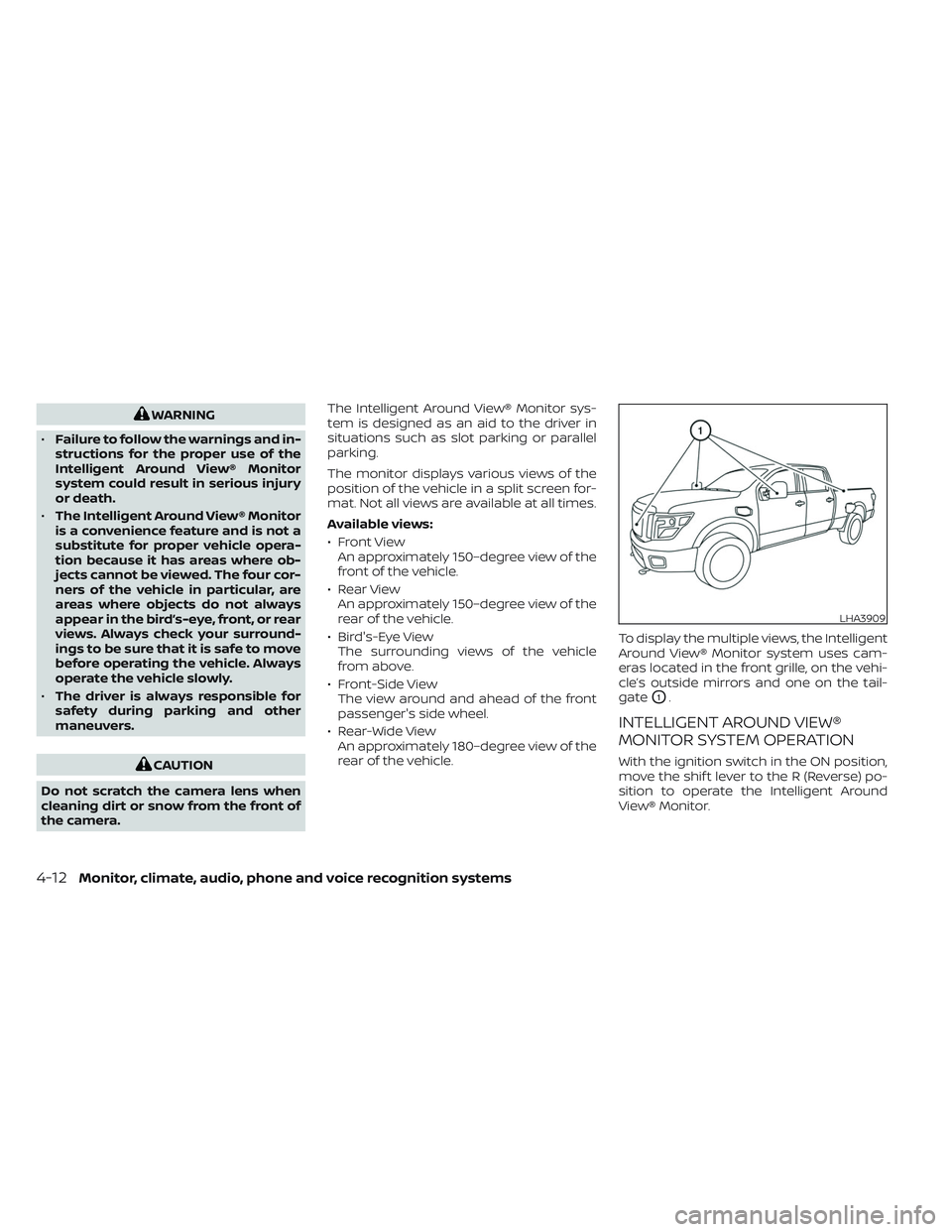
rear of the vehicle. To display the multiple views, the Intelligent
Around View® Monitor system uses cam-
eras located in the front grille, on the vehi-
cle’s outside mirrors and one on the tail-
gate
O1.
INTELLIGENT AROUND VIEW®
MONITOR SYSTEM OPERATION
With the ignition switch in the ON position,
move the shif t lever to the R (Reverse) po-
sition to operate the Intelligent Around
View® Monitor.
LHA3909
4-12Monitor, climate, audio, phone and voice recognition systems