Page 104 of 556
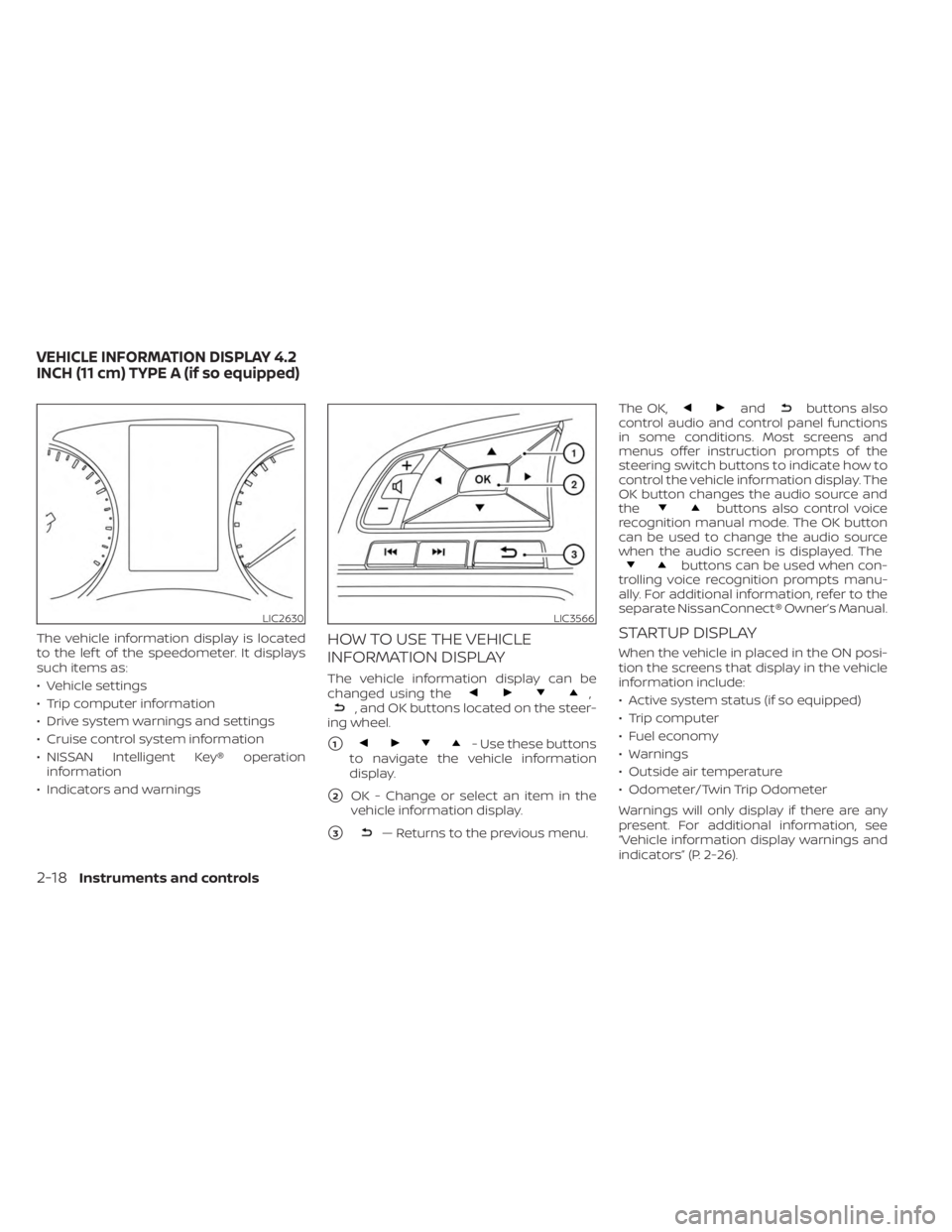
The vehicle information display is located
to the lef t of the speedometer. It displays
such items as:
• Vehicle settings
• Trip computer information
• Drive system warnings and settings
• Cruise control system information
• NISSAN Intelligent Key® operationinformation
• Indicators and warningsHOW TO USE THE VEHICLE
INFORMATION DISPLAY
The vehicle information display can be
changed using the,, and OK buttons located on the steer-
ing wheel.
�1- Use these buttons
to navigate the vehicle information
display.
�2OK - Change or select an item in the
vehicle information display.
�3— Returns to the previous menu. The OK,
andbuttons also
control audio and control panel functions
in some conditions. Most screens and
menus offer instruction prompts of the
steering switch buttons to indicate how to
control the vehicle information display. The
OK button changes the audio source and
the
buttons also control voice
recognition manual mode. The OK button
can be used to change the audio source
when the audio screen is displayed. The
buttons can be used when con-
trolling voice recognition prompts manu-
ally. For additional information, refer to the
separate NissanConnect® Owner’s Manual.
STARTUP DISPLAY
When the vehicle in placed in the ON posi-
tion the screens that display in the vehicle
information include:
• Active system status (if so equipped)
• Trip computer
• Fuel economy
• Warnings
• Outside air temperature
• Odometer/Twin Trip Odometer
Warnings will only display if there are any
present. For additional information, see
“Vehicle information display warnings and
indicators” (P. 2-26).
LIC2630LIC3566
VEHICLE INFORMATION DISPLAY 4.2
INCH (11 cm) TYPE A (if so equipped)
2-18Instruments and controls
Page 119 of 556
• Driving Aids
• Odometer/twin trip odometer
• Distance to empty
• Clock and outside temperature
HOW TO USE THE VEHICLE
INFORMATION DISPLAY
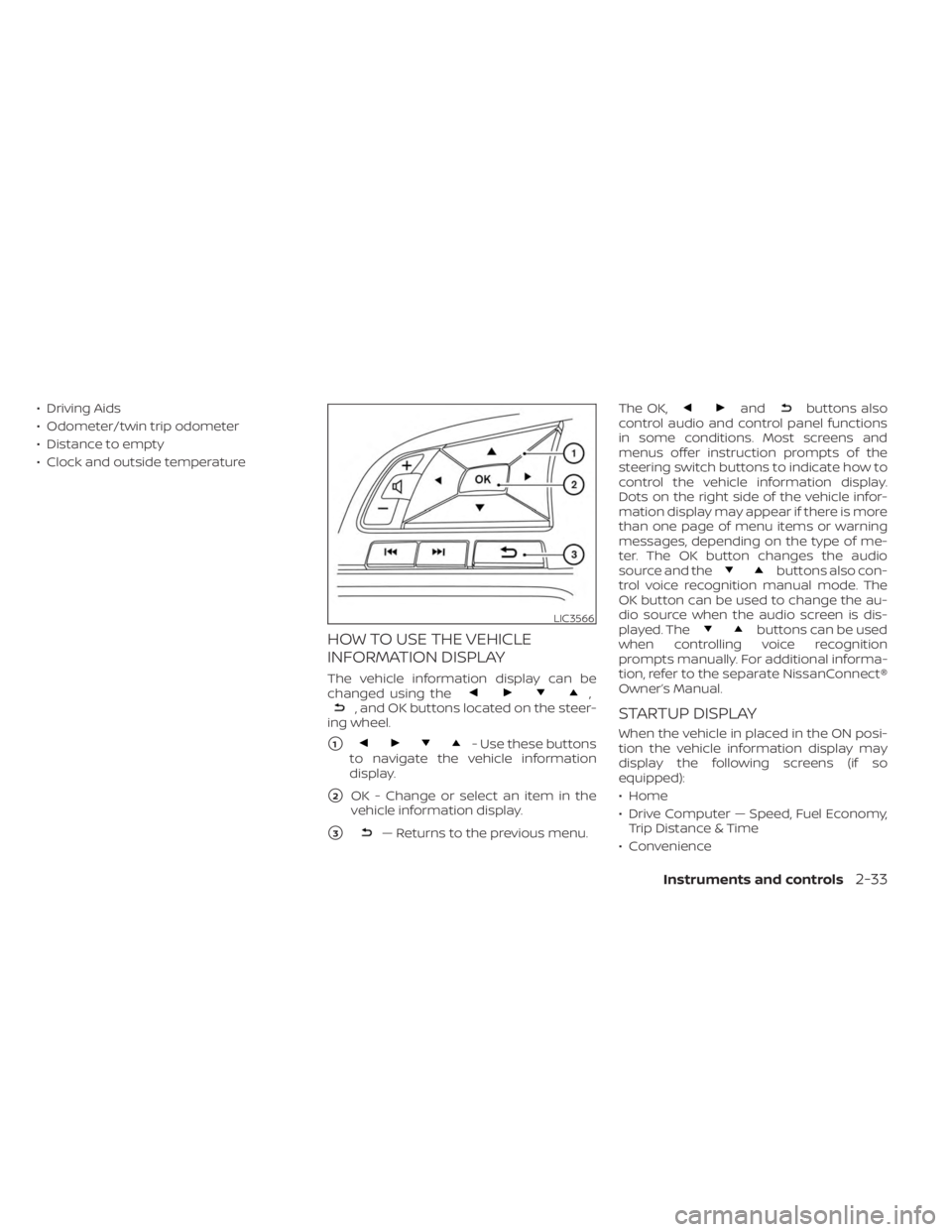
The vehicle information display can be
changed using the,, and OK buttons located on the steer-
ing wheel.
�1- Use these buttons
to navigate the vehicle information
display.
�2OK - Change or select an item in the
vehicle information display.
�3— Returns to the previous menu. The OK,
andbuttons also
control audio and control panel functions
in some conditions. Most screens and
menus offer instruction prompts of the
steering switch buttons to indicate how to
control the vehicle information display.
Dots on the right side of the vehicle infor-
mation display may appear if there is more
than one page of menu items or warning
messages, depending on the type of me-
ter. The OK button changes the audio
source and the
buttons also con-
trol voice recognition manual mode. The
OK button can be used to change the au-
dio source when the audio screen is dis-
played. The
buttons can be used
when controlling voice recognition
prompts manually. For additional informa-
tion, refer to the separate NissanConnect®
Owner’s Manual.
STARTUP DISPLAY
When the vehicle in placed in the ON posi-
tion the vehicle information display may
display the following screens (if so
equipped):
• Home
• Drive Computer — Speed, Fuel Economy, Trip Distance & Time
• Convenience
LIC3566
Instruments and controls2-33
Page 120 of 556

• Digital speed and average speed
• Instant fuel economy/ average fueleconomy
• Tire Pressure
• Audio/telephone
• Intelligent Cruise Control (ICC)
• Speed Limit Sign
• Driving Aids
• Settings
• Warnings*
*Warnings will only display if there are any
present. For additional information, see
“Vehicle information display warnings and
indicators” (P. 2-41).
To control what items display in the vehicle
information display, see “How to use the
vehicle information display” (P. 2-33).RESETTING THE DRIVE COMPUTER
The drive computer is divided across three
screens:
• Average Speed
• Average Fuel Economy
• Trip Distance & Time
1. Press the
buttons
until you reach the desired drive com-
puter mode.
2. Press and hold the OK button for ap- proximately 1 second to reset the infor-
mation on the currently displayed
screen.
NOTE:
If you wish to reset all drive computer
values at once, press and hold the OK
button for approximately 3 seconds until
a reset menu appears; and follow the
instructions.
SETTINGS
The setting mode allows you to change the
information displayed in the vehicle infor-
mation display. It also allows you to change
vehicle functions:
• VDC Setting
• Driver Assistance
• ECO Mode Setting
• TPMS Setting
• Clock
• Vehicle Settings
• Maintenance
• Customize Display
• Unit/Language
• Factory Reset
VDC Setting
The VDC Setting menu allows the user to enable or disable the Vehicle Dynamic Control (VDC) system.
Menu item Explanation
System Allows the user turn the VDC system on or off. For additional information, see “Vehicle Dynamic Control (VDC)
system” (P. 5-131).
2-34Instruments and controls