2023 NISSAN SENTRA Pin
[x] Cancel search: PinPage 251 of 556
BLUETOOTH® STREAMING AUDIO
If you have a compatible Bluetooth® device
with streaming audio (A2DP profile), you
can set up the wireless connection be-
tween your Bluetooth® device and your ve-
hicle’s audio system.
This connection allows you to listen to au-
dio from the Bluetooth® device using your
vehicle’s speakers.
To use Bluetooth® streaming audio touch
the
Bluetooth® Icon on the Launch
Bar, then touch the “BT Audio” key.
NOTE:
A cellular phone should not be used
while driving so full attention may be
given to vehicle operation. If the device
needs to be connected, see “Connecting
procedure” (P. 4-59).Connecting procedure
NOTE:
The connecting procedure must be per-
formed when the vehicle is stationary. If
the vehicle starts moving during the pro-
cedure, the procedure will be canceled. To connect a phone to the Bluetooth®
Hands-Free Phone System:
Manual Connecting Procedure
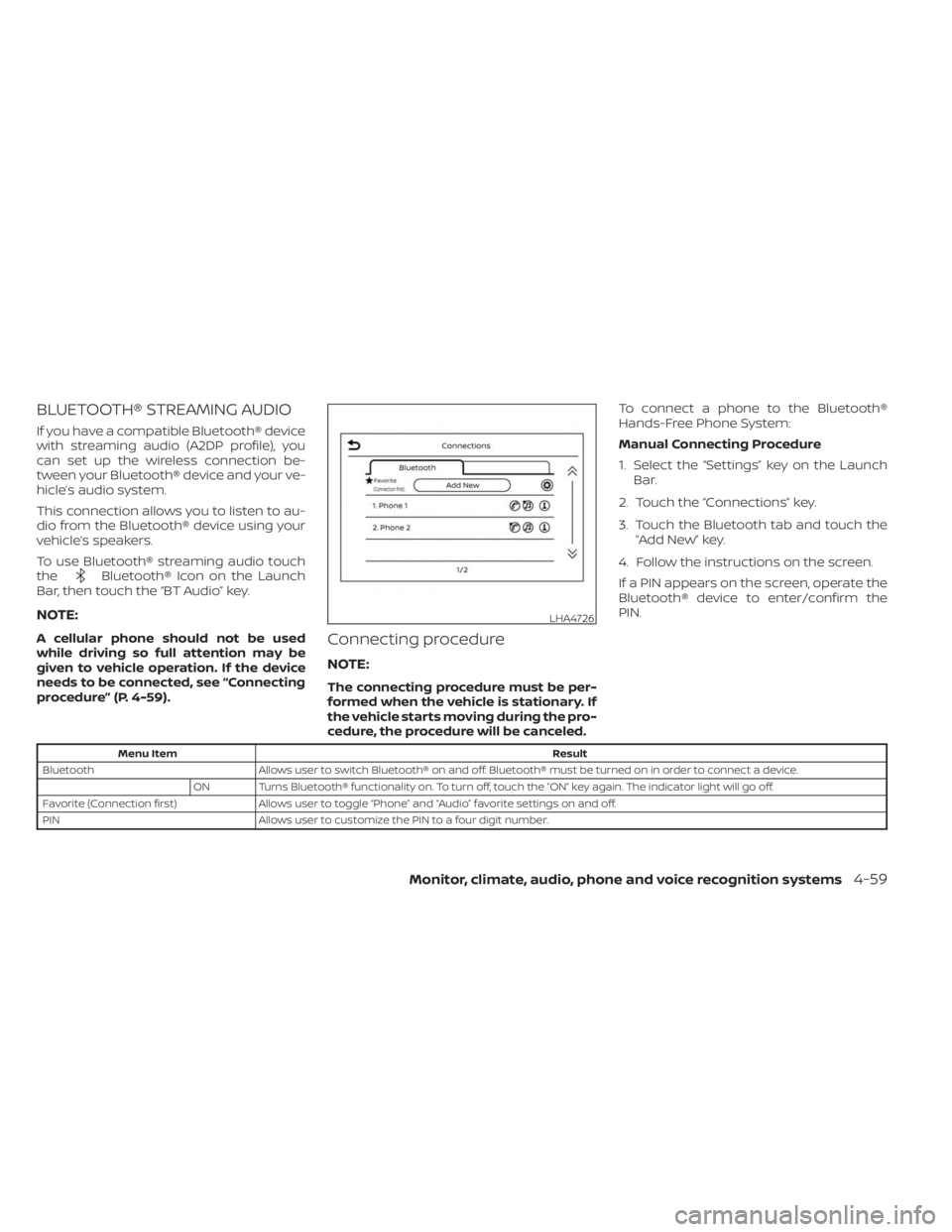
1. Select the “Settings” key on the Launch
Bar.
2. Touch the “Connections” key.
3. Touch the Bluetooth tab and touch the “Add New” key.
4. Follow the instructions on the screen.
If a PIN appears on the screen, operate the
Bluetooth® device to enter/confirm the
PIN.
Menu Item Result
Bluetooth Allows user to switch Bluetooth® on and off. Bluetooth® must be turned on in order to connect a device.
ON Turns Bluetooth® functionality on. To turn off, touch the “ON” key again. The indicator light will go off.
Favorite (Connection first) Allows user to toggle “Phone” and “Audio” favorite settings on and off.
PIN Allows user to customize the PIN to a four digit number.
LHA4726
Monitor, climate, audio, phone and voice recognition systems4-59
Page 252 of 556
Automatic Connecting Procedure
If no phone is connected to the system,
press and hold the
button on the
steering wheel for less than 1.5 seconds.
Af ter the prompt, speak “Add Phone”, the
system will announce “transferring to the
add phone settings menu”. The system will
start the pairing procedure. When a com-
patible phone is found, a message with a
PIN appears on the screen. Operate the
Bluetooth® phone to complete the con-
nection process. For additional informa-
tion, see “Bluetooth® connections screen”
(P. 4-81).
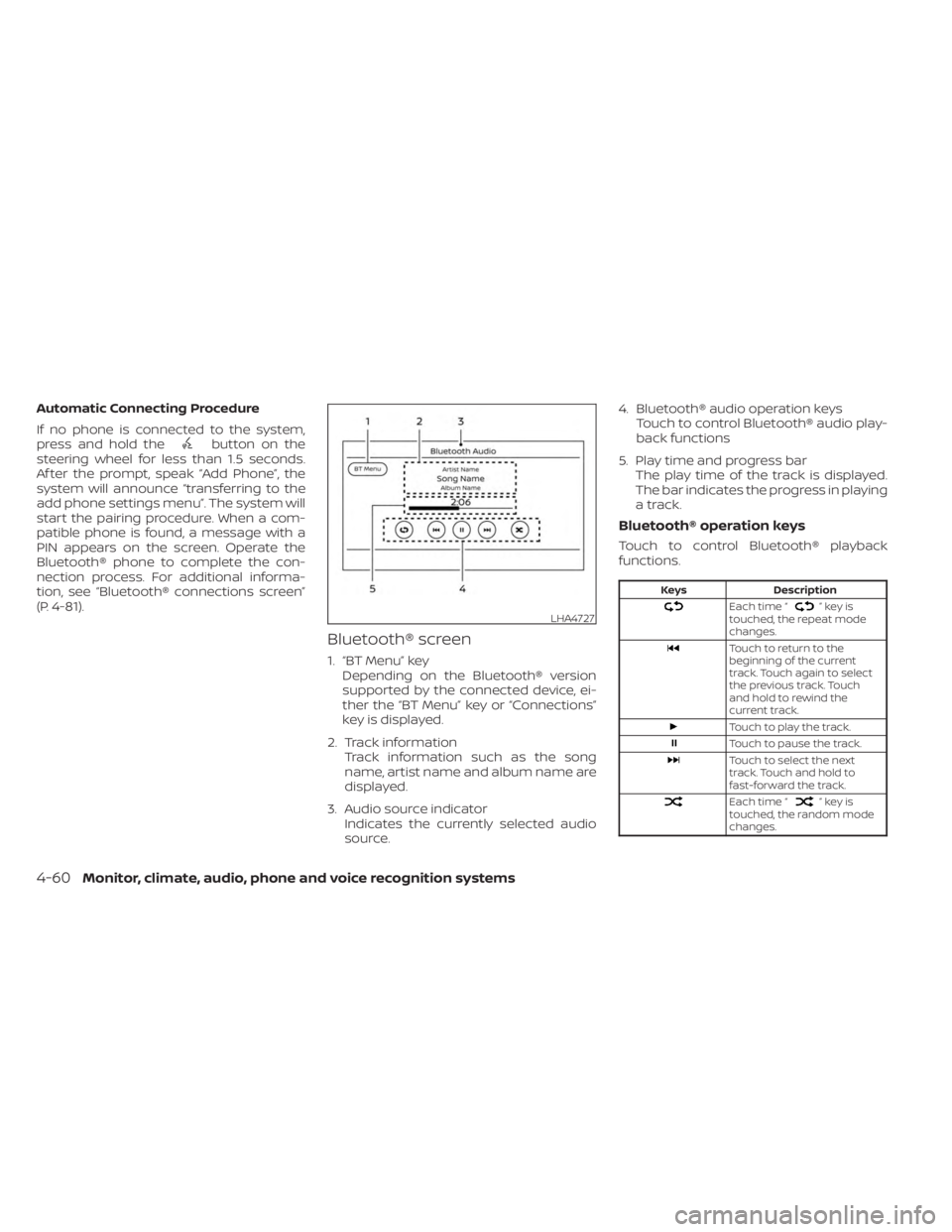
Bluetooth® screen
1. “BT Menu” key Depending on the Bluetooth® version
supported by the connected device, ei-
ther the “BT Menu” key or “Connections”
key is displayed.
2. Track information Track information such as the song
name, artist name and album name are
displayed.
3. Audio source indicator Indicates the currently selected audio
source. 4. Bluetooth® audio operation keys
Touch to control Bluetooth® audio play-
back functions
5. Play time and progress bar The play time of the track is displayed.
The bar indicates the progress in playing
a track.
Bluetooth® operation keys
Touch to control Bluetooth® playback
functions.
Keys Description
Each time “”keyis
touched, the repeat mode
changes.
Touch to return to the
beginning of the current
track. Touch again to select
the previous track. Touch
and hold to rewind the
current track.
Touch to play the track.
Touch to pause the track.
Touch to select the next
track. Touch and hold to
fast-forward the track.
Each time “”keyis
touched, the random mode
changes.
LHA4727
4-60Monitor, climate, audio, phone and voice recognition systems
Page 258 of 556
When installing a CB, ham radio or car
phone in your vehicle, be sure to observe
the following precautions; otherwise, the
new equipment may adversely affect the
engine control system and other electronic
parts.
WARNING
• A cellular phone should not be used
for any purpose while driving so full
attention may be given to vehicle op-
eration. Some jurisdictions prohibit
the use of cellular phones while
driving.
• If you must make a call while your
vehicle is in motion, the hands free
cellular phone operational mode (if
so equipped) is highly recom-
mended. Exercise extreme caution at
all times so full attention may be
given to vehicle operation.
• If you are unable to devote full atten-
tion to vehicle operation while talk-
ing on the phone, pull off the road to
a safe location and stop your vehicle.
CAUTION
• Keep the antenna as far away as pos-
sible from the electronic control
modules.
• Keep the antenna wire more than 8 in
(20 cm) away from the electronic
control system harnesses. Do not
route the antenna wire next to any
harness.
• Adjust the antenna standing-wave
ratio as recommended by the
manufacturer.
• Connect the ground wire from the CB
radio chassis to the body.
• For additional information, it is rec-
ommended that you visit a NISSAN
dealer for this service.WARNING
• Use a phone af ter stopping your ve-
hicle in a safe location. If you have to
use a phone while driving, exercise
extreme caution at all times so full
attention may be given to vehicle
operation.
• If you are unable to devote full atten-
tion to vehicle operation while talk-
ing on the phone, pull off the road to
a safe location and stop your vehicle.
CAUTION
To avoid discharging the vehicle bat-
tery, use a phone af ter starting the
engine.
CAR PHONE OR CB RADIO BLUETOOTH® HANDS-FREE PHONE
SYSTEM
4-66Monitor, climate, audio, phone and voice recognition systems
Page 264 of 556
To connect a phone to the Bluetooth®
Hands-Free Phone System:
Bluetooth® Connecting Procedure
1. Select the “Settings” key on the LaunchBar.
2. Touch the “Connections” key.
3. Touch the Bluetooth tab and touch the “Add New” key.
4. Follow the instructions on the screen.
If a PIN appears on the screen, operate the
Bluetooth® device to enter/confirm the
PIN.
Menu Item Result
Bluetooth Allows user to switch Bluetooth® on and off. Bluetooth® must be turned on in order to connect a device.
ON Turns Bluetooth® functionality on. To turn off, touch the “ON” key again. The indicator light will go off.
Favorite (Connection first) Allows user to toggle “Phone” and “Audio” favorite settings on and off.
PIN Allows user to customize the PIN to a four digit number.
4-72Monitor, climate, audio, phone and voice recognition systems
Page 265 of 556
NOTE:
Some cellular phones may require you to
accept certain permissions in order to
enable features on your Bluetooth® sys-
tem. During the Bluetooth® pairing pro-
cess, please check your cellular phone’s
display for a pop-up with the request to
grant phonebook access.
Granting phonebook access permission
will allow your contacts to be down-
loaded to the vehicle’s Bluetooth® sys-
tem. A pop-up may display on your cellu-
lar phone stating that the Bluetooth®
system would like to access your con-
tacts and call history. Please select “Al-
low” or Yes” to grant this permission.
Automatic Connecting Procedure
If no phone is connected to the system,
press and hold the
button on the
steering wheel for less than 1.5 seconds.
Af ter the prompt, speak “Add Phone”, the
system will announce “transferring to the
add phone settings menu”. The system will
start the pairing procedure. When a com-
patible phone is found, a message with a
PIN appears on the screen. Operate the
Bluetooth® phone to complete the con-
nection process. For additional informa-
tion, see “Bluetooth® connections screen”
(P. 4-81).
VOICE COMMANDS
Voice commands can be used to operate
the Bluetooth® Hands-Free Phone System.
Press and hold the
button for less
than 1.5 seconds to bring up the phone
command menu. The commands avail-
able are:
• Call
• Dial
• Recent Calls
• Read/Send Text (if so equipped)
• Siri® (if so equipped)
• Voice Assistant (if so equipped)
• Phonebook
• Quick Dial
• Redial
• Select Phone
• Add Phone
• Call
• Call
• Call
• Call
• Call
• Settings
“Call
Speak this command to make a call to a
contact that is stored in the phonebook.
Say “Call” followed by a phonebook name to
initiate a call. If the system does not recog-
nize the name it will display a list of similar
names. Af ter the prompt, speak or touch
an item number from the displayed list to
place the call.
“Dial
Speak this command to make a call with a
spoken phone number. Af ter the prompt,
say “Dial” followed b ya7to10digit phone
number. The system will repeat the num-
ber back. Say “Dial” to initiate the call or
“Correction” to re-enter the phone number.
Monitor, climate, audio, phone and voice recognition systems4-73
Page 269 of 556
DURING A CALL
While a call is active the following options
will appear on the control panel display:
• MuteTouch this key to mute or unmute the
system.
• Dial Number Touch this key to dial digits during the
phone call.
• Switch to Handset Touch the “Use Handset” key on the
screen to transfer the call to the handset
(cellular phone). To transfer the call back
from the handset to the Bluetooth®
Hands-Free Phone System, press the
button on the control panel then
select the “Transfer Hands-free” key on
the screen.
NOTE:
Some jurisdictions prohibit the use of
cellular telephones while driving. • Switch Call
This option will only be available when a
second call is active.
If supported by the phone, the
Bluetooth® Hands-Free Phone System
allows for call waiting functionality. If a
call is received while another call is al-
ready active, a message will be displayed
on the screen. Press the
button on
the steering wheel or touch the “
Answer” key on screen to accept the in-
coming call. Touch the “Decline” key
on the screen to reject the second call.
While a call is active, press the
button
on the steering wheel to access additional
options. Speak one of the following
commands:
• “Send Digits” Speak this command followed by the dig-
its to enter digits during the phone call.
• “Switch call” Speak this command to hold the second
call and switch back to the original call.
TEXT MESSAGING (if so equipped)
WARNING
• Laws in some jurisdictions may re-
strict the use of “Text-to-Speech”.
Check local regulations before using
this feature.
• Laws in some jurisdictions may re-
strict the use of some of the applica-
tions and features, such as social
networking and texting. Check local
regulations for any requirements.
• Use the text messaging feature af ter
stopping your vehicle in a safe loca-
tion. If you have to use the feature
while driving, exercise extreme
caution at all times so full attention
may be given to vehicle operation.
• If you are unable to devote full atten-
tion to vehicle operation while using
the text messaging feature, pull off
the road to a safe location and stop
your vehicle.
Monitor, climate, audio, phone and voice recognition systems4-77
Page 274 of 556
•Pin
Touch this key to customize the PIN code.
Input a four digit number then touch the
“OK” key. The new PIN will be set.
“” (info) key
Touch the “” key on the screen to
display the information of the cellular
phone or to delete the device.
Touch the “Delete” key to remove a paired
device then select “Yes” when a message
appears.
“” (Bluetooth® Hands-Free
Phone System connection) key
A list of connected devices will be displayed
on the screen. Touch the “” key next to
the name to connect a device to the
Hands-Free Phone System. If the phone is
listed as a favorite, a star will appear on the
icon. Touch the key again to disconnect the
device. The device will not be removed
from the list. For additional information on
removing a device, see “
(info) key”
(P. 4-82).
“” (Bluetooth® Audio
connection) key
A list of connected devices will be displayed
on the screen. Touch the “” key next to
the name to connect a device to
Bluetooth® Audio. If the device is listed as a
favorite, a star will appear on the icon.
Touch the key again to disconnect the de-
vice. The device will not be removed from
the list. For additional information on re-
moving a device, see “
(info) key”
(P. 4-82).
PHONE AND TEXT MESSAGE
SETTINGS
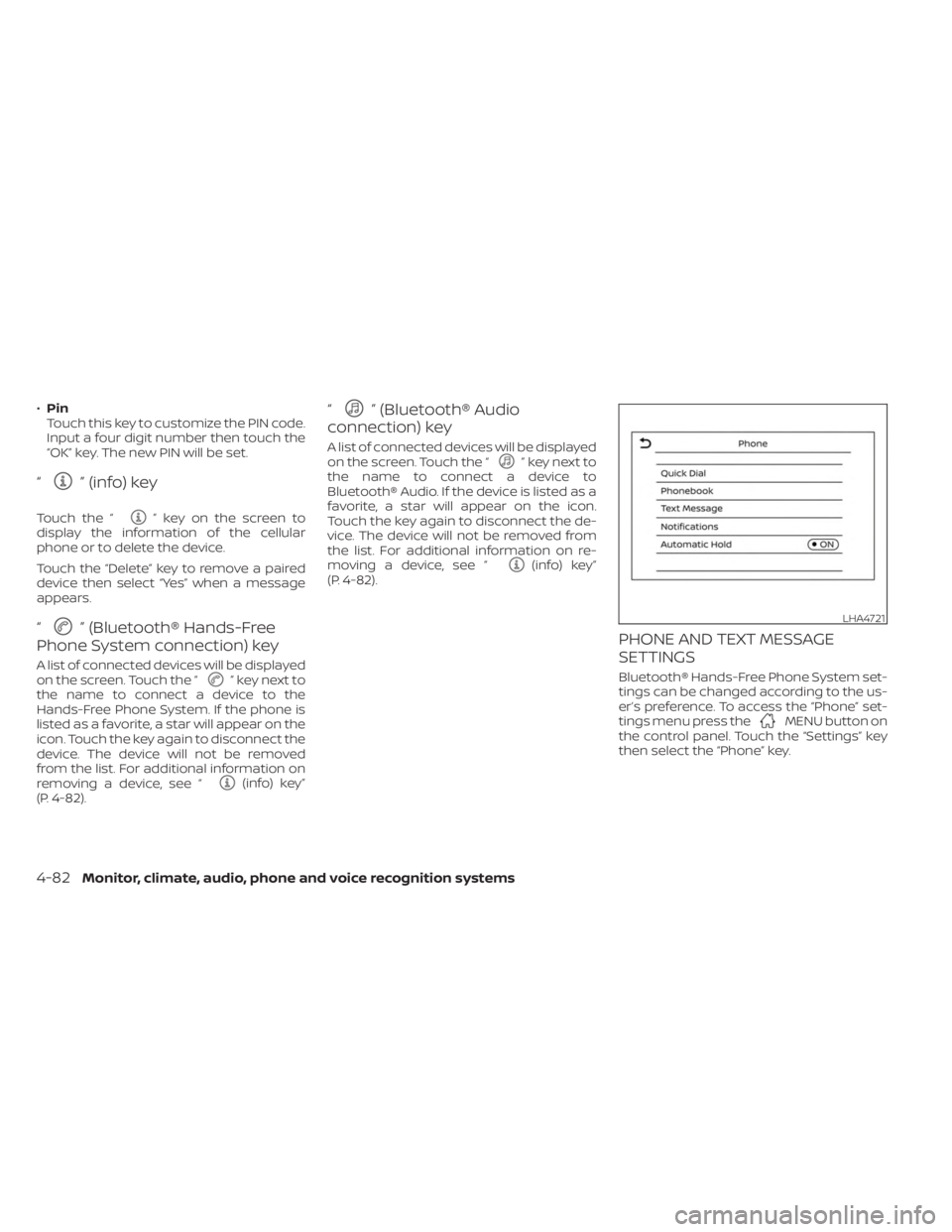
Bluetooth® Hands-Free Phone System set-
tings can be changed according to the us-
er’s preference. To access the “Phone” set-
tings menu press the
MENU button on
the control panel. Touch the “Settings” key
then select the “Phone” key.
LHA4721
4-82Monitor, climate, audio, phone and voice recognition systems
Page 281 of 556
CAUTION
• Do not use leaded gasoline. Deposits
from leaded gasoline will seriously
reduce the three-way catalyst's abil-
ity to help reduce exhaust pollutants.
• Keep your engine tuned up. Malfunc-
tions in the ignition, fuel injection, or
electrical systems can cause overrich
fuel flow into the three-way catalyst,
causing it to overheat. Do not keep
driving if the engine misfires, or if no-
ticeable loss of performance or other
unusual operating conditions are de-
tected. Have the vehicle inspected
promptly. It is recommended that
you visit a NISSAN dealer for this
service.
• Avoid driving with an extremely low
fuel level. Running out of fuel could
cause the engine to misfire, damag-
ing the three-way catalyst.
• Do not race the engine while warm-
ing it up.
• Do not push or tow your vehicle to
start the engine.TIRE PRESSURE MONITORING
SYSTEM (TPMS)
Each tire, including the spare (if provided),
should be checked monthly when cold and
inflated to the inflation pressure recom-
mended by the vehicle manufacturer on
the vehicle placard or tire inflation pressure
label. (If your vehicle has tires of a different
size than the size indicated on the vehicle
placard or tire inflation pressure label, you
should determine the proper tire inflation
pressure for those tires.)
As an added safety feature, your vehicle
has been equipped with a Tire Pressure
Monitoring System (TPMS) that illuminates
a low tire pressure telltale when one or
more of your tires is significantly under-
inflated. Accordingly, when the low tire
pressure telltale illuminates, you should
stop and check all your tires as soon as
possible, and inflate them to the proper
pressure. Driving on a significantly under-
inflated tire causes the tire to overheat and
can lead to tire failure. Under-inflation also
reduces fuel efficiency and tire tread life,
and may affect the vehicle’s handling and
stopping ability. Please note that the TPMS is not a substi-
tute for proper tire maintenance, and it is
the driver’s responsibility to maintain cor-
rect tire pressure, even if under-inflation
has not reached the level to trigger illumi-
nation of the TPMS low tire pressure telltale.
Your vehicle has also been equipped with a
TPMS malfunction indicator to indicate
when the system is not operating properly.
The TPMS malfunction indicator is com-
bined with the low tire pressure telltale.
When the system detects a malfunction,
the telltale will flash for approximately one
minute and then remain continuously illu-
minated. This sequence will continue upon
subsequent vehicle start-ups as long as
the malfunction exists. When the malfunc-
tion indicator is illuminated, the system
may not be able to detect or signal low tire
pressure as intended. TPMS malfunctions
may occur for a variety of reasons, includ-
ing the installation of replacement or alter-
nate tires or wheels on the vehicle that
prevent the TPMS from functioning prop-
erly. Always check the TPMS malfunction
telltale af ter replacing one or more tires or
wheels on your vehicle to ensure that the
replacement or alternate tires and wheels
allow the TPMS to continue to function
properly.
Starting and driving5-5