2023 LINCOLN NAVIGATOR lane assist
[x] Cancel search: lane assistPage 308 of 660
While the lane keeping system is on, thecolor of the lane markings change to indicatethe system status.
RedYellowGreenGray
Indicates that the system isproviding or has just provided alane keeping alert warning.
Indicates that the system isproviding or has just provided alane keeping aid intervention.
Indicates that the system is avail-able or ready to provide a warningor intervention on the indicatedside.
Indicates that the system istemporarily unavailable to providea warning or intervention on theindicated side.
BLIND SPOT ASSIST
WHAT IS BLIND SPOT ASSIST
Blind spot assist is an extension of the lanekeeping system.
It may help you identify adjacent vehiclesduring a lane change.
Blind spot assist provides a blind spotwarning and steering assistance to helpduring lane changes.
HOW DOES BLIND SPOT ASSISTWORK
Activate and deactivate the systemusing the lane keeping systembutton on the steering wheel.
During lane changes, the design of the blindspot assist feature detects vehicles in, orapproaching, your blind spot and providesa warning, plus steering assistance to directyour vehicle back into your lane.
When active, this system functions with orwithout the use of direction indicators andhazard flashers.
You must keep your hands on the steeringwheel at all times.
BLIND SPOT ASSIST LIMITATIONS
All system limitations present in the basiclane keeping system also apply to blind spotassist.
Blind spot assist does not function under thefollowing conditions:
•No lane markings are detected.
•One or both rear radar sensors becomeblocked or faulty.
•Attaching bike or cargo racks couldcause false alerts due to obstruction ofthe sensor.
304
2023 Navigator (TB9) Canada/United States of America, enUSA, Edition date: 202207, DOMLane Keeping SystemE334922
Page 309 of 660

Blind spot assist may have difficulty detectinghazards under the following conditions:•If a vehicle is approaching in an adjacentlane at a speed higher than your vehicle.
•Bad weather obstructing the sensors.
BLIND SPOT ASSIST INDICATORS
305
2023 Navigator (TB9) Canada/United States of America, enUSA, Edition date: 202207, DOMLane Keeping SystemE310089
Page 310 of 660

The lane keeping aid warning lamp or redlane marking in your instrument clusterdisplay indicate blind spot assist activation.In addition, the blind spot information systemalert indicator flashes on the exterior mirroron the same side as the detection. See BlindSpot Information System (page 311).
BLIND SPOT ASSIST WITH TRAILER
COVERAGE
WHAT IS BLIND SPOT ASSIST WITHTRAILER COVERAGE
Blind spot assist with trailer coverage is anextension of the lane keeping system.
It may help you identify adjacent vehiclesduring a lane change.
Blind spot assist provides a blind spotwarning and steering assistance to helpduring lane changes.
When attaching a trailer, ensure you haveproperly set up the trailer coverage settings.See Blind Spot Information System WithTrailer Coverage (page 313).
HOW DOES BLIND SPOT ASSIST WITHTRAILER COVERAGE WORK
Activate and deactivate the systemusing the lane keeping systembutton on the steering wheel.
During lane changes, the design of the blindspot assist feature detects vehicles in, orapproaching, your blind spot and providesa warning, plus steering assistance to directyour vehicle back into your lane.
If a supported trailer is connected, thefunction is reduced to only detecting vehicleson both sides of your vehicle and trailer,extending rearward from the exterior mirrorsto the end of your trailer. See Blind SpotInformation System With Trailer Coverage(page 313).
When active, this system functions with orwithout the use of direction indicators andhazard flashers.
You must keep your hands on the steeringwheel at all times.
BLIND SPOT ASSIST WITH TRAILERCOVERAGE LIMITATIONS
All system limitations present in the basiclane keeping system also apply to blind spotassist.
Blind spot assist does not function under thefollowing conditions:
•The system does not detect lanemarkings.
•One or both rear radar sensors becomeblocked or faulty.
•You have not configured the attachedtrailer correctly in the trailer tow menusor you attached an unsupported trailer.The system only supports certain trailershapes and dimensions.
Note:Blind spot assist with trailer coveragecould have reduced performance if any ofthe above limitations are present.
Blind spot assist may have difficulty detectinghazards under the following conditions:
306
2023 Navigator (TB9) Canada/United States of America, enUSA, Edition date: 202207, DOMLane Keeping SystemE334922
Page 311 of 660
•If a vehicle is approaching in an adjacentlane at a relative speed much higher thanyour vehicle.
•Bad weather conditions are present thatobstruct the sensors.
•Attaching bike or cargo racks couldcause false alerts due to obstruction ofthe sensor.
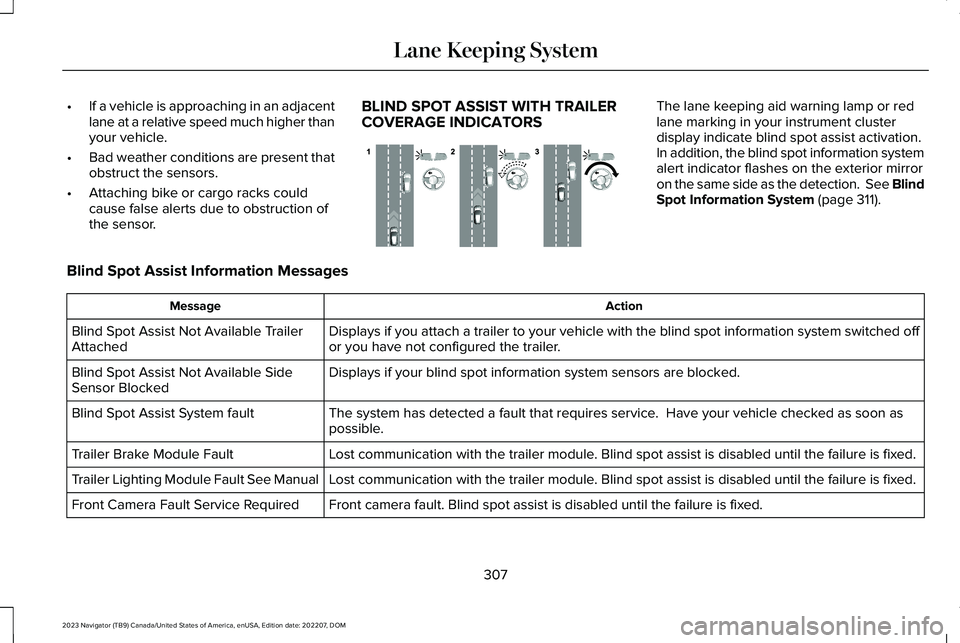
BLIND SPOT ASSIST WITH TRAILERCOVERAGE INDICATORS
The lane keeping aid warning lamp or redlane marking in your instrument clusterdisplay indicate blind spot assist activation.In addition, the blind spot information systemalert indicator flashes on the exterior mirroron the same side as the detection. See BlindSpot Information System (page 311).
Blind Spot Assist Information Messages
ActionMessage
Displays if you attach a trailer to your vehicle with the blind spot information system switched offor you have not configured the trailer.Blind Spot Assist Not Available TrailerAttached
Displays if your blind spot information system sensors are blocked.Blind Spot Assist Not Available SideSensor Blocked
The system has detected a fault that requires service. Have your vehicle checked as soon aspossible.Blind Spot Assist System fault
Lost communication with the trailer module. Blind spot assist is disabled until the failure is fixed.Trailer Brake Module Fault
Lost communication with the trailer module. Blind spot assist is disabled until the failure is fixed.Trailer Lighting Module Fault See Manual
Front camera fault. Blind spot assist is disabled until the failure is fixed.Front Camera Fault Service Required
307
2023 Navigator (TB9) Canada/United States of America, enUSA, Edition date: 202207, DOMLane Keeping SystemE310089
Page 331 of 660

DISTANCE ALERT
WHAT IS DISTANCE ALERT
The system alerts you with a warning lampif the distance to the vehicle ahead is small.
Note:The warning lamp does not illuminateif cruise control or adaptive cruise control isactive.
ADJUSTING THE SENSITIVITY OFDISTANCE ALERT
To adjust the sensitivity of the system, usethe touchscreen:
1.Press Features on the touchscreen.
2.Press Driver Assistance.
3.Press Pre-Collision Assist.
4.Press Alert Sensitivity.
5.Select a setting.
AUTOMATIC EMERGENCY BRAKING
WHAT IS AUTOMATIC EMERGENCYBRAKING
Automatic emergency braking may activateif the system determines that a collision isimminent. The system may help reduceimpact damage to avoid the crashcompletely.
Automatic emergency braking is onlyavailable up to certain speeds. SeePre-Collision Assist Limitations (page 322).
SWITCHING AUTOMATIC EMERGENCYBRAKING ON AND OFF
To switch the system on or off, use thetouchscreen:
1.Press Features on the touchscreen.
2.Press Driver Assistance.
3.Press Pre-Collision Assist.
4.Press Auto Emergency Braking.
5.Switch the feature on or off.
EVASIVE STEERING ASSIST
WHAT IS EVASIVE STEERING ASSIST
If your vehicle is rapidly approaching a roaduser, evasive steering assist helps you steeraround the road user.
After you turn the steering wheel in anattempt to avoid a crash with the road user,the system applies additional steering torqueto help you steer around the road user. Afteryou pass the road user, the system appliessteering torque when you turn the steeringwheel to steer back into the lane. The systemdeactivates after you fully pass the road user.
Note:Road users are defined as pedestriansor bicyclists in your vehicle's path or anotherstationary vehicle in the same lane or avehicle traveling in the same lane in thesame direction as you. See Pre-CollisionAssist Precautions (page 321).
327
2023 Navigator (TB9) Canada/United States of America, enUSA, Edition date: 202207, DOMPre-Collision Assist
Page 335 of 660

DRIVER ALERT LIMITATIONS
Driver alert may not function correctly if:
•The sensor cannot track the road lanemarkings.
•Your vehicle's speed is less thanapproximately 40 mph (65 km/h).
SWITCHING DRIVER ALERT ON
AND OFF
1.Press Features on the touchscreen.
2.Press Driver Assistance.
3.Switch Driver Alert on or off.
Note:The system remains on or offdepending on how it was last set.
Resetting Driver Alert
You can reset the system by either:
•Switching the ignition off and on.
•Opening and closing the driver doorwhen your vehicle is stationary, and it issafe to do so.
DRIVER ALERT – TROUBLESHOOTING
DRIVER ALERT – INFORMATION MESSAGES
ActionMessage
Stop and rest as soon as it is safe to do so.Driver Alert Warning Rest Now
Take a rest soon.Driver Alert Warning Rest Suggested
331
2023 Navigator (TB9) Canada/United States of America, enUSA, Edition date: 202207, DOMDriver Alert
Page 635 of 660

3
360 Degree Camera....................................261360 Degree Camera Settings.........................263
360 Degree Camera Guide Lines...........262360 Degree Camera Limitations..............262360 Degree Camera Precautions.............261360 Degree Camera Settings...................263Switching the 360 Degree Camera On andOff......................................................................263Switching the 360 Degree CameraView..................................................................264
4
4WDSee: Four-Wheel Drive......................................224
9
911 Assist...........................................................70
A
A/CSee: Climate Control..........................................159
About This Publication...................................19
ABSSee: Brakes..........................................................232
Accessing Apps.............................................512Accessing Navigation...................................517Accessing the Passive Key BackupPosition........................................................205Accessories...................................................524ActiveGlide™..................................................286ActiveGlide™ – Troubleshooting......................291
ActiveGlide™ Alerts......................................290ActiveGlide™ AutomaticCancellation................................................290ActiveGlide™ Indicators................................291ActiveGlide™ Limitations.............................288ActiveGlide™ Precautions...........................287ActiveGlide™ Requirements.......................288ActiveGlide™ Settings..................................289ActiveGlide™ – Troubleshooting................291ActiveGlide™ – Information Messages...........291
Active Park Assist.........................................265Active Park Assist – Troubleshooting...........267
Active Park Assist Precautions.................265Active Park Assist –Troubleshooting.........................................267Active Park Assist – Frequently AskedQuestions.........................................................267Active Park Assist – InformationMessages.........................................................267
Adaptive Cruise Control.............................270Adaptive Cruise Control –Troubleshooting.............................................284Intelligent Adaptive Cruise Control...............282Lane Centering...................................................279
Adaptive Cruise Control AutomaticCancellation................................................274Adaptive Cruise Control Indicators.........278Adaptive Cruise Control Limitations.........271Adaptive Cruise ControlPrecautions.................................................270Adaptive Cruise Control –Troubleshooting.........................................284Adaptive Cruise Control – InformationMessages.........................................................284
Adaptive Front Lighting...............................130How Does Adaptive Front LightingWork...................................................................130Switching Adaptive Front Lighting On andOff........................................................................131
Adjustable Pedals..........................................113Adjusting the Exterior Mirrors....................138Adjusting the Headlamps...........................427Adjusting the Instrument Panel LightingBrightness.....................................................133Adjusting the Integrated Trailer BrakeController Mode.........................................358
631
2023 Navigator (TB9) Canada/United States of America, enUSA, Edition date: 202207, DOMIndex
Page 645 of 660

How Does Speed Sign RecognitionWork..............................................................332How Does Stability Control Work.............247How Does the 360 Degree CameraWork...............................................................261How Does the Lane Keeping SystemWork..............................................................300How Does the Personal Safety SystemWork................................................................60How Does the Rear Occupant Alert SystemWork...............................................................184How Does the Safety Canopy™ Work........62How Does Traction Control Work............245How Does Trailer Backup AssistanceWork..............................................................362How Does Trailer Reverse GuidanceWork..............................................................375How Does Trailer Sway ControlWork...............................................................361How Do Personal Profiles Work................515How Do the Front Airbags Work.................61How Do the Side Airbags Work...................61
I
Identifying Fuse Types.................................413Identifying the Audio Unit..........................486Identifying the Climate Control Unit.........159
Identifying the Rear Passenger AudioControls........................................................497Identifying the Rear Passenger ClimateControl Unit..................................................164Inflating the Tires..........................................449Information On Demand Screen..............500Information on the Tire Sidewall..............438Inspecting the Tire for Damage...............450Inspecting the Tire for Wear......................449Inspecting the Wheel Valve Stems...........451Installing and Removing the LuggageCompartment Cargo Net..........................341Installing Child Restraints..............................44Combining the Seatbelt and Lower Anchorsfor Attaching Child Restraints........................47Installing a Child Restraint in a CenterSeat......................................................................47Using Lower Anchors and Tethers forChildren..............................................................46Using Seatbelts.....................................................44Using Tether Straps..............................................47
Instrument Cluster Display..........................148Trip Computer......................................................149
Instrument Cluster Display MainMenu..............................................................148Instrument Cluster Indicators.....................146Instrument Cluster.........................................142Fuel Gauge............................................................143
Instrument Cluster Overview.....................142Instrument Cluster Warning Lamps..........144Instrument Panel..............................................31Integrated Trailer Brake Controller..........356Integrated Trailer Brake Controller –Troubleshooting.............................................359
Integrated Trailer Brake ControllerPrecautions.................................................356Integrated Trailer Brake Controller –Troubleshooting.........................................359Integrated Trailer Brake Controller –Frequently Asked Questions......................360Integrated Trailer Brake Controller –Information Messages..................................359
Intelligent Adaptive Cruise Control.........282Adjusting the Set Speed Tolerance...............283How Does Intelligent Adaptive Cruise ControlWork..................................................................282Intelligent Adaptive Cruise ControlAlerts.................................................................283Intelligent Adaptive Cruise ControlIndicators.........................................................283Intelligent Adaptive Cruise ControlLimitations.......................................................282Intelligent Adaptive Cruise ControlPrecautions.....................................................282Intelligent Adaptive Cruise ControlRequirements.................................................282
641
2023 Navigator (TB9) Canada/United States of America, enUSA, Edition date: 202207, DOMIndex