Page 8 of 356
6
AThe system shape and menu arrangement may differ depending on the vehicle model
and specifications.
Component names and functions
Control panel (Climate control System)
a a POWER button/Driver's seat temperature control knob
•
Turn the climate control function on or off.
•Turn to adjust the driver's seat temperature.
b b FRONT windshield defrost button
•
Remove frost from front windshield via the climate control system.
•Switch to air intake control automatically.
c c REAR window defrost button
•
Remove frost from rear window via the defroster grid.
d d AUTO CLIMATE mode button
•
The climate control system automatically matches the set temperature.
•Press repeatedly to change the AUTO fan mode fan speed.
e e Recirculation button
•Turn off the outside air and recirculate the air inside the car.
f f Infotainment/Climate switch button
•Switch between control panel functions.
•Press and hold to access the control panel default settings screen.
Page 9 of 356
7
g g Driver's seat temperature
•Displays the driver's seat temperature.
h h DRIVER ONLY mode button
•Climate control works in the driver seat only.
i i Fan speed button/AUTO mode fan speed
•Adjust the fan speed.
•Displays the fan speed in AUTO mode.
j j Air direction button
•Adjust the air direction.
k k Front window defrost button (if equipped)
•Remove frost from front window via the defroster grid.
l l Air conditioner button
•Turn the air conditioning function on or off.
m m SYNC mode button
•
The set temperature will be used for the driver's seat, passenger seat, and rear
seats (if equipped).
n n Passenger seat temperature
•Displays the passenger seat temperature.
o o Passenger seat temperature control knob
•Turn to adjust the passenger seat's temperature.
Page 49 of 356
2-5
Pairing to an Android smartphone via Android Auto
When you connect an Android smartphone to the vehicle with Android Auto, you can run and
control Apps on the phone through the widescreen using its user-friendly interface.
1 To use Android Auto, first check the following.
�Visit the Android Auto website at https://www.android.com/auto to check the list of
countries, device types, and models that support Android Auto.
�Download and install the Android Auto App from Google Play Store. It is not possible
to install Android Auto in countries that do not support the feature.
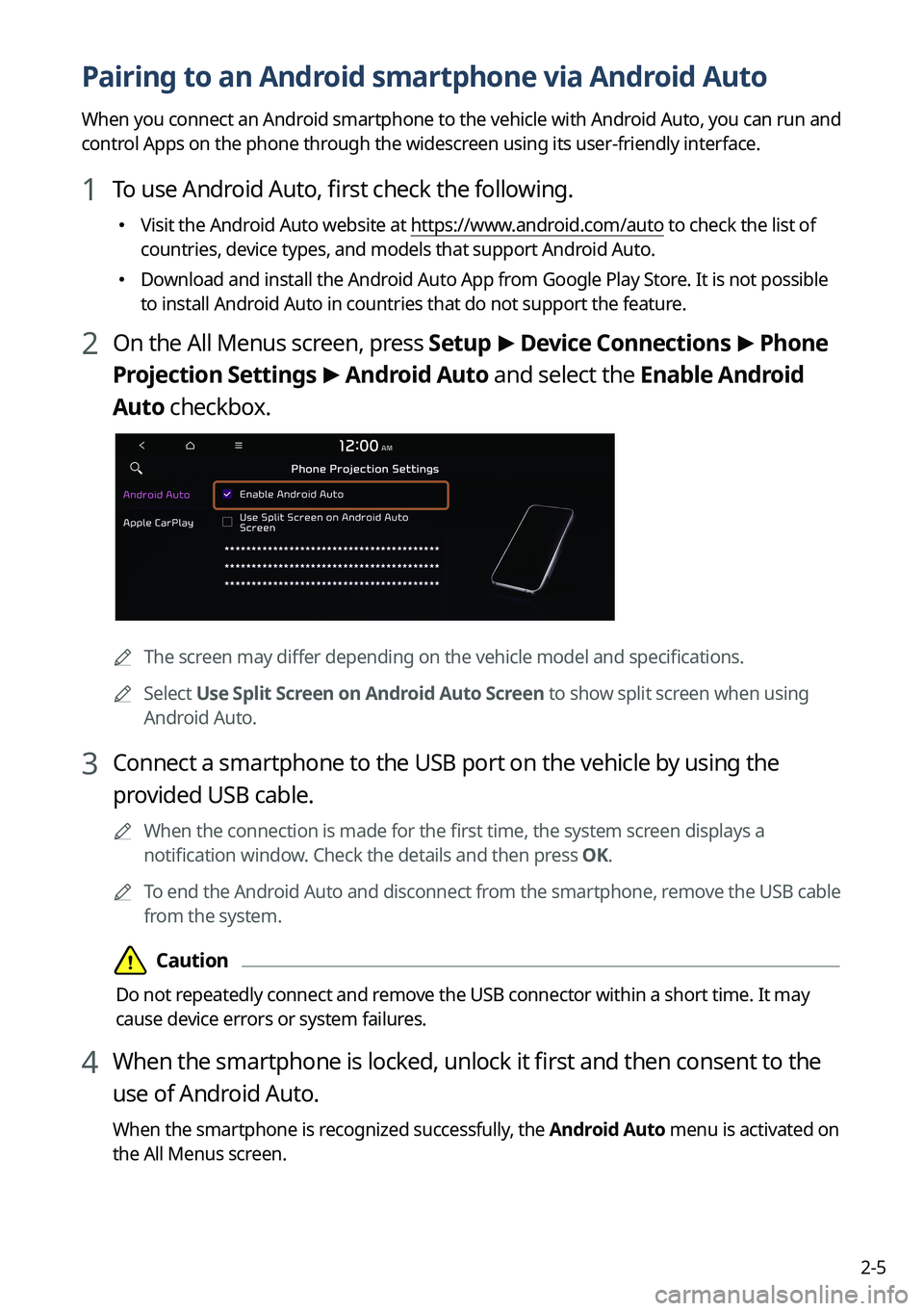
2 On the All Menus screen, press Setup
>
Device Connections >
Phone
Projection Settings >
Android Auto and select the Enable Android
Auto checkbox.
A The screen may differ depending on the vehicle model and specifications.
A
Select Use Split Screen on Android Auto Screen to show split screen when using
Android Auto.
3 Connect a smartphone to the USB port on the vehicle by using the
provided USB cable.
A
When the connection is made for the first time, the system screen displays a
notification window. Check the details and then press OK.
A
To end the Android Auto and disconnect from the smartphone, remove the USB cable
from the system.
Page 51 of 356
2-7
Pairing to an iPhone via Apple CarPlay
After you connect an iPhone to the vehicle with Apple CarPlay, you can run and control Apps
on the phone through the system screen.
1 To use Apple CarPlay, first check the following:
�For iPhone models that support Apple CarPlay, visit the Apple website at
https://www.
apple.com/ios/carplay .
�Make sure Apple CarPlay and Siri are enabled in your iPhone settings. If you do not
see options for Apple CarPlay or Siri, update to the latest iOS version.\
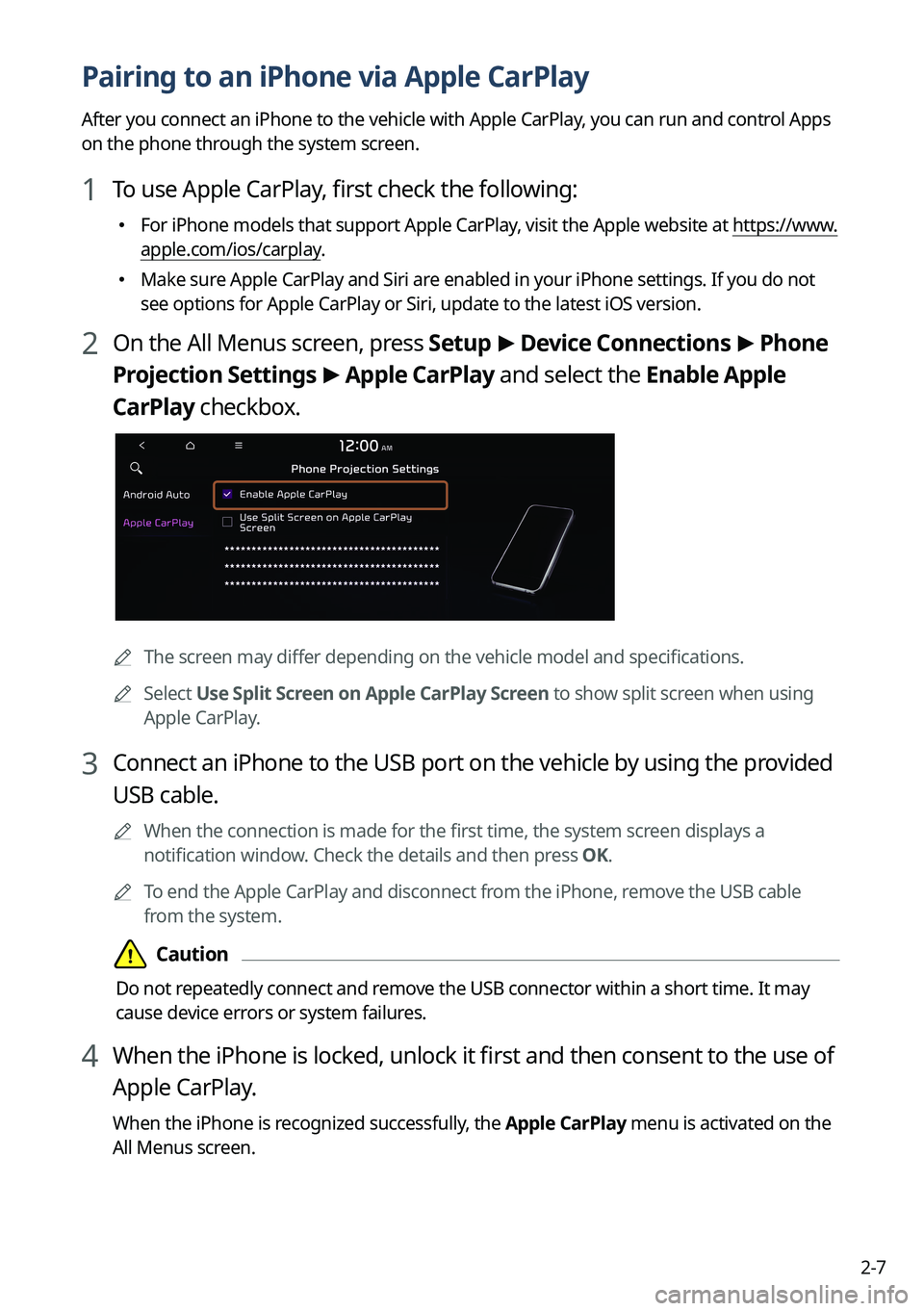
2 On the All Menus screen, press Setup
>
Device Connections >
Phone
Projection Settings >
Apple CarPlay and select the Enable Apple
CarPlay checkbox.
A The screen may differ depending on the vehicle model and specifications.
A
Select Use Split Screen on Apple CarPlay Screen to show split screen when using
Apple CarPlay.
3 Connect an iPhone to the USB port on the vehicle by using the provided
USB cable.
A
When the connection is made for the first time, the system screen displays a
notification window. Check the details and then press OK.
A
To end the Apple CarPlay and disconnect from the iPhone, remove the USB cable
from the system.
Page 58 of 356
2-14
Using the climate control function (if equipped)
You can check and adjust the climate system settings on the screen.
A
For more information about how to use the heater and air conditioner, refer to Owner's
Manual of the vehicle.
A
When you manipulate the climate control system while using the product, the climate
settings appear on the upper part of the screen (if equipped).
A
The screen may differ depending on the vehicle model and specifications.
1 Perform any of the following methods:
�Press the [
CLIMATE] button on the climate control system.
�On the All Menus screen, press Climate.
2 Select and then change the settings.
c
e
f
g
c
hj
p
b
ak
ccfeghj
Option A
o
eij
n
b
fg
p
m
a
k
dd
e
l
Option B
Page 59 of 356

2-15
a a Returns to the previous step.
b b Shows the outside temperature of the vehicle.
c c Shows the set temperature for each seat.
d d Adjust the temperatures for each seat.
e e Shows the current airflow direction.
f f Shows the current fan speed.
g g Shows whether the automatic temperature control function is on or off.
h h Shows whether the A/C is on or off.
i i Turns on or off the air conditioner function.
j j Shows whether the SYNC function, which syncs the driver's seat temperature with the
passenger seat temperature, is on or off.
k k Configure specific climate control function settings.
A
Available settings may differ depending on the vehicle model and specifications.
l l Displays the front-seat warmer/ventilation settings screen (if equipped).
A
Available settings may differ depending on the vehicle model and specifications.
m m Displays the rear-seat warmer/ventilation settings screen (if equipped).
A
Available settings may differ depending on the vehicle model and specifications.
n n Turn on or off heaters (if equipped).
o o Turn on or off the driver seat-only climate control mode (if equipped).
p p The list of menu items appears.
�Display Off
: Turns off the screen. To switch the screen back on, press the screen or
briefly press the power button.
� Front Warmer/Ventilation: Displays the front-seat warmer/ventilation settings
screen (if equipped).
�Rear Warmer/Ventilation: Displays the rear-seat warmer/ventilation settings
screen (if equipped).
�Climate Settings
: Configure specific climate control function settings (if equipped).
�User's Manual on Web (QR Code): Displays the QR code that provides access to
the online user manual for the system.
A
The temperature of the climate system can be adjusted by 1 ℉ increments. When the
temperature is set to the lower limit or upper limit, "LOW" or "HIGH" appears on the
screen.
A
Available settings may differ depending on the vehicle model and specifications.
Page 61 of 356
2-17
Using the rear-seat climate control function
(if equipped)
You can check or set the rear-seat climate status on the system screen.
1 Perform any of the following methods:
�Press the [
REAR] button on the climate control system.
�On the All Menus screen, press Rear Climate.
2 Select and then change the settings.
f
a
c
e
h
gb
d
For automatic temperature control
e
ahg
d
c
b
For manual temperature control
a a Returns to the previous step.
b b Configure specific climate control function settings.
A
Available settings may differ depending on the vehicle model and specifications.
c c Can set the inside temperature.
d d Can adjust the air direction.
e e Can adjust the fan speed.
f f Turn on the AUTO mode. If you change the climate control status using another
button, the AUTO mode automatically turns off.
g g Shows the outside temperature of the vehicle.
Page 167 of 356
7-3
A
Voice recognition may not work properly when:
The sunroof or windows are open so the wind is strong.
The fan speed of the air conditioner or heater is high.
The vehicle is passing through a tunnel.
The vehicle is driving on an unpaved road and its noise and vibration are loud.
Noise is loud due to a heavy rain or storm.
A
When using speech recognition from the rear seats, some commands may not be
supported depending on the vehicle model and type.
A
Special characters included in a contact are not recognized by voice (e.g., School_John,
John!).
A
Voice recognition is supported only for certain languages. If you change the sy\
stem
language, voice recognition may not be supported.
Using the voice recognition function (Type1)
1 On the steering wheel, press the Voice Recognition button.
Voice recognition starts along with voice guidance.
A
To skip the voice guidance, press the Voice Recognition button on the steering wheel.
2 When a beep sound is heard, say a command to perform (e.g.
navigation, music, call).
> See "Available voice commands (Type1)" or " Viewing the voice
recognition help."
The recognized command appears in text at the top of the screen and the corresponding
function is performed.
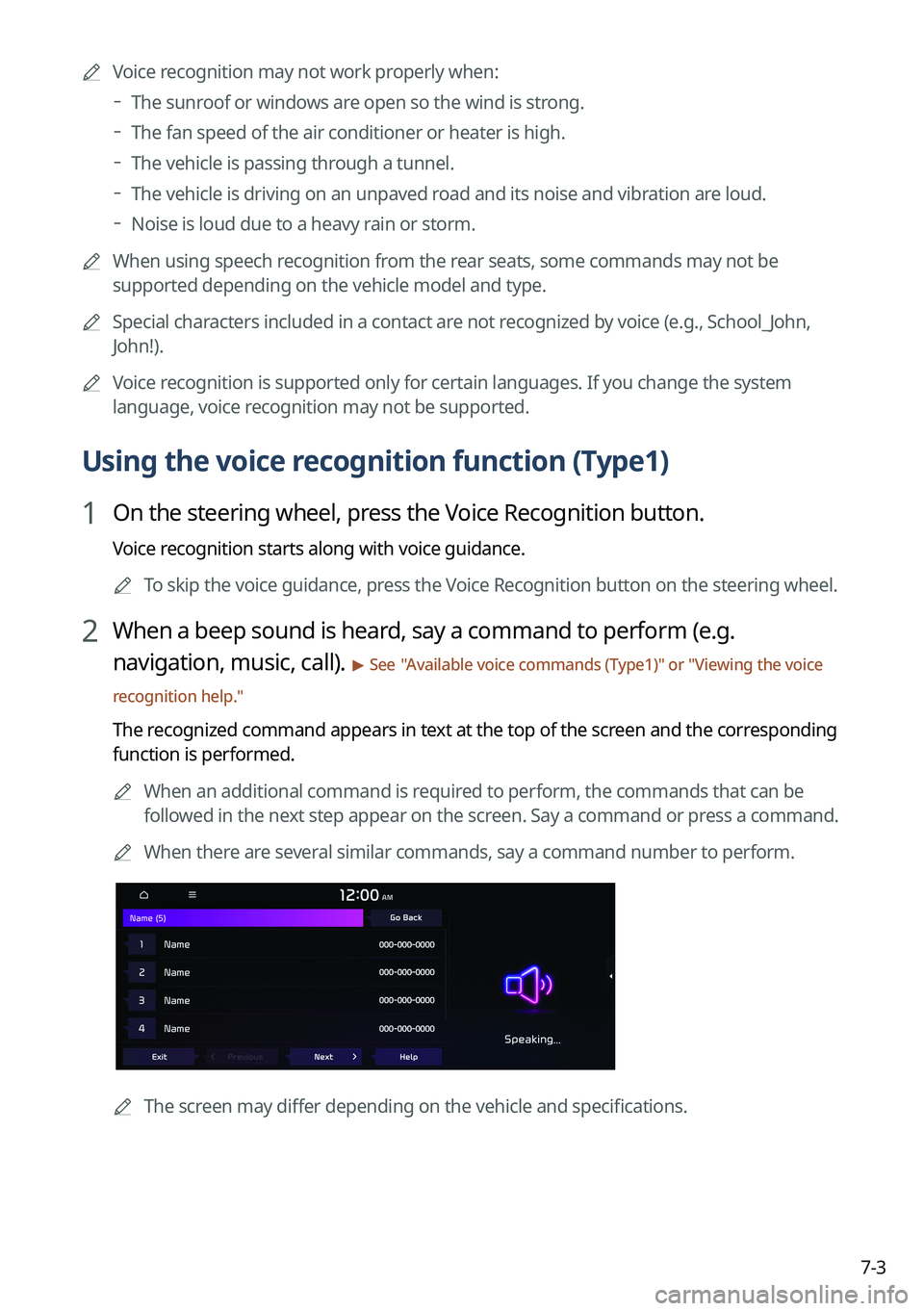
A
When an additional command is required to perform, the commands that can be
followed in the next step appear on the screen. Say a command or press a command.
A
When there are several similar commands, say a command number to perform.
A
The screen may differ depending on the vehicle and specifications.


