Page 222 of 364
9-2
Configuring system settings
Configure various functions required for using the system. View information related to the
system.
Type1
Type2
A
The displayed screen or menu items may differ, depending on the vehicle model
and features. Check the screen type for your vehicle model and view the appropriate
instructions.
A
Press Menu or
>
Search for Settings or press and enter a keyword to search
for a setting item. You can also search for a setting item by voice.
A
If you press Display Off at the top of the screen, the screen is switched off. To switch the
screen back on, press the screen or briefly press the power button.
Page 241 of 364

9-21
CUSTOM (if equipped)
You can set to select the drive mode optimized for the driving habits or road conditions.
�Powertrain: Select a drive mode that performs optimum engine and transmission
control depending on the driving situation.
NORMAL: Optimized for balanced comfort.
SPORT: Optimized for agile driving.
� Steering: Select a drive mode that performs optimum steering wheel control depending
on the driving situation.
NORMAL: Optimized for smooth steering.
SPORT: Optimized for agile steering.
ECO
(EV only)
This is a drive mode for increasing the vehicle's fuel efficiency. You can change the climate
control mode, the active coast energy regeneration level, and speed limit settings.
NORMAL (EV only)
This is a drive mode focused on the driver and passenger's comfort. You can change the
climate control mode and the active coast energy regeneration level.
SPORT (EV only)
This drive mode enables a more dynamic driving performance. You can change the climate
control mode and the active coast energy regeneration level.
Drive Mode Change Alert (if equipped)
Configure the setting so that drive mode change notification is displayed along with the
vehicle image when the drive mode is changed.
Climate Control ECO Mode (if equipped)
Decrease the cooling/heating level to increase the drivable range.
Page 251 of 364
9-31
Walk-away Lock (if equipped)
You can set to automatically lock all doors when you move away from the vehicle with the
smart key.
A
When all doors are closed, this feature works normally.
Horn Feedback (if equipped)
You can set to generate guiding beep when all doors are locked.
Remote Power Doors & Liftgate (if equipped)
Easily open the doors by pressing the unlock button on the smart key for more than 3
seconds.
2 Press Unlock (if equipped)
You can set to unlock all doors by pressing the door unlock button twice.
A
When you press the door unlock button once, only the driver's seat door is unlocked.
Smart Sliding Door (if equipped)
Set the sliding door to automatically open when you move close to the sliding door carrying
your smart key.
Power Trunk or Power Liftgate (if equipped)
Open or close the trunk (liftgate) automatically using the power trunk (liftgate) button.
A
The displayed name may differ depending on the vehicle model and specifications.
Power Trunk Opening Speed or Power Liftgate Opening Speed
(if equipped)
Set the opening speed for the power trunk (liftgate).
A
The displayed name may differ depending on the vehicle model and specifications.
Power Trunk Opening Height or Power Liftgate Opening Height
(if equipped)
Set the opening height for the power trunk (liftgate).
A
The displayed name may differ depending on the vehicle model and specifications.
Page 311 of 364
9-91
Media Options (if equipped)
You can set the media player not to start automatically when starting the engine or set it to
notify you of any information changes during media playback.
Radio/Media Off at Vehicle Startup
You can set the media player not to start automatically when starting the engine.
Continue to Play Media when Vehicle Is Turned Off (if equipped)
Turn on this mode to keep the system power supply for a certain period of time after the
engine is turned off.
Display Media Change Notifications
You can set the system to briefly display media information at the top of the screen if the
current song or channel changes when not on the main media screen.
Reset
You can reset your system settings to the default values.
A
You can also initialize all settings of the login profile.
Page 312 of 364
9-92
Configuring the screen layout settings
(Type2)
(if equipped)
You can configure the settings for the display and themes.
A
Available settings may differ depending on the vehicle model and specifications.
A
The displayed screen or name may differ depending on the vehicle model and
specifications.
1 On the All Menus screen, press Setup >
Screen Layout.
The screen layout settings screen appears.
2 Configure the settings required:
A
Press >
Search for Settings or press and enter a keyword to search for a
setting item. You can also search for a setting item by voice.
A
If you press Display Off at the top of the screen, the screen is switched off. To switch the
screen back on, press the screen or briefly press the power button.
Graphic Themes (if equipped)
You can set the desired display theme.
Screen Saver
You can select the items to display on the screen saver in standby mode.
AThe screen may differ depending on the vehicle model and specifications.
Page 313 of 364

9-93
Analog Clock
Displays the analog clock on the system screen saver.
A
Press
to choose the Analog Clock to show on the screen.
Digital Clock
Displays the digital clock on the system screen saver.
None
Displays nothing on the system screen saver.
Split Screen
You can specify the items to display on the Split Screen.
AThe screen may differ depending on the vehicle model and specifications.
A
This option is only available when the display supports Split Screen.
A
On the screen list, press
on the right and drag the item to reposition.
Configuring the display settings (Type1)
You can change the system display settings such as display brightness.
1 On the All Menus screen, press Setup >
Display.
The display settings screen appears.
2 Configure the settings required:
A
Press Menu >
Search for Settings or press and enter a keyword to search for a
setting item. You can also search for a setting item by voice.
A
If you press Display Off at the top of the screen, the screen is switched off. To switch the
screen back on, press the screen or briefly press the power button.
Page 318 of 364
9-98
Reset
You can initialize all display settings such as brightness.
Configuring the display settings (Type2)
You can change the system display settings such as display brightness.
1 On the All Menus screen, press Setup >
Display.
The display settings screen appears.
2 Configure the settings required:
A
Press >
Search for Settings or press and enter a keyword to search for a
setting item. You can also search for a setting item by voice.
A
If you press Display Off at the top of the screen, the screen is switched off. To switch the
screen back on, press the screen or briefly press the power button.
Page 323 of 364
9-103
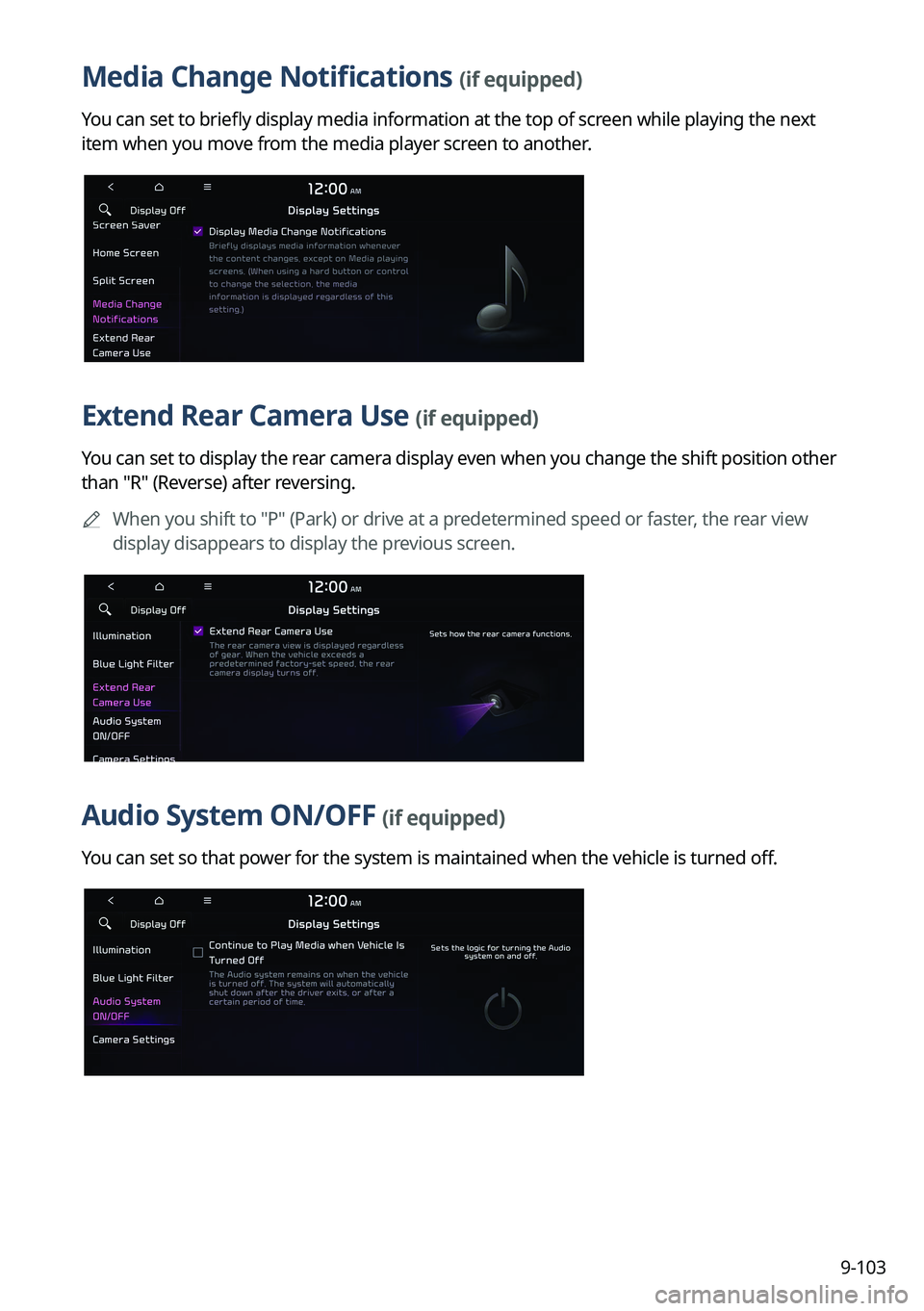
Media Change Notifications (if equipped)
You can set to briefly display media information at the top of screen while playing the next
item when you move from the media player screen to another.
Extend Rear Camera Use (if equipped)
You can set to display the rear camera display even when you change the shift position other
than "R" (Reverse) after reversing.
A
When you shift to "P" (Park) or drive at a predetermined speed or faster, the rear view
display disappears to display the previous screen.
Audio System ON/OFF (if equipped)
You can set so that power for the system is maintained when the vehicle is turned off.