Page 199 of 364
7-27
Financial Services
POI name
BanksBank of America
BB&T
Chase
Citibank
Citizens Bank
Fifth Third Bank
KeyBank
PNC Bank
RBC Royal Bank
Regions
SunTrust
TD Bank
TD Canada Trust
US Bank
Wells Fargo
Bank of the West
BBVA Compass
BMO Bank of Montreal
BMO Harris Bank
Caisse Populaire Desjardins
Capital One
CIBC
First Citizens Bank
First National Bank
M&T Bank
Santander
Scotiabank
The Huntington National Bank
Woodforest National Bank
POI name
ATMsBank of America
BB&T
Chase
Citibank
Citizens Bank
Fifth Third Bank
KeyBank
PNC Bank
RBC Royal Bank
Regions
SunTrust
TD Bank
TD Canada Trust
US Bank
Wells Fargo
Bank of the West
BMO Bank of Montreal
BMO Harris Bank
Caisse Populaire Desjardins
Capital One
CIBC
Commerce Bank
First National Bank
HSBC
M&T Bank
Santander
Scotiabank
State Employees' Credit Union
Check Cashing Services
Money Transfer
Page 202 of 364
7-30
Voice Memo
You can use the microphone on the vehicle to record and play voice memos.
Running the voice memo
On the All Menus screen, press Voice Memo.
Voice memo screen
ae
cdb
a a Returns to the previous step.
b b Displays the list of recorded voice memos.
c c Starts or pauses the recording.
d d Stops recording.
e e The list of menu items appears.
�Display Off: Turns off the screen. To switch the screen back on, press the screen or
briefly press the power button.
�Delete: Can delete a voice memo.
�Save to USB Device: Can record a voice memo to a USB storage device. Check that
the USB device is compatible.
> See "USB storage devices."
�Storage Information: Can see the file size of recorded voice memos.
�User's Manual on Web (QR Code): Displays the QR code that provides access to the
online user manual for the system.
�Split Screen: Can turn on or off the split screen mode.
Page 206 of 364

8-2
Kia Connect service
Kia Connect provides connected car services, such as roadside assistance and emergency
rescue, via the latest IT and communication technologies.
When you have subscribed to Kia Connect, you can access other useful fea\
tures using the Kia
Connect menu on your system.
A
The UVO service name has been changed to Kia Connect.
A
You must be an active Kia Connect subscriber or within the initial free trial period to
receive Kia Connect services, including Auto Collision Notification.
A
Depending on the conditions such as vehicle type, system type, and the s\
ubscribed
service package, available services may differ.
A
The exact appearance or position of the button may differ depending on the vehicle
model and specifications.
A
Some services may incur additional charges.
A
Services may be modified, added, or deleted by changes in the company's policies.
Service restrictions
Kia Connect services are provided via the mobile communication network. Accordingly,
the service may be restricted depending on the mobile communication network condition.
Use the network signal strength icon (
) at the top of the screen to check the mobile
communication status.
A
It is recommended to use the service when the number of signal bars in the icon\
is 4 or
more.
A
Depending on the network signal status, access to Kia Connect may be restricted in the
following locations:
Inside a building or tunnel
Mountain or forest area
Road close to a cliff
Area densely populated with tall buildings
Road under expressway or multi-level road
Communication shadow area according to the service provider's network coverage
policy
Page 208 of 364
8-4
Running the Kia Connect menu
You can run the Kia Connect in the system to use the service.
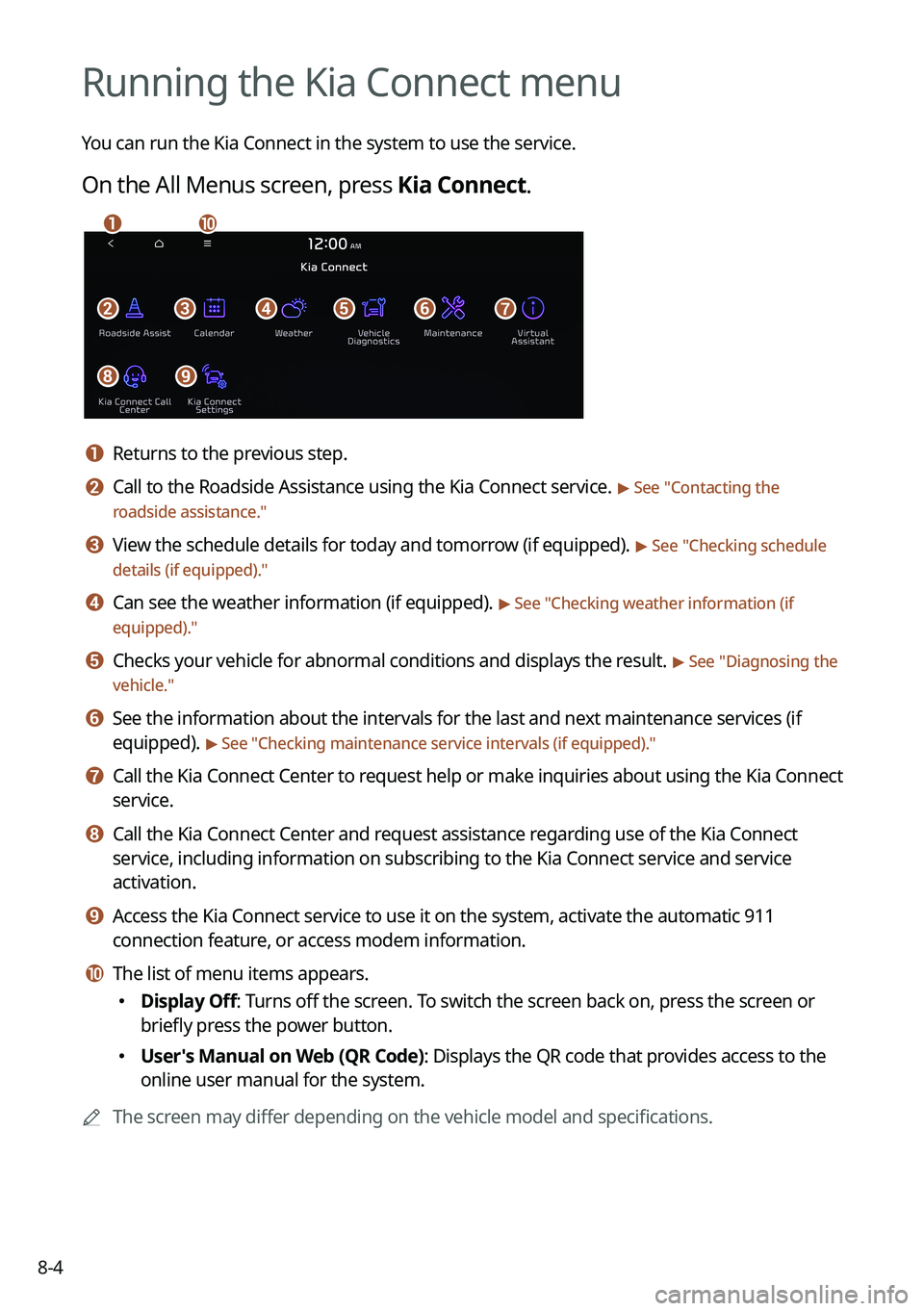
On the All Menus screen, press Kia Connect.
bfgdec
aj
hi
a a Returns to the previous step.
b b Call to the Roadside Assistance using the Kia Connect service. > See "Contacting the
roadside assistance."
c c View the schedule details for today and tomorrow (if equipped). > See " Checking schedule
details (if equipped)."
d d Can see the weather information (if equipped). > See "Checking weather information (if
equipped)."
e e Checks your vehicle for abnormal conditions and displays the result. > See " Diagnosing the
vehicle."
f f See the information about the intervals for the last and next maintenance services (if
equipped).
> See "Checking maintenance service intervals (if equipped) ."
g g Call the Kia Connect Center to request help or make inquiries about using the Kia Connect
service.
h h Call the Kia Connect Center and request assistance regarding use of the Kia Connect
service, including information on subscribing to the Kia Connect service\
and service
activation.
i i Access the Kia Connect service to use it on the system, activate the aut\
omatic 911
connection feature, or access modem information.
j j The list of menu items appears.
�Display Off: Turns off the screen. To switch the screen back on, press the screen or
briefly press the power button.
�User's Manual on Web (QR Code): Displays the QR code that provides access to the
online user manual for the system.
A
The screen may differ depending on the vehicle model and specifications.
Page 209 of 364
8-5
ÝWarning
Driving while distracted may cause a loss of vehicle control that may lead to an accident,
severe bodily injury, or death. The driver's primary responsibility is the safe and legal
operation of the vehicle, and the use of any vehicle systems, including the \
touch screen
and steering wheel controls that take the driver's eyes, attention, and focus away from safe
driving or that are not permissible by the law, should never be used while driving.
A
Use the Kia Connect features on the system when the vehicle is stationary with the vehicle
turned on.
Contacting the roadside assistance
When you encounter a disabled vehicle or other problems on the road, you can directly
contact the Kia Connect Center for roadside assistance and receive the service for vehicle
towing.
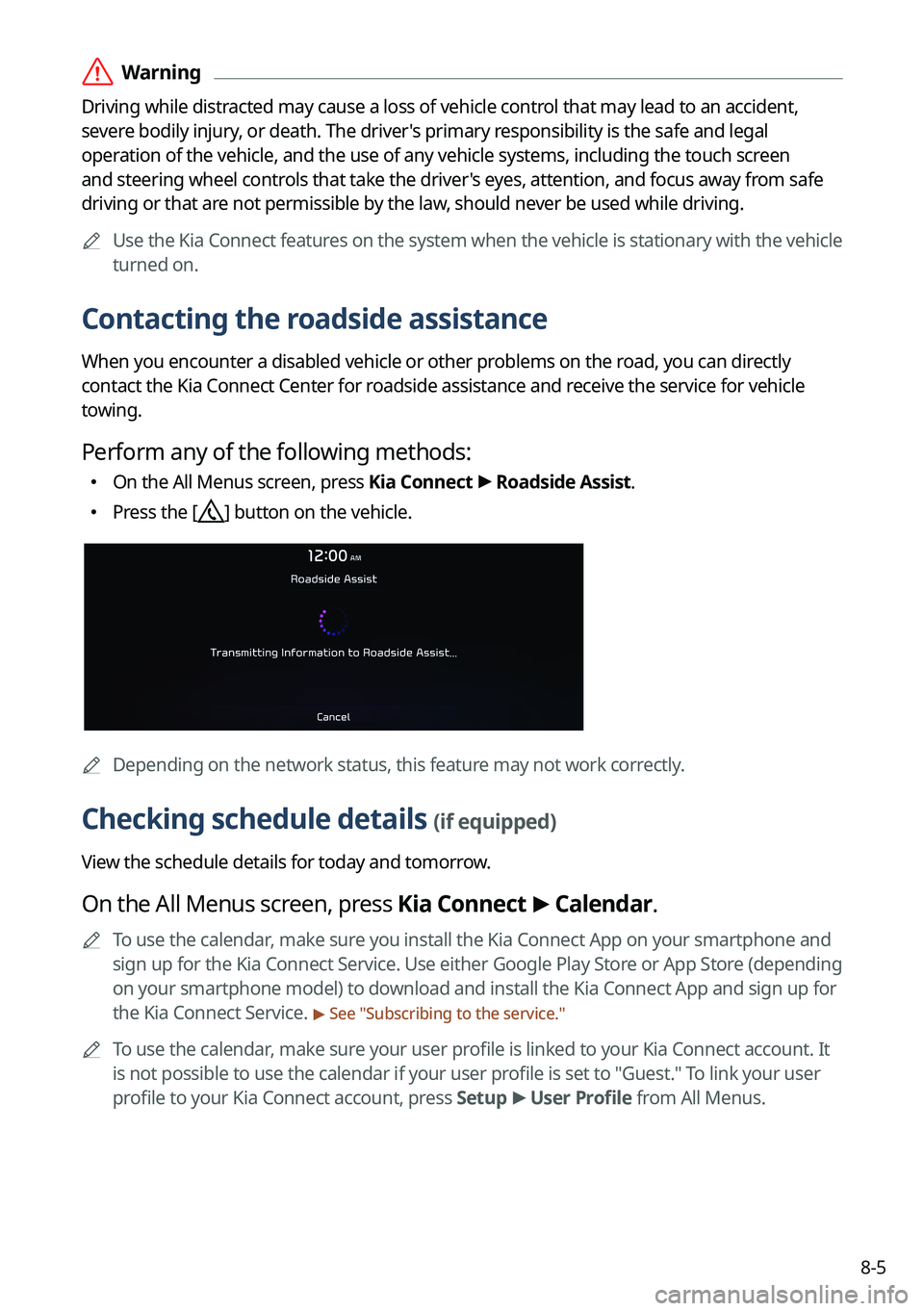
Perform any of the following methods:
�On the All Menus screen, press Kia Connect
>
Roadside Assist.
� Press the [] button on the vehicle.
A
Depending on the network status, this feature may not work correctly.
Checking schedule details (if equipped)
View the schedule details for today and tomorrow.
On the All Menus screen, press Kia Connect >
Calendar.
A
To use the calendar, make sure you install the Kia Connect App on your smartphone and
sign up for the Kia Connect Service. Use either Google Play Store or App Store (depending
on your smartphone model) to download and install the Kia Connect App and sign up for
the Kia Connect Service.
> See "Subscribing to the service."
A
To use the calendar, make sure your user profile is linked to your Kia Connect account. It
is not possible to use the calendar if your user profile is set to "Guest." To link your user
profile to your Kia Connect account, press Setup >
User Profile from All Menus.
Page 211 of 364
8-7
2 Press Search Destination.
3 Check the location of the destination and then press Set as Destination.
A
When you see the search result list, press the desired destination to see on the map.
4 Select a route and press Start Guidance.
Page 212 of 364
8-8
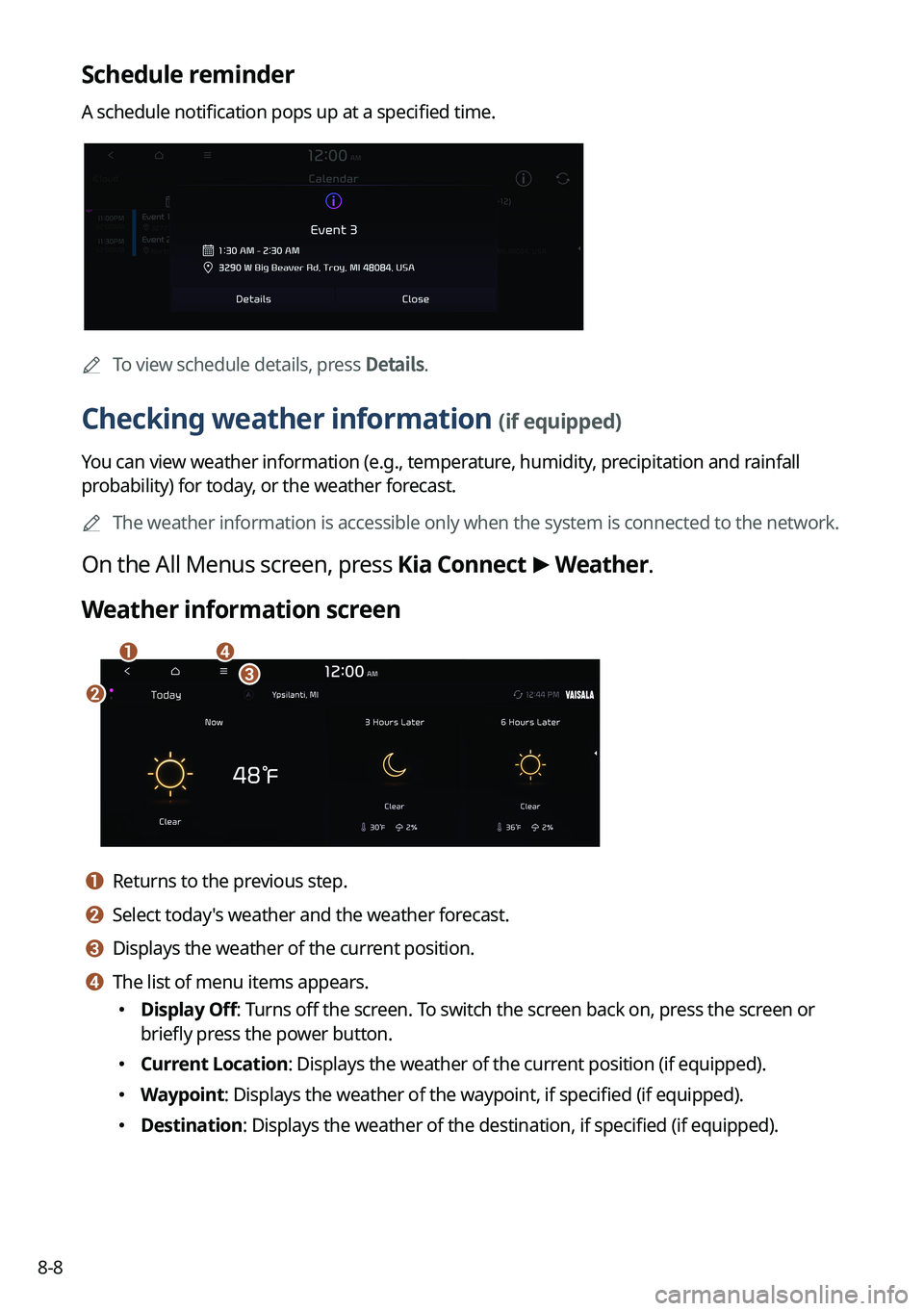
Schedule reminder
A schedule notification pops up at a specified time.
A
To view schedule details, press Details.
Checking weather information (if equipped)
You can view weather information (e.g., temperature, humidity, precipitation and rainfall
probability) for today, or the weather forecast.
A
The weather information is accessible only when the system is connected \
to the network.
On the All Menus screen, press Kia Connect >
Weather.
Weather information screen
da
bc
a a Returns to the previous step.
b b Select today's weather and the weather forecast.
c c Displays the weather of the current position.
d d The list of menu items appears.
� Display Off: Turns off the screen. To switch the screen back on, press the screen or
briefly press the power button.
�Current Location: Displays the weather of the current position (if equipped).
�Waypoint: Displays the weather of the waypoint, if specified (if equipped).
�Destination: Displays the weather of the destination, if specified (if equipped).
Page 214 of 364
8-10
Checking maintenance service intervals (if equipped)
You can see information about the intervals for the last and next maintenance services. This
feature can help you maintain your vehicle on a regular basis.
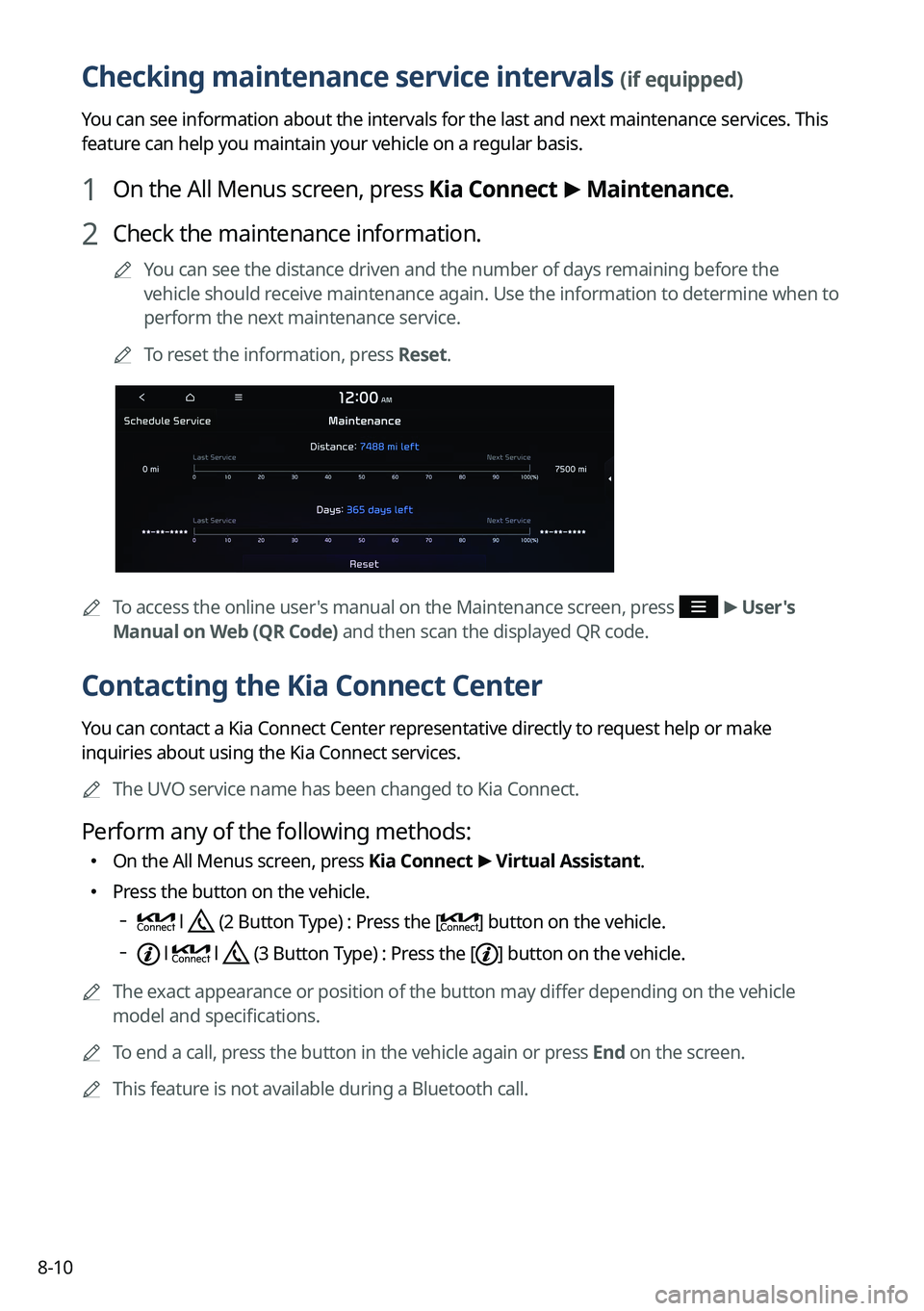
1 On the All Menus screen, press Kia Connect >
Maintenance.
2 Check the maintenance information.
A
You can see the distance driven and the number of days remaining before the
vehicle should receive maintenance again. Use the information to determine when to
perform the next maintenance service.
A
To reset the information, press Reset.
A
To access the online user's manual on the Maintenance screen, press >
User's
Manual on Web (QR Code) and then scan the displayed QR code.
Contacting the Kia Connect Center
You can contact a Kia Connect Center representative directly to request help or make
inquiries about using the Kia Connect services.
A
The UVO service name has been changed to Kia Connect.
Perform any of the following methods:
�On the All Menus screen, press Kia Connect
>
Virtual Assistant.
� Press the button on the vehicle.
l (2 Button Type) : Press the [] button on the vehicle.
l l (3 Button Type) : Press the [] button on the vehicle.
A
The exact appearance or position of the button may differ depending on the vehicle
model and specifications.
A
To end a call, press the button in the vehicle again or press End on the screen.
A
This feature is not available during a Bluetooth call.


