Page 31 of 364
1-3
SEEK/
TRACK button
(if equipped)
�While listening to the radio, change the station.
�While playing media, change the track/file. Press and hold
to rewind or fast forward (except for the Bluetooth audio
mode).
Custom button
(
)
� Runs the user-defined function.
�Press and hold the button to display the function settings
screen.
SETUP button
� Displays the Settings screen.
�Press and hold the button to display the version
information screen.
Search knob
(TUNE/FILE)
(if equipped)
� While listening to the radio, adjust the frequency or
change the broadcasting channel.
�While playing media, scan music or files.
�During scanning, select the current channel, music or file.
�On the map screen, zoom in or out on the map (if
activated).
System Reset button
� Restarts the system.
Page 32 of 364
1-4
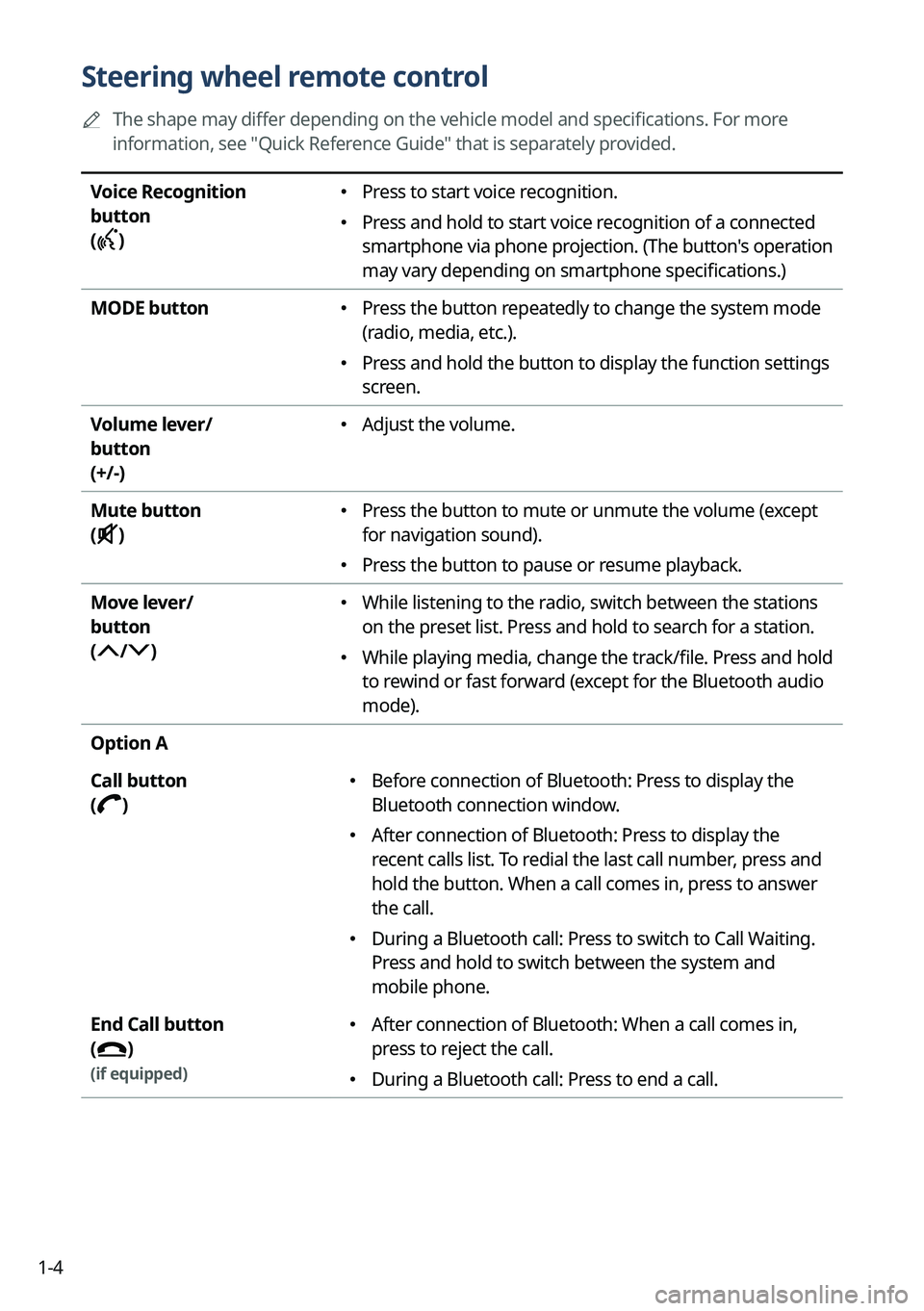
Steering wheel remote control
A
The shape may differ depending on the vehicle model and specifications. For more
information, see "Quick Reference Guide" that is separately provided.
Voice Recognition
button
(
)
� Press to start voice recognition.
�Press and hold to start voice recognition of a connected
smartphone via phone projection. (The button's operation
may vary depending on smartphone specifications.)
MODE button
� Press the button repeatedly to change the system mode
(radio, media, etc.).
�Press and hold the button to display the function settings
screen.
Volume lever/
button
(+/-)
� Adjust the volume.
Mute button
(
)
� Press the button to mute or unmute the volume (except
for navigation sound).
�Press the button to pause or resume playback.
Move lever/
button
(
/)
� While listening to the radio, switch between the stations
on the preset list. Press and hold to search for a station.
�While playing media, change the track/file. Press and hold
to rewind or fast forward (except for the Bluetooth audio
mode).
Option A
Call button
(
)
� Before connection of Bluetooth: Press to display the
Bluetooth connection window.
�After connection of Bluetooth: Press to display the
recent calls list. To redial the last call number, press and
hold the button. When a call comes in, press to answer
the call.
�During a Bluetooth call: Press to switch to Call Waiting.
Press and hold to switch between the system and
mobile phone.
End Call button
(
)
(if equipped)
� After connection of Bluetooth: When a call comes in,
press to reject the call.
�During a Bluetooth call: Press to end a call.
Page 34 of 364
1-6
Turning on/off the system
The following explains how to turn on or off the system. Before using the system, be sure to
read the user's manual for safe and convenient manipulation.
Turning on the system
1 Turn on the vehicle.
2 When a safety warning message appears, read it and press Confirm.
A
To change the display language, press Language.
AThe screen may differ depending on the vehicle model and specifications.
A
To set the user profile, note the following.
> See "Using the First Run Setup."
Turning off the system
To turn off the system while driving, press and hold the Power button on
the panel.
The screen and sound will be turned off.
A
To use the system again, press the Power button.
A
When a specified period of time elapses after turning off the vehicle, the system
automatically shuts down. When you open the driver's door, the system immediately
shuts down.
Page 37 of 364
1-9
"Press and hold" gesture
Press and hold the desired item.
It is used to fast forward or rewind during playback.
"Slide" gesture
On the media playback screen, press the slide bar to change the playback
position.
You can change the playback position during playback.
Page 41 of 364
1-13
a a Displays the date and time.
b b Displays weather, and other information.
c c Displays Radio/Media information.
d d If you press the vehicle image, the Electric Vehicle screen appears.
A
The screen may differ depending on the vehicle model and specifications.
A
To display the map screen, press the map area.
Editing the widgets on the Home screen (Type1)
You can edit the types and positions of the widgets to display on the Home screen.
1 At the upper left of the Home screen, press Menu >
Edit Home
Widgets.
2 Perform any of the following methods:
� To change the widget type, press and hold the desired widget on List of widgets
and then drag it to Widget area.
�To change the listed order for widgets, press and hold a widget on Widget area and
then drag it to the desired position.
ab
a a List of widgets
b b Widget area
A
The screen may differ depending on the vehicle model and specifications.
A
To initialize the types and positions of widgets, press Reset.
Page 42 of 364
1-14
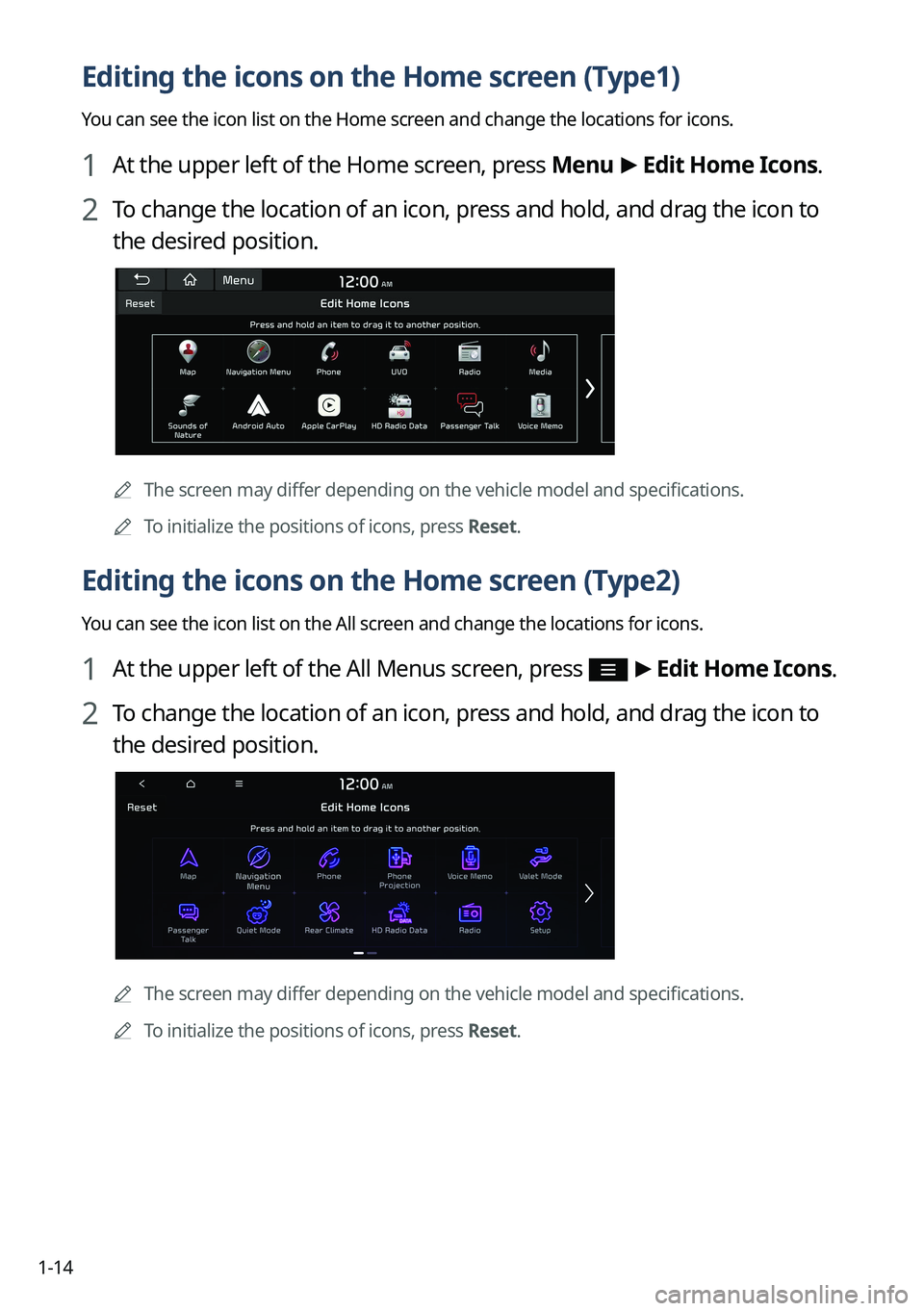
Editing the icons on the Home screen (Type1)
You can see the icon list on the Home screen and change the locations for icons.
1 At the upper left of the Home screen, press Menu >
Edit Home Icons.
2 To change the location of an icon, press and hold, and drag the icon to
the desired position.
A
The screen may differ depending on the vehicle model and specifications.
A
To initialize the positions of icons, press Reset.
Editing the icons on the Home screen (Type2)
You can see the icon list on the All screen and change the locations for icons.
1 At the upper left of the All Menus screen, press >
Edit Home Icons.
2 To change the location of an icon, press and hold, and drag the icon to
the desired position.
A
The screen may differ depending on the vehicle model and specifications.
A
To initialize the positions of icons, press Reset.
Page 44 of 364
1-16
A
To open split screens, press Split Screen on the menu at the top of the screen.
Editing the split screen
You can change information on the split screen.
Press and hold, and then drag the split screen up or down to select the
desired information item.
Closing the split screen
Press the split screen button when the split screen is open.
A
To close split screens, press Split Screen on the menu at the top of the screen.
Page 47 of 364
2-3
4 To set the driver's name, press Rename.
The name change screen appears.
A
To proceed with First Run Setup without changing the driver's name, press Next.
5 When the First Run Setup screen appears, press OK.
Displays the Home screen.
A
To set the detailed user information and operation environment, press Profile
Settings.
Using the phone projection function
When you connect an Android smartphone or iPhone to the vehicle with a USB cable, you can
run and control Apps on the phone through the widescreen using its user-friendly interface.
ÝWarning
Do not adjust or set up any phone settings while driving. You may lose your steering control
which could cause an accident and severe bodily injuries.