2023 KIA K5 turn
[x] Cancel search: turnPage 90 of 316

4-6
USB music list screen
You can search and play the desired music from the list by pressing List on the USB music
playback screen.
af
e
d
bc
a a Returns to the previous step.
b b Moves to the upper folder or category.
c c Play all songs in this category.
d d Can see music files for each category. In the artist or album category, you can select
multiple artists or albums to play their songs.
e e Set to play media files in all sub-folders included in the current playlist.
f f The list of menu items appears.
•Display Off: Turns off the screen. To switch the screen back on, press the screen or
briefly press the power button.
•Media Sources: Opens the Radio/Media selection window.
•Now Playing
: You can return to the folder of the playing file while searching in the list.
•Split Screen: Can turn on or off the split screen mode.
A
The sound effect settings button may appear on the screen depending on the amp
specifications.
Page 92 of 316

4-8
Bluetooth audio playback screen
The media player runs when you play a music file from a connected audio device via
Bluetooth.
aj
b
cdef
h
i
g
a a Returns to the previous step.
b b Displays the information of the current music.
c c Restart playing the current file or play the previous file.
d d Can pause or resume playback.
e e Can play the next file.
f f Can see the duration of the playing song and the current playback position.
g g Find and connect other Bluetooth devices.
h h Moves to the music list screen.
A
The list of Bluetooth audio files may not appear depending on the connected device
or app.
i i Displays the sequence number of the current file and the total number of files for
playback.
j j The list of menu items appears.
•Display Off: Turns off the screen. To switch the screen back on, press the screen or
briefly press the power button.
•Media Sources: Opens the Radio/Media selection window.
•Change Device: Find and connect other Bluetooth devices.
•Sound Settings: Displays the system sound settings screen.
•User's Manual on Web (QR Code): Displays the QR code that provides access to the
online user manual for the system.
•Split Screen: Can turn on or off the split screen mode.
A
The screen may differ depending on the vehicle model and specifications.
A
The sound effect settings button may appear on the screen depending on the amp
specifications.
Page 96 of 316
5-2
Navigation functions
Navigation Menu overview
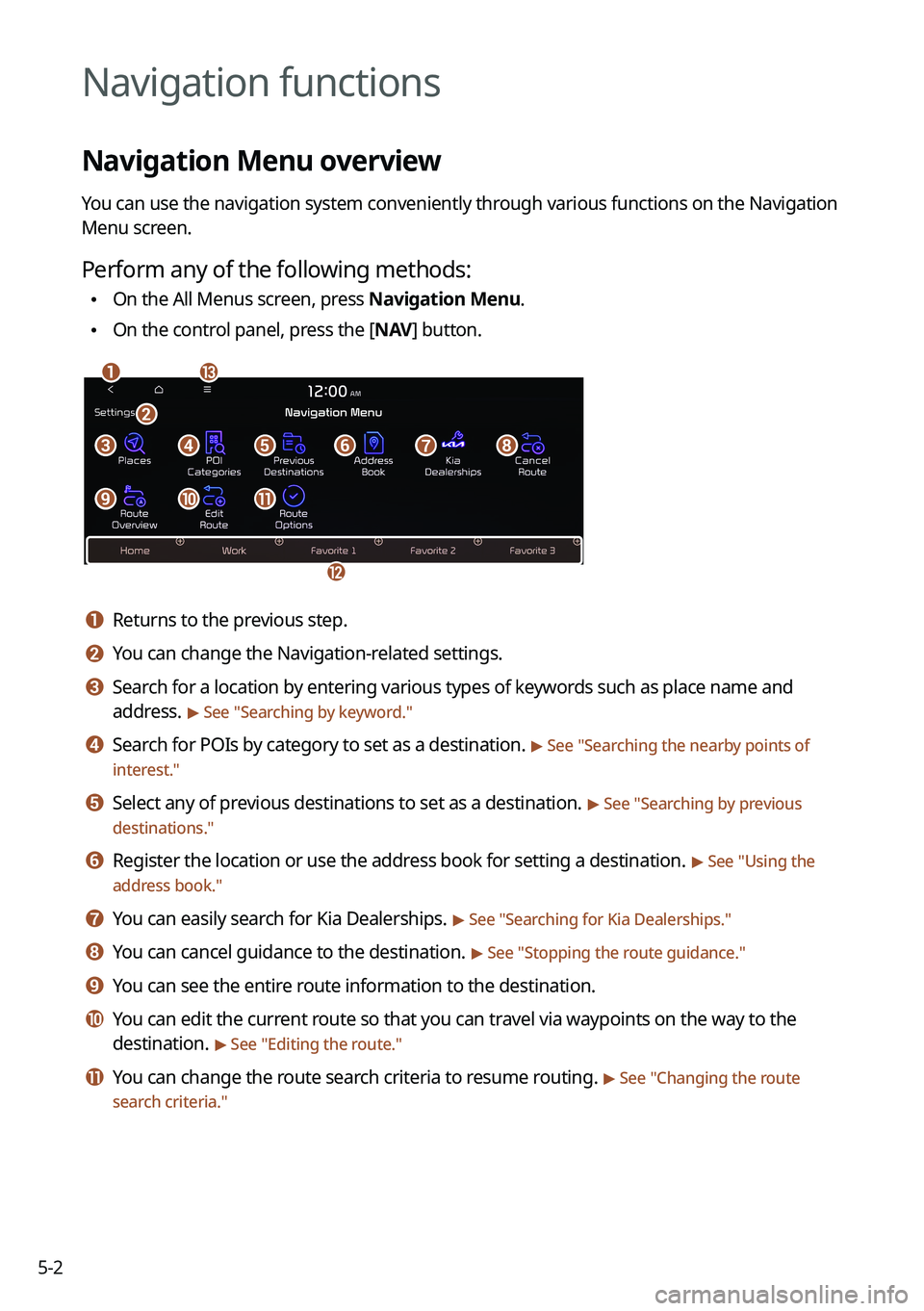
You can use the navigation system conveniently through various functions on the Navigation
Menu screen.
Perform any of the following methods:
•On the All Menus screen, press Navigation Menu.
•On the control panel, press the [
NAV] button.
am
c
l
defgh
ijk
b
a a Returns to the previous step.
b b You can change the Navigation-related settings.
c c Search for a location by entering various types of keywords such as place name and
address.
> See " Searching by keyword."
d d Search for POIs by category to set as a destination. > See "Searching the nearby points of
interest."
e e Select any of previous destinations to set as a destination. > See " Searching by previous
destinations."
f f Register the location or use the address book for setting a destination. > See " Using the
address book."
g g You can easily search for Kia Dealerships. > See "Searching for Kia Dealerships."
h h You can cancel guidance to the destination. > See " Stopping the route guidance."
i i You can see the entire route information to the destination.
j j You can edit the current route so that you can travel via waypoints on the way to the
destination.
> See "Editing the route."
k k You can change the route search criteria to resume routing. > See "Changing the route
search criteria."
Page 97 of 316
5-3
l l You can register your home, office, or other frequently visited places as a favorite for ease
of search.
> See "Registering a frequently visited place as a favorite place ."
m m The list of menu items appears.
•Reorder Icons: Can change the location of an icon on the Navigation Menu screen.
•Display Off: Turns off the screen. To switch the screen back on, press the screen or
briefly press the power button.
•User's Manual on Web (QR Code): Displays the QR code that provides access to the
online user manual for the system.
A
Available icons and their arrangement may differ depending on the vehicle model and
specifications.
Finding a route easily
ÝWarning
Driving while distracted may cause a loss of vehicle control that may lead to an accident,
severe bodily injury, or death. The driver's primary responsibility is the safe and legal
operation of the vehicle, and the use of any devices or systems that take the driver's attention
away from driving.
1 Perform any of the following methods:
•On the All Menus screen, press Navigation Menu >
Places.
• On the map screen, press .
A
Press and hold the [ NAV] button on the control panel to enter into Places.
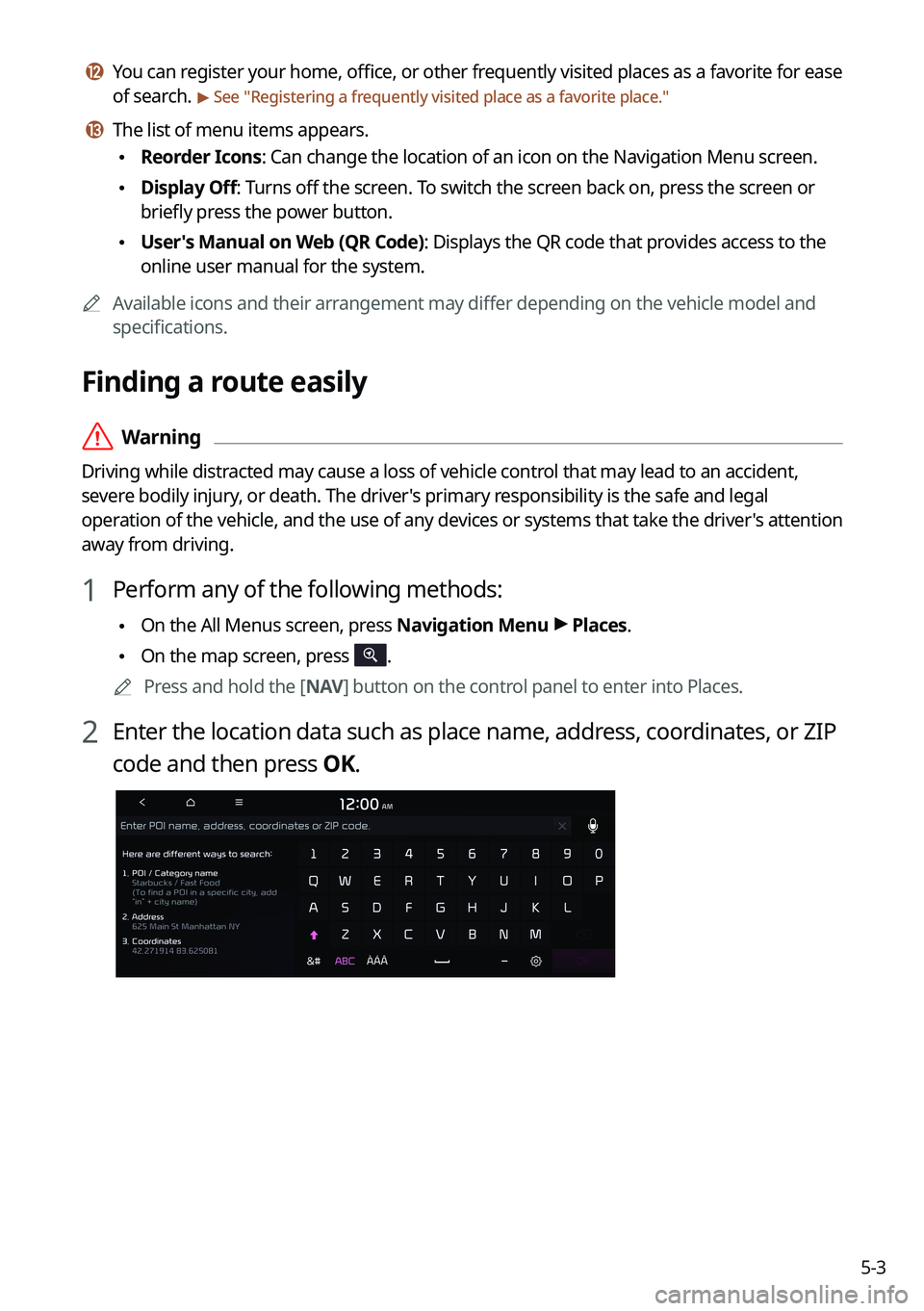
2 Enter the location data such as place name, address, coordinates, or ZIP
code and then press OK.
Page 99 of 316

5-5
A
Vehicle location may not be displayed correctly if:
The vehicle is driving on a Y-shaped or winding road with narrow angles.
The vehicle is driving closely to another road.
The vehicle is driving on a road where there are many tall buildings in the vicinity.
The vehicle is driving on a new road or a road under construction.
The vehicle is transported by a ferry or heavy-duty transport vehicle.
The vehicle is driving in a rugged mountain area or on a steep curve road.
The vehicle is entering a public road after making a turn through the turntable in an
underground parking lot or multi-story parking lot.
The vehicle stops and starts repeatedly or moves slowly in front of an intersection.
The system reboots after the vehicle battery has been recharged or replaced.
The vehicle is driving on a slippery road due to heavy snow, etc.
The tires have been replaced recently or spare tires (or studless tires) are used.
Improper-sized tires are used or the pressure of each tire is different.
The replaced tire is worn out or the studless tires have been used for over two seasons.
A roof carrier is installed on the vehicle.
On a highway continued driving causes the system to perform map matching or apply
the updated GPS data.
A
Navigation service may not be provided correctly under the following conditions:
When the vehicle drives on a straight road continuously, the system may guide you to
drive straight. It is not a malfunction.
Guidance may not be followed immediately after the vehicle makes a turn at an
intersection or drives through an intersection.
The system may guide you to make a U-turn in a prohibited area.
The system may guide you to a traffic-blocked road (e.g. no-entry road or road under
construction).
The system may guide you to a road away from the destination when there is no road
to the destination or there are only narrow roads on the way.
Guidance may not be proper when the vehicle is off the route.
Guidance may not match the actual distance on an overpass or underpass due to the
difference of the start point.
When you are driving at high speeds, route recalculations may take longer.
A
Because the navigation system is used for information purposes only, Kia does not
assume responsibility of the accuracy of the information.
A
When the traffic information is not received, the status icon appears at the top of the map
screen.
HD Radio: The system is using the HD radio data. If no traffic information is available,
the status icon (
) will be displayed instead.
Page 102 of 316

5-8
Using the detailed guidance
When the vehicle needs to change the driving direction or lanes, a zoomed-in map
automatically appears.
A
To display or hide the detailed guidance, press
or .
When the detailed guidance appears while driving, select and perform the
desired function.
•To check information on the zone for a turn, press Simple.
•To check the types and locations of convenience facilities in a rest area, press
Rest Areas.
•For information details about each zone such as intersections, interchanges, and rest
areas, press Details.
Page 103 of 316

5-9
Adjusting the navigation volume
You can adjust the volume of navigation or GPS warning sound.
On the map screen, press and then press or , or use the control bar
to adjust the volume.
A
To have the navigation sound always output first over media sound, check Navigation
Volume Priority.
A
To turn off the navigation sound, press
and then press or .
Stopping the route guidance
To stop route guidance, press Pause Route.
The destination displayed at the bottom of the screen disappears and the Pause Route is
replaced by Resume Route.
A
To resume guidance to the previous destination, press Resume Route.
A
To cancel guidance to the destination, press and hold Pause Route, Resume Route, or
Navigation Menu >
Cancel Route on the All Menus screen.
Page 125 of 316

5-31
COPYING OR USE OF THE PRODUCT EXCEPT AS PERMITTED BY THIS EULA IS
UNAUTHORIZED AND IS COPYRIGHT INFRINGEMENT UNDER THE LAWS OF YOUR
COUNTRY. IF YOU COPY OR USE THE PRODUCT WITHOUT COMPANY'S PERMISSION,
EXCEPT AS PERMITTED BY THIS EULA, YOU ARE VIOLATING THE LAW AND LIABLE TO
COMPANY AND ITS LICENSORS FOR DAMAGES, AND YOU MAY BE SUBJECT TO CRIMINAL
PENALTIES.
THE PRODUCT MAY INCLUDE ENFORCEMENT TECHNOLOGY DESIGNED TO PREVENT (i)
UNAUTHORIZED COPYING OF THE PRODUCT ONTO PHYSICAL STORAGE MEDIA OR VIA
TRANSFER OVER THE INTERNET OR OTHER ELECTRONIC COMMUNICATION MEANS AND/OR
(ii) ILLEGAL USAGE OF THE PRODUCT OTHER THAN BY A SPECIFICALLY AHTORIZED DEVICE.
YOU AGREE THAT COMPANY MAY USE THESE MEASURES TO PROTECT COMPANY AND THE
LICENSORS AGAINST COPYRIGHT INFRINGEMENT.
Uploads. The Product may provide functionality through which you are able to upload
certain information about your use of the Product (collectively, "Uploads") to COMPANY's
servers or receive other services from COMPANY (collectively, the "Services"). If you use such
functionality, you authorize COMPANY to retain your Uploads on its servers. COMPANY will
have no obligation to provide any Services, may change the form and nature of any Services
at any time with or without notice to you, will have no liability whatsoever to you for any
failure of the Product or Services to transmit your Uploads to or from COMPANY's servers,
may cease providing any Services at any time with or without notice to you, and will have no
obligation to retain your Uploads (or any other materials you may provide to COMPANY) on
its servers or return your Uploads (or any other materials you may provide to COMPANY) to
you before deleting them from its servers.
Storage. The Product may provide functionality through which you are able to store
information (such as images) on the device on which you are using the Product. COMPANY
will have no liability whatsoever to you or any third party for any failure of the Product to
store any such information on such device.
Personal Information. By using the Product, you agree to the collection, retention and
processing of your personal data (including the location of your mobile device) by COMPANY
and to the storage and processing of such personal information on computers located
outside of the country in which you reside. Even though COMPANY has taken steps intended
to protect your personal information from being intercepted, accessed, used, or disclosed by
unauthorized persons, COMPANY cannot fully eliminate security risks associated with your
personal information and cannot guarantee that its systems will not be breached. See [*] for
additional information regarding COMPANY's use of your personal information.