Page 213 of 316
9-25
Energy Consumption Reset (if equipped)
You can set to automatically initialize the average fuel economy.
•After Ignition: The average fuel economy is automatically initialize whenever you drive
the vehicle.
•After Refueling
: The average fuel economy is automatically initialize whenever you refuel
the vehicle.
• After Recharging: The average fuel economy is automatically initialize whenever you
charge the vehicle (EV only).
•Off: The average fuel economy initialize is unavailable.
Reset Fuel Economy (if equipped)
Select which average fuel economy to display on the cluster.
•At Vehicle Start: Displays the fuel economy after engine restart.
•After Refueling: Displays the fuel economy after refueling.
•After Recharging: Displays the fuel economy after recharging (EV only).
•Manually: Displays the accumulated fuel economy.
Content Selection (if equipped)
You can set the content to display on the instrument cluster.
•Wiper/Lights Display: When the wiper or light lever operates, the operation mode
appears.
•Traffic Signs: Displays the road information such as speed bumps and speed limits.
•Blind-Spot View: Displays the blind spot view on the instrument cluster when the turn
signal lamp is operating.
•Icy Road Warning: When the outside temperature drops below 4 °C (39 °F), the
possibility of road icing appears.
Cluster Voice Guidance Volume (if equipped)
You can adjust the voice guidance volume of the cluster.
Welcome Sound (if equipped)
You can set to generate the notification sound when turning on or off the instrument cluster.
Page 216 of 316
9-28
Seating Easy Access (if equipped)
For convenience upon getting on and off, you can adjust the position of the driver's seat or
steering wheel to secure space inside the vehicle.
•Seat Slide Easy Access: Can set the distance to automatically move the driver's seat
when getting on or off.
Rear Seat Heating Control (if equipped)
You can set to enable the warmer for the rear-left and rear-right seats.
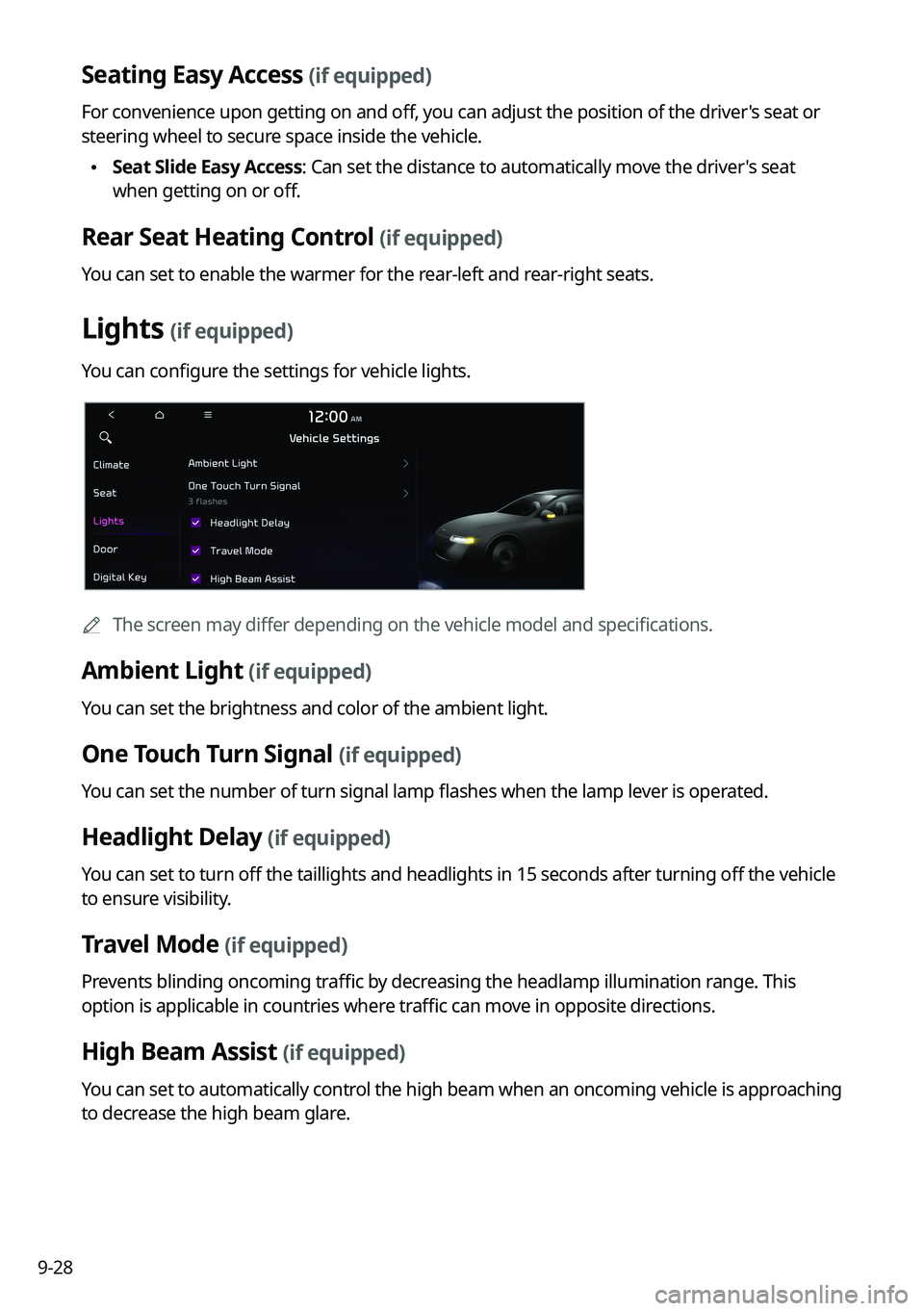
Lights (if equipped)
You can configure the settings for vehicle lights.
A
The screen may differ depending on the vehicle model and specifications.
Ambient Light (if equipped)
You can set the brightness and color of the ambient light.
One Touch Turn Signal (if equipped)
You can set the number of turn signal lamp flashes when the lamp lever is operated.
Headlight Delay (if equipped)
You can set to turn off the taillights and headlights in 15 seconds after turning off the vehicle
to ensure visibility.
Travel Mode (if equipped)
Prevents blinding oncoming traffic by decreasing the headlamp illumination range. This
option is applicable in countries where traffic can move in opposite directions.
High Beam Assist (if equipped)
You can set to automatically control the high beam when an oncoming vehicle is approaching
to decrease the high beam glare.
Page 222 of 316
9-34
Bluetooth Connections
You can register or delete a Bluetooth device from the system and connect or disconnect a
registered device.
A
You can add one Bluetooth hands-free kit or up to two Bluetooth audio devices.
Auto Connection Priority
Set the priority order for automatic Bluetooth connection to the system when it turns on.
A
On the device list, press
on the right and drag the item to reposition.
Message Notification
Set to receive message notifications.
A
This option may not be available in some phone models.
Predefined Messages
Edit message templates for quick replies.
A
This option may not be available in some phone models.
Bluetooth Voice Prompts
Set whether to hear voice prompts for events related to Bluetooth connections.
Privacy Mode
Enable or disable Privacy Mode. Hide data including contacts and call history from showing
up on the system screen to protect privacy.
Bluetooth System Info
You can see and edit the Bluetooth information of the system.
Reset
You can delete all registered Bluetooth devices and initialize Bluetooth settings. All data for
Bluetooth devices are also deleted.
Page 224 of 316
9-36
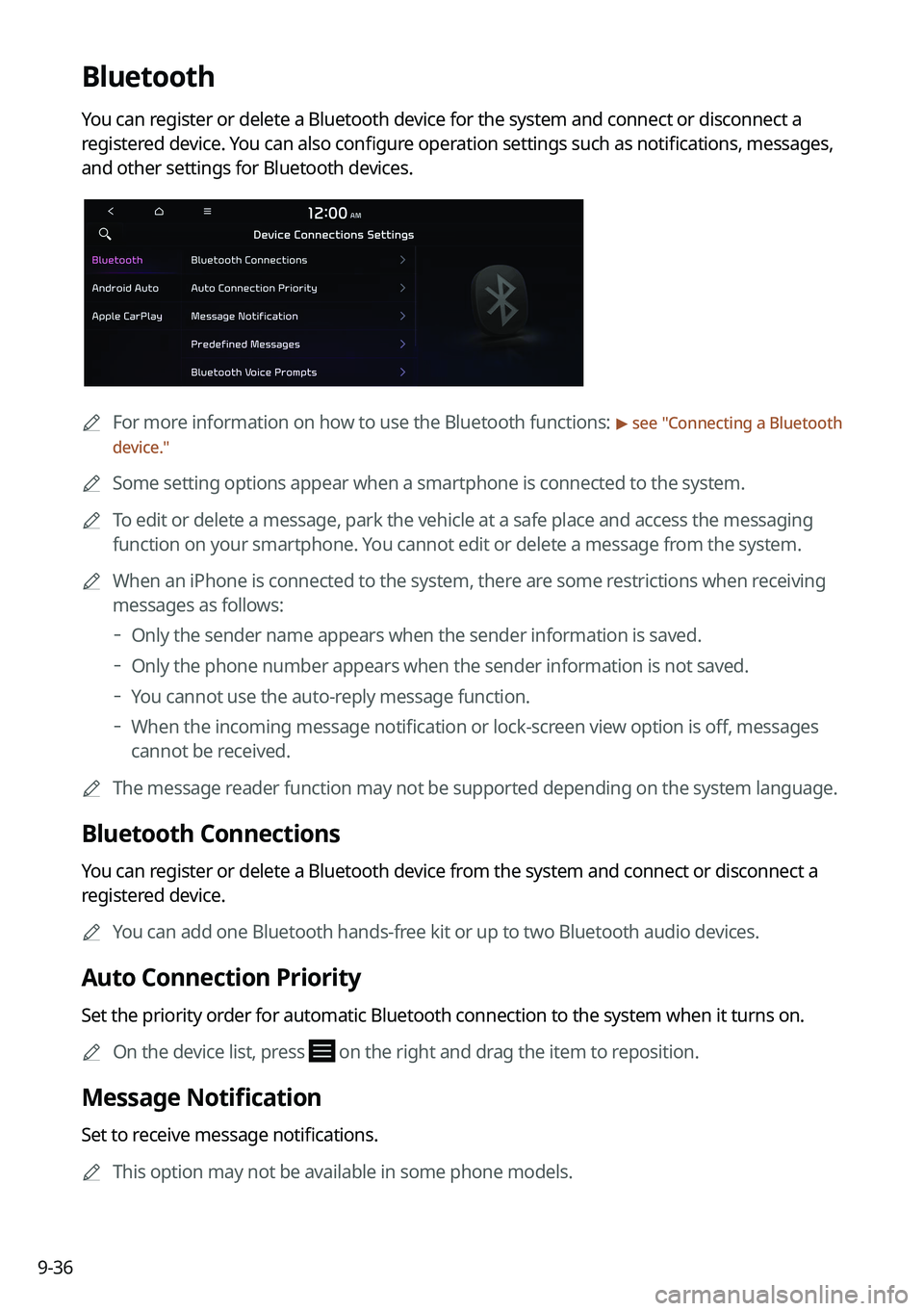
Bluetooth
You can register or delete a Bluetooth device for the system and connect or disconnect a
registered device. You can also configure operation settings such as notifications, messages,
and other settings for Bluetooth devices.
A
For more information on how to use the Bluetooth functions: > see "Connecting a Bluetooth
device."
A
Some setting options appear when a smartphone is connected to the system.
A
To edit or delete a message, park the vehicle at a safe place and access the messaging
function on your smartphone. You cannot edit or delete a message from the system.
A
When an iPhone is connected to the system, there are some restrictions when receiving
messages as follows:
Only the sender name appears when the sender information is saved.
Only the phone number appears when the sender information is not saved.
You cannot use the auto-reply message function.
When the incoming message notification or lock-screen view option is off, messages
cannot be received.
A
The message reader function may not be supported depending on the system language.
Bluetooth Connections
You can register or delete a Bluetooth device from the system and connect or disconnect a
registered device.
A
You can add one Bluetooth hands-free kit or up to two Bluetooth audio devices.
Auto Connection Priority
Set the priority order for automatic Bluetooth connection to the system when it turns on.
A
On the device list, press
on the right and drag the item to reposition.
Message Notification
Set to receive message notifications.
A
This option may not be available in some phone models.
Page 226 of 316
9-38
Configuring the advanced system settings
(Type1)
(if equipped)
You can configure the settings for notification and button actions.
1 On the All Menus screen, press Setup >
Advanced.
The advanced settings screen appears.
2 Configure the settings required:
Return to Map: Set Time
You can set the system to automatically display the map screen after a specified period of
time when switched to the Radio/Media mode screen while using the navigation.
A
This function works while driving once a destination has been set.
A
This feature is not available on the phone projection screen.
TUNE Knob Function
You can change the Search knob's function on the map.
Page 236 of 316
9-48
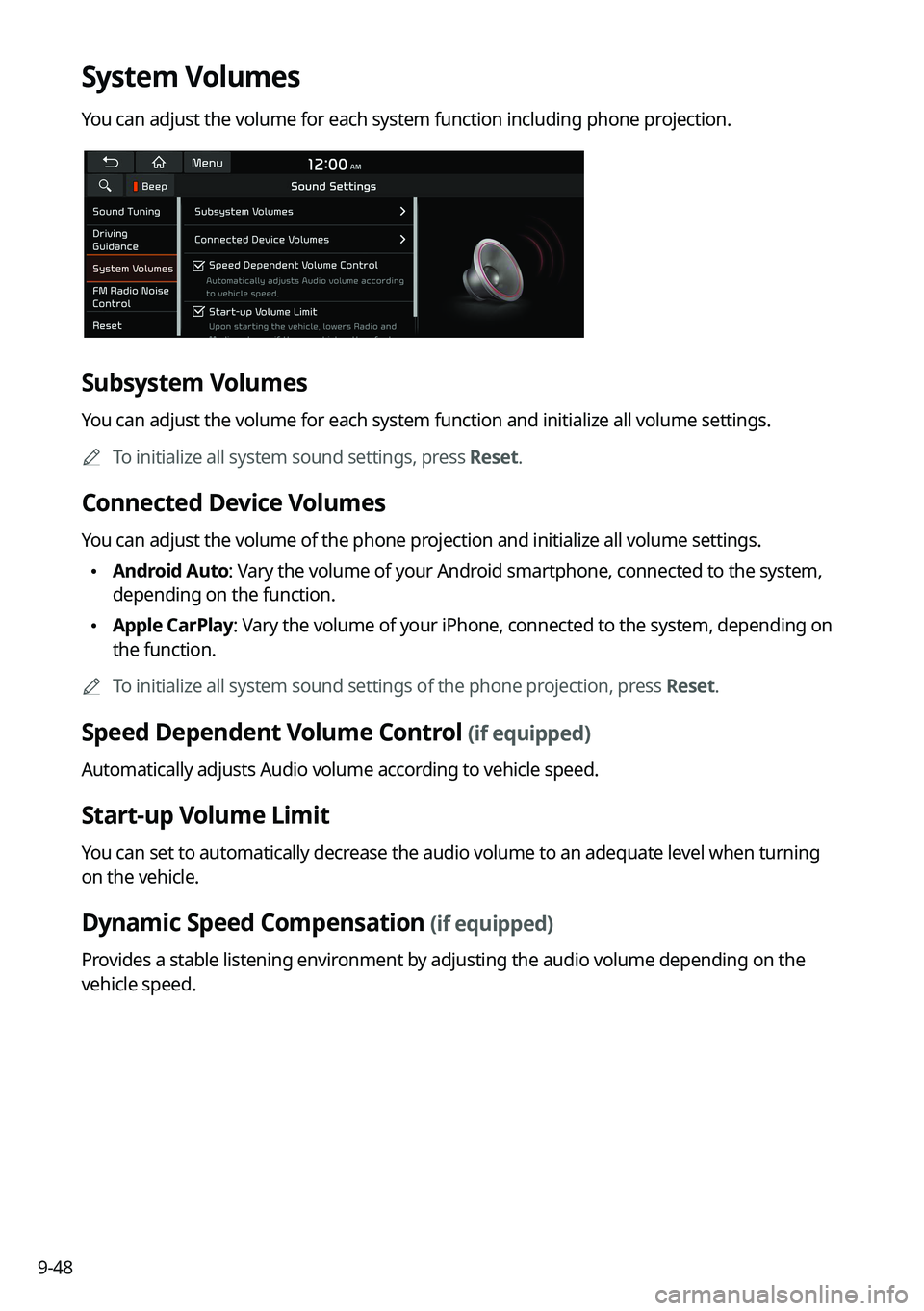
System Volumes
You can adjust the volume for each system function including phone projection.
Subsystem Volumes
You can adjust the volume for each system function and initialize all volume settings.
A
To initialize all system sound settings, press Reset.
Connected Device Volumes
You can adjust the volume of the phone projection and initialize all volume settings.
•Android Auto: Vary the volume of your Android smartphone, connected to the system,
depending on the function.
•Apple CarPlay: Vary the volume of your iPhone, connected to the system, depending on
the function.
A
To initialize all system sound settings of the phone projection, press Reset.
Speed Dependent Volume Control (if equipped)
Automatically adjusts Audio volume according to vehicle speed.
Start-up Volume Limit
You can set to automatically decrease the audio volume to an adequate level when turning
on the vehicle.
Dynamic Speed Compensation (if equipped)
Provides a stable listening environment by adjusting the audio volume depending on the
vehicle speed.
Page 237 of 316
9-49
FM Radio Noise Control
You can customize sound quality when listening to FM radio by adjusting background noise
of the original sound.
Reset
You can initialize all the sound settings.
Turning on/off the screen touch sound
To turn on or off the touch sound on the screen, press Beep at the top of
the screen.
Page 241 of 316
9-53
Speed Dependent Volume Control (if equipped)
Automatically adjusts Audio volume according to vehicle speed.
Dynamic Speed Compensation (if equipped)
Provides a stable listening environment by adjusting the audio volume depending on the
vehicle speed.
Start-up Volume Limit
You can set to automatically decrease the audio volume to an adequate level when turning
on the vehicle.
Active Sound (if equipped)
You can turn on the engine sound effect function which plays engine sound.
A
The screen may differ depending on the vehicle model and specifications.
Active Sound Design
Adjust the interior engine sound volume.
Virtual Engine Sound System (if equipped)
Turn on or off the engine sound function which generates a virtual engine sound.
Radio Noise
You can customize sound quality when listening to FM radio by adjusting background noise
of the original sound.


