Page 63 of 324
2-25
Viewing the driving information (if equipped)
You can analyze the driving patterns by checking the driving information such as driving
time, distance, idle time, and vehicle speed distribution. Use this info\
rmation to ensure safe
and economical driving.
A
This function is available only when your vehicle is stationary with the vehicle started.
1 On the All Menus screen, press Driving Info.
2 Check the driving information of your vehicle.
A
To see the latest information, press .
A
To access the online user's manual on the Driving Info screen, press Menu >
User's
Manual on Web (QR Code) and then scan the displayed QR code.
Page 64 of 324
2-26
Viewing notifications (if equipped)
You can view UVO notifications including the navigation and map update information.
A
Subscribe to UVO to check the function.
> See "Subscribing to the service."
1 On the All Menus screen, press Notifications.
2 Select to view the item.
ca
b
a a Returns to the previous step.
b b View the list of received notifications. Select from the list to view details.
A
Important notifications are marked with
next to the title.
A
You cannot display notification details while driving. Stop the vehicle first to view
notifications.
c c The list of menu items appears.
•Display Off
: Turns off the screen. To switch the screen back on, press the screen or
briefly press the power button.
• Show Notification Popup: Set to display notifications upon receipt in a pop-up.
•User's Manual on Web (QR Code): Displays the QR code that provides access to
the online user manual for the system.
•Split Screen: Can turn on or off the split screen mode.
Page 68 of 324
3-2
Turning on the radio
You can scan radio channels by using various options. Save your favorite channels to the
presets list.
Perform any of the following methods:
•On the All Menus screen, press Radio.
•On the control panel, press the [
RADIO] button.
A
When multiple media are connected, press the [RADIO] or [MEDIA] button once more
and then press the desired media source from the Radio/Media selection window (if
equipped).
Type1
Type2
A
The displayed screen or menu items may differ, depending on the vehicle model
and features. Check the screen type for your vehicle model and view the appropriate
instructions.
Page 100 of 324
5-4
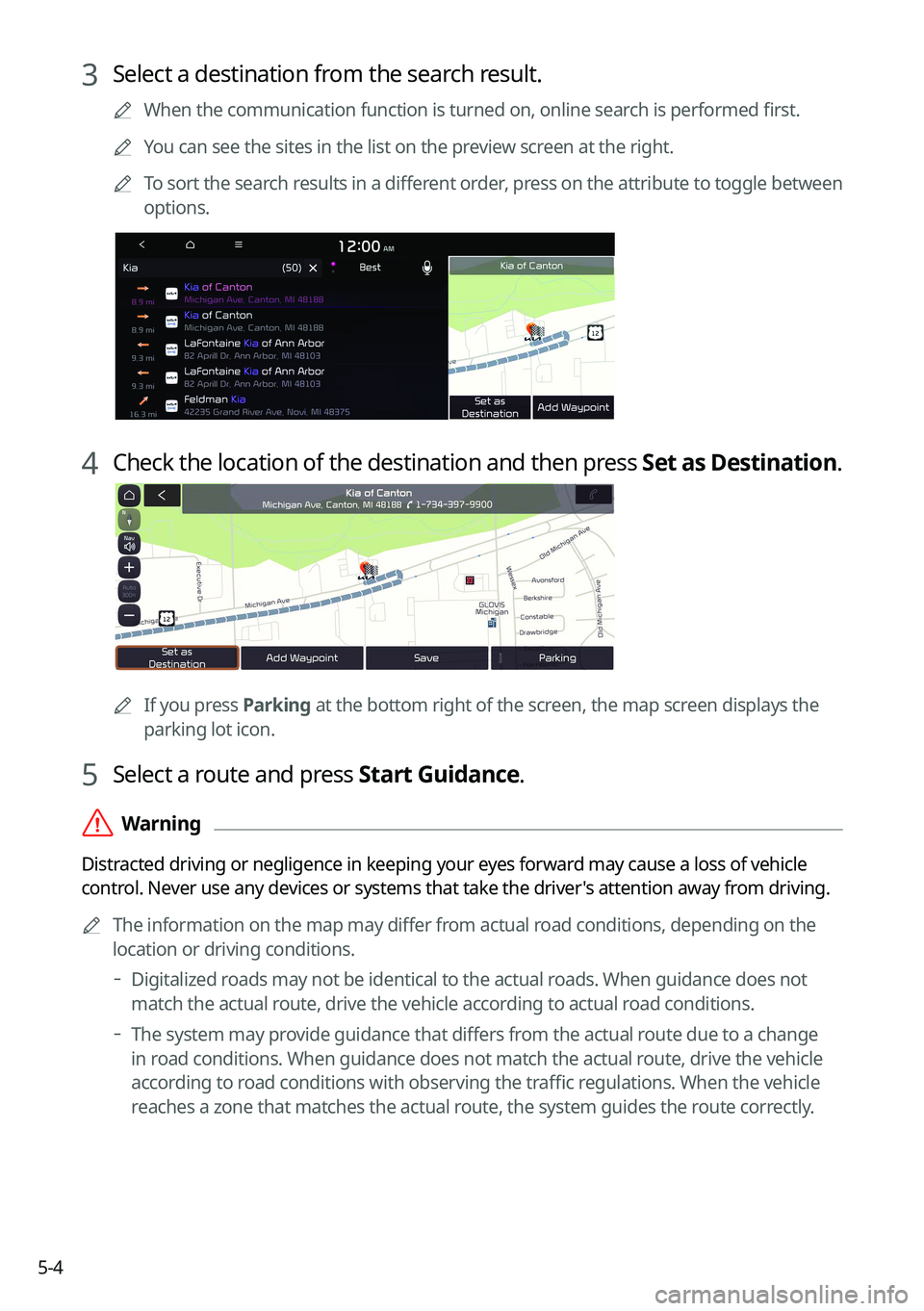
3 Select a destination from the search result.
A
When the communication function is turned on, online search is performed first.
A
You can see the sites in the list on the preview screen at the right.
A
To sort the search results in a different order, press on the attribute to toggle between
options.
4 Check the location of the destination and then press Set as Destination.
A
If you press Parking at the bottom right of the screen, the map screen displays the
parking lot icon.
5 Select a route and press Start Guidance.
ÝWarning
Distracted driving or negligence in keeping your eyes forward may cause a loss of vehicle
control. Never use any devices or systems that take the driver's attention away from driving.
A
The information on the map may differ from actual road conditions, depending on the
location or driving conditions.
Digitalized roads may not be identical to the actual roads. When guidance does not
match the actual route, drive the vehicle according to actual road conditions.
The system may provide guidance that differs from the actual route due to a change
in road conditions. When guidance does not match the actual route, drive the vehicle
according to road conditions with observing the traffic regulations. When the vehicle
reaches a zone that matches the actual route, the system guides the route correctly.
Page 103 of 324

5-7
g g Displays the system information on the map. (It can display up to two items.)
•Traffic information (with an icon if there is no HD data reception)
•Bluetooth connection status
h h Displays the point to change the driving direction.
i i Displays the next point to change the driving direction.
j j Displays the lanes in different colors.
•Orange: Recommended lane
•White: Available lane
•Gray: Unavailable lane
k k Displays quick menu items.
l l Stop the navigation guidance. > See "
Canceling the route guidance."
m m Displays the remaining distance to the destination and the estimated time of arrival. For
more details, press the information item.
n n Displays or hides the detailed guidance.
o o Check the range you can drive with the current amount of battery (EV only).
A
To see only the map with no destination, press the map area on the Home screen or on
the All Menus screen, press Map. Or press the [ MAP] button on the control panel.
A
The screen may differ depending on the vehicle model and specifications.
ÝWarning
Be sure to check the road conditions while driving, because the camera information may get
changed occasionally after a map update to the latest version. Relying solely on the driving
assist system may cause violation of traffic rules and regulations, resulting in an accident.
Page 104 of 324
5-8
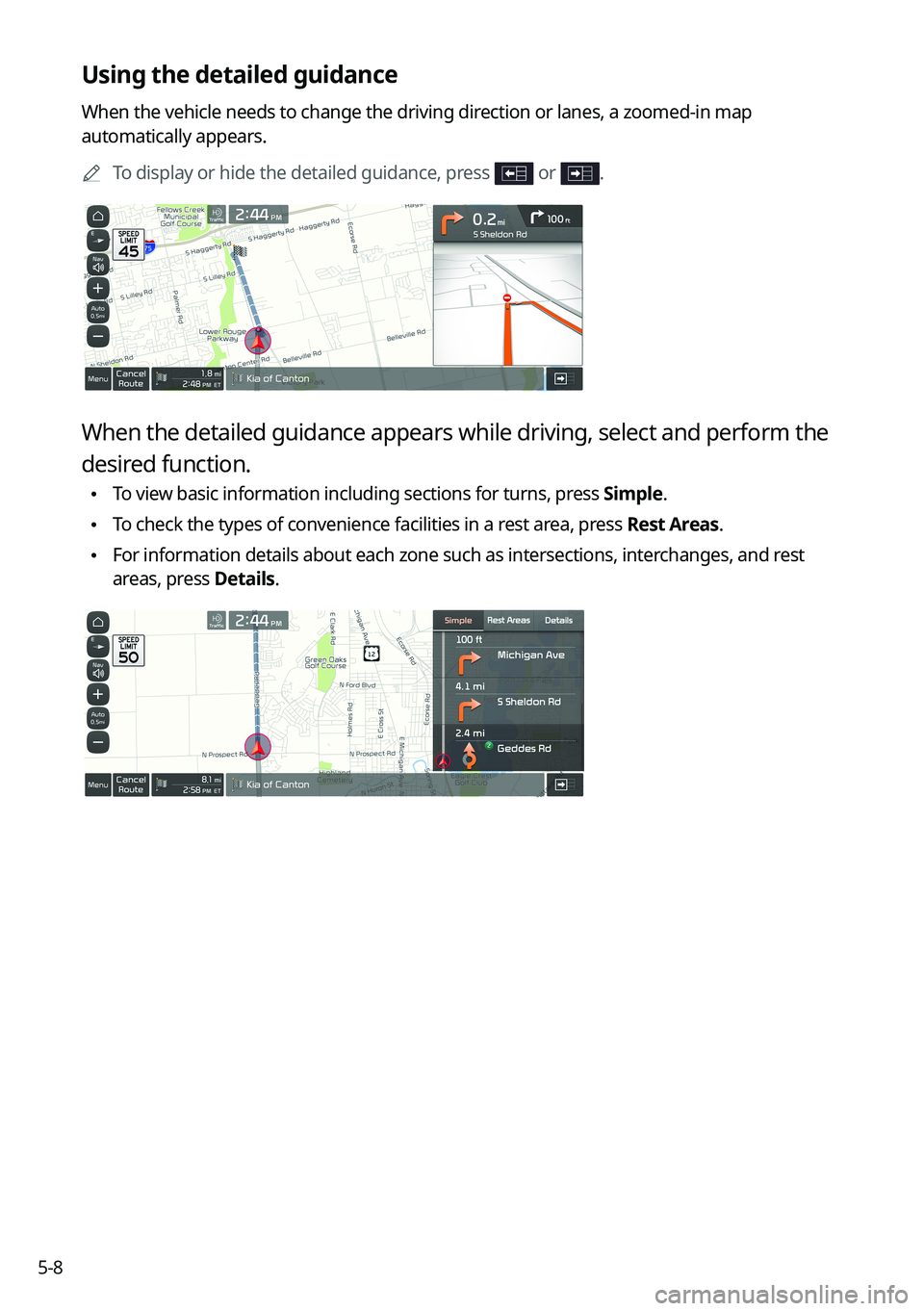
Using the detailed guidance
When the vehicle needs to change the driving direction or lanes, a zoomed-in map
automatically appears.
A
To display or hide the detailed guidance, press
or .
When the detailed guidance appears while driving, select and perform the
desired function.
•To view basic information including sections for turns, press Simple.
•To check the types of convenience facilities in a rest area, press Rest Areas.
•For information details about each zone such as intersections, interchanges, and rest
areas, press Details.
Page 105 of 324

5-9
Adjusting the navigation volume
You can adjust the volume of navigation or GPS warning sound.
On the map screen, press and then press or , or use the control bar
to adjust the volume.
A
To have the navigation sound always output first over media sound, check Navigation
Volume Priority.
A
To turn off the navigation voice, press
and then press .
A
To turn off the navigation sound effects, press and then press .
Canceling the route guidance
To cancel route guidance, press Cancel Route. Alternatively, press
Navigation Menu >
Cancel Route on the All Menus screen.
The destination displayed at the bottom of the screen disappears and changes to .
A
Press to search for the target destination to obtain an optimum route.
A
To maintain the specified destination and stop the route guidance, press and hold Cancel
Route at the bottom of the screen. The guidance stops and the Resume Route button
appears. You can use the button to search for a previous destination and resume route
guidance.
Page 106 of 324
5-10
Viewing traffic Information
You can see real-time traffic information such as ongoing road works or accidents.
1 On the map screen, press > Traffic.
2 Select an item from the real-time traffic information list and see the
details.
A
To reroute using recent traffic information while in guidance, press Detour.
A
To see traffic information along the current route or to see all available traffic
information, press On Route.
A
To select the type of traffic information, press Category.
3 Check the detailed traffic information.
A
Traffic information for border crossings and speed limits for individual roads may not
be accurate. Depending on the road conditions, note the information.