2023 JEEP WRANGLER center console
[x] Cancel search: center consolePage 68 of 396

66GETTING TO KNOW YOUR VEHICLE
AUTO-DOWN FEATURE
The driver door power and the passenger door power
window switches have an Auto-Down feature. Push the
window switch down to the second detent and release,
and the window will go down automatically.
To stop the window from going all the way down during the
Auto-Down operation, pull up on the switch briefly.
WINDOW LOCKOUT SWITCH
Window Lockout Switch
The window lockout switch allows you to disable the
window controls on the rear passenger doors. To disable
the window controls, rotate the switch downward. To
enable the window controls, rotate the switch upward.
WIND BUFFETING
Wind buffeting can be described as the perception of
pressure on the ears or a helicopter-type sound in the
ears. Your vehicle may exhibit wind buffeting with the
windows down in certain open or partially open positions.
This is a normal occurrence and can be minimized. If the
buffeting occurs with the rear windows open, open the
front and rear windows together to minimize the buffeting.
WRANGLER TOPS
PROVIDED TOOLS
For your convenience, a tool kit is provided with your
vehicle located in the center console. This kit includes the
necessary tools required for the operations described in
the following sections. All pieces fit into the ratchet for
easy use.
NOTE:The soft top and the hard top are to be used inde -
pendently. Your vehicle warranty will not cover damage
resulting from both tops being installed at the same time.
Provided Tools
If your vehicle is equipped with a Dual Top (four door
models only), the soft top system will be provided in a
separate box located in the rear of the vehicle for shipping
purposes only.
WARNING!
There is no anti-pinch protection when the window is
almost closed. Be sure to clear all objects from the
window before closing.
1 — Ratchet
2 — #T50 Torx Head Driver
3 — #T40 Torx Head Driver
4 — 15 mm Socket
23_JL_OM_EN_USC_t.book Page 66
Page 73 of 396
GETTING TO KNOW YOUR VEHICLE71
NOTE:
All lowering and raising the soft top instructions are
applicable to both two and four door model vehicles.
Images shown are of four door models, and appear -
ance of two door model components may differ.
The following options are available to you when lowering
your vehicle’s soft top:
Sunrider® position with rear and quarter windows
installed
Sunrider® position with rear and quarter panels
removed
Sunrider® position with rear window installed and
quarter panels removed
Fully lowered position with rear and quarter windows
removed
Both quarter windows should be removed and installed
together.
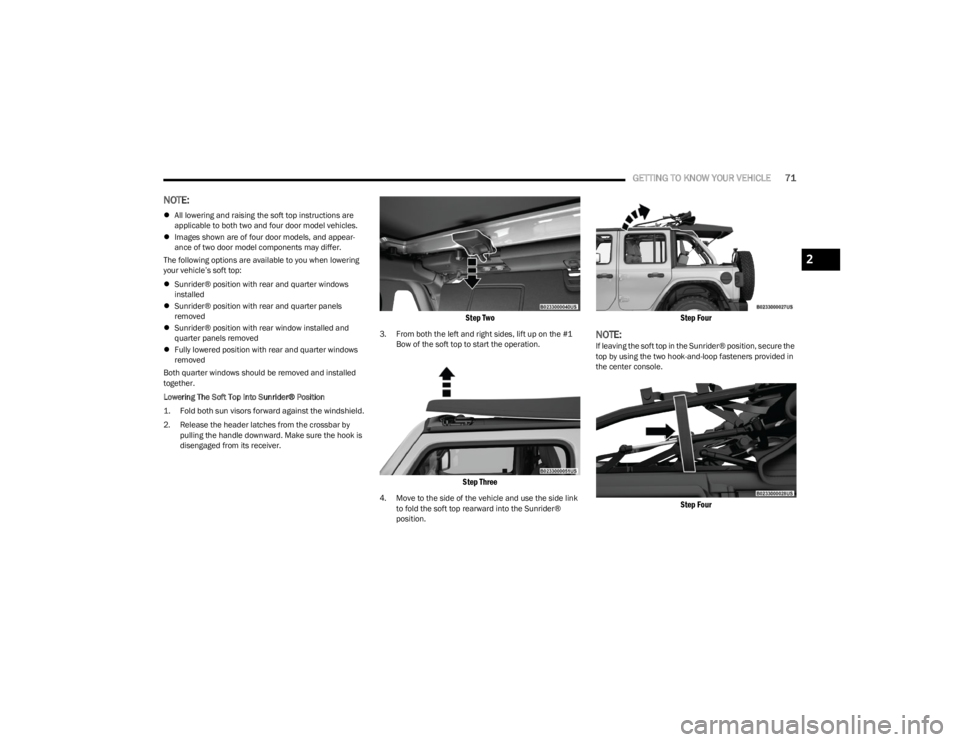
Lowering The Soft Top Into Sunrider® Position
1. Fold both sun visors forward against the windshield.
2. Release the header latches from the crossbar by pulling the handle downward. Make sure the hook is
disengaged from its receiver.
Step Two
3. From both the left and right sides, lift up on the #1 Bow of the soft top to start the operation.
Step Three
4. Move to the side of the vehicle and use the side link to fold the soft top rearward into the Sunrider®
position.
Step Four
NOTE:If leaving the soft top in the Sunrider® position, secure the
top by using the two hook-and-loop fasteners provided in
the center console.
Step Four
2
23_JL_OM_EN_USC_t.book Page 71
Page 78 of 396

76GETTING TO KNOW YOUR VEHICLE
3. Locate the Sunrider® latch beneath the #6 Bow of
the soft top on the left side.
Step Three
4. Pull the latch to release the top, and allow the soft top to slide rearward freely in the guide tracks to the
stowed position.
Step Four
5. While pushing downward slightly on the folded soft top, slide the lock lever on the left and right side lift
assist mechanisms to the “lock” position.
Step Five (Locked Position)
6. Once the lock lever is in the “lock” position, push downward on each side of the folded soft top to
ensure it is secure. An audible “click” may be heard.
Step Six
NOTE:Secure the top by using the two hook-and-loop fasteners
provided in the center console.
Step Six
CAUTION!
Failure to follow the next steps could result in damage
to the Soft Top or vehicle.
23_JL_OM_EN_USC_t.book Page 76
Page 135 of 396

STARTING AND OPERATING133
Do Not Operate The Engine With Failed
Parts
All engine failures give some warning before the parts fail.
Be on the alert for changes in performance, sounds, and
visual evidence that the engine requires service. Some
important clues are:
Engine misfiring or vibrating severely
Sudden loss of power
Unusual engine noises
Fuel, oil or coolant leaks
Sudden change, outside the normal operating range, in
the engine operating temperature
Excessive smoke
Oil pressure drop
ENGINE BREAK-IN RECOMMENDATIONS —
GASOLINE ENGINE (IF EQUIPPED)
A long break-in period is not required for the engine and
drivetrain (transmission and axle) in your vehicle.
Drive moderately during the first 300 miles (500 km).
After the initial 60 miles (100 km), speeds up to 50 or
55 mph (80 or 90 km/h) are desirable.
While cruising, brief full-throttle acceleration within the
limits of local traffic laws contributes to a good break-in.
Wide-open throttle acceleration in low gear can be
detrimental and should be avoided.
The engine oil installed in the engine at the factory is a
high-quality energy conserving type lubricant. Oil changes
should be consistent with anticipated climate conditions
under which vehicle operations will occur. For the recommended viscosity and quality grades
Úpage 374.
NOTE:A new engine may consume some oil during its first few
thousand miles (kilometers) of operation. This should be
considered a normal part of the break-in and not inter
-
preted as a problem.
ENGINE BREAK-IN RECOMMENDATIONS —
DIESEL ENGINE (IF EQUIPPED)
The diesel engine does not require a break-in period due
to its construction. Normal operation is allowed, providing
the following recommendations are followed:
Warm up the engine before placing it under load.
Do not operate the engine at idle for prolonged periods.
Use the appropriate transmission gear to prevent
engine lugging.
Observe vehicle oil pressure and temperature indica -
tors.
Check the coolant and oil levels frequently.
Vary throttle position at highway speeds when carrying
or towing significant weight.
NOTE:Light duty operation such as light trailer towing or no load
operation will extend the time before the engine is at full
efficiency. Reduced fuel economy and power may be seen
at this time.
The engine oil installed in the engine at the factory is a
high-quality energy conserving type lubricant. Oil changes
should be consistent with anticipated climate conditions
under which vehicle operations will occur. For
recommended viscosity and quality grades see
Úpage 374. NON-DETERGENT OR STRAIGHT MINERAL
OILS MUST NEVER BE USED.
PARKING BRAKE
Before exiting the vehicle, make sure that the parking
brake is fully applied. Also, be certain to leave an
automatic transmission in PARK, or manual transmission
in REVERSE or FIRST gear.
The parking brake lever is located in the center console.
To apply the parking brake, pull the lever up as firmly as
possible. To release the parking brake, pull the lever up
slightly, push the center button, then lower the lever
completely.
CAUTION!
Never use Non-Detergent Oil or Straight Mineral Oil in
the engine or damage may result.
4
23_JL_OM_EN_USC_t.book Page 133
Page 227 of 396

MULTIMEDIA225
read incoming text messages, but drivers will not be able
to read messages, as everything is done via voice.
Maps
Push and hold the VR button on the steering
wheel until the beep or tap the Microphone
icon to ask Apple® Siri to take you to a desired
destination by voice. You can also touch the
Navigation icon in Apple CarPlay® to access Apple®
Maps.
Apps
The Apple CarPlay® App plays all compatible apps that are
available to use, every time it is launched. You must have
the compatible app downloaded, and you must be signed
in to the app through your mobile device for it to work with
Apple CarPlay®.
Refer to http://www.apple.com/ios/carplay/ (US) or
https://www.apple.com/ca/ios/carplay/ (Canada) to see
the latest list of available apps for Apple CarPlay®.
Apple CarPlay® Voice Command
NOTE:Feature availability depends on your carrier and mobile
phone maker. Some Apple CarPlay® features may not be
available in every region and/or language.
Apple CarPlay® allows you to use your voice to interact
with Siri through your vehicle’s voice recognition system,
and use your smartphone’s data plan to project your
iPhone® and a number of its apps onto your Uconnect
touchscreen. Connect your iPhone® 5 or higher to one of
the media USB ports, using the factory-provided Lightning
cable, and press the new Apple CarPlay® icon that
replaces your Phone icon on the main menu bar to begin Apple CarPlay®. Push and hold the VR button on the
steering wheel, or press and hold the Home button within
Apple CarPlay®, to activate Siri, which recognizes natural
voice commands to use a list of your iPhone® features:
Phone
Music
Messages
Maps — If Equipped
Additional Apps — If Equipped
NOTE:Apple CarPlay® is a trademark of Apple® Inc. iPhone® is
a trademark of Apple® Inc., registered in the US and other
countries. Apple® terms of use and privacy statements
apply.
ANDROID AUTO™ AND APPLE
C
ARPLAY® TIPS AND TRICKS
Android Auto™ And Apple CarPlay® Automatic Bluetooth®
Pairing
After connecting to Android Auto™ or Apple CarPlay® for
the first time and undergoing the setup procedure, the
smartphone pairs to the Uconnect system via Bluetooth®
without any setup required every time it is within range, if
Bluetooth® is turned on.
NOTE:Apple CarPlay® uses a USB connection while Android
Auto™ uses both USB and Bluetooth® connections to
function. The connected device is unavailable to other
devices when connected using Android Auto™ or Apple
CarPlay®. Multiple Devices Connecting To The Uconnect System — If
Equipped
It is possible to have multiple devices connected to the
Uconnect system. For example, if using Android Auto™/
Apple CarPlay®, the connected device will be used to
place hands-free phone calls or send hands-free text
messages. However, another device can also be paired to
the Uconnect system, via Bluetooth®, as an audio source,
so the passenger can stream music.
NOTE:Apple CarPlay® and Android Auto™ can only be launched
from the front and center console USB ports.
CONNECTED VEHICLE SERVICES —
IF EQUIPPED
IS MY VEHICLE CONNECTED?
If equipped, vehicles with an ASSIST and an SOS button
are connected vehicles. These buttons will be located on
either the rearview mirror or overhead console, depending
on the vehicle. If these buttons are present in your vehicle,
you have a connected radio and can take advantage of the
many connected vehicle features.
For further information about the ASSIST and SOS buttons
Úpage 291.
5
23_JL_OM_EN_USC_t.book Page 225
Page 228 of 396

226MULTIMEDIA
INTRODUCTION TO CONNECTED VEHICLE
S
ERVICES
One of the many benefits of your vehicle’s Uconnect
system is that you can now take advantage of SiriusXM
Guardian™ connected services. To unlock the full
potential of SiriusXM Guardian™ in your vehicle, you first
need to activate SiriusXM Guardian™ connected services.
NOTE:
SiriusXM Guardian™ involves the collection, transmission
and use of data from your vehicle
Úpage 240.
SiriusXM Guardian™ Contact Information
SiriusXM Guardian™/Care
US residents visit: https://www.driveuconnect.com/
sirius-xm-guardian.html or call 1-844-796-4827
Canadian residents visit: https://www.driveucon -
nect.ca/en/sirius-xm-guardian or call 1-877-324-9091
What Is SiriusXM Guardian™?
SiriusXM Guardian™ uses an embedded device in the
Uconnect system installed in your vehicle, which receives
GPS signals and communicates with the SiriusXM Guardian™ Customer Care center via wireless and
landline communications networks. Depending on the
type of device in your vehicle, some SiriusXM Guardian™
connected services require an operable LTE (voice/data)
or 4G (data) network compatible with your device.
SiriusXM Guardian™ is available only on equipped
vehicles purchased within the continental United States,
Alaska, Hawaii, Puerto Rico and Canada.
NOTE:
Certain SiriusXM Guardian™ connected services are
dependent upon an operative telematics device, a
cellular connection, navigation map data, and GPS
satellite signal reception, which can limit the ability to
reach the response center or reach emergency
support.
Not all features of SiriusXM Guardian™ are available
everywhere at all times, particularly in remote or
enclosed areas.
Other factors outside the control of SiriusXM
Guardian™ that may limit or prevent service delivery
are hills, structures, buildings, tunnels, weather,
damage to the electrical system or other important
parts of your vehicle, network congestion, civil distur -
bances, actions of third parties or the government,
Internet failure, and/or the physical location of your
vehicle, such as in an underground parking structure or
under a bridge.
Not all SiriusXM Guardian™ features are available for all
models.
SiriusXM Guardian™ provides:
The ability to remotely lock/unlock and remote start
your vehicle from virtually anywhere by using the
Vehicle Branded App or your computer.
If equipped — Send & Go capability with the Vehicle
Branded App. Use the Vehicle Branded App to easily
search, map and send your locations directly to your
Uconnect Navigation.
The ability to locate your vehicle, when you forget
where you parked, using the Vehicle Finder function of
the Vehicle Branded App.
Before you drive, familiarize yourself with the easy-to-use
Uconnect system and SiriusXM Guardian™ connected
services.
The ASSIST and SOS Call Buttons On Your Rearview Mirror
Or Overhead Console
If equipped, the ASSIST Button is used for contacting
Roadside Assistance, Vehicle Care, Uconnect Care, and
SiriusXM Guardian™ Customer Care. The SOS Call button
connects you directly to SiriusXM Guardian™ Customer
Care for assistance in an emergency.
Activation — If Equipped
To unlock the full potential of SiriusXM Guardian™ in your
vehicle, you must activate your SiriusXM Guardian™
connected services.
1. Press the Apps icon on the bottom of your in-vehicle touchscreen.
2. Select the Activate Services icon from your list of apps.
3. For customers in the United States , select “Customer
Care” to speak with a SiriusXM Guardian™ Customer
Care agent who will activate services in your vehicle,
or select “Enter Email” to activate on the web.
For customers in Canada , enter your email address to
activate services in your vehicle.
WARNING!
ALWAYS obey traffic laws and pay attention to the road.
Your complete attention is always required while driving
to maintain safe control of your vehicle. Only use and
interact with the features and applications when it is
safe to do so. Failure to follow these warnings can
result in a collision and death or serious personal
injury.
23_JL_OM_EN_USC_t.book Page 226
Page 230 of 396

228MULTIMEDIA
For customers in Canada, press the My Vehicle button.
Select from “Dashboard”, “Vehicle Health Report”, and
“Recalls”. The website will then prompt you to log in using
your email address and password.
Edit/Edit Profile:
To manage the details of your SiriusXM Guardian™
account, such as your contact information, password
and SiriusXM Guardian™ PIN, click on the Edit/Edit
Profile button to access the details of your account.
Connected Services Status:
This statement will indicate your SiriusXM
Guardian™-equipped vehicle.
Remote Commands:
For vehicles with an active SiriusXM Guardian™
subscription, press one of these icons and enter your
four-digit SiriusXM Guardian™ Security PIN to remotely
start (if equipped), lock/unlock doors or sound the horn
and flash the lights.
Editing Your Notifications
Notifications are an important element of your SiriusXM
Guardian™ account. For example, any time you use your
remote services (such as Remote Door Unlock), you can
elect to receive a text message, push notification, and/or
E-mail to notify you of the event. To set up the
notifications, please follow these instructions.
1. Log on to your Owner’s Account at
https://
www.mopar.com/en-us.html (US Residents) and
select “Dashboard”, or www.mopar.ca
(Canadian
Residents), select “My Vehicle” and then
“Dashboard”.
2. Click the Edit/Edit Profile button. 3. Once there, select “SiriusXM Guardian™” where you
can edit Notification Preferences.
4. You can enter a mobile phone and/or email address to notify you, and you can customize the types of
messages.
USING SIRIUSXM GUARDIAN™
SOS Call — If Equipped
Access To Emergency Services At The Push Of A Button
SiriusXM Guardian™ In-Vehicle Assistance Features
With SiriusXM Guardian™, your vehicle has onboard
assistance features located on the rearview mirror or
overhead console designed to enhance your driving
experience if you should ever need assistance or support. Description
SOS Call offers a convenient way to get in contact with a
SiriusXM Guardian™ Customer Care agent in the event of
an emergency. When the connection between the vehicle
and the live agent is made, your vehicle will automatically
transmit location information. In the event of a minor
collision, medical or any other emergency, press the SOS
button to be connected to a call center agent who can
send emergency assistance to your vehicle’s location.
NOTE:Certain SiriusXM Guardian™ connected services are
dependent on an operational Uconnect system, cellular
network availability that is compatible with the device in
your vehicle, and GPS network availability. Not all features
of SiriusXM Guardian™ are available everywhere at all
times, particularly in remote or enclosed areas.
How It Works
1. Push the SOS Call button; the indicator light will turn green indicating a call has been placed.
NOTE:
In case the SOS Call button is accidentally pushed,
there is a 10-second delay before the SOS call is
placed. The system will verbally alert you that a call
is about to be made. To cancel the SOS Call connec -
tion, push the SOS Call button on the rearview
mirror or overhead console or press the Cancel
button on the touchscreen within 10 seconds.
During an SOS Call, the Bluetooth®-paired phone
is disconnected so incoming or outgoing calls will
go through your mobile device versus the
hands-free system which is not available due to
the SOS Call.
WARNING!
Some SiriusXM Guardian™ connected services,
including SOS Call and Roadside Assistance Call, will
NOT work without a network connection compatible
with your device.
Center Light Status Description
Off No call activated
Green Active call in progress
Red System error
23_JL_OM_EN_USC_t.book Page 228
Page 234 of 396

232MULTIMEDIA
Working Vehicle Conditions
The vehicle must be off or in ACC mode.
The vehicle has been started with the key fob within the
last 14 days.
The vehicle must be in PARK or at a standstill.
The vehicle’s security system has been armed and not
triggered since the last vehicle start.
The doors, hood, and trunk/liftgate are closed.
The vehicle’s check engine light must be off.
The vehicle must have at least a quarter tank of fuel,
along with oil and battery power.
The vehicle’s hazard lights must be off.
If equipped, the vehicle must have an automatic trans -
mission.
The vehicle must be in an open area with cell tower
reception.
Your mobile device must have a cellular or Wi-Fi
connection.
If the Panic button has been pressed, the vehicle must
be started at least once after alarming the system.
NOTE:The SiriusXM Guardian™ Customer Care agents are not
authorized for Remote Vehicle Start services. Contact the
Uconnect Care Team for assistance.
Remote Horn & Lights
Description
It is easy to locate a vehicle in a dark, crowded or noisy
parking area by activating the horn and lights. It may also
help if you need to draw attention to your vehicle for any
reason. If you want, you can set up push notifications every time a
command is sent to turn on the horn and lights.
Working Vehicle Conditions
The vehicle must in PARK or at a standstill.
The vehicle must be in an open area with cell tower
reception.
Your mobile device must have a cellular or Wi-Fi
connection.
NOTE:The Remote Horn & Lights feature is designed to be loud
and get noticed. Please keep in mind the surroundings
when using this feature. You are responsible for
compliance with local laws, rules and ordinances in the
location of your vehicle when using Remote Horn & Lights.
Assist — If Equipped
Description
Vehicles equipped with the SiriusXM Guardian™
connected services feature may contain an ASSIST button
in the vehicle. Once your SiriusXM Guardian™ connected
services have been activated, the ASSIST button can
connect you directly to the Customer Care call center (if
equipped). You will be directed to one of the following four
services:
Roadside Assistance — If you get a flat tire or need a
tow, you’ll be connected to someone who can help
anytime.
Connected Services — Contact the SiriusXM
Guardian™ Customer Care call center to activate your
services, renew after your trial has expired, for
in-vehicle support for your SiriusXM Guardian™ connected services, or help answering any general
questions surrounding your connected services.
Uconnect Care — In-vehicle support for all
non-connected Uconnect system features, such as
radio and Bluetooth® connections.
Vehicle Care — Total support for your vehicle.
SiriusXM Guardian™ In-Vehicle Assistance Features —
If Equipped
With SiriusXM Guardian™, your vehicle has onboard
assistance features located on the rearview mirror or
overhead console designed to enhance your driving
experience if you should ever need assistance or support.
How It Works
Simply push the ASSIST button in the vehicle and you will
be presented with your ASSIST options on the
touchscreen. Make your selection by pressing the
touchscreen.
Requirements
This feature is available only on vehicles sold in the US
and Canada.
Vehicle must be properly equipped with the SiriusXM
Guardian™ connected services.
Vehicle must have an operable LTE (voice/data) or 4G
(data) network connection.
Vehicle must be registered with SiriusXM Guardian™
and have an active subscription that includes the appli -
cable feature.
Vehicle must be powered in the ON/RUN or ACC (Acces -
sory) position with a properly functioning electrical
system.
23_JL_OM_EN_USC_t.book Page 232