2023 JEEP WAGONEER radio controls
[x] Cancel search: radio controlsPage 66 of 396

64GETTING TO KNOW YOUR VEHICLE
REAR WIPER AND WASHER
The rear wiper/washer is operated by rotating a switch,
located at the middle of the lever.
Rotate the center portion of the lever upward to
the first detent for intermittent operation and to
the second detent for continuous rear wiper
operation.
Rear Window Washer Operation Pushing the windshield wiper lever forward
activates the rear window washer. If the lever is
pushed while on the intermittent setting, the
wipers will turn on and operate for several wipe
cycles after the lever is released, and then resume the
intermittent interval previously selected. If the lever is
pushed while the wipers are in the off position, the wipers
will operate several wipe cycles, then turn off.
NOTE:When the rear window washer is activated, the rear Back
Up camera and Digital Rearview Mirror (if equipped)
cameras are also washed.
WINDSHIELD WIPER DE-ICER —
I
F EQUIPPED
Your vehicle may be equipped with a Windshield Wiper
De-Icer feature that may be activated under the following
conditions:
Activation By Front Defrost — The Windshield Wiper
De-Icer shall be activated automatically in the case of
a cold weather manual start with full front defrost, and
when the ambient temperature is below 33°F (0.6°C).
Activation By Rear Defrost — The Windshield Wiper
De-Icer shall be activated automatically when the rear
defrost is turned on and when the ambient tempera -
ture is below 33°F (0.6°C).
Activation By Remote Start Operation — When Remote
Start is active and the outside ambient temperature is
less than 33°F (0.6°C), the Windshield Wiper De-Icer
will activate. Exiting Remote Start will resume its
previous operation. If the Windshield Wiper De-Icer was
active, the timer and operation will continue.
CLIMATE CONTROLS
The Climate Control system allows you to regulate the
temperature, air flow, and direction of air circulating
throughout the vehicle. The controls are located on the
touchscreen and on the instrument panel below the radio.
AUTOMATIC CLIMATE CONTROL
D
ESCRIPTIONS AND FUNCTIONS
Uconnect 5 NAV With 10.1-inch Or 12-inch Display
Temperature Controls Instrument Panel Climate Control Toggle Switches
Front Comfort And Convenience Display —
If Equipped
The Front Comfort And Convenience Display is a
retractable screen located below the main Uconnect
display that controls the front and rear climate settings
just as the Controls menu would within the Uconnect
system.
Other front seat functions can also be adjusted from this
screen, such as:
Power Massage Seat
Úpage 42
Power Lumbar Úpage 40
Power Bolster Úpage 39
23_WS_OM_EN_USC_t.book Page 64
Page 85 of 396
GETTING TO KNOW YOUR VEHICLE83
Window Lockout Switch
The window lockout switch on the driver's door trim panel
allows you to disable the window controls on the rear
passenger doors. To disable the window controls, push
and release the window lockout button (the indicator light
on the button will turn on). To enable the window controls,
push and release the window lockout button again (the
indicator light on the button will turn off).
Power Window Lockout Switch
WIND BUFFETING
Wind buffeting can be described as the perception of
pressure on the ears or a helicopter-type sound in the
ears. Your vehicle may exhibit wind buffeting with the
windows down, or the sunroof (if equipped) in certain open
or partially open positions. This is a normal occurrence
and can be minimized. If the buffeting occurs with the rear
windows open, open the front and rear windows together
to minimize the buffeting. If the buffeting occurs with the
sunroof open, adjust the sunroof opening to minimize the
buffeting or open any window.
RADIO SIGNAL DEVICES ON
W
INDSHIELD — IF EQUIPPED
Your vehicle may be equipped with premium tint infrared
reflective glass (IRR). In the necessity of mounting devices
such as transponders, garage door openers, radar
detectors, or any other device that sends out a radio
signal, please refer to the allocated area on the
windshield. There is a small box located near the
passenger side of the mirror cover. The location is
identifiable by a slight discoloration in the glass due to the
removal of the IRR coating.
Metalized windshield coatings available on the Grand
Wagoneer can potentially disrupt RFID transmission/
reception depending on signal location or additional
interference, regardless of the provided deletion zone. In
the event that any RFID or signal interruption between a
vehicle mounted device (e.g. toll transponder) does not
function properly, you may need to consult with your toll
transponder company and may have to use an alternate
device such as a license plate attached toll transponder.
Radio Signal Device Mounting Location
POWER SUNROOF — IF EQUIPPED
TRI-PANE POWER SUNROOF
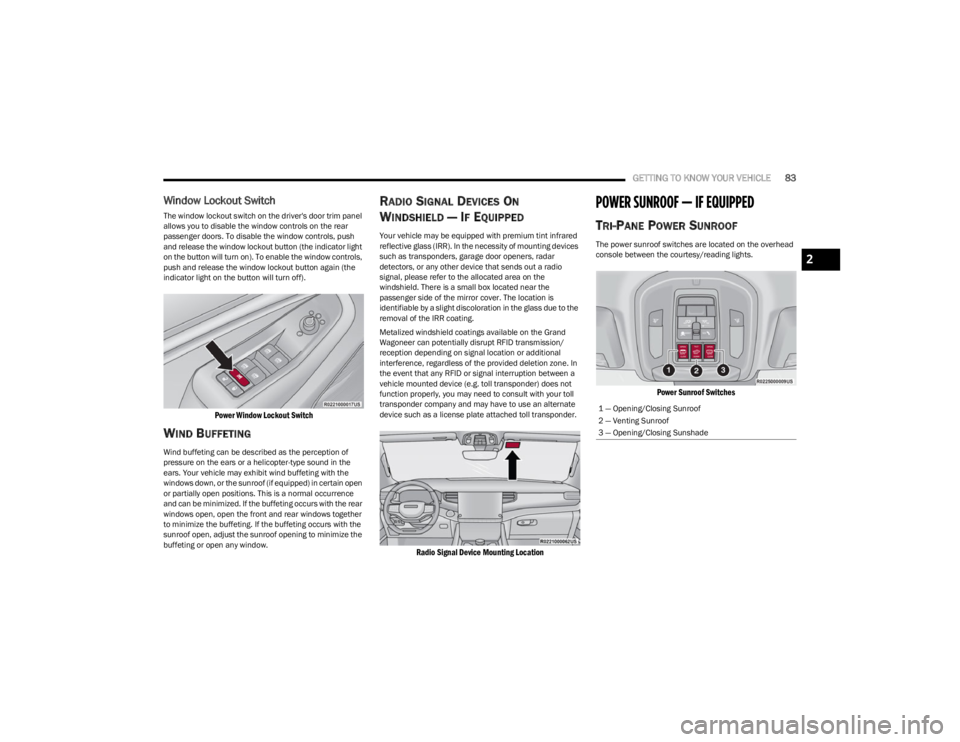
The power sunroof switches are located on the overhead
console between the courtesy/reading lights.
Power Sunroof Switches
1 — Opening/Closing Sunroof
2 — Venting Sunroof
3 — Opening/Closing Sunshade
2
23_WS_OM_EN_USC_t.book Page 83
Page 172 of 396

170STARTING AND OPERATING
NOTE:
The Active Lane Management system operates with
similar behavior for a right lane departure.
If the turn signal is activated, and the vehicle begins to
depart the lane at the same time the Blind Spot Moni -
toring (BSM) system detects another vehicle in the
BSM zones, the system will provide haptic steering
wheel vibration and/or steering assist torque (if
programmed in Uconnect Settings).
CHANGING ACTIVE LANE MANAGEMENT
S
TATUS
Configurable settings for the Active Lane Management
system are available within the Uconnect system
Úpage 197.
Selectable Warning Types:
Vibration Only
Steering Assist Only
Vibration And Steering Assist
Other configurable settings for this system are for the
intensity of the vibration (high/med/low), steering assist
strength (hi/med/low), and the warning zone sensitivity
(early/medium/late).
NOTE:
The system will not apply vibration and/or steering
assist to the steering wheel whenever a safety system
engages (Anti-Lock Brakes, Traction Control System,
Electronic Stability Control, Forward Collision Warning,
etc.).
The Blind Spot Monitoring system will be forced on
when the ALM system is enabled.
The ALM system will be suppressed when the Active
Driving Assist system (if equipped) is engaged.
PARKVIEW REAR BACK UP CAMERA
Your vehicle is equipped with the ParkView Rear Back Up
Camera that allows you to see an on-screen image of the
rear surroundings of your vehicle whenever the gear
selector is put into REVERSE. The image will be displayed
on the Navigation/Multimedia radio display screen along
with a caution note to “Check Entire Surroundings” across
the top of the screen. After five seconds this note will
disappear. The ParkView camera is located on the rear of
the vehicle above the rear license plate.
When the vehicle is shifted out of REVERSE with camera
delay turned off, the rear camera mode is exited and the
previous screen appears.
Manual Activation Of The Back Up Camera
1. Press the Vehicle button located on the bottom of
the Uconnect display and then select the Controls
menu.
2. Press the Back Up Camera icon to turn the Rear View Camera system on.
NOTE:
The Rear View camera can also be turned on manually
through the Apps menu within the Uconnect system.
The ParkView Rear Back Up Camera has program -
mable modes of operation that may be selected
through the Uconnect system
Úpage 197. When the vehicle is shifted out of REVERSE with camera
delay turned off, the rear camera mode is exited and the
previous screen appears. When the vehicle is shifted out
of REVERSE with camera delay turned on, the camera
image will continue to be displayed for up to 10 seconds
unless the following conditions occur: the vehicle speed
exceeds 8 mph (13 km/h), the vehicle is shifted into
PARK, the vehicle’s ignition is placed in the OFF position,
or the touchscreen X button to disable the display of the
Rear View Camera is pressed.
When enabled, active guidelines are overlaid on the image
to illustrate the width of the vehicle and its projected back
up path based on the steering wheel position. A dashed
center line overlay indicates the center of the vehicle to
assist with parking or aligning to a hitch/receiver.
Different colored zones indicate the distance to the rear of
the vehicle.
The following table shows the approximate distances for
each zone:
Zone Distance To The Rear Of The
Vehicle
Red 0 - 1 ft
(0 - 30 cm)
Yellow 1 ft - 6.5 ft
(30 cm - 2 m)
Green 6.5 ft or greater
(2 m or greater)
23_WS_OM_EN_USC_t.book Page 170
Page 191 of 396

STARTING AND OPERATING189
Seven-Pin Connector
TOWING TIPS
Before towing, practice turning, stopping, and backing up
the trailer in an area located away from heavy traffic. If
equipped with Quadra-Lift air suspension, the automatic
Entry/Exit feature may be disabled through the Uconnect
Touchscreen Radio to prevent vehicle and trailer
movement when gear selector is moved to PARK.
Automatic Transmission
Select the DRIVE (D) range when towing. The transmission
controls include a drive strategy to avoid frequent shifting
when towing. However, if frequent shifting does occur
while in DRIVE, you can use the Electronic Range Select
(ERS) shift control to manually select a lower gear.
NOTE:Using a lower gear while operating the vehicle under heavy
loading conditions, will improve performance and extend
transmission life by reducing excessive shifting and heat
build-up. This action will also provide better engine
braking.
Cruise Control — If Equipped
Do not use on hilly terrain or with heavy loads.
When using the Cruise Control, if you experience speed
drops greater than 10 mph (16 km/h), disengage until
you can get back to cruising speed.
Use Cruise Control in flat terrain and with light loads to
maximize fuel efficiency.
1 — Backup Lamps
2 — Running Lamps
3 — Left Stop/Turn
4 — Ground
5 — Battery
6 — Right Stop/Turn
7 — Electric Brakes
4
23_WS_OM_EN_USC_t.book Page 189
Page 223 of 396

MULTIMEDIA221
STEERING WHEEL AUDIO CONTROLS
The remote sound system controls are located on the rear
surface of the steering wheel at the three and nine o’clock
positions.
Steering Wheel Audio Controls
The right-hand control is a rocker-type switch with a push
button in the center and controls the volume and mode of
the sound system. Pushing the top of the rocker switch will
increase the volume, and pushing the bottom of the rocker
switch will decrease the volume.
Pushing the right-hand control’s center button will make
the radio switch between the various modes available
(AM/FM/SXM or Media, etc.).
The left-hand control is a rocker-type switch with a push
button in the center. The function of the left-hand control
is different depending on which mode you are in. The following describes the left-hand control operation in
each mode.
RADIO OPERATION
Pushing the top of the switch will Seek Up for the next
available station and pushing the bottom of the switch will
Seek Down for the next available station.
The button located in the center of the left-hand control
will tune to the next preset station that you have
programmed in the radio Preset button.
MEDIA MODE
Pushing the top of the switch once goes to the next track
on the selected media (AUX/USB/Bluetooth®). Pushing
the bottom of the switch once goes to the beginning of the
current track, or to the beginning of the previous track if it
is within eight seconds after the current track begins to
play.
PASSENGER SCREEN — IF EQUIPPED
Your vehicle may be equipped with a Passenger Screen
located above the glove compartment on the passenger
side of the vehicle. From the Passenger Screen, you will be
able to access similar features seen within the Uconnect
radio, such as media functions, Rear Seat Entertainment
with Amazon FireTV Built-in, Navigation, and device
management.
Passenger Screen Location
To begin using the Passenger Screen, push the Power
button in the center stack, or press the Power button
under the Controls tab within the Uconnect system. The
Passenger Screen can be turned off by accessing the
Control screen and pressing the Power Off button.
You must link Bluetooth® headphones to the Passenger
Screen to begin listening to the system’s audio
Úpage 225.
NOTE:
The Passenger Screen will need to be turned On each
time the vehicle is started, and the system will display
the Home screen upon boot up.
Passenger Screen images are for illustration purposes
only and may not reflect exact software for your vehicle.
5
23_WS_OM_EN_USC_t.book Page 221
Page 224 of 396

222MULTIMEDIA
PASSENGER SCREEN PERMISSIONS
Through the Uconnect system, features within the
Passenger Screen can be activated and deactivated
through Passenger Screen Permissions. To access
Permissions, press the Vehicle button in the Menu Bar and
select the Settings tab. Then, press the Passenger Screen
settings menu. Press the On button for the Passenger
Screen Permission setting to activate permissions.
Passenger Screen Permissions
By default, the Passenger Screen Permissions setting is
set to Off, and the driver will need to give permission for
the different features.
When Permissions is turned On, you can individually select
the permissions for the following:
Navigation
Device Manager
Driver Media
Rear Seat Entertainment — If Equipped Passenger Screen Permissions can also be activated
through the Controls screen, under the Vehicle button in
the Menu Bar. If “Deny Passenger Screen Permissions” is
turned On, the setting will switch itself to Off.
HOME SCREEN
Passenger Screen Home Screen
When the Passenger Screen is started up and no other
media was running during the last ignition cycle, the Home
screen will display. Here, you can select from the features
of the Passenger Screen. On the left side of the screen,
you can access “Notifications and system Controls”.
The Notifications button (the bell) will take you to the
Notification screen, identical to what is seen in the main
radio. You can cycle between the features by swiping left
or right on the touchscreen. When accessing a feature,
press the Home/Apps button on the left side to access the
feature view and select a different feature.
The available features are:
Audio
Video & Images
HDMI
Rear Seat Entertainment — If Equipped
Navigation
Devices
Cameras
1 — Home Screen Button
2 — Notification Button
3 — Controls Button
4 — Feature Cards
23_WS_OM_EN_USC_t.book Page 222
Page 225 of 396

MULTIMEDIA223
Controls Screen
From the Controls Screen, you can adjust the daytime/
nighttime brightness of the screen, change headphone
volume, and power off the Passenger Screen.
To change the brightness, adjust the slider up or down, or
press the Up or Down Arrow button located next to the
slider. “Up” will increase brightness; “Down” will decrease
brightness. Daytime and nighttime brightness levels will
vary, and the adjustment maximum/minimum will differ
depending on the time of day.
To change the headphone volume, adjust the slider up or
down, or press the Up or Down Arrow button located next
to the slider. “Up” will increase the volume; “Down” will
decrease the volume.
NOTE:Headphone volume can also be manually adjusted from
the headphones. Changing the headphone volume
manually will not reflect in the headphone volume slider
on the Passenger Screen.
If the Screen Off button is pressed, the Passenger Screen
will continue to operate, but the screen will go dark. Tap
the screen again to return to the display. While the screen
is off, audio will continue to play from the Passenger
Screen.
The Power Off button will fully shut down the Passenger
Screen. No audio or video will play from it.
Passenger Screen Controls Screen
AUDIO AND VIDEO
Passenger Screen Audio Feature
Audio allows you to listen to your favorite radio station, a
connected USB device, or connected media device. You
can directly change the source on the Home screen by
pressing the Source button in the feature. You can also
expand it by pressing the Full Screen View button.
1 — Screen Off
2 — Brightness
3 — Pair/Unpair Headphones
4 — Headphone Volume
5 — Power Off
6 — Mute
1 — All Sources Tab
2 — Now Playing Tab
3 — Browse Tab
5
23_WS_OM_EN_USC_t.book Page 223
Page 228 of 396

226MULTIMEDIA
Removing Bluetooth® Headphones
1. From the Controls screen, press the Manage
Headphones button.
2. Press the Settings button (gear icon) next to the set of headphones you wish to remove.
3. Press “Delete Device”; the Bluetooth® headphones will be removed from the system.
NAVIGATION
Navigation allows you to assist the driver in searching for
destinations using Uconnect’s built-in Navigation system.
For information on the full functionality of Navigation, refer
to your Uconnect Radio Instruction Manual.
When a new route is selected from the Passenger Screen,
a confirmation will be sent to the driver. The driver will be
able to confirm or deny the route.
NOTE:Using Navigation on the Passenger Screen will not affect
the Navigation screen in the Uconnect system. The Driver
can continue to use Navigation while the Passenger
Screen can “suggest” new routes or stops.
CAMERA
Camera will display the equipped vehicle camera feed.
When selected, press the desired Camera button. The
feed from that camera will display in the center of the
touchscreen. Press the X button or Back Arrow button to
return to the Home screen.
NOTE:The Passenger Screen will lose access to a camera if the
driver chooses to view it on the Uconnect system or if a
condition would activate the camera on the Uconnect
system (the rearview camera being activated when the
vehicle is shifted into REVERSE).
3RD PARTY APPS — IF EQUIPPED
If equipped, your vehicle may contain some 3rd party
apps, which will further enhance your Uconnect system.
McIntosh
McIntosh is a 3rd party app that can enhance your
Uconnect system’s media player. For the app to be
effective, there must be audio playback in the Uconnect
media player. McIntosh can control the playback of audio
as well as display the output level decibel meters. To launch the app, begin playing audio and follow these
steps:
1. Press the Apps button.
2. Press the McIntosh app.
McIntosh
The McIntosh app will allow you to perform the following
when listening to music:
NOTE:The Seek feature will not work while using Bluetooth®.
23_WS_OM_EN_USC_t.book Page 226