2023 JEEP COMPASS park assist
[x] Cancel search: park assistPage 147 of 344

STARTING AND OPERATING145
The sensors may not detect objects of a partic -
ular shape or made from particular materials
(very thin poles, trailer beams, panels, nets,
bushes, anti-parking posts, pavements, rubbish
bins, motor vehicles, etc.). Always take great
care to check that the vehicle and its path are
actually compatible with the parking place iden -
tified by the system.
The use of wheels and tires that are different
size to the original equipment could affect the
operation of the system.
The operation of the rear sensors is automati -
cally deactivated when the trailer's electric plug
is inserted in the vehicle's tow hook socket,
while the front sensors stay active and can
provide acoustic and visual warnings. If this situ -
ation occurs, Active Park Assist will not work.
The rear sensors are automatically reactivated
when the trailer's cable plug is removed.
In "Search in Progress" mode, the system could
incorrectly identify a parking place to carry out
the maneuver (e.g. by a junction, driveways,
roads crossing the direction of travel, etc.).
In the case of parking maneuvers on roads with
inclines, the performance of the system could
be inferior and it may deactivate.
If a parking maneuver is being carried out
between two parked vehicles alongside a curb,
the system may cause the vehicle to drive up
onto the curb.
Some maneuvers at very tight bends might be
impossible to be carried out.
Take great care to ensure that conditions do not
change during the parking maneuver (e.g. if
there are persons and/or animals in the parking
place, moving vehicles, etc.) and intervene
immediately if necessary.
During parking maneuvers, pay attention to vehi -
cles approaching from the opposite direction.
Always abide by the law and road regulations.
NOTE:
Correct system operation is not guaranteed if
snow chains or the compact spare tire are fitted.
The function only informs the driver about the
last appropriate parking place (parallel or
perpendicular) detected by the parking sensors.
Some messages displayed are accompanied by
acoustic warnings.
ACTIVE LANE MANAGEMENT SYSTEM —
IF EQUIPPED
ACTIVE LANE MANAGEMENT OPERATION
The Active Lane Management (ALM) system uses a
forward facing camera to detect lane markings or
road edges and measure vehicle position within
the lane boundaries. It also uses the Blind Spot Monitoring sensors to detect vehicles in adjacent
lanes while the driver is preparing to change lanes.
The system is operational at speeds above 37 mph
(60 km/h) and below 112 mph (180 km/h).
When both lane markings are detected, and the
vehicle drifts out of the lane (no turn signal
applied), the Active Lane Management system
provides a visual warning in the instrument cluster,
as well as a steering assist torque (if configured in
Uconnect Settings), to prompt the driver to remain
within the lane boundaries. If the driver continues
to drift out of the lane, the system provides a
flashing visual warning through the instrument
cluster display as well as a haptic steering wheel
vibration (if configured in Uconnect Settings) when
the vehicle crosses the lane boundary.
The warning will be in the form of a vibration in the
steering wheel, and/or automatic steering
assistance to direct the vehicle back toward the
center of the lane.
When both lane markings are detected, and the
driver uses the turn signal to indicate a lane
change while the system detects another vehicle in
the Blind Spot Monitoring zone on that side of the
vehicle, the Active Lane Management system
provides a warning in the form of steering assist
and/or steering vibration (depending on radio
settings) to guide the vehicle back to the center of
the lane.
4
22_MP_OM_EN_USC_t.book Page 145
Page 150 of 344
148STARTING AND OPERATING
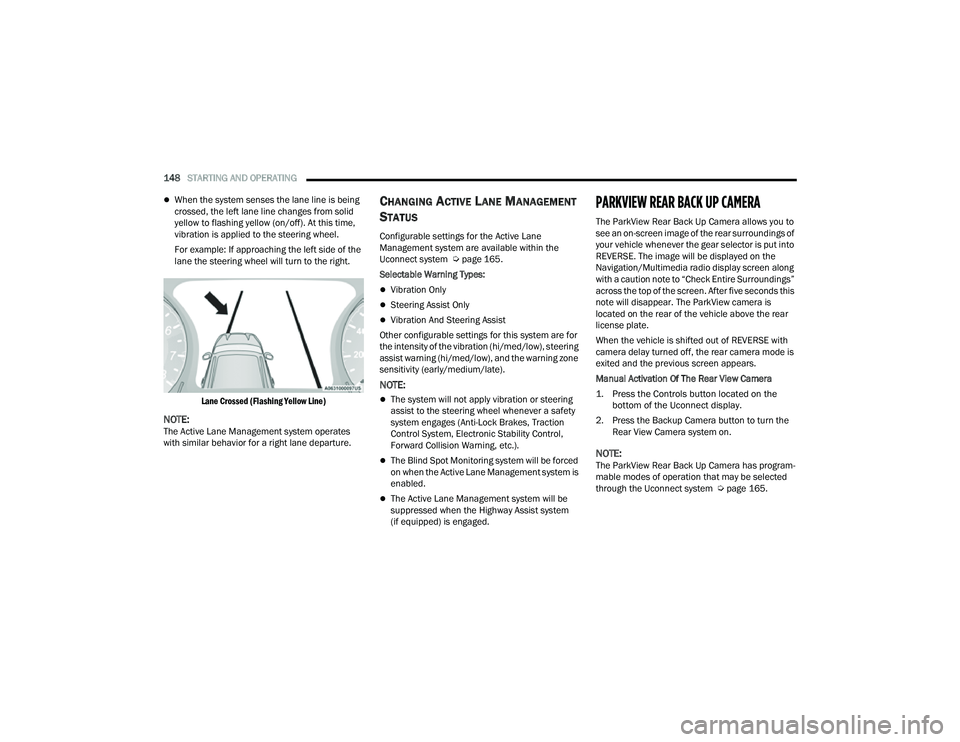
When the system senses the lane line is being
crossed, the left lane line changes from solid
yellow to flashing yellow (on/off). At this time,
vibration is applied to the steering wheel.
For example: If approaching the left side of the
lane the steering wheel will turn to the right.
Lane Crossed (Flashing Yellow Line)
NOTE:The Active Lane Management system operates
with similar behavior for a right lane departure.
CHANGING ACTIVE LANE MANAGEMENT
S
TATUS
Configurable settings for the Active Lane
Management system are available within the
Uconnect system Ú page 165.
Selectable Warning Types:
Vibration Only
Steering Assist Only
Vibration And Steering Assist
Other configurable settings for this system are for
the intensity of the vibration (hi/med/low), steering
assist warning (hi/med/low), and the warning zone
sensitivity (early/medium/late).
NOTE:
The system will not apply vibration or steering
assist to the steering wheel whenever a safety
system engages (Anti-Lock Brakes, Traction
Control System, Electronic Stability Control,
Forward Collision Warning, etc.).
The Blind Spot Monitoring system will be forced
on when the Active Lane Management system is
enabled.
The Active Lane Management system will be
suppressed when the Highway Assist system
(if equipped) is engaged.
PARKVIEW REAR BACK UP CAMERA
The ParkView Rear Back Up Camera allows you to
see an on-screen image of the rear surroundings of
your vehicle whenever the gear selector is put into
REVERSE. The image will be displayed on the
Navigation/Multimedia radio display screen along
with a caution note to “Check Entire Surroundings”
across the top of the screen. After five seconds this
note will disappear. The ParkView camera is
located on the rear of the vehicle above the rear
license plate.
When the vehicle is shifted out of REVERSE with
camera delay turned off, the rear camera mode is
exited and the previous screen appears.
Manual Activation Of The Rear View Camera
1. Press the Controls button located on the bottom of the Uconnect display.
2. Press the Backup Camera button to turn the Rear View Camera system on.
NOTE:The ParkView Rear Back Up Camera has program -
mable modes of operation that may be selected
through the Uconnect system Ú page 165.
22_MP_OM_EN_USC_t.book Page 148
Page 151 of 344

STARTING AND OPERATING149
When the vehicle is shifted out of REVERSE with
camera delay turned off, the rear camera mode is
exited and the previous screen appears. When the
vehicle is shifted out of REVERSE with camera
delay turned on, the camera image will continue to
be displayed for up to 10 seconds unless the
following conditions occur: The vehicle speed
exceeds 8 mph (13 km/h), the vehicle is shifted
into PARK, the vehicle’s ignition is placed in the
OFF position, or the user presses X to exit out of the
camera video display.
When enabled, active guidelines are overlaid on
the image to illustrate the width of the vehicle and
its projected backup path based on the steering
wheel position. A dashed center line overlay
indicates the center of the vehicle to assist with
parking or aligning to a hitch/receiver. Different
colored zones indicate the distance to the rear of
the vehicle. The following table shows the
approximate distances for each zone:
NOTE:If snow, ice, mud, or any foreign substance builds
up on the camera lens, clean the lens, rinse with
water, and dry with a soft cloth. Do not cover the
lens. Zoom View
When the Rear View Camera image is being
displayed, and the vehicle speed is below 8 mph
(13 km/h) while in any gear, Zoom View is
available. By pressing the “magnifying glass” icon
in the upper left of the display screen, the image
will zoom in to four times the standard view.
Pressing the icon a second time will return the view
to the standard Back Up Camera display.
When Zoom View is selected while the vehicle is in
REVERSE, then shifted to DRIVE, the camera delay
view will display the standard Back Up Camera
view. If the vehicle is then returned to REVERSE
gear from DRIVE, the Zoom View selection will
automatically resume.
Shifting to NEUTRAL from any gear will maintain
the selected view (Zoom or Standard) as long as
the vehicle is below 8 mph (13 km/h).
If the vehicle is in PARK, Zoom View is available
until the gear selector is placed in DRIVE or
REVERSE and speeds are at or above 8 mph
(13 km/h).
NOTE:
If the vehicle is in DRIVE, NEUTRAL, or REVERSE,
and speed is greater than or equal to 8 mph
(13 km/h), Zoom View is unavailable and the
icon will appear grey.
While in Zoom View, the guidelines will not be
visible.
Zone
Distance To The Rear Of
The Vehicle
Red 0 - 1 ft (0 - 30 cm)
Yellow 1 ft - 6.5 ft (30 cm - 2 m)
Green 6.5 ft or greater
(2 m or greater)
WARNING!
Drivers must be careful when backing up even
when using the ParkView Rear Back Up Camera.
Always check carefully behind your vehicle, and
be sure to check for pedestrians, animals, other
vehicles, obstructions, or blind spots before
backing up. You are responsible for the safety of
your surroundings and must continue to pay
attention while backing up. Failure to do so can
result in serious injury or death.
CAUTION!
To avoid vehicle damage, ParkView should
only be used as a parking aid. The ParkView
camera is unable to view every obstacle or
object in your drive path.
To avoid vehicle damage, the vehicle must be
driven slowly when using ParkView to be able
to stop in time when an obstacle is seen. It is
recommended that the driver look frequently
over his/her shoulder when using ParkView.
4
22_MP_OM_EN_USC_t.book Page 149
Page 173 of 344

MULTIMEDIA171
Pedestrian Emergency Braking — Located In Automatic Emergency Braking
Submenu This setting will turn the Pedestrian Emergency Braking system on or off.
Lane Management — Located In Active Lane Management This setting will activate the system that will alert the driver when a lane
departure is detected. If selected, steering assist can be provided.
The available options are “Vibration Only”, “Steering Assist Only”, and
“Vibration + Steering Assist”.
Lane Warning — Located In Active Lane Management This setting will set the warning type for Active Lane Management.
The available options are “Early”, “Medium”, and “Late”.
Vibration Strength — Located In Active Lane Management This setting will set the strength of the steering wheel vibration. The available
options are “Low”, “Medium”, and “High”.
Steering Assist Strength — Located In Active Lane Management This setting will set the strength of the steering wheel pull when a lane
departure is detected. The available options are “Low”, “Medium”, and
“High”.
LaneSense Warning — Located In LaneSense submenu This setting will set the warning type for LaneSense. The available options are
“Early”, “Medium”, and “Late”.
LaneSense Strength — Located In LaneSense submenu This setting will set the strength of the LaneSense system. The available
options are “Low”, “Medium”, and “High”.
ParkSense This setting will change the type of ParkSense alert when a close object is
detected. The “Sound Only” setting will provide an audible chime when an
object is detected. The “Sound and Display” setting will provide both an
audible chime and a visual display when an object is detected.
Front ParkSense Volume This setting adjusts the volume of the Front ParkSense system. The available
settings are “Low”, “Medium”, and “High”.
Rear ParkSense Volume This setting adjusts the volume of the Rear ParkSense system. The available
settings are “Low”, “Medium”, and “High”.
Setting Name
Description
5
22_MP_OM_EN_USC_t.book Page 171
Page 174 of 344

172MULTIMEDIA
Rear ParkSense Braking Assist This setting will provide braking assistance if the Rear ParkSense system
senses a collision with an object.
Active ParkSense Mode This setting will control Active ParkSense functionality between fully
autonomous parking and semi-autonomous parking. The available options
are “Full Auto” and “Steering Only”.
Active ParkSense Proximity Chime This setting will turn the Active ParkSense Proximity Chimes on or off. This
setting in only available when Active ParkSense Mode is set to “Full Auto”.
Blind Spot Alert This setting will change the type of alert provided when an object is detected
in the vehicle’s blind spot. The “Off” setting will turn off Blind Spot Alert. The
“Lights” setting will activate the Blind Spot Alert lights on the outside mirrors.
The “Lights & Chime” setting will activate both the lights on the outside
mirrors and an audible chime.
Traffic Sign Assist This setting will turn Traffic Sign Assist on or off.
Traffic Sign Assist Warning This setting will allow you to set the warning type related to the traffic sign.
The available options are “Off”, “Visual”, and “Visual + Chime”.
New Speed Zone Indication This setting will allow you to set if the system will warn you that the speed limit
has changed in an area. The available options are “Off”, “Visual”, and
“Visual + Chime”.
Drowsy Driver Alert This setting will monitor the driver’s driving habits and warn you of any
changes, indicating that the driver may be drowsy. The available options are
“On” and “Off”.
Highway Assist Steering Wheel Vibration This setting will vibrate the steering wheel when a lane departure is detected.
The available options are “On” and “Off”.
Setting Name
Description
22_MP_OM_EN_USC_t.book Page 172
Page 193 of 344

SAFETY191
To turn ESC on again, momentarily push the ESC
OFF button. This will restore the “ESC On” mode of
operation.
NOTE:The “ESC OFF” message will display and an audible
chime will sound when the gear selector is placed
into the PARK position from any other position, and
then moved out of the PARK position. This will
occur even if the message was previously cleared.
ESC Activation/Malfunction Indicator Light
And ESC OFF Indicator Light
The ESC Activation/Malfunction Indicator
Light in the instrument cluster will come
on when the ignition is placed in the ON
mode. It should go out with the engine
running. If the ESC Activation/Malfunction
Indicator Light comes on continuously with the
engine running, a malfunction has been detected
in the ESC system. If this light remains on after
several ignition cycles, and the vehicle has been driven several miles (km) at speeds greater than
30 mph (48 km/h), see an authorized dealer as
soon as possible to have the problem diagnosed
and corrected.
The ESC Activation/Malfunction Indicator Light
starts to flash as soon as the tires lose traction and
the ESC system becomes active. The ESC
Activation/Malfunction Indicator Light also flashes
when Traction Control System (TCS) is active. If the
ESC Activation/Malfunction Indicator Light begins
to flash during acceleration, ease up on the
accelerator and apply as little throttle as possible.
Be sure to adapt your speed and driving to the
prevailing road conditions.
The ESC OFF Indicator Light indicates the
customer has elected to have the
Electronic Stability Control (ESC) in a
reduced mode.
NOTE:
The ESC Activation/Malfunction Indicator Light
and the ESC OFF Indicator Light come on
momentarily each time the ignition is placed in
the ON/RUN position.
Each time the ignition is placed in the ON/RUN
position, the ESC system will be on even if it was
turned off previously.
The ESC system will make buzzing or clicking
sounds when it is active. This is normal; the
sounds will stop when ESC becomes inactive
following the maneuver that caused the ESC
activation.
Emergency Stop Signal (ESS) —
If Equipped
The ESS activates the hazard lights at a faster than
normal speed when heavy brake pressure is
applied. ESS will only activate when the speed is
above 31 mph (50 km/h). The ESS operates
independently of other lamps, and will turn on and
off automatically. This indicates to others that the
vehicle is stopping quickly.
NOTE:
A warning light will illuminate within the instru -
ment cluster to inform the driver that the ESS
feature has been activated.
When towing a trailer, ESS will also activate the
rear indicator lights of the trailer.
Hill Descent Control (HDC) — If Equipped
Hill Descent Control (HDC) is intended for low
speed off-road driving while in 4WD Low. HDC
maintains vehicle speed while descending hills
during various driving situations. HDC controls
vehicle speed by actively controlling the brakes.
WARNING!
In the "Full Off" mode, the engine torque
reduction and stability features are disabled. In
an emergency evasive maneuver, the ESC
system will not engage to assist in maintaining
stability. “Full Off” mode is intended for
off-highway or off-road use only.
6
22_MP_OM_EN_USC_t.book Page 191
Page 194 of 344

192SAFETY
HDC has three states:
1. Off (feature is not enabled and will not activate).
2. Enabled (feature is enabled and ready but activation conditions are not met, or driver is
actively overriding with brake or throttle
application).
3. Active (feature is enabled and actively controlling vehicle speed).
Enabling HDC
HDC is enabled by pushing the HDC switch, located
in front of the gear selector. The following
conditions must also be met to enable HDC:
The driveline is in 4WD Low.
The vehicle speed is below 20 mph (32 km/h).
The Electric Park Brake (EPB) is released.
The driver’s door is closed.
Activating HDC
Once HDC is enabled, it will activate automatically
if driven down a grade of sufficient magnitude
(greater than approximately 8%). The set speed for
HDC is selectable by the driver and can be
adjusted within the thresholds by using throttle or
brake application. Driver Override:
The driver may override HDC activation speed with
throttle or brake application at any time.
Deactivating HDC
HDC will be deactivated but remain available if any
of the following conditions occur:
Driver overrides HDC set speed with a speed
exceeding 20 mph (32 km/h) but remains
below 25 mph (40 km/h).
Vehicle is on a downhill grade of insufficient
magnitude (less than approximately 8%), is on
level ground, or is on an uphill grade.
Vehicle is shifted to PARK.
Disabling HDC
HDC will be deactivated and disabled if any of the
following conditions occur:
The driver pushes the HDC switch.
The driveline is shifted out of 4WD Low.
The driver’s door opens.
The vehicle is driven greater than 25 mph
(40 km/h) (HDC exits immediately.) Feedback To The Driver:
The instrument cluster has an HDC icon and the
HDC switch has an LED, which offers feedback to
the driver about the state HDC is in.
The cluster icon and switch lamp will illuminate
and remain solid when HDC is enabled or acti
-
vated. This is the normal operating condition for
HDC.
The switch lamp will flash for several seconds
then extinguish when the driver pushes the HDC
switch when enable conditions have not been
met.
The HDC switch is located within the Selec-Terrain
knob in the upper right position.
WARNING!
HDC is only intended to assist the driver in
controlling vehicle speed when descending hills.
The driver must remain attentive to the driving
conditions and is responsible for maintaining a
safe vehicle speed.
22_MP_OM_EN_USC_t.book Page 192
Page 195 of 344
SAFETY193
Hill Start Assist (HSA)
HSA is designed to mitigate roll back from a
complete stop while on an incline. If the driver
releases the brake while stopped on an incline,
HSA will continue to hold the brake pressure for a
short period. If the driver does not apply the
throttle before this time expires, the system will
release brake pressure and the vehicle will roll
down the hill as normal.
The following conditions must be met in order for
HSA to activate:
The feature must be enabled.
The vehicle must be stopped.
The parking brake must be off.
The driver’s door must be closed.
The vehicle must be on a sufficient grade.
The gear selection must match vehicle uphill
direction (i.e., vehicle facing uphill is in forward
gear; vehicle backing uphill is in REVERSE gear).
HSA will work in REVERSE gear and all forward
gears. The system will not activate if the trans -
mission is in PARK or NEUTRAL.
Disabling And Enabling HSA
This feature can be turned on or turned off. To
change the current setting, proceed as follows:
If disabling HSA using Uconnect settings see
Ú page 77.
Towing With HSA
Hill Start Assist (HSA) will also provide assistance
to mitigate roll back while towing a trailer.
Rain Brake Support (RBS)
RBS may improve braking performance in wet
conditions. It will periodically apply a small amount
of brake pressure to remove any water buildup on
the front brake rotors. It functions when the
windshield wipers are in LO or HI speed. When Rain
Brake Support is active, there is no notification to
the driver and no driver interaction is required.
WARNING!
There may be situations where the Hill Start
Assist (HSA) will not activate and slight rolling
may occur, such as on minor hills or with a
loaded vehicle, or while pulling a trailer. HSA is
not a substitute for active driving involvement.
It is always the driver’s responsibility to be
attentive to distance to other vehicles, people,
and objects, and most importantly brake
operation to ensure safe operation of the vehicle
under all road conditions. Your complete
attention is always required while driving to
maintain safe control of your vehicle. Failure to
follow these warnings can result in a collision or
serious personal injury.
WARNING!
If you use a trailer brake controller with your
trailer, the trailer brakes may be activated and
deactivated with the brake switch. If so, there
may not be enough brake pressure to hold
both the vehicle and the trailer on a hill when
the brake pedal is released. In order to avoid
rolling down an incline while resuming accel -
eration, manually activate the trailer brake or
apply more vehicle brake pressure prior to
releasing the brake pedal.
HSA is not a parking brake. Always apply the
parking brake fully when exiting your vehicle.
Also, be certain to place the transmission
in PARK.
Failure to follow these warnings can result in a
collision or serious personal injury.
6
22_MP_OM_EN_USC_t.book Page 193