2023 HYUNDAI TUCSON touch sensor
[x] Cancel search: touch sensorPage 152 of 638
Convenient features
5-8
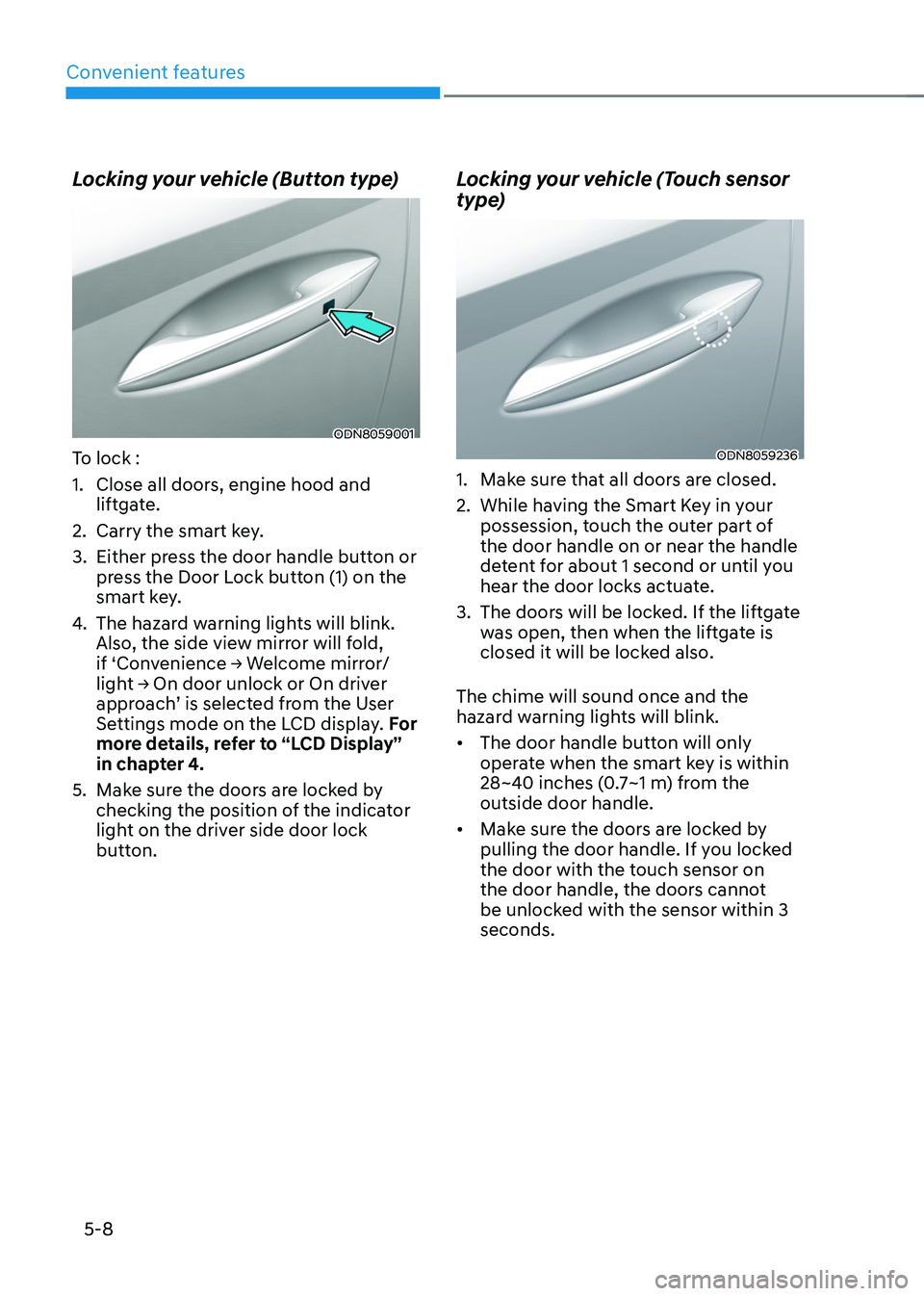
Locking your vehicle (Button type)
ODN8059001
To lock :
1. Close all doors, engine hood and
liftgate.
2. Carry the smart key.
3. Either press the door handle button or
press the Door Lock button (1) on the
smart key.
4. The hazard warning lights will blink.
Also, the side view mirror will fold,
if ‘Convenience → Welcome mirror/light → On door unlock or On driver approach’ is selected from the User
Settings mode on the LCD display. For
more details, refer to “LCD Display”
in chapter 4.
5. Make sure the doors are locked by
checking the position of the indicator
light on the driver side door lock
button.
Locking your vehicle (Touch sensor
type)
ODN8059236
1. Make sure that all doors are closed.
2. While having the Smart Key in your
possession, touch the outer part of
the door handle on or near the handle
detent for about 1 second or until you
hear the door locks actuate.
3. The doors will be locked. If the liftgate
was open, then when the liftgate is
closed it will be locked also.
The chime will sound once and the
hazard warning lights will blink.
• The door handle button will only
operate when the smart key is within
28~40 inches (0.7~1 m) from the
outside door handle.
• Make sure the doors are locked by
pulling the door handle. If you locked
the door with the touch sensor on
the door handle, the doors cannot
be unlocked with the sensor within 3
seconds.
Page 153 of 638
05
5-9
Note that if you press the outside door
handle to lock the doors using the touch
sensor, the doors will not lock under the
following circumstances:
• The Smart Key is in the vehicle
• The Engine Start/Stop button is in the
ACC or ON position
• Any of the doors are open (except for
the liftgate)
If this occurs, then a chime will sound
for about 3 seconds. Check the vehicle
before attempting to lock the car again.
CAUTION
Before you leave your vehicle with the
Smart Key, verify that your vehicle is
locked. When using the touch sensor
on the front door handle, listen to hear
that the lock has actuated, and then
pull the handle within 3 seconds to
confirm the doors are locked.
(if it has been longer than 3 seconds,
verify the doors are locked by pressing
the lock button on the Smart Key. You
will hear a single beep.)
WARNING
Do not leave the Smart Key in
your vehicle with children that are
unattended or unsupervised.
Children could inadvertently press
the Engine Start/Stop button or could
operate the power windows or other
vehicle controls or even cause the
vehicle to move. This could result in
serious injury or death.
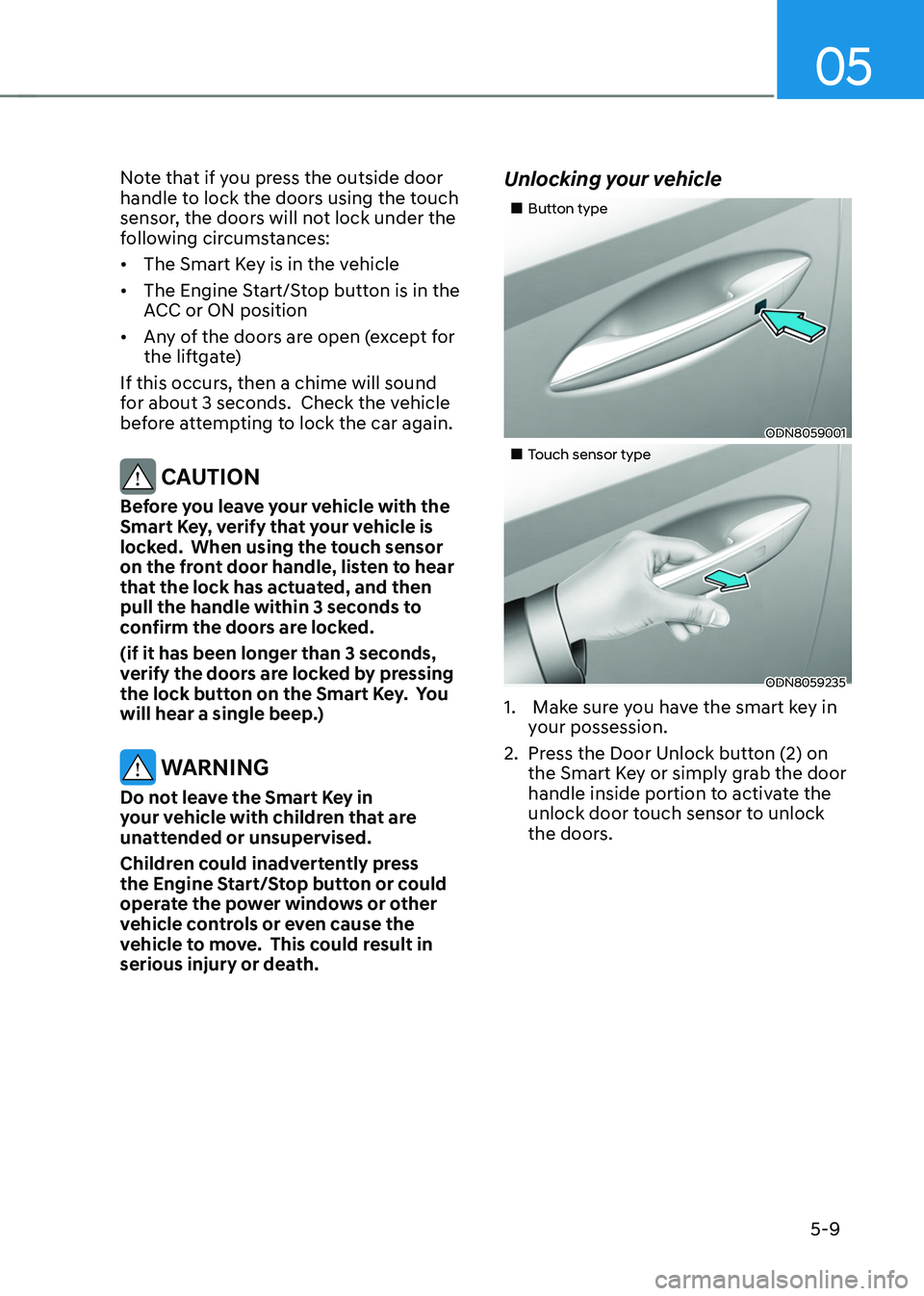
Unlocking your vehicle
„„Button type
ODN8059001
„„Touch sensor type
ODN8059235
1. Make sure you have the smart key in
your possession.
2. Press the Door Unlock button (2) on
the Smart Key or simply grab the door
handle inside portion to activate the
unlock door touch sensor to unlock
the doors.
Page 154 of 638
Convenient features
5-10
3. If you unlock the doors using the
passenger side door handle, all the
doors will unlock. If you unlock the
doors using the driver side door
handle, either the driver side door
will unlock or all the doors will unlock
depending on the setting for the Two
Press Unlock feature. Refer to User
Settings to change the Driver Door
unlock mode.• The door handle button will only
operate when the smart key is
within 28~40 inches (0.7~1 m) from
the outside door handle.
• If you do not open the door after
unlocking within 30 seconds, it will
return to the lock mode.
• If you unlocked the door with the
door handle, the doors cannot be
locked with the sensor within 2
seconds.
To prevent unintentional door lock or
unlock:
Press the lock button on the smart key
and immediately press the unlock button
along with the lock button for more than
4 seconds. The hazard warning lights will
blink four times. At this time, the doors
will not lock or unlock even though the
touch sensor is touched on the outside
door handle.
To deactivate the function, press the
door lock or unlock button on the smart
key. Opening or Unlocking the Liftgate
To open the liftgate:
1. If your vehicle has a Smart Key, make
sure you have the Smart Key in your
possession.
2. Press either the liftgate open/close
button on the vehicle or press and
hold the liftgate open button on
the smart key for more than one
second. The hazard warning lights
will blink twice and the liftgate will be
unlocked. Pull up on the liftgate to
open. If your vehicle is equipped with
power liftgate then the liftgate will
automatically open.
Remotely starting vehicle
(if equipped)
You can start the vehicle using the
Remote Start button on the smart key.
To start the vehicle remotely:
1. Before you can use remote start your
vehicle, the door lock button must be
pressed. Press the door lock button
on the Smart Key. You must be within
about 32 feet (10m) from your vehicle.
2. Press and hold the remote start
button on your Smart Key. You must
press the button within 4 seconds
from when you pressed the door lock
button to activate the remote start.
3. The hazard warning lights will blink
and the engine will start.
4. To turn off the remote start function,
press the Remote Start button once.
Page 162 of 638
Convenient features
5-18
Set up main vehicle
You can manage multiple digital keys
from the Digital key app. From the list of
digital keys you own, select the vehicle
you want to make your priority vehicle.
For more information, please refer to
the ‘Tutorial’ on your Digital key app.
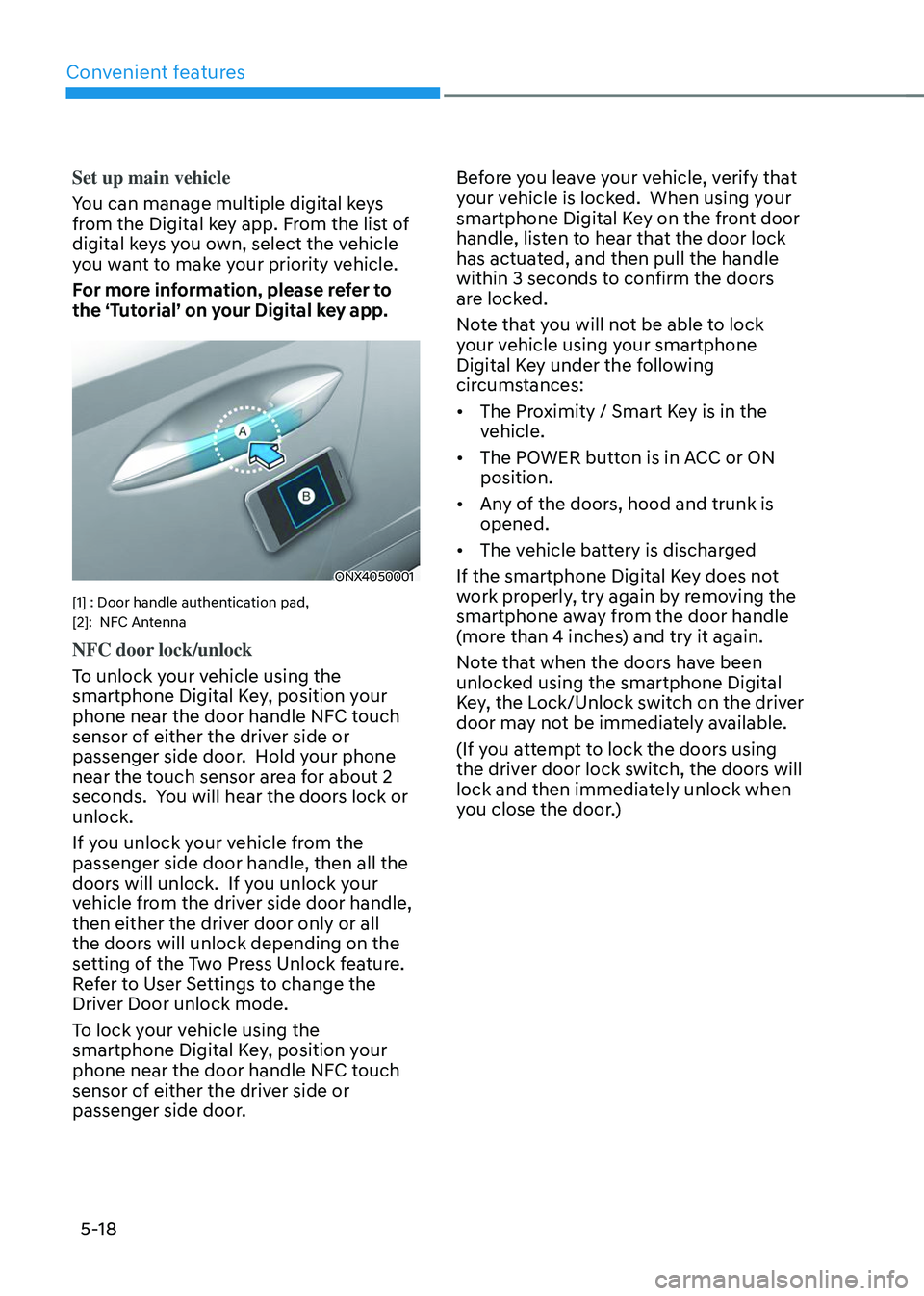
ONX4050001
[1] : Door handle authentication pad,
[2]: NFC Antenna
NFC door lock/unlock
To unlock your vehicle using the
smartphone Digital Key, position your
phone near the door handle NFC touch
sensor of either the driver side or
passenger side door. Hold your phone
near the touch sensor area for about 2
seconds. You will hear the doors lock or
unlock.
If you unlock your vehicle from the
passenger side door handle, then all the
doors will unlock. If you unlock your
vehicle from the driver side door handle,
then either the driver door only or all
the doors will unlock depending on the
setting of the Two Press Unlock feature.
Refer to User Settings to change the
Driver Door unlock mode.
To lock your vehicle using the
smartphone Digital Key, position your
phone near the door handle NFC touch
sensor of either the driver side or
passenger side door. Before you leave your vehicle, verify that
your vehicle is locked. When using your
smartphone Digital Key on the front door
handle, listen to hear that the door lock
has actuated, and then pull the handle
within 3 seconds to confirm the doors
are locked.
Note that you will not be able to lock
your vehicle using your smartphone
Digital Key under the following
circumstances:
•
The Proximity / Smart Key is in the
vehicle.
• The POWER button is in ACC or ON
position.
• Any of the doors, hood and trunk is
opened.
• The vehicle battery is discharged
If the smartphone Digital Key does not
work properly, try again by removing the
smartphone away from the door handle
(more than 4 inches) and try it again.
Note that when the doors have been
unlocked using the smartphone Digital
Key, the Lock/Unlock switch on the driver
door may not be immediately available.
(If you attempt to lock the doors using
the driver door lock switch, the doors will
lock and then immediately unlock when
you close the door.)
Page 170 of 638
![HYUNDAI TUCSON 2023 Owners Manual Convenient features
5-26
ONX4050002
[1] : Door handle authentication pad,
[2]: NFC Antenna
NFC door lock/unlock
To unlock your vehicle using the NFC
card key, touch the card key near the
door han](/manual-img/35/56195/w960_56195-169.png "HYUNDAI TUCSON 2023 Owners Manual Convenient features
5-26
ONX4050002
[1] : Door handle authentication pad,
[2]: NFC Antenna
NFC door lock/unlock
To unlock your vehicle using the NFC
card key, touch the card key near the
door han")
Convenient features
5-26
ONX4050002
[1] : Door handle authentication pad,
[2]: NFC Antenna
NFC door lock/unlock
To unlock your vehicle using the NFC
card key, touch the card key near the
door handle NFC touch sensor of either
the driver side or passenger side door.
Hold the card key near the touch sensor
area for about 2 seconds. You will hear
the doors lock or unlock.
If you unlock your vehicle from the
passenger side door handle, then all the
doors will unlock. If you unlock your
vehicle from the driver side door handle,
then either the driver door only or all
the doors will unlock depending on the
setting of the Two Press Unlock feature.
Refer to User Settings to change the
Driver Door unlock mode.
To lock your vehicle using the NFC card
key, touch the card key near the door
handle NFC touch sensor of either the
driver side or passenger side door.
Before you leave your vehicle, verify
that your vehicle is locked. When using
your NFC card key on the front door
handle, listen to hear that the door lock
has actuated, and then pull the handle
within 3 seconds to confirm the doors
are locked.
Inoperable condition
When using the NFC card key to lock or
unlock your vehicle, be sure to touch
the card key near the center of the door
handle to enable the sensor to activate.
Note that you must take the card out of
your wallet or purse to use the card key
correctly. If the card key is not touching
the door handle sensor or is in close
proximity to other NFC-enabled cards, it
may not work.
Note that if you attempt to use the
NFC card key to lock the doors, the
doors will not lock under the following
circumstances:
•
The Smart Key is in the vehicle
• The Engine Start/Stop button is in the
ACC or ON position
• Any of the doors are open (except for
the liftgate)
If this occurs, then a chime will sound
for about 3 seconds. Check the vehicle
before attempting to lock the car again.
If you have difficulty locking or unlocking
the vehicle using the NFC card key,
remove the card key away from the door
handle sensor for a few seconds (card
key must be more than 4 inches away)
and then retry.
If the card key is damaged or bent, the
sensor on the door handle may not
properly detect the card key. If this
occurs contact your authorized Hyundai
dealer for a card key replacement.
Be careful not to damage the card
key or expose the card key to extreme
temperatures or direct sunlight for long
periods of time.
Note that when the doors have been
unlocked using the NFC digital card key,
the Lock/Unlock switch on the driver
door may not be immediately available.
(If you attempt to lock the doors using
the driver door lock switch, the doors will
lock and then immediately unlock when
you close the door.)
Page 176 of 638
Convenient features
5-32
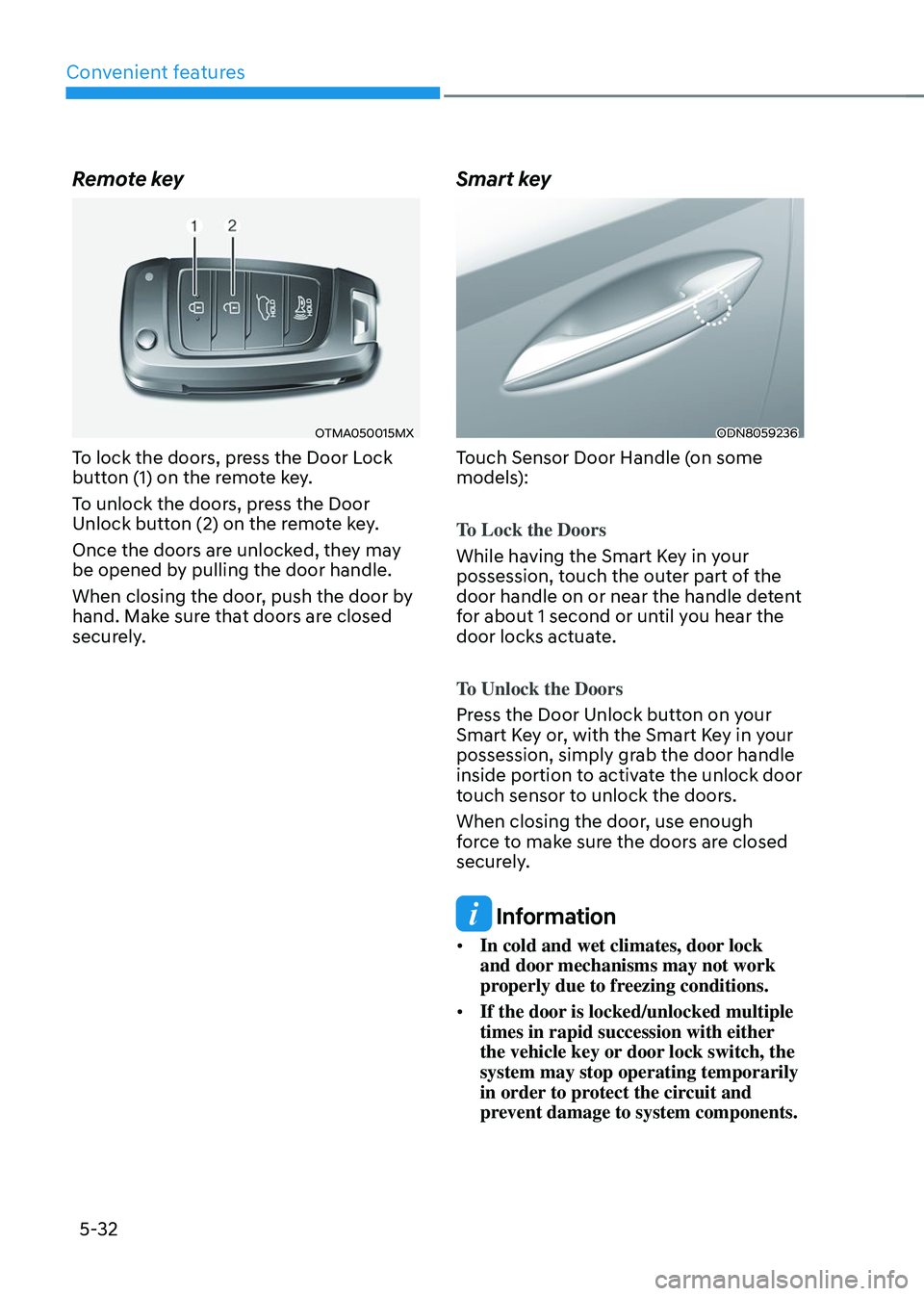
Remote key
OTMA050015MX
To lock the doors, press the Door Lock
button (1) on the remote key.
To unlock the doors, press the Door
Unlock button (2) on the remote key.
Once the doors are unlocked, they may
be opened by pulling the door handle.
When closing the door, push the door by
hand. Make sure that doors are closed
securely.
Smart key
ODN8059236
Touch Sensor Door Handle (on some
models):
To Lock the Doors
While having the Smart Key in your
possession, touch the outer part of the
door handle on or near the handle detent
for about 1 second or until you hear the
door locks actuate.
To Unlock the Doors
Press the Door Unlock button on your
Smart Key or, with the Smart Key in your
possession, simply grab the door handle
inside portion to activate the unlock door
touch sensor to unlock the doors.
When closing the door, use enough
force to make sure the doors are closed
securely.
Information
• In cold and wet climates, door lock
and door mechanisms may not work
properly due to freezing conditions.
• If the door is locked/unlocked multiple
times in rapid succession with either
the vehicle key or door lock switch, the
system may stop operating temporarily
in order to protect the circuit and
prevent damage to system components.
Page 180 of 638
Convenient features
5-36
This system helps to protect your vehicle
and valuables. The horn will sound and
the hazard warning lights will blink
continuously if any of the following
occur:
-A door is opened without using the
smart key.
-The liftgate is opened without using
the smart key.
-The engine hood is opened.
The alarm continues for 30 seconds, then
the system resets. To turn off the alarm,
unlock the doors with the smart key.
The Theft Alarm System automatically
sets 30 seconds after you lock the
doors and the liftgate. For the system to
activate, you must lock the doors and
the liftgate from outside the vehicle with
the smart key or by touching the touch
sensor on the outside of the door handle
with the smart key in your possession.
The hazard warning lights will blink and
the chime will sound once to indicate the
system is armed.
Once the security system is set, opening
any door, the liftgate, or the hood
without using the smart key will cause
the alarm to activate.
The Theft Alarm System will not set if the
hood, the liftgate, or any door is not fully
closed. If the system will not set, check
the hood, the liftgate, or the doors are
fully closed.
Do not attempt to alter this system or
add other devices to it.
Information
• Do not lock the doors until all
passengers have left the vehicle. If the
remaining passenger leaves the vehicle
when the system is armed, the alarm
will be activated.
• If the vehicle is not disarmed with the
smart key, open the doors by using the
mechanical key and start the engine by
directly pressing the Engine Start/Stop
button with the smart key.
• If the system is disarmed by unlocking
the vehicle, but neither a door or the
liftgate is opened within 30 seconds, the
doors will relock and the system will
rearm automatically.
Information
OHI038181L
Vehicles equipped with a theft alarm
system will have a label attached to the
vehicle with the following words:
1. WARNING
2. SECURITY SYSTEM
THEFT-ALARM SYSTEM
Page 235 of 638
05
5-91
AUTO Wiper Control (if equipped)
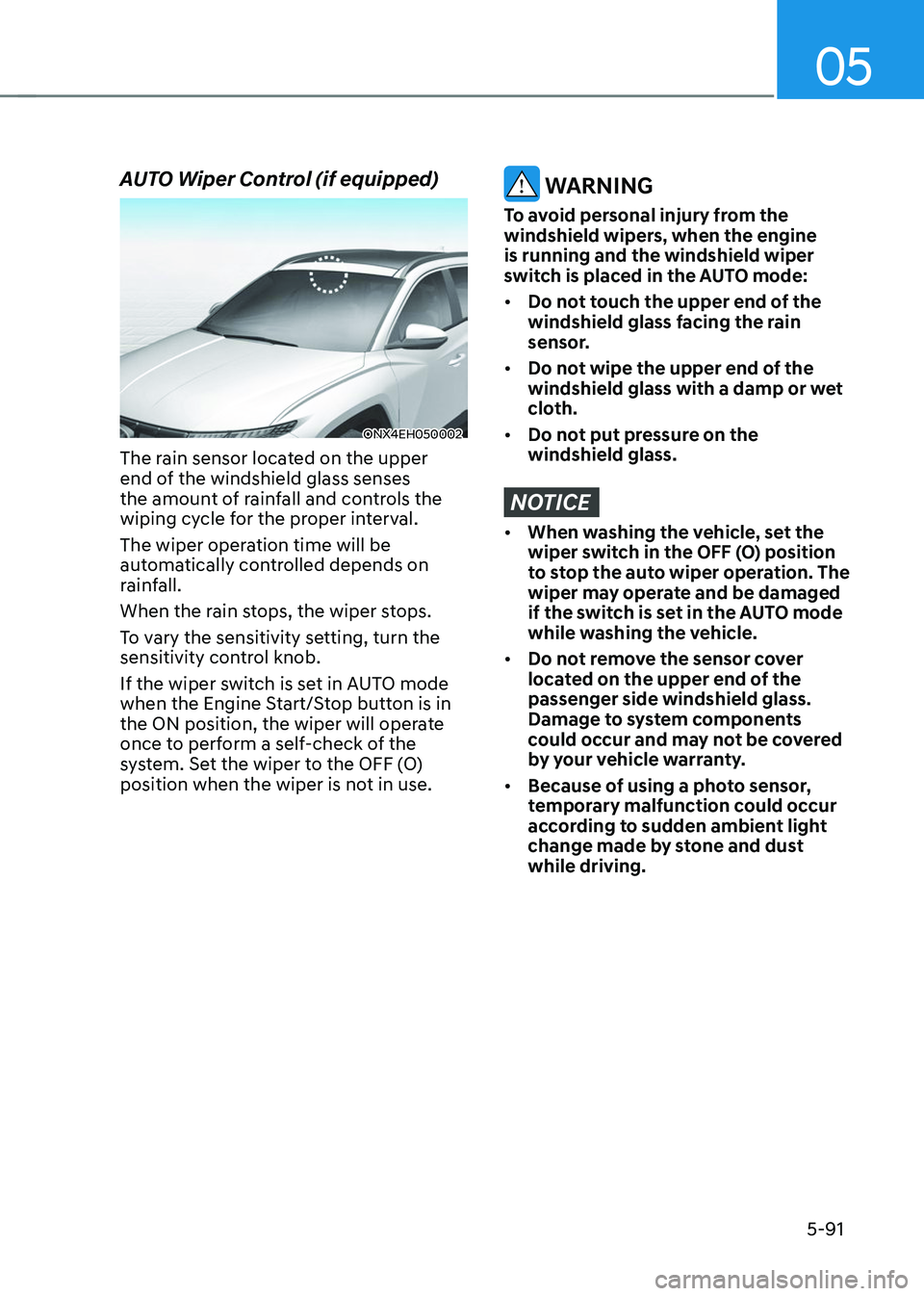
ONX4EH050002
The rain sensor located on the upper
end of the windshield glass senses
the amount of rainfall and controls the
wiping cycle for the proper interval.
The wiper operation time will be
automatically controlled depends on
rainfall.
When the rain stops, the wiper stops.
To vary the sensitivity setting, turn the
sensitivity control knob.
If the wiper switch is set in AUTO mode
when the Engine Start/Stop button is in
the ON position, the wiper will operate
once to perform a self-check of the
system. Set the wiper to the OFF (O)
position when the wiper is not in use.
WARNING
To avoid personal injury from the
windshield wipers, when the engine
is running and the windshield wiper
switch is placed in the AUTO mode:
• Do not touch the upper end of the
windshield glass facing the rain
sensor.
• Do not wipe the upper end of the
windshield glass with a damp or wet
cloth.
• Do not put pressure on the
windshield glass.
NOTICE
• When washing the vehicle, set the
wiper switch in the OFF (O) position
to stop the auto wiper operation. The
wiper may operate and be damaged
if the switch is set in the AUTO mode
while washing the vehicle.
• Do not remove the sensor cover
located on the upper end of the
passenger side windshield glass.
Damage to system components
could occur and may not be covered
by your vehicle warranty.
• Because of using a photo sensor,
temporary malfunction could occur
according to sudden ambient light
change made by stone and dust
while driving.