Page 451 of 638
Driver assistance system
7-88
Smart Cruise Control
Malfunction and Limitations
Smart Cruise Control malfunction
OTM070116N
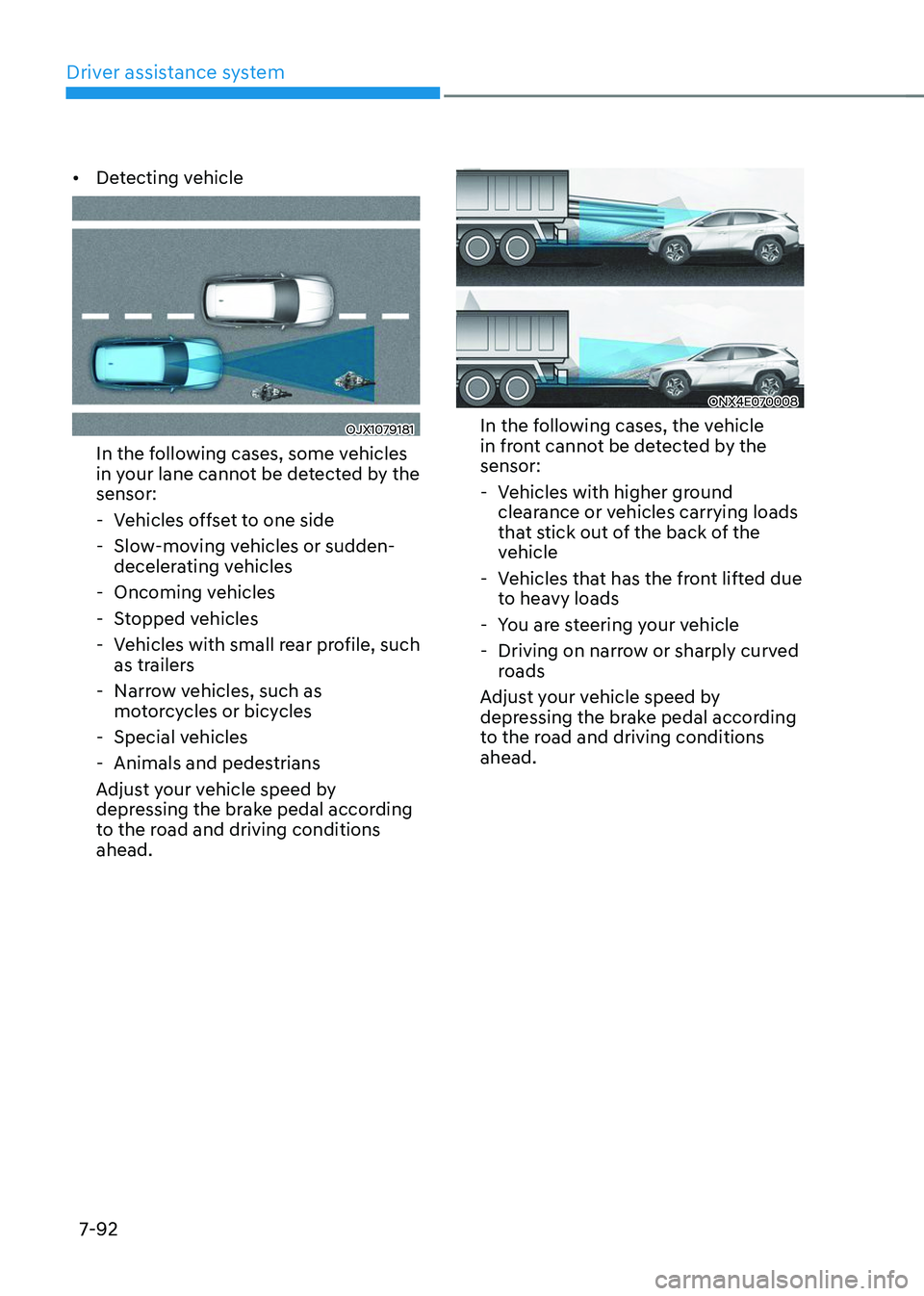
When Smart Cruise Control is not working
properly, the ‘Check Smart Cruise Control
system’ warning message will appear, and the warning light will illuminate on the
cluster. have the vehicle inspected by an
authorized HYUNDAI dealer.
Smart Cruise Control disabled
OTM070115N
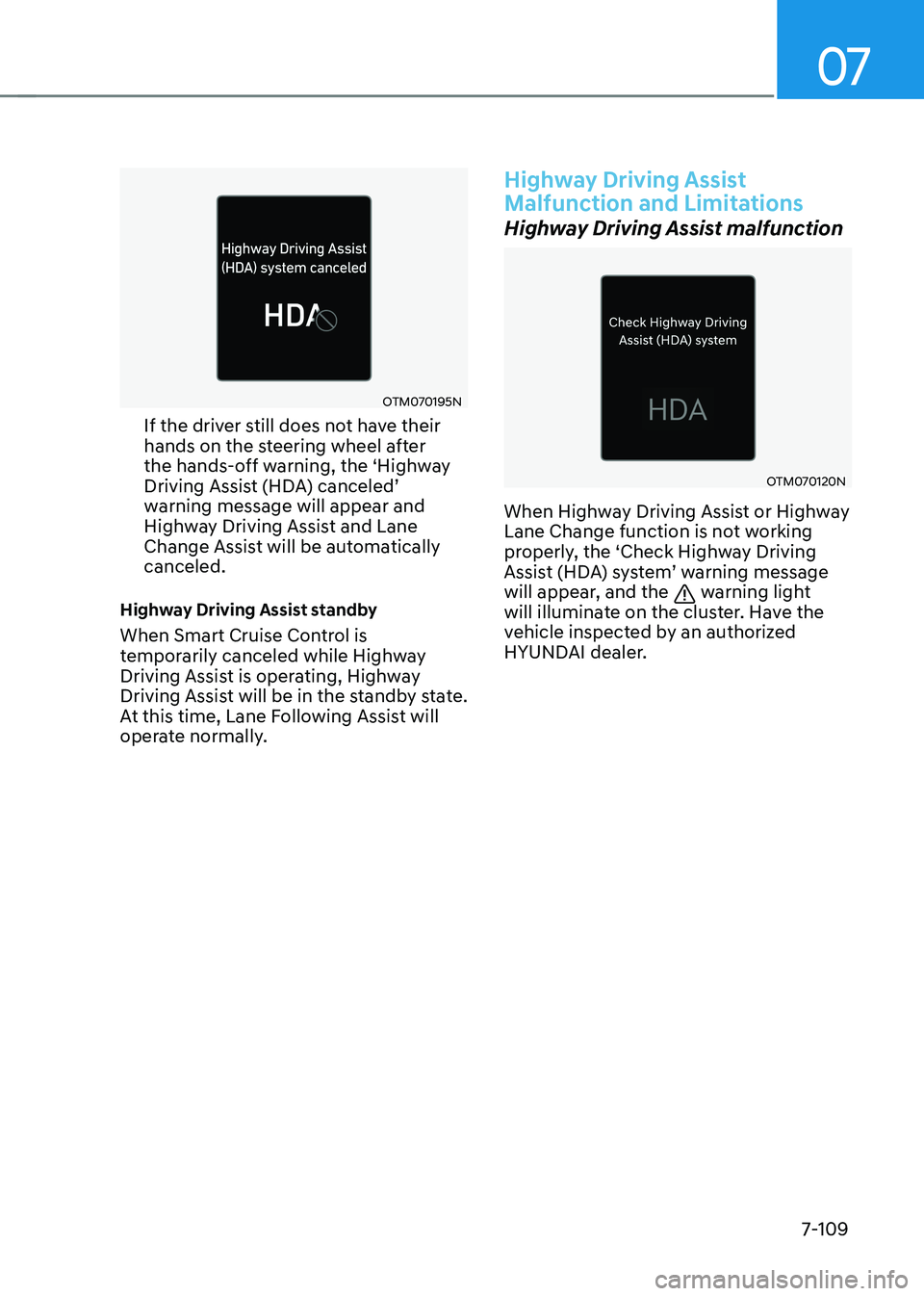
When the front radar cover or sensor
is covered with snow, rain, or foreign
material, it can reduce the detecting
performance and temporarily limit or
disable Smart Cruise Control.
If this occurs the ‘Smart Cruise Control
disabled. Radar blocked’ warning message will appear for a certain period
of time on the cluster.
Smart Cruise Control will operate
normally when snow, rain or foreign
material is removed.
WARNING
Even though the warning message does
not appear on the cluster, Smart Cruise
Control may not properly operate.
CAUTION
Smart Cruise Control may not properly
operate in an area (e.g. open terrain),
where there is nothing to detect after
turning ON the engine.
Page 455 of 638
Driver assistance system
7-92
• Detecting vehicle
OJX1079181
In the following cases, some vehicles
in your lane cannot be detected by the
sensor:
-Vehicles offset to one side
-Slow-moving vehicles or sudden-
decelerating vehicles
-Oncoming vehicles
-Stopped vehicles
-Vehicles with small rear profile, such
as trailers
-Narrow vehicles, such as
motorcycles or bicycles
-Special vehicles
-Animals and pedestrians
Adjust your vehicle speed by
depressing the brake pedal according
to the road and driving conditions
ahead.
ONX4E070008
In the following cases, the vehicle
in front cannot be detected by the
sensor:
- Vehicles with higher ground
clearance or vehicles carrying loads
that stick out of the back of the
vehicle
-Vehicles that has the front lifted due
to heavy loads
-You are steering your vehicle
-Driving on narrow or sharply curved
roads
Adjust your vehicle speed by
depressing the brake pedal according
to the road and driving conditions
ahead.
Page 467 of 638
Driver assistance system7-104
Information
• You may change settings from the
instrument cluster (User Settings) or
infotainment system (Vehicle Settings),
whichever option that is provided with
your vehicle. For more details, see
"User Settings" section in chapter 4, or
"Vehicle Settings" section in supplied
Infotainment Manual.
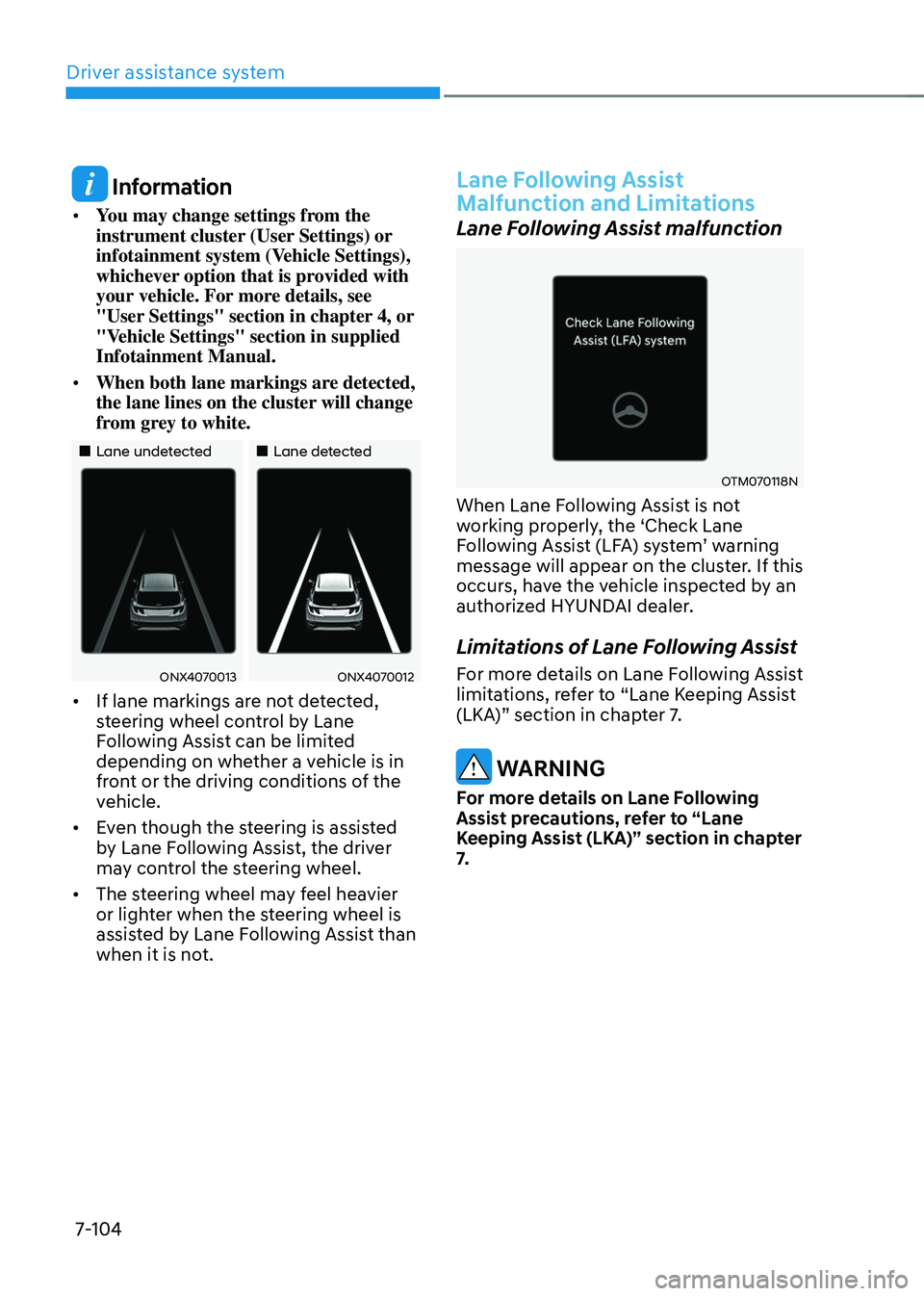
• When both lane markings are detected,
the lane lines on the cluster will change
from grey to white.
„„Lane undetected„„Lane detected
ONX4070013ONX4070012
• If lane markings are not detected,
steering wheel control by Lane
Following Assist can be limited
depending on whether a vehicle is in
front or the driving conditions of the
vehicle.
• Even though the steering is assisted
by Lane Following Assist, the driver
may control the steering wheel.
• The steering wheel may feel heavier
or lighter when the steering wheel is
assisted by Lane Following Assist than
when it is not.
Lane Following Assist
Malfunction and Limitations
Lane Following Assist malfunction
OTM070118N
When Lane Following Assist is not
working properly, the ‘Check Lane
Following Assist (LFA) system’ warning message will appear on the cluster. If this
occurs, have the vehicle inspected by an
authorized HYUNDAI dealer.
Limitations of Lane Following Assist
For more details on Lane Following Assist
limitations, refer to “Lane Keeping Assist
(LKA)” section in chapter 7.
WARNING
For more details on Lane Following
Assist precautions, refer to “Lane
Keeping Assist (LKA)” section in chapter
7.
Page 469 of 638
Driver assistance system
7-106
Highway Driving Assist Settings
Setting features
Highway Driving Assist
With the engine on, select or deselect
‘Driver Assistance → Driving Convenience’ from the Settings menu to set whether or
not to use the following function(s).
-If ‘Highway Driving Assist’ (or ‘HDA (Motorway Driving Assist)’) is selected, it helps maintain distance from the
vehicle ahead, maintain the set speed,
and helps center the vehicle in the
lane.
Information
• If there is a problem with the
function(s), the settings cannot be
changed. We recommend that the
vehicle be inspected by an authorized
HYUNDAI dealer.
• If the engine is restarted, the function(s)
will maintain the last setting.
WARNING
For your safety, change the Settings
after parking the vehicle at a safe
location.
OTM070141N
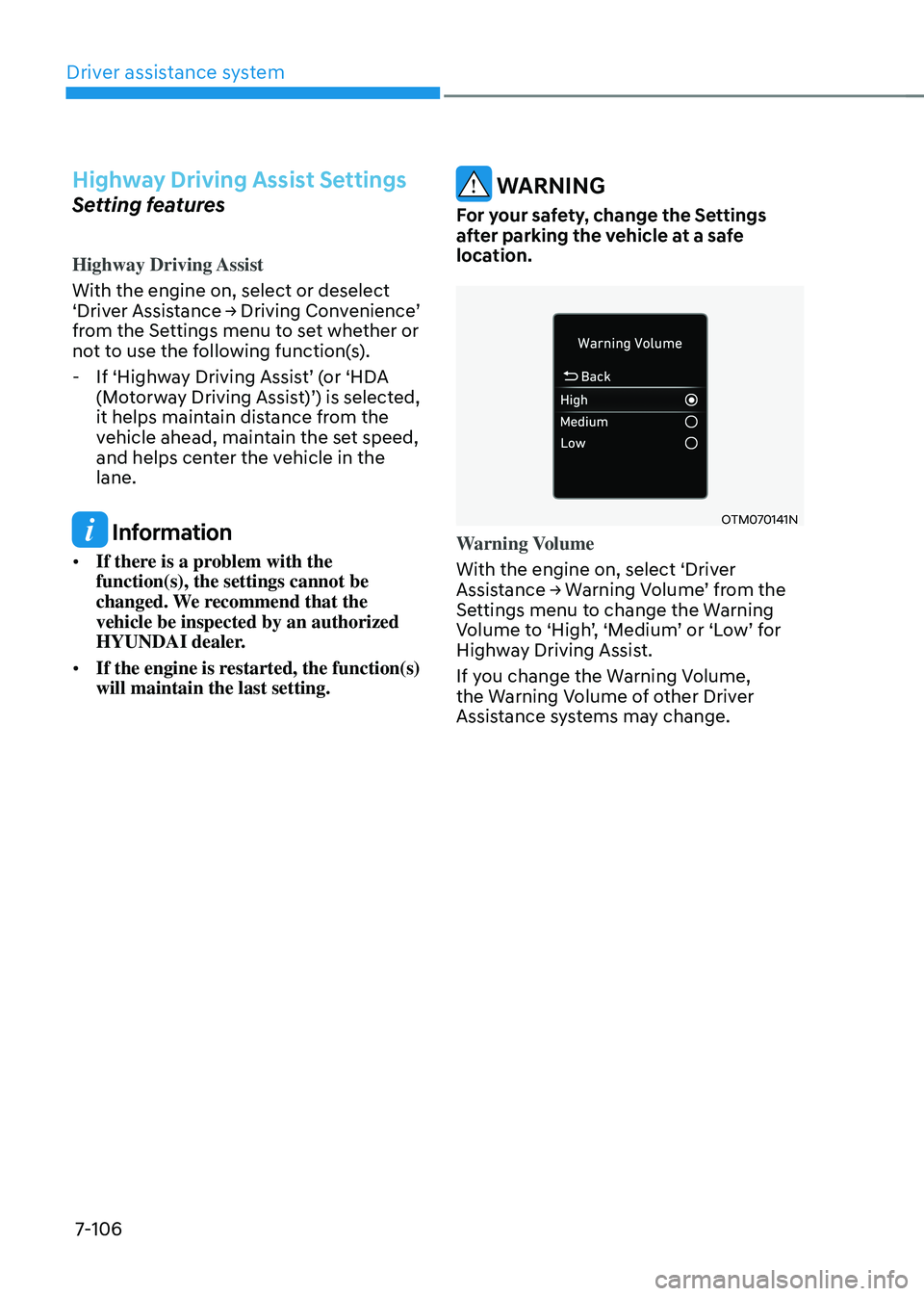
Warning Volume
With the engine on, select ‘Driver
Assistance → Warning Volume’ from the Settings menu to change the Warning Volume to ‘High’, ‘Medium’ or ‘Low’ for Highway Driving Assist.
If you change the Warning Volume,
the Warning Volume of other Driver
Assistance systems may change.
Page 472 of 638
07
7-109
OTM070195N
If the driver still does not have their
hands on the steering wheel after
the hands-off warning, the ‘Highway
Driving Assist (HDA) canceled’ warning message will appear and
Highway Driving Assist and Lane
Change Assist will be automatically
canceled.
Highway Driving Assist standby
When Smart Cruise Control is
temporarily canceled while Highway
Driving Assist is operating, Highway
Driving Assist will be in the standby state.
At this time, Lane Following Assist will
operate normally.
Highway Driving Assist
Malfunction and Limitations
Highway Driving Assist malfunction
OTM070120N
When Highway Driving Assist or Highway
Lane Change function is not working
properly, the ‘Check Highway Driving
Assist (HDA) system’ warning message will appear, and the warning light
will illuminate on the cluster. Have the
vehicle inspected by an authorized
HYUNDAI dealer.
Page 473 of 638
Driver assistance system
7-110
WARNING
• The driver is responsible for
controlling the vehicle for safe
driving.
• Always have your hands on the
steering wheel while driving.
• Highway Driving Assist is a
supplemental function that assists
the driver in driving the vehicle
and is not a complete autonomous
driving system. Always check road
conditions, and if necessary, take
appropriate actions to drive safely.
• Always have your eyes on the road,
and it is the responsibility of the
driver to avoid violating traffic laws.
The vehicle manufacturer is not
responsible for any traffic violation
or accidents caused by the driver.
• Highway Driving Assist may not
be able to recognize all traffic
situations. Highway Driving Assist
may not detect possible collisions
due to limitations of the function.
Always be aware of the limitations
of the function. Obstacles such as
vehicles, motorcycles, bicycles,
pedestrians, or unspecified objects
or structures such as guardrails,
tollgate, etc. that may collide with
the vehicle may not be detected.
• Highway Driving Assist will turn off
automatically under the following
situations:
-Driving on roads that Highway
Driving Assist does not operate,
such as a rest area, intersection,
junction, etc.
-The navigation does not operate
properly such as when the
navigation is being updated or
restarted •
Highway Driving Assist may
inadvertently operate or turn off
depending on road conditions
(navigation information) and
surroundings.
• Lane Following Assist function may
be temporarily disabled when the
front view camera cannot detect
lanes properly or the hands-off
warning is on.
• You may not hear the warning sound
of Highway Driving Assist if the
surrounding is noisy.
• If the vehicle is driven at high speed
above a certain speed at a curve,
your vehicle may drive to one side or
may depart from the driving lane.
• When you are towing a trailer or
another vehicle, we recommend that
Highway Driving Assist is turned off
due to safety reasons.
• The hands–off warning message
may appear early or late depending
on how the steering wheel is held or
road conditions. Always have your
hands on the steering wheel while
driving.
• For your safety, please read the
owner's manual before using the
Highway Driving Assist.
• Highway Driving Assist will not
operate when the engine is started,
or when the detecting sensors or
navigation is being initialized.
Page 478 of 638
07
7-115
Rear View Monitor Malfunction
and Limitations
Rear View Monitor malfunction
When Rear View Monitor is not working
properly, or the screen flickers, or the
camera image does not display normally,
have the vehicle inspected by an
authorized HYUNDAI dealer.
Limitations of Rear View Monitor
When the vehicle is stopped for a long
time in winter or when the vehicle is
parked in an indoor parking lot, the
exhaust fumes may temporarily blur the
image.
WARNING
• The rear view camera does not
cover the complete area behind the
vehicle. The driver should always
check the rear area directly through
the inside and side view mirror
before parking or backing up.
• The image shown on the screen may
differ from the actual distance of the
object. Make sure to directly check
the vehicle's surroundings for safety.
• Always keep the rear view camera
lens clean. If the lens is covered with
foreign material, it may adversely
affect camera performance and
Rear View Monitor may not operate
normally. However, do not use
chemical solvents such as strong
detergents containing high alkaline
or volatile organic solvents (gasoline,
acetone etc.). This may damage the
camera lens.
Page 483 of 638
Driver assistance system7-120
Rear view
The rear image is displayed on the screen
when the gear is in R (Revers) or P (Park)
to assist in parking. The rear view has a
top view/rear view/side view/3D view.
Operating conditions
• Shift the gear to R (Reverse), the
image will appear on the screen.
• Press the Parking/View button (1)
while the gear is in P (Park), the image
will appear on the screen.
Off conditions
• The image cannot be turned off when
the gear is in R (Reverse).
• Shift the gear from R (Reverse) to P
(Park), the image will turn off.
• Press the Parking/View button (1)
again while the gear is in P (Park) with
the image on the screen.
Surround View Monitor
Malfunction and Limitations
Surround View Monitor malfunction
When Surround View Monitor is not
working properly, or the screen flickers,
or the camera image does not display
normally, we recommend that the
vehicle be inspected by an authorized
HYUNDAI dealer.
Limitations of Surround View
Monitor
• When the vehicle is stopped for a long
time in winter or when the vehicle is
parked in an indoor parking lot, the
exhaust fumes may temporarily blur
the image.
• The screen may be displayed
abnormally, and an icon will appear at
the top left side of the screen under
the following circumstances:
-The liftgate is opened
-The driver or front passenger door
is opened
-The side view mirror is folded