Page 321 of 719
320
uuAudio System Basic Operation uHondaLink ®
Features
HondaLink ®
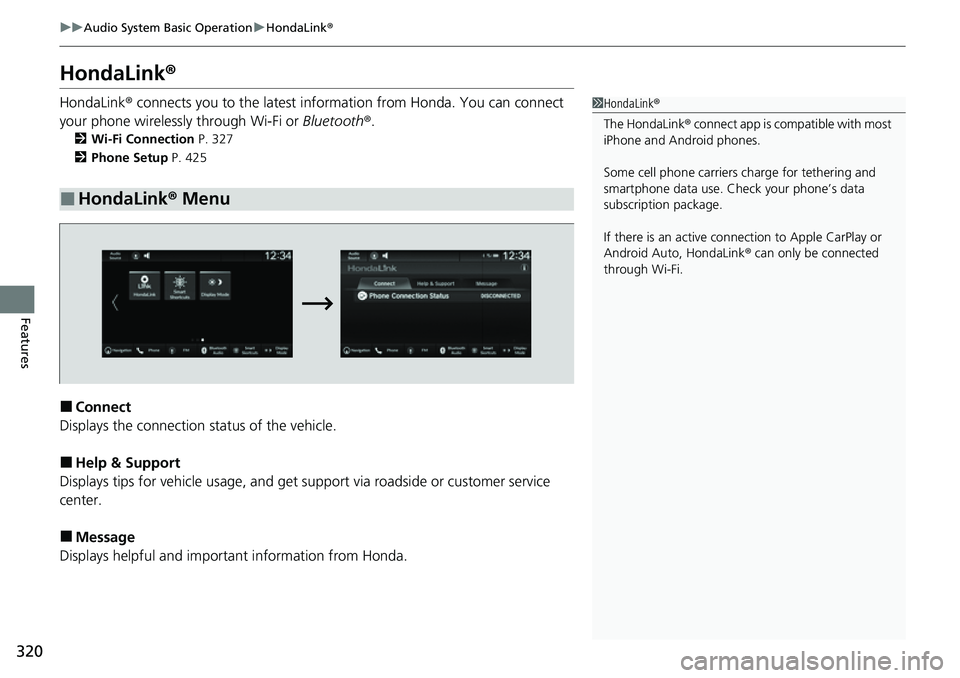
HondaLink® connects you to the latest information from Honda. You can connect
your phone wirelessly through Wi-Fi or Bluetooth®.
2Wi-Fi Connection P. 327
2 Phone Setup P. 425
■Connect
Displays the connection status of the vehicle.
■Help & Support
Displays tips for vehicle usage, and get support via roadside or customer service
center.
■Message
Displays helpful and important information from Honda.
■HondaLink® Menu
1HondaLink ®
The HondaLink® connect app is compatible with most
iPhone and Android phones.
Some cell phone carriers charge for tethering and
smartphone data use. Check your phone’s data
subscription package.
If there is an active connection to Appl e CarPlay or
Android Auto, HondaLink ® can only be connected
through Wi-Fi.
Page 326 of 719
Continued325
uuAudio System Basic Operation uSmart Shortcuts
Features
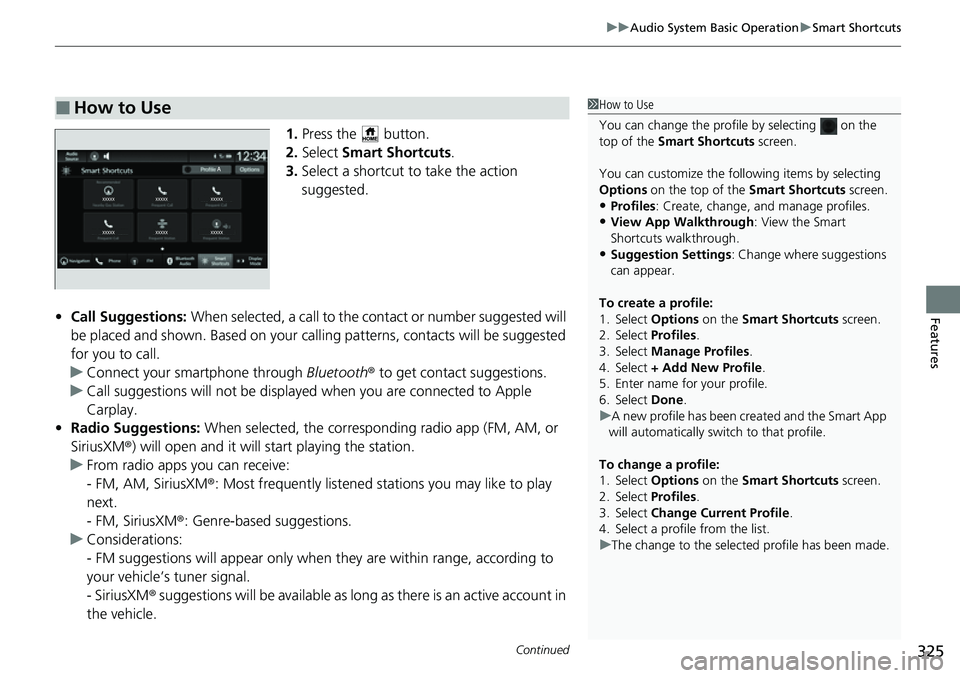
1. Press the button.
2. Select Smart Shortcuts .
3. Select a shortcut to take the action
suggested.
• Call Suggestions: When selected, a call to the contact or number suggested will
be placed and shown. Based on your call ing patterns, contacts will be suggested
for you to call.
u Connect your smartphone through Bluetooth® to get contact suggestions.
u Call suggestions will not be displayed when you are connected to Apple
Carplay.
• Radio Suggestions: When selected, the corresponding radio app (FM, AM, or
SiriusXM ®) will open and it will start playing the station.
u From radio apps you can receive:
- FM, AM, SiriusXM ®: Most frequently listened stations you may like to play
next.
- FM, SiriusXM ®: Genre-based suggestions.
u Considerations:
- FM suggestions will appear only when they are within range, according to
your vehicle’s tuner signal.
- SiriusXM ® suggestions will be available as long as there is an active account in
the vehicle.
■How to Use1 How to Use
You can change the profile by selecting on the
top of the Smart Shortcuts screen.
You can customize the foll owing items by selecting
Options on the top of the Smart Shortcuts screen.
•Profiles: Create, change, a nd manage profiles.
•View App Walkthrough : View the Smart
Shortcuts walkthrough.
•Suggestion Settings : Change where suggestions
can appear.
To create a profile:
1. Select Options on the Smart Shortcuts screen.
2. Select Profiles .
3. Select Manage Profiles .
4. Select + Add New Profile .
5. Enter name for your profile.
6. Select Done .
u A new profile has been cr eated and the Smart App
will automatically switch to that profile.
To change a profile:
1. Select Options on the Smart Shortcuts screen.
2. Select Profiles .
3. Select Change Current Profile .
4. Select a profile from the list.
u The change to the selected profile has been made.
Page 330 of 719

329
uuAudio System Basic Operation uApple CarPlay
Continued
Features
Apple CarPlay
If you connect an Apple CarPlay-compatible iPhone to the system via the front USB
port or wirelessly, you can use the audio/information screen, instead of the iPhone
display, to make a phone call, listen to music, view maps (navigation), and access
messages.
2 USB Ports P. 239
■Apple CarPlay Menu
1Apple CarPlay
The images shown here (designs, specifications, etc.)
may differ from what is displayed on your screen.
Only iPhone 5 or newer versi ons with iOS 8.4 or later
are compatible with Apple CarPlay.
We recommend using the latest OS.
Park in a safe place before connecting your iPhone to
Apple CarPlay and when launching any compatible
apps.
To directly access the Appl e CarPlay phone function,
select Phone on the home screen. While connected
to Apple CarPlay, calls are only made through Apple
CarPlay. If you want to make a call with
HandsFreeLink, turn Apple CarPlay OFF.
2 Setting Up Apple CarPlay P. 331
When your iPhone is connected to Apple CarPlay, it is
not possible to use the Bluetooth® Audio or
Bluetooth ® HandsFreeLink ®. However, other
previously paired phones can stream audio via
Bluetooth ® while Apple CarPlay is connected.
2 Phone Setup P. 425
Apple CarPlay and Android Auto cannot run at the
same time.
For details on c ountries and regions where Apple
CarPlay is available, as well as information pertaining
to function, refer to the Apple homepage.
Go back to the
home screen
Home screen
Apple CarPlay icon Apple CarPlay menu screen
: Go back to the
Apple CarPlay
Dashboard screen
: Go back to the
Apple CarPlay menu
screen
Page 331 of 719
uuAudio System Basic Operation uApple CarPlay
330
Features
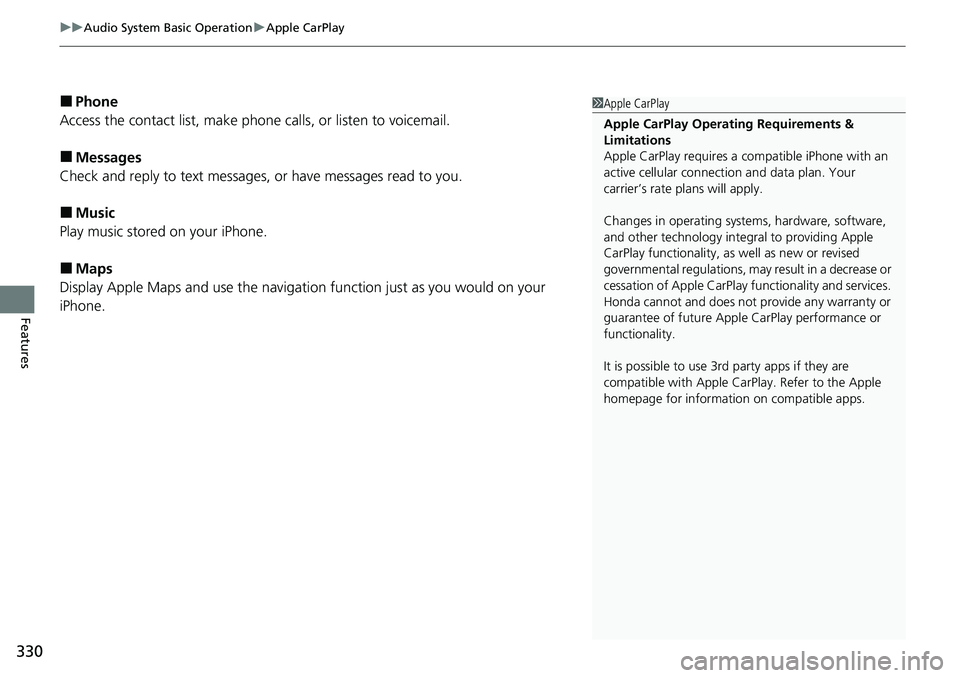
■Phone
Access the contact list, make phone calls, or listen to voicemail.
■Messages
Check and reply to text messages, or have messages read to you.
■Music
Play music stored on your iPhone.
■Maps
Display Apple Maps and use the navigation function just as you would on your
iPhone.
1 Apple CarPlay
Apple CarPlay Operating Requirements &
Limitations
Apple CarPlay requi res a compatible iPhone with an
active cellular connecti on and data plan. Your
carrier’s rate plans will apply.
Changes in operating systems, hardware, software,
and other technology integral to providing Apple
CarPlay functionality, as well as new or revised
governmental regulations, may result in a decrease or
cessation of Apple CarPlay functionality and services.
Honda cannot and does not pr ovide any warranty or
guarantee of future Appl e CarPlay performance or
functionality.
It is possible to use 3r d party apps if they are
compatible with Apple CarPlay. Refer to the Apple
homepage for information on compatible apps.
Page 332 of 719
Continued331
uuAudio System Basic Operation uApple CarPlay
Features
After you have connected your iPhone to the system via the front USB port or
wirelessly, use the following procedure to set up Apple CarPlay. Use of Apple
CarPlay will result in the transmission of certain user and vehicle information (such
as vehicle location, speed, an d status) to your iPhone to enhance the Apple CarPlay
experience. You will n eed to consent to the sharing of this information on the audio/
information screen.
1. Connect the iPhone to the USB port using the USB cable.
2 USB Ports P. 239
uThe confirmation screen will be displayed.
2. Select Yes.
u If you do not want to connect Apple CarPlay, select No.
You may change the cons ent settings under the Smartphone Connection settings
menu.
■Setting Up Apple CarPlay
■Connecting Apple CarPlay Using the USB Cable to the USB Port
1 Setting Up Apple CarPlay
Only initialize Apple CarPlay when you are safely
parked.
When Apple CarPlay first detects your iPhone, you
will need to set up your iPhone. Refer to the
instruction manual that came with your iPhone.
You can use the following procedure to disconnect or
delete the devices conn ecting Apple CarPlay:
Press the button Select General Settings
Smartphone Connection Apple CarPlay
Select device
Use of user and vehicle information
The use and handling of user and vehicle information
transmitted to/from your iP hone by Apple CarPlay is
governed by the Apple iOS terms and conditions and
Apple’s Privacy Policy.
Page 333 of 719
332
uuAudio System Basic Operation uApple CarPlay
Features
■Connect Apple CarPlay wirele ssly on the home screen
1. Press the button.
2. Select Smartphone Connection .
3. Select + Connect New Device.
4. Pair the iPhone to the vehicle’s Bluetooth® HandsFreeLink ® (HFL) system.
2 Phone Setup P. 425
5.Select Yes.
u If your iPhone asks for permission to accept an Apple CarPlay connection,
accept to connect. A confirmation message for HondaLink Assist appears.
6. Select Yes or No.
■Connect Apple CarPlay wirelessly on the Apple CarPlay device list
1. Press the button.
2. Select General Settings .
3. Select Smartphone Connection .
4. Select Apple CarPlay .
5. Select + Connect New Device.
6. Pair the iPhone to the vehicle’s Bluetooth® HandsFreeLink ® (HFL) system.
2 Phone Setup P. 425
7.Select Yes.
u If your iPhone asks for permission to accept an Apple CarPlay connection,
accept to connect. A confirmation message for HondaLink Assist appears.
8. Select Yes or No.
■Connect Apple CarPlay Wirelessly
Page 334 of 719
333
uuAudio System Basic Operation uApple CarPlay
Continued
Features
■Connect Apple CarPlay wirelessly on the Bluetooth® device list
1. Press the button.
2. Select General Settings .
3. Select Connections.
4. Select Bluetooth .
5. Select + Connect New Device.
6. Pair the iPhone to the vehicle’s Bluetooth® HandsFreeLink ® (HFL) system.
2 Phone Setup P. 425
7.Check the box on Apple CarPlay.
u If you select Apple CarPlay , you cannot select Audio and Phone .
8. Select Connect .
9. Select Yes.
u If your iPhone asks for permission to accept an Apple CarPlay connection,
accept to connect. A confirmation me ssage for HondaLink Assist appears.
10. Select Yes or No.
■Connect Apple CarPlay wirelessly with the steering wheel
1. Press and hold the (talk) button on the steering wheel.
2. Pair the iPhone to the vehicle’s Bluetooth® HandsFreeLink ® (HFL) system.
2Phone Setup P. 425
3.Check the box on Apple CarPlay.
u If you select Apple CarPlay , you cannot select Audio and Phone .
4. Select Connect .
5. Select Yes.
u If your iPhone asks for permission to accept an Apple CarPlay connection,
accept to connect. A confirmation me ssage for HondaLink Assist appears.
6. Select Yes or No .
Page 335 of 719
334
uuAudio System Basic Operation uApple CarPlay
Features
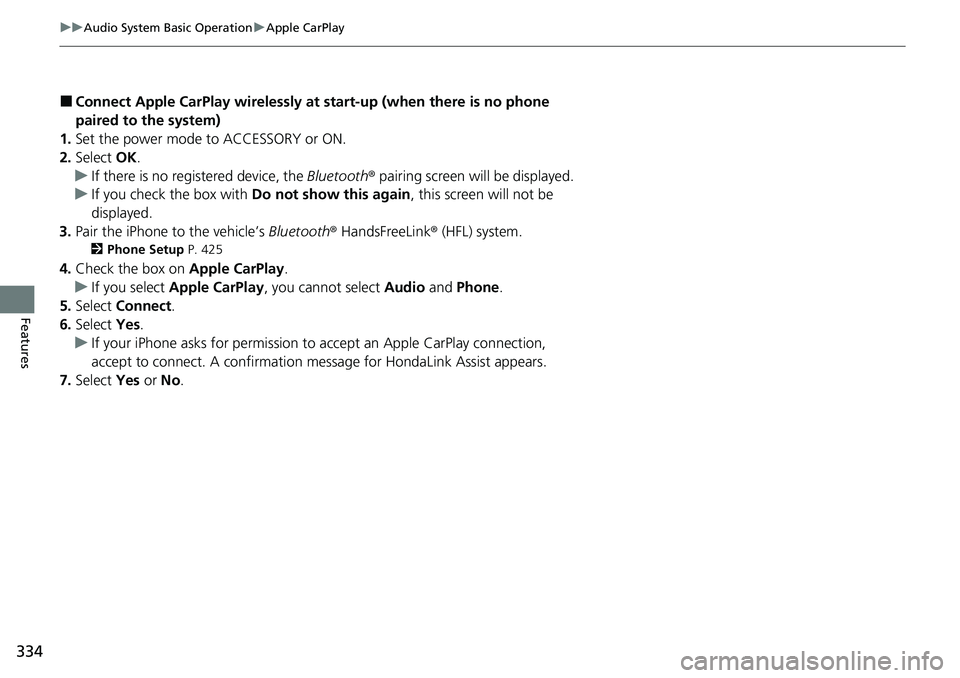
■Connect Apple CarPlay wirelessly at start-up (when there is no phone
paired to the system)
1. Set the power mode to ACCESSORY or ON.
2. Select OK.
u If there is no registered device, the Bluetooth® pairing screen will be displayed.
u If you check the box with Do not show this again, this screen will not be
displayed.
3. Pair the iPhone to the vehicle’s Bluetooth® HandsFreeLink ® (HFL) system.
2 Phone Setup P. 425
4.Check the box on Apple CarPlay.
u If you select Apple CarPlay , you cannot select Audio and Phone .
5. Select Connect .
6. Select Yes.
u If your iPhone asks for permission to accept an Apple CarPlay connection,
accept to connect. A confirmation message for HondaLink Assist appears.
7. Select Yes or No.