2023 GMC YUKON USB
[x] Cancel search: USBPage 153 of 432

GMC Yukon/Yukon XL/Denali Owner Manual (GMNA-Localizing-U.S./
Canada/Mexico-16417394) - 2023 - CRC - 4/26/22
152 Infotainment System
5. Once a headphone is paired, touchoptions for that headphone to access the
menu where the headphone can be
renamed, connected, disconnected, or to
forget.
Provided Bluetooth Headphones
{Warning
The headphones have a built-in
rechargeable lithium ion battery pack
that presents a serious fire hazard if
damaged, defective, or improperly used.
To avoid battery leakage and/or a
potential fire:
.Do not attempt to burn, crush, or cut
the battery
.Do not expose the battery to
environments with extremely low air
pressures or temperatures above 60 °C
(140 °F)
.Do not charge the battery at
temperatures above 45 °C (113 °F)
.Do not charge the battery if the
headphones are defective or damaged
Caution
Do not store the headphones in heat or
direct sunlight. This could damage the
headphones and repairs would not be
covered by the vehicle warranty. Storage
in extreme cold can weaken the batteries.
Keep the headphones stored in a cool,
dry place.
Batteries in this product should not be
disposed of with household waste. Batteries
should be recycled at an appropriate facility.
Contact local authorities for details on
recycling.
1. CH-Channel Select
2. Power
3. Volume
4. USB-C Charging Port
The RSI includes two new Bluetooth wireless
headphones. The headphones are used to
listen to various multimedia. The wireless
headphones have a power button, channel
select button, and a volume control button.
To use the included Bluetooth Wireless
Headphones:
.Press the POWER button for one second
to turn the headphones on. The power
indicator will illuminate.
Page 154 of 432

GMC Yukon/Yukon XL/Denali Owner Manual (GMNA-Localizing-U.S./
Canada/Mexico-16417394) - 2023 - CRC - 4/26/22
Infotainment System 153
.While the headphones are powered off,
press and hold the power button for
two seconds to enter pairing mode. The
headphone name will display as“GM RSI
BT HP.” See“Pairing to RSI Screen” below
for pairing instructions with RSI screen.
.To power off, press and hold the power
button for two seconds while the power
is on.
.Press the CH-CHANNEL SELECT button (1)
to change between the audio associated
with Screen 1 or Screen 2. This function
only works after pairing to both RSI
Screens.
Paring to RSI Screen
Only two headphones can be active per RSI
Screen.
To pair a Bluetooth headphone to one of
the rear screens: 1. Touch the Headphone icon from the desired Rear Screen Home Page.
2. Select Add New Headphones.
3. Make sure the Bluetooth headphone is in pairing mode.
4. Once recognized by the system, the Bluetooth headphone is displayed on the
list of Available Headphones. 5. Select the Bluetooth headphone from the
list. Once connected, touch OK at the
Pairing Successful pop-up.
6. Touch OK.
To un-pair the Headphones from the screens,
touch the Headphone icon from the desired
Rear Screen Home page. Then touch the
options button under the Headphone that
you want to un-pair. Select Forget
Headphones. This step must be done
separately for each screen.
Voice Over
If equipped, the RSI system has a Voice Over
feature to benefit the visually and hearing
impaired.
When activated, Voice Over provides audible
feedback to the user about which area on
the screen they are touching, identifying
active buttons, as well as providing
information feedback of screen identification,
current status, list content, metadata, and
pop-up information. It allows for the user to
activate features through a double tap
anywhere on the screen which relates to the
last single touched and audibly announced
actionable button. To turn Voice Over on or off, touch
*,
touch the toggle, and then press OK to
confirm. Voice Over turns off every time the
vehicle is turned off.
Reset Rear Media
Select to reset the Apps and log out users.
Open Source License
Select to show the license information.
Rear Consumer Ports (RCP)
If equipped with RSI, the RCP are in the rear
of the center console. These include two
HDMI ports and two USB-C charge only
ports.
HDMI
Page 155 of 432

GMC Yukon/Yukon XL/Denali Owner Manual (GMNA-Localizing-U.S./
Canada/Mexico-16417394) - 2023 - CRC - 4/26/22
154 Infotainment System
The HDMI input allows an HDMI A/V cable
to be connected from an auxiliary device
such as a camcorder, video game system,
or Apple device. A cable from Apple is
required for Apple devices.
Touch the HDMI port that the external
device was connected to on the home
screen.
For certain HDMI devices that support USB
charging, the USB ports can be used as a
power source.
Content from these HDMI ports are NOT
accessible through the infotainment display.
To use the HDMI input of the RSI system:1. Connect the auxiliary device with an HDMI cable.
2. Power on both the auxiliary device and the RSI video screen.
3. Touch
{(Home) on the desired display
and select HDMI as the source.
HDMI
HDMI Connection
The RCP provides two HDMI ports to mirror
video devices.
Connect the external device to watch the
device content through the RSI screen. Touch the HDMI port that was connected to
the external device on the home screen.
HDMI Playing View
HDMI playing view shows the video content
and includes:
.{(Home): Touch{to return to the RSI
Home selection screen.
.X(Headphones): TouchXto access the
Bluetooth Headphone Setup menu. See
“Settings” later in this section.
.Share: Touch to share the screen with the
other rear screen. The screen can be
shared through the connected device.
Rear Media App from the Home Screen
The Rear Media App allows a front user to
control the Rear Seat Video Screen sources.
To access, touch the Rear Media App icon
from the Home Page. The Rear Screens may be powered on or off
from the Rear Media App. Touch Screen 1 or
Screen 2 to select a screen. Touch summary
to view both Rear Screens together.
Touching the Power icon next to the
highlighted screen icon turns that screen on
or off.
The audio for the rear users can be muted
by the front user by pressing the mute icon
associated with the left or right rear screen
on the Rear Media App screen.
The current source from the desired Rear
Screen can also be shown on the other Rear
Screen by pressing the Share button on the
lower right side of the RSI screens.
Source Selecting from the Rear Media App
Sources may be selected for the highlighted
Rear Screen. Select Sources from the Rear
Media App screen, then select from the list
of available sources shown on the RSI
Sources screen.
Page 157 of 432

GMC Yukon/Yukon XL/Denali Owner Manual (GMNA-Localizing-U.S./
Canada/Mexico-16417394) - 2023 - CRC - 4/26/22
156 Infotainment System
Rear Media Settings
From the Rear Media page, touch Settings to
access the settings menu.
The menu may contain the following:
Remember Screen Power Status
Select to have rear screens automatically
power on when the vehicle is started.
Rear Screen Voice-Over
Select to have Video Voice Over for the
individual rear screens.
Allowed Applications
Select to choose which applications are
visible.
Account
Select to show the vehicle data plan.
Reset Rear Media
Select to reset the applications.
Rear Media Terms of Use
Select to view the terms of use.
Privacy Statement
Select to view the Privacy statement.RSI Troubleshooting
No power :
The ignition might not be on or
in accessory mode.
There is no sound from the headphones
with the indicator light on : Make sure the
headphones have sufficient charge. Plug the
headphones to a USB-C port to charge.
Check to see if headphones are paired to the
screens. Make sure that you are listening in
to the correct screen by pressing the
channel select button.
If the steps above do not work, then unpair
the headphones from the RSI screens, turn
the headphones off, turn them back on and
attempt to pair them. See pairing
procedures for the Bluetooth headphone
previously in this section.
Video Distortion
Video distortion can occur when operating
cellular phones, scanners, CB radios, Global
Positioning Systems (GPS), two-way radios,
mobile faxes, or walkie talkies.
It might be necessary to turn off the video
player when operating one of these devices
in or near the vehicle.
Navigation
Using the Navigation System
The Navigation software is provided by
Google Maps. The information provided in
this section is a general overview and is
subject to change. For the latest functional
information, see g.co/mapsincar.
Accept the Terms and Conditions to use.
Internet Connectivity
Google Maps relies on a subscription data
plan for full functionality, including
availability of offline maps. With an
applicable connected services plan, Google
Maps can be used offline when driving
through connectivity dead zones by
auto-downloading offline maps prior to
going offline.
Profiles
Sign in to a Google Account for personalized
service. Information available in the Google
Account will be shown.
To log into a profile, see Accounts under
Settings 0167.
Page 167 of 432

GMC Yukon/Yukon XL/Denali Owner Manual (GMNA-Localizing-U.S./
Canada/Mexico-16417394) - 2023 - CRC - 4/26/22
166 Infotainment System
Ending a Call
.Presscon the steering wheel controls.
.Touch#on the infotainment display,
next to a call, to end only that call.
Dual Tone Multi-Frequency (DTMF) Tones
The in-vehicle Bluetooth system can send
numbers during a call. This is used when
calling a menu-driven phone system. Use the
Keypad to enter the number.
Apple CarPlay and Android Auto
If equipped, Android Auto and/or Apple
CarPlay capability may be available through
a compatible smartphone. If available, the
Android Auto and Apple CarPlay icons will
change from gray to color on the Home
Page of the infotainment display.
To use Android Auto and/or Apple CarPlay:
For Wired Phone Projection
1. Download the Android Auto app to your smartphone from Google Play for phones
running Android 9 and below. There is
no app required for Apple CarPlay or
newer versions of Android. 2. Connect your Android phone or Apple
iPhone by using the factory-provided
phone USB cable and plugging into a
USB data port. For best performance, it is
highly recommended to use the device’s
factory-provided USB cable, which should
be replaced after significant wear to
maintain connection quality. Aftermarket
or third-party cables may not work.
3. When the phone is first connected to activate Apple CarPlay or Android Auto,
accept the terms and conditions on both
the infotainment system and the phone.
4. Follow the instructions on the phone.
The Android Auto and Apple CarPlay icons
on the Home Page will illuminate depending
on the smartphone. Android Auto and/or
Apple CarPlay may automatically launch the
next time the USB is connected. If not,
touch the Android Auto or Apple CarPlay
icon on the Home Page to launch.
Press
{on the center stack to return to the
Home Page.
For Wireless Phone Projection
Verify your phone is wireless compatible by
visiting the Android Auto or Apple CarPlay
support page. 1. Download the Android Auto app to your
smartphone from Google Play for phones
running Android 9 and below. There is
no app required for Apple CarPlay or
newer versions of Android.
2. For first time connection, there are two ways to set up wireless projection:
.Connect your Android phone or Apple
iPhone by using the factory-provided
phone USB cable and plugging into a
USB data port. For best performance,
it is highly recommended to use the
device’s factory-provided USB cable,
which should be replaced after
significant wear to maintain
connection quality. Aftermarket or
third-party cables may not work.
.Connecting the phone over Bluetooth.
See Bluetooth (Pairing and Using a
Phone) 0162 or
Bluetooth (Overview) 0161.
3. Make sure Wi-Fi and Bluetooth is turned on the phone for wireless projection
to work.
4. When the phone is first connected to activate Apple CarPlay or Android Auto,
agree to the terms and conditions on
both the infotainment system and the
phone.
Page 338 of 432

GMC Yukon/Yukon XL/Denali Owner Manual (GMNA-Localizing-U.S./
Canada/Mexico-16417394) - 2023 - CRC - 4/26/22
Vehicle Care 337
FusesUsage
F1 Right Door
F2 Left Door
F3 Universal Garage Door Opener (UGDO)/OnStar
Hands-free Calling (OHC)/
Camera
F4 BCM 2 –Body Control
Module 2
F5 Displays
F6 Front Blower
F8 Left Door Panel
F10 Tilt/Column Lock F11 USB/Data Link Connector (DLC)
F12 Central Gateway Module (CGM)/Onstar
F14 Right Door Panel F17 Steering Wheel Control
F18 AVM 1 –Active Vibration
Module 1
F19 –
F20 – Fuses
Usage
F21 –
F22 Heated Wheel
F23 –
F24 –
F25 Search Engine Optimization (SEO)/UPFITTER
F26 USB/Search Engine Optimization (SEO)
Retained Accessory
Power (RAP)
F27 Auxiliary Power Outlet (APO)/Retained Accessory
Power
F28 Spare
F30 SDM/AOS –Sensing and
Diagnostic Module/
Automatic Occupant
Sensing
F31 BCM 3 –Body Control
Module 3
F32 Center Stack Module (CSM)/USB
F33 BCM 4 –Body Control
Module 4 Fuses
Usage
F34 Out of Park
F40 –
F41 –
F42 Electric Park Brake Switch
F43 RSE –Road Side Equipment
F44 AVM 2 –Active Vibration
Module 2
F45 Radio Module
F46 BCM 1A –Body Control
Module 1A
F47 –
F48 TCM –Telematics Control
Module
F49 BCM 1 –Body Control
Module 1
F50 DMS –Driver Monitoring
System
F51 –
F52 –
F53 –
F54 Sunroof
Page 427 of 432
GMC Yukon/Yukon XL/Denali Owner Manual (GMNA-Localizing-U.S./Cana-
da/Mexico-16417394) - 2023 - CRC - 5/11/22
426 Index
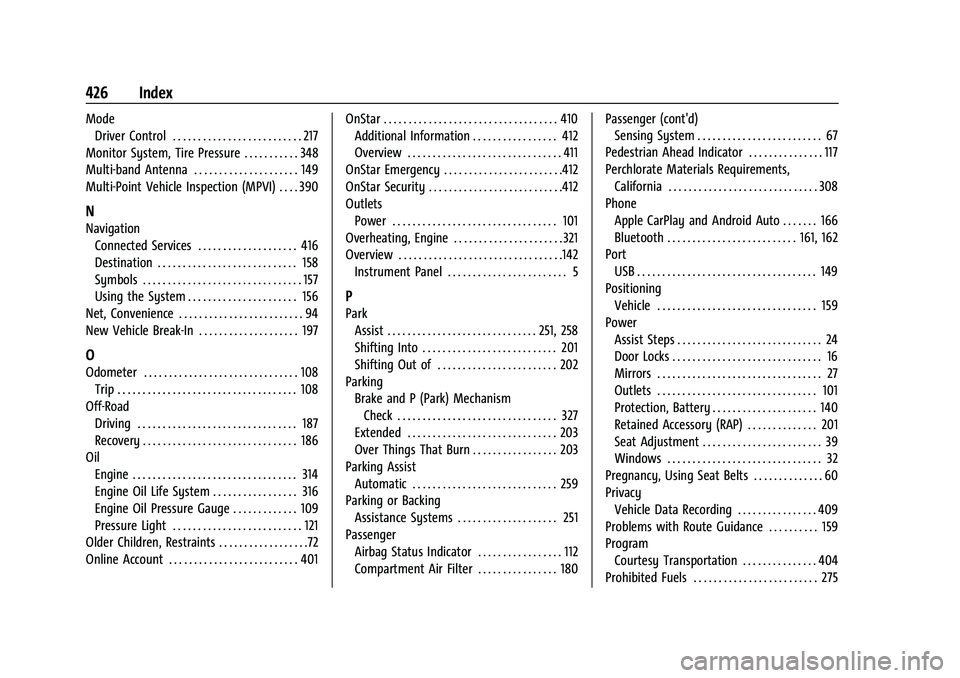
ModeDriver Control . . . . . . . . . . . . . . . . . . . . . . . . . . 217
Monitor System, Tire Pressure . . . . . . . . . . . 348
Multi-band Antenna . . . . . . . . . . . . . . . . . . . . . 149
Multi-Point Vehicle Inspection (MPVI) . . . . 390
N
Navigation Connected Services . . . . . . . . . . . . . . . . . . . . 416
Destination . . . . . . . . . . . . . . . . . . . . . . . . . . . . 158
Symbols . . . . . . . . . . . . . . . . . . . . . . . . . . . . . . . . 157
Using the System . . . . . . . . . . . . . . . . . . . . . . 156
Net, Convenience . . . . . . . . . . . . . . . . . . . . . . . . . 94
New Vehicle Break-In . . . . . . . . . . . . . . . . . . . . 197
O
Odometer . . . . . . . . . . . . . . . . . . . . . . . . . . . . . . . 108 Trip . . . . . . . . . . . . . . . . . . . . . . . . . . . . . . . . . . . . 108
Off-Road Driving . . . . . . . . . . . . . . . . . . . . . . . . . . . . . . . . 187
Recovery . . . . . . . . . . . . . . . . . . . . . . . . . . . . . . . 186
Oil
Engine . . . . . . . . . . . . . . . . . . . . . . . . . . . . . . . . . 314
Engine Oil Life System . . . . . . . . . . . . . . . . . 316
Engine Oil Pressure Gauge . . . . . . . . . . . . . 109
Pressure Light . . . . . . . . . . . . . . . . . . . . . . . . . . 121
Older Children, Restraints . . . . . . . . . . . . . . . . . .72
Online Account . . . . . . . . . . . . . . . . . . . . . . . . . . 401 OnStar . . . . . . . . . . . . . . . . . . . . . . . . . . . . . . . . . . . 410
Additional Information . . . . . . . . . . . . . . . . . 412
Overview . . . . . . . . . . . . . . . . . . . . . . . . . . . . . . . 411
OnStar Emergency . . . . . . . . . . . . . . . . . . . . . . . .412
OnStar Security . . . . . . . . . . . . . . . . . . . . . . . . . . .412
Outlets Power . . . . . . . . . . . . . . . . . . . . . . . . . . . . . . . . . 101
Overheating, Engine . . . . . . . . . . . . . . . . . . . . . . 321
Overview . . . . . . . . . . . . . . . . . . . . . . . . . . . . . . . . .142 Instrument Panel . . . . . . . . . . . . . . . . . . . . . . . . 5
P
ParkAssist . . . . . . . . . . . . . . . . . . . . . . . . . . . . . . 251, 258
Shifting Into . . . . . . . . . . . . . . . . . . . . . . . . . . . 201
Shifting Out of . . . . . . . . . . . . . . . . . . . . . . . . 202
Parking
Brake and P (Park) MechanismCheck . . . . . . . . . . . . . . . . . . . . . . . . . . . . . . . . 327
Extended . . . . . . . . . . . . . . . . . . . . . . . . . . . . . . 203
Over Things That Burn . . . . . . . . . . . . . . . . . 203
Parking Assist Automatic . . . . . . . . . . . . . . . . . . . . . . . . . . . . . 259
Parking or Backing Assistance Systems . . . . . . . . . . . . . . . . . . . . 251
Passenger
Airbag Status Indicator . . . . . . . . . . . . . . . . . 112
Compartment Air Filter . . . . . . . . . . . . . . . . 180 Passenger (cont'd)
Sensing System . . . . . . . . . . . . . . . . . . . . . . . . . 67
Pedestrian Ahead Indicator . . . . . . . . . . . . . . . 117
Perchlorate Materials Requirements, California . . . . . . . . . . . . . . . . . . . . . . . . . . . . . . 308
Phone Apple CarPlay and Android Auto . . . . . . . 166
Bluetooth . . . . . . . . . . . . . . . . . . . . . . . . . . 161, 162
Port USB . . . . . . . . . . . . . . . . . . . . . . . . . . . . . . . . . . . . 149
Positioning Vehicle . . . . . . . . . . . . . . . . . . . . . . . . . . . . . . . . 159
Power Assist Steps . . . . . . . . . . . . . . . . . . . . . . . . . . . . . 24
Door Locks . . . . . . . . . . . . . . . . . . . . . . . . . . . . . . 16
Mirrors . . . . . . . . . . . . . . . . . . . . . . . . . . . . . . . . . 27
Outlets . . . . . . . . . . . . . . . . . . . . . . . . . . . . . . . . 101
Protection, Battery . . . . . . . . . . . . . . . . . . . . . 140
Retained Accessory (RAP) . . . . . . . . . . . . . . 201
Seat Adjustment . . . . . . . . . . . . . . . . . . . . . . . . 39
Windows . . . . . . . . . . . . . . . . . . . . . . . . . . . . . . . 32
Pregnancy, Using Seat Belts . . . . . . . . . . . . . . 60
Privacy Vehicle Data Recording . . . . . . . . . . . . . . . . 409
Problems with Route Guidance . . . . . . . . . . 159
Program Courtesy Transportation . . . . . . . . . . . . . . . 404
Prohibited Fuels . . . . . . . . . . . . . . . . . . . . . . . . . 275
Page 431 of 432

GMC Yukon/Yukon XL/Denali Owner Manual (GMNA-Localizing-U.S./Cana-
da/Mexico-16417394) - 2023 - CRC - 5/11/22
430 Index
Universal Remote System (cont'd)Programming . . . . . . . . . . . . . . . . . . . . . . . . . . 130
Updates Software . . . . . . . . . . . . . . . . . . . . . . . . . . . . . . . 146
USB Port . . . . . . . . . . . . . . . . . . . . . . . . . . . . . . . . . 149
Using Infotainment System . . . . . . . . . . . . . . . . . . 144
Navigation System . . . . . . . . . . . . . . . . . . . . . 156
This Manual . . . . . . . . . . . . . . . . . . . . . . . . . . . . . 2
V
Vehicle
Ahead Indicator . . . . . . . . . . . . . . . . . . . . . . . . . 117
Alarm System . . . . . . . . . . . . . . . . . . . . . . . . . . 24
Canadian Owners . . . . . . . . . . . . . . . . . . . . . . . . 2
Control . . . . . . . . . . . . . . . . . . . . . . . . . . . . . . . . 185
Data Recording and Privacy . . . . . . . . . . . . 409
Identification Number (VIN) . . . . . . . . . . . . 395
Load Limits . . . . . . . . . . . . . . . . . . . . . . . . . . . . 194
Messages . . . . . . . . . . . . . . . . . . . . . . . . . . . . . . 129
Positioning . . . . . . . . . . . . . . . . . . . . . . . . . . . . 159
Remote Start . . . . . . . . . . . . . . . . . . . . . . . . . . . 14
Security . . . . . . . . . . . . . . . . . . . . . . . . . . . . . . . . . 24
Speed Messages . . . . . . . . . . . . . . . . . . . . . . . 130
Symbols . . . . . . . . . . . . . . . . . . . . . . . . . . . . . . . . . 3
Vehicle Care
Tire Pressure . . . . . . . . . . . . . . . . . . . . . . . . . . . 346 Vehicle Security
Steering Column Lock . . . . . . . . . . . . . . . . . . . 26
Ventilation, Air . . . . . . . . . . . . . . . . . . . . . . . . . . 179
Visors . . . . . . . . . . . . . . . . . . . . . . . . . . . . . . . . . . . . . 34
Voice Recognition . . . . . . . . . . . . . . . . . . . . . . . . 160
Voltmeter Gauge . . . . . . . . . . . . . . . . . . . . . . . . .110
W
Warning Brake System Light . . . . . . . . . . . . . . . . . . . . . 115
Caution and Danger . . . . . . . . . . . . . . . . . . . . . 2
Hazard Flashers . . . . . . . . . . . . . . . . . . . . . . . . 136
Lights, Gauges, and Indicators . . . . . . . . . 104
Washer Fluid . . . . . . . . . . . . . . . . . . . . . . . . . . . . 323
Wheels Alignment and Tire Balance . . . . . . . . . . . . 357
Different Size . . . . . . . . . . . . . . . . . . . . . . . . . . 356
Replacement . . . . . . . . . . . . . . . . . . . . . . . . . . . 357
When It Is Time for New Tires . . . . . . . . . . . 354
Where to Put the Restraint . . . . . . . . . . . . . . . .77
Windows . . . . . . . . . . . . . . . . . . . . . . . . . . . . . . . . . .32 Power . . . . . . . . . . . . . . . . . . . . . . . . . . . . . . . . . . 32
Windshield Replacement . . . . . . . . . . . . . . . . . . . . . . . . . . . 329
Wiper/Washer . . . . . . . . . . . . . . . . . . . . . . . . . . 98
Winter
Driving . . . . . . . . . . . . . . . . . . . . . . . . . . . . . . . . 192
Tires . . . . . . . . . . . . . . . . . . . . . . . . . . . . . . . . . . . 341 Wiper
Blade Replacement . . . . . . . . . . . . . . . . . . . . 328
Rear Washer . . . . . . . . . . . . . . . . . . . . . . . . . . . . 99
Wireless Charging . . . . . . . . . . . . . . . . . . . . . . . 102