2023 GMC SIERRA SETTINGS
[x] Cancel search: SETTINGSPage 56 of 430

GMC Sierra/Sierra Denali 2500 HD/3500 HD Owner Manual (GMNA-
Localizing-U.S./Canada-16504257) - 2023 - CRC - 5/9/22
Seats and Restraints 55
.Seat Exit Memory moves the driver seat
to the preferred exit position of the
B
button when the vehicle is turned off and
the door is opened. Select Settings >
Vehicle > Seating Position > Seat Exit
Memory > Select ON or OFF. See“Auto
Seat Exit Memory Recall” later in this
section.
Auto Seat Entry Memory Recall
Seat Entry Memory will automatically begin
movement to the seating positions of the 1
or 2 button corresponding to the driver’s
remote key number 1 or 2 detected by the
vehicle when:
.The vehicle is turned ON.
.Seating positions have been previously
saved to the same 1 or 2 button. See
“Saving Seating Positions” previously in
this section.
.Seat Entry Memory is enabled. See
“Enabling Automatic Recalls” previously in
this section.
.The vehicle is in P (Park).
Seat Entry Memory Recall will continue if
the vehicle is shifted out of P (Park) prior to
reaching the saved memory position. If the saved memory seat position does not
automatically recall, verify the recall is
enabled. See
“Enabling Automatic Recalls”
previously in this section.
If the memory seat recalls to the wrong
position, the driver’s remote key number 1
or 2 may not match the memory button
number positions they were saved to. Try
the other remote key or try saving the
positions to the other 1 or 2 memory
button. See “Saving Seating Positions”
previously in this section.
Automatic Seat Entry Memory recalls are
only available for driver’s remote key
numbers 1 and 2. Remote keys 3–8 will not
provide Seat Entry Memory recalls.
Auto Seat Exit Memory Recall
Seat Exit Memory will begin movement to
the seating position of the
B
button when:
.The vehicle is turned off and the driver
door is open or opened within a
short time.
.A seating position has been previously
been saved to the
Bmemory button.
See “Saving Seating Positions” previously
in this section.
.Seat Exit Memory is enabled. See
“Enabling Automatic Recalls” previously in
this section.
.The vehicle is in P (Park).
Seat Exit Memory recall will continue if the
vehicle is shifted out of P (Park) prior to
reaching the saved memory position.
Seat Exit Memory is not linked to the
driver’s remote key. The seating position
saved to
Bis used for all drivers.
Cancel Memory Seating Recalls
.During any memory recall:
Press a power seat control
Press SET memory button
.During Manual memory recall:
Release 1, 2, or
Bmemory button
.During Auto Seat Entry Memory Recall:
Turn vehicle off
Press SET, 1, 2, or
Bmemory buttons
.During Auto Seat Exit Memory Recall:
Press SET, 1, 2, or
Bmemory buttons
Page 58 of 430
GMC Sierra/Sierra Denali 2500 HD/3500 HD Owner Manual (GMNA-
Localizing-U.S./Canada-16504257) - 2023 - CRC - 5/9/22
Seats and Restraints 57
To enable or disable remote start heated or
ventilated seats, select Settings > Vehicle >
Remote Lock, Unlock, and Start > Remote
Start Auto Heat Seats or Remote Start Auto
Cool Seats > ON or OFF. SeeRemote Vehicle
Start 022.
Rear Seats
Rear Seat Reminder
If equipped, the message REAR SEAT
REMINDER LOOK IN REAR SEAT displays
under certain conditions indicating there
may be an item or passenger in the rear
seat. Check before exiting the vehicle.
This feature will activate when a second row
door is opened while the vehicle is on or up
to 10 minutes before the vehicle is turned
on. There will be an alert when the vehicle
is turned off. The alert does not directly
detect objects in the rear seat; instead,
under certain conditions, it detects when a
rear door is opened and closed, indicating
that there may be something in the
rear seat. The feature is active only once each time
the vehicle is turned on and off, and will
require reactivation by opening and closing
the second row doors. There may be an
alert even when there is nothing in the rear
seat; for example, if a child entered the
vehicle through the rear door and left the
vehicle without the vehicle being shut off.
The feature can be turned on or off. Select
Settings > Vehicle > Rear Seat Reminder >
ON or OFF.
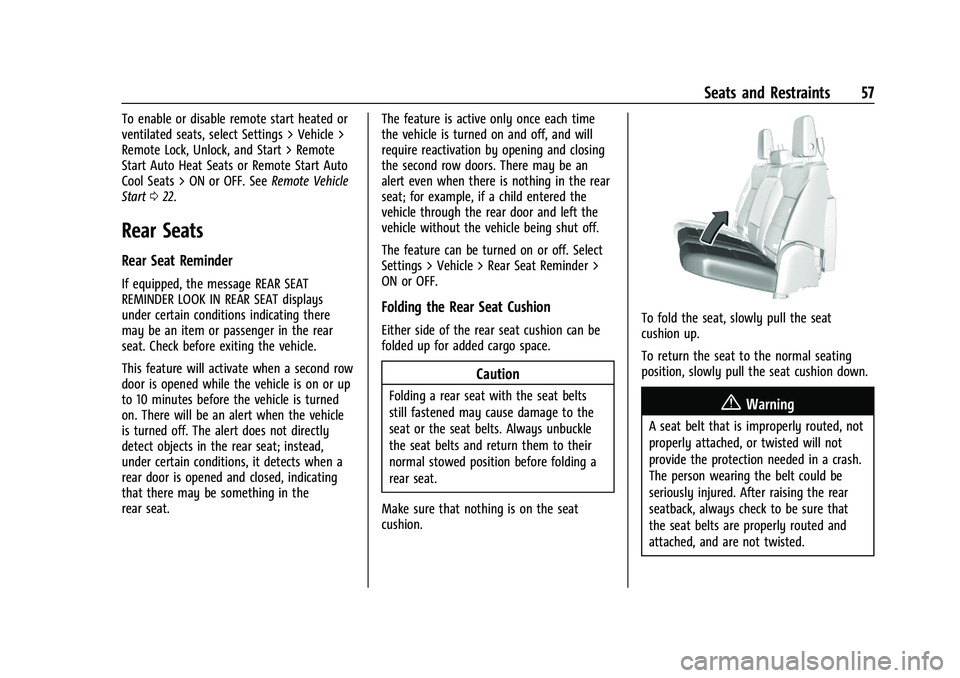
Folding the Rear Seat Cushion
Either side of the rear seat cushion can be
folded up for added cargo space.
Caution
Folding a rear seat with the seat belts
still fastened may cause damage to the
seat or the seat belts. Always unbuckle
the seat belts and return them to their
normal stowed position before folding a
rear seat.
Make sure that nothing is on the seat
cushion.
To fold the seat, slowly pull the seat
cushion up.
To return the seat to the normal seating
position, slowly pull the seat cushion down.
{Warning
A seat belt that is improperly routed, not
properly attached, or twisted will not
provide the protection needed in a crash.
The person wearing the belt could be
seriously injured. After raising the rear
seatback, always check to be sure that
the seat belts are properly routed and
attached, and are not twisted.
Page 108 of 430

GMC Sierra/Sierra Denali 2500 HD/3500 HD Owner Manual (GMNA-
Localizing-U.S./Canada-16504257) - 2023 - CRC - 5/9/22
Instruments and Controls 107
If the ignition is turned off while the wipers
are performing wipes due to windshield
washing, the wipers continue to run until
they reach the base of the windshield.
Compass
The vehicle may have a compass display on
the Driver Information Center (DIC). The
compass receives its heading and other
information from the Global Positioning
System (GPS) antenna, Electronic Stability
Control (ESC), and vehicle speed information.
The compass system is designed to operate
for a certain number of miles or degrees of
turn before needing a signal from the GPS
satellites. When the compass display shows
CAL, drive the vehicle for a short distance in
an open area where it can receive a GPS
signal. The compass system will
automatically determine when a GPS signal
is restored and provide a heading again.
Clock
Set the time and date using the
infotainment system. See "Time/Date" under
Settings0182.
Power Outlets
Accessory power outlets can be used to plug
in electrical equipment, such as a cell phone
or MP3 player.
Rear of Front Center Console
The vehicle has one accessory power outlet
under the climate control system and one
accessory power outlet on the rear of the
center console, if equipped, or on the rear of
the bench seat, if equipped.
Lift the cover to access and replace when
not in use.
{Warning
Power is always supplied to the outlets.
Do not leave electrical equipment
plugged in when the vehicle is not in use
because the vehicle could catch fire and
cause injury or death.
Caution
Leaving electrical equipment plugged in
for an extended period of time while the
vehicle is off will drain the battery.
Always unplug electrical equipment when
not in use and do not plug in equipment
that exceeds the maximum 15 amp
rating.
Certain power accessory plugs may not be
compatible with the accessory power outlet
and could overload vehicle or adapter fuses.
If a problem is experienced, see your dealer.
When adding electrical equipment, be sure
to follow the proper installation instructions
included with the equipment. See Add-On
Electrical Equipment 0297.
Page 131 of 430

GMC Sierra/Sierra Denali 2500 HD/3500 HD Owner Manual (GMNA-
Localizing-U.S./Canada-16504257) - 2023 - CRC - 5/9/22
130 Instruments and Controls
wear and the state of the system. Reset the
Brake Pad Life display after replacing the
brake pads. SeeBrake Pad Life System 0317.
Driver Information Center (DIC)
(Midlevel and Uplevel)
The DIC displays are shown in the center of
the instrument cluster in the Info app. See
Instrument Cluster 0111. The displays show
the status of many vehicle systems.
If the vehicle has a diesel engine, see the
Duramax diesel supplement.
SorT: Press to move left or right
between the interactive display zones in the
cluster. Press the thumbwheel to select.
yorz: Use the thumbwheel to scroll up
or down in a list. Press the thumbwheel to
select.
Info Page Options
The info pages on the DIC can be turned on
or off through the Options menu.
1. Press
Tto scroll to the Options
application.
2. Scroll
yorzto choose Info pages and
press the thumbwheel.
3. Scroll
yorzto move through the list
of possible information displays.
4. Press the thumbwheel while an item is highlighted to select or deselect
that item.
The info pages can also be turned on or off
through the DIC page Info Page Options.
Info Pages
The following is the list of all possible DIC
info page displays. Some may not be
available for your particular vehicle. Some
items may not be turned on by default but
can be turned on through the Options app.
See “Info Page Options” earlier in this
section. While in the Info Page Options menu, the
info pages can be restored to the default
factory settings by pressing and holding
K
on the left steering wheel controls and the
thumbwheel on the right steering wheel
controls at the same time.
Speed :
Shows the vehicle speed in either
kilometers per hour (km/h) or miles per
hour (mph). The vehicle odometer is also
shown on this page. If equipped, press the
thumbwheel to open the menu and select to
display speed limit signs.
Speed limit signs in your vehicle display
may vary from actual road speed depending
on the version of your current
navigation map.
Trip 1 or Trip 2, and Average Fuel
Economy : Shows the current distance
traveled, in either kilometers (km) or
miles (mi), since the trip odometer was last
reset.
The Average Fuel Economy display shows
the approximate average liters per
100 kilometers (L/100 km), kilometers per
liter (km/L), or miles per gallon (mpg). This
number is calculated based on the value
recorded since the last time this menu item
was reset. This number reflects only the
Page 133 of 430

GMC Sierra/Sierra Denali 2500 HD/3500 HD Owner Manual (GMNA-
Localizing-U.S./Canada-16504257) - 2023 - CRC - 5/9/22
132 Instruments and Controls
Engine Hours (Hourmeter) :Shows the total
number of hours the engine has run. This
display also shows the engine idle hours.
Transmission Fluid Temperature : Shows the
temperature of the automatic transmission
fluid in either degrees Celsius (°C) or degrees
Fahrenheit (°F).
Trailer Brake : On vehicles with the
Integrated Trailer Brake Control (ITBC)
system, the trailer brake display appears in
the DIC.
TRAILER GAIN shows the trailer gain setting.
This setting can be adjusted from 0.0 to 10.0
with either a trailer connected or
disconnected.
TRAILER OUTPUT shows the power output to
the trailer any time a trailer with electric
brakes is connected. Output is displayed as a
bar graph. Dotted lines may appear in the
OUTPUT display if a trailer is not connected.
Off Road : Displays vehicle pitch and roll
information, road wheel angle, and
four-wheel drive (4WD) status.
Follow Distance : If equipped, the current
follow time to the vehicle ahead is displayed
as a time value on this page. Driver Assistance :
If equipped, shows
information for Lane Departure Warning
(LDW) and Forward Collision Alert (FCA).
Info Page Options : Scroll to choose which
info pages appear on the DIC. Press the
thumbwheel to select or deselect.
Blank Page : Shows no information.
Head-Up Display (HUD)
{Warning
If the HUD image is too bright or too
high in your field of view, it may take
you more time to see things you need to
see when it is dark outside. Be sure to
keep the HUD image dim and placed low
in your field of view.
If equipped with HUD, some information
about the operation of the vehicle is
projected onto the windshield. The image is
projected through the HUD lens on top of
the instrument panel. The information
appears as an image focused out toward the
front of the vehicle.
Caution
If you try to use the HUD image as a
parking aid, you may misjudge the
distance and damage your vehicle. Do not
use the HUD image as a parking aid.
The HUD information can be displayed in
various languages. The speedometer reading
and other numerical values can be displayed
in either English or metric units.
The language selection is changed through
the radio, and the units of measurement are
changed through the instrument cluster. See
Settings 0182 and “Options” under
Instrument Cluster 0111.
HUD Display on the Windshield
Page 134 of 430

GMC Sierra/Sierra Denali 2500 HD/3500 HD Owner Manual (GMNA-
Localizing-U.S./Canada-16504257) - 2023 - CRC - 5/9/22
Instruments and Controls 133
Depending on how the vehicle is equipped,
the HUD may display some of the following
vehicle information and vehicle messages or
alerts:
.Speed
.Audio
.Phone
.Navigation
.Driver Assistance Features
.Vehicle Messages
Some vehicle messages or alerts displayed in
the HUD may be cleared by using the
steering wheel controls.
The HUD control is to the left of the
steering wheel.
To adjust the HUD image: 1. Adjust the driver seat.
2. Start the engine. 3. Use the following settings to adjust
the HUD.
$:Press or pull to center the HUD image.
The HUD image can only be adjusted up and
down, not side to side.
!: Press to select the display view. Each
press will change the display view.
D: Pull and hold to brighten the display.
Press and hold to dim the display. Continue
to hold to turn the display off.
The HUD image will automatically dim and
brighten to compensate for outside lighting.
Use
Dto adjust as needed.
The HUD image can temporarily light up
depending on the angle and position of
sunlight on the HUD display. This is normal.
Polarized sunglasses could make the HUD
image harder to see.
Head-Up Display (HUD) Rotation Option
If equipped, this feature under the Options
menu of the instrument cluster allows for
adjusting the angle of the HUD image and
changing or turning off the Speed
Limit Sign. HUD Rotation: Press the thumbwheel while
Adjust Rotation is highlighted to enter
Adjust Mode. Scroll to adjust the angle of
the HUD display. Press the thumbwheel to
confirm and save the setting. This feature
may only be available in P (Park).
Speed Limit Style Adjustment
If equipped, the speed limit style can be
changed to a speed limit bar or speed limit
sign from the Options menu in the
instrument cluster. Press the thumbwheel
while Speed Limit Style is highlighted to
change the speed sign style or to turn it off.
HUD Views
There are four views in the HUD. Some
vehicle information and vehicle messages or
alerts may be displayed in any view.
English Shown, Metric Similar
Page 147 of 430

GMC Sierra/Sierra Denali 2500 HD/3500 HD Owner Manual (GMNA-
Localizing-U.S./Canada-16504257) - 2023 - CRC - 5/9/22
146 Lighting
+ON/OFF :Press to turn the dome lamps
on or off manually.
Reading Lamps
There are reading lamps on the overhead
console and over the rear seats. These lamps
come on when any door is opened,
Kon
the remote key is pressed, or when the
vehicle is turned off.
Front Reading Lamps
The front reading lamps are in the overhead
console.
Press the lamp lenses to turn the front
reading lamps on or off. Rear Reading Lamps
The rear reading lamps are over the rear
seats.
Press the lamp lens to turn the rear reading
lamps on or off.
Lighting Features
Entry Lighting
The interior lamps turn on when pressingK
on the remote key or opening any doors,
and the dome lamp control is in the door
position.
Some exterior lamps also turn on when
pressing
Kon the remote key or opening
any doors. Low-Beam lamps will only turn
on briefly at night, or in areas with limited
lighting. All lamps will gradually fade out after about
30 seconds.
Entry lighting can be disabled manually by
closing all doors, pressing
Qon the remote
key, or starting the vehicle.
This feature can be changed. On the
infotainment home page, select the Settings
icon
TVehicleTVehicle Locator Lights.
Exit Lighting
Some exterior lamps and interior lamps turn
on when the driver door is opened after the
vehicle is turned off.
The exterior and interior lamps remain on
for a set amount of time, then automatically
turn off.
The interior lights turn on when the vehicle
is turned off.
The exterior lamps turn off immediately by
turning the exterior lamp control off.
This feature can be changed. On the
infotainment home screen, select the
Settings icon
TVehicleTExit Lighting.
Page 149 of 430

GMC Sierra/Sierra Denali 2500 HD/3500 HD Owner Manual (GMNA-
Localizing-U.S./Canada-16504257) - 2023 - CRC - 5/18/22
148 Infotainment System
Infotainment System
Introduction
Introduction . . . . . . . . . . . . . . . . . . . . . . . . . . . 148
Overview . . . . . . . . . . . . . . . . . . . . . . . . . . . . . . 149
Steering Wheel Controls . . . . . . . . . . . . . . . 151
Using the System . . . . . . . . . . . . . . . . . . . . . . 152
Software Updates . . . . . . . . . . . . . . . . . . . . . . 154
Radio
AM-FM Radio . . . . . . . . . . . . . . . . . . . . . . . . . . 154
HD Radio Technology . . . . . . . . . . . . . . . . . . 156
Radio Data System (RDS) . . . . . . . . . . . . . . 157
Satellite Radio . . . . . . . . . . . . . . . . . . . . . . . . . 157
Radio Reception . . . . . . . . . . . . . . . . . . . . . . . . 157
Fixed Mast Antenna . . . . . . . . . . . . . . . . . . . 158
Multi-Band Antenna . . . . . . . . . . . . . . . . . . . 158
Audio Players
Avoiding Untrusted Media Devices . . . . . 158
USB Port . . . . . . . . . . . . . . . . . . . . . . . . . . . . . . . 158
Auxiliary Jack . . . . . . . . . . . . . . . . . . . . . . . . . . 159
Bluetooth Audio . . . . . . . . . . . . . . . . . . . . . . . 160
Navigation
Using the Navigation System . . . . . . . . . 160
Maps . . . . . . . . . . . . . . . . . . . . . . . . . . . . . . . . . . 163
Navigation Symbols . . . . . . . . . . . . . . . . . . . 164
Destination . . . . . . . . . . . . . . . . . . . . . . . . . . . . 164
Global Positioning System (GPS) . . . . . . . 170
Vehicle Positioning . . . . . . . . . . . . . . . . . . . . 170Problems with Route Guidance . . . . . . . . 170
If the System Needs Service . . . . . . . . . . . 171
Map Data Updates . . . . . . . . . . . . . . . . . . . . . 171
Database Coverage Explanations . . . . . . . 171
Voice Recognition
Voice Recognition . . . . . . . . . . . . . . . . . . . . . . 171
Phone
Bluetooth (Overview) . . . . . . . . . . . . . . . . . . 176
Bluetooth (Pairing and Using a
Phone) . . . . . . . . . . . . . . . . . . . . . . . . . . . . . . . 177
Apple CarPlay and Android Auto . . . . . . . 181
Settings
Settings . . . . . . . . . . . . . . . . . . . . . . . . . . . . . . . 182
Teen Driver . . . . . . . . . . . . . . . . . . . . . . . . . . . . 186
Trademarks and License Agreements
Trademarks and License Agreements . . . . . . . . . . . . . . . . . . . . . . . . . 189
Introduction
Read the following pages to become familiar
with the features.
{Warning
Taking your eyes off the road for too
long or too often while using any
infotainment feature can cause a crash.
You or others could be injured or killed.
Do not give extended attention to
infotainment tasks while driving. Limit
your glances at the vehicle displays and
focus your attention on driving. Use voice
commands whenever possible.
The infotainment system has built-in
features intended to help avoid distraction
by disabling some features when driving.
These features may gray out when they are
unavailable. Many infotainment features are
also available through the instrument cluster
and steering wheel controls.
Before driving:
.Become familiar with the operation,
center stack controls, steering wheel
controls, and infotainment display.