2023 DODGE CHARGER range
[x] Cancel search: rangePage 91 of 292

STARTING AND OPERATING89
To Set A Desired Speed
When the vehicle reaches the speed desired, push the
SET (+) button or the SET (-) button and release. The
instrument cluster display will show the set speed.
NOTE:Fixed Speed Cruise Control can be used without ACC
enabled. To change between the different modes, push
the ACC on/off button which turns the ACC and the Fixed
Speed Cruise Control off. Pushing the Fixed Speed Cruise
Control on/off button will result in turning on (changing to)
Fixed Speed Cruise Control mode. If ACC is set when the vehicle speed is
below 20 mph
(32 km/h), the set speed will default to 20 mph
(32 km/h).
NOTE:Fixed Speed Cruise Control cannot be set below 20 mph
(32 km/h).
If either system is set when the vehicle speed is above
20 mph (32 km/h), the set speed shall be the current speed of the vehicle.
NOTE:
Keeping your foot on the accelerator pedal can cause
the vehicle to continue to accelerate beyond the set
speed. If this occurs, the message “DRIVER OVERRIDE”
will display in the instrument cluster display.
If you continue to accelerate beyond the set speed
while ACC is enabled, the system will not be controlling
the distance between your vehicle and the vehicle
ahead. The vehicle speed will only be determined by
the position of the accelerator pedal.
To Cancel
The following conditions cancel the ACC or Fixed Speed
Cruise Control systems:
The brake pedal is applied
The CANC (cancel) button is pushed
The Anti-Lock Brake System (ABS) activates
The gear selector is removed from the DRIVE position
The Electronic Stability Control/Traction Control
System (ESC/TCS) activates
The vehicle parking brake is applied
The braking temperature exceeds normal range (over -
heated)
The following conditions will only cancel the ACC system:
Driver seat belt is unbuckled at low speeds
Driver door is opened at low speeds
To Turn Off
The system will turn off and erase the set speed in
memory if:
The Adaptive Cruise Control (ACC) on/off button is
pushed
The Fixed Speed Cruise Control on/off button is pushed
The ignition is placed in the OFF position
To Resume
If there is a set speed in memory, push the RES (resume)
button and remove your foot from the accelerator pedal.
The instrument cluster display will show the last set
speed.
Resume can be used at any speed above 20 mph
(32 km/h) when only Fixed Speed Cruise Control is being
used.
WARNING!
Leaving the Adaptive Cruise Control (ACC) system on
when not in use is dangerous. You could accidentally
set the system or cause it to go faster than you want.
You could lose control and have a collision. Always leave
the system off when you are not using it.
WARNING!
In Fixed Speed Cruise Control mode, the system will not
react to vehicles ahead. In addition, the proximity
warning does not activate and no alarm will sound even
if you are too close to the vehicle ahead since neither
the presence of the vehicle ahead nor the
vehicle-to-vehicle distance is detected. Be sure to
maintain a safe distance between your vehicle and the
vehicle ahead. Always be aware which mode is
selected.
4
23_LD_OM_EN_USC_t.book Page 89
Page 92 of 292
90STARTING AND OPERATING
Resume can be used at any speed above 0 mph (0 km/h)
when ACC is active.
NOTE:
While in ACC mode, when the vehicle comes to a
complete stop longer than two seconds, the system will
cancel. The driver will have to apply the brakes to keep
the vehicle at a standstill.
ACC cannot be resumed if there is a stationary vehicle
in front of your vehicle in close proximity.
To Vary The Speed Setting
To Increase Or Decrease The Set Speed
After setting a speed, you can increase the set speed by
pushing the SET (+) button, or decrease speed by pushing
the SET (-) button.
U.S. Speed (mph)
Pushing the SET (+), or SET (-) button once will result in
a 1 mph speed adjustment. Each subsequent tap of
the button results in an adjustment of 1 mph.
If the button is continually pushed, the set speed will
continue to adjust in 5 mph increments until the button
is released. The new set speed is reflected in the instru -
ment cluster display.
Metric Speed (km/h)
Pushing the SET (+), or SET (-) button once will result in
a 1 km/h speed adjustment. Each subsequent tap of
the button results in an adjustment of 1 km/h.
If the button is continually pushed, the set speed will
continue to adjust in 10 km/h increments until the
button is released. The new set speed is reflected in
the instrument cluster display.
NOTE:When you override and push the SET (+) button or SET (-)
button, the new set speed will be the current speed of the
vehicle.
When ACC Is Active:
When you use the SET (-) button to decelerate, if the
engine’s braking power does not slow the vehicle suffi -
ciently to reach the set speed, the brake system will
automatically slow the vehicle.
The ACC system applies the brake down to a full stop
when following the vehicle in front. If your vehicle
follows the vehicle in front to a standstill, your vehicle
will release the brakes two seconds after coming to a
full stop.
The ACC system maintains set speed when driving
uphill and downhill. However, a slight speed change on
moderate hills is normal. In addition, downshifting may
occur while climbing uphill or descending downhill. This is normal operation and necessary to maintain set
speed. When driving uphill and downhill, the ACC
system will cancel if the braking temperature exceeds
normal range (overheated).
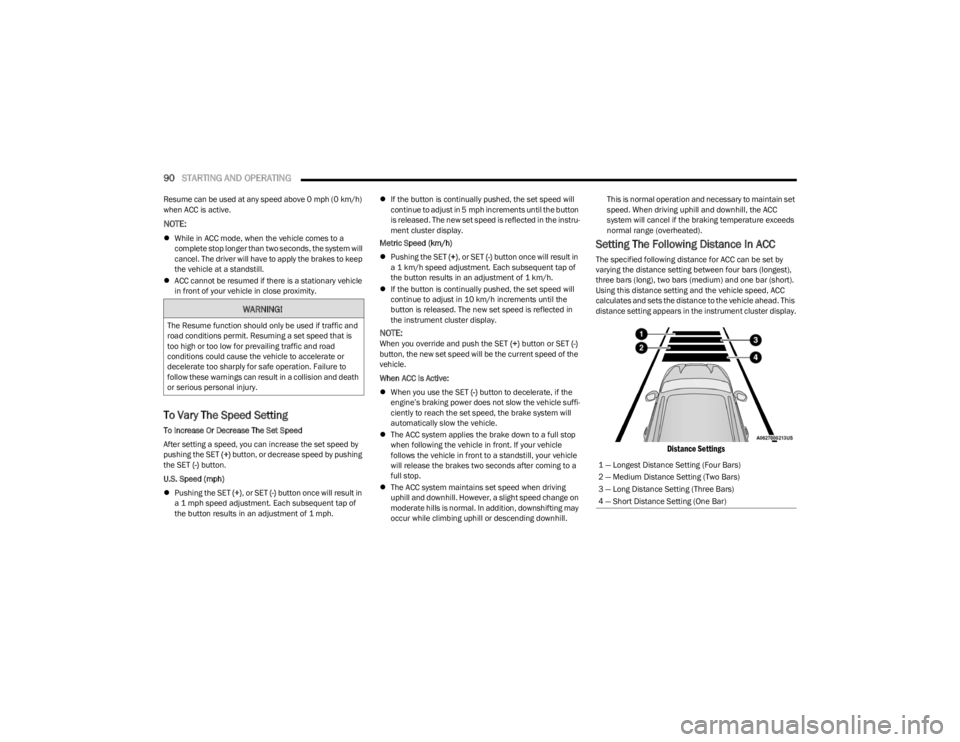
Setting The Following Distance In ACC
The specified following distance for ACC can be set by
varying the distance setting between four bars (longest),
three bars (long), two bars (medium) and one bar (short).
Using this distance setting and the vehicle speed, ACC
calculates and sets the distance to the vehicle ahead. This
distance setting appears in the instrument cluster display.
Distance Settings
WARNING!
The Resume function should only be used if traffic and
road conditions permit. Resuming a set speed that is
too high or too low for prevailing traffic and road
conditions could cause the vehicle to accelerate or
decelerate too sharply for safe operation. Failure to
follow these warnings can result in a collision and death
or serious personal injury.
1 — Longest Distance Setting (Four Bars)
2 — Medium Distance Setting (Two Bars)
3 — Long Distance Setting (Three Bars)
4 — Short Distance Setting (One Bar)
23_LD_OM_EN_USC_t.book Page 90
Page 110 of 292
108STARTING AND OPERATING
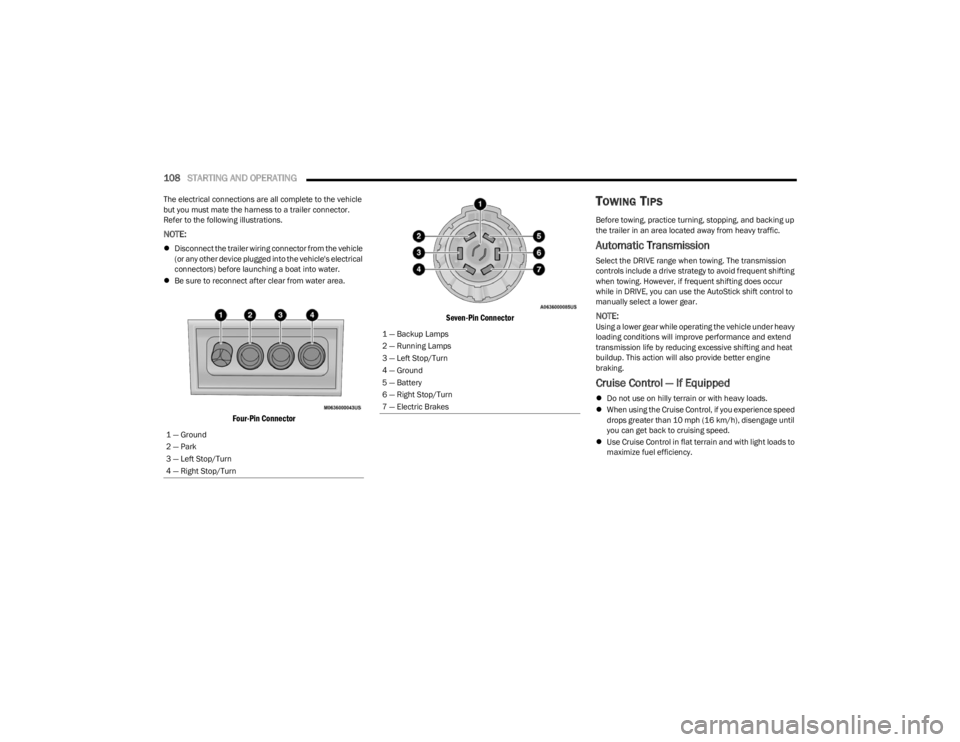
The electrical connections are all complete to the vehicle
but you must mate the harness to a trailer connector.
Refer to the following illustrations.
NOTE:
Disconnect the trailer wiring connector from the vehicle
(or any other device plugged into the vehicle's electrical
connectors) before launching a boat into water.
Be sure to reconnect after clear from water area.
Four-Pin Connector Seven-Pin Connector
TOWING TIPS
Before towing, practice turning, stopping, and backing up
the trailer in an area located away from heavy traffic.
Automatic Transmission
Select the DRIVE range when towing. The transmission
controls include a drive strategy to avoid frequent shifting
when towing. However, if frequent shifting does occur
while in DRIVE, you can use the AutoStick shift control to
manually select a lower gear.
NOTE:Using a lower gear while operating the vehicle under heavy
loading conditions will improve performance and extend
transmission life by reducing excessive shifting and heat
buildup. This action will also provide better engine
braking.
Cruise Control — If Equipped
Do not use on hilly terrain or with heavy loads.
When using the Cruise Control, if you experience speed
drops greater than 10 mph (16 km/h), disengage until
you can get back to cruising speed.
Use Cruise Control in flat terrain and with light loads to
maximize fuel efficiency.
1 — Ground
2 — Park
3 — Left Stop/Turn
4 — Right Stop/Turn
1 — Backup Lamps
2 — Running Lamps
3 — Left Stop/Turn
4 — Ground
5 — Battery
6 — Right Stop/Turn
7 — Electric Brakes
23_LD_OM_EN_USC_t.book Page 108
Page 125 of 292

MULTIMEDIA123
Audio
When the Audio button is pressed on the touchscreen, the system displays options related to the vehicle’s sound system. These settings can change the audio location within the
vehicle, adjust the bass or treble levels, and auto-play settings from an audio device or smartphone.
NOTE:Depending on the vehicle’s options, feature settings may vary.
Setting Name Description
Balance/FadeThis setting will adjust audio levels from specific speakers in the front/back and left/right
of the vehicle. The Speaker icon can be moved to set audio location.
Equalizer This setting will adjust the “Bass”, “Mid”, and “Treble” ranges of the audio.
Speed Adjusted Volume This setting will adjust audio volume as speeds increase. At a higher setting, the
volume will increase more as the vehicle speeds up. The available settings are “Off”, “1”, “2”, and “3”.
Surround Sound This setting will turn the Surround Sound system on or off.
AUX Volume Offset This setting will tune the audio levels from a device connected through the AUX port.
The available settings are “+” and “-”.
Auto Play This setting will automatically begin playing audio from a connected device.
5
23_LD_OM_EN_USC_t.book Page 123
Page 145 of 292

MULTIMEDIA143
8. When prompted on the mobile phone, accept the
connection request from Uconnect.
9. When the pairing process has successfully completed, the system will prompt you to choose
whether or not this is your favorite phone. Selecting
“Yes” will make this phone the highest priority. This
phone will take precedence over other paired phones
within range and will connect to the Uconnect system
automatically when entering the vehicle. Only one
mobile phone and/or one Bluetooth® audio device
can be connected to the Uconnect system at a time.
If “No” is selected, simply select “Uconnect” from the
mobile phone/audio device Bluetooth® screen, and
the Uconnect system will reconnect to the
Bluetooth® device.
NOTE:For phones which are not made a favorite, the phone
priority is determined by the order in which it was paired.
The most recent phone paired will have the higher priority.
NOTE:During the pairing procedure, you may receive a pop-up on
your mobile phone for the Uconnect system to access your
“messages” and “contacts”. Selecting “Ok” or “Allow” will
sync your contacts with the Uconnect system.
You can also use the VR command “Show Paired Phones”
to bring up the Paired Phone screen from any screen on
the radio.
NOTE:Software updates on your phone or the Uconnect system
may interfere with the Bluetooth® connection. If this
happens, simply repeat the pairing process. However, first
make sure to delete the device from the list of phones on
your Uconnect system. Next, be sure to remove Uconnect
from the list of devices in your phone’s Bluetooth®
settings.
PAIR A BLUETOOTH® STREAMING AUDIO
DEVICE
1. Press the Media button on the touchscreen to begin.
2. Change the source to “Bluetooth®”.
3. Press the Bluetooth® button on the touchscreen to display the Paired Audio Devices screen.
4. Press the Add Device button on the touchscreen.
NOTE:If there is no device currently connected with the system,
a pop-up will appear.
5. Search for available devices on your Bluetooth®-enabled audio device. When prompted
on the device, confirm the PIN shown on the
Uconnect screen.
6. Uconnect Phone will display an in-process screen while the system is connecting. 7. When the pairing process has successfully
completed, the system will prompt you to choose
whether or not this is your favorite device. Selecting
“Yes” will make this device the highest priority. This
device will take precedence over other paired devices
within range.
NOTE:For devices which are not made a favorite, the device
priority is determined by the order in which it was paired.
The most recent device paired will have the higher priority.
You can also use the VR command “Show Paired Phones”
to bring up a list of paired audio devices.
CONNECTING TO A PARTICULAR MOBILE
PHONE OR AUDIO DEVICE AFTER PAIRING
Uconnect Phone will automatically connect to the highest
priority paired phone and/or Audio Device within range.
If you need to choose a particular phone or audio device
follow these steps:
1. Press the
Settings
button on the touchscreen.
2. Press the Paired Phones or Audio Sources button. 3. Press to select the particular phone or the particular audio device. A pop-up menu will appear; press
“Connect Phone”.
4. Press the X to exit out of the Settings screen.
5
23_LD_OM_EN_USC_t.book Page 143
Page 149 of 292
MULTIMEDIA147
MAKING A SECOND CALL WHILE CURRENT
CALL IS IN PROGRESS
You can place a call on hold by pressing the Hold button
on the Phone main screen, then dial a number from the
keypad (if supported by your mobile phone), recent calls,
SMS Inbox or from the phonebooks.
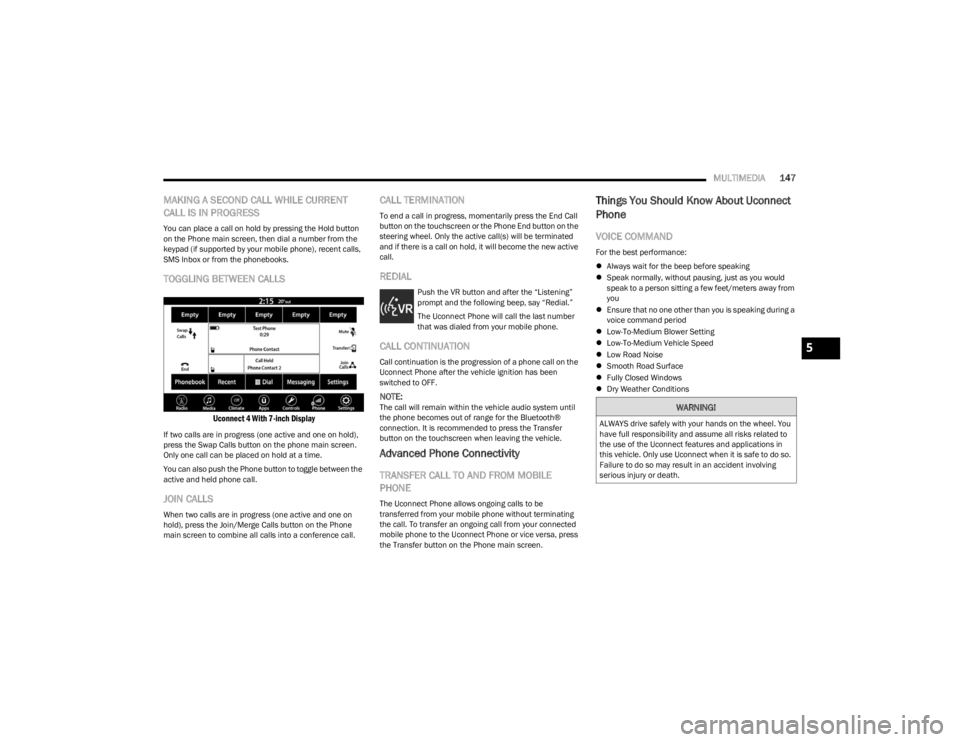
TOGGLING BETWEEN CALLS
Uconnect 4 With 7-inch Display
If two calls are in progress (one active and one on hold),
press the Swap Calls button on the phone main screen.
Only one call can be placed on hold at a time.
You can also push the Phone button to toggle between the
active and held phone call.
JOIN CALLS
When two calls are in progress (one active and one on
hold), press the Join/Merge Calls button on the Phone
main screen to combine all calls into a conference call.
CALL TERMINATION
To end a call in progress, momentarily press the End Call
button on the touchscreen or the Phone End button on the
steering wheel. Only the active call(s) will be terminated
and if there is a call on hold, it will become the new active
call.
REDIAL
Push the VR button and after the “Listening”
prompt and the following beep, say “Redial.”
The Uconnect Phone will call the last number
that was dialed from your mobile phone.
CALL CONTINUATION
Call continuation is the progression of a phone call on the
Uconnect Phone after the vehicle ignition has been
switched to OFF.
NOTE:The call will remain within the vehicle audio system until
the phone becomes out of range for the Bluetooth®
connection. It is recommended to press the Transfer
button on the touchscreen when leaving the vehicle.
Advanced Phone Connectivity
TRANSFER CALL TO AND FROM MOBILE
PHONE
The Uconnect Phone allows ongoing calls to be
transferred from your mobile phone without terminating
the call. To transfer an ongoing call from your connected
mobile phone to the Uconnect Phone or vice versa, press
the Transfer button on the Phone main screen.
Things You Should Know About Uconnect
Phone
VOICE COMMAND
For the best performance:
Always wait for the beep before speaking
Speak normally, without pausing, just as you would
speak to a person sitting a few feet/meters away from
you
Ensure that no one other than you is speaking during a
voice command period
Low-To-Medium Blower Setting
Low-To-Medium Vehicle Speed
Low Road Noise
Smooth Road Surface
Fully Closed Windows
Dry Weather Conditions
WARNING!
ALWAYS drive safely with your hands on the wheel. You
have full responsibility and assume all risks related to
the use of the Uconnect features and applications in
this vehicle. Only use Uconnect when it is safe to do so.
Failure to do so may result in an accident involving
serious injury or death.
5
23_LD_OM_EN_USC_t.book Page 147
Page 154 of 292

152MULTIMEDIA
Messages
Push and hold the VR button on the steering
wheel to activate a Siri voice recognition
session. Apple CarPlay® allows you to use Siri
to send or reply to text messages. Siri can also
read incoming text messages, but drivers will not be able
to read messages, as everything is done via voice.
Maps
Push and hold the VR button on the steering
wheel until the beep or tap the Microphone
icon to ask Apple® Siri to take you to a desired
destination by voice. You can also touch the
Navigation icon in Apple CarPlay® to access Apple®
Maps.
Apps
The Apple CarPlay® App plays all compatible apps that are
available to use, every time it is launched. You must have
the compatible app downloaded, and you must be signed
in to the app through your mobile device for it to work with
Apple CarPlay®.
Refer to http://www.apple.com/ios/carplay/ (US) or
https://www.apple.com/ca/ios/carplay/ (Canada) to see
the latest list of available apps for Apple CarPlay®.
Apple CarPlay® Voice Command
NOTE:Feature availability depends on your carrier and mobile
phone maker. Some Apple CarPlay® features may not be
available in every region and/or language.
Apple CarPlay® allows you to use your voice to interact
with Siri through your vehicle’s voice recognition system,
and use your smartphone’s data plan to project your
iPhone® and a number of its apps onto your Uconnect
touchscreen. Connect your iPhone® 5 or higher to one of
the media USB ports, using the factory-provided Lightning
cable, and press the new Apple CarPlay® icon that
replaces your Phone icon on the main menu bar to begin
Apple CarPlay®. Push and hold the VR button on the
steering wheel, or press and hold the Home button within
Apple CarPlay®, to activate Siri, which recognizes natural
voice commands to use a list of your iPhone® features:
Phone
Music
Messages
Maps — If Equipped
Additional Apps — If Equipped
NOTE:Apple CarPlay® is a trademark of Apple® Inc. iPhone® is
a trademark of Apple® Inc., registered in the US and other
countries. Apple® terms of use and privacy statements
apply.
ANDROID AUTO™ AND APPLE
C
ARPLAY® TIPS AND TRICKS
Android Auto™ And Apple CarPlay® Automatic Bluetooth®
Pairing
After connecting to Android Auto™ or Apple CarPlay® for
the first time and undergoing the setup procedure, the
smartphone pairs to the Uconnect system via Bluetooth®
without any setup required every time it is within range, if
Bluetooth® is turned on.
NOTE:Apple CarPlay® uses a USB connection while Android
Auto™ uses both USB and Bluetooth® connections to
function. The connected device is unavailable to other
devices when connected using Android Auto™ or Apple
CarPlay®.
Multiple Devices Connecting To The Uconnect System —
If Equipped
It is possible to have multiple devices connected to the
Uconnect system. For example, if using Android Auto™/
Apple CarPlay®, the connected device will be used to
place hands-free phone calls or send hands-free text
messages. However, another device can also be paired to
the Uconnect system, via Bluetooth®, as an audio source,
so the passenger can stream music.
NOTE:Apple CarPlay® and Android Auto™ can only be launched
from the front and center console USB ports.
23_LD_OM_EN_USC_t.book Page 152
Page 180 of 292

178SAFETY
SEAT BELT SYSTEMS
Buckle up even though you are an excellent driver, even
on short trips. Someone on the road may be a poor driver
and could cause a collision that includes you. This can
happen far away from home or on your own street.
Research has shown that seat belts save lives, and they
can reduce the seriousness of injuries in a collision. Some
of the worst injuries happen when people are thrown from
the vehicle. Seat belts reduce the possibility of ejection
and the risk of injury caused by striking the inside of the
vehicle. Everyone in a motor vehicle should be belted at all
times.
Enhanced Seat Belt Use Reminder System
(BeltAlert)
Driver And Passenger BeltAlert — If Equipped
BeltAlert is a feature intended to remind the
driver and outboard front seat passenger (if
equipped with outboard front passenger seat
BeltAlert) to buckle their seat belts. The Belt Alert
feature is active whenever the ignition switch is in the START
or ON/RUN position.
Initial Indication
If the driver is unbuckled when the ignition switch is first in
the START or ON/RUN position, a chime will signal for a few
seconds. If the driver or outboard front seat passenger
(if equipped with outboard front passenger seat BeltAlert) is
unbuckled when the ignition switch is first in the START or
ON/RUN position the Seat Belt Reminder Light will turn on
and remain on until both outboard front seat belts are
buckled.
The outboard front passenger seat BeltAlert is not active
when an outboard front passenger seat is unoccupied.
BeltAlert Warning Sequence
The BeltAlert warning sequence is activated when the
vehicle is moving above a specified vehicle speed range and
the driver or outboard front seat passenger is unbuckled (if
equipped with outboard front passenger seat BeltAlert) (the
outboard front passenger seat BeltAlert is not active when
the outboard front passenger seat is unoccupied). The
BeltAlert warning sequence starts by blinking the Seat Belt
Reminder Light and sounding an intermittent chime. Once
the BeltAlert warning sequence has completed, the Seat
Belt Reminder Light will remain on until the seat belts are
buckled. The BeltAlert warning sequence may repeat based
on vehicle speed until the driver and occupied outboard
front seat passenger seat belts are buckled. The driver
should instruct all occupants to buckle their seat belts.
Change Of Status
If the driver or outboard front seat passenger (if equipped
with outboard front passenger seat BeltAlert) unbuckles
their seat belt while the vehicle is traveling, the BeltAlert
warning sequence will begin until the seat belts are
buckled again.The outboard front passenger seat BeltAlert is not active
when the outboard front passenger seat is unoccupied.
BeltAlert may be triggered when an animal or other items
are placed on the outboard front passenger seat or when
the seat is folded flat (if equipped). It is recommended that
pets be restrained in the rear seat (if equipped) in pet
harnesses or pet carriers that are secured by seat belts, and
cargo is properly stowed.
BeltAlert can be activated or deactivated by an authorized
dealer. FCA US LLC does not recommend deactivating
BeltAlert.
NOTE:
If BeltAlert has been deactivated and the driver or outboard
front seat passenger (if equipped with outboard front
passenger seat BeltAlert) is unbuckled the Seat Belt
Reminder Light will turn on and remain on until the driver
and outboard front seat passenger seat belts are buckled.
Lap/Shoulder Belts
All seating positions in your vehicle are equipped with lap/
shoulder belts.
The seat belt webbing retractor will lock only during very
sudden stops or collisions. This feature allows the shoulder
part of the seat belt to move freely with you under normal
conditions. However, in a collision the seat belt will lock and
reduce your risk of striking the inside of the vehicle or being
thrown out of the vehicle.
23_LD_OM_EN_USC_t.book Page 178