2023 DODGE CHARGER buttons
[x] Cancel search: buttonsPage 46 of 292
44GETTING TO KNOW YOUR VEHICLE
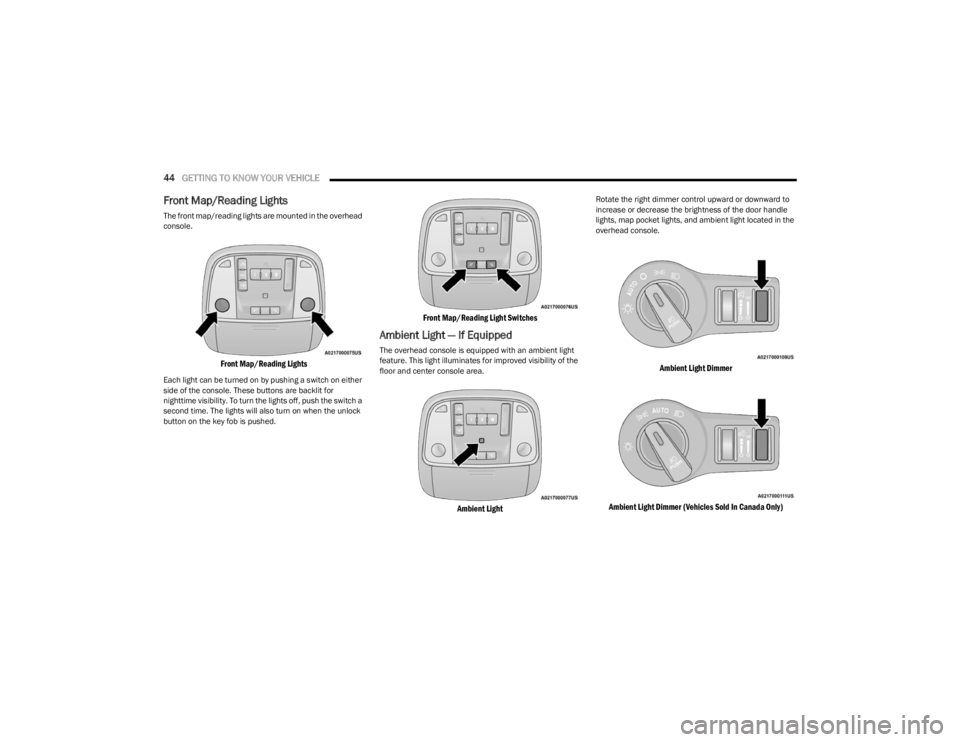
Front Map/Reading Lights
The front map/reading lights are mounted in the overhead
console.
Front Map/Reading Lights
Each light can be turned on by pushing a switch on either
side of the console. These buttons are backlit for
nighttime visibility. To turn the lights off, push the switch a
second time. The lights will also turn on when the unlock
button on the key fob is pushed.
Front Map/Reading Light Switches
Ambient Light — If Equipped
The overhead console is equipped with an ambient light
feature. This light illuminates for improved visibility of the
floor and center console area.
Ambient Light
Rotate the right dimmer control upward or downward to
increase or decrease the brightness of the door handle
lights, map pocket lights, and ambient light located in the
overhead console.
Ambient Light Dimmer
Ambient Light Dimmer (Vehicles Sold In Canada Only)
23_LD_OM_EN_USC_t.book Page 44
Page 50 of 292

48GETTING TO KNOW YOUR VEHICLE
Rear Defrost Button
Press and release the Rear Defrost button on
the touchscreen, or push and release the
button on the faceplate, to turn on the rear
window defroster and the heated outside
mirrors (if equipped). The Rear Defrost indicator
illuminates when the rear window defroster is on. The rear
window defroster automatically turns off after 10 minutes.
Driver And Passenger Temperature Up And
Down Buttons
These buttons provide the driver and passenger with
independent temperature control. Push the red button on the faceplate or
touchscreen or press and slide the
temperature bar towards the red arrow button
on the touchscreen for warmer temperature
settings.
Push the blue button on the faceplate or
touchscreen or press and slide the
temperature bar towards the blue arrow button
on the touchscreen for cooler temperature
settings.
SYNC Button
Press the SYNC button on the touchscreen to
toggle the SYNC feature on/off. The SYNC
indicator illuminates when SYNC is on. SYNC
synchronizes the passenger temperature
setting with the driver temperature setting. Changing the
passenger’s temperature setting while in SYNC will
automatically exit this feature.
NOTE:The SYNC button is only available on the touchscreen.
Blower Control
Blower Control regulates the amount of air
forced through the Climate Control system.
There are seven blower speeds available.
Adjusting the blower will cause automatic
mode to switch to manual operation. The speeds can be
selected using either the blower control knob on the
faceplate or the buttons on the touchscreen. Faceplate
The blower speed increases as you turn the blower control
knob clockwise from the lowest blower setting. The blower
speed decreases as you turn the blower control knob
counterclockwise.
Touchscreen
Use the small blower icon to reduce the blower setting and
the large blower icon to increase the blower setting.
Blower can also be selected by pressing the blower bar
area between the icons.
Mode Control
Select Mode by pressing one of the Mode
buttons on the touchscreen to change the
airflow distribution mode. The airflow
distribution mode can be adjusted so air comes
from the instrument panel outlets, floor outlets, defrost
outlets, and demist outlets.
Panel Mode
Air comes from the outlets in the instrument
panel. Each of these outlets can be individually
adjusted to direct the flow of air. The air vanes
of the center outlets and outboard outlets can
be moved up and down or side to side to regulate airflow
direction. There is a shut-off wheel located below the air
vanes to shut off or adjust the amount of airflow from
these outlets.
CAUTION!
Failure to follow these cautions can cause damage to
the heating elements:
Use care when washing the inside of the rear
window. Do not use abrasive window cleaners on the
interior surface of the window. Use a soft cloth and a
mild washing solution, wiping parallel to the heating
elements. Labels can be peeled off after soaking
with warm water.
Do not use scrapers, sharp instruments, or abrasive
window cleaners on the interior surface of the
window.
Keep all objects a safe distance from the window.
23_LD_OM_EN_USC_t.book Page 48
Page 52 of 292

50GETTING TO KNOW YOUR VEHICLE
(Continued)
Front Defrost Button
Press and release the Front Defrost button on
the touchscreen, or push and release the button
on the faceplate, to change the current airflow
setting to Defrost mode. The Front Defrost
indicator illuminates when Front Defrost is on. Air comes
from the windshield and side window demist outlets.
When the defrost button is selected, the blower level may
increase. Use Defrost mode with maximum temperature
settings for best windshield and side window defrosting and
defogging. When toggling the front defrost mode button, the
climate system will return to the previous setting.
Rear Defrost Button
Press and release the Rear Defrost button on the
touchscreen, or push and release the button on
the faceplate, to turn on the rear window
defroster and the heated outside mirrors (if
equipped). The Rear Defrost indicator illuminates when the
rear window defroster is on. The rear window defroster
automatically turns off after 10 minutes.
Driver And Passenger Temperature
Control Buttons
These buttons provide the driver and passenger with
independent temperature control.
Push the red button on the faceplate or
touchscreen or press and slide the
temperature bar towards the red arrow button
on the touchscreen for warmer temperature
settings.
Push the blue button on the faceplate or
touchscreen or press and slide the
temperature bar towards the blue arrow button
on the touchscreen for cooler temperature
settings.
SYNC Button
Press the SYNC button on the touchscreen to
toggle the SYNC feature on/off. The SYNC
indicator illuminates when SYNC is on. SYNC
synchronizes the passenger temperature
setting with the driver temperature setting. Changing the
passenger’s temperature setting while in SYNC will
automatically exit this feature.
NOTE:The SYNC button is only available on the touchscreen.
Blower Control
Blower Control regulates the amount of air
forced through the Climate Control system.
There are seven blower speeds available.
Adjusting the blower will cause automatic
mode to switch to manual operation. The speeds can be
selected using either the blower control knob on the
faceplate or the buttons on the touchscreen.
Faceplate
The blower speed increases as you turn the blower control
knob clockwise from the lowest blower setting. The blower
speed decreases as you turn the blower control knob
counterclockwise.
Touchscreen
Use the small blower icon to reduce the blower setting and
the large blower icon to increase the blower setting.
Blower can also be selected by pressing the blower bar
area between the icons.
Mode Control
Select Mode by pressing one of the Mode
buttons on the touchscreen to change the
airflow distribution mode. The airflow
distribution mode can be adjusted so air comes
from the instrument panel outlets, floor outlets, defrost
outlets, and demist outlets.
CAUTION!
Failure to follow these cautions can cause damage to the
heating elements:
Use care when washing the inside of the rear window.
Do not use abrasive window cleaners on the interior
surface of the window. Use a soft cloth and a mild
washing solution, wiping parallel to the heating
elements. Labels can be peeled off after soaking with
warm water.
Do not use scrapers, sharp instruments, or abrasive
window cleaners on the interior surface of the window.
Keep all objects a safe distance from the window.
CAUTION!
23_LD_OM_EN_USC_t.book Page 50
Page 53 of 292
GETTING TO KNOW YOUR VEHICLE51
Panel Mode
Air comes from the outlets in the instrument
panel. Each of these outlets can be individually
adjusted to direct the flow of air. The air vanes
of the center outlets and outboard outlets can
be moved up and down or side to side to regulate airflow
direction. There is a shut-off wheel located below the air
vanes to shut off or adjust the amount of airflow from
these outlets.
Bi-Level Mode
Air comes from the instrument panel outlets
and floor outlets. A slight amount of air is
directed through the defrost and side window
demister outlets.
NOTE:Bi-Level mode is designed under comfort conditions to
provide cooler air out of the panel outlets and warmer air
from the floor outlets.
Floor Mode
Air comes from the floor outlets. A slight
amount of air is directed through the defrost
and side window demister outlets.
Mix Mode
Air is directed through the floor, defrost, and
side window demister outlets. This setting
works best in cold or snowy conditions that
require extra heat to the windshield. This
setting is good for maintaining comfort while reducing
moisture on the windshield.
Climate Control OFF Button
Press and release the OFF button on the
touchscreen, or push the OFF button on the
faceplate to turn the Climate Control ON/OFF.
AUTOMATIC TEMPERATURE CONTROL
(ATC)
Automatic Operation
1. Push the AUTO button on the faceplate, or the AUTO
button on the touchscreen on the Automatic
Temperature Control (ATC) Panel.
2. Next, adjust the temperature that you would like the system to maintain by adjusting the driver and
passenger temperature control buttons. Once the
desired temperature is displayed, the system will
achieve and automatically maintain that comfort
level.
3. When the system is set up for your comfort level, it is not necessary to change the settings. You will
experience the greatest efficiency by simply allowing
the system to function automatically.
NOTE:
It is not necessary to move the temperature settings for
cold or hot vehicles. The system automatically adjusts
the temperature, mode, and blower speed to provide
comfort as quickly as possible.
The temperature can be displayed in U.S. or Metric
units within Uconnect Settings
Úpage 112. To provide you with maximum comfort in the Automatic
mode during cold start-ups, the blower fan will remain on
low until the engine warms up. The blower will increase in
speed and transition into Auto mode.
Manual Operation Override
This system offers a full complement of manual override
features. The AUTO symbol in the front ATC display will be
turned off when the system is being used in the manual
mode.
CLIMATE VOICE COMMANDS
Adjust vehicle temperatures hands-free and keep
everyone comfortable while you keep moving ahead.
Push the VR button. After the beep, say one of the
following commands:
“Set the driver temperature to 70 degrees”
“Set the passenger temperature to 70 degrees”
TIP:Voice Command for Climate may only be used to adjust
the interior temperature of your vehicle. Voice Command
will not work to adjust the heated seats or steering wheel
if equipped.
OPERATING TIPS
Refer to the chart at the end of this section for suggested
control settings for various weather conditions.
2
23_LD_OM_EN_USC_t.book Page 51
Page 66 of 292
64GETTING TO KNOW YOUR INSTRUMENT PANEL
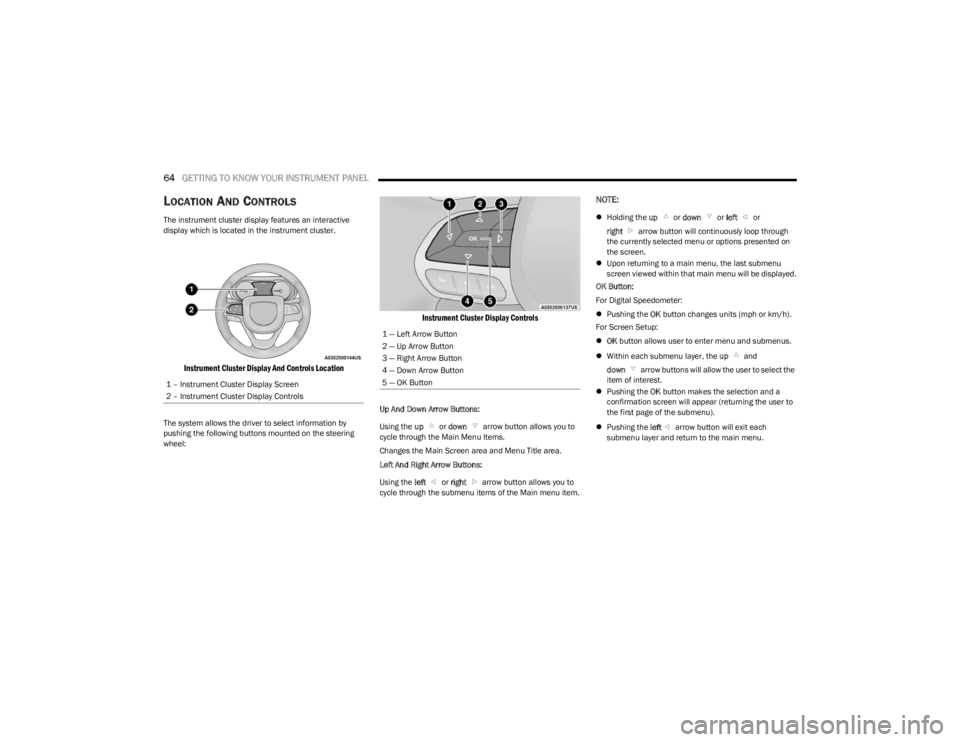
LOCATION AND CONTROLS
The instrument cluster display features an interactive
display which is located in the instrument cluster.
Instrument Cluster Display And Controls Location
The system allows the driver to select information by
pushing the following buttons mounted on the steering
wheel:
Instrument Cluster Display Controls
Up And Down Arrow Buttons:
Using the up or down arrow button allows you to
cycle through the Main Menu Items.
Changes the Main Screen area and Menu Title area.
Left And Right Arrow Buttons:
Using the left or right arrow button allows you to
cycle through the submenu items of the Main menu item.
NOTE:
Holding the up or down or left or
right arrow button will continuously loop through
the currently selected menu or options presented on
the screen.
Upon returning to a main menu, the last submenu
screen viewed within that main menu will be displayed.
OK Button:
For Digital Speedometer:
Pushing the OK button changes units (mph or km/h).
For Screen Setup:
OK button allows user to enter menu and submenus.
Within each submenu layer, the up and
down arrow buttons will allow the user to select the
item of interest.
Pushing the OK button makes the selection and a
confirmation screen will appear (returning the user to
the first page of the submenu).
Pushing the left arrow button will exit each
submenu layer and return to the main menu.
1 – Instrument Cluster Display Screen
2 – Instrument Cluster Display Controls
1 — Left Arrow Button
2 — Up Arrow Button
3 — Right Arrow Button
4 — Down Arrow Button
5 — OK Button
23_LD_OM_EN_USC_t.book Page 64
Page 67 of 292

GETTING TO KNOW YOUR INSTRUMENT PANEL65
ENGINE OIL LIFE RESET
Use this QR code to access your digital
experience.
Oil Change Required
Your vehicle is equipped with an
engine oil change indicator system.
The “Oil Change Required” message
will display in the instrument cluster
display for five seconds after a single
chime has sounded, to indicate the next scheduled oil
change interval. The engine oil change indicator system is
duty cycle based, which means the engine oil change
interval may fluctuate, dependent upon your personal
driving style.
Unless reset, this message will continue to display each
time you place the ignition in the ON/RUN position. To turn
off the message temporarily, push and release the OK or
arrow buttons. To reset the oil change indicator system
(after performing the scheduled maintenance), refer to
the following procedure.
Vehicles Equipped With Keyless Enter ’n Go™ — Ignition
Use the steering wheel instrument cluster display controls
for the following procedure(s):
1. Without pressing the brake pedal, push the ENGINE START/STOP button and place the ignition in the
ON/RUN position (do not start the engine).
2. Push and release the down arrow button to scroll
downward through the main menu to “Vehicle Info.” 3. Push and release the
right arrow button to access
the ”Oil Life” screen.
4. Push and hold the OK button to reset oil life. If
conditions are met, the gauge and numeric display
will update to show 100%. If conditions are not met a
pop-up message of "To reset oil life engine must be
off with ignition in run” will be displayed (for five
seconds), and the user will remain at the Oil Life
screen.
5. Push and release the up or down arrow button
to exit the submenu screen.
NOTE:If the indicator message illuminates when you start the
vehicle, the oil change indicator system did not reset.
If necessary, repeat this procedure.
Secondary Method Of Resetting Engine Oil Life
1. Without pressing the brake pedal, push the ENGINE START/STOP button and place the ignition to the
ON/RUN position (do not start the engine).
2. Fully press the accelerator pedal, slowly, three times within ten seconds.
3. Without pushing the brake pedal, push the ENGINE START/STOP button once to return the ignition to the
OFF position.
NOTE:If the indicator message illuminates when you start the
vehicle, the oil change indicator system did not reset.
If necessary, repeat this procedure.
PERFORMANCE SHIFT INDICATOR
(PSI) — IF EQUIPPED
The PSI is enabled on vehicles with manual transmission,
or when a vehicle with automatic transmission is in
manual shift mode. The PSI provides the driver with a
visual indication within the instrument cluster display
when the driver configured gear shift point has been
reached and the driver is still accelerating. This indication
notifies the driver to change gear corresponding to the
configured RPM in the head unit.
INSTRUMENT CLUSTER DISPLAY
S
ELECTABLE MENU ITEMS
Push and release the up or down arrow button
until the desired Selectable Menu item is displayed in the
instrument cluster display.
Follow the Menu or submenu prompts as desired.
Speedometer
Push and release the up or down arrow button
until the speedometer menu is displayed in the instrument
cluster display. Push and release the OK button to toggle
units (km/h or mph) of the speedometer.
3
23_LD_OM_EN_USC_t.book Page 65
Page 87 of 292
STARTING AND OPERATING85
ELECTRIC POWER STEERING
The Electric Power Steering system provides increased
vehicle response and ease of maneuverability. The system
adapts to different driving conditions. If the electric
steering system experiences a fault that prevents it from
providing assist, you will still have the ability to steer the
vehicle manually.
Alternate electric power steering efforts can be selected
through the Uconnect System
Úpage 112.
If the Electric Power Steering Fault Warning Light is
displayed and the “SERVICE POWER STEERING” or the
“POWER STEERING ASSIST OFF – SERVICE SYSTEM”
message is displayed within the instrument cluster
display, this indicates the vehicle needs to be taken to the
dealer for service
Úpage 68.
NOTE:
Even if the power steering assistance is no longer oper -
ational, it is still possible to steer the vehicle. Under
these conditions there will be a substantial increase in
steering effort, especially at low speeds and during
parking maneuvers.
If the condition persists, see an authorized dealer for
service. If the Electric Power Steering Fault Warning Light is
displayed and the “POWER STEERING SYSTEM OVER
TEMP” message is displayed on the instrument cluster
screen, they indicate that extreme steering maneuvers
may have occurred which caused an over temperature
condition in the power steering system. Once driving
conditions are safe, pull over and let the vehicle idle for a
few moments until the Electric Power Steering Fault
Warning Light and message turn off.
CRUISE CONTROL SYSTEMS — IF EQUIPPED
Your vehicle may be equipped with the Cruise Control
system, or the Adaptive Cruise Control (ACC) system:
Cruise Control will keep your vehicle at a constant
preset speed.
Adaptive Cruise Control (ACC) will adjust the vehicle
speed up to the preset speed to maintain a distance
with the vehicle ahead.
NOTE:
In vehicles equipped with ACC, if ACC is not enabled,
Fixed Speed Cruise Control will not detect vehicles
directly ahead of you. Always be aware of the feature
selected.
Only one Cruise Control feature can operate at a time.
For example, if Fixed Speed Cruise Control is enabled,
Adaptive Cruise Control will be unavailable, and vice
versa.
CRUISE CONTROL
When engaged, the Cruise Control takes over accelerator
operations at speeds greater than 20 mph (32 km/h),
depending on engine size and axle ratio.
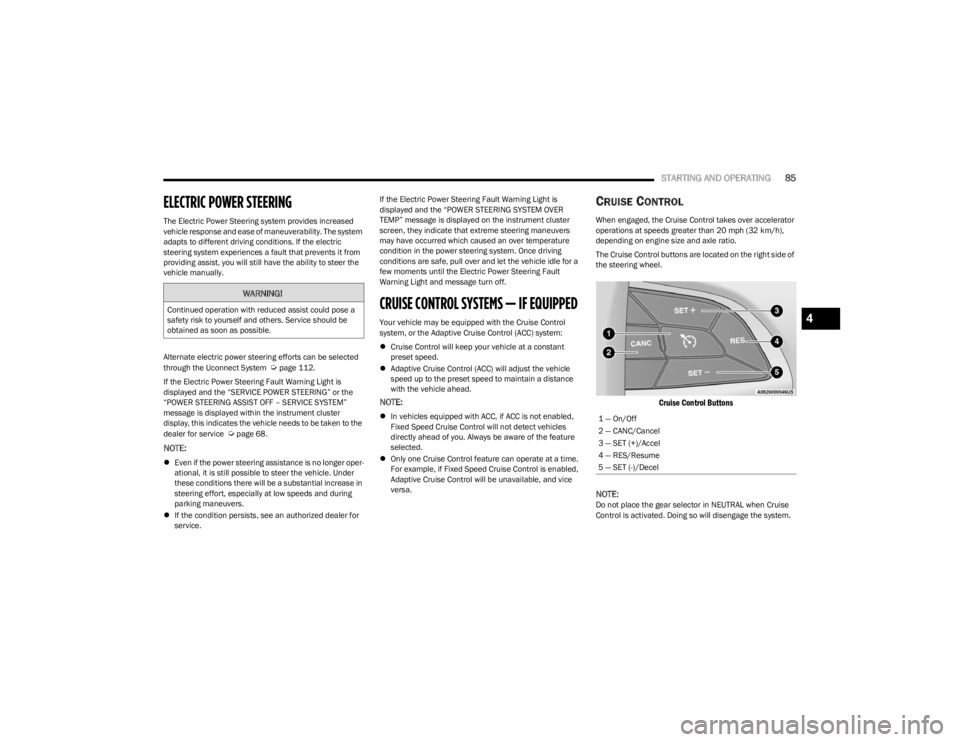
The Cruise Control buttons are located on the right side of
the steering wheel.
Cruise Control Buttons
NOTE:
Do not place the gear selector in NEUTRAL when Cruise
Control is activated. Doing so will disengage the system.
WARNING!
Continued operation with reduced assist could pose a
safety risk to yourself and others. Service should be
obtained as soon as possible.
1 — On/Off
2 — CANC/Cancel
3 — SET (+)/Accel
4 — RES/Resume
5 — SET (-)/Decel
4
23_LD_OM_EN_USC_t.book Page 85
Page 90 of 292
88STARTING AND OPERATING
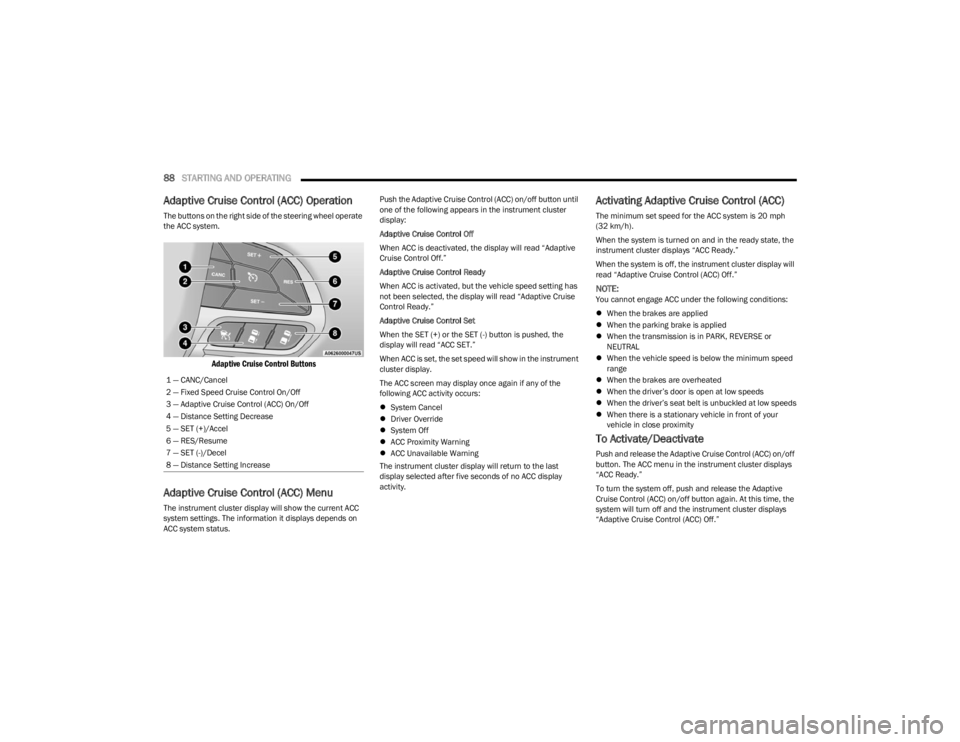
Adaptive Cruise Control (ACC) Operation
The buttons on the right side of the steering wheel operate
the ACC system.
Adaptive Cruise Control Buttons
Adaptive Cruise Control (ACC) Menu
The instrument cluster display will show the current ACC
system settings. The information it displays depends on
ACC system status. Push the Adaptive Cruise Control (ACC) on/off button until
one of the following appears in the instrument cluster
display:
Adaptive Cruise Control Off
When ACC is deactivated, the display will read “Adaptive
Cruise Control Off.”
Adaptive Cruise Control Ready
When ACC is activated, but the vehicle speed setting has
not been selected, the display will read “Adaptive Cruise
Control Ready.”
Adaptive Cruise Control Set
When the SET (+) or the SET (-) button is pushed, the
display will read “ACC SET.”
When ACC is set, the set speed will show in the instrument
cluster display.
The ACC screen may display once again if any of the
following ACC activity occurs:
System Cancel
Driver Override
System Off
ACC Proximity Warning
ACC Unavailable Warning
The instrument cluster display will return to the last
display selected after five seconds of no ACC display
activity.
Activating Adaptive Cruise Control (ACC)
The minimum set speed for the ACC system is 20 mph
(32 km/h).
When the system is turned on and in the ready state, the
instrument cluster displays “ACC Ready.”
When the system is off, the instrument cluster display will
read “Adaptive Cruise Control (ACC) Off.”
NOTE:You cannot engage ACC under the following conditions:
When the brakes are applied
When the parking brake is applied
When the transmission is in PARK, REVERSE or
NEUTRAL
When the vehicle speed is below the minimum speed
range
When the brakes are overheated
When the driver’s door is open at low speeds
When the driver’s seat belt is unbuckled at low speeds
When there is a stationary vehicle in front of your
vehicle in close proximity
To Activate/Deactivate
Push and release the Adaptive Cruise Control (ACC) on/off
button. The ACC menu in the instrument cluster displays
“ACC Ready.”
To turn the system off, push and release the Adaptive
Cruise Control (ACC) on/off button again. At this time, the
system will turn off and the instrument cluster displays
“Adaptive Cruise Control (ACC) Off.”
1 — CANC/Cancel
2 — Fixed Speed Cruise Control On/Off
3 — Adaptive Cruise Control (ACC) On/Off
4 — Distance Setting Decrease
5 — SET (+)/Accel
6 — RES/Resume
7 — SET (-)/Decel
8 — Distance Setting Increase
23_LD_OM_EN_USC_t.book Page 88