2023 DODGE CHALLENGER ESP
[x] Cancel search: ESPPage 133 of 300

MULTIMEDIA131
Setting Presets
Uconnect 4 With 7-inch Display Radio Presets
The Presets are available for all Radio Modes, and are
activated by pressing any of the Preset buttons, located at
the top of the screen.
When you are on a station that you wish to save as a
preset, press and hold the numbered button on the
touchscreen for more than two seconds.
The Radio stores up to 12 presets in each of the Radio
Modes.
A total of six presets will appear on the screen. You can
switch between the radio presets list by pressing the Arrow
button located in the upper right of the radio touchscreen.
PRESET FEATURES — IF EQUIPPED
Browse In AM/FM
When in either AM or FM, the Browse Screen provides a
means to edit the Presets List and is entered by pushing
the ENTER/BROWSE button.
Scrolling Preset List
Once in the Browse Presets screen, you can scroll the
preset list by rotation of the TUNE/SCROLL knob or by
pressing the Up or Down Arrow key, located on the right of
the screen.
Preset Selection From List
A preset can be selected by pressing any of the listed
Presets, or by pushing the ENTER/BROWSE button or the
TUNE/SCROLL knob to select the currently highlighted
Preset.
When selected, the radio tunes to the station stored in the
Presets.
Deleting Presets
A preset can be deleted in the Presets Browse screen by
pressing the Trash Can icon for the corresponding preset. Return To Main Radio Screen
You can return to the Main Radio Screen by pressing the X
button or the Back Arrow button when in the Browse
Presets screen.
Audio Settings
Press the Audio button within the settings main menu to
activate the Audio Settings screen.
The audio settings can also be accessed on the Radio
Mode screen by pressing the Audio button. You can return
to the Radio screen by pressing the X button.
Uconnect 4 With 7-inch Display
5
23_LA_OM_EN_USC_t.book Page 131
Page 138 of 300
136MULTIMEDIA
For Uconnect customer support:
US visit UconnectPhone.com or call 877-855-8400
Canada visit UconnectPhone.com or call
800-465-2001 (English) or (French) call
800-387-9983
Uconnect Phone allows you to transfer calls between the
system and your mobile phone as you enter or exit your
vehicle and enables you to mute the system's microphone
for private conversation.
The Phone feature is driven through your Bluetooth®
“Hands-Free Profile” mobile phone. Uconnect features
Bluetooth® technology — the global standard that enables
different electronic devices to connect to each other
without wires or a docking station. Ensure you phone is
turned on with Bluetooth® active and has been paired to
the Uconnect system. Up to 10 mobile phones or audio
devices are allowed to be linked to the system. Only one
linked (or paired) mobile phone and one audio device can
be used with the system at a time. Phone Button
The Phone button on your steering wheel is
used to get into the Phone Mode and make
calls, show recent, incoming or outgoing calls,
view phonebook, etc. When you push the
button you will hear a BEEP. The BEEP is your signal to give
a command.
Voice Command Button
The Voice Command button on your steering
wheel is only used for “barge in” and when you
are already in a call or want to make another
call.
The button on your steering wheel is also used to access
the Voice Commands for the Uconnect Voice Command
features if your vehicle is equipped.
Phone Operation
OPERATION
Voice commands can be used to operate the Uconnect
Phone and to navigate its menu structure. Voice
commands are required after most Uconnect Phone
prompts. There are two general methods for how Voice
Command works:
1. Say compound commands like “Call John Smith mobile”.
2. Say the individual commands and allow the system to guide you to complete the task. You will be prompted for a specific command and then
guided through the available options.
Prior to giving a voice command, one must wait for the
beep, which follows the “Listen” prompt or another
prompt.
For certain operations, compound commands can be
used. For example, instead of saying “Call” and then
“John Smith” and then “mobile”, the following
compound command can be said: “Call John Smith
mobile.”
For each feature explanation in this section, only the
compound command form of the voice command is
given. You can also break the commands into parts and
say each part of the command when you are asked for
it. For example, you can use the compound command
form voice command “Search for John Smith,” or you
can break the compound command form into two voice
commands: “Search Contacts” and when asked, “John
Smith.” Please remember, the Uconnect Phone works
best when you talk in a normal conversational tone, as
if speaking to someone sitting a few feet/meters away
from you.
NATURAL SPEECH
Your Uconnect Phone Voice system uses a Natural
Language Voice Recognition (VR) engine.
Natural speech allows the user to speak commands in
phrases or complete sentences. The system filters out
certain non-word utterances and sounds such as “ah”
and “eh.” The system handles fill-in words such as “I would
like to”.
WARNING!
ALWAYS drive safely with your hands on the steering
wheel. You have full responsibility and assume all risks
related to the use of the Uconnect features and
applications in this vehicle. Only use Uconnect when it
is safe to do so. Failure to do so may result in an
accident involving serious injury or death.
23_LA_OM_EN_USC_t.book Page 136
Page 139 of 300

MULTIMEDIA137
The system handles multiple inputs in the same phrase or
sentence such as “make a phone call” and “to Kelly
Smith”. For multiple inputs in the same phrase or
sentence, the system identifies the topic or context and
provides the associated follow-up prompt such as “Who
do you want to call?” in the case where a phone call was
requested but the specific name was not recognized.
The system utilizes continuous dialog. When the system
requires more information from the user, it will ask a
question to which the user can respond without pushing
the Voice Command button on the steering wheel.
HELP COMMAND
If you need assistance at any prompt, or if you want to
know your options at any prompt, say “Help” following the
beep.
To activate the Uconnect Phone from idle, simply push the
Phone button (if active) on your steering wheel and say a
command or say “Help”. All Phone sessions begin with a
push of the VR button or the Phone button.
CANCEL COMMAND
At any prompt, after the beep, you can say “Cancel” and
you will be returned to the main menu.
You can also push the VR button or Phone button on your
steering wheel when the system is listening for a
command and be returned to the main or previous menu.
PAIR (LINK) UCONNECT PHONE TO A MOBILE
PHONE
Use this QR code to access your digital
experience.
To begin using your Uconnect Phone,
you must pair your compatible
Bluetooth®-enabled mobile phone.
Mobile phone pairing is the process of
establishing a wireless connection
between a cellular phone and the
Uconnect system.
To complete the pairing process, you will need to
reference your mobile phone’s manual. Please visit
UconnectPhone.com for complete mobile phone
compatibility information.
Uconnect 4 With 7-inch Display
NOTE:
You must have Bluetooth® enabled on your phone to
complete this procedure.
The vehicle must be in PARK or at a standstill.
Follow these steps to pair your phone:
1. Place the ignition in the ACC or ON/RUN position.
2. Press the Phone button.
NOTE:
If there are no phones currently connected with
the system, a pop-up will appear asking if you
would like to pair a mobile phone.
This pop-up only appears when the user enters
Phone Mode and no other device(s) have previ -
ously been paired. If the system has a phone previ -
ously paired, even if no phone is currently
connected with the system, this pop-up will not
appear.
3. Select “Yes” to begin the pairing process.
4. Search for available devices on your Bluetooth®-enabled mobile phone.
Press the Settings button on your mobile phone.
Select “Bluetooth®” and ensure it is enabled.
Once enabled, the mobile phone will begin to
search for Bluetooth® connections.
5
23_LA_OM_EN_USC_t.book Page 137
Page 145 of 300
MULTIMEDIA143
Even though the system is designed for many languages
and accents, the system may not always work for some.
NOTE:It is recommended that you do not store names in your
Favorites phonebook while the vehicle is in motion.
Number and name recognition rate is optimized when the
entries are not similar. You can say “O” (letter “O”) for “0”
(zero).
Even though international dialing for most number
combinations is supported, some shortcut dialing number
combinations may not be supported.
Audio Performance
Audio quality is maximized under:
Low-To-Medium Blower Setting
Low-To-Medium Vehicle Speed
Low Road Noise
Smooth Road Surface
Fully Closed Windows
Dry Weather Conditions
Operation From The Driver's Seat Performance such as audio clarity, echo, and loudness to
a large degree rely on the phone and network, and not the
Uconnect Phone.
Echo at the far end can sometimes be reduced by lowering
the in-vehicle audio volume.
Phone Voice Commands
Making and answering hands-free phone calls is easy with
Uconnect. When the Phonebook button is illuminated on
your touchscreen, your system is ready. Check
UconnectPhone.com for mobile phone compatibility and
pairing instructions.
Push the Phone button and wait for the beep to say a
command. Here are some examples:
“Call John Smith”
“Dial 123 456 7890”
“Redial ” (call previous outgoing phone number)
“Call back ” (call previously answered incoming phone
number)
Did You Know: When providing a Voice Command, push
the Phone button and say “ Call”, then pronounce the
name exactly as it appears in your phonebook. When a
contact has multiple phone numbers, you can say “ Call
John Smith work”.
Voice Text Reply — If Equipped
Uconnect can announce incoming text messages. Push
the VR button or Phone button and say:
1. “
Listen
” to have the system read an incoming text
message. (Must have compatible mobile phone
paired to Uconnect system.)
2. “
Reply” after an incoming text message has been
read.
Listen to the Uconnect prompts. After the beep, re -
peat one of the predefined messages and follow the
system prompts.
NOTE:Only use the numbering listed in the provided table.
Otherwise, the system will not transpose the message.
Did You Know: Your mobile phone must have the full
implementation of the Message Access Profile (MAP) to
take advantage of this feature. For details about MAP, visit
UconnectPhone.com.
Apple® iPhone® iOS 5 or later supports reading incoming
text messages only. For further information on how to
enable this feature on your Apple® iPhone®, refer to your
iPhone® “User Manual”.
WARNING!
ALWAYS drive safely with your hands on the wheel. You
have full responsibility and assume all risks related to
the use of the Uconnect features and applications in
this vehicle. Only use Uconnect when it is safe to do so.
Failure to do so may result in an accident involving
serious injury or death.
PRE-DEFINED VOICE TEXT REPLY RESPONSES
Yes. Stuck in traffic. See you later.
No. Start without
me. I’ll be late.
Okay. Where are you? I will be 5
minutes late.
Call me.
Are you there
yet?
I’ll call you later. I need
directions. See you in 5
I’m on my way.
Can’t talk right
now.
I’m lost. Thanks.
5
23_LA_OM_EN_USC_t.book Page 143
Page 146 of 300

144MULTIMEDIA
Did You Know: Voice Text Reply is not compatible with
iPhone®, but if your vehicle is equipped with Siri® Eyes
Free, you can use your voice to send a text message.
Siri® Eyes Free — If Equipped
When used with your Apple® iPhone® connected to your
vehicle via Bluetooth®, Siri lets you use your voice to send
text messages, select media, place phone calls and much
more. Siri uses your natural language to understand what
you mean and responds back to confirm your requests.
The system is designed to keep your eyes on the road and
your hands on the wheel by letting Siri help you perform
useful tasks.
To enable Siri, push and hold, then release the Uconnect
Voice Recognition (VR) button on the steering wheel. After
you hear a double beep, you can ask Siri to play podcasts
and music, get directions, read text messages, and many
other useful requests.
BLUETOOTH® COMMUNICATION LINK
Mobile phones may lose connection to the Uconnect
Phone. When this happens, the connection can generally
be re-established by restarting the mobile phone. Your
mobile phone is recommended to remain in Bluetooth®
ON Mode.
POWER-UP
After switching the ignition key from OFF to either the
ON/RUN or ACC position, or after a language change, you
must wait at least 15 seconds prior to using the system
Úpage 284.
ANDROID AUTO™ & APPLE CARPLAY® —
IF EQUIPPED
ANDROID AUTO™
Use this QR code to access your digital
experience.
Android Auto™ is a feature of your
Uconnect system, and your Android™
6.0 or higher powered smartphone
with a data plan, that allows you to
project your smartphone and a number
of its apps onto the touchscreen radio
display. Android Auto™ brings you useful information, and
organizes it into simple cards that appear just when they
are needed. Android Auto™ can be used with speech
technology, the steering wheel controls, the knobs and
buttons on your radio faceplate, and the radio display’s
touchscreen to control many of your apps. To use Android
Auto™, perform the following procedure:
NOTE:Feature availability depends on your carrier and mobile
phone manufacturer. Some Android Auto™ features may
or may not be available in every region and/or language.
1. Download the Android Auto™ app from the Google Play store on your Android™-powered smartphone.
2. Connect your Android™-powered smartphone to one of the media USB ports in your vehicle. If the Android
Auto™ app was not downloaded, the first time you
plug your device in the app begins to download.
Your vehicle should be in PARK the first time you use
the app.
NOTE:Be sure to use the factory-provided USB cable that came
with your phone, as aftermarket cables may not work.
Android Auto™ And LTE Data Coverage
NOTE:To use Android Auto™, make sure you are in an area with
cellular coverage. Android Auto™ may use cellular data
and your cellular coverage is shown in the upper right
corner of the radio screen. Data plan rates apply.
3. Once the device is connected and recognized, the Phone icon on the drag & drop menu bar changes to
the Android Auto™ icon.
NOTE:Android Auto™ is set to launch immediately once a
compatible device is connected. You can also launch it by
pressing the Android Auto™ icon on the touchscreen.
23_LA_OM_EN_USC_t.book Page 144
Page 157 of 300
MULTIMEDIA155
Default Mode
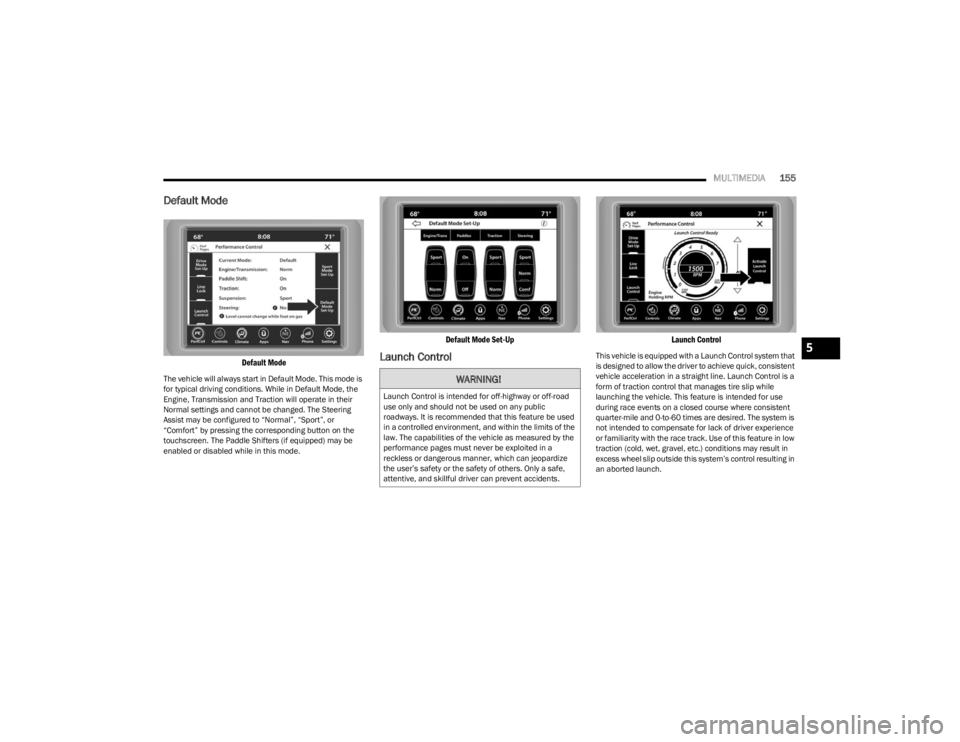
Default Mode
The vehicle will always start in Default Mode. This mode is
for typical driving conditions. While in Default Mode, the
Engine, Transmission and Traction will operate in their
Normal settings and cannot be changed. The Steering
Assist may be configured to “Normal”, “Sport”, or
“Comfort” by pressing the corresponding button on the
touchscreen. The Paddle Shifters (if equipped) may be
enabled or disabled while in this mode.
Default Mode Set-Up
Launch Control
Launch Control
This vehicle is equipped with a Launch Control system that
is designed to allow the driver to achieve quick, consistent
vehicle acceleration in a straight line. Launch Control is a
form of traction control that manages tire slip while
launching the vehicle. This feature is intended for use
during race events on a closed course where consistent
quarter-mile and 0-to-60 times are desired. The system is
not intended to compensate for lack of driver experience
or familiarity with the race track. Use of this feature in low
traction (cold, wet, gravel, etc.) conditions may result in
excess wheel slip outside this system’s control resulting in
an aborted launch.
WARNING!
Launch Control is intended for off-highway or off-road
use only and should not be used on any public
roadways. It is recommended that this feature be used
in a controlled environment, and within the limits of the
law. The capabilities of the vehicle as measured by the
performance pages must never be exploited in a
reckless or dangerous manner, which can jeopardize
the user’s safety or the safety of others. Only a safe,
attentive, and skillful driver can prevent accidents.
5
23_LA_OM_EN_USC_t.book Page 155
Page 158 of 300

156MULTIMEDIA
NOTE:
Launch Control should not be used on public roads.
Always check track conditions and the surrounding
area.
Launch Control is not available for the first 500 miles
(805 km) of the vehicle’s life.
Launch Control should only be used when the engine
and transmission are at operating temperature.
Launch Control is intended to be used on dry, paved
road surfaces only. Use on slippery or loose surfaces
may cause damage to vehicle components and is not
recommended.
Launch Control is not available in ESC Full Off Mode.
Sport Mode
Sport Mode
Sport Mode is a configuration setup for typical enthusiast
driving. The Transmission and Steering are both set to
their Sport settings. The steering wheel Paddle switches
are enabled. Traction Control defaults to Normal. Any of
these four settings may be changed to the driver’s
preferences by pressing the buttons on the touchscreen.
Push the Sport button on the instrument panel switch
bank to put the vehicle in Sport Mode and activate these
settings. The customized settings will only be active when
the Sport button is active.
Sport Mode Set-Up
Possible Performance Control configurations are listed
with accompanying descriptions. The information
contained in the following list can also be accessed from
within the mode Set-Up menus. To access the information,
press the Info button on the touchscreen from the mode
Set-Up menu, and use the Left/Right arrows to toggle
through available descriptions. The title for each system in
the Set-Up menu can be pressed, which provides the
descriptions for each function of that system.
ENGINE/TRANS (IF EQUIPPED WITH
AUTOMATIC TRANSMISSION)
Engine/Trans
SPORT
Press the Sport button on the touchscreen for
improved throttle response and modified shifting for an
enhanced driving experience.
NORMAL
Press the Normal button on the touchscreen for a
balance of throttle response, shift comfort and
economy for normal driving.
23_LA_OM_EN_USC_t.book Page 156
Page 162 of 300

160SAFETY
ELECTRONIC BRAKE CONTROL (EBC)
S
YSTEM
Your vehicle is equipped with an advanced Electronic
Brake Control (EBC) system. This system includes
Anti-Lock Brake System (ABS), Brake Assist System (BAS),
Electronic Brake Force Distribution (EBD), Electronic Roll
Mitigation (ERM), Electronic Stability Control (ESC), Hill
Start Assist (HSA), and Traction Control System (TCS).
These systems work together to enhance both vehicle
stability and control in various driving conditions.
Your vehicle may also be equipped with Ready Alert
Braking (RAB) and Rain Brake Support (RBS).
Brake Assist System (BAS)
The BAS is designed to optimize the vehicle’s braking
capability during emergency braking maneuvers. The
system detects an emergency braking situation by sensing
the rate and amount of brake application and then applies
optimum pressure to the brakes. This can help reduce
braking distances. The BAS complements the Anti-Lock
Brake System (ABS). Applying the brakes very quickly
results in the best BAS assistance. To receive the benefit
of the system, you must apply continuous braking
pressure during the stopping sequence (do not “pump”
the brakes). Do not reduce brake pedal pressure unless
braking is no longer desired. Once the brake pedal is
released, the BAS is deactivated.
Brake System Warning Light
The red Brake System Warning Light will turn on when the
ignition is placed in the ON/RUN mode and may stay on for
as long as four seconds.
If the Brake System Warning Light remains on or comes on
while driving, it indicates that the brake system is not
functioning properly and that immediate service is
required. If the Brake System Warning Light does not
come on when the ignition is placed in the ON/RUN mode,
have the light repaired as soon as possible.
Electronic Brake Force Distribution (EBD)
EBD manages the distribution of the braking torque
between the front and rear axles by limiting braking
pressure to the rear axle. This is done to prevent overslip
of the rear wheels to avoid vehicle instability, and to
prevent the rear axle from entering the Anti-Lock Brake
System (ABS) before the front axle.
Electronic Roll Mitigation (ERM)
ERM anticipates the potential for wheel lift by monitoring
the driver’s steering wheel input and the speed of the
vehicle. When ERM determines that the rate of change of
the steering wheel angle and vehicle’s speed are
sufficient to potentially cause wheel lift, it then applies the
appropriate brake and may also reduce engine power to
lessen the chance that wheel lift will occur. ERM can only
reduce the chance of wheel lift occurring during severe or
evasive driving maneuvers; it cannot prevent wheel lift
due to other factors, such as road conditions, leaving the
roadway, or striking objects or other vehicles.
NOTE:ERM is disabled any time the ESC is in “Full Off” mode
(if equipped). For a complete explanation of the available
ESC modes, see
Úpage 161.
WARNING!
The Brake Assist System (BAS) cannot prevent the
natural laws of physics from acting on the vehicle, nor
can it increase the traction afforded by prevailing road
conditions. BAS cannot prevent collisions, including
those resulting from excessive speed in turns, driving
on very slippery surfaces, or hydroplaning. The
capabilities of a BAS-equipped vehicle must never be
exploited in a reckless or dangerous manner, which
could jeopardize the user's safety or the safety of
others.
WARNING!
Many factors, such as vehicle loading, road conditions
and driving conditions, influence the chance that wheel
lift or rollover may occur. ERM cannot prevent all wheel
lift or rollovers, especially those that involve leaving the
roadway or striking objects or other vehicles. The
capabilities of an ERM-equipped vehicle must never be
exploited in a reckless or dangerous manner which
could jeopardize the user's safety or the safety of
others.
23_LA_OM_EN_USC_t.book Page 160