2023 DODGE CHALLENGER reset
[x] Cancel search: resetPage 127 of 300

MULTIMEDIA125
RADIO MODE
Radio Controls
Uconnect 4 With 7-inch Display
The radio is equipped with the following modes:
AM
FM
SiriusXM® Satellite Radio (If Equipped)
Press the Radio button on the touchscreen to enter the
Radio Mode. The different tuner modes, AM, FM, and SXM,
can then be selected by pressing the corresponding
button in Radio Mode.
Volume & On/Off Control
Push the VOLUME & On/Off control knob to turn on and off
the Uconnect system.
The electronic volume control turns continuously
(360 degrees) in either direction, without stopping.
Turning the VOLUME & On/Off control knob clockwise
increases the volume, and counterclockwise decreases it.
When the audio system is turned on, the sound will be set
at the same volume level as last played.
Mute Button
Push the MUTE button to mute or unmute the system.
Tune/Scroll Control
Turn the rotary TUNE/SCROLL control knob clockwise to
increase or counterclockwise to decrease the radio station
frequency. Push the ENTER/BROWSE button to choose a
selection. Seek
The Seek Up and Down functions are activated by pressing
the double arrow buttons on the touchscreen to the right
and left of the radio station display or by pushing the left
steering wheel audio control button up or down.
Seek Up
and Seek Down
Press and release the Seek Up or Seek Down
button to tune the radio to the next available station or
channel. During a Seek Up/Down function, if the radio
reaches the starting station after passing through the
entire band two times, the radio will stop at the station
where it began.
Fast Seek Up and Fast Seek Down
Press and hold, and then release the Seek Up or
Seek Down button to advance the radio through the
available stations or channels at a faster rate. The radio
stops at the next available station or channel when the
button on the touchscreen is released.
NOTE:
Pressing and holding either the Seek Up or
Seek Down button will scan the different frequency
bands at a slower rate.
1 — Radio Bands
2 — Preset Radio Stations
3 — View Next Preset Radio Stations
4 — Status Bar
5 — Browse
6 — Seek Down
7 — Tune
8 — Seek Up
9 — Audio Settings
10 — Bottom Menu Bar
5
23_LA_OM_EN_USC_t.book Page 125
Page 129 of 300

MULTIMEDIA127
This functionality is only available for radios equipped with
a Satellite receiver. In order to receive satellite radio, the
vehicle needs to be outside with a clear view to the sky.
If the screen shows “Acquiring Signal”, you might have to
change the vehicle’s position in order to receive a signal.
In most cases, the satellite radio does not receive a signal
in underground parking garages or tunnels.
No Subscription
Radios equipped with a Satellite receiver require a
subscription to the SiriusXM® Service. When the radio
does not have the necessary subscription, the radio is
able to receive the Preview channel only.
Acquiring SiriusXM® Subscription
To activate the SiriusXM® Satellite Radio subscription, US
residents visit https://www.siriusxm.com/phx/getlogin or
call: 1-800-643-2112
Canadian residents visit https://www.siriusxm.ca/ or call:
1-888-539-7474.
NOTE:You will need to provide the SiriusXM® ID (RID) located at
the bottom of the Channel 0 screen. The Satellite Mode is activated by a press of the SXM
button on the touchscreen.
When in Satellite Mode:
The SXM button on the touchscreen is highlighted.
The SiriusXM® Presets are displayed at the top of the
screen.
The SiriusXM® Channel Number is displayed in the
center.
The Program Information is displayed at the bottom of
the Channel Number.
The SiriusXM® function buttons are displayed below
the Program Information.
Tuning is done by operating the Tune Knob or by Direct
Tune, similar to other Radio Bands.
In addition to the tuning operation functions common to
all radio modes, the Replay, Traffic/Weather button, and Favorite button functions are available in SiriusXM®
Mode.
Uconnect 4 With 7-inch Display SiriusXM® Satellite Radio
1 — Browse
2 — Replay
3 — Seek Down Button
4 — Direct Tune Button
5 — Seek Up Button
6 — Audio Settings Button
5
23_LA_OM_EN_USC_t.book Page 127
Page 131 of 300

MULTIMEDIA129
FAVORITES
Press the Favorites button on the touchscreen to activate
the favorites menu, which will time out within 20 seconds
in absence of user interaction.
You can exit the Favorites Menu by a press of the X button.
The Favorites feature enables you to set a favorite artist or
song that is currently playing. The radio then uses this
information to alert you when either the favorite artist or
song is being played at any time by any of the SiriusXM®
Channels.
The maximum number of favorites that can be stored in
the Radio is 50.
Favorite Artist: While the song is playing, to set a favorite
artist, press the Favorites button on the touchscreen and
then the Favorite Artist button on the touchscreen.
Favorite Song: While the song is playing, to set a favorite
song, press the Favorites button on the touchscreen and
then the Favorite Song button on the touchscreen.
BROWSE IN SXM
Uconnect 4 With 7-inch Display Browse Button
Press the Browse button on the touchscreen to edit
Presets, Favorites, Game Zone, and Jump settings, along
with providing the SiriusXM® Channel List.
This Screen contains many submenus. You can exit
submenus to return to a parent menu by pressing the
Back arrow. All
Press the All button on the Browse Screen. When pressing
the All button, the following categories become available:
Channel List: Press the Channel List to display all the
SiriusXM® Channel Numbers. You can scroll the
Channel List by pressing the Up and Down arrows,
located on the right side of the screen. Scrolling can
also be done by operating the TUNE/SCROLL knob.
Genre List: Press the Genre button on the touchscreen
to display a list of Genres. You can select any desired
Genre by pressing the Genre List. The radio tunes to a
channel with the content in the selected Genre.
Presets — If Equipped
Press the Presets button (if equipped) located at the left of
the Browse screen.
You can scroll the Presets list by pressing the Up and
Down arrows located at the right side of the screen.
Scrolling can also be done by operating the TUNE/SCROLL
knob as well.
1 — All Button
2 — Presets Button
3 — Favorites Button
4 — Game Zone Button
5
23_LA_OM_EN_USC_t.book Page 129
Page 132 of 300

130MULTIMEDIA
Preset Selection
A preset can be selected by pressing any of the listed
Presets, or by pushing the ENTER/BROWSE button on the
TUNE/SCROLL knob to select the currently highlighted
Preset. When selected, the Radio tunes to the station
stored in the Preset.
Deleting A Preset
A preset can be deleted in the Presets Browse screen by
pressing the Trash Can icon for the corresponding preset.
Favorites
Press the Favorites button on the Browse screen.
The Favorites menu provides a means to edit the Favorites
list and to configure the Alert Settings, along with
providing a list of Channels currently airing any of the
items in the Favorites list.
You can scroll the Favorites list by pressing the Up and
Down arrows located at the right side of the screen.
Scrolling can also be done by operating the TUNE/SCROLL
knob as well. Remove Favorites
Press the Remove Favorites tab at the top of the screen.
Press the Delete All button on the touchscreen to delete
all of the Favorites or press the Trash Can icon next to the
Favorite to be deleted.
Alert Settings
Press the Alert Settings tab at the top of the Favorites
screen. The Alert Settings menu allows you to choose from
a visual alert or audible and visual alert when one of your
favorites is airing on any of the SiriusXM® channels.
Game Zone
Press the Game Zone button, located at the left of the
Browse screen. This feature provides you with the ability to
select teams, edit the selection, and set alerts.
On-Air
Press the On-Air tab at the top of the screen. The On-Air list
provides a list of Channels currently airing any of the items
in the Selections list, and pressing any of the items in the
list tunes the radio to that channel.Select Team — If Equipped
Press the Select Team button on the touchscreen to
activate the League Scroll list. Press the chosen league
and a scroll list of all teams within the league will appear,
then you can select a team by pressing the corresponding
box. A check mark appears for all teams that are chosen.
Remove Selection/Trash Can Icon
Press the Remove Selection tab at the top of the screen.
Press the Delete All button on the touchscreen to delete
all of the selections or press the Trash Can icon next to the
selection to be deleted.
Alert Settings
Press the Alert Setting tab at the top of the screen.
The Alert Settings menu allows you to choose from “Alert
me to on-air games upon start” or “Alert upon score
update” or both when one or more of your selections is
airing on any of the SiriusXM® channels.
Tune Start
Tune Start begins playing the current song from the
beginning when you tune to a music channel using one of
the 12 presets. This feature occurs the first time the
preset is selected during that current song.
23_LA_OM_EN_USC_t.book Page 130
Page 133 of 300

MULTIMEDIA131
Setting Presets
Uconnect 4 With 7-inch Display Radio Presets
The Presets are available for all Radio Modes, and are
activated by pressing any of the Preset buttons, located at
the top of the screen.
When you are on a station that you wish to save as a
preset, press and hold the numbered button on the
touchscreen for more than two seconds.
The Radio stores up to 12 presets in each of the Radio
Modes.
A total of six presets will appear on the screen. You can
switch between the radio presets list by pressing the Arrow
button located in the upper right of the radio touchscreen.
PRESET FEATURES — IF EQUIPPED
Browse In AM/FM
When in either AM or FM, the Browse Screen provides a
means to edit the Presets List and is entered by pushing
the ENTER/BROWSE button.
Scrolling Preset List
Once in the Browse Presets screen, you can scroll the
preset list by rotation of the TUNE/SCROLL knob or by
pressing the Up or Down Arrow key, located on the right of
the screen.
Preset Selection From List
A preset can be selected by pressing any of the listed
Presets, or by pushing the ENTER/BROWSE button or the
TUNE/SCROLL knob to select the currently highlighted
Preset.
When selected, the radio tunes to the station stored in the
Presets.
Deleting Presets
A preset can be deleted in the Presets Browse screen by
pressing the Trash Can icon for the corresponding preset. Return To Main Radio Screen
You can return to the Main Radio Screen by pressing the X
button or the Back Arrow button when in the Browse
Presets screen.
Audio Settings
Press the Audio button within the settings main menu to
activate the Audio Settings screen.
The audio settings can also be accessed on the Radio
Mode screen by pressing the Audio button. You can return
to the Radio screen by pressing the X button.
Uconnect 4 With 7-inch Display
5
23_LA_OM_EN_USC_t.book Page 131
Page 155 of 300

MULTIMEDIA153
Right G-Force:
Measures the peak force on the right side of the
vehicle.
Left G-Force:
Measures the peak force on the left side of the vehicle.
Rear G-Force:
Measures the peak acceleration force on the rear of
the vehicle.
NOTE:Front, Right, Left, and Rear G-Forces are all peak values.
These readings can be reset by clearing peak G-Force on
the instrument cluster.
Steering Wheel Angle
Steering Wheel Angle utilizes the steering angle sensor
to measure the degree of the steering wheel relative to
zero (straight ahead) reference angle. The zero degree
reference angle measurement indicates a steering
wheel straight ahead position.
The friction circle display shows instantaneous G-Force as
a highlight and previous G-Force as dots within the circle.
The system records previous G-Force for three minutes. If
there are multiple samples at a given point, the color of
the dot will darken from blue to red. Vectors more frequent
will show in red; infrequent vectors will show in blue.
ENGINE
Performance Pages — Engine
When selected, this screen displays the following values:
Vehicle Speed
Shows the actual vehicle speed.
Engine Power
Shows the instantaneous power.
Engine Torque
Shows the instantaneous torque.
Oil Pressure (6.4L Only) — If Equipped
Shows the actual engine oil pressure.
Boost Pressure (6.2L Only) — If Equipped
Shows the actual boost pressure.
Gear (Automatic Transmission Only)
Shows the current (or pending) operating gear of the
vehicle.
DYNAMOMETER (DYNO)
Performance Pages — Dyno
The system will start drawing graphs for Power and Torque
(top chart) and Engine Speed (bottom chart). The graph
will fill to the right side of the page (based on History time
selected). Once the right side of the page is reached, the
graph will scroll with the right side always being the most
recent recorded sample.
5
23_LA_OM_EN_USC_t.book Page 153
Page 159 of 300
MULTIMEDIA157
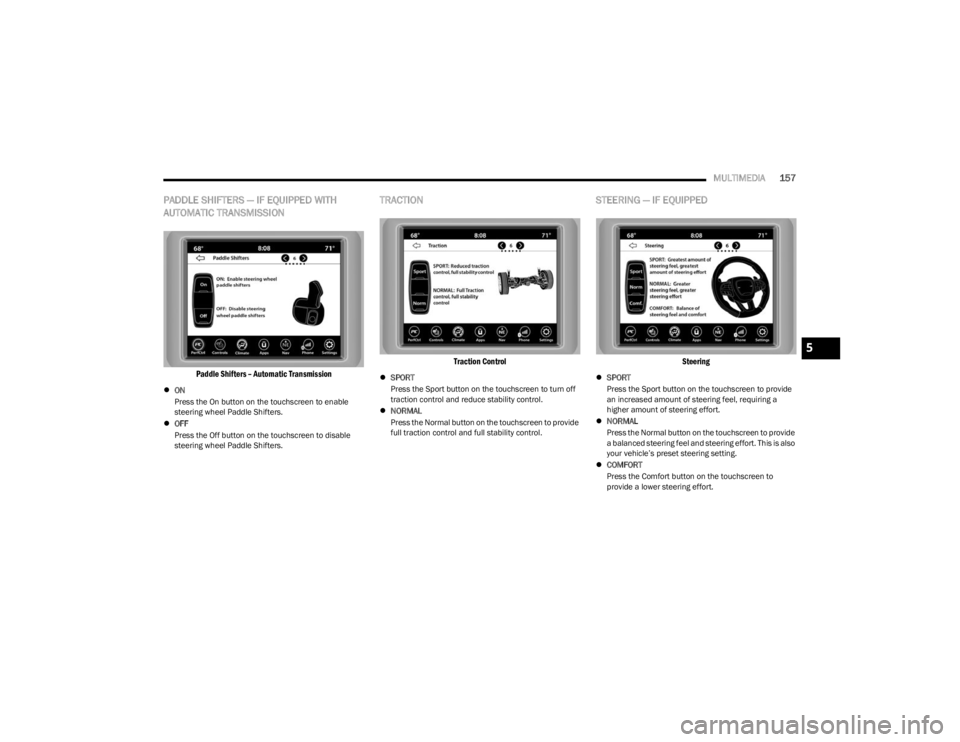
PADDLE SHIFTERS — IF EQUIPPED WITH
AUTOMATIC TRANSMISSION
Paddle Shifters – Automatic Transmission
ON
Press the On button on the touchscreen to enable
steering wheel Paddle Shifters.
OFF
Press the Off button on the touchscreen to disable
steering wheel Paddle Shifters.
TRACTION
Traction Control
SPORT
Press the Sport button on the touchscreen to turn off
traction control and reduce stability control.
NORMAL
Press the Normal button on the touchscreen to provide
full traction control and full stability control.
STEERING — IF EQUIPPED
Steering
SPORT
Press the Sport button on the touchscreen to provide
an increased amount of steering feel, requiring a
higher amount of steering effort.
NORMAL
Press the Normal button on the touchscreen to provide
a balanced steering feel and steering effort. This is also
your vehicle’s preset steering setting.
COMFORT
Press the Comfort button on the touchscreen to
provide a lower steering effort.
5
23_LA_OM_EN_USC_t.book Page 157
Page 186 of 300

184SAFETY
(Continued)
Do not drive your vehicle after the air bags have deployed.
If you are involved in another collision, the air bags will not
be in place to protect you.
NOTE:
Air bag covers may not be obvious in the interior trim,
but they will open during air bag deployment.
After any collision, the vehicle should be taken to an
authorized dealer immediately.
Enhanced Accident Response System
In the event of an impact, if the communication network
remains intact, and the power remains intact, depending
on the nature of the event, the Occupant Restraint
Controller (ORC) will determine whether to have the
Enhanced Accident Response System perform the
following functions:
Cut off fuel to the engine (if equipped).
Cut off battery power to the electric motor (if equipped).
Flash hazard lights as long as the battery has power.
Turn on the interior lights, which remain on as long as
the battery has power or for 15 minutes from the inter -
vention of the Enhanced Accident Response System.
Unlock the power door locks. Your vehicle may also be designed to perform any of these
other functions in response to the Enhanced Accident
Response System:
Turn off the Fuel Filter Heater, Turn off the HVAC Blower
Motor, Close the HVAC Circulation Door
Cut off battery power to the:
Engine
Electric Motor (if equipped)
Electric power steering
Brake booster
Electric park brake
Automatic transmission gear selector
Horn
Front wiper
NOTE:After an accident, remember to cycle the ignition to the
STOP (OFF/LOCK) position and remove the key from the
ignition switch to avoid draining the battery. Carefully
check the vehicle for fuel leaks in the engine compartment
and on the ground near the engine compartment and fuel
tank before resetting the system and starting the engine.
If there are no fuel leaks or damage to the vehicle elec -
trical devices (e.g. headlights) after an accident, reset the
system by following the procedure described below. If you
have any doubt, contact an authorized dealer.
Enhanced Accident Response System
Reset Procedure
In order to reset the Enhanced Accident Response System
functions after an event, the ignition switch must be
changed from ignition START or ON/RUN to ignition OFF.
Carefully check the vehicle for fuel leaks in the engine
compartment and on the ground near the engine
compartment and fuel tank before resetting the system
and starting the engine.
After an accident, if the vehicle will not start after
performing the reset procedure, the vehicle must be
towed to an authorized dealer to be inspected and to have
the Enhanced Accident Response System reset.
Maintaining Your Air Bag System
WARNING!
Deployed air bags and seat belt pretensioners cannot
protect you in another collision. Have the air bags, seat
belt pretensioners, and the seat belt retractor
assemblies replaced by an authorized dealer
immediately. Also, have the Occupant Restraint
Controller System serviced as well.
WARNING!
Modifications to any part of the air bag system could
cause it to fail when you need it. You could be injured
if the air bag system is not there to protect you. Do
not modify the components or wiring, including
adding any kind of badges or stickers to the steering
wheel hub trim cover or the upper passenger side of
the instrument panel. Do not modify the front fascia/
bumper, vehicle body structure, or add aftermarket
side steps or running boards.
It is dangerous to try to repair any part of the air bag
system yourself. Be sure to tell anyone who works on
your vehicle that it has an air bag system.
23_LA_OM_EN_USC_t.book Page 184