2023 DODGE CHALLENGER bluetooth
[x] Cancel search: bluetoothPage 140 of 300

138MULTIMEDIA
NOTE:During the pairing procedure, you may receive a pop-up on
your touchscreen asking you to make sure the PIN on the
touchscreen matches the PIN from the pop-up on your
mobile phone.
5. If “No” is selected, and you still would like to pair a
mobile phone, press the Phone Pairing or Settings
button from the Uconnect Phone main screen.
Press the Paired Phones button or the Add Device
button.
Search for available devices on your Blue -
tooth®-enabled mobile phone. When prompted
on the phone, select “Uconnect” and accept the
connection request.
6. Uconnect Phone will display an in-progress screen while the system is connecting.
7. When your mobile phone finds the Uconnect system, select “Uconnect.”
8. When prompted on the mobile phone, accept the connection request from Uconnect.
9. When the pairing process has successfully completed, the system will prompt you to choose
whether or not this is your favorite phone. Selecting
“Yes” will make this phone the highest priority. This
phone will take precedence over other paired phones
within range and will connect to the Uconnect system
automatically when entering the vehicle. Only one mobile phone and/or one Bluetooth® audio
device can be connected to the Uconnect system at a
time. If “No” is selected, simply select “Uconnect”
from the mobile phone/audio device Bluetooth®
screen, and the Uconnect system will reconnect to
the Bluetooth® device.
NOTE:For phones which are not made a favorite, the phone
priority is determined by the order in which it was paired.
The most recent phone paired will have the higher priority.
NOTE:During the pairing procedure, you may receive a pop-up on
your mobile phone for the Uconnect system to access your
“messages” and “contacts”. Selecting “Ok” or “Allow” will
sync your contacts with the Uconnect system.
You can also use the VR command “Show Paired Phones”
to bring up the Paired Phone screen from any screen on
the radio.
NOTE:Software updates on your phone or the Uconnect system
may interfere with the Bluetooth® connection. If this
happens, simply repeat the pairing process. However, first
make sure to delete the device from the list of phones on
your Uconnect system. Next, be sure to remove Uconnect
from the list of devices in your phone’s Bluetooth®
settings.
PAIR A BLUETOOTH® STREAMING AUDIO
DEVICE
1. Press the Media button on the touchscreen to begin.
2. Change the source to “Bluetooth®”.
3. Press the Bluetooth® button on the touchscreen to
display the Paired Audio Devices screen.
4. Press the Add Device button on the touchscreen.
NOTE:If there is no device currently connected with the system,
a pop-up will appear.
5. Search for available devices on your Bluetooth®-enabled audio device. When prompted
on the device, confirm the PIN shown on the
Uconnect screen.
6. Uconnect Phone will display an in-process screen while the system is connecting.
7. When the pairing process has successfully completed, the system will prompt you to choose
whether or not this is your favorite device. Selecting
“Yes” will make this device the highest priority. This
device will take precedence over other paired devices
within range.
NOTE:For devices which are not made a favorite, the device
priority is determined by the order in which it was paired.
The most recent device paired will have the higher priority.
You can also use the VR command “Show Paired Phones”
to bring up a list of paired audio devices.
23_LA_OM_EN_USC_t.book Page 138
Page 141 of 300
MULTIMEDIA139
CONNECTING TO A PARTICULAR MOBILE
PHONE OR AUDIO DEVICE AFTER PAIRING
Uconnect Phone will automatically connect to the highest
priority paired phone and/or Audio Device within range. If
you need to choose a particular phone or audio device
follow these steps:
1. Press the
Settings
button on the touchscreen.
2. Press the Paired Phones or Audio Sources button. 3. Press to select the particular phone or the particular audio device. A pop-up menu will appear; press
“Connect Phone”.
4. Press the X to exit out of the Settings screen.
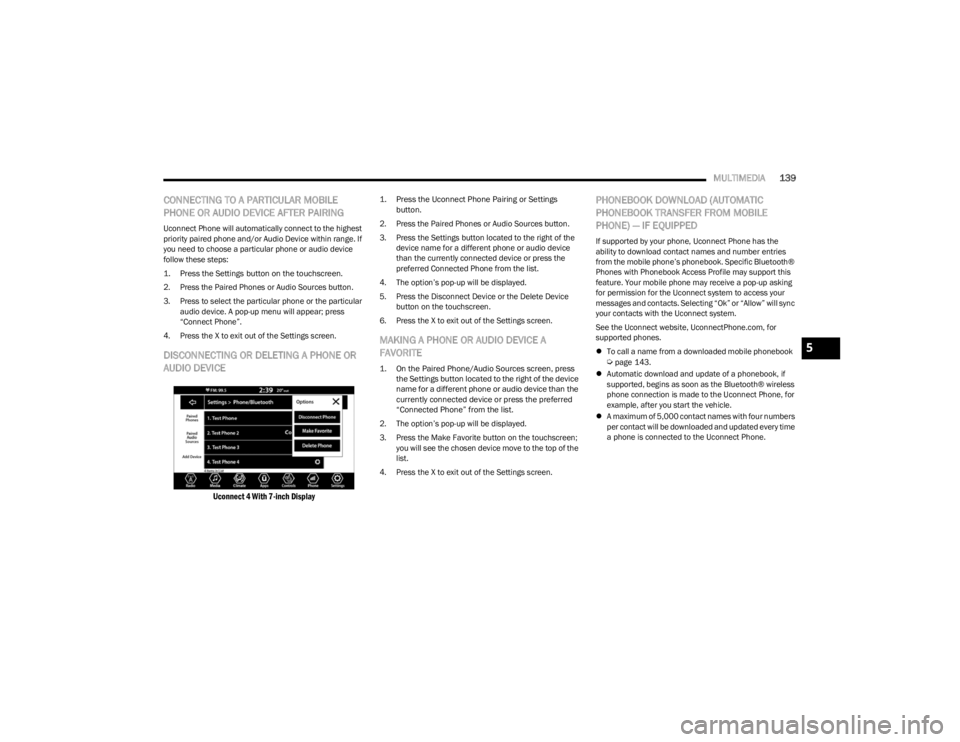
DISCONNECTING OR DELETING A PHONE OR
AUDIO DEVICE
Uconnect 4 With 7-inch Display
1. Press the Uconnect Phone Pairing or Settings button.
2. Press the Paired Phones or Audio Sources button. 3. Press the Settings button located to the right of the device name for a different phone or audio device
than the currently connected device or press the
preferred Connected Phone from the list.
4. The option’s pop-up will be displayed.
5. Press the Disconnect Device or the Delete Device button on the touchscreen.
6. Press the X to exit out of the Settings screen.
MAKING A PHONE OR AUDIO DEVICE A
FAVORITE
1. On the Paired Phone/Audio Sources screen, press the Settings button located to the right of the device
name for a different phone or audio device than the
currently connected device or press the preferred
“Connected Phone” from the list.
2. The option’s pop-up will be displayed.
3. Press the Make Favorite button on the touchscreen; you will see the chosen device move to the top of the
list.
4. Press the X to exit out of the Settings screen.
PHONEBOOK DOWNLOAD (AUTOMATIC
PHONEBOOK TRANSFER FROM MOBILE
PHONE) — IF EQUIPPED
If supported by your phone, Uconnect Phone has the
ability to download contact names and number entries
from the mobile phone’s phonebook. Specific Bluetooth®
Phones with Phonebook Access Profile may support this
feature. Your mobile phone may receive a pop-up asking
for permission for the Uconnect system to access your
messages and contacts. Selecting “Ok” or “Allow” will sync
your contacts with the Uconnect system.
See the Uconnect website, UconnectPhone.com, for
supported phones.
To call a name from a downloaded mobile phonebook
Úpage 143.
Automatic download and update of a phonebook, if
supported, begins as soon as the Bluetooth® wireless
phone connection is made to the Uconnect Phone, for
example, after you start the vehicle.
A maximum of 5,000 contact names with four numbers
per contact will be downloaded and updated every time
a phone is connected to the Uconnect Phone.
5
23_LA_OM_EN_USC_t.book Page 139
Page 142 of 300
140MULTIMEDIA
Depending on the maximum number of entries down -
loaded, there may be a short delay before the latest
downloaded names can be used. Until then, if avail -
able, the previously downloaded phonebook is avail -
able for use.
Only the phonebook of the currently connected mobile
phone is accessible.
This downloaded phonebook cannot be edited or
deleted on the Uconnect Phone. These can only be
edited on the mobile phone. The changes are trans -
ferred and updated to Uconnect Phone on the next
phone connection.
MANAGING YOUR FAVORITES — IF EQUIPPED
There are two ways you can add an entry to your favorites:
1. After loading the mobile phonebook, press the Favorites button on the touchscreen, and then press
one of the +Add Favorite Contact buttons that
appears on the list.
2. After loading the mobile phonebook, select “Contacts” from the Phone main screen, and then
select the appropriate number. Press the Down Arrow
button or the Settings Gear button next to the
selected number to display the option’s pop-up. In the
pop-up, select “Add to Favorites”.
NOTE:If the Favorites list is full, you will be asked to remove an
existing favorite.
TO REMOVE A FAVORITE — IF EQUIPPED
1. To remove a Favorite, select “Favorites” from the Phone main screen.
2. Next, select the Down Arrow icon or the Settings Gear icon next to the contact you want to remove from your
favorites. This will bring up the options for that
Favorite contact.
3. Deselect the Star icon to delete the Favorite.
Phone Call Features
The following features can be accessed through the
Uconnect Phone if the feature(s) are available and
supported by Bluetooth® on your mobile service plan. For
example, if your mobile service plan provides three-way
calling, this feature can be accessed through the
Uconnect Phone. Check with your mobile service provider
for the features that you have.
Here are the phone options with Uconnect:
Redial
Dial by pressing in the number
Voice Commands (Dial by Saying a Name, Call by
Saying a Phonebook Name, Redial or Call Back)
Favorites
Mobile Phonebook
Recent Call Log
SMS Message Viewer
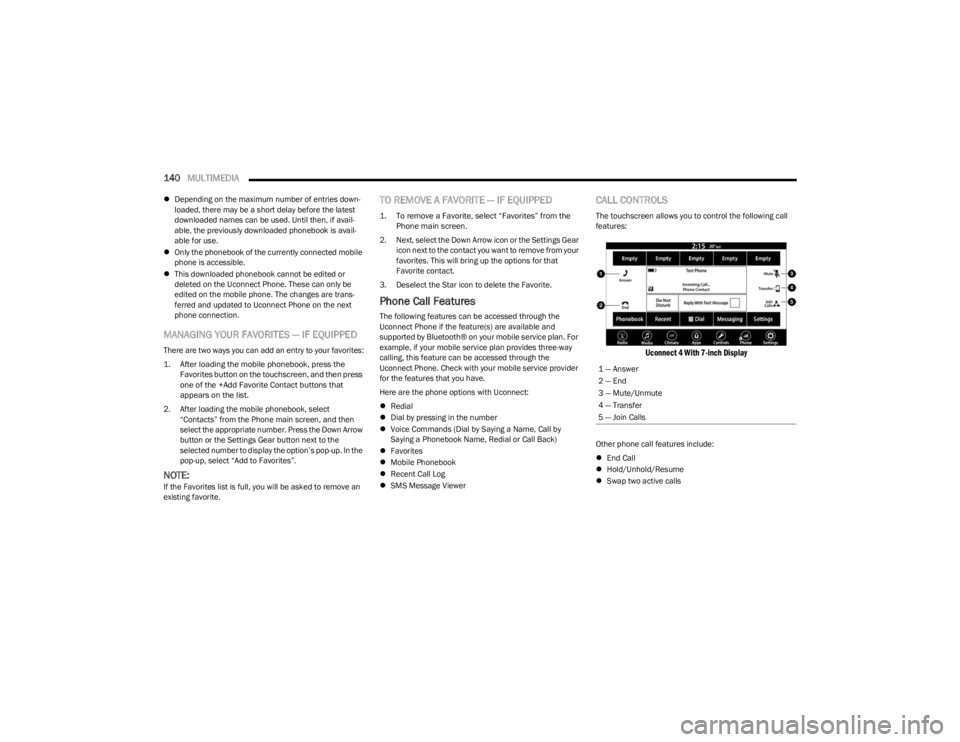
CALL CONTROLS
The touchscreen allows you to control the following call
features:
Uconnect 4 With 7-inch Display
Other phone call features include:
End Call
Hold/Unhold/Resume
Swap two active calls
1 — Answer
2 — End
3 — Mute/Unmute
4 — Transfer
5 — Join Calls
23_LA_OM_EN_USC_t.book Page 140
Page 143 of 300

MULTIMEDIA141
KEY PAD NUMBER ENTRY
1. Press the Phone button.
2. Press the Dial/Keypad button on the touchscreen.
3. The Touch-Tone screen will be displayed.
4. Use the numbered buttons on the touchscreens to
enter the number and press “Dial/Call”.
RECENT CALLS — IF EQUIPPED
You may browse a list of the most recent of each of the
following call types:
All Calls
Incoming Calls or Calls Received
Outgoing Calls or Calls Made
Missed Calls
These can be accessed by pressing the Recent Calls
button on the phone main screen.
You can also push the VR button on your steering wheel
and perform the operation. For example, say “Show my
incoming calls”.
ANSWER OR IGNORE AN INCOMING CALL —
NO CALL CURRENTLY IN PROGRESS
When you receive a call on your mobile phone, the
Uconnect Phone will interrupt the vehicle audio system.
Push the Phone button on the steering wheel, press the
Answer button on the touchscreen.
You can also press the Caller ID box to place the current
call on hold or answer the incoming call.
Uconnect 4 With 7-inch Display
ANSWER OR IGNORE AN INCOMING CALL —
CALL CURRENTLY IN PROGRESS
If a call is currently in progress and you have another
incoming call, you will hear the same network tones for
call waiting that you normally hear when using your mobile
phone. Push the Phone button on the steering wheel,
press the Answer button on the touchscreen, or press the
Caller ID box to place the current call on hold and answer
the incoming call.
NOTE:Phones that are compatible with the Uconnect system in
the market today do not support rejecting an incoming call
when another call is in progress. Therefore, the user can
only answer an incoming call or ignore it.
DO NOT DISTURB
With Do Not Disturb, you can disable notifications from
incoming calls and texts, allowing you to keep your eyes on
the road and hands on the wheel. For your convenience,
there is a counter display to keep track of your missed
calls and text messages while Do Not Disturb is active.
Do Not Disturb can automatically reply with a text
message, a call, or both when declining an incoming call
and send it to voicemail.
Automatic reply messages can be:
“I am driving right now, I will get back to you shortly”.
Create a custom auto reply message up to
160 characters.
NOTE:Only the first 25 characters can be seen on the
touchscreen while typing a custom message.
While in Do Not Disturb, “Conference Call” can be selected
so you can still place a second call without being
interrupted by incoming calls.
NOTE:
Reply with text message is not compatible with
iPhone® devices.
Auto reply with text message is only available on
phones that support Bluetooth® Message Access
Profile (MAP).
1 — Answer Button
2 — Caller ID Box
5
23_LA_OM_EN_USC_t.book Page 141
Page 144 of 300

142MULTIMEDIA
PLACE/RETRIEVE A CALL FROM HOLD
During an active call, press the Hold or Call On Hold button
on the Phone main screen.
MAKING A SECOND CALL WHILE CURRENT
CALL IS IN PROGRESS
You can place a call on hold by pressing the Hold button
on the Phone main screen, then dial a number from the
keypad (if supported by your mobile phone), recent calls,
SMS Inbox or from the phonebooks.
TOGGLING BETWEEN CALLS
Uconnect 4 With 7-inch Display
If two calls are in progress (one active and one on hold),
press the Swap Calls button on the phone main screen.
Only one call can be placed on hold at a time.
You can also push the Phone button to toggle between the
active and held phone call.
JOIN CALLS
When two calls are in progress (one active and one on
hold), press the Join/Merge Calls button on the Phone
main screen to combine all calls into a conference call.
CALL TERMINATION
To end a call in progress, momentarily press the End Call
button on the touchscreen or the Phone End button on the
steering wheel. Only the active call(s) will be terminated
and if there is a call on hold, it will become the new
active call.
REDIAL
Push the VR button and after the “Listening”
prompt and the following beep, say “Redial.”
The Uconnect Phone will call the last number
that was dialed from your mobile phone.
CALL CONTINUATION
Call continuation is the progression of a phone call on the
Uconnect Phone after the vehicle ignition has been
switched to OFF.
NOTE:The call will remain within the vehicle audio system until
the phone becomes out of range for the Bluetooth®
connection. It is recommended to press the Transfer
button on the touchscreen when leaving the vehicle.
Advanced Phone Connectivity
TRANSFER CALL TO AND FROM MOBILE
PHONE
The Uconnect Phone allows ongoing calls to be
transferred from your mobile phone without terminating
the call. To transfer an ongoing call from your connected
mobile phone to the Uconnect Phone or vice versa, press
the Transfer button on the Phone main screen.
Things You Should Know About Uconnect
Phone
VOICE COMMAND
For the best performance:
Always wait for the beep before speaking
Speak normally, without pausing, just as you would
speak to a person sitting a few feet/meters away
from you
Ensure that no one other than you is speaking during a
voice command period
Low-To-Medium Blower Setting
Low-To-Medium Vehicle Speed
Low Road Noise
Smooth Road Surface
Fully Closed Windows
Dry Weather Conditions
23_LA_OM_EN_USC_t.book Page 142
Page 146 of 300

144MULTIMEDIA
Did You Know: Voice Text Reply is not compatible with
iPhone®, but if your vehicle is equipped with Siri® Eyes
Free, you can use your voice to send a text message.
Siri® Eyes Free — If Equipped
When used with your Apple® iPhone® connected to your
vehicle via Bluetooth®, Siri lets you use your voice to send
text messages, select media, place phone calls and much
more. Siri uses your natural language to understand what
you mean and responds back to confirm your requests.
The system is designed to keep your eyes on the road and
your hands on the wheel by letting Siri help you perform
useful tasks.
To enable Siri, push and hold, then release the Uconnect
Voice Recognition (VR) button on the steering wheel. After
you hear a double beep, you can ask Siri to play podcasts
and music, get directions, read text messages, and many
other useful requests.
BLUETOOTH® COMMUNICATION LINK
Mobile phones may lose connection to the Uconnect
Phone. When this happens, the connection can generally
be re-established by restarting the mobile phone. Your
mobile phone is recommended to remain in Bluetooth®
ON Mode.
POWER-UP
After switching the ignition key from OFF to either the
ON/RUN or ACC position, or after a language change, you
must wait at least 15 seconds prior to using the system
Úpage 284.
ANDROID AUTO™ & APPLE CARPLAY® —
IF EQUIPPED
ANDROID AUTO™
Use this QR code to access your digital
experience.
Android Auto™ is a feature of your
Uconnect system, and your Android™
6.0 or higher powered smartphone
with a data plan, that allows you to
project your smartphone and a number
of its apps onto the touchscreen radio
display. Android Auto™ brings you useful information, and
organizes it into simple cards that appear just when they
are needed. Android Auto™ can be used with speech
technology, the steering wheel controls, the knobs and
buttons on your radio faceplate, and the radio display’s
touchscreen to control many of your apps. To use Android
Auto™, perform the following procedure:
NOTE:Feature availability depends on your carrier and mobile
phone manufacturer. Some Android Auto™ features may
or may not be available in every region and/or language.
1. Download the Android Auto™ app from the Google Play store on your Android™-powered smartphone.
2. Connect your Android™-powered smartphone to one of the media USB ports in your vehicle. If the Android
Auto™ app was not downloaded, the first time you
plug your device in the app begins to download.
Your vehicle should be in PARK the first time you use
the app.
NOTE:Be sure to use the factory-provided USB cable that came
with your phone, as aftermarket cables may not work.
Android Auto™ And LTE Data Coverage
NOTE:To use Android Auto™, make sure you are in an area with
cellular coverage. Android Auto™ may use cellular data
and your cellular coverage is shown in the upper right
corner of the radio screen. Data plan rates apply.
3. Once the device is connected and recognized, the Phone icon on the drag & drop menu bar changes to
the Android Auto™ icon.
NOTE:Android Auto™ is set to launch immediately once a
compatible device is connected. You can also launch it by
pressing the Android Auto™ icon on the touchscreen.
23_LA_OM_EN_USC_t.book Page 144
Page 149 of 300

MULTIMEDIA147
Messages
Push and hold the VR button on the steering
wheel to activate a Siri voice recognition
session. Apple CarPlay® allows you to use Siri
to send or reply to text messages. Siri can also
read incoming text messages, but drivers will not be able
to read messages, as everything is done via voice.
Maps
Push and hold the VR button on the steering
wheel until the beep or tap the Microphone
icon to ask Apple® Siri to take you to a desired
destination by voice. You can also touch the
Navigation icon in Apple CarPlay® to access
Apple® Maps.
Apps
The Apple CarPlay® App plays all compatible apps that are
available to use, every time it is launched. You must have
the compatible app downloaded, and you must be signed
in to the app through your mobile device for it to work with
Apple CarPlay®.
Refer to http://www.apple.com/ios/carplay/ (US) or
https://www.apple.com/ca/ios/carplay/ (Canada) to see
the latest list of available apps for Apple CarPlay®.
Apple CarPlay® Voice Command
NOTE:Feature availability depends on your carrier and mobile
phone maker. Some Apple CarPlay® features may not be
available in every region and/or language.
Apple CarPlay® allows you to use your voice to interact
with Siri through your vehicle’s voice recognition system,
and use your smartphone’s data plan to project your
iPhone® and a number of its apps onto your Uconnect
touchscreen. Connect your iPhone® 5 or higher to one of
the media USB ports, using the factory-provided Lightning
cable, and press the new Apple CarPlay® icon that
replaces your Phone icon on the main menu bar to begin
Apple CarPlay®. Push and hold the VR button on the
steering wheel, or press and hold the Home button within
Apple CarPlay®, to activate Siri, which recognizes natural
voice commands to use a list of your iPhone® features:
Phone
Music
Messages
Maps — If Equipped
Additional Apps — If Equipped
NOTE:Apple CarPlay® is a trademark of Apple® Inc. iPhone® is
a trademark of Apple® Inc., registered in the US and other
countries. Apple® terms of use and privacy statements
apply.
ANDROID AUTO™ AND APPLE
C
ARPLAY® TIPS AND TRICKS
Android Auto™ And Apple CarPlay® Automatic Bluetooth®
Pairing
After connecting to Android Auto™ or Apple CarPlay® for
the first time and undergoing the setup procedure, the
smartphone pairs to the Uconnect system via Bluetooth®
without any setup required every time it is within range, if
Bluetooth® is turned on.
NOTE:Apple CarPlay® uses a USB connection while Android
Auto™ uses both USB and Bluetooth® connections to
function. The connected device is unavailable to other
devices when connected using Android Auto™ or Apple
CarPlay®.
Multiple Devices Connecting To The Uconnect System —
If Equipped
It is possible to have multiple devices connected to the
Uconnect system. For example, if using Android Auto™/
Apple CarPlay®, the connected device will be used to
place hands-free phone calls or send hands-free text
messages. However, another device can also be paired to
the Uconnect system, via Bluetooth®, as an audio source,
so the passenger can stream music.
NOTE:Apple CarPlay® and Android Auto™ can only be launched
from the front and center console USB ports.
5
23_LA_OM_EN_USC_t.book Page 147
Page 287 of 300

285
INDEX
AAbout Your Brakes ................................................ 74, 273
Adaptive Cruise Control (ACC) .................................84, 85
Adding Engine Coolant (Antifreeze) ............................ 238
Adding Washing Fluid .................................................. 230
Additives, Fuel .............................................................. 275
Advance Phone Connectivity ....................................... 142
Air Bag........................................................................... 180 Advance Front Air Bag ............................................ 180
Air Bag Operation.................................................... 181
Air Bag Warning Light ............................................. 179
Enhanced Accident Response ...................... 184
, 222
Event Data Recorder (EDR).................................... 222 Front Air Bag ........................................................... 180
If Deployment Occurs ............................................. 183
Knee Impact Bolsters ............................................. 181
Maintaining Your Air Bag System .......................... 184
Maintenance ........................................................... 184
Redundant Air Bag Warning Light ......................... 179
Side Air Bags ........................................................... 181
Transporting Pets.................................................... 196
Air Bag Light ................................................. 63
, 179, 196
Air Cleaner, Engine (Engine Air Cleaner Filter) ........... 233
Air Conditioner Maintenance ...................................... 234
Air Conditioner Refrigerant .......................................... 234
Air Conditioner System ................................................ 234
Air Conditioning ............................................................... 45
Air Conditioning Filter ........................................... 49
, 234
Air Conditioning System..................................................45 Air Conditioning, Operating Tips ..................................... 48Air Filter......................................................................... 233 Air Pressure
Tires.......................................................................... 261
Alarm Arm The System.................................................. 19
, 20
Panic........................................................................... 13
Rearm The System .................................................... 20
Security Alarm..................................................... 19
, 66
Alarm System Security Alarm............................................................ 19
All Wheel Drive Towing ...................................................................... 222
All Wheel Drive (AWD)...................................................241
Alterations/Modifications Vehicle.......................................................................... 8
Alternate Tire Service Kit — If Equipped
b
.............. 211
Android Auto........................................................ 144, 145
Android auto™
b
....................................................... 144
Antifreeze (Engine Coolant) ............................... 238, 277
Disposal ...................................................................239
Anti-Lock Brake System (ABS) ..................................... 159
Anti-Lock Warning Light.................................................. 66
Apple CarPlay ...................................................... 144
, 147
Apple carplay® ¹ ...........................................................146
Arming System Security Alarm............................................................ 19
Assist, Hill Start ............................................................. 162
Audio Settings ............................................................... 131
Audio Systems (Radio) ................................................. 106
Auto Down Power Windows............................................ 52
Automatic Door Locks .................................................... 24 Automatic Headlights ..................................................... 41 Automatic High Beams .................................................. 40
Automatic Temperature Control (ATC) .......................... 48
Automatic Transmission ................................................ 79 Adding Fluid .................................................... 241
, 279
Fluid And Filter Change........................................... 241
Fluid Change ........................................................... 241
Fluid Level Check .................................................... 241
Fluid Type .......................................................241
, 279
Special Additives ..................................................... 241
Automatic Transmission Limp Home Mode ................. 81
AutoPark ......................................................................... 72
Autostick Operation ................................................................... 82
AWD Towing...................................................................... 222
Axle Fluid....................................................................... 279
Axle Lubrication ............................................................ 279
BBack Up Camera............................................................. 96
Battery.................................................................... 64, 231
Charging System Light .............................................. 64
Keyless Key Fob Replacement................................. 13
Location ................................................................... 231
Belts, Seat..................................................................... 196
Blind Spot Monitoring .................................................. 164
Bluetooth Connecting To A Particular Mobile PhoneOr Audio Device After Pairing ............................ 139
Body Mechanism Lubrication ...................................... 235
B-Pillar Location ........................................................... 258
11
23_LA_OM_EN_USC_t.book Page 285