2023 CITROEN C4 Climate
[x] Cancel search: ClimatePage 30 of 292

28
Dashboard instruments
Recommendations
This screen is of the capacitive type.
– Do not use pointed objects on the touch
screen.
–
Do not touch the touch screen with wet hands.
–
Use a soft, clean cloth to clean the touch
screen.
With MyCitroën Play or
MyCitroën Drive
Principles
Use this button to access the menus, then
press the buttons that appear on the
touch screen.
Use this button for direct access to the
Driving/Vehicle menu.
Some menus may display across two pages:
press the "OPTIONS" button to access the
second page.
After a few moments with no action on the second page, the first page is
displayed automatically.
To deactivate/activate a function, select " OFF"
or "ON".
Configuring a function
Access to additional information on the function
Confirm
Return to the previous page or confirm
Audio system on/off
Volume adjustment/mute
Menus
Press the touch screen with three fingers
to show all of the menu buttons.
For more information about the menus,
refer to the sections describing the audio
and telematics systems.
Radio/Media
Climate
Settings for temperature, air flow, etc.
For more information on Manual air
conditioning and Dual-zone automatic air
conditioning , refer to the corresponding
sections.
Navigation (Depending on equipment)
Driving or Vehicle (Depending on
equipment)
Activation, deactivation and settings for certain
functions.
The functions are organised in 2 tabs: " Driving
functions" and "Vehicle settings".
Telephone
Applications Access to certain configurable equipment.
Settings
Main settings for the audio system, touch
screen and digital instrument panel.
Energy menu (Electric)
It can be accessed directly by pressing
the button located on the centre console.
The pages available vary depending on the
audio equipment.
Flow
The page displays a real-time representation of
the electric drive train’s operation.
1. Active driving mode
2. Electric motor
3. Estimated traction battery charge level
4. Energy flows
The energy flows have a specific colour for each
type of driving:
A. Blue: energy consumption
B. Green: energy recovery
Page 31 of 292

29
Dashboard instruments
1Statistics
This page shows electrical energy consumption
statistics.
– Blue bar chart: directly consumed energy
supplied by the traction battery .
–
Green bar chart: energy recovered during
deceleration and braking, used to recharge the
battery
.
The average result for the current trip is stated in
kWh/100
km.
►
Y
ou can change the displayed time scale by
pressing the
-
or + buttons.
A current trip is any trip of more than 20 minutes without switching off the ignition.
Charging
This page allows you to programme deferred
charging.
For more information on Charging the traction
battery (Electric) , refer to the corresponding
section.
With MyCitroën Drive Plus
Main controls
Access to one of the home pages Return to the first home page
Direct access to the Shortcuts for
driving aids
►
Swipe down from the upper edge of the touch
screen to access a list of quick settings (e.g.
Brightness
, Diagnostics).
►
Depending on the pages displayed on the
screen, with or without the context menu, scroll
the text by swiping with your finger
, as with a
smartphone.
Show/Hide context menu
Return to the previous page
►
T
o change the status of a function, press the
description for the corresponding line (change
confirmed by the slider moving to the right/left:
function activated/deactivated).
Access additional information on the function
Access to function parameters
Adding/Removing shortcuts
Short press, ignition off: system on/off.
Short press, ignition on: mute/restore
sound.
Long press, ignition on: start standby mode
(mute sound, screens and clock display off).
Rotation: volume adjustment.
Applications
Press this button to access the
applications wall.
From any page, press the touch screen
with three fingers to display the
applications wall.
To obtain information about the other
applications not listed here, refer to the sections
describing the audio and telematic systems.
ADAS
Activation/Deactivation and configuration
of the driving aid functions.
Climate
Settings for temperature, air flow, etc.
For more information on Dual-zone automatic
air conditioning , refer to the corresponding
section.
Settings
Main settings for the audio system, touch
screen and digital instrument panel.
Activation/Deactivation and configuration of
the exterior lighting, vehicle access and safety
functions.
Energy
Access to the charging system features
(energy flow, consumption statistics, deferred
charging).
Page 55 of 292

53
Ease of use and comfort
3Air conditioning does not operate when the air flow is disabled.
To obtain cool air more quickly, enable interior
air recirculation for a brief period. Then return
to the intake of exterior air.
Switching off the air conditioning may result in
some discomfort (humidity or misting).
Switching the system off
► Press knob 2; all the indicator lamps of the
system go out.
This action deactivates all of the functions of the
air conditioning system.
The temperature is no longer regulated. A slight
flow of air can still be felt, due to the forward
movement of the vehicle.
Dual-zone automatic air
conditioning
With MyCitroën Play or MyCitroën Drive
This system automatically controls the activation
of the air conditioning system, regulating the
temperature, air flow and air distribution inside
the passenger compartment.
To adjust the system, use the central controls
or press the button in the Climate menu on the
touch screen to display the controls page.
Central controls
Touch screen
1. Left-hand side temperature adjustment
Air conditioning on/off (central controls)
2. Right-hand side temperature adjustment
Maximum air conditioning (central controls) 3.
Adjusting the air flow
Automatic Comfort programme (central
controls)
4. Interior air recirculation
5. Automatic Visibility programme
6. Rear screen demisting/de-icing
7. Direct access to the Climate menu
8. Adjusting the air distribution
9. Air conditioning on/off
10. Automatic Comfort programme
11 . Mono-zone/Dual-zone
12. Access to the secondary page
13. Temperature pre-conditioning (depending
on version)
14. Selection of setting for the Automatic
Comfort programme (Soft/Normal/Fast).
This system works with the engine running but
access to the ventilation and its controls remains
possible with the ignition on.
Adjusting the temperature
The driver and front passenger can each choose
their own temperature setting.
The value indicated corresponds to a level of
comfort and not to a precise temperature.
►
T
urn the knob 1 or 2 or press one of the
buttons 1 or 2 on the touch screen to increase
(red) or decrease (blue) the value.
It is recommended that you avoid a difference of
more than 3°C in the settings for left and right.
Page 57 of 292
55
Ease of use and comfort
3When the system is activated, the indicator lamp
comes on.
Air conditioning does not operate when the air flow is disabled.
To obtain cool air more quickly, enable interior
air recirculation for a brief period. Then return
to the intake of exterior air.
Switching off the air conditioning may result in
some discomfort (humidity or misting).
Maximum air conditioning
This function automatically adjusts the
temperature setting to the lowest possible, the
air distribution towards the central and side air
vents, the air flow to maximum and activates
interior air recirculation.
►
Press knob
2 to activate/deactivate the
function (confirmed by the indicator lamp coming
on/switching off).
Once the function is deactivated, the system
returns to the previous settings.
Mono-zone/Dual-zone
The passenger temperature setting can be linked
to the driver's setting (mono-zone function).
►
Press button
11 to activate the "MONO"
function.
The function is automatically deactivated if the
passenger uses their temperature adjustment
buttons (dual-zone function).
Ventilation with the ignition
on
When the ignition is switched on, you can use
the ventilation system to adjust the air flow
settings and the air distribution in the passenger
compartment, for a period which depends on the
battery charge.
This function does not operate the air
conditioning.
Dual-zone automatic air
conditioning
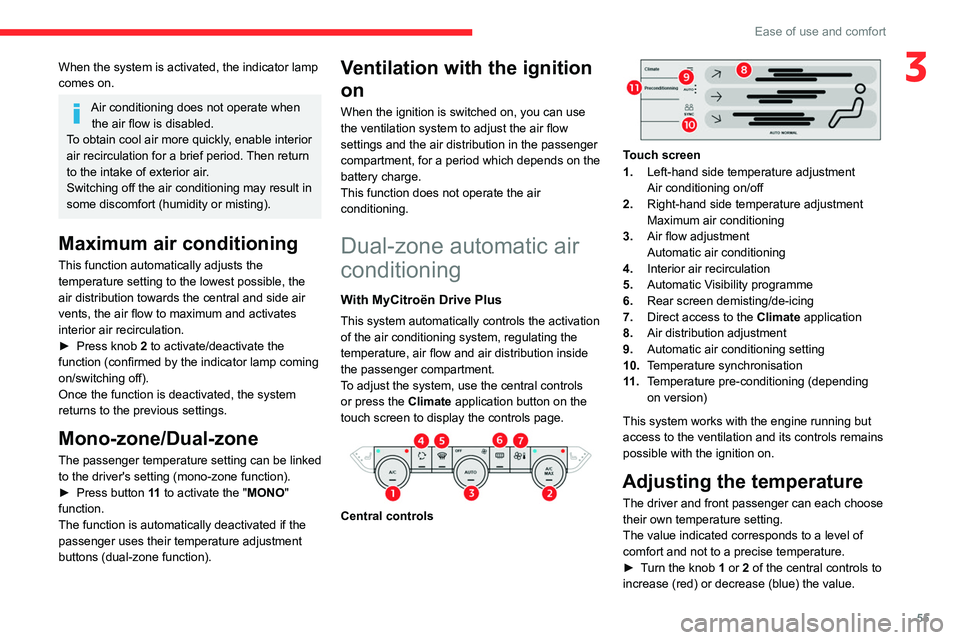
With MyCitroën Drive Plus
This system automatically controls the activation
of the air conditioning system, regulating the
temperature, air flow and air distribution inside
the passenger compartment.
To adjust the system, use the central controls
or press the Climate application button on the
touch screen to display the controls page.
Central controls
Touch screen
1. Left-hand side temperature adjustment
Air conditioning on/off
2. Right-hand side temperature adjustment
Maximum air conditioning
3. Air flow adjustment
Automatic air conditioning
4. Interior air recirculation
5. Automatic Visibility programme
6. Rear screen demisting/de-icing
7. Direct access to the Climate application
8. Air distribution adjustment
9. Automatic air conditioning setting
10. Temperature synchronisation
11 . Temperature pre-conditioning (depending
on version)
This system works with the engine running but
access to the ventilation and its controls remains
possible with the ignition on.
Adjusting the temperature
The driver and front passenger can each choose
their own temperature setting.
The value indicated corresponds to a level of
comfort and not to a precise temperature.
►
T
urn the knob 1 or 2 of the central controls to
increase (red) or decrease (blue) the value.
Page 60 of 292

58
Ease of use and comfort
Heated windscreen
In cold weather, this function heats the entire
windscreen and complements the Automatic
Visibility programme to speed up the evacuation
of elements that interfere with visibility (e.g. dew,
mist, frost, snow), located on either side of the
windscreen.
It can be used both before setting off and while
driving.
Switching on/off
► With the engine running, press this button to
activate/deactivate the function (confirmed by an
indicator lamp).
The period of operation depends on the outside
temperature. The function switches off automatically to
prevent excessive power consumption.
Rear screen
demisting/defrosting
This demisting/de-icing only works with the
engine running.
It also demists/de-ices the door mirrors.
► Press this button to activate/deactivate
the function (confirmed by the indicator
lamp coming on/switching off).
The function can be activated whatever the outside temperature may be.
The period of operation depends on the outside
temperature.
Demisting/defrosting therefore switches
off automatically to prevent an excessive
consumption of electrical current.
Temperature pre-conditioning (Electric)
This function allows you to programme the
temperature in the passenger compartment to
reach a pre-defined, non-modifiable temperature
(approx. 21°C) before you enter the vehicle, on
the days and at the times of your choice.
This function is available when the vehicle is
connected or not connected.
Programming
With MyCitroën Play or MyCitroën Drive
In the Climate > OPTIONS menu:Select Temperature conditioning .
►
Press
+ to add a programme.
►
Select the time of entry into the vehicle and
the desired days. Press
OK.
►
Press
ON to activate this programme.
With MyCitroën Drive Plus
In the Climate touch screen application,
select the Preconditioning tab.
►
Press
+ to add a programme.
►
Select the time of entry into the vehicle and
the desired days. Press
OK.
►
Press
ON to activate this programme.
The temperature pre-conditioning sequence
begins approximately 45 minutes before the
programmed time when the vehicle is connected
(20
minutes when it is not connected) and is
maintained for 10
minutes after.
You can set multiple programmes.Each one is saved in the system.
To optimise the driving range, we recommend
starting a programme while the vehicle is
connected.
Programming can also be carried out
from a smartphone using the MyCitroën
App application.
Page 73 of 292

71
Lighting and visibility
4With intermittent wipers
With automatic wipers
Windscreen wipers
► To select the wiping speed: raise or lower the
stalk to the desired position.
Fast wiping (heavy rain)
Normal wiping (moderate rain)
Intermittent wipers
or
Automatic wipers
Switching off
Manual
In position 1 or 2, the wiping frequency is
automatically reduced when the speed of
the vehicle drops below 3
mph (5 km/h).
When the speed is above 6
mph (10 km/h)
again, the wiping frequency returns to the
original frequency (fast or normal).
Single wipe
► Press and release the control stalk or briefly
pull the control stalk towards you.
Windscreen wash
► Pull the wiper control stalk towards you and
hold.
A
final wiping cycle is performed when
screenwashing ends.
With automatic air conditioning, any
action on the screenwash control results
in temporary closure of the air intake to
protect the passenger compartment from any
odour.
To avoid damaging the wiper blades, do not operate the screenwash if the
screenwash reservoir is empty.
Only operate the screenwash if there is no
risk of the fluid freezing on the windscreen
and hindering visibility. During the winter
period, use "very cold climate" rated products.
Never top up with water.
Front intermittent wiping
In Intermittent mode, the driver can adjust the
wiping frequency by turning the ring to one of the
5 available positions.
The first (upper) position corresponds to the
longest time interval between 2 wipes for light
rain.
The last (lower) position corresponds to the
shortest time interval between 2 wipes
for heavy
rain.
A rotation of the ring from a higher position to a
lower position triggers a confirmation wiping.
After the ignition has been switched off for more than 1 minute with the wiper
control stalk in the INT, 1 or 2
position, when
the ignition is switched on again:
–
the system works as soon as the vehicle
exceeds 6 mph (10 km/h), if the outside
temperature is below +3°C.
–
the system works immediately
, if the
outside temperature is above +3°C.
Page 147 of 292

145
Driving
6Panoramic view
The panoramic view allows you to leave, in
reverse, a parking space by anticipating the
arrival of vehicles, pedestrians or cyclists.
This view is not recommended for carrying out a
complete manoeuvre.
This view is only available by selection in the
side menu.
360 Vision
For more information, refer to the
General recommendations on the use
of driving and manoeuvring aids .
This system allows you to view your vehicle's
close surroundings on the touch screen using
cameras, located at the front and rear of the
vehicle.
The screen is divided into 4 parts with two side
menus, a contextual view and a view from above
the vehicle in its close surroundings.
The parking sensors supplement the information
in the view from above the vehicle.
Depending on the view angle chosen in the
left-hand side menu, the system provides
specific visual assistance in particular driving
conditions, such as entering a blind intersection
or manoeuvring in areas with reduced visibility.
Different contextual views are available for the
rear or for the front:
–
Automatic zoom view
.
–
Standard view
.
–
Panoramic view
.
Depending on the context, the system chooses
the best view to display (standard or automatic
zoom).
The view type can be changed at any time
during the manoeuvre.
The system status is not saved when the ignition
is switched off.
Operating principle
Reconstructed view
The cameras are activated and a reconstruction
of a view from above your vehicle in its close
surroundings is displayed on the touch screen.
Live view
The front and rear views automatically appear in
the view from above the vehicle.
It is also possible to display any live view by
selecting the corresponding zone.
The front view can be selected in forward gear
up to 10 mph (16 km/h).
Installing the very cold climate screen
can alter the image transmitted by the
front camera.
An additional jet is fitted above the number plate to clean the reversing camera (depending on
version).
►
The washing of the reversing camera is
triggered by operating the rear screenwash.
Settings
In the side menu, this menu allows you to
carry out the following operations:
Page 258 of 292

256
MyCitroën Drive Plus
Adding a page
To add a page, press "Page" on the left of the screen.
Press the back arrow to return to the
previous page.
Deleting a Widget
To move a Widget to the bin, press and hold it, then drag it to the bin.
Personalising the
instrument panel
Press the pencil in the "Customize
Driver Information" part.
The modification of the organisation of the
different Widget is displayed on the instrument
panel in real time.
A Widget is a reduced window of an application or service.
Adding a Widget
To add a Widget, press "Widget" on the left of the screen.
Or
Press one of these buttons on the screen.
Select the desired Widget.
Press the back arrow to return to the
previous page.
Deleting a Widget
To move a Widget to the bin, press and hold it, then drag it to the bin.
Personalising My shortcuts
(depending on equipment)
From the left or right edge of the screen, swipe
right or left to display the shortcuts.
A representation of six shortcuts appears.
These shortcuts can be used to access an application (e.g. Media, Climate) or to
launch an action (e.g.
set the temperature to
21°, call a contact selected in their directory).
Briefly press a shortcut to be replaced, a panel is
displayed with all eligible shortcuts. A notification
also informs you of the next step to be applied.
Select the desired new shortcut. It will be
duplicated in the My shortcuts page and will
replace the originally selected one. A notification
also informs you of this.
To exit this function at any time, press this button or press the HOME main button.
Steering-mounted
controls
Voice control:
Short press, system voice commands
(depending on equipment).
Long press, voice commands of
the
smartphone connected using Bluetooth
® or
Mirror Screen® (Apple®CarPlay®/Android Auto)
via the system.
Increase volume.
Decrease volume.
Mute the sound: long press on the
decrease volume button.
Restore the sound by pressing one of the two
volume buttons.
Incoming call (short press): accept the
call.
Call in progress (short press): hang up.
Incoming call (long press): refuse the incoming
call.
Out of call (short press): access the call log of
the telephone connected via
Bluetooth
®.
Mirror Screen® connected (short press): access
the projected view of the telephone application of
your Mirror Screen
® equipment.Radio: automatic search for the
previous/next station (in the list of
radio stations sorted by name or by frequencies).
Media: previous/next track, movement in the
lists.
Phone: browse the telephone's call log.