2023 CITROEN C4 CACTUS radio
[x] Cancel search: radioPage 150 of 196
148
CITROËN Connect Nav
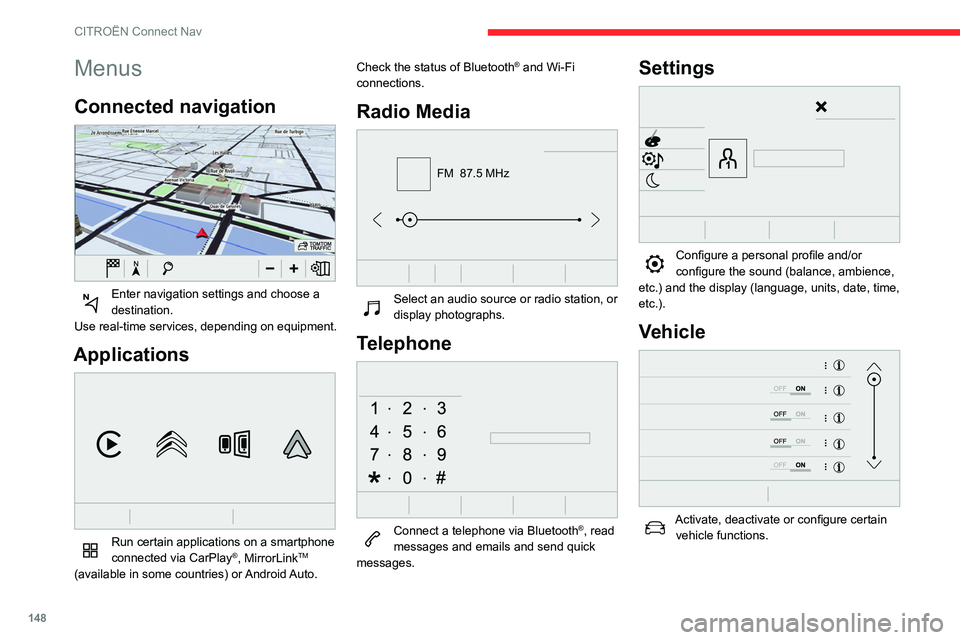
Menus
Connected navigation
Enter navigation settings and choose a
destination.
Use real-time services, depending on equipment.
Applications
Run certain applications on a smartphone
connected via CarPlay®, MirrorLinkTM
(available in some countries) or Android Auto. Check the status of Bluetooth
® and Wi-Fi
connections.
Radio Media
FM 87.5 MHz
Select an audio source or radio station, or
display photographs.
Telephone
Connect a telephone via Bluetooth®, read
messages and emails and send quick
messages.
Settings
Configure a personal profile and/or
configure the sound (balance, ambience,
etc.) and the display (language, units, date, time,
etc.).
Vehicle
Activate, deactivate or configure certain vehicle functions.
Air conditioning
21,518,5
Manage various temperature and air flow
settings.
Voice commands
Steering wheel-mounted
controls
Voice commands:
Voice commands can be issued from any
screen page after a short press on the "Voice
commands" button located on the steering
wheel or at the end of the lighting control stalk
(depending on equipment), as long as there is no
telephone call in progress.
Page 151 of 196

149
CITROËN Connect Nav
11Air conditioning
21,518,5
Manage various temperature and air flow
settings.
Voice commands
Steering wheel-mounted
controls
Voice commands:
Voice commands can be issued from any
screen page after a short press on the "Voice
commands" button located on the steering
wheel or at the end of the lighting control stalk
(depending on equipment), as long as there is no
telephone call in progress.
To ensure that voice commands are always recognised by the system, please
follow these recommendations:
–
use natural language in a normal tone
without breaking up words or raising your
voice.
–
always wait for the "beep" (audible signal)
before speaking.
–
for best results, closing the windows and
sunroof is recommended, to avoid extraneous
interference (depending on version).
–
before issuing a voice command, ask any
other passengers to refrain from speaking.
First steps
Example of a "voice command" for
navigation:
"Navigate to address 11 regent street,
London"
Example of a "voice command" for the radio and
media:
"Play artist Madonna"
Example of a "voice command" for the
telephone:
"Call David Miller"
The voice commands, with a choice of 17 languages (Arabic, Brazilian, Czech,
Danish, Dutch, English, Farsi, French,
German, Italian, Norwegian, Polish,
Portuguese, Russian, Spanish, Swedish,
Turkish), are made using the language
previously chosen and set in the system.
For some voice commands, there are
alternative synonyms.
Example: Guide to / Navigate to / Go to / ...
The voice commands in Arabic for: "Navigate
to address" and "Display POI in the city", are
not available.
Information - Using the
system
When voice commands are activated, by
briefly pressing the button, help is
displayed on the touch screen, offering various
menus and enabling voice-based interaction with
the system.
A number of commands are available when a
menu is selected.
Page 152 of 196

150
CITROËN Connect Nav
Press the Push To Talk button and tell me
what you'd like after the tone. Remember
you can interrupt me at any time by pressing this
button. If you press it again while I'm waiting for
you to speak, it'll end the conversation. If you
need to start over, say "cancel". If you want to
undo something, say "undo". And to get
information and tips at any time, just say "help".
If you ask to me do something and there's some
information missing that I need, I'll give you
some examples or take you through it step by
step. There's more information available in
"novice" mode. You can set the dialogue mode to
"expert" when you feel comfortable.
Global voice commands
Voice commands
Set dialogue mode as novice - expert
Select user 1 / Select profile John
Increase temperature
Decrease temperature
Help messages
There are lots of topics I can help you with.
You can say: "help with phone", "help with
navigation", "help with media" or "help with
radio". For an overview on how to use voice
controls, you can say "help with voice controls".
Say "yes" if I got that right. Otherwise, say "no"
and we'll start that again.
"Navigation" voice
commands
Voice commands
Navigate home
Navigate to work
Navigate to preferred address, Tennis club
Navigate to contact, John Miller
Navigate to address 11 regent street, London
Help messages
To plan a route, say "navigate to" followed by the
address, the contact name or an intersection. For
example, "navigate to address 11 Regent Street,
London", "navigate to contact, John Miller",
or "navigate to intersection of Regent Street,
London". You can specify if it's a preferred
address, or a Point of Interest. For example, say
"navigate to preferred address, Tennis club", or
"navigate to POI Heathrow Airport in London".
Or, you can just say, "navigate home". To see
Points of Interest on a map, you can say things like "show POI hotels in Banbury". For more
information say "help with points of interest" or
"help with route guidance".
To choose a destination, say something like
"navigate to line three" or "select line two". If you
can't find the destination but the street's right,
say for example "select the street in line three".
To move around a displayed list, you can say
"next page" or "previous page". You can undo
your last action and start over by saying "undo",
or say "cancel" to cancel the current action.
Voice commands
Tell me the remaining distance
Tell me the remaining time
Tell me the arrival time
Stop route guidance
Help messages
You can say "stop" or "resume route guidance".
To get information about your current route, you
can say "tell me the remaining time", "remaining
distance" or "arrival time". To learn more
commands, try saying "help with navigation".
Voice commands
Show POI ''hotel'' at the destination
Show nearby POI petrol station
Navigate to POI Heathrow Airport in London
Navigate to POI petrol station along the route
Help messages
To see points of interest on a map, you can
say things like "show hotels in Banbury", "show
nearby parking", "show hotel at the destination"
or "show petrol station along the route". If you
prefer to navigate directly to a point of interest,
you can say "navigate to nearby petrol station".
If you feel you are not being well understood,
try to say the word "POI" in front of the point
of interest. For example say "navigate to POI
restaurant at the destination".
To choose a POI, say something like "select
line 2". If you've searched for a Point of Interest
and don't see the one you're after, you can filter
further by saying something like "select POI in
line 2", or "select the city in line 3". You can also
scroll through the list by saying "next page" or
"previous page".
Depending on the country, give
destination (address) instructions in the
language configured for the system.
"Radio Media" voice
commands
Voice commands
Turn on source radio - Streaming Bluetooth
- …
Help messages
Page 153 of 196

151
CITROËN Connect Nav
11To see points of interest on a map, you can
say things like "show hotels in Banbury", "show
nearby parking", "show hotel at the destination"
or "show petrol station along the route". If you
prefer to navigate directly to a point of interest,
you can say "navigate to nearby petrol station".
If you feel you are not being well understood,
try to say the word "POI" in front of the point
of interest. For example say "navigate to POI
restaurant at the destination".
To choose a POI, say something like "select
line 2". If you've searched for a Point of Interest
and don't see the one you're after, you can filter
further by saying something like "select POI in
line 2", or "select the city in line 3". You can also
scroll through the list by saying "next page" or
"previous page".
Depending on the country, give
destination (address) instructions in the
language configured for the system.
"Radio Media" voice
commands
Voice commands
Turn on source radio - Streaming Bluetooth
- …
Help messages You can select an audio source by saying "turn
on source" followed by the device name. For
example, "turn on source, Streaming Bluetooth",
or "turn on source, radio". Use the command
"play" to specify the type of music you'd like to
hear. You can choose between "song", "artist",
or "album". Just say something like "play artist,
Madonna", "play song, Hey Jude", or "play
album, Thriller".
Voice commands
Tune to channel BBC Radio 2
Tune to 98.5 FM
Tune to preset number five
Help messages
You can pick a radio station by saying "tune to"
and the station name or frequency. For example
"tune to channel Talksport" or "tune to 98.5
FM". To listen to a preset radio station, say for
example "tune to preset number five".
Voice commands
What's playing?
Help messages
To choose what you'd like to play, start by saying
"play" and then the item. For example, say "play
song Hey Jude", "play line 3" or "select line 2".
You can undo your last action and start over
by saying "undo", or say "cancel" to cancel the
current action.
Voice commands
Play song Hey Jude
Play artist Madonna
Play album Thriller
Help messages
I'm not sure what you'd like to play. Please say
"play" and then a song title, an album title, or
an artist name. For example, say "play song
Hey Jude", "play artist Madonna" or "play
album Thriller". To select a line number from the
display, say "select line two". To move around
a displayed list, you can say "next page" or
"previous page". You can undo your last action
and start over by saying "undo", or say "cancel"
to cancel the current action.
Media voice commands are available
only with a USB connection.
"Telephone" voice
commands
If there is no telephone connected by
Bluetooth, a voice message announces:
"Please first connect a telephone", and the
voice session is closed.
Page 156 of 196

154
CITROËN Connect Nav
OrSelect "Search" to enter the name and
address of a POI.
Press "OK" to start calculation of the
route.
To a point on the map
Press Navigation to display the primary
page.
Explore the map by sliding a finger on the
screen.
Select the destination by pressing on the map.
Tap the screen to place a marker and display the sub-menu.
Press this button to start navigation.
Or
Press this button to save the address
displayed.
A long press on an item opens a list of POIs nearby.
To GPS coordinates
Press Navigation to display the primary
page.
Explore the map by sliding a finger on the
screen.
Touch the screen with a finger to go to the next
image.
Press this button to display the world
map.
Using the grid, select the desired country or
region by zooming.
Press this button to display or enter the
GPS coordinates.
A marker is displayed in the middle of the screen, with the "Latitude" and
"Longitude " coordinates.
Choose the type of coordinates:
DMS for: Degrees, Minutes, Seconds.
DD for: Degrees, Decimals.
Press this button to start navigation.
Or
Press this button to save the address
displayed.
OR
Press this button to enter the value for
"Latitude" using the virtual keypad.
And
Press this button to enter the value for
"Longitude " using the virtual keypad.
TMC (Traffic Message
Channel)
TMC (Traffic Message Channel)
messages are linked to a European
standard on the broadcasting of traffic
information via the RDS system on FM radio,
transmitting traffic information in real time.
The TMC information is then displayed on a
GPS Navigation system map and taken into
account straight away during navigation, so
as to avoid accidents, traffic jams and closed
roads.
The display of danger zones depends on the legislation in force and subscription
to the service.
Connected navigation
Depending on version
Depending on the equipment level of the vehicle
Network connection provided by the
vehicle
OR
Network connection provided by the
user
For the list of eligible smartphones, go to
the Brand's national website.
Connected navigation
connection
Network connection provided by the
vehicle
The system is automatically connected to the internet, to the connected services,
and does not require a connection provided by
the user via their smartphone.
Network connection provided by the
user
Activate and enter settings for sharing
the smartphone connection.
USB connection
Connect a USB cable.
The smartphone charges when connected
by the USB cable.
Bluetooth connection
Activate the Bluetooth function on the telephone and ensure that it is visible to
all (see the "Applications" section).
Wi-Fi connection
Select a Wi-Fi network found by the
system and connect.
This function is only available if it has been activated either via the
"Notifications" or via the "Applications" menu.
Page 159 of 196

157
CITROËN Connect Nav
11The temperature displayed at 6 a.m. will be the maximum temperature for the day.
The temperature displayed at 6 p.m. will be
the minimum temperature for the night.
Applications
USB sockets
Depending on equipment, for more information
on the USB sockets compatible with the
CarPlay
®, MirrorLinkTM or Android Auto
applications, refer to the "Ease of use and
comfort" section.
The synchronisation of a smartphone allows users to display applications
adapted to the CarPlay
®, MirrorLinkTM or
Android Auto
technology of the smartphone
on the vehicle screen. For the CarPlay
®
technology, the CarPlay® function must be
activated on the smartphone beforehand.
For the communication process between
the smartphone and the system to work, it is
essential in all cases that the smartphone is
unlocked.
As the principles and standards are
constantly changing, it is recommended
that you keep the smartphone's operating
system up-to-date, as well as the date and
time of the smartphone and of the system .
For the list of eligible smartphones, go to the
Brand's national website.
Connectivity
Press Applications to display the primary
page.
Press "Connectivity" to go to the CarPlay
®,
MirrorLinkTM or Android Auto functions.
CarPlay® smartphone
connection
Connect a USB cable. The smartphone
charges when connected by the USB
cable.
Press "Telephone" to display the
CarPlay® interface.
Or
Connect a USB cable. The smartphone
charges when connected by the USB
cable.
From the system, press "Applications " to
display the primary page.
Press "Connectivity" to go to the CarPlay
®
function.
Press "CarPlay " to display the CarPlay®
interface.
On connecting the USB cable, the
CarPlay® function deactivates the
system's Bluetooth® mode.
When the USB cable is disconnected
and the ignition is switched off then back
on, the system will not automatically switch to
Radio Media mode, a change of source will
have to be done manually.
MirrorLinkTM smartphone
connection
The "MirrorLinkTM" function requires the
use of a compatible smartphone and
compatible applications.
When connecting a smartphone to the
system, it is recommended that
Bluetooth
® be started on the smartphone.Connect a USB cable. The smartphone
charges when connected by the USB
cable.
From the system, press "Applications " to
display the primary page.
Press "Connectivity" to go to the MirrorLink
TM
function.
Press "MirrorLinkTM" to start the
application in the system.
Depending on the smartphone, it may be
necessary to activate the "MirrorLink
TM"
function.
During the procedure, several screen
pages relating to certain functions are
displayed.
Accept to start and complete the connection.
Once the connection is established, a page
is displayed with the applications already
Page 161 of 196

159
CITROËN Connect Nav
11If the pairing procedure fails, it is
recommended that you deactivate and
then reactivate the Bluetooth function on the
telephone.
Select the name of the chosen telephone
in the list.
Depending on the type of telephone, the
option is given to accept or not accept
the transfer of contacts and messages.
Connection sharing
The system offers to connect the telephone with
3 profiles:
–
"Telephone" (hands-free kit, telephone only),
–
"Streaming" (streaming: wireless playing of
the audio files on the telephone),
–
"Mobile internet data ".
The "Mobile internet data " profile must
be activated for connected navigation
(where the vehicle does not have "Emergency
and assistance call" services), having first
activated sharing of this connection on the
smartphone.
Select one or more profiles.
Press "OK" to confirm.
Wi-Fi connection
Network connection by the smartphone's Wi-Fi.
Press Applications to display the primary
page.
Press the "OPTIONS " button to go to the
secondary page.
Select "Wi-Fi network connection ".
Select the "Secured" or "Not secured" or
"Stored" tab.
Select a network.
Using the virtual keypad, enter the " Key"
for the Wi-Fi network and the
"Password".
Press "OK" to start the connection.
The Wi-Fi connection and the sharing of the Wi-Fi connection are exclusive.
Wi-Fi connection sharing
Creation of a local Wi-Fi network by the system.Press Applications to display the primary
page.
Press the "OPTIONS " button to go to the
secondary page.
Select "Wi-Fi connection sharing ".
Select the "Activation" tab to activate or
deactivate sharing of the Wi-Fi connection.
And/or
Select the "Settings" tab to change the name of
the system network and the password.
Press "OK" to confirm.
To protect against unauthorised access and to make the set of systems as
secure as possible, the use of a security code
or a complex password is recommended.
Managing connections
Press Applications to display the primary
page.
Press the "OPTIONS " button to go to the
secondary page.
Select "Manage connection".
With this function, you can view the access to
connected services, the availability of connected
services and modify the connection mode.
Radio
Selecting a station
Press Radio Media to display the primary
page.
Press "Frequency".
Press one of the buttons for an automatic
search for radio stations.
Or
Move the slider for a manual search for
frequencies up or down.
Or
Page 162 of 196

160
CITROËN Connect Nav
Press Radio Media to display the primary
page.
Press the "OPTIONS " button to go to the
secondary page.
Select "Radio stations" in the secondary
page.
Press "Frequency".
Enter the values using the virtual keypad.
First enter the units then click on the
decimals zone to enter the figures after the
decimal point.
Press "OK" to confirm.
Radio reception may be affected by the
use of electrical equipment not approved
by the Brand, such as a USB charger
connected to the 12 V socket.
The exterior environment (hills, buildings,
tunnels, basement car parks, etc.) may block
reception, including in RDS mode. This
behaviour is normal in the propagation of
radio waves and does not indicate any failure
of the audio system.
Presetting a station
Select a radio station or frequency.
(refer to the corresponding section)
Press "Presets ".
Make a long press on one of the buttons
to preset the station.
Changing waveband
Press Radio Media to display the primary
page.
To change the waveband, press "Band…"
displayed at the top right of the screen.
Activating/Deactivating RDS
Press Radio Media to display the primary
page.
Press the "OPTIONS " button to go to the
secondary page.
Select "Radio settings".
Select "General".
Activate/deactivate "Station tracking".
Press "OK" to confirm.
RDS, if activated, allows you to continue
listening to the same station by automatic
retuning to alternative frequencies. However,
in certain conditions, coverage of an RDS
station may not be assured throughout the
entire country as radio stations do not cover
100% of the territory. This explains the loss of
reception of the station during a journey.
Displaying text information
The "Radio Text" function allows information transmitted by the radio
station and related to the station or the song
playing to be displayed.
Press Radio Media to display the primary
page.
Press the "OPTIONS " button to go to the
secondary page.
Select "Radio settings".
Select "General".
Activate/deactivate "Display radio text".
Press "OK" to confirm.
Play TA messages
The TA (Traffic Announcement) function gives priority to TA alert messages. To
operate, this function needs good reception of
a radio station that carries this type of
message. While traffic information is being
broadcast, the current media is automatically
interrupted so that the TA message can be
heard. Normal play of the media previously
playing is resumed at the end of the
message.
Select "Announcements".
Activate / Deactivate "Traffic announcement".
Press "OK" to confirm.
DAB (Digital Audio
Broadcasting) radio
Terrestrial Digital Radio
Digital radio provides higher quality
sound.
The different "multiplexes/ensembles"
offer a choice of radio stations arranged in
alphabetical order.
Press Radio Media to display the primary
page.
Press "Band…" at the top right of the screen to
display the " DAB" waveband.
DAB-FM tracking
"DAB" does not cover 100 % of the
territory.
When the digital radio signal is poor,
"DAB-FM auto tracking" allows you to
continue listening to the same station, by
automatically switching to the corresponding
FM analogue station (if there is one).
Press Radio Media to display the primary
page.
Press the "OPTIONS " button to go to the
secondary page.
Select "Radio settings".
Select "General".