2023 CITROEN BERLINGO Privacy
[x] Cancel search: PrivacyPage 96 of 324

94
Safety
Access to data
You have the right of access to data and
as appropriate to request the rectification,
erasure or restriction of processing of any
personal data not processed in accordance
with the provisions of GDPR. Third parties
to which data has been disclosed shall
be notified of any rectification, erasure or
restriction carried out in compliance with
GDPR, unless it proves impossible or
involves a disproportionate effort.
You also have the right to lodge a complaint
with the respective data protection
supervisory authority.
If you want to claim your above-mentioned
rights please contact us per email at:
[email protected].
For more information regarding our contact
details please take a look at our Privacy &
Cookies Policy on the brand's website.
ASSISTANCE
► If the vehicle breaks down, press button 2
for more than 2 seconds to request assistance
(confirmed by a voice message*).
►
Pressing again immediately cancels the
request.
* Depending on the geographic coverage of the "eCall (SOS)" and "ASSISTANCE" systems and the official national language chosen by the owner of the
vehicle.
The list of countries covered and the telematic services provided is ava\
ilable from dealers or on the website for your country.
Privacy mode allows you to manage the
level of sharing (data and/or location)
between your vehicle and CITROËN.
It can be configured in the Settings touch
screen menu.
By default, depending on equipment,
deactivate/reactivate geolocation by
simultaneously pressing the 2 buttons, then
press the "ASSISTANCE" button to confirm.
If you purchased your vehicle outside the
CITROËN dealer network, we invite you
to have a dealer check the configuration of
these services and, if desired, modify them to
suit your wishes. In a multilingual country,
configuration is possible in the official national
language of your choice.
For technical reasons, in particular to
improve the quality of telematic services
for customers, the Manufacturer reserves the
right to carry out updates to the vehicle's
on-board telematic system at any time.
If you benefit from the Citroën Connect
Box offer with the SOS and Assistance
Pack included, there are additional services
available to you in your personal space, via
the website for your country.
For information about the SOS and
Assistance Pack, please refer to the general
conditions for these services.
Hazard warning lamps
► Pressing this red button causes all the
direction indicators to flash.
They can work with the ignition switched off.
Automatic operation of hazard warning lamps
When braking in an emergency, depending on
the rate of deceleration, the hazard warning
lamps come on automatically. They switch off
automatically when you next accelerate.
They can be switched off by pressing the button.
Page 241 of 324

239
Touch screen BLUETOOTH audio system
10Telephone
Connect a mobile phone via Bluetooth®.
Driving
Activate, deactivate or configure certain vehicle functions (depending on
equipment/version).
Settings
Adjust the sound settings (balance, ambience, etc.), the display (language,
units, date, time, etc.) or configure the system
(privacy).
Air conditioning/Heating
Depending on equipment/Depending on version.Manage various temperature and air flow
settings.
Radio
Choose the band
Press the "Radio" menu.
Press the "SOURCE" button.
Choose the band: FM, AM or DAB, depending
on equipment.
Selecting a station
Press one of the buttons for an automatic
search for radio stations.
Or
Press on the displayed frequency.
Enter the FM and AM waveband values
using the virtual keypad.
Or
Press this button to display the list of
stations received and available on the
waveband.
Radio reception may be affected by the
use of electrical equipment not approved
by the Brand, such as a USB charger
connected to the 12 V socket.
The exterior environment (hills, buildings,
tunnels, basement car parks, etc.) may block
reception, including in RDS mode. This
behaviour is normal in propagation of radio
waves and does not indicate any failure of the
audio system.
Page 246 of 324

244
Touch screen BLUETOOTH audio system
Settings
Adjusting the brightness
Press "Settings".
Select "Display".
Press the buttons to adjust the
brightness of the screen and/or of
the instrument panel (depending on version).
Modifying system settings
Press "Settings".
Press "System ".
Press "Privacy" to access the privacy
settings.
Select "Units" to change the units of
distance, fuel consumption and
temperature.
Press "Factory settings" to return to the
initial settings.
Press "System Info" to check the system
version.
Privacy settings
Three data privacy options are available:"No data sharing (data, vehicle
position) "
"Only data sharing"
“Data and vehicle position sharing "
When data and vehicle position sharing
are enabled, this symbol is displayed in
the upper bar of the touch screen.
Selecting the language
Press "Settings".
Select "Languages" to change the
language.
Setting the date and time
Press "Settings".
Press "Date/Time".
Setting the date:
Press the arrows to set the day, month
and year.
First set the day, then the month.
Setting the time:
Press these buttons to set hours and
minutes.
Select or deselect the 24h format.
In 12h format, choose "AM" or "PM".
The system does not automatically manage the change between winter and
summer time.
Date format:
Select the display format for the date.
Frequently asked
questions
The following information groups together the answers to the most frequently asked questions
concerning the system.
Radio
The reception quality of the tuned radio
station gradually deteriorates or the station
presets are not working (no sound, 87.5 MHz
is displayed, etc.).
The vehicle is too far from the selected station’s
transmitter, or no transmitter is present in the
geographical area.
►
Activate the "RDS" function in the upper bar
to enable the system to check whether there is
a more powerful transmitter in the geographical
area.
The environment (hills, buildings, tunnels,
basement car parks, etc.) is blocking reception,
including in RDS mode.
This is a perfectly normal phenomenon, and is
not indicative of an audio system malfunction.
Page 249 of 324

247
CITROËN Connect Radio
11CITROËN Connect Radio
Multimedia audio system -
Applications - Bluetooth
®
telephone
The functions and settings described
vary according to the vehicle version and
configuration, as well as the country of sale.
For safety reasons and because they
require sustained attention by the driver,
the following operations must be carried out
with the vehicle stationary and the ignition
on:
–
Pairing the smartphone with the system via
Bluetooth.
–
Using the smartphone.
–
Connecting to the CarPlay® or Android
Auto applications (certain applications stop
displaying when the vehicle is moving).
–
Changing the system settings and
configuration.
The system is protected so that it only operates in the vehicle.
The message Energy economy mode is
displayed when the system is about to go into
standby.
The system’s Open Source Software (OSS) source codes are available at the
following addresses:
https://www.groupe-psa.com/fr/oss/
https://www.groupe-psa.com/en/oss/
First steps
With the engine running, a press mutes
the sound.
With the ignition off, a press turns the system on.
Increase or decrease the volume using
the wheel or the "plus" or "minus" buttons
(depending on the equipment).
Use the buttons on either side of or below the
touch screen to access the menus, then press
the virtual buttons on the touch screen.
Depending on the model, use the "Source" and
"Menu" buttons on the left of the touch screen to
access the menus, then press the virtual buttons
on the touch screen.
At all times it is possible to display the rolling
menus by pressing the screen briefly with three
fingers.
All touch-sensitive areas on the screen are
white.
On pages with multiple tabs at the bottom of the
screen, you can switch between pages either
by tapping the tab for the desired page or by
swiping the pages to the left or right with your
finger.
Press in the shaded area to go back up a level
or confirm.
Press the back arrow to go back a level or
confirm.
The touch screen is of the "capacitive" type.
To clean the screen, use a soft, non-abrasive
cloth (e.g. spectacles cloth) with no additional
product.
Do not use sharp objects on the screen.
Do not touch the screen with wet hands.
Certain information is displayed permanently in
the upper bar of the touch screen:
–
Air conditioning status information (depending
on version), and direct access to the
corresponding menu.
–
Radio Media and
Telephone menu status
information.
–
Privacy status information.
–
Access to the touch screen and digital
instrument panel settings.
Audio source selection (depending on
equipment):
–
FM/DAB/AM radio stations (depending on
equipment).
–
T
elephone connected via Bluetooth and
Bluetooth multimedia broadcast (streaming).
–
USB Memory stick.
–
Media player connected via the auxiliary
socket (depending on equipment).
Page 259 of 324
257
CITROËN Connect Radio
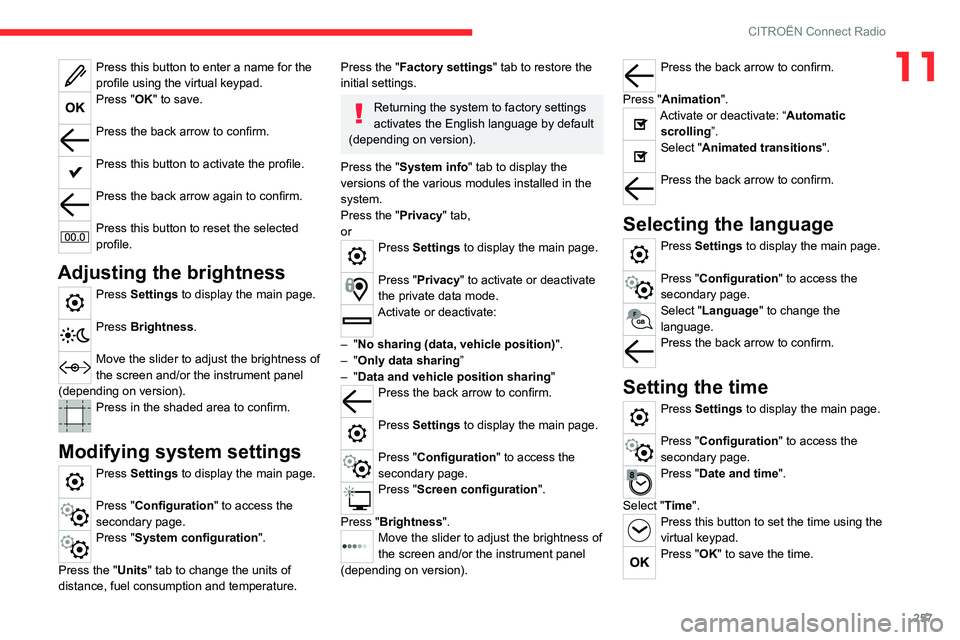
11Press this button to enter a name for the
profile using the virtual keypad.
Press "OK" to save.
Press the back arrow to confirm.
Press this button to activate the profile.
Press the back arrow again to confirm.
Press this button to reset the selected
profile.
Adjusting the brightness
Press Settings to display the main page.
Press Brightness.
Move the slider to adjust the brightness of
the screen and/or the instrument panel
(depending on version).
Press in the shaded area to confirm.
Modifying system settings
Press Settings to display the main page.
Press "Configuration" to access the
secondary page.
Press "System configuration".
Press the "Units" tab to change the units of
distance, fuel consumption and temperature.
Press the "Factory settings" tab to restore the
initial settings.
Returning the system to factory settings
activates the English language by default
(depending on version).
Press the "System info" tab to display the
versions of the various modules installed in the
system.
Press the "Privacy " tab,
or
Press Settings to display the main page.
Press "Privacy" to activate or deactivate
the private data mode.
Activate or deactivate:
–
"No sharing (data, vehicle position) ".
–
"Only data sharing ”
–
"Data and vehicle position sharing "
Press the back arrow to confirm.
Press Settings to display the main page.
Press "Configuration" to access the
secondary page.
Press "Screen configuration".
Press "Brightness".
Move the slider to adjust the brightness of
the screen and/or the instrument panel
(depending on version).
Press the back arrow to confirm.
Press "Animation".
Activate or deactivate: “Automatic scrolling ”.
Select "Animated transitions".
Press the back arrow to confirm.
Selecting the language
Press Settings to display the main page.
Press "Configuration" to access the
secondary page.
Select "Language" to change the
language.
Press the back arrow to confirm.
Setting the time
Press Settings to display the main page.
Press "Configuration" to access the
secondary page.
Press "Date and time".
Select "Time".
Press this button to set the time using the
virtual keypad.
Press "OK" to save the time.
Page 296 of 324

294
Alphabetical index
U
Under-inflation (detection) 136
Unlocking
32–37
Unlocking from the inside
41–42
Unlocking, selective
34–35
Unlocking, total
34–35
Updating the date
258, 280
Updating the time
244, 257, 281
USB
241, 252–253, 271, 275
V
Vehicle data recording and privacy 285
Ventilation
73–75, 79–80
Video
276
Visiopark 1
166
Voice commands
263–266
W
Wallbox (Electric) 179
Warning and indicator lamps
13–14
Warning lamp, driver's seat belt
not fastened
101
Warning lamps
14
Warning lamp, seat belts
101
Warnings and indicators
13–14
Washer jets, heated
78
Washing
140
Washing (advice)
177, 200–201
Weights
227–231, 235, 236
Welcome lighting 33
Wheel, spare
137, 197, 202–203,
206–207, 209
Windows, rear doors
49
Windscreen, heated
78
Windscreen wipers
88, 90
Wiper blades (changing)
89–90
Wiper, rear
89
Wipers
88, 90
Wipers, automatic rain sensitive
90