2023 CHEVROLET TAHOE Format
[x] Cancel search: FormatPage 252 of 443

Chevrolet Tahoe/Suburban Owner Manual (GMNA-Localizing-U.S./Canada/
Mexico-16416971) - 2023 - CRC - 5/16/22
Driving and Operating 251
Warning (Continued)
Cruise Lane Change feature. Only request
a lane change when traffic conditions are
safe for a lane change, and always be
ready to manually steer the vehicle. See
“Steering Manually and Changing Lanes”
listed previously in this section.
Take Over Alert
{Warning
Super Cruise will not maintain the
vehicle’s speed while the steering wheel
light bar is flashing red. If the steering
wheel light bar flashes red, immediately
resume manual steering to prevent
serious injury or death. If you do not
resume manual steering, the vehicle will
begin to slow in the same lane and
eventually come to a complete stop on
the road.
Any time the steering wheel light bar
flashes red, resume manual steering
immediately. To begin steering manually, hold the
steering wheel firmly (with both hands)
using the highlighted regions as shown in
the picture below.
The instrument cluster light^, will also
turn red and a message will display in the
Driver Information Center (DIC). In addition,
beeps will sound, or the Safety Alert Seat
will vibrate. To view Collision and Detection
options, touch the Settings icon on the
infotainment home page. Select “Vehicle”to
display the list of available options and
select “Collision/Detection Systems”. After
you begin steering manually, then Super
Cruise will disengage. The red flashing steering wheel light bar
could occur under any of the following
conditions:
.Lane markings are poor, or visibility is
limited.
.The Driver Attention System (DAS) does
not detect that the driver's head and eyes
are directed toward the road.
.ACC is canceled.
.The vehicle is on a tight curve, or the
lanes are too wide, or the vehicle goes
into a curve too fast.
.The road speed limit of Super Cruise
capable non-divided road is below
28 km/h(45 mph).
.The compatible road ends.
.The vehicle is approaching an intersection
controlled by a traffic light, stop sign,
or other traffic control device.
.A Super Cruise system fault occurs.
.Super Cruise is unable to complete the
lane change maneuver.
Page 256 of 443
Chevrolet Tahoe/Suburban Owner Manual (GMNA-Localizing-U.S./Canada/
Mexico-16416971) - 2023 - CRC - 5/16/22
Driving and Operating 255
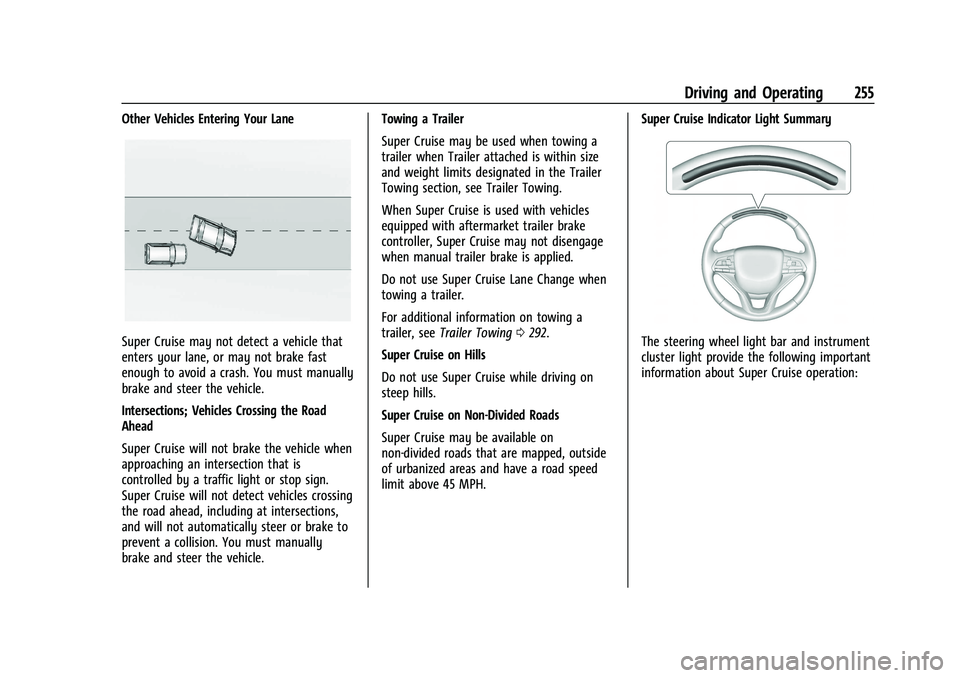
Other Vehicles Entering Your Lane
Super Cruise may not detect a vehicle that
enters your lane, or may not brake fast
enough to avoid a crash. You must manually
brake and steer the vehicle.
Intersections; Vehicles Crossing the Road
Ahead
Super Cruise will not brake the vehicle when
approaching an intersection that is
controlled by a traffic light or stop sign.
Super Cruise will not detect vehicles crossing
the road ahead, including at intersections,
and will not automatically steer or brake to
prevent a collision. You must manually
brake and steer the vehicle.Towing a Trailer
Super Cruise may be used when towing a
trailer when Trailer attached is within size
and weight limits designated in the Trailer
Towing section, see Trailer Towing.
When Super Cruise is used with vehicles
equipped with aftermarket trailer brake
controller, Super Cruise may not disengage
when manual trailer brake is applied.
Do not use Super Cruise Lane Change when
towing a trailer.
For additional information on towing a
trailer, see
Trailer Towing 0292.
Super Cruise on Hills
Do not use Super Cruise while driving on
steep hills.
Super Cruise on Non-Divided Roads
Super Cruise may be available on
non-divided roads that are mapped, outside
of urbanized areas and have a road speed
limit above 45 MPH. Super Cruise Indicator Light SummaryThe steering wheel light bar and instrument
cluster light provide the following important
information about Super Cruise operation:
Page 258 of 443
Chevrolet Tahoe/Suburban Owner Manual (GMNA-Localizing-U.S./Canada/
Mexico-16416971) - 2023 - CRC - 5/16/22
Driving and Operating 257
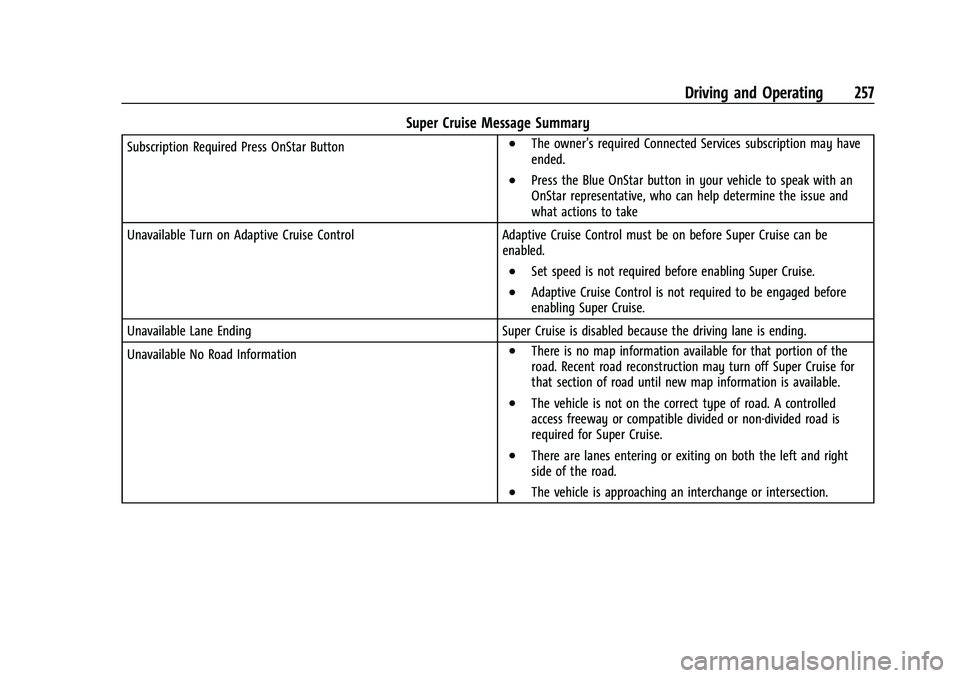
Super Cruise Message Summary
Subscription Required Press OnStar Button.The owner’s required Connected Services subscription may have
ended.
.Press the Blue OnStar button in your vehicle to speak with an
OnStar representative, who can help determine the issue and
what actions to take
Unavailable Turn on Adaptive Cruise Control Adaptive Cruise Control must be on before Super Cruise can be enabled.
.Set speed is not required before enabling Super Cruise.
.Adaptive Cruise Control is not required to be engaged before
enabling Super Cruise.
Unavailable Lane Ending Super Cruise is disabled because the driving lane is ending.
Unavailable No Road Information
.There is no map information available for that portion of the
road. Recent road reconstruction may turn off Super Cruise for
that section of road until new map information is available.
.The vehicle is not on the correct type of road. A controlled
access freeway or compatible divided or non-divided road is
required for Super Cruise.
.There are lanes entering or exiting on both the left and right
side of the road.
.The vehicle is approaching an interchange or intersection.
Page 261 of 443

Chevrolet Tahoe/Suburban Owner Manual (GMNA-Localizing-U.S./Canada/
Mexico-16416971) - 2023 - CRC - 5/16/22
260 Driving and Operating
Map Updates
Super Cruise map information must be
periodically updated at least once every
seven months to determine whether Super
Cruise is available on certain roads.
See the following website for Super Cruise
map open source compliance documentation,
including the license information:
https://oss.veoneer.com/
Data Download
If the vehicle is equipped with OnStar and
has an active service plan, additional data
may be collected through the OnStar
system. This includes information about: the
vehicle’s operation; a crash involving the
vehicle; the use of the vehicle and its
features; and, in certain situations, the
location and approximate GPS speed of the
vehicle. Refer to the OnStar Terms and
Conditions and Privacy Statement on the
OnStar website.
Location Services
This setting enables or disables sharing of
vehicle location outside the vehicle for
certain purposes. Even if the Location
Services setting is disabled, vehicle locationinformation will continue to be shared for
emergency services and Super Cruise,
if equipped.
System Care
The camera on the steering column has a
lens cover that may become dirty over time
and affect camera performance. Clean the
lens cover with a soft cloth sprayed with
glass cleaner. Wipe the lens gently, then dry
it. Never use abrasive cloths/cleaners or
corrosive chemicals of any kind on the lens
cover.
Super Cruise uses the front radar, front
camera, and 360 degree cameras for its
operation. Clean surfaces are required for
Super Cruise operation. See
Adaptive Cruise
Control (Advanced) 0236, “Surround Vision
Camera” underAssistance Systems for
Parking or Backing 0262, and Lane Keep
Assist (LKA) 0283 for care information.
Caution
The Super Cruise system is a highly
sophisticated system and should only be
serviced by technicians with the proper
training, tools, and safety instructions,
(Continued)
Caution (Continued)
which your dealer has. Without proper
training and tools the vehicle may
become damaged.
Driver Assistance Systems
This vehicle may have features that work
together to help avoid crashes or reduce
crash damage while driving, backing, and
parking. Read this entire section before
using these systems.
{Warning
Do not rely on the Driver Assistance
Systems. These systems do not replace
the need for paying attention and driving
safely. You may not hear or feel alerts or
warnings provided by these systems.
Failure to use proper care when driving
may result in injury, death, or vehicle
damage. See Defensive Driving 0196.
Under many conditions, these systems
will not:
.Detect children, pedestrians, bicyclists,
or animals. (Continued)
Page 262 of 443

Chevrolet Tahoe/Suburban Owner Manual (GMNA-Localizing-U.S./Canada/
Mexico-16416971) - 2023 - CRC - 5/16/22
Driving and Operating 261
Warning (Continued)
.Detect vehicles or objects outside the
area monitored by the system.
.Work at all driving speeds.
.Warn you or provide you with enough
time to avoid a crash.
.Work under poor visibility or bad
weather conditions.
.Work if the detection sensor is not
cleaned or is covered by ice, snow,
mud, or dirt.
.Work if the detection sensor is
covered up, such as with a sticker,
magnet, or metal plate.
.Work if the area surrounding the
detection sensor is damaged or not
properly repaired.
Complete attention is always required
while driving, and you should be ready to
take action and apply the brakes and/or
steer the vehicle to avoid crashes. Audible or Safety Alert Seat
Some driver assistance features alert the
driver of obstacles by beeping. To view
available settings for this feature, touch the
Settings icon on the infotainment home
page. Select
“Vehicle”to display the list of
available options and select “Comfort and
Convenience”.
If equipped with the Safety Alert Seat, the
driver seat cushion may provide a vibrating
pulse alert instead of beeping. To view
available settings for this feature, touch the
Settings icon on the infotainment home
page. Select “Vehicle”to display the list of
available options and select “Collision/
Detection Systems”.
Cleaning
Depending on vehicle options, keep these
areas of the vehicle clean to ensure the best
driver assistance feature performance. Driver
Information Center (DIC) messages may
display when the systems are unavailable or
blocked.
.Front and rear bumpers and the area
below the bumpers
.Front grille and headlamps
.Front camera lens in the front grille or
near the front emblem
Page 264 of 443

Chevrolet Tahoe/Suburban Owner Manual (GMNA-Localizing-U.S./Canada/
Mexico-16416971) - 2023 - CRC - 5/16/22
Driving and Operating 263
Warning (Continued)
distances may be different from actual
distances. Do not drive or park the
vehicle using only these camera(s).
Always check behind and around the
vehicle before driving. Failure to use
proper care may result in injury, death,
or vehicle damage.
Surround Vision System
If equipped the Surround Vision system can
display various views surrounding the
vehicle in the infotainment display. See
below for camera view descriptions and
more information.
{Warning
The Surround Vision cameras have blind
spots and will not display all objects near
the corners of the vehicle. Folding outside
mirrors that are out of position may not
display surround view correctly. Always
check around the vehicle when parking or
backing.
1. Views Displayed by the SurroundVision Cameras
2. Area Not Shown
1. Views Displayed by the Surround Vision Cameras
2. Area Not Shown
{Warning
The camera(s) do not display children,
pedestrians, bicyclists, crossing traffic,
animals, or any other object outside of
the cameras’ field of view, below the
bumper, or under the vehicle. Shown
distances may be different from actual
distances. Do not drive or park the
vehicle using only these camera(s).
Always check behind and around the
vehicle before driving. Failure to use
proper care may result in injury, death,
or vehicle damage.
Camera Views
Page 266 of 443
Chevrolet Tahoe/Suburban Owner Manual (GMNA-Localizing-U.S./Canada/
Mexico-16416971) - 2023 - CRC - 5/16/22
Driving and Operating 265
vehicle guidance mode is selected.
Standard Guidance Lines show
current and intended vehicle path.
.Hitch Guidance Line is available in
Rear Standard View when the
Trailering Guidance mode is
selected. Hitch Guidance displays a
single centered guidance line on
the infotainment display to assist
with aligning the vehicle’s hitch
with a trailer coupler. Align the
Hitch Guidance Line with the
trailer coupler by continuously
steering the vehicle to keep the
guidance line centered on the
coupler when backing. Park Assist
overlays will not display when the
Hitch Guidance Line is active.
.Rear Trailer Guidance Lines are
available in the Rear Trailer View
when the Trailering Guidance
mode is selected and the rear
trailer camera calibration has been
successfully completed. Rear Trailer
Guidance Lines show the intended
path (yellow) and the current path
(blue) of the trailer. The current
path guidance lines will converge
with the intended path guidance
lines.
7. Interior Trailer View
Displays a view of the interior of the
trailer. The feature is available when a
trailer is connected. The feature
requires user installation of an
accessory trailer camera on the
interior of the trailer per the accessory
trailer camera installation instructions
(see your dealer for accessory trailer
camera(s) and information). To view,
select Interior Trailer View on the
infotainment display when the Camera
App is active. To access this view
when in a forward gear above
12 km/h (8 mph), select CAMERA on
the infotainment display and select
Interior Trailer View. The view will
close after 8 seconds and can be
closed early by selecting X, Home
or Back.
8. Transparent Trailer View
Displays a view that allows the driver
to virtually“see through” the trailer.
The feature is available when a
compatible trailer is connected, a valid
profile is selected and the vehicle is
not in Reverse. The feature requires
user installation of an accessory trailer
camera on the rear exterior surface of
the trailer per the accessory trailer camera installation instructions (see
your dealer for accessory trailer
camera(s) and information). To view,
select Transparent Trailer View on the
infotainment display when the Camera
App is active. To access this view
when in a forward gear above
12 km/h (8 mph), select CAMERA on
the infotainment display and select
Transparent Trailer View. The view can
be closed by selecting X, Home
or Back.
When the system is calibrated and
trailer position is known one of three
views will be shown; Transparent
Trailer View, Left Transparent Trailer
View or Right Transparent Trailer
View. The Transparent Trailer View is
shown when the position of the trailer
is relatively straight behind the
vehicle. The Left or Right Transparent
Trailer view is shown when the
position of the trailer is too far to the
left or right. When the system is not
calibrated or trailer position is not
known the Transparent Trailer
Picture-in-Picture View will be shown.
Page 267 of 443
Chevrolet Tahoe/Suburban Owner Manual (GMNA-Localizing-U.S./Canada/
Mexico-16416971) - 2023 - CRC - 5/16/22
266 Driving and Operating
9. Rear Trailer Views
.Rear Trailer View
Displays a view of the area behind
the trailer when a trailer is
connected. The feature requires
user installation of an accessory
trailer camera on the rear exterior
surface of the trailer per the
accessory trailer camera
installation instructions (see your
dealer for accessory trailer
camera(s) and information). To
view, select Rear Trailer View on
the infotainment display when the
Camera App is active. To access
this view when in a forward gear
above 12 km/h (8 mph), select
CAMERA on the infotainment
display and select Rear Trailer
View. The view can be closed by
selecting X, Home or Back.
.Rear Side View with Available
Articulation Functionality
Displays a rearward split view of
the left and right sides of the
vehicle and trailer, when a trailer is
connected. The view will
automatically pan to show more of
the left or right side based on theposition of the trailer when a
compatible profile is configured
and selected via the Trailering App.
To view, select Rear Side View with
Available Articulation Functionality
on the infotainment display when
the Camera App is active. To access
this view when in a forward gear
above 12 km/h (8 mph), select
CAMERA on the infotainment
display and select Rear Side View
with Available Articulation
Functionality. The view can be
closed by selecting X, Home
or Back.
.Picture-in-Picture Side View
Displays a rearward split view of
the left and right sides of the
vehicle and trailer with an overlay
view of the area behind the trailer
when a trailer is connected. The
feature requires user installation of
an accessory trailer camera on the
rear exterior surface of the trailer
per the accessory trailer camera
installation instructions (see your
dealer for accessory trailer
camera(s) and information). To
view, select Picture-in-Picture Side
View on the infotainment displaywhen the Camera App is active. To
access this view when in a forward
gear above 12 km/h (8 mph), select
CAMERA on the infotainment
display and select Picture-in-Picture
Side View. The view can be closed
by selecting X, Home or Back.
Additional Views and Alerts
.Turn Signal Activated Views
Displays a rearward view of the left or
right side of the vehicle and trailer when
a trailer is connected. Views are provided
based on turn signal activation with the
right-side view being shown when the
right turn signal is active and the left side
view being shown when the left turn
signal is active. The feature can be
enabled or disabled. To view available
settings from the infotainment screen,
touch Settings > Vehicle > Collision/
Detection Systems. The view can be
closed early by selecting X, Home or Back.
A Trailer Length Indicator Overlay is
available in the Turn Signal Activated
Views when the trailer is relatively
straight behind the vehicle and a
compatible profile is configured and
selected via the Trailering App. The
overlay will not be visible when the