2023 CHEVROLET SUBURBAN Drive
[x] Cancel search: DrivePage 142 of 443
Chevrolet Tahoe/Suburban Owner Manual (GMNA-Localizing-U.S./Canada/
Mexico-16416971) - 2023 - CRC - 4/25/22
Lighting 141
Press and hold any of the overhead console
lenses to turn all dome lamps on or off
manually.
Reading Lamps
There are reading lamps on the overhead
console and over the rear seats. These lamps
come on when any door is opened.
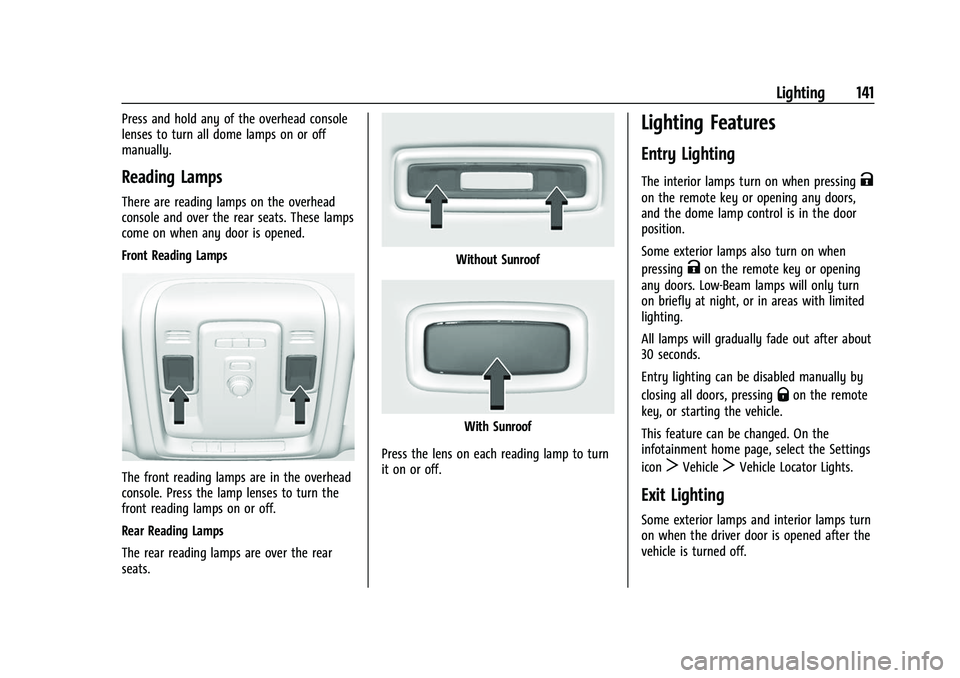
Front Reading Lamps
The front reading lamps are in the overhead
console. Press the lamp lenses to turn the
front reading lamps on or off.
Rear Reading Lamps
The rear reading lamps are over the rear
seats.
Without Sunroof
With Sunroof
Press the lens on each reading lamp to turn
it on or off.
Lighting Features
Entry Lighting
The interior lamps turn on when pressingK
on the remote key or opening any doors,
and the dome lamp control is in the door
position.
Some exterior lamps also turn on when
pressing
Kon the remote key or opening
any doors. Low-Beam lamps will only turn
on briefly at night, or in areas with limited
lighting.
All lamps will gradually fade out after about
30 seconds.
Entry lighting can be disabled manually by
closing all doors, pressing
Qon the remote
key, or starting the vehicle.
This feature can be changed. On the
infotainment home page, select the Settings
icon
TVehicleTVehicle Locator Lights.
Exit Lighting
Some exterior lamps and interior lamps turn
on when the driver door is opened after the
vehicle is turned off.
Page 143 of 443
Chevrolet Tahoe/Suburban Owner Manual (GMNA-Localizing-U.S./Canada/
Mexico-16416971) - 2023 - CRC - 4/25/22
142 Lighting
The exterior and interior lamps remain on
for a set amount of time, then automatically
turn off.
The interior lights turn on when the vehicle
is turned off.
The exterior lamps turn off immediately by
turning the exterior lamp control off.
This feature can be changed. On the
infotainment home screen, select the
Settings icon
TVehicleTExit Lighting.
Battery Load Management
The vehicle has Electric Power Management
(EPM), which estimates the battery's
temperature and state of charge. It then
adjusts the voltage for best performance
and extended life of the battery.
When the battery's state of charge is low,
the voltage is raised slightly to quickly bring
the charge back up. When the state of
charge is high, the voltage is lowered
slightly to prevent overcharging. The
voltmeter gauge or the voltage display on
the Driver Information Center (DIC),
if equipped, may show the voltage moving
up or down. This is normal. If there is a
problem, an alert will be displayed.The battery can be discharged at idle if the
electrical loads are very high. This is true for
all vehicles. This is because the generator
(alternator) may not be spinning fast
enough at idle to produce all the power that
is needed for very high electrical loads.
A high electrical load occurs when several of
the following are on, such as: headlamps,
high beams, rear window defogger, climate
control fan at high speed, heated seats,
engine cooling fans, trailer loads, and loads
plugged into accessory power outlets.
EPM works to prevent excessive discharge of
the battery. It does this by balancing the
generator's output and the vehicle's
electrical needs. It can increase engine idle
speed to generate more power, whenever
needed. It can temporarily reduce the power
demands of some accessories.
Normally, these actions occur in steps or
levels, without being noticeable. In rare
cases at the highest levels of corrective
action, this action may be noticeable to the
driver. If so, a DIC message might be
displayed and it is recommended that the
driver reduce the electrical loads as much as
possible.
Battery Power Protection
This feature helps prevent the battery from
being drained, if the interior courtesy lamps
or reading lamps are accidentally left on.
If any of these lamps are left on, they
automatically turn off after 10 minutes,
if the ignition is off. The lamps will not
come back on again until one of the
following occurs:
.The ignition is turned on.
.The doors are closed and then re-opened.
Exterior Lighting Battery Saver
The exterior lamps turn off about 10 minutes
after the vehicle is turned off, if the parking
lamps or headlamps have been manually
left on. This protects against draining the
battery. To restart the 10-minute timer, turn
the exterior lamp control to the
Oposition
and then back to the
;or2position.
To keep the lamps on for more than
10 minutes, the vehicle must be on or in
accessory mode.
Page 144 of 443

Chevrolet Tahoe/Suburban Owner Manual (GMNA-Localizing-U.S./Canada/
Mexico-16416971) - 2023 - CRC - 4/26/22
Infotainment System 143
Infotainment System
Introduction
Introduction . . . . . . . . . . . . . . . . . . . . . . . . . . . 143
Overview . . . . . . . . . . . . . . . . . . . . . . . . . . . . . . 144
Steering Wheel Controls . . . . . . . . . . . . . . . 146
Using the System . . . . . . . . . . . . . . . . . . . . . 146
Software Updates . . . . . . . . . . . . . . . . . . . . . 149
Radio
AM-FM Radio (Base Radio) . . . . . . . . . . . . . 149
AM-FM Radio (Uplevel Radio) . . . . . . . . . . 150
Satellite Radio . . . . . . . . . . . . . . . . . . . . . . . . . . 151
Radio Reception . . . . . . . . . . . . . . . . . . . . . . . . 152
Multi-Band Antenna . . . . . . . . . . . . . . . . . . . 153
Audio Players
Avoiding Untrusted Media Devices . . . . . 153
Avoiding Untrusted Media Devices . . . . . 153
USB Port . . . . . . . . . . . . . . . . . . . . . . . . . . . . . . . 153
Bluetooth Audio (Base Radio) . . . . . . . . . . 153
Bluetooth Audio (Uplevel Radio) . . . . . . . 154
Rear Seat Infotainment
Rear Seat Infotainment (RSI)System . . . . . . . . . . . . . . . . . . . . . . . . . . . . . . 154
Navigation
Using the Navigation System . . . . . . . . . . 161
Maps . . . . . . . . . . . . . . . . . . . . . . . . . . . . . . . . . . 162
Navigation Symbols . . . . . . . . . . . . . . . . . . . 162 Destination . . . . . . . . . . . . . . . . . . . . . . . . . . . . 162
Global Positioning System (GPS) . . . . . . . 163
Vehicle Positioning . . . . . . . . . . . . . . . . . . . . 163
Problems with Route Guidance . . . . . . . . 164
Voice Recognition
Voice Recognition . . . . . . . . . . . . . . . . . . . . . 164
Phone
Bluetooth (Overview) . . . . . . . . . . . . . . . . . . 166
Bluetooth (Pairing and Using a Phone
for Uplevel Radio) . . . . . . . . . . . . . . . . . . . . 167
Bluetooth (Pairing and Using a Phone for Base Radio) . . . . . . . . . . . . . . . . . . . . . . 170
Apple CarPlay and Android Auto (Base Radio) . . . . . . . . . . . . . . . . . . . . . . . . . . . . . . . . 174
Apple CarPlay and Android Auto (Uplevel Radio) . . . . . . . . . . . . . . . . . . . . . . . 175
Settings
Settings (Base Radio) . . . . . . . . . . . . . . . . . . 177
Settings (Uplevel Radio) . . . . . . . . . . . . . . . 178
Teen Driver . . . . . . . . . . . . . . . . . . . . . . . . . . . . 180
Trademarks and License Agreements
Trademarks and LicenseAgreements . . . . . . . . . . . . . . . . . . . . . . . . . . 183
Introduction
Read the following pages to become familiar
with the features.
{Warning
Taking your eyes off the road for too
long or too often while using any
infotainment feature can cause a crash.
You or others could be injured or killed.
Do not give extended attention to
infotainment tasks while driving. Limit
your glances at the vehicle displays and
focus your attention on driving. Use voice
commands whenever possible.
The infotainment system has built-in
features intended to help avoid distraction
by disabling some features when driving.
These features may gray out when they are
unavailable. Many infotainment features are
also available through the instrument cluster
and steering wheel controls.
Before driving:
.Become familiar with the operation,
center stack controls, steering wheel
controls, and infotainment display.
Page 155 of 443
Chevrolet Tahoe/Suburban Owner Manual (GMNA-Localizing-U.S./Canada/
Mexico-16416971) - 2023 - CRC - 4/26/22
154 Infotainment System
2. Once paired, touch Audio from the HomePage, then touch Bluetooth from the
recent sources list on the left of the
display.
Bluetooth Sound Menu
See “Infotainment System Sound Menu”
under AM-FM Radio (Base Radio) 0149 or
AM-FM Radio (Uplevel Radio) 0150.
Manage Bluetooth Devices
From the Home Page: 1. Touch Audio.
2. Touch Devices to add or delete devices.
When touching Bluetooth, the radio may
not be able to launch the audio player on
the connected device to start playing. When
the vehicle is not moving, use the mobile
device to begin playback.
All devices launch audio differently. When
selecting Bluetooth as a source, the radio
may show as paused on the display. Press
play on the device or touch
pon the
vehicle display to begin playback.
Browse functionality will be provided where
supported by the Bluetooth device. This
media content will not be part of the
MyMedia source mode. Some smartphones support sending
Bluetooth music information to display on
the radio. When the radio receives this
information, it will check to see if any is
available and display it. For more
information about supported Bluetooth
features, visit your brand website. See
Online Account
0413 for details.
See Radio Frequency Statement 0419.
Bluetooth Audio (Uplevel Radio)
Music may be played from a connected
Bluetooth device.
Volume and song selection may be
controlled by using the infotainment
controls. If Bluetooth is selected and no
volume is present, check the volume setting
on the infotainment system.
To play music via Bluetooth:
1. On the audio now playing page, touch source and select the desired Bluetooth
device.
2. If there is no device connected, follow the screen prompts to pair the device.
Supported media content will appear on
the display. Manage Bluetooth Devices
Managing Bluetooth devices allows you to
add, delete, or select another paired device.
Only one Bluetooth device can be active at
a time.
Some smartphones support sending
Bluetooth music information to display on
the radio. When the radio receives this
information, it will check to see if any is
available and display it. For more
information about supported Bluetooth
features, visit your brand website. See
Online Account
0413 for details.
See Radio Frequency Statement 0419.
Rear Seat Infotainment
Rear Seat Infotainment (RSI)
System
If equipped, the system includes two HDMI
ports, two Bluetooth headphones, and video
touchscreen displays in back of the driver
and passenger seats.
The RSI system may not operate properly
until the temperature is above −20 °C (−4 °F)
and below 55 °C (131 °F).
Page 167 of 443

Chevrolet Tahoe/Suburban Owner Manual (GMNA-Localizing-U.S./Canada/
Mexico-16416971) - 2023 - CRC - 4/26/22
166 Infotainment System
“Find a
initiate navigation to a POI in the command
in the command.
“Add
way-point to the current route.
“Take me home” :Starts navigation to
Home location set in Google maps.
Onboard Vehicle Commands
These commands can be used to adjust
vehicle temperature, control window
defrosters and obtain fuel information.
“Turn on the A/C” :Turns on the air
conditioning.
“How much gas do I have left” :Find out
how much fuel your vehicle has left.
“Set temperature to
degrees” :Set to a specific temperature
inside your vehicle.
Phone Assistant Voice Recognition
While a device is connected via Bluetooth,
Android Auto, or CarPlay, press and hold
g
on the steering wheel controls to pass
through and launch the Voice Assistant on
the connected mobile phone (e.g, Google
assistant, Siri, etc.).
Phone
Bluetooth (Overview)
The Bluetooth-capable system can interact
with many mobile devices to:
.Place and receive calls in a
hands-free mode.
.Share the device’s address book or
contact list with the vehicle.
.Stream audio (music, podcasts).
.Notify receipt of text messages.
To minimize driver distraction, before
driving, and with the vehicle parked:
.Become familiar with the features of the
mobile device. Organize the phone book
and contact lists clearly and delete
duplicate or rarely used entries.
.Review the controls and operation of the
infotainment system.
.Pair mobile device(s) to the vehicle. The
system may not work with all mobile
devices. See “Pairing”later in this section.
Vehicles with a Bluetooth system can use a
Bluetooth-capable mobile device with a
Hands-Free Profile to make and receive
phone calls. The infotainment system and
voice recognition are used to control the system. The system can be used while the
ignition is on or in accessory mode. The
range of the Bluetooth system can be up to
9.1 m (30 ft). Not all mobile devices support
all functions and not all mobile devices work
with the Bluetooth system. See
Online
Account 0413 for more information about
compatible mobile devices.
Controls
Use the controls on the infotainment display
and the steering wheel to operate the
Bluetooth system.
Steering Wheel Controls
g: Press and release to answer incoming
calls on your connected Bluetooth mobile
device. Press and hold for mobile device
assistant.
c: Press to end a call, decline a call,
or cancel an operation. Press to mute or
unmute the infotainment system when not
on a call.
Infotainment System Controls
For information about how to navigate the
menu system using the infotainment
controls, see Using the System 0146.
Page 171 of 443

Chevrolet Tahoe/Suburban Owner Manual (GMNA-Localizing-U.S./Canada/
Mexico-16416971) - 2023 - CRC - 4/26/22
170 Infotainment System
Making a Call Using the Keypad
To make a call by dialing the numbers:1. Touch the Phone icon on the Home Page or on the shortcut tray near the left of
the display.
2. Touch Keypad and enter a phone number.
3. Touch the phone icon on the infotainment display to start dialing the
number.
Searching Contacts Using the Keypad
To search for contacts using the keypad:
1. Touch the Phone icon on the Home Page.
2. Touch Keypad and enter partial phone numbers or contact names using the
digits on the keypad to search.
Results appear on the right side of the
display. Touch one to place a call.
Accepting or Declining a Call
When an incoming call is received, the
infotainment system mutes and a ring tone
is heard in the vehicle.
Accepting a Call
There are two ways to accept a call:
.Pressgon the steering wheel controls.
.Touch Answer on the infotainment
display.
Declining a Call
There are two ways to decline a call:
.Presscon the steering wheel controls.
.Touch Decline on the infotainment
display.
Call Waiting
Call waiting must be supported on the
Bluetooth cell phone and enabled by the
wireless service carrier to work.
Accepting a Call
Press
gto answer, then touch Switch on
the infotainment display.
Declining a Call
Press
cto decline, then touch Decline on
the infotainment display.
Switching Between Calls (Call Waiting
Calls Only)
To switch between calls, touch Phone on the
Home Page to display Call View. While in
Call View, touch the call information of the
call on hold to change calls.
Ending a Call
.Presscon the steering wheel controls.
.Touch#on the infotainment display,
next to a call, to end only that call.
Dual Tone Multi-Frequency (DTMF) Tones
The in-vehicle Bluetooth system can send
numbers during a call. This is used when
calling a menu-driven phone system. Use the
Keypad to enter the number.
Bluetooth (Pairing and Using a
Phone for Base Radio)
Pairing
A Bluetooth-enabled cell phone must be
paired to the Bluetooth system and then
connected to the vehicle before it can be
used. See the cell phone manufacturer's user
guide for Bluetooth functions before pairing
the cell phone.
Pairing Information
.A Bluetooth phone with music capability
can be paired to the vehicle as a phone
and a music player at the same time.
.Up to 10 devices can be paired to the
Bluetooth system.
Page 175 of 443

Chevrolet Tahoe/Suburban Owner Manual (GMNA-Localizing-U.S./Canada/
Mexico-16416971) - 2023 - CRC - 4/26/22
174 Infotainment System
3. When the second call is active, press themerge icon to conference the three-way
call together.
Ending a Call
.Pression the steering wheel controls.
.Touchbnext to a call to end only
that call.
.Select End on the instrument cluster using
the select control.
Dual Tone Multi-Frequency (DTMF) Tones
The in-vehicle Bluetooth system can send
numbers during a call. This is used when
calling a menu-driven phone system. Use the
Keypad to enter the number.
Apple CarPlay and Android Auto
(Base Radio)
If equipped, Android Auto and/or Apple
CarPlay capability may be available through
a compatible smartphone. If available, the
Android Auto and Apple CarPlay icons will
change from gray to color on the Home
Page of the infotainment display.
To use Android Auto and/or Apple CarPlay: For Wired Phone Projection
1. Download the Android Auto app to your smartphone from the Google Play store.
There is no app required for Apple
CarPlay.
2. Connect your Android phone or Apple iPhone by using the factory-provided
phone USB cable and plugging into a
USB data port. For best performance, it is
highly recommended to use the device’s
factory-provided USB cable, which should
be replaced after significant wear to
maintain connection quality. Aftermarket
or third-party cables may not work.
3. When the phone is first connected to activate Apple CarPlay or Android Auto,
accept the terms and conditions on both
the infotainment system and the phone.
4. Follow the instructions on the phone.
The Android Auto and Apple CarPlay icons
on the Home Page will illuminate depending
on the smartphone. Android Auto and/or
Apple CarPlay may automatically launch
upon USB connection. If not, touch the
Android Auto or Apple CarPlay icon on the
Home Page to launch.
Press
{on the center stack to return to the
Home Page. For Wireless Phone Projection
If equipped, verify your phone is wireless
compatible by visiting the Google Android
Auto or Apple CarPlay support page.
1. Download the Android Auto app to your smartphone from the Google Play store.
There is no app required for Apple
CarPlay.
2. For first time connection, there are two ways to set up wireless projection:
.Connect your Android phone or Apple
iPhone by using the factory-provided
phone USB cable and plugging into a
USB data port. For best performance,
it is highly recommended to use the
device’s factory-provided USB cable,
which should be replaced after
significant wear to maintain
connection quality. Aftermarket or
third-party cables may not work.
.Connecting the phone over Bluetooth.
See Bluetooth (Pairing and Using a
Phone for Uplevel Radio) 0167 or
Bluetooth (Pairing and Using a Phone
for Base Radio) 0170 or
Bluetooth (Overview) 0166.
3. Make sure wireless is turned on the phone for wireless projection to work.
Page 179 of 443

Chevrolet Tahoe/Suburban Owner Manual (GMNA-Localizing-U.S./Canada/
Mexico-16416971) - 2023 - CRC - 4/26/22
178 Infotainment System
About
Shows the infotainment system software
information.
Return to Factory Settings
Allows resetting the infotainment system
settings in the vehicle.
Apps
The menu may contain the following:
Android Auto
Allows interacting directly with a mobile
device on the infotainment display. See
Apple CarPlay and Android Auto (Base
Radio)0174 orApple CarPlay and Android
Auto (Uplevel Radio) 0175.
Apple CarPlay
This feature allows you to interact directly
with your mobile device on the infotainment
display. See Apple CarPlay and Android Auto
(Base Radio) 0174 orApple CarPlay and
Android Auto (Uplevel Radio) 0175.
Audio
Adjusts different audio settings.
Phone
Adjusts different phone settings.
Vehicle
The menu may contain the following:
Rear Seat Reminder
Allows for a chime and a message when the
rear door has been opened before or during
operation of the vehicle.
Buckle to Drive
This feature can prevent shifting out of Park
when the driver, and if applicable the front
passenger, seat belt is not buckled. See
Buckle To Drive 053.
Climate and Air Quality
Adjusts different climate settings.
Collision/Detection Systems
Adjusts different driver assistance system
settings.
Comfort and Convenience
Adjusts different comfort and convenience
settings.
Lighting
Adjusts different lighting settings.
Power Door Locks
Adjusts different door lock settings. Remote Lock, Unlock, and Start
Adjusts different remote lock settings.
Ride Height
Adjusts different ride height settings.
Power Assist Steps
Adjusts different running board settings.
Seating Position
Adjusts different seat settings.
Suspension
Adjusts different suspension settings.
Teen Driver
See
Teen Driver 0180.
Settings (Uplevel Radio)
Certain settings can be managed in the
Owner Center sites when an account is
established, and may be modified if other
users have accessed the vehicle or created
accounts. This may result in changes to the
security or functionality of the infotainment
system. Some settings may also be
transferred to a new vehicle, if equipped. For
instructions, in the U.S. see
my.chevrolet.com or in Canada see
mychevrolet.ca or monchevrolet.ca.