2023 CHEVROLET SILVERADO 2500 diff
[x] Cancel search: diffPage 110 of 441
Chevrolet Silverado 2500 HD/3500 HD Owner Manual (GMNA-Localizing-U.
S./Canada/Mexico-15546003) - 2022 - CRC - 5/12/21
Instruments and Controls 109
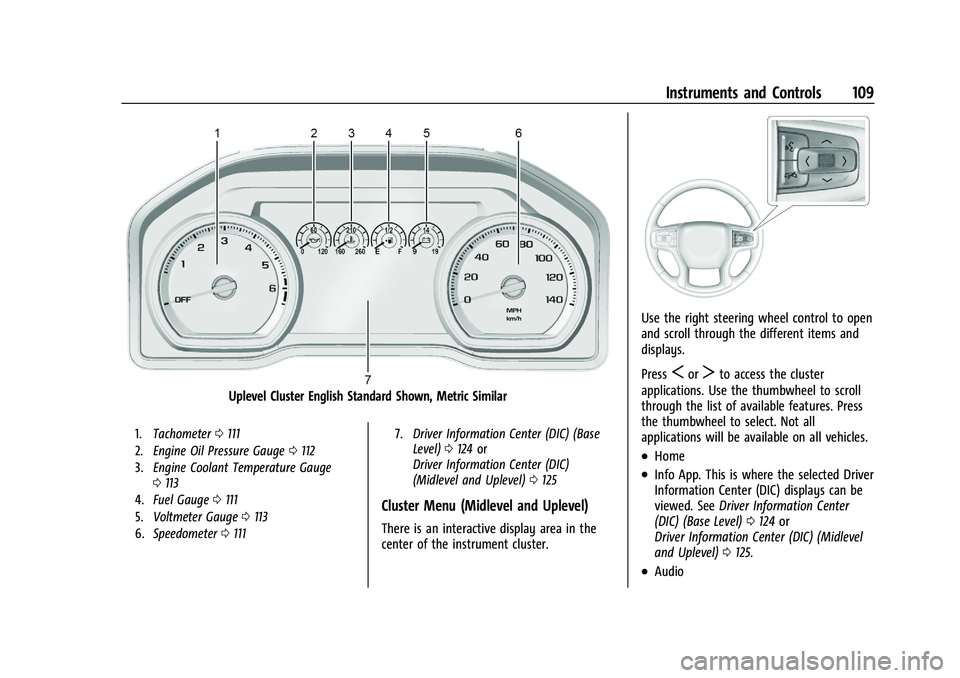
Uplevel Cluster English Standard Shown, Metric Similar
1.Tachometer 0111
2. Engine Oil Pressure Gauge 0112
3. Engine Coolant Temperature Gauge
0113
4. Fuel Gauge 0111
5. Voltmeter Gauge 0113
6. Speedometer 0111 7.
Driver Information Center (DIC) (Base
Level) 0124 or
Driver Information Center (DIC)
(Midlevel and Uplevel) 0125
Cluster Menu (Midlevel and Uplevel)
There is an interactive display area in the
center of the instrument cluster.
Use the right steering wheel control to open
and scroll through the different items and
displays.
Press
SorTto access the cluster
applications. Use the thumbwheel to scroll
through the list of available features. Press
the thumbwheel to select. Not all
applications will be available on all vehicles.
.Home
.Info App. This is where the selected Driver
Information Center (DIC) displays can be
viewed. See Driver Information Center
(DIC) (Base Level) 0124 or
Driver Information Center (DIC) (Midlevel
and Uplevel) 0125.
.Audio
Page 138 of 441
Chevrolet Silverado 2500 HD/3500 HD Owner Manual (GMNA-Localizing-U.
S./Canada/Mexico-15546003) - 2022 - CRC - 5/12/21
Instruments and Controls 137
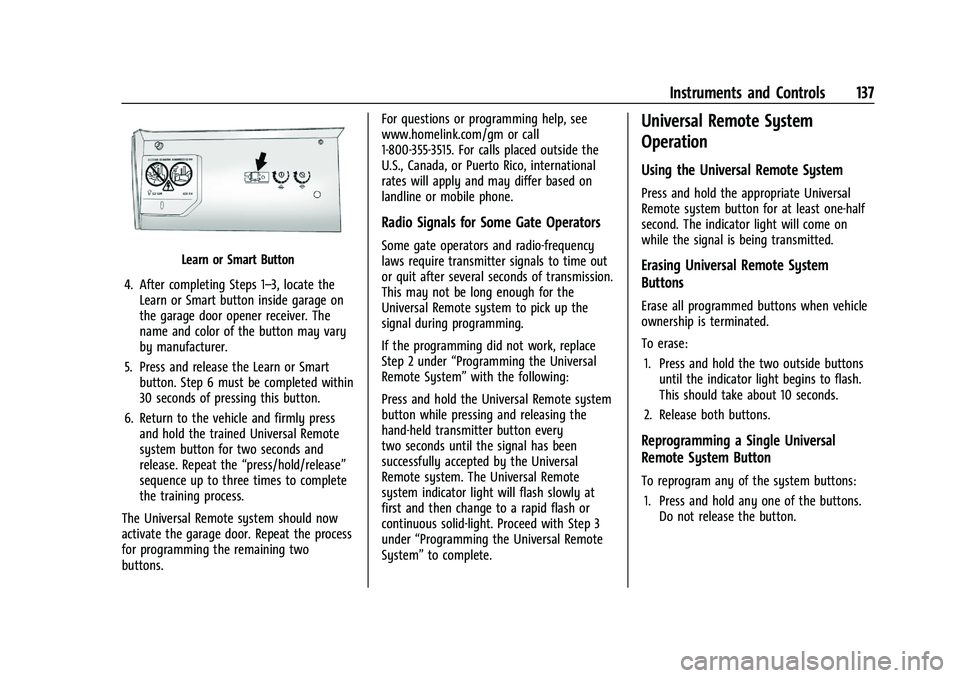
Learn or Smart Button
4. After completing Steps 1–3, locate the Learn or Smart button inside garage on
the garage door opener receiver. The
name and color of the button may vary
by manufacturer.
5. Press and release the Learn or Smart button. Step 6 must be completed within
30 seconds of pressing this button.
6. Return to the vehicle and firmly press and hold the trained Universal Remote
system button for two seconds and
release. Repeat the “press/hold/release”
sequence up to three times to complete
the training process.
The Universal Remote system should now
activate the garage door. Repeat the process
for programming the remaining two
buttons. For questions or programming help, see
www.homelink.com/gm or call
1-800-355-3515. For calls placed outside the
U.S., Canada, or Puerto Rico, international
rates will apply and may differ based on
landline or mobile phone.
Radio Signals for Some Gate Operators
Some gate operators and radio-frequency
laws require transmitter signals to time out
or quit after several seconds of transmission.
This may not be long enough for the
Universal Remote system to pick up the
signal during programming.
If the programming did not work, replace
Step 2 under
“Programming the Universal
Remote System” with the following:
Press and hold the Universal Remote system
button while pressing and releasing the
hand-held transmitter button every
two seconds until the signal has been
successfully accepted by the Universal
Remote system. The Universal Remote
system indicator light will flash slowly at
first and then change to a rapid flash or
continuous solid-light. Proceed with Step 3
under “Programming the Universal Remote
System” to complete.
Universal Remote System
Operation
Using the Universal Remote System
Press and hold the appropriate Universal
Remote system button for at least one-half
second. The indicator light will come on
while the signal is being transmitted.
Erasing Universal Remote System
Buttons
Erase all programmed buttons when vehicle
ownership is terminated.
To erase:
1. Press and hold the two outside buttons until the indicator light begins to flash.
This should take about 10 seconds.
2. Release both buttons.
Reprogramming a Single Universal
Remote System Button
To reprogram any of the system buttons: 1. Press and hold any one of the buttons. Do not release the button.
Page 162 of 441

Chevrolet Silverado 2500 HD/3500 HD Owner Manual (GMNA-Localizing-U.
S./Canada/Mexico-15546003) - 2022 - CRC - 5/5/21
Infotainment System 161
Supported Apple Devices
To view supported devices in USA, see
my.chevrolet.com\learned.
Loss of Audio
If a phone currently paired over Bluetooth is
plugged in with a USB cable, the system will
automatically mute the phone audio.
Playback can be resumed by changing the
audio source from Bluetooth to USB cable.
Source USB from the Media icon on the
infotainment display to resume playback.
Other phones such as Android phones may
have a similar reaction.
Bluetooth Streaming Audio and Voice
Recognition
SeeBluetooth Audio 0161 for information
using voice recognition with Bluetooth
streaming audio.
Make sure all devices have the latest
software downloaded.Auxiliary Jack
If equipped, this vehicle may have an
auxiliary input jack. This may be located in
the center stack or center console under the
armrest. Possible auxiliary audio sources
include:
.Laptop computer
.Audio music player
This jack is not an audio output. Do not
plug headphones into the auxiliary input
jack. Set up an auxiliary device while the
vehicle is in P (Park).
Connect a 3.5 mm (1/8 in) cable from the
auxiliary device to the auxiliary input jack.
When a device is connected, the system can
play audio from the device over the vehicle
speakers.
If an auxiliary device has already been
connected, but a different source is currently
active, press MEDIA on the center stack or
touch the Media icon on the infotainment
display to scroll through audio source
menus, until the AUX Input source appears.
Playing from the AUX Port
An auxiliary device is played through the
audio system and controlled through the
device itself. AUX Menu
Press MENU on the center stack to display
the AUX Input menu and the following may
display:
Tone Settings :
Touch to adjust Bass,
Midrange, Treble, Balance, Fade, and EQ
(Equalizer). See AM-FM Radio0154.
Auto Volume (If Equipped) : This feature
adjusts the volume based on the vehicle
speed. See AM-FM Radio 0154.
Bose AudioPilot Noise Compensation
Technology (If Equipped) : This feature
adjusts the volume based on the noise in
the vehicle and speed. See “Bose AudioPilot”
in AM-FM Radio 0154.
Bluetooth Audio
Music may be played from a paired
Bluetooth device. See Bluetooth (Overview)
0 178 or
Bluetooth (Pairing and Using a Phone) 0179
for help pairing a device.
Volume and song selection may be
controlled by using the infotainment
controls or the mobile device. If Bluetooth is
selected and no volume is present, check the
volume setting on the infotainment system.
Page 163 of 441

Chevrolet Silverado 2500 HD/3500 HD Owner Manual (GMNA-Localizing-U.
S./Canada/Mexico-15546003) - 2022 - CRC - 5/5/21
162 Infotainment System
Music can be launched by touching
Bluetooth from the recent sources list on
the left of the display or by touching the
More option and then touching the
Bluetooth device.
To play music via Bluetooth:1. Power on the device, and pair to connect the device.
2. Once paired, touch Audio from the Home Page, then touch Bluetooth from the
recent sources list on the left of the
display.
Bluetooth Sound Menu
See “Infotainment System Sound Menu”
under AM-FM Radio 0154.
Manage Bluetooth Devices
From the Home Page: 1. Touch Audio.
2. Touch More.
3. Touch Bluetooth.
4. Touch Devices to add or delete devices.
When touching Bluetooth, the radio may
not be able to launch the audio player on
the connected device to start playing. When
the vehicle is not moving, use the mobile
device to begin playback. All devices launch audio differently. When
selecting Bluetooth as a source, the radio
may show as paused on the display. Press
play on the device or touch
pon the
display to begin playback.
Browse functionality will be provided where
supported by the Bluetooth device. This
media content will not be part of the
MyMedia source mode.
Some smartphones support sending
Bluetooth music information to display on
the radio. When the radio receives this
information, it will check to see if any is
available and display it. For more
information about supported Bluetooth
features, see my.chevrolet.com/learn.
Navigation
Using the Navigation System
If equipped, launch the Nav application by
touching the Nav icon on the Home Page or
on the shortcut tray near the bottom of the
infotainment display.
When the Nav application is launched for
the first time, a product walkthrough is
available. Use of the feature requires the
Terms and Conditions and the Privacy statement to be confirmed. If available and
signed into a profile, it is also suggested to
enable and confirm Predictive Navigation.
Predictive Navigation (If Equipped)
If Predictive Navigation is available and
confirmed, this feature learns preferences by
remembering where the vehicle has been.
It uses the locations and navigation history
to personalize routes and results.
Predictive Navigation may learn elements
such as:
.Personalized routes based on preferred
streets.
.Search results that provide best matches
at the top of the list.
.Predictive traffic.
.Local map content updating.
Predictive Navigation can also be enabled or
disabled at a later time by touching
A
(Options). While in Options, touch Settings,
then Map and Navigation Settings, and then
Predictive Navigation. See Settings0184.
Page 165 of 441
Chevrolet Silverado 2500 HD/3500 HD Owner Manual (GMNA-Localizing-U.
S./Canada/Mexico-15546003) - 2022 - CRC - 5/5/21
164 Infotainment System
Map Colors
.Auto–Touch to automatically change
modes based on lighting conditions.
.Day (Light)
.Night (Dark)
3D Landmark (Default is On) : Touch On or
Off. When turned on, the system will
display all 3D Landmarks on the map
depending on the zoom level.
3D Building (Default is Off) : Touch On or
Off. When turned on, the system will
display all of the possible 3D building shapes
on the map depending on the zoom level.
Show Terrain in 3D (Default is Off) :
If equipped, touch On or Off. When turned
on, the system will display terrain
information on the map in 3D view.
Auto-Zoom (Default is On) : Touch On or
Off. When turned on, the system will
automatically adjust the zoom level when
the vehicle is approaching a turn. After the
turn is completed, the system automatically
brings the zoom back to the originally set
level. If the vehicle is approaching a turn
with the next turn occurring shortly after,
the Auto-Zoom will remain on until both
turns are completed. Route Preferences
Touch to access the Route Preferences. The
choices are:
.Preferred Route
–Choose from two
different route options: Fastest or
Eco-Friendly.
‐ Fastest would be the route with the
shortest drive time.
‐ Eco-Friendly would be the most
fuel-efficient route.
.Avoid on Current Route –Choose any of
the road features to avoid while on route:
‐ Highways
‐ Unpaved Roads
‐ Ferries
‐ Carpool Lanes
‐ Toll Roads
‐ Tunnels
‐ Country Borders
Navigation Voice Control
Touch to access the voice control setting
display.
.Navigation Volume –To adjust the
volume level, touch the up and down
arrows. If the voice guidance prompt is being heard, volume can also be adjusted
using the knob on the center stack or the
volume switch on the steering wheel.
.Navigation Voice Prompt Level during a
Call. Options available are:
‐
Full Prompt (Selected by default)
‐ Tone Only
‐ None
Traffic Events (If Equipped)
This feature provides a list of events that
are on the route or nearby. Touch
Aand
then select Traffic Events. An OnStar
connected Navigation service plan is
required.
Traffic Preferences (If Equipped)
While in Map View, touch
A, then Settings
and then Map and Navigation Settings to
access Traffic Preferences. When Show
Traffic on Map is turned on, the feature
provides an overview of the traffic flow
using different coded colors. The following
options are available for rerouting:
.Auto Reroute to Better Route –The
system will automatically reroute if the
system detects there is a traffic issue
ahead.
Page 167 of 441
Chevrolet Silverado 2500 HD/3500 HD Owner Manual (GMNA-Localizing-U.
S./Canada/Mexico-15546003) - 2022 - CRC - 5/5/21
166 Infotainment System
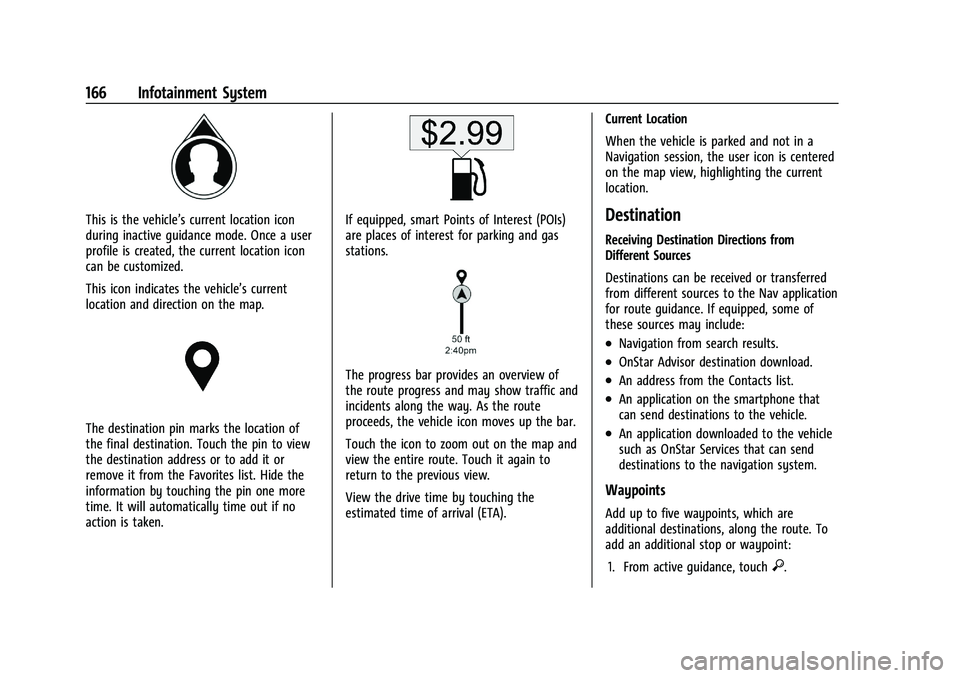
This is the vehicle’s current location icon
during inactive guidance mode. Once a user
profile is created, the current location icon
can be customized.
This icon indicates the vehicle’s current
location and direction on the map.
The destination pin marks the location of
the final destination. Touch the pin to view
the destination address or to add it or
remove it from the Favorites list. Hide the
information by touching the pin one more
time. It will automatically time out if no
action is taken.
If equipped, smart Points of Interest (POIs)
are places of interest for parking and gas
stations.
The progress bar provides an overview of
the route progress and may show traffic and
incidents along the way. As the route
proceeds, the vehicle icon moves up the bar.
Touch the icon to zoom out on the map and
view the entire route. Touch it again to
return to the previous view.
View the drive time by touching the
estimated time of arrival (ETA).Current Location
When the vehicle is parked and not in a
Navigation session, the user icon is centered
on the map view, highlighting the current
location.
Destination
Receiving Destination Directions from
Different Sources
Destinations can be received or transferred
from different sources to the Nav application
for route guidance. If equipped, some of
these sources may include:
.Navigation from search results.
.OnStar Advisor destination download.
.An address from the Contacts list.
.An application on the smartphone that
can send destinations to the vehicle.
.An application downloaded to the vehicle
such as OnStar Services that can send
destinations to the navigation system.
Waypoints
Add up to five waypoints, which are
additional destinations, along the route. To
add an additional stop or waypoint:
1. From active guidance, touch
}.
Page 178 of 441
Chevrolet Silverado 2500 HD/3500 HD Owner Manual (GMNA-Localizing-U.
S./Canada/Mexico-15546003) - 2022 - CRC - 5/5/21
Infotainment System 177
“Play
specific device identified by name. The
device name is the name displayed on the
display when the device is first selected as
an audio source.
“Play Chapter” :Begin a dialog to enter a
specific name.
“Play Chapter
playback of a specific chapter.
“Play Audiobook” :Begin a dialog to enter
a specific audiobook.
“Play Audiobook
Begin playback of a specific audiobook.
“Play Episode” :Begin a dialog to enter a
specific name.
“Play Episode
playback of a specific episode.
“Play Podcast” :Begin a dialog to enter a
specific podcast.
“Play Podcast
playback of a specific podcast.
“My Media” :Begin a dialog to enter the
desired media content. Handling Large Amounts of Media Content
It is expected that large amounts of media
content will be brought into the vehicle.
It may be necessary to handle large
amounts of media content in a different
way than smaller amounts of media. The
system may limit the options of voice
recognition by not allowing selection of files
by voice at the highest level if the number
of files exceeds the maximum limit.
Changes to voice commands due to media
content limits are:
.Files including other individual files of all
media types such as songs, audiobook
chapters, podcast episodes, and videos.
.Album type folders including types such
as albums and audiobooks.
There are no restrictions if the number of
files and albums is fewer than 12,000. When
the number of files connected to the system
is between 12,000 and 24,000, the content
cannot be accessed directly with one
command like “Play
The restriction is that the command “Play
Song” must be spoken first; the system will
then ask for the song name. The reply
command would be to say the name of the
song to play. Similar limits exist for album content.
If there are more than 12,000 albums, but
fewer than 24,000, the content cannot be
accessed directly with one command like,
“Play
The command“Play
Album” must first be spoken; the system
will then ask for the album name. The reply
would be to say the name of the album
to play.
Once the number of files has exceeded
approximately 24,000, there is no support
for accessing the songs directly through
voice commands. There will still be access to
the media content by using commands for
playlists, artists, and genres.
The access commands for playlists, artists,
and genres are prohibited after the number
of this type of media exceeds 12,000.
The system will provide feedback the first
time voice recognition is initiated if it has
become apparent that any of these limits
are reached during a device initializing
process.
Voice recognition performance will degrade
to some extent based on many factors when
adding large amounts of data to recognize.
If this is the case, perhaps accessing songs
through playlists or artist name would work
better.
Page 179 of 441

Chevrolet Silverado 2500 HD/3500 HD Owner Manual (GMNA-Localizing-U.
S./Canada/Mexico-15546003) - 2022 - CRC - 5/5/21
178 Infotainment System
Voice Recognition for Navigation (If
Equipped)
“Navigation”:Begin a dialog to enter
specific destination information.
“Navigation Commands” :Begin a dialog to
enter specific destination information.
“Address” :Begin a dialog to enter a
specific destination address, which includes
the entire address consisting of the house
number, street name, city, state/province,
and country. Do not include the ZIP code.
“Place of Interest” :Begin a dialog to enter
a destination Place of Interest category or
major brand name.
The name must be precisely spoken.
Nicknames or short names for the
businesses will not likely be found. Lesser
known businesses might have to be located
by category, such as fast food, hotels,
or banks.
“Navigate to Contact” :Begin a dialog to
enter a specific destination contact name.
“Cancel Route” :End route guidance.
“Take Me Home” :Create a route to a
stored home location.
Voice Recognition for the Phone
“Call
stored contact. The command may include
location if the contact has location numbers
stored.
“Call
Mobile,” or“On Other” :Initiate a call to a
stored contact and location at home, at
work, on mobile device, or on another
phone.
“Call
to a cell phone number of seven digits, 10
digits, or three digit emergency numbers.
“Pair Phone” :Begin the Bluetooth pairing
process. Follow the instructions on the
infotainment display.
“Redial” :Initiate a call to the last dialed
number.
“Switch Phone” :Select a different
connected cell phone for outgoing calls.
“Voice Keypad” :Begin a dialog to enter
special numbers like international numbers.
The numbers can be entered in groups of
digits with each group of digits being
repeated back by the system. If the group
of digits is not correct, the command
“Delete” will remove the last group of digits and allow them to be re-entered. Once the
entire number has been entered, the
command
“Call”will start dialing the
number.
Phone Assistant Voice Recognition
Press and holdgon the steering wheel
controls to pass through and launch Google
phone assistant or Siri.
For the low radio, whether connected by
Bluetooth or phone projection, the only
available voice recognition is either Siri
(iPhone) or the Google Assistant (Android).
Phone
Bluetooth (Overview)
The Bluetooth-capable system can interact
with many mobile devices, allowing:
.Placement and receipt of calls in a
hands-free mode.
.Sharing of the device’s address book or
contact list with the vehicle.
To minimize driver distraction, before
driving, and with the vehicle parked:
.Become familiar with the features of the
mobile device. Organize the phone book
and contact lists clearly and delete