2023 BUICK ENVISION steering wheel
[x] Cancel search: steering wheelPage 111 of 356

Buick Envision Owner Manual (GMNA-Localizing-U.S./Canada/Mexico-
16060855) - 2023 - CRC - 2/9/22
110 Instruments and Controls
D:Lift and hold to brighten the display.
Press and hold to dim the display. Continue
to hold to turn the display off.
The HUD image will automatically dim and
brighten to compensate for outside lighting.
The HUD brightness control can also be
adjusted as needed.
The HUD image can temporarily light up
depending on the angle and position of
sunlight on the HUD display. This is normal.
Polarized sunglasses could make the HUD
image harder to see.
Head-Up Display (HUD) Rotation Option
This feature allows the angle of the HUD
image to be adjusted.
Press the thumbwheel while Adjust Rotation
is highlighted to enter Adjust Mode. Scroll
to adjust the angle of the HUD display.
Press the thumbwheel to confirm and save
the setting. This feature may only be
available in P (Park). See Instrument Cluster
0 92.
HUD Views
There are four views in the HUD. Some
vehicle information and vehicle messages or
alerts may be displayed in any view.
English Shown, Metric Similar
Speed View : This displays digital speed in
English or metric units, speed limit, and
indicators such as vehicle ahead, Lane
Departure Warning/Lane Keep Assist, and
Adaptive Cruise Control and set speed. Some
information only appears on vehicles that
have these features, and when they are
active.
The speed limit sign can be disabled in the
HUD settings under Options in the Cluster
Menu. See Instrument Cluster 092.
English Shown, Metric Similar Audio/Phone View :
This displays digital
speed, indicators from speed view along
with audio/phone information. The current
radio station, media type, and incoming calls
will be displayed.
All HUD views may briefly display audio
information when the steering wheel
controls are used to adjust the audio
settings appearing in the instrument cluster.
Incoming phone calls appearing in the
instrument cluster may also display in any
HUD view.
English Shown, Metric Similar
Navigation View : This displays digital
speed, indicators from speed view along
with Turn-by-Turn Navigation information in
some vehicles. The compass heading is
displayed when navigation routing is not
active.
Page 112 of 356

Buick Envision Owner Manual (GMNA-Localizing-U.S./Canada/Mexico-
16060855) - 2023 - CRC - 2/9/22
Instruments and Controls 111
Navigation Turn-by-Turn Alerts shown in the
instrument cluster may also be displayed in
any HUD view.
English Shown, Metric Similar
Performance View : This displays digital
speed, indicators from speed view along
with rpm reading, transmission positions,
and gear shift indicator (if equipped).
Care of the HUD
Clean the inside of the windshield to remove
any dirt or film that could reduce the
sharpness or clarity of the HUD image.
Clean the HUD lens with a soft cloth
sprayed with glass cleaner. Wipe the lens
gently, then dry it.
HUD Troubleshooting
If you cannot see the HUD image when the
ignition is on, check that:
.Nothing is covering the HUD lens.
.The HUD brightness setting is not too
dim or too bright.
.The HUD is adjusted to the proper height.
.Polarized sunglasses are not worn.
.The windshield and HUD lens are clean.
If the HUD image is not correct, contact
your dealer.
The windshield is part of the HUD system.
See Windshield Replacement 0268.
Vehicle Messages
Messages displayed on the Driver
Information Center (DIC) indicate the status
of the vehicle or some action that may be
needed to correct a condition. Multiple
messages may appear one after another.
The messages that do not require
immediate action can be acknowledged and
cleared by pressing the thumbwheel. The
messages that require immediate action
cannot be cleared until that action is
performed.
All messages should be taken seriously;
clearing the message does not correct the
problem.
If a SERVICE message appears, see your
dealer. Follow the instructions given in the
messages. The system displays messages
regarding the following topics:
.Service Messages
.Fluid Levels
.Vehicle Security
.Brakes
.Steering
.Ride Control Systems
.Driver Assistance Systems
.Cruise Control
.Lighting and Bulb Replacement
.Wiper/Washer Systems
.Doors and Windows
.Seat Belts
.Airbag Systems
.Engine and Transmission
.Tire Pressure
.Battery
Engine Power Messages
REDUCED ACCELERATION DRIVE
WITH CARE
This message displays when the vehicle's
propulsion power is reduced. A reduction in
propulsion power can affect the vehicle's
Page 120 of 356

Buick Envision Owner Manual (GMNA-Localizing-U.S./Canada/Mexico-
16060855) - 2023 - CRC - 2/9/22
Lighting 119
with the taillamps, sidemarker, parking
lamps, and the instrument panel lights. The
radio lights will also be dim.
To turn off the automatic headlamp system,
turn the exterior lamp control to
Pand
then release it.
The vehicle has a light sensor on the top of
the instrument panel that controls the
automatic headlamp system. Do not cover
the sensor, otherwise the headlamps may
come on when they are not needed.
The system may also turn on the headlamps
when driving through a parking garage,
heavy overcast weather, or a tunnel. This is
normal. There is a delay in the transition between
the daytime and nighttime operation of the
automatic headlamp system so that driving
under bridges or bright overhead street
lights does not affect the system. The
automatic headlamp system is only affected
when the light sensor detects a change in
lighting lasting longer than the delay.
If the vehicle is started in a dark garage, the
automatic headlamp system will come on
immediately. Once the vehicle leaves the
garage, there is a slight delay for the
automatic headlamp system to change if it
is bright enough outside. During that delay,
the instrument cluster may not be as bright
as usual. Make sure the instrument panel
brightness control is in the full bright
position. See
Instrument Panel Illumination
Control 0121.
To idle the vehicle with the automatic
headlamp system off, turn the control to
the off position.
The headlamps will also stay on after you
exit the vehicle.
The regular headlamp system can be turned
on when needed.
Lights On with Wipers
If the windshield wipers are activated in
daylight with the engine on, and the
exterior lamp control is in AUTO, the
headlamps, parking lamps, and other
exterior lamps come on. The transition time
for the lamps coming on varies based on
wiper speed. When the wipers are not
operating, these lamps turn off. Move the
exterior lamp control to
Por;to
disable this feature.
Adaptive Forward Lighting (AFL)
If equipped with the AFL system, the
headlamp high beams move horizontally
while turning the steering wheel to provide
greater road illumination around curves.
To activate AFL, set the exterior lamp
control to the AUTO or
2position, and
Adaptive Headlight system is active. See
Exterior Lamp Controls 0115.
Page 126 of 356

Buick Envision Owner Manual (GMNA-Localizing-U.S./Canada/Mexico-
16060855) - 2023 - CRC - 2/9/22
Infotainment System 125
Infotainment System
Introduction
Introduction . . . . . . . . . . . . . . . . . . . . . . . . . . . 125
Overview . . . . . . . . . . . . . . . . . . . . . . . . . . . . . . 126
Steering Wheel Controls . . . . . . . . . . . . . . . 127
Using the System . . . . . . . . . . . . . . . . . . . . . . 127
Software Updates . . . . . . . . . . . . . . . . . . . . . 130
Radio
AM-FM Radio . . . . . . . . . . . . . . . . . . . . . . . . . . 130
HD Radio Technology . . . . . . . . . . . . . . . . . . 132
Radio Data System (RDS) . . . . . . . . . . . . . . 132
Satellite Radio . . . . . . . . . . . . . . . . . . . . . . . . . 133
Radio Reception . . . . . . . . . . . . . . . . . . . . . . . . 133
Multi-Band Antenna . . . . . . . . . . . . . . . . . . . 133
Audio Players
Avoiding Untrusted Media Devices . . . . . 134
USB Port . . . . . . . . . . . . . . . . . . . . . . . . . . . . . . . 134
Bluetooth Audio . . . . . . . . . . . . . . . . . . . . . . . 136
Navigation
Using the Navigation System . . . . . . . . . . 137
Maps . . . . . . . . . . . . . . . . . . . . . . . . . . . . . . . . . . 140
Navigation Symbols . . . . . . . . . . . . . . . . . . . 140
Destination . . . . . . . . . . . . . . . . . . . . . . . . . . . . 141
Global Positioning System (GPS) . . . . . . . 146
Vehicle Positioning . . . . . . . . . . . . . . . . . . . . 147
Problems with Route Guidance . . . . . . . . 147
If the System Needs Service . . . . . . . . . . . 147Map Data Updates . . . . . . . . . . . . . . . . . . . . 148
Database Coverage Explanations . . . . . . . 148
Voice Recognition
Voice Recognition . . . . . . . . . . . . . . . . . . . . . 148
Phone
Bluetooth (Overview) . . . . . . . . . . . . . . . . . . 153
Bluetooth (Pairing and Using a
Phone) . . . . . . . . . . . . . . . . . . . . . . . . . . . . . . . 154
Apple CarPlay and Android Auto . . . . . . . 157
Settings
Settings . . . . . . . . . . . . . . . . . . . . . . . . . . . . . . . 159
Teen Driver . . . . . . . . . . . . . . . . . . . . . . . . . . . . 162
Trademarks and License Agreements
Trademarks and License Agreements . . . . . . . . . . . . . . . . . . . . . . . . . . 165
Introduction
Read the following pages to become familiar
with the features.
{Warning
Taking your eyes off the road for too
long or too often while using any
infotainment feature can cause a crash.
You or others could be injured or killed.
Do not give extended attention to
infotainment tasks while driving. Limit
your glances at the vehicle displays and
focus your attention on driving. Use voice
commands whenever possible.
The infotainment system has built-in
features intended to help avoid distraction
by disabling some features when driving.
These features may gray out when they are
unavailable. Many infotainment features are
also available through the instrument cluster
and steering wheel controls.
Before driving:
.Become familiar with the operation,
center stack controls, steering wheel
controls, and infotainment display.
Page 127 of 356
Buick Envision Owner Manual (GMNA-Localizing-U.S./Canada/Mexico-
16060855) - 2023 - CRC - 2/9/22
126 Infotainment System
.Set up the audio by presetting favorite
stations, setting the tone, and adjusting
the speakers.
.Set up phone numbers in advance so they
can be called easily by pressing a single
control or by using a single voice
command.
See Distracted Driving 0182.
Active Noise Cancellation (ANC)
If equipped, ANC reduces engine noise in the
vehicle’s interior. ANC requires the
factory-installed audio system, radio,
speakers, amplifier (if equipped), induction
system, and exhaust system to work
properly. Deactivation is required by your
dealer if related aftermarket equipment is
installed.
Overview
Infotainment System
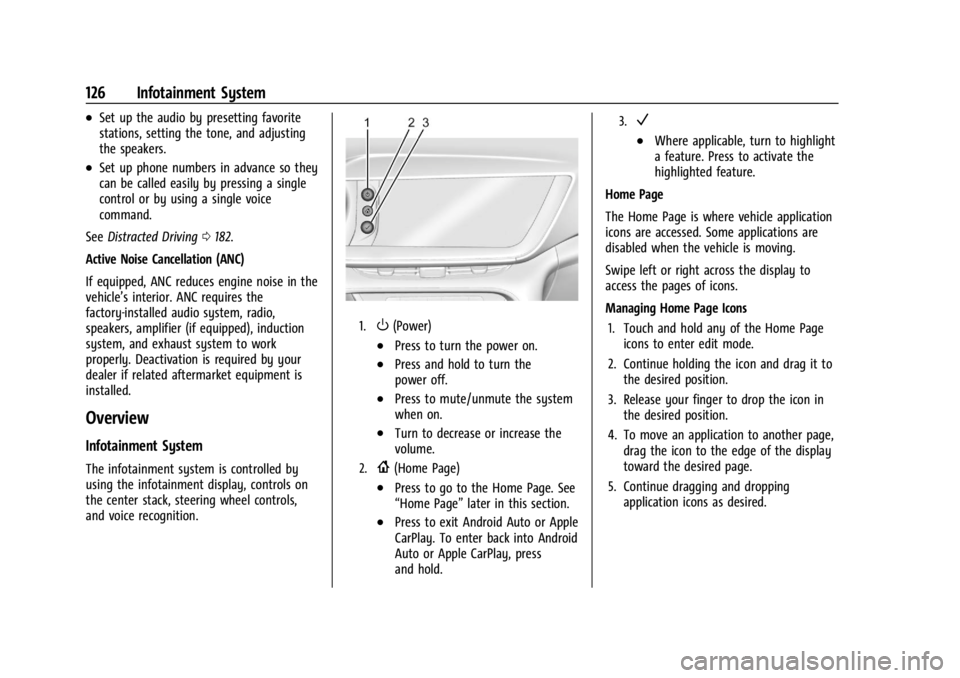
The infotainment system is controlled by
using the infotainment display, controls on
the center stack, steering wheel controls,
and voice recognition.
1.O(Power)
.Press to turn the power on.
.Press and hold to turn the
power off.
.Press to mute/unmute the system
when on.
.Turn to decrease or increase the
volume.
2.{(Home Page)
.Press to go to the Home Page. See
“Home Page” later in this section.
.Press to exit Android Auto or Apple
CarPlay. To enter back into Android
Auto or Apple CarPlay, press
and hold.
3.V
.Where applicable, turn to highlight
a feature. Press to activate the
highlighted feature.
Home Page
The Home Page is where vehicle application
icons are accessed. Some applications are
disabled when the vehicle is moving.
Swipe left or right across the display to
access the pages of icons.
Managing Home Page Icons 1. Touch and hold any of the Home Page icons to enter edit mode.
2. Continue holding the icon and drag it to the desired position.
3. Release your finger to drop the icon in the desired position.
4. To move an application to another page, drag the icon to the edge of the display
toward the desired page.
5. Continue dragging and dropping application icons as desired.
Page 128 of 356

Buick Envision Owner Manual (GMNA-Localizing-U.S./Canada/Mexico-
16060855) - 2023 - CRC - 2/9/22
Infotainment System 127
Steering Wheel Controls
If equipped, some audio controls can be
adjusted at the steering wheel.
g:Press to answer an incoming call or
start voice recognition. See Bluetooth
(Pairing and Using a Phone) 0154 or
Bluetooth (Overview) 0153.
c:Press to reject an incoming call or end
a current call. Press to mute or unmute the
infotainment system when not on a call.
The favorite and volume switches are on the
back of the steering wheel.
1. Favorite: When on a radio source, press to select the next or previous favorite.
When on a media source, press to select
the next or previous track.
2. Volume: Press to increase or decrease the volume.
Using the System
Audio
Touch the Audio icon to display the active
audio source page. Examples of available
sources may include AM, FM, SXM (if
equipped), USB, and Bluetooth.
Phone
Touch the Phone icon to display the Phone
main page. See Bluetooth (Pairing and Using
a Phone) 0154 or
Bluetooth (Overview) 0153.
Nav
If equipped, touch the Nav icon to display
the navigation map. See Using the
Navigation System 0137.
Climate
Touch the Climate icon to display the
Climate main page. See Dual Automatic
Climate Control System 0174.
Wi-Fi Hotspot
Touch the Wi-Fi Hotspot icon to display the
Wi-Fi Hotspot information. See Settings
0 159.
Users
If equipped, touch the Users icon to sign in
or create a new user profile, and follow the
on-screen instructions.
Only four user profiles can be active at one
time in the vehicle. It may be necessary to
remove a profile from the menu before
Page 137 of 356

Buick Envision Owner Manual (GMNA-Localizing-U.S./Canada/Mexico-
16060855) - 2023 - CRC - 2/9/22
136 Infotainment System
File System and Naming
File systems supported by the USB may
include:
.FAT32
.NTFS
.HFS+
The songs, artists, albums, and genres are
taken from the file’s song information and
are only displayed if present. The radio
displays the file name as the track name if
the song information is not available.
Storing and Recalling Media Favorites
To store media favorites, touch Browse to
display a list of media types.
Touch one of the following Browse options
to save a favorite:
Playlists : Touch
Hnext to any playlist to
store the playlist as a favorite. Touch a
saved favorite to recall a favorite playlist.
The first song in the playlist begins to play.
Artists : Touch
Hnext to any artist to
store the artist as a favorite. Touch a saved
favorite to recall a favorite artist. The first
song in the artist list begins to play. Songs :
Touch
Hnext to any song to store
the song as a favorite. Touch a saved
favorite to recall a favorite song.
Albums : Touch
Hnext to any album to
store the album as a favorite. Touch a saved
favorite to recall a favorite album. The first
song in the album list begins to play.
Genres : Touch
Hnext to any genre to
store the genre as a favorite. Touch a saved
favorite to recall a favorite genre. The first
song of the genre begins to play.
Podcasts : Touch
Hnext to any podcast to
store the podcast as a favorite. Touch a
saved favorite to recall a favorite podcast.
The podcast begins to play.
Audiobooks : Touch
Hnext to any
audiobook to store the audiobook as a
favorite. Touch a saved favorite to recall a
favorite audiobook. The first chapter in the
audiobook begins to play.
Media Playback and Mute
USB playback will be paused if the system is
muted. If the steering wheel mute control is
pressed again, playback will resume.
If the source is changed while in mute,
playback resumes and audio will unmute.
Bluetooth Audio
Music may be played from a paired
Bluetooth device. See Bluetooth (Pairing and
Using a Phone) 0154 or
Bluetooth (Overview) 0153 for help pairing a
device.
Volume and song selection may be
controlled by using the infotainment
controls or the mobile device. If Bluetooth is
selected and no volume is present, check the
volume setting on the infotainment system.
Music can be launched by touching
Bluetooth from the recent sources list on
the left of the display or by touching the
More option and then touching the
Bluetooth device.
To play music via Bluetooth:
1. Power on the device, and pair to connect the device.
2. Once paired, touch Audio from the Home Page, then touch Bluetooth from the
recent sources list on the left of the
display.
Bluetooth Sound Menu
See “Infotainment System Sound Menu”
under AM-FM Radio 0130.
Page 140 of 356

Buick Envision Owner Manual (GMNA-Localizing-U.S./Canada/Mexico-
16060855) - 2023 - CRC - 2/9/22
Infotainment System 139
turn is completed, the system automatically
brings the zoom back to the originally set
level. If the vehicle is approaching a turn
with the next turn occurring shortly after,
the Auto-Zoom will remain on until both
turns are completed.
Route Preferences
Touch to access the Route Preferences. The
choices are:
.Preferred Route–Choose from two
different route options: Fastest or
Eco-Friendly.
‐ Fastest would be the route with the
shortest drive time.
‐ Eco-Friendly would be the most
fuel-efficient route.
.Avoid on Current Route –Choose any of
the road features to avoid while on route:
‐ Highways
‐ Unpaved Roads
‐ Ferries
‐ Carpool Lanes
‐ Toll Roads
‐ Tunnels
‐ Country Borders Navigation Voice Control
Touch to access the voice control setting
display.
.Navigation Volume
–To adjust the
volume level, touch the up and down
arrows. If the voice guidance prompt is
being heard, volume can also be adjusted
using the knob on the center stack or the
volume switch on the steering wheel.
.Navigation Voice Prompt Level during a
Call. Options available are:
‐ Full Prompt (Selected by default)
‐ Tone Only
‐ None
Traffic Events (If Equipped)
This feature provides a list of events that
are on the route or nearby. Touch
Aand
then select Traffic Events. An OnStar
connected Navigation service plan is
required.
Traffic Preferences (If Equipped)
While in Map View, touch
A, then Settings
and then Map and Navigation Settings to
access Traffic Preferences. When Show
Traffic on Map is turned on, the feature provides an overview of the traffic flow
using different coded colors. The following
options are available for rerouting:
.Auto Reroute to Better Route
–The
system will automatically reroute if the
system detects there is a traffic issue
ahead.
.Ask Before Rerouting (Default) –If the
system detects there is a traffic issue
ahead, it will display a pop-up with
details about the issue. Choose to reroute
or cancel the alert.
.Never Search for Better Route –The
system will not check for a better route
until one of the above options is selected.
Alert Preferences
Set alerts on or off during both inactive and
active guidance views. The following alerts
may be available:
.Road Safety Alerts –Touch to display
upcoming School Zones.
.Traffic Camera Alerts
Manage History
Touch Manage History to access the History
options:
.Clear Recent Destinations –Touch\to
clear the recent destinations.