2023 ALFA ROMEO STELVIO Radio id
[x] Cancel search: Radio idPage 66 of 268

GETTING TO KNOW YOUR VEHICLE
64
CLOSING
It is possible to close the liftgate by pushing:
The power liftgate switch.
The power lock switch located on the
liftgate (all the doors, including the liftgate,
will be locked).
The liftgate button on the key fob twice.
The power liftgate switch on the liftgate.
The power liftgate switch on the driver’s door
panel trim and hold until the operation is
complete.Power Liftgate/Lock Switches
NOTE:
It is possible to stop the liftgate from moving with
any of the Power Liftgate switches.
Customizing The Liftgate Opening Height
To avoid difficulties in tight spaces, you can set
the height at which the liftgate opens to.
To customize the liftgate opening position, follow
the steps below:
1. Open the liftgate manually and move it to the position that you want the liftgate to open to.
2. Press and hold one of the closing buttons for at least five seconds (successful program -
ming is indicated by the turn signals flashing
three times).
The liftgate is now programmed to open to the set
position.
This function can be selected on the radio
system.
To set the liftgate opening height, refer to the
Information and Entertainment System Owner’s
Manual Supplement for further information.
Hands-Free Liftgate — If Equipped
To operate the Hands-Free Liftgate system:
1. If the doors are locked, the system must detect the key fob near the liftgate.
2. If the doors are unlocked, the system does not have to detect the key fob near the lift -
gate.
3. Go to the rear of the vehicle, in the center and about 3 feet (1 m) from the liftgate.
4. Move your foot under the bumper, simulating a kick. When you have completed this move -
ment, withdraw your leg. To activate the lift -
gate, both sensors must detect your leg.
Hands Free Liftgate Activation Zone
1 — Power Liftgate Switch
2 — Power Door Lock Switch
23_GU_OM_EN_USC_t.book Page 64
Page 67 of 268

65
If it is closed, the Hands-Free Liftgate unlocks and
opens completely, and with another movement of
the foot, it stops. A further movement of the foot
reverses the direction and closes the liftgate
completely, if you do not stop it again.
If it is open, with a movement of the foot, the
Hands-Free Liftgate closes completely, and with
another movement of the foot, it stops. If the
liftgate is stopped, another movement of the foot
will reverse the direction and open it completely.
NOTE:
To conserve the battery charge, avoid performing
this operation repeatedly with the engine off.
You can activate/deactivate the Hands-Free
Liftgate on the radio system by pushing the MENU
button to select the Main menu, and selecting the
following items:
1. Settings
2. Doors And Locks
3. Automatic Liftgate Opening
RE-INITIALIZATION PROCEDURE
Automatic operation of the liftgate must be
re-initialized in case of faulty liftgate operation.
It may also be necessary to re-initialize the liftgate
after the vehicle’s battery has been disconnected
and then reconnected.
Proceed as follows:
1. Close all the doors and the liftgate.
2. Press the lock button on the key fob.
3. Press the unlock button on the key fob.
WARNING!
Driving with the liftgate open can allow
poisonous exhaust gases into your vehicle.
You and your passengers could be injured by
these fumes. Keep the liftgate closed when
you are operating the vehicle.
If you are required to drive with the liftgate
open, make sure that all windows are closed,
and the climate control blower switch is set
at high speed. Do not use the recirculation
mode.
During power operation, personal injury or
cargo damage may occur. Ensure the liftgate
travel path is clear. Make sure the liftgate is
closed and latched before driving away.
CAUTION!
The Hands-Free Liftgate can be turned off
manually in the radio system to avoid
unintentional activation. For further
information refer to the Information and
Entertainment System Owner’s Manual
Supplement.
23_GU_OM_EN_USC_t.book Page 65
Page 75 of 268

73
Dynamic
The display graphically shows the values of:
○ accelerator pedal position (expressed in percentage);
○ brake pedal position (expressed in percentage);
○ engine coolant temperature (H = hot C = cold).
Dynamic
Race (If Equipped)
The display graphically shows the values of:
○ engine torque;
○ turbocharger pressure;
○ engine oil pressure (L = low pressure/
H= high pressure).
NOTE:
The engine torque and turbocharger pressure
values vary according to the engine type. Race
Dynamic
Acceleration Gauge
The displayed parameters are related to vehi -
cle stability, the graphs illustrate the trend of
the longitudinal/lateral accelerations (G-me -
ter information), considering gravity accelera -
tion as a reference unit.
Lateral acceleration peaks are also indicated.
11. Driving Mode Display (Alfa DNA System)
12. Distance Traveled (miles/km) display
13. Fuel Consumption 14. Warning Indications Display (e.g. danger of
ice, open doors, ABS operation, etc.)
15. Range
CUSTOMER PROGRAMMABLE SETTINGS
Multiple settings can be programmed by the user
using the radio. This section describes only the
basic settings:
Units & Language
Clock & Date
Cluster
To access the settings list in the radio, proceed as
follows:
Press the Home button to access the main
menu.
Select Settings from the main menu using the
Rotary Knob or by pressing Settings on the
touchscreen.
Rotary Knob
1 — ON/OFF Control And Volume Knob
2 — OPTION Button
3 — Rotary Pad
4 — Home Button
23_GU_OM_EN_USC_t.book Page 73
Page 76 of 268

GETTING TO KNOW YOUR INSTRUMENT PANEL
74
Units & Language
The following settings can be modified under the
“Units & Language” menu:
Units: select US, Metric, or Custom. The
custom option allows for individual selection of
the unit measures
Language: change the language of the system
Restore Unit & Language Settings: restores the
factory settings
To access and the change the setting, turn and
push the Rotary Pad or press the desired setting
on the touchscreen.
Clock & Date
The following settings can be modified under the
“Clock & Date” menu:
Sync With GPS Time: activates or deactivates
the clock synchronization through the GPS.
If the function is deactivated, the options Set
Time and Set Date are enabled.
Set Time: set the time manually.
Time Format: set the time format to either a
12-hour or a 24-hour clock.
Set Date: set the date manually.
Restore Clock & Date Settings: restores the
factory settings.
To access and change the setting, turn and push
the Rotary Pad or press the desired setting on the
touchscreen. Cluster
The following settings can be modified under the
“Cluster” menu:
Warning Buzzer Volume: set the volume of the
warning buzzer on seven levels.
Trip B: activate or deactivate the Trip function.
Show Phone Info: activate/deactivate
repetition of the phone function screens also
on the instrument cluster display.
Show Audio Info: activate/deactivate
repetition of the audio function screens (Radio
and Media) also on the instrument cluster
display.
Show Nav Info: activate/deactivate repetition
of the navigator function screens also on the
instrument cluster display.
Digital Speed on all screens: activate/deacti
-
vating of digital speed on the instrument
cluster display screens other than the main
screen.
Consumption Bar: activate/deactivate the
consumption baron the display screens of the
instrument panel where it is available.
Performance Pages: choose, for each driving
mode, one of the two alternative contents
displayed in the screen.
Custom Areas: select which content to display
in each of the three customizable areas on the
display of the instrument panel: time, date,
outside temperature, radio information,
compass.
Restore Cluster Settings: deletes the current
settings and restores the factory settings.
To access and the change the setting, turn and
push the Rotary Pad or press the desired setting
on the touchscreen.
WARNING LIGHTS AND
MESSAGES ON THE
INSTRUMENT PANEL
The following pages consist of warning lights and
messages.
NOTE:
The warning light turns on together with a
dedicated message and/or chime when
applicable. These indications are precau -
tionary and as such must not be considered as
exhaustive and/or alternative to the
information contained in the Owner’s Manual,
which you are advised to read carefully in all
cases. Always refer to the information in this
section in the event of a failure indication.
The failure indicators appearing on the display
are divided into two categories: very serious
and less serious faults. Serious faults are
indicated by a repeated and prolonged
warning cycle. Less serious faults are
indicated by a warning cycle with a shorter
duration. You can stop the warning cycle in
both cases by pushing the button located on
the windshield wiper stalk. The instrument
panel warning light will stay on until the cause
of the failure is eliminated.
23_GU_OM_EN_USC_t.book Page 74
Page 103 of 268

101
ENGINE RESTARTING CONDITIONS
Due to comfort, emission control, and safety
reasons, the engine can restart automatically
without any action by the driver, under special
conditions, such as:
Battery not sufficiently charged.
Reduced braking system vacuum (e.g. if the
brake pedal is pressed repeatedly).
Vehicle moving (e.g. when driving on roads
with a grade).
Engine stopping by the Stop/Start system for
more than approximately three minutes.
With the automatic climate control active, an
adjustment in cabin heating or cooling is made
or with MAX-DEF function active.
SAFETY FUNCTIONS
When the engine is stopped through the Stop/
Start system, if the driver releases their seat belt,
opens the driver's or passenger's door, or opens
the hood from inside the vehicle, the engine can
be restarted only by using the ignition.
This condition is indicated to the driver both
through a buzzer and a message on the
instrument cluster display.
ENERGY SAVING FUNCTION
If the driver does not carry out any action for more
than three minutes after the automatic engine
restart, the Stop/Start system will switch off the
engine in order to prevent fuel consumption.
In this situation, the engine can only be restarted
using the ignition device.
NOTE:
It is possible to keep the engine running by deac-
tivating the system.
IRREGULAR OPERATION
In the event of malfunction, the Stop/Start
system is deactivated.
For failure indications
Ú
page 74.
VEHICLE INACTIVITY
In the event of vehicle inactivity (or if the battery
is replaced), special attention must be paid to the
disconnection of the battery power supply.
Proceed as follows:
Remove connector from socket to disconnect
sensor (battery status monitoring) installed on
the negative pole of the battery. This sensor
should never be disconnected from the pole
except if the battery is replaced.
Battery Power Supply
NOTE:
After setting the ignition to OFF and having closed
the driver side door, wait at least one minute
before disconnecting the electrical supply from
the battery. When reconnecting the electrical
supply to the battery, make sure that the ignition
is in the OFF position and the driver side door
is closed.
SPEED LIMITER
DESCRIPTION
This feature allows the driver to program the
maximum speed of the vehicle.
NOTE:
The maximum set speed can be exceeded by
continuing to press the accelerator pedal.
The maximum speed can be set with the vehicle
stationary or in motion. The minimum speed that
can be set is 18 mph (30 km/h).
When this feature is active, the vehicle speed
depends on the pressing of the accelerator pedal
until the programmed speed limit is reached
Ú
page 102.
ACTIVATION
The feature can be activated/deactivated
through the radio system.
Activating The Device
To access this feature, select the “Driver
Assistance” widget in the radio system, then
select the following items in sequence:
1. Speed Limiter
2. ON
1 — Socket
2 — Sensor
3 — Connector
23_GU_OM_EN_USC_t.book Page 101
Page 104 of 268
STARTING AND OPERATING
102
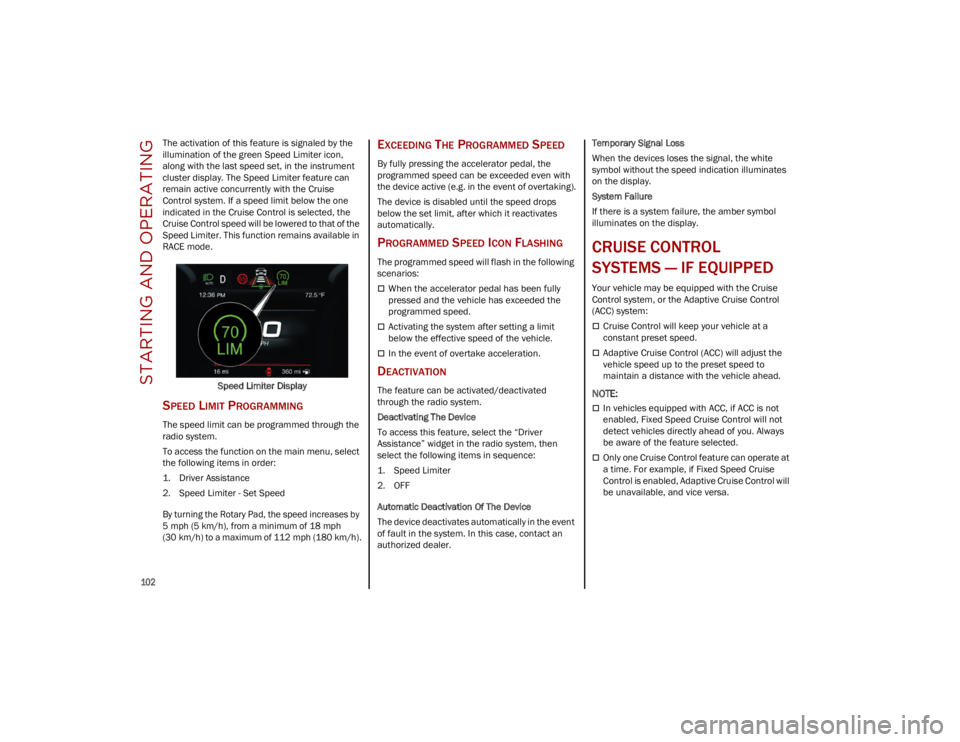
The activation of this feature is signaled by the
illumination of the green Speed Limiter icon,
along with the last speed set, in the instrument
cluster display. The Speed Limiter feature can
remain active concurrently with the Cruise
Control system. If a speed limit below the one
indicated in the Cruise Control is selected, the
Cruise Control speed will be lowered to that of the
Speed Limiter. This function remains available in
RACE mode.Speed Limiter Display
SPEED LIMIT PROGRAMMING
The speed limit can be programmed through the
radio system.
To access the function on the main menu, select
the following items in order:
1. Driver Assistance
2. Speed Limiter - Set Speed
By turning the Rotary Pad, the speed increases by
5 mph (5 km/h), from a minimum of 18 mph
(30 km/h) to a maximum of 112 mph (180 km/h).
EXCEEDING THE PROGRAMMED SPEED
By fully pressing the accelerator pedal, the
programmed speed can be exceeded even with
the device active (e.g. in the event of overtaking).
The device is disabled until the speed drops
below the set limit, after which it reactivates
automatically.
PROGRAMMED SPEED ICON FLASHING
The programmed speed will flash in the following
scenarios:
When the accelerator pedal has been fully
pressed and the vehicle has exceeded the
programmed speed.
Activating the system after setting a limit
below the effective speed of the vehicle.
In the event of overtake acceleration.
DEACTIVATION
The feature can be activated/deactivated
through the radio system.
Deactivating The Device
To access this feature, select the “Driver
Assistance” widget in the radio system, then
select the following items in sequence:
1. Speed Limiter
2. OFF
Automatic Deactivation Of The Device
The device deactivates automatically in the event
of fault in the system. In this case, contact an
authorized dealer. Temporary Signal Loss
When the devices loses the signal, the white
symbol without the speed indication illuminates
on the display.
System Failure
If there is a system failure, the amber symbol
illuminates on the display.
CRUISE CONTROL
SYSTEMS — IF EQUIPPED
Your vehicle may be equipped with the Cruise
Control system, or the Adaptive Cruise Control
(ACC) system:
Cruise Control will keep your vehicle at a
constant preset speed.
Adaptive Cruise Control (ACC) will adjust the
vehicle speed up to the preset speed to
maintain a distance with the vehicle ahead.
NOTE:
In vehicles equipped with ACC, if ACC is not
enabled, Fixed Speed Cruise Control will not
detect vehicles directly ahead of you. Always
be aware of the feature selected.
Only one Cruise Control feature can operate at
a time. For example, if Fixed Speed Cruise
Control is enabled, Adaptive Cruise Control will
be unavailable, and vice versa.
23_GU_OM_EN_USC_t.book Page 102
Page 106 of 268
STARTING AND OPERATING
104
To Vary The Speed Setting
To Increase Or Decrease The Set Speed
When the Cruise Control is set, you can increase
the speed by pushing the SET switch upward or
decrease the speed by pushing the SET switch
downward.
U.S. Speed (mph)
Pushing the SET switch once will result in a
1 mph speed adjustment. Each subsequent
movement of the switch results in an
adjustment of 1 mph.
If the switch is continually pushed, the set
speed will continue to adjust until the switch is
released, then the new set speed will be
established.
Metric Speed (km/h)
Pushing the SET switch once will result in a
1 km/h speed adjustment. Each subsequent
movement of the switch results in an
adjustment of 1 km/h.
If the switch is continually pushed, the set
speed will continue to adjust until the switch is
released, then the new set speed will be
established.
NOTE:
Moving the SET switch allows for adjusting of the
speed according to the selected unit of measure -
ment set on the radio system. Refer to the Infor -
mation and Entertainment System Owner’s
Manual for more information.
To Accelerate For Passing
While the Cruise Control is set, press the
accelerator to pass as you would normally. When
the pedal is released, the vehicle will return to the
set speed.
Using Cruise Control On Hills
The transmission may downshift on hills to
maintain the vehicle set speed.
The Cruise Control system maintains speed up
and down hills. A slight speed change on
moderate hills is normal. On steep hills, a greater
speed loss or gain may occur so it may be
preferable to drive without Cruise Control.
To Resume Speed
To resume a previously set speed, push the
RES button and release. Resume can be used at
any speed above 20 mph (32 km/h).
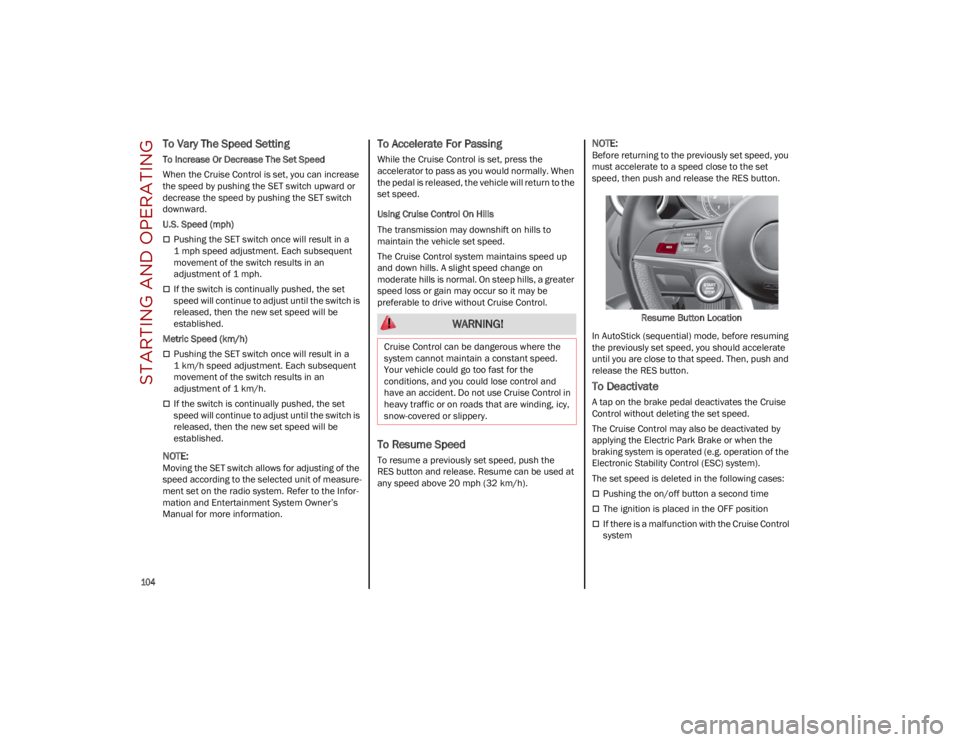
NOTE:
Before returning to the previously set speed, you
must accelerate to a speed close to the set
speed, then push and release the RES button.
Resume Button Location
In AutoStick (sequential) mode, before resuming
the previously set speed, you should accelerate
until you are close to that speed. Then, push and
release the RES button.
To Deactivate
A tap on the brake pedal deactivates the Cruise
Control without deleting the set speed.
The Cruise Control may also be deactivated by
applying the Electric Park Brake or when the
braking system is operated (e.g. operation of the
Electronic Stability Control (ESC) system).
The set speed is deleted in the following cases:
Pushing the on/off button a second time
The ignition is placed in the OFF position
If there is a malfunction with the Cruise Control
system
WARNING!
Cruise Control can be dangerous where the
system cannot maintain a constant speed.
Your vehicle could go too fast for the
conditions, and you could lose control and
have an accident. Do not use Cruise Control in
heavy traffic or on roads that are winding, icy,
snow-covered or slippery.
23_GU_OM_EN_USC_t.book Page 104
Page 109 of 268
107
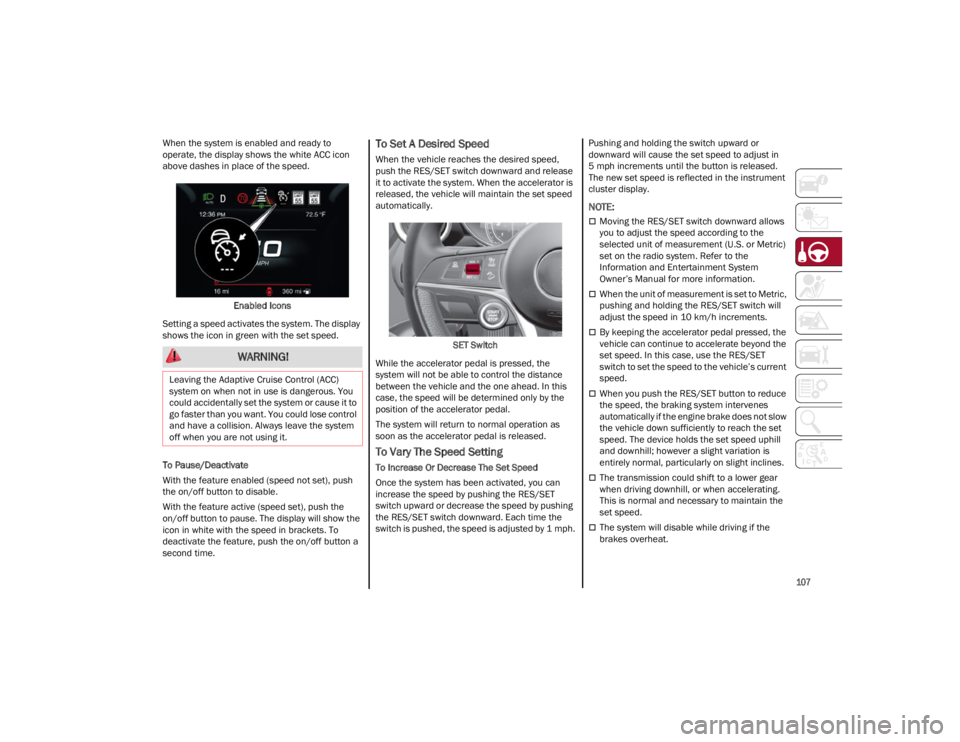
When the system is enabled and ready to
operate, the display shows the white ACC icon
above dashes in place of the speed.Enabled Icons
Setting a speed activates the system. The display
shows the icon in green with the set speed.
To Pause/Deactivate
With the feature enabled (speed not set), push
the on/off button to disable.
With the feature active (speed set), push the
on/off button to pause. The display will show the
icon in white with the speed in brackets. To
deactivate the feature, push the on/off button a
second time.To Set A Desired Speed
When the vehicle reaches the desired speed,
push the RES/SET switch downward and release
it to activate the system. When the accelerator is
released, the vehicle will maintain the set speed
automatically.
SET Switch
While the accelerator pedal is pressed, the
system will not be able to control the distance
between the vehicle and the one ahead. In this
case, the speed will be determined only by the
position of the accelerator pedal.
The system will return to normal operation as
soon as the accelerator pedal is released.
To Vary The Speed Setting
To Increase Or Decrease The Set Speed
Once the system has been activated, you can
increase the speed by pushing the RES/SET
switch upward or decrease the speed by pushing
the RES/SET switch downward. Each time the
switch is pushed, the speed is adjusted by 1 mph. Pushing and holding the switch upward or
downward will cause the set speed to adjust in
5 mph increments until the button is released.
The new set speed is reflected in the instrument
cluster display.
NOTE:
Moving the RES/SET switch downward allows
you to adjust the speed according to the
selected unit of measurement (U.S. or Metric)
set on the radio system. Refer to the
Information and Entertainment System
Owner’s Manual for more information.
When the unit of measurement is set to Metric,
pushing and holding the RES/SET switch will
adjust the speed in 10 km/h increments.
By keeping the accelerator pedal pressed, the
vehicle can continue to accelerate beyond the
set speed. In this case, use the RES/SET
switch to set the speed to the vehicle’s current
speed.
When you push the RES/SET button to reduce
the speed, the braking system intervenes
automatically if the engine brake does not slow
the vehicle down sufficiently to reach the set
speed. The device holds the set speed uphill
and downhill; however a slight variation is
entirely normal, particularly on slight inclines.
The transmission could shift to a lower gear
when driving downhill, or when accelerating.
This is normal and necessary to maintain the
set speed.
The system will disable while driving if the
brakes overheat.
WARNING!
Leaving the Adaptive Cruise Control (ACC)
system on when not in use is dangerous. You
could accidentally set the system or cause it to
go faster than you want. You could lose control
and have a collision. Always leave the system
off when you are not using it.
23_GU_OM_EN_USC_t.book Page 107