Page 250 of 713
uuClimate Control System uUsing Automatic Climate Control
248
Controls
■Switching between the recirc ulation and fresh air modes
Press the (recirculation) button and switch the mode depending on
environmental conditions.
Recirculation mode (indicator on): Recirculates air from the vehicle’s interior through
the system.
Fresh air mode (indicator off): Maintains out side ventilation. Keep the system in
fresh air mode in normal situations.1 Using Automatic Climate Control
When you unlock the doors with your remote, the
driver’s ID (DRIVER 1 or DRIVER 2) is detected, and
the climate control settings are turned to the
respective mode automatically when you set the
power mode to ON.
23 ACURA RDX-31TJB6400.book 248 ページ 2022年8月4日 木曜日 午後1時51分
Page 251 of 713
Continued249
uuClimate Control System u
Controls
Pressing the button turns the air
conditioning system on and automatically
switches the system to fresh air mode.
Press the button again to turn off, the
system returns to the previous settings.
■To rapidly defrost the windows
1.Press the button.
2. Press the button.
■Defrosting the Windshield and Windows1Defrosting the Windshield and Windows
For your safety, make sure you have a clear view
through all the windows before driving.
Do not set the temperatur e near the upper or lower
limit.
When cold air hits the windshield, the outside of the
windshield may fog up.
If you press the button during Auto Idle Stop, the
engine restarts automatically.
1 To rapidly defrost the windows
After defrosting the windows, switch over to fresh air
mode.
If you keep the system in recirculation mode, the
windows may fog up from humidity. This impedes
visibility.
23 ACURA RDX-31TJB6400.book 249 ページ 2022年8月4日 木曜日 午後1時51分
Page 267 of 713
265
uuAudio System Basic Operation uAudio/Information Screen
Continued
Features
■Settings
Enters the customizing menu screen.
2 Customized Features P. 359
■Apple CarPlay
Displays the Apple CarPlay screen.
2Apple CarPlay P. 322
■Android Auto
Displays the Android Auto screen.
2Android AutoTM P. 327
■System Updates
Updates the software version of the audio system.
2 System Updates P. 281
■Messages
Displays the text message screen.
2 Text Message P. 407
■AT&T HotSpot
Displays the AT&T Hotspot screen.
2AT&T Hotspot P. 321
■AcuraLink
Displays the AcuraLink screen.
2 AcuraLink ® P. 419
23 ACURA RDX-31TJB6400.book 265 ページ 2022年8月4日 木曜日 午後1時51分
Page 272 of 713

uuAudio System Basic Operation uAudio/Information Screen
270
Features
■To add app icons to the home screen and the head-up display*
You can add app icons to the home screen and the head-up display.
1. Press the (home) button.
2. Swipe right to display the All Apps screen.
3. Go to an app on the list, then press and
hold the A-zone touchpad.
4. From the pop-up menu, select Add to
Home Page or Add to Heads-Up
Display
*.
u The icon or HUD* appears next to
the app on the list when the
corresponding icon has been added to
the home screen or the head-up display.
1To add app icons to the home screen and the head-up display*
Pre-installed apps may not start up normally. If this
occurs, you need to reset the system.
2 Defaulting All the Settings P. 385
If you perform Factory Data Reset , it may reset all
the settings to their factory default. 2 Defaulting All the Settings P. 385
In case those apps still do not startup normally, even
after Factory Data Reset , contact your dealer.
Each item with HUD is listed on the head-up display
menu.
If you want to hide the item from the head-up display
menu, select Remove from Heads-Up Display .
Models with head-up display
* Not available on all models
23 ACURA RDX-31TJB6400.book 270 ページ 2022年8月4日 木曜日 午後1時51分
Page 273 of 713

Continued271
uuAudio System Basic Operation uAudio/Information Screen
Features
■To add shortcut icons to the home screen and the head-up display*
Shortcut icons for items stored in Favorite can be added to the home screen and the
head-up display.
1.Select a favorite item, then press and hold
the A-zone touchpad.
u A pop-up menu will appear on the
screen.
2. Select Add to Home Page or Add to
Heads-Up Display
*.
u A shortcut icon will be added to the
home screen or the head-up display.
1To add shortcut icons to the home screen and the head-up
display*
You can add an icon to the head-up display directly
from the home screen. Select an icon on the home
screen, then press and hold the A-zone touchpad.
After that, select Add to Heads-Up Display, and
then press the (back) button or the (home)
button to confirm the change.
Note that icons for Messages, Settings , System
Update , AT&T Hotspot , AcuraLink, and Smart
Shortcuts cannot be added to the head-up display.
Models with head-up display
* Not available on all models
23 ACURA RDX-31TJB6400.book 271 ページ 2022年8月4日 木曜日 午後1時51分
Page 280 of 713

278
uuAudio System Basic Operation uSmart Shortcuts
Features
Smart Shortcuts
By observing and learning driver behaviors, patterns, and preferences, the system
anticipates driver actions and presents on-screen suggestions to help perform
desired actions quicker and with fewer steps.
• The app will suggest actions based on what it learns you do often, and
occasionally make recommendations based on your learned preferences.
• The system will take some time to learn. The more you interact with the system,
the more suggestion you will see, and the more accurate they will become.
• Suggestions will automatically refresh peri odically to provide updated content for
each profile.
• You can also provide feedback on whether a suggestion is helpful by pressing and
holding on it. This can help the app grow smarter over time.
• To change the notifications behavior for Smart Shortcuts:
1. Select MENU on the Smart Shortcuts screen.
2. Select Suggestion Settings .
3. Select an option.
• All data used for Smart Shortcuts can be erased by a Factory Data Reset.
2Defaulting All the Settings P. 385
1Smart Shortcuts
The app also supports different profiles for each user,
with customized learning for each profile. The app
will also learn to associate a profile to a user over time
based on key fob and connected phone data.
Smart Shortcuts Screen Shortcut Suggestion
23 ACURA RDX-31TJB6400.book 278 ページ 2022年8月4日 木曜日 午後1時51分
Page 281 of 713

Continued279
uuAudio System Basic Operation uSmart Shortcuts
Features
1. Press the (home) button.
2. Select Smart Shortcuts .
3. Select a shortcut to take the action
suggested.
• Call Suggestions: When selected, a call to the contact or number suggested will
be placed and shown in the B-zone. Base d on your calling patterns, contacts will
be suggested for you to call.
u Connect your smartphone through Bluetooth® to get contact suggestions.
u Call suggestions will not be displayed when you are connected to Apple
CarPlay.
• Navigation Suggestions
*: When selected, a route will be started to the
suggested destination and the embedded navigation app will open.
u When a long route is set in your navigation system, you can receive
recommendations for gas stations and places to stop at along the way.
u The places you frequently navigate to while using the embedded navigation
system will be suggested as shortcuts.
u Save your home location in the embedded navigation app to have a shortcut
suggestion for it when you’re away from home.
■How to Use1How to Use
You can change the profile by selecting on the top
of the Smart Shortcuts screen.
You can customize the foll owing items by selecting
MENU on the top of the Smart Shortcuts screen.
•Profiles : Create, change, a nd manage profiles.
•View App Walkthrough : View the Smart
Shortcuts walkthrough.
•Suggestion Settings : Change where suggestions
can appear.
To create a profile:
1. Select MENU on the Smart Shortcuts screen.
2. Select Profiles .
3. Select Manage Profiles .
4. Select + Add New Profile .
5. Enter name for your profile.
6. Click on the A-zone touchpad to confirm.
To change a profile:
1. Select MENU on the Smart Shortcuts screen.
2. Select Profiles .
3. Select Change Current Profile .
4. Select a profile from the list. u
A new profile has been created and the Smart
App will automatically switch to that profile.
u The change to the selected profile has been
made.
* Not available on all models
23 ACURA RDX-31TJB6400.book 279 ページ 2022年8月4日 木曜日 午後1時51分
Page 286 of 713
284
uuAudio System Basic Operation uSystem Updates
Features
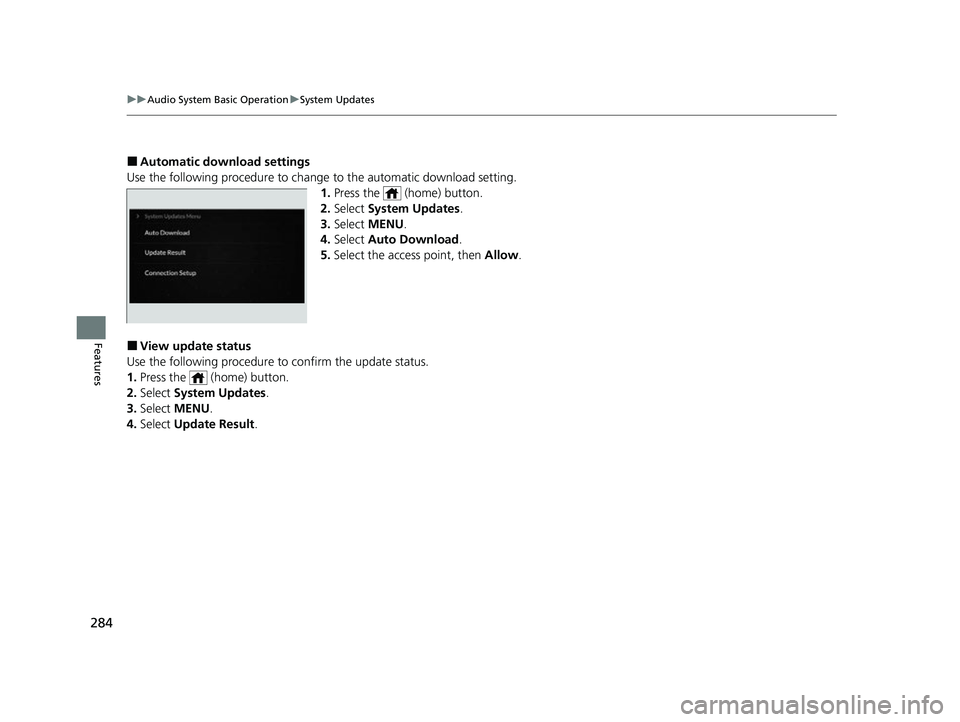
■Automatic download settings
Use the following procedure to change to the automatic download setting.
1. Press the (home) button.
2. Select System Updates .
3. Select MENU .
4. Select Auto Download .
5. Select the access point, then Allow.
■View update status
Use the following procedure to confirm the update status.
1. Press the (home) button.
2. Select System Updates .
3. Select MENU .
4. Select Update Result .
23 ACURA RDX-31TJB6400.book 284 ページ 2022年8月4日 木曜日 午後1時51分