2022 TOYOTA HIGHLANDER reset
[x] Cancel search: resetPage 95 of 568
952-1. Instrument cluster
2
Vehicle status information and indicators
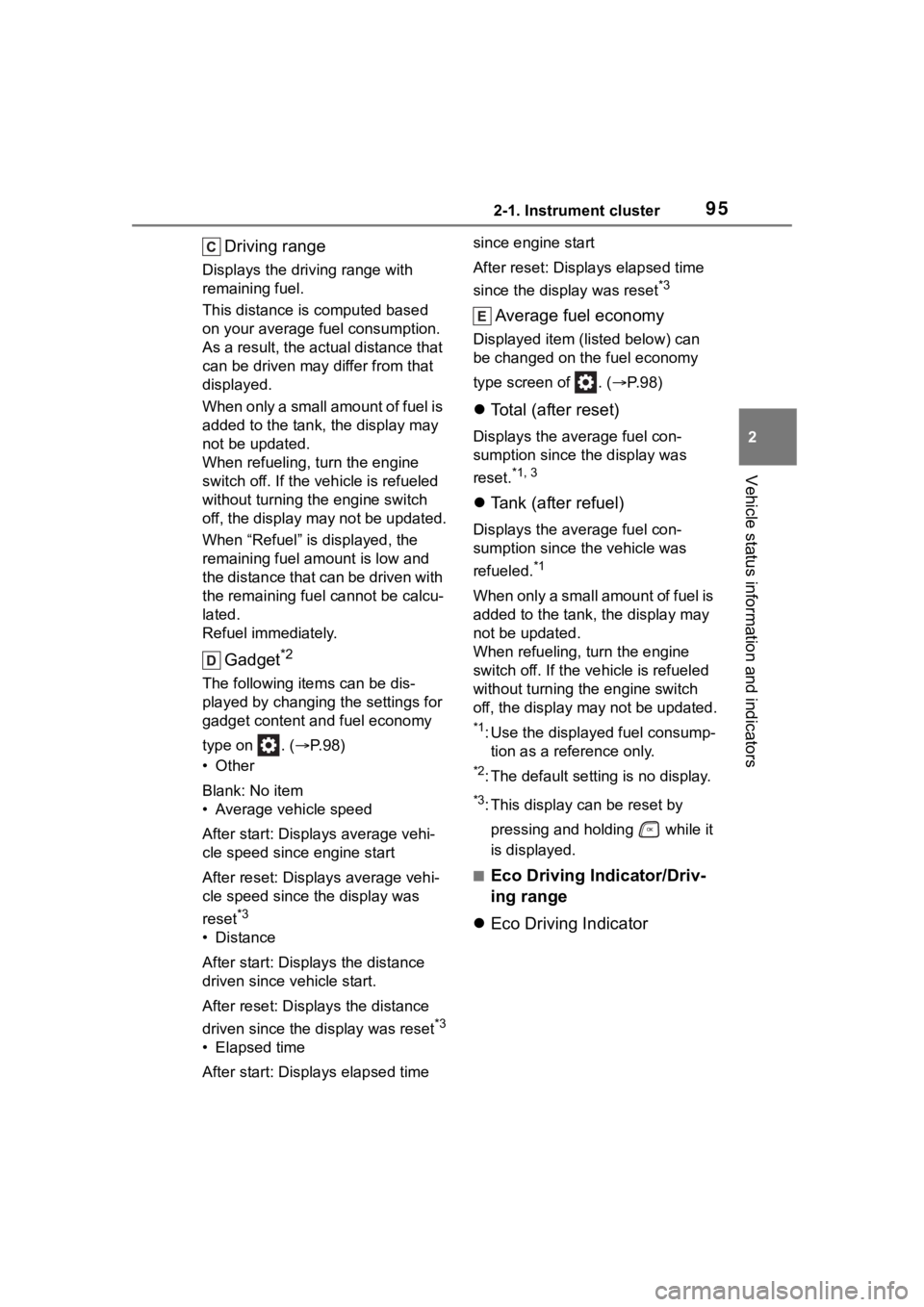
Driving range
Displays the driving range with
remaining fuel.
This distance is computed based
on your average fuel consumption.
As a result, the actual distance that
can be driven may differ from that
displayed.
When only a small amount of fuel is
added to the tank, the display may
not be updated.
When refueling, turn the engine
switch off. If the vehicle is refueled
without turning the engine switch
off, the display may not be updated.
When “Refuel” is displayed, the
remaining fuel amount is low and
the distance that can be driven with
the remaining fuel cannot be calcu-
lated.
Refuel immediately.
Gadget*2
The following ite ms can be dis-
played by changing the settings for
gadget content and fuel economy
type on . ( P. 9 8 )
•Other
Blank: No item
• Average vehicle speed
After start: Displays average vehi-
cle speed since engine start
After reset: Displays average vehi-
cle speed since the display was
reset
*3
• Distance
After start: Displays the distance
driven since vehicle start.
After reset: Displays the distance
driven since the display was reset
*3
• Elapsed time
After start: Displays elapsed time since engine start
After reset: Displays elapsed time
since the display was reset
*3
Average fuel economy
Displayed item (listed below) can
be changed on the fuel economy
type screen of . (
P. 9 8 )
Total (after reset)
Displays the average fuel con-
sumption since t he display was
reset.
*1, 3
Tank (after refuel)
Displays the average fuel con-
sumption since the vehicle was
refueled.
*1
When only a small amount of fuel is
added to the tank, the display may
not be updated.
When refueling, turn the engine
switch off. If the ve hicle is refueled
without turning the engine switch
off, the display may not be updated.
*1: Use the displayed fuel consump- tion as a reference only.
*2: The default setting is no display.
*3: This display can be reset by
pressing and holding while it
is displayed.
■Eco Driving Indicator/Driv-
ing range
Eco Driving Indicator
Page 98 of 568

982-1. Instrument cluster
G-force display*
Displays the size and direction of
the G-force applied to the vehicle
via changes to the position of the
ball on the display.
Maximum G-force course*
This item is linke d with the G-force
display and the course of the past
movement of the ball is displayed.
Press and hold to reset the
record.
Wheel spin display
When a tire is spin ning, its icon on
the display change s its color and
blinks.
*: This item is displayed only when driving mode is set to sport mode.
■Safety system status
Enable/Disable the following
systems:
PCS (Pre-Collision system)
( P.235)
Intuitive parking assist (if
equipped) ( P.284)
BSM (Blind Spot Monitor)
( P.278)
RCTA (Rear Cross Traffic
Alert) ( P.293)
■Tire pressure
• It may take a few minutes to dis- play the tire inflation pressure
after the engine switch is turned to
ON. It may also take a few min-
utes to display the tire inflation
pressure after inflation pressure
has been adjusted.
• “---” may be disp layed if the tire
position information cannot be
determined due to unfavorable radio wave conditions.
• Tire inflation pressure changes with temperature. The displayed
values may also be different from
the values measured using a tire
pressure gauge.
■Changing settings
Use the meter control switches
on the steering wheel to change
settings.
1 Press or of the meter
control switch to select .
2 Press or of the meter
control switch to select the
desired item to be custom-
ized.
3 Press or press and hold .
The available settings will differ
depending on if is pressed or
pressed and held. Follow the
instructions on the display.
■Setting items
LTA (Lane Tracing Assist)
( P.246)
Press and hold to change the
settings of the following items:
• “Lane Center”
Select to enable /disable the lane
centering function.
• “Sensitivity”
Select to set the warning sensitivity.
• “Sway Warning”
Select to enable/disable the vehicle
sway warning.
Settings display ( )
Page 101 of 568

1012-1. Instrument cluster
2
Vehicle status information and indicators
• “Change Wheel” (register tire pressure warning system sensor
ID codes)
Select to register the ID codes of
the tire pressure s ensors to the tire
pressure warning system.
“Rear Seat Reminder”
( P. 1 1 9 )
Select to enable/disable the rear
seat reminder.
“Scheduled Maintenance”
( P.401)
Select to reset the scheduled main-
tenance information (maintenance
required message and distance
until maintenance necessary) after
all maintenance is performed.
“Oil Maintenance” ( P.410)
Select to reset the oil maintenance
information (maintenance required
message and distance until mainte-
nance necessary) after an oil
change is performed.
■ Meter settings
Press and hold to change
the settings of the following
items:
Language
Select to change the language dis-
played.
Units
Select to change t he units of mea-
sure displayed.
Eco Driving Indicator Light
( P. 9 5 )
Select to enable/disable the Eco
Driving Indicator Light.
Speedometer display (digital
speed)
Select to enable/disable the speed-
ometer display.
Gadget content
Select to turn the display of a gad-
get.
Fuel economy type
Select to change the average fuel
consumption display and an item to
be displayed as gadget.
Pop-up display
Select to enable/disable pop-up
displays for each relevant system.
Multi-information display off
Displays a blank screen.
Default setting
Select to reset the meter display
settings to the default setting.
■Vehicle functions and set-
tings that can be changed
P.521
■Background color of the indica-
tor/shift position display area
The background color of the indica-
tor/shift position display area is
changed accordi ng to the driving
mode as follows ( P.311):
●Eco drive mode: Blue
●Sport mode: Red
■Suspension of the settings dis-
play
●Some settings cannot be changed
while driving. When changing set-
tings, park the vehicle in a safe
place.
●If a warning message is displayed,
operation of the settings display
will be suspended.
Page 105 of 568

1052-1. Instrument cluster
2
Vehicle status information and indicators
tion display (P.521) and then
.
■Enabling/disabling the
head-up display
Press to enable/disable the
head-up display.
■Changing the head-up dis-
play settings
Press and hold to display the
following settings.
“HUD Brightness/Position”
Select to adjust the brightness and
vertical position of the head-up dis-
play.
“HUD Driving Support”
• Tachometer Settings
Blank/Eco Indicator/Tachometer
Select to change the display to
blank (no display)/Eco Driving Indi-
cator/tachometer.
Select to enable/d isable the follow-
ing items:
• Navigation (if equipped)
• Driving Assist
• Compass (if equipped)
• Audio
“HUD Rotation”
Select to adjust the angle of the
head-up display.
Press the or switch to
adjust the angle of the head-up dis-
play.
■Enabling/disabling of the
head-up display
If the head-up display is disabled, it will remain disabled when the
engine switch is turned off then back
to ON.
■Display brightness
The brightness of the head-up dis-
play can be adjusted on of the
multi-information di splay. Also, it is
automatically adjusted according to
the ambient brightness.
■Automatic adjustment of the
head-up display position (vehi-
cles with driving position mem-
ory)
A desired head-up display position
can be entered to memory and
recalled automatica lly by the driving
position memory system. ( P.147)
■When the battery is discon-
nected
The customize settings of the
head-up display will be reset.
■Customization
Some functions can be customized.
( P.521)
WARNING
■Caution for changing settings
of the head-up display
As the engine needs to be run-
ning while changing the settings
of the head-up display, ensure
that the vehicle is parked in a
place with adequate ventilation. In
a closed area such as a garage,
exhaust gases in cluding harmful
carbon monoxide (CO) may col-
lect and enter the vehicle. This
may lead to death or a serious
health hazard.
Page 109 of 568
1092-1. Instrument cluster
2
Vehicle status information and indicators
Audio Plus (vehicles with
Data Communication Mod-
ule) or Premium Audio
1 Press the “MENU” button.
2 Select “Info” on the “Menu”
screen.
3 Select “ECO” on the “Infor-
mation” screen.
If a screen other than “Trip Informa-
tion” is displayed, select “Trip Infor-
mation”.
12.3-inch display
1 Select Toyota multi-oper-
ation touch ( P.332).
2 Select “TripInfo.”.
The screen position can also be
changed by select a desired infor-
mation in full screen.
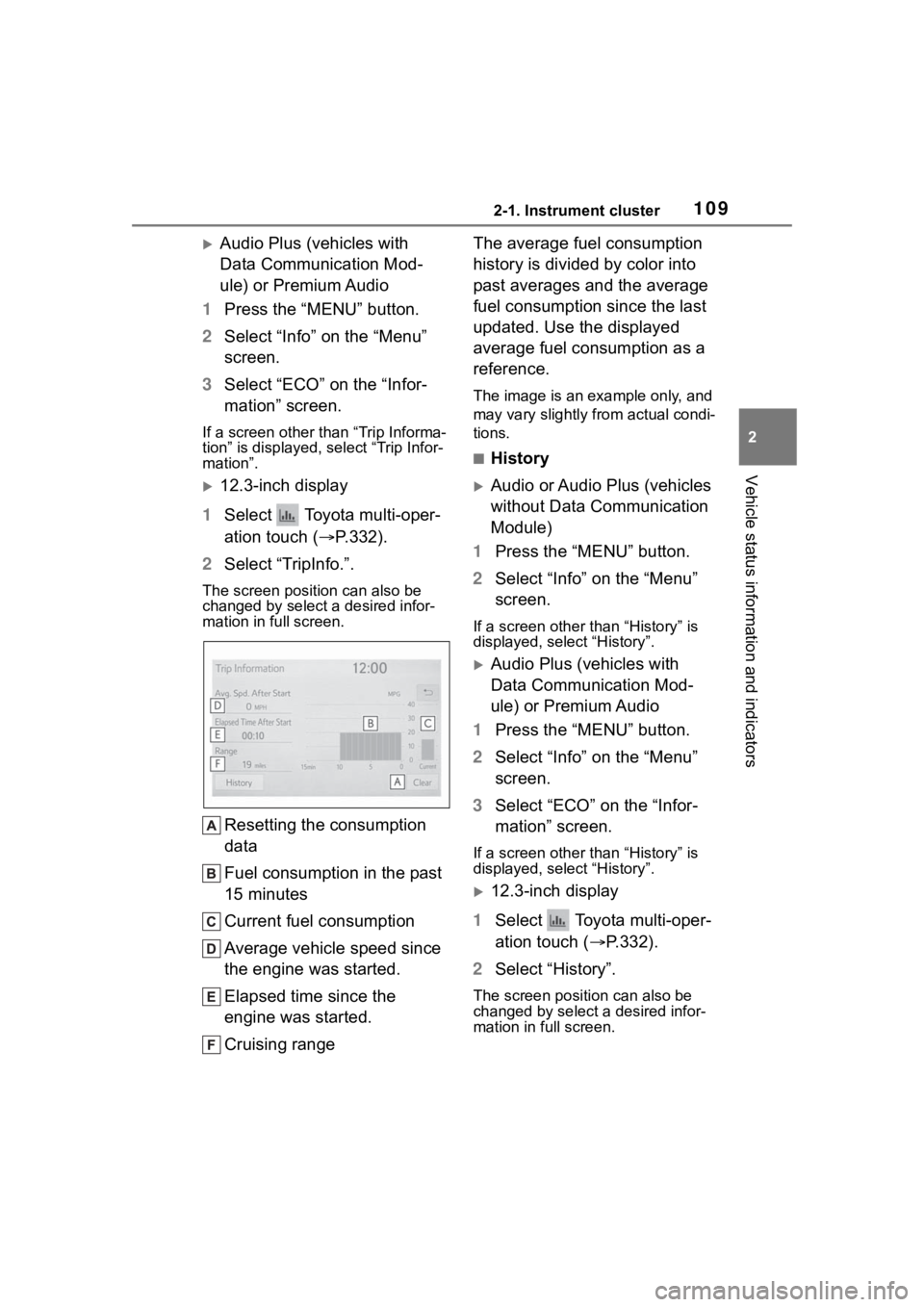
Resetting the consumption
data
Fuel consumption in the past
15 minutes
Current fuel consumption
Average vehicle speed since
the engine was started.
Elapsed time since the
engine was started.
Cruising range The average fuel consumption
history is divided by color into
past averages and the average
fuel consumption since the last
updated. Use the displayed
average fuel consumption as a
reference.
The image is an example only, and
may vary slightly from actual condi-
tions.
■History
Audio or Audio Plus (vehicles
without Data Communication
Module)
1 Press the “MENU” button.
2 Select “Info” on the “Menu”
screen.
If a screen other than “History” is
displayed, select “History”.
Audio Plus (vehicles with
Data Communication Mod-
ule) or Premium Audio
1 Press the “MENU” button.
2 Select “Info” on the “Menu”
screen.
3 Select “ECO” on the “Infor-
mation” screen.
If a screen other than “History” is
displayed, select “History”.
12.3-inch display
1 Select Toyota multi-oper-
ation touch ( P.332).
2 Select “History”.
The screen posit ion can also be
changed by select a desired infor-
mation in full screen.
Page 110 of 568
1102-1. Instrument cluster
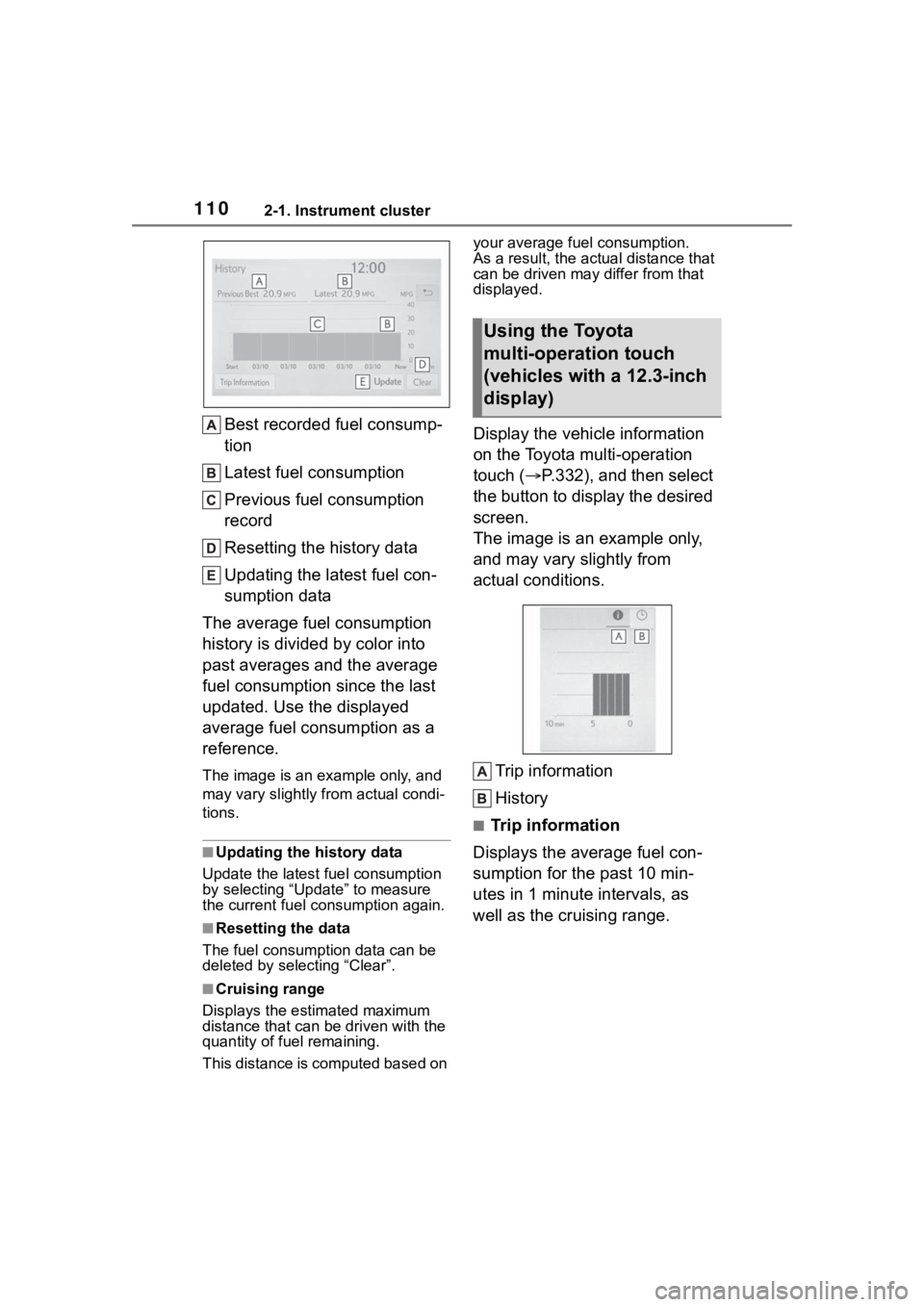
Best recorded fuel consump-
tion
Latest fuel consumption
Previous fuel consumption
record
Resetting the history data
Updating the latest fuel con-
sumption data
The average fuel consumption
history is divided by color into
past averages and the average
fuel consumption since the last
updated. Use the displayed
average fuel consumption as a
reference.
The image is an example only, and
may vary slightly f rom actual condi-
tions.
■Updating the history data
Update the latest fuel consumption
by selecting “Upda te” to measure
the current fuel consumption again.
■Resetting the data
The fuel consumption data can be
deleted by selecting “Clear”.
■Cruising range
Displays the estimated maximum
distance that can be driven with the
quantity of fuel remaining.
This distance is computed based on your average fuel consumption.
As a result, the actual distance that
can be driven may differ from that
displayed.
Display the vehicle information
on the Toyota multi-operation
touch (
P.332), and then select
the button to display the desired
screen.
The image is an example only,
and may vary slightly from
actual conditions.
Trip information
History
■Trip information
Displays the average fuel con-
sumption for the past 10 min-
utes in 1 minute intervals, as
well as the cruising range.
Using the Toyota
multi-operation touch
(vehicles with a 12.3-inch
display)
Page 147 of 568

1473-3. Adjusting the seats
3
Before driving
From outside
Pull the straps and raise the seat-
backs until they lock.
After using either strap, use the vel-
cro on the strap to attach it to the
seatback.
2 Returning the outer head
restraints.
Remove the secure d seat belts
from the seat belt hangers before
using them.
*: If equipped
1 Check that the shift lever is in
P.
2 Turn the engine switch to
ON.
3 Adjust the driver’s seat, out-
side rear view mirrors and
head-up display (if equipped)
to the desired positions.
4 While pressing the “SET” but-
ton, or within 3 seconds after
the “SET” button is pressed,
press button “1” or “2” until
the buzzer sounds.
If the selected button has already
been preset, the previously
recorded positio n will be overwrit-
Driving position mem-
or y*
This feature automatically
adjusts the driver’s seat,
outside rear view mirrors
and head-up display (if
equipped) to suit your pref-
erences.
Two different driving posi-
tions can be recorded into
memory.
Each electronic key can be
registered to recall your pre-
ferred driving position.
Recording a driving posi-
tion into memory
Page 198 of 568
1984-1. Before driving
This function is activated when the
rated current of any of the following
trailer light circuit components is
exceeded:
●Tail lights: maximum 4.5 A
●Stop/turn signal light (right): maxi-
mum 7.8 A
●Stop/turn signal light (left): maxi-
mum 4.5 A
■When the auto current cut func-
tion is activated
If a trailer light d oes not come on
due to the activation of the auto cur-
rent cut function , the light system
will need to be reset.
Follow the reset procedure shown
below.
●If a tail light doe s not come on,
turn off the headlight switch.
●If the right-side stop/turn signal
light does not com e on, put the
turn signal in the off position or
remove foot from t he brake pedal.
●If the left-side stop/turn signal light
does not come on, put the turn
signal in the off position or remove
foot from the brake pedal.
If the emergency flashers do not
operate, press the emergency
flasher switch to turn them off.
After the light syst em is reset, oper-
ate the light switches again to see if
the lights operate normally.
If the lights do not operate normally,
have the vehicle inspected by your
Toyota dealer.
Your vehicle will handle differ-
ently when towing a trailer. Help
to avoid an accident, death or
serious injury, keep the following
in mind when towing:
Speed limits for towing a
trailer vary by state or prov-
ince. Do not exceed the
posted towing speed limit.
Toyota recommends that the
vehicle-trailer speed limit is 65
mph (104 km/h) on a flat,
straight, dry road. Do not
exceed this limit, the posted
towing speed limit or the
speed limit for your trailer as
set forth in your trailer owner’s
manual, whichever is lowest.
Instability of the towing vehi-
cle-trailer combination (trailer
sway) increases as speed
increases. Exceeding speed
limits may cause loss of con-
trol.
Before starting out, check the
trailer lights, tires and the
vehicle-trailer connections.
Recheck after driving a short
distance.
Practice turning, stopping and
reversing with the trailer
attached in an area away
from traffic until you become
accustomed to the feel of the
vehicle-trailer combination.
Reversing with a trailer
attached is difficult and
NOTICE
■Do not directly splice trailer
lights
Do not directly splice trailer lights.
Directly splicing trailer lights may
damage your vehicle’s electrical
system and cause a malfunction.
Trailer towing tips