Page 5 of 172
DRIVER ASSIST
TECHNOLOGIES
REAR-VISION CAMERA......111
FRONT VIEW MONITOR.....112
BLIND SPOT DETECTION (BSD) /
REAR CROSS TRAFFIC ALERT
(RCTA)...................113
HIGH BEAM ASSIST (HBA)...114
STEERING RESPONSIVE
HEADLIGHTS (SRH).........115
REVERSE AUTOMATIC BRAKING
(RAB)....................115
DRIVERFOCUS DISTRACTION
MITIGATION SYSTEM
DRIVERFOCUS®OVERVIEW . . . 116
DRIVERFOCUS®
COMPONENTS.............116
DROWSY/INATTENTIVE
WARNINGS................118
DRIVER PROFILE/CONVENIENCE
SETTINGS.................118
DRIVER MONITORING
SYSTEM OFF..............120
CARE AND LIMITATIONS
STEREO CAMERA
PRECAUTIONS.............121
WINDSHIELD GLASS AND
DASHBOARD..............121
FRONT VIEW
OUTBACK.................122
EYESIGHT DISCLAIMER
EYESIGHT®DISCLAIMER....123
HOW TO APPENDIX
HOW TO OVERVIEW.........124
SETTING THE CLOCK.......124
MEMORY HEIGHT..........128
MEMORY DRIVER’S SEAT....130
BLUETOOTH
®PAIRING......131
ANDROID AUTO™..........137
APPLE CARPLAY
®..........139
WI-FI.....................141
MAPS....................144
FIRMWARE AND SOFTWARE
UPDATES.................164
INDEX.....................165
TABLE OF CONTENTS
3
Page 35 of 172
ACCESSORY CONNECTIONS
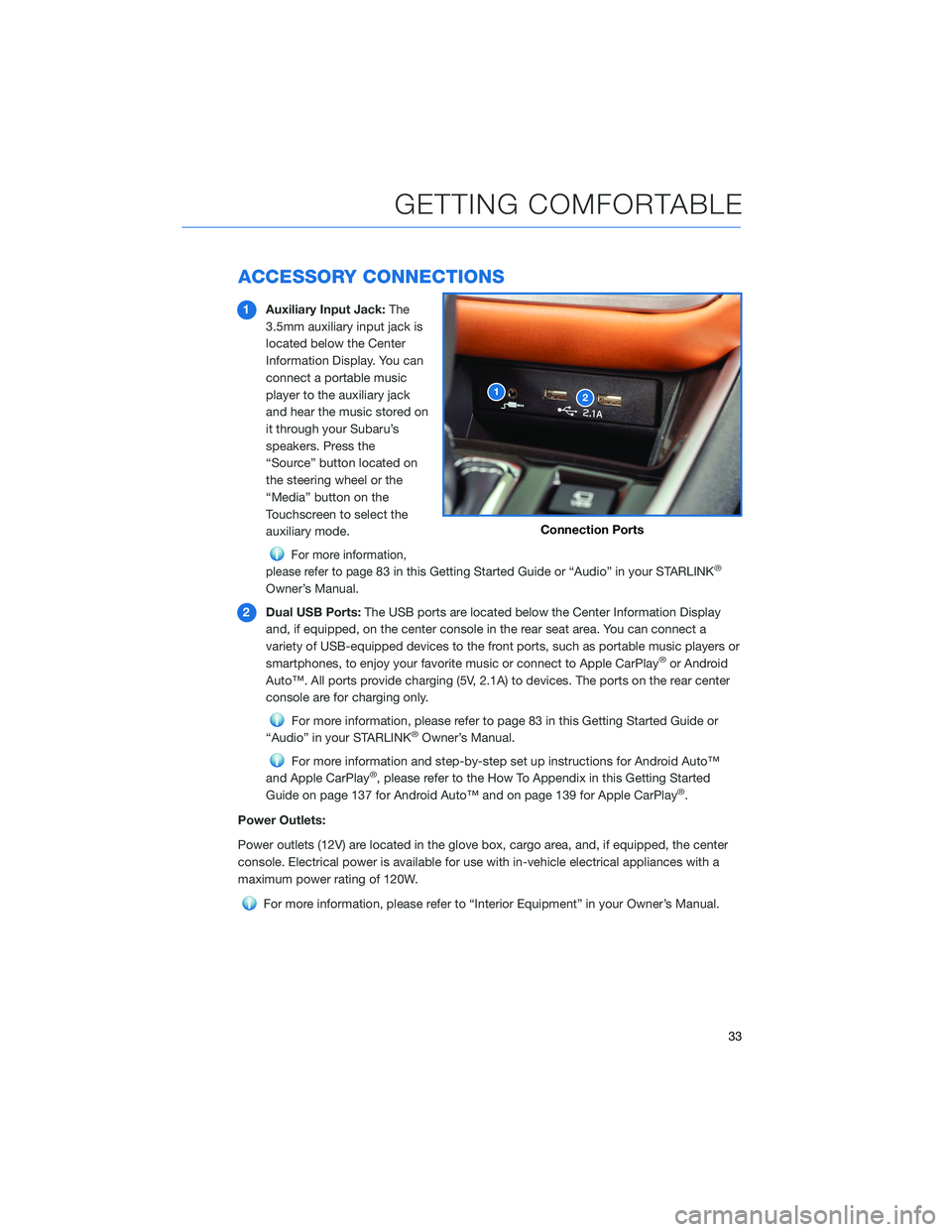
1Auxiliary Input Jack:The
3.5mm auxiliary input jack is
located below the Center
Information Display. You can
connect a portable music
player to the auxiliary jack
and hear the music stored on
it through your Subaru’s
speakers. Press the
“Source” button located on
the steering wheel or the
“Media” button on the
Touchscreen to select the
auxiliary mode.
For more information,
please refer to page
83 in this Getting Started Guide or “Audio” in your STARLINK®
Owner’s Manual.
2Dual USB Ports:The USB ports are located below the Center Information Display
and, if equipped, on the center console in the rear seat area. You can connect a
variety of USB-equipped devices to the front ports, such as portable music players or
smartphones, to enjoy your favorite music or connect to Apple CarPlay
®or Android
Auto™. All ports provide charging (5V, 2.1A) to devices. The ports on the rear center
console are for charging only.
For more information, please refer to page 83 in this Getting Started Guide or
“Audio” in your STARLINK®Owner’s Manual.
For more information and step-by-step set up instructions for Android Auto™
and Apple CarPlay®, please refer to the How To Appendix in this Getting Started
Guide on page 137 for Android Auto™ and on page 139 for Apple CarPlay®.
Power Outlets:
Power outlets (12V) are located in the glove box, cargo area, and, if equipped, the center
console. Electrical power is available for use with in-vehicle electrical appliances with a
maximum power rating of 120W.
For more information, please refer to “Interior Equipment” in your Owner’s Manual.
12
Connection Ports
GETTING COMFORTABLE
33
Page 90 of 172
SUBARU STARLINK®IN-VEHICLE APPS
SUBARU STARLINK®Multimedia offers advanced connectivity
through Apple CarPlay®or Android Auto™ apps. Wireless pairing
and hands-free smartphone operation allow for safe and easy
connection to your favorite apps and content. You can access
news, navigation, music, podcasts, and more through the available
SUBARU STARLINK
®app.
For a complete list of all the apps available, visit
www.subaru.com/owners/starlink/multimedia.html.
Android Auto™
Android Auto™ can be used to view maps, play
music, and place calls by connecting your Android
device to the system. Supported applications can also
be run.
For more information, please refer to page 137.
For details on the services or the operations, visit the
Android Auto sites www.android.com/auto/ or
www.support.google.com/androidauto/
To use the Android Auto™ application, connect your Android device to the USB port.
Apple CarPlay®
Apple CarPlay®can be used to view maps, play music, and place
calls by connecting your iPhone to the system. Supported
applications can also be run.
For more information, please refer to page 139.
For details on the services or the operations, check the Apple
CarPlay
®site: www.apple.com/ios/carplay/
To use the Apple CarPlay
®application, connect your iPhone to the
USB port.
APPS
88
Page 141 of 172
Compatible Models
Android Auto™ is available on Android phones. To see if your phone
is compatible, please refer to the Android Auto™ website:
https://www.android.com/phones/
APPLE CARPLAY®
Cables
Apple CarPlay®requires compatible iPhones to be connected via
your Subaru’s USB port. Cables must be an 8-Pin Lightning MFi
Certified cable (made for iPod/iPhone). Look for the “Works with
Apple CarPlay
®” or “Made for iPod, iPhone, iPad” icons when
selecting a cable.
For more information, visit: www.apple.com/ios/carplay/
HOW TO APPENDIX
139
Page 167 of 172
2.4L TURBO ENGINE ........... 60
2.5L ENGINE . . . . . . .......... 59
A
ACCESSORY CONNECTIONS . . . . . . 33
ADDING SHORTCUTS . . . . ...... 75
ADVANCED ADAPTIVE CRUISE
CONTROL . . . . . ........... 35
ANDROID AUTO™ . . . . . ....... 137
Cables . . . . . . . ..........137
Compatible Models ..........139
Connecting an Android Phone....138
APPLE CARPLAY
®............ 139
Cables . . . . . . . ..........139
Compatible Models ..........141
Connecting an iPhone . . . .....140
AUDIO CONTROLS ............ 34
AUTO START–STOP . . . . . . . . . . . 44
B
BLIND SPOT DETECTION (BSD) / REAR
CROSS TRAFFIC ALERT (RCTA) . . 113
Blind Spot Detection (BSD) . . . . . 113
Blind Spot Detection / Rear Cross
Traffic Alert OFF . . . . ........114
Lane Change Assist (LCA)......113
Rear Cross-Traffic Alert (RCTA) . . . 113
BLUETOOTH
®PAIRING . . ....... 131
Pairing an Android Device . . . . . . 131
Pairing an iOS/Apple Device . . . . . 134
BUTTONS . . . . ............. 68
Controlling the Volume . . . . . . . . . 68
C
CARGO COVER . . . . . . . . ...... 56
CENTER CONSOLE STORAGE ..... 23
CHILD SAFETY LOCKS.......... 53
CLIMATE CONTROL........... 25
11.6–Inch Automatic Climate
Control . . . . . . . . . . . . . . . . . . 26Dual 7–Inch Automatic Climate
Control . . . . . . . . . . . . . . . . . . 25
Heated Seats . .............31
Heated Steering Wheel . .......32
Rear Heated Seats...........32
Remote Engine Start with Climate
Control . . . . . . . . . . . . . . . . . . 31
Ventilated Seats . . . . . . . . . . . . 32
CLOCK . . ................. 99
COMBINATION METER .......... 40
CREATING A DRIVER PROFILE ..... 77
Retrieving a Driver Profile.......80
D
DRIVERFOCUS
®COMPONENTS . . . 116
Camera . ................116
Center Information Display (CID) . . 117
Combination Meter Display (CMD). . 117
DRIVERFOCUS®OVERVIEW..... 116
DRIVER MONITORING SYSTEM OFF . . 120
DRIVER PROFILE/CONVENIENCE
SETTINGS ............... 118
Deleting a Driver . . ..........119
Recognizing a Driver.........119
Registering a Driver . . . . . . . . . . 118
DRIVING THE VEHICLE . . . ....... 43
Automatic Transmission Shift Mode..43
Paddle Shift Control Switches.....43
DROWSY/INATTENTIVE WARNINGS . . 118
E
ELECTRONIC PARKING BRAKE (EPB) . . 46
Auto Vehicle Hold (AVH) . . ......47
ENGINE OIL . . .............. 61
ENGINE OIL CAPACITY......... 61
ENROLLMENT . . . . . . ......... 93
EYESIGHT
®DISCLAIMER . . ..... 123
EYESIGHT®OVERVIEW . . . . . . . . . 100
EYESIGHT®ASSIST MONITOR
(EAM) . . . . . . . ........... 109
INDEX
165
