2022 KIA SOUL stop
[x] Cancel search: stopPage 59 of 316

2-21
Playing Sounds of Nature
Listen to the calming sound of rain, waves, and more to relax while driving by turning on a
Sounds of Nature.
1 On the All Menus screen, press Sounds of Nature.
2 Select from the Sounds of Nature list to play.
\037\036\035
\034\033
\032
\031
\030
a a Returns to the previous step.
b b Select and play Sounds of Nature.
c c Play the previous sound.
d d Stop or play playback.
e e Play the next sound.
f f You can check the playback status of Sound of Nature.
g g Select and play Sounds of Nature.
h h The list of menu items appears.
\225Display Off
: Turns off the screen. To switch the screen back on, press the screen or
briefly press the power button.
\225 Media Sources: Open the Radio/Media selection window.
\225Sound Settings: Displays the system sound settings screen.
\225User's Manual on Web (QR Code): Displays the QR code that provides access to
the online user manual for the system.
\225Split Screen: Can turn on or off the split screen mode.
0000
A
Playing Sounds of Nature will mute or pause other sound effects and music that may be
active at the moment.
0000
A
Incoming or outgoing calls will pause Sounds of Nature playback.
0000
A
The sound effect settings button may appear on the screen depending on the amp
specifications.
Page 64 of 316

2-26
Seeing notifications (if equipped)
You can view UVO notifications including the navigation and map update information.0000
A
Subscribe to UVO to check the function.
> See "Subscribing to the service."
1 On the All Menus screen, press Notifications.
2 Select to view the item.
\037\036
\035
a a Returns to the previous step.
b b View the list of received notifications. Select from the list to view details.
0000
A
Important notifications are marked with
next to the title.
0000
A
You cannot display notification details while driving. Stop the vehicle first to view
notifications.
c c The list of menu items appears.
\225Display Off
: Turns off the screen. To switch the screen back on, press the screen or
briefly press the power button.
\225 Notification Popup: Set to display notifications upon receipt in a pop-up.
\225User's Manual on Web (QR Code): Displays the QR code that provides access to
the online user manual for the system.
\225Split Screen: Can turn on or off the split screen mode.
Page 89 of 316

4-5
Playing the previous file
You can play the previous file during playback in the USB device.
Perform any of the following methods:
\225On the USB music playback screen, press within 3 seconds during playback.
\225On the control panel, press the [
SEEK] button within 3 seconds during playback (if
equipped).
0000
A
To play the previous music during playback, press
twice or pressing the [ SEEK]
button on the control panel twice after 3 seconds from the start of the playback (if
equipped).
0000
A
You can also run the function by using the Move lever/button on the steering wheel.
0000
A
If any Search knob on the control panel, you can search for the desired music by using
the knob. When you press the knob within 5 seconds, music is played. However, if no
input within 5 seconds, the search stops and the system displays the information of the
current file.
Playing the next file
You can play the next file in the USB device during playback.
Perform any of the following methods:
\225On the USB music playback screen, press .
\225On the control panel, press the [
TRACK ] button (if equipped).
0000
A
You can also run the function by using the Move lever/button on the steering wheel.
0000
A
If any Search knob on the control panel, you can search for the desired music by using
the knob. When you press the knob within 5 seconds, music is played. However, if no
input within 5 seconds, the search stops and the system displays the information of the
current file.
Changing the repeated playback mode for USB music
You can change the repeated playback mode for USB music: Repeat One, Repeat Folder, and
Repeat All.
On the USB music playback screen, press repeatedly.
Each time the icon is pressed, the playback repetition modes are toggled and the activated
mode icon appears on the screen.
Turning on/off the shuffle playback mode for USB music
You can turn on or off the shuffle playback mode for USB music.
On the USB music playback screen, press repeatedly.
Each time the icon is pressed, the shuffle playback mode is turned on and off. When the
shuffle playback is active, the files are played randomly with no sequence.
Page 93 of 316
4-9
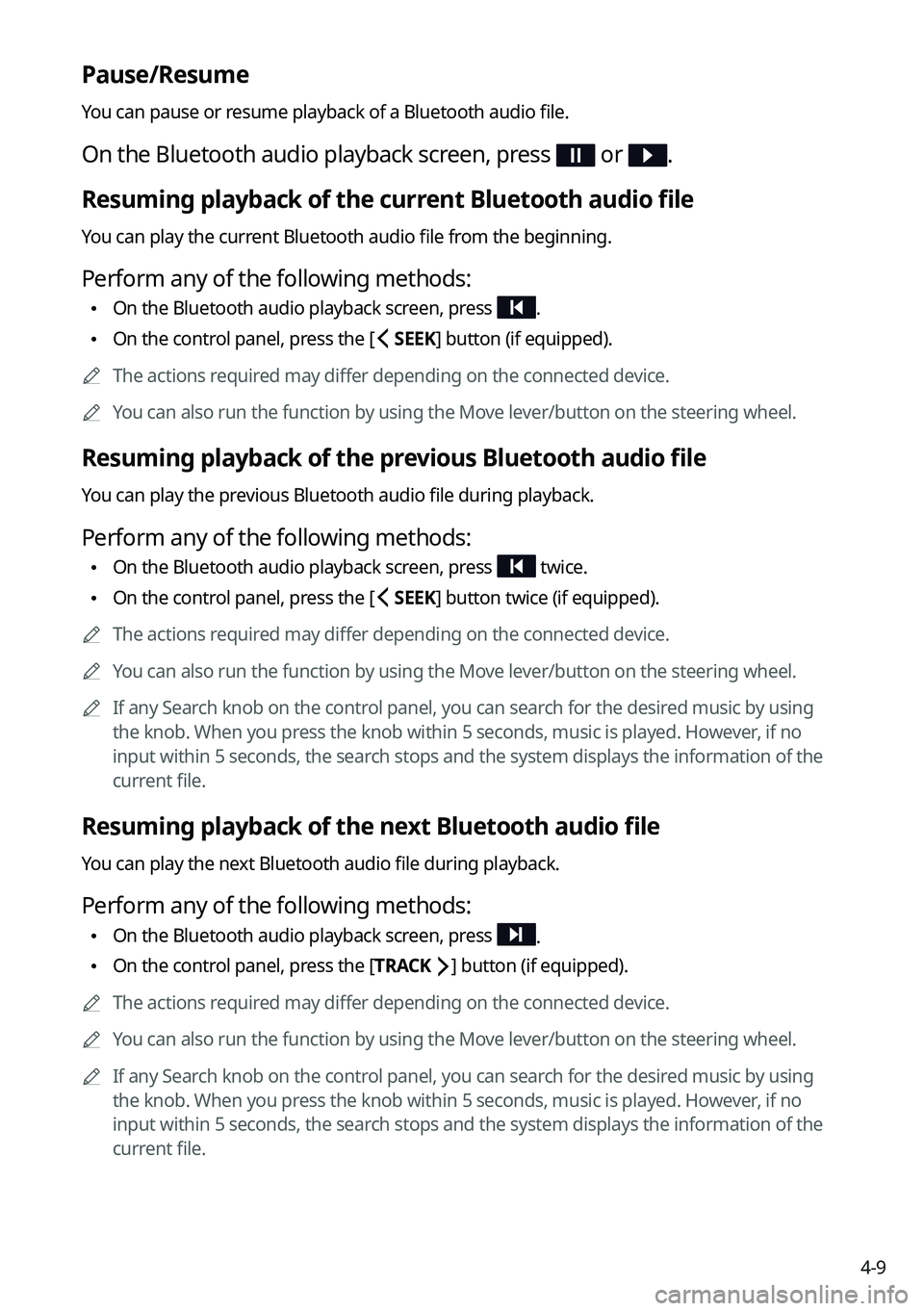
Pause/Resume
You can pause or resume playback of a Bluetooth audio file.
On the Bluetooth audio playback screen, press or .
Resuming playback of the current Bluetooth audio file
You can play the current Bluetooth audio file from the beginning.
Perform any of the following methods:
\225On the Bluetooth audio playback screen, press .
\225On the control panel, press the [
SEEK] button (if equipped).
0000
A
The actions required may differ depending on the connected device.
0000
A
You can also run the function by using the Move lever/button on the steering wheel.
Resuming playback of the previous Bluetooth audio file
You can play the previous Bluetooth audio file during playback.
Perform any of the following methods:
\225On the Bluetooth audio playback screen, press twice.
\225On the control panel, press the [
SEEK] button twice (if equipped).
0000
A
The actions required may differ depending on the connected device.
0000
A
You can also run the function by using the Move lever/button on the steering wheel.
0000
A
If any Search knob on the control panel, you can search for the desired music by using
the knob. When you press the knob within 5 seconds, music is played. However, if no
input within 5 seconds, the search stops and the system displays the information of the
current file.
Resuming playback of the next Bluetooth audio file
You can play the next Bluetooth audio file during playback.
Perform any of the following methods:
\225On the Bluetooth audio playback screen, press .
\225On the control panel, press the [
TRACK ] button (if equipped).
0000
A
The actions required may differ depending on the connected device.
0000
A
You can also run the function by using the Move lever/button on the steering wheel.
0000
A
If any Search knob on the control panel, you can search for the desired music by using
the knob. When you press the knob within 5 seconds, music is played. However, if no
input within 5 seconds, the search stops and the system displays the information of the
current file.
Page 96 of 316

5-2
Navigation functions
Navigation Menu overview
You can use the navigation system conveniently through various functions on the Navigation
Menu screen.
Perform any of the following methods:
\225On the All Menus screen, press Navigation Menu.
\225On the control panel, press the [
NAV] button.
\037\036
\035
\034
\033\032\031\030\027
\026\025\024
\023
a a Returns to the previous step.
b b You can change the Navigation-related settings.
c c Search for a location by entering various types of keywords such as place name and
address.
> See " Searching by keyword."
d d Search for POIs by category to set as a destination. > See "Searching the nearby points of
interest."
e e Select any of previous destinations to set as a destination. > See " Searching by previous
destinations."
f f Register the location or use the address book for setting a destination. > See " Using the
address book."
g g You can easily search for Kia Dealerships. > See "Searching for Kia Dealerships."
h h You can cancel guidance to the destination. > See " Stopping the route guidance."
i i You can see the entire route information to the destination.
j j You can edit the current route so that you can travel via waypoints on the way to the
destination.
> See "Editing the route."
k k You can change the route search criteria to resume routing. > See "Changing the route
search criteria."
Page 99 of 316

5-5
0000
A
Vehicle location may not be displayed correctly if:
000DThe vehicle is driving on a Y-shaped or winding road with narrow angles.
000DThe vehicle is driving closely to another road.
000DThe vehicle is driving on a road where there are many tall buildings in the vicinity.
000DThe vehicle is driving on a new road or a road under construction.
000DThe vehicle is transported by a ferry or heavy-duty transport vehicle.
000DThe vehicle is driving in a rugged mountain area or on a steep curve road.
000DThe vehicle is entering a public road after making a turn through the turntable in an
underground parking lot or multi-story parking lot.
000DThe vehicle stops and starts repeatedly or moves slowly in front of an intersection.
000DThe system reboots after the vehicle battery has been recharged or replaced.
000DThe vehicle is driving on a slippery road due to heavy snow, etc.
000DThe tires have been replaced recently or spare tires (or studless tires) are used.
000DImproper-sized tires are used or the pressure of each tire is different.
000DThe replaced tire is worn out or the studless tires have been used for over two seasons.
000DA roof carrier is installed on the vehicle.
000DOn a highway continued driving causes the system to perform map matching or apply
the updated GPS data.
0000
A
Navigation service may not be provided correctly under the following conditions:
000DWhen the vehicle drives on a straight road continuously, the system may guide you to
drive straight. It is not a malfunction.
000DGuidance may not be followed immediately after the vehicle makes a turn at an
intersection or drives through an intersection.
000DThe system may guide you to make a U-turn in a prohibited area.
000DThe system may guide you to a traffic-blocked road (e.g. no-entry road or road under
construction).
000DThe system may guide you to a road away from the destination when there is no road
to the destination or there are only narrow roads on the way.
000DGuidance may not be proper when the vehicle is off the route.
000DGuidance may not match the actual distance on an overpass or underpass due to the
difference of the start point.
000DWhen you are driving at high speeds, route recalculations may take longer.
0000
A
Because the navigation system is used for information purposes only, Kia does not
assume responsibility of the accuracy of the information.
0000
A
When the traffic information is not received, the status icon appears at the top of the map
screen.
000DHD Radio: The system is using the HD radio data. If no traffic information is available,
the status icon (
) will be displayed instead.
Page 101 of 316

5-7
i i Displays the lanes in different colors.
\225Orange: Recommended lane
\225White: Available lane
\225Gray: Unavailable lane
j j Displays quick menu items that can be used during guidance.
k k Can pause or cancel the route guidance. > See "
Stopping the route guidance."
l l Displays the remaining distance to the destination and the estimated time of arrival. For
more details, press the information item.
m m Displays or hides the detailed guidance.
n n Displays the system information on the map. (It can display up to two items.)
\225 Traffic information (with an icon if there is no HD data reception)
\225Bluetooth connection status
o o Check the range you can drive with the current amount of battery (EV only).
0000
A
To see only the map with no destination, press the map area on the Home screen or on
the All Menus screen, press Map. Or press the [ MAP] button on the control panel.
0000
A
The screen may differ depending on the vehicle model and specifications.
\335Warning
Be sure to check the road conditions while driving, because the camera information may get
changed occasionally after a map update to the latest version. Relying solely on the driving
assist system may cause violation of traffic rules and regulations, resulting in an accident.
Page 103 of 316

5-9
Adjusting the navigation volume
You can adjust the volume of navigation or GPS warning sound.
On the map screen, press and then press or , or use the control bar
to adjust the volume.
0000
A
To have the navigation sound always output first over media sound, check Navigation
Volume Priority.
0000
A
To turn off the navigation sound, press
and then press or .
Stopping the route guidance
To stop route guidance, press Pause Route.
The destination displayed at the bottom of the screen disappears and the Pause Route is
replaced by Resume Route.
0000
A
To resume guidance to the previous destination, press Resume Route.
0000
A
To cancel guidance to the destination, press and hold Pause Route, Resume Route, or
Navigation Menu >
Cancel Route on the All Menus screen.