Page 204 of 332
9-4
Speedometer (if equipped)
Can set the driving speed items and colors to display on the head-up display.
Driver Assistance (if equipped)
You can set to use various systems that assist the driver for safety.
AThe screen may differ depending on the vehicle model and specifications. Refer to the car
owner's manual for details of the function.
ÝWarning
•Be sure to always check the road conditions while driving. The Driver Assistance system
helps you drive safely and conveniently. Relying solely on the function may cause violation
of traffic rules and regulations, resulting in an accident.
•Be sure to control the vehicle by your judgment and keep traffic regulations for safety.
When the function is active, drive the vehicle with keeping eyes forward and checking the
surroundings.
•Not all warnings or functions are necessary when they are active, and they do not replace
the driver discretion under any circumstances. Stay focused on the road while driving.
Page 215 of 332
9-15
Configuring the vehicle settings (Type2)
(if equipped)
You can configure the functions for driving and related environments.
ÝWarning
Make sure you stop the vehicle before changing settings to ensure safety.
A
Vehicle settings can be changed only when the vehicle is on.
A
Available settings may differ depending on the vehicle model and specifications.
A
Depending on the climate control system, some functions may not be supported.
1 On the All Menus screen, press Setup >
Vehicle.
The vehicle settings screen appears.
2 Configure the settings required:
A
Press >
Search for Settings or press and enter a keyword to search for a
setting item. You can also search for a setting item by voice.
Driver Assistance (if equipped)
You can set to use various systems that assist the driver for safety.
A
The screen may differ depending on the vehicle model and specifications. Refer to the car
owner's manual for details of the function.
Page 225 of 332
9-25
Energy Consumption Reset (if equipped)
You can set to automatically initialize the average fuel economy.
•After Ignition: The average fuel economy is automatically initialize whenever you drive
the vehicle.
•After Refueling
: The average fuel economy is automatically initialize whenever you refuel
the vehicle.
• After Recharging: The average fuel economy is automatically initialize whenever you
charge the vehicle (EV only).
•Off: The average fuel economy initialize is unavailable.
Reset Fuel Economy (if equipped)
Select which average fuel economy to display on the cluster.
•At Vehicle Start: Displays the fuel economy after engine restart.
•After Refueling: Displays the fuel economy after refueling.
•After Recharging: Displays the fuel economy after recharging (EV only).
•Manually: Displays the accumulated fuel economy.
Content Selection (if equipped)
You can set the content to display on the instrument cluster.
•Wiper/Lights Display: When the wiper or light lever operates, the operation mode
appears.
•Traffic Signs: Displays the road information such as speed bumps and speed limits.
•Blind-Spot View: Displays the blind spot view on the instrument cluster when the turn
signal lamp is operating.
•Icy Road Warning: When the outside temperature drops below 4 °C (39 °F), the
possibility of road icing appears.
Cluster Voice Guidance Volume (if equipped)
You can adjust the voice guidance volume of the cluster.
Welcome Sound (if equipped)
You can set to generate the notification sound when turning on or off the instrument cluster.
Page 278 of 332
9-78
System Info
You can check the system storage space. You can also use your smartphone to access the
online user's manual of the system, or initialize all system settings to default values.
Storage
You can check the storage space of the system memory where voice memos can be saved.
User's Manual on Web (QR Code)
You can access the online user's manual of the system by scanning the QR code with your
smartphone.
Reset
You can initialize all system settings including general settings and navigation settings.
A
You can also initialize all settings of the login profile.
Page 279 of 332
9-79
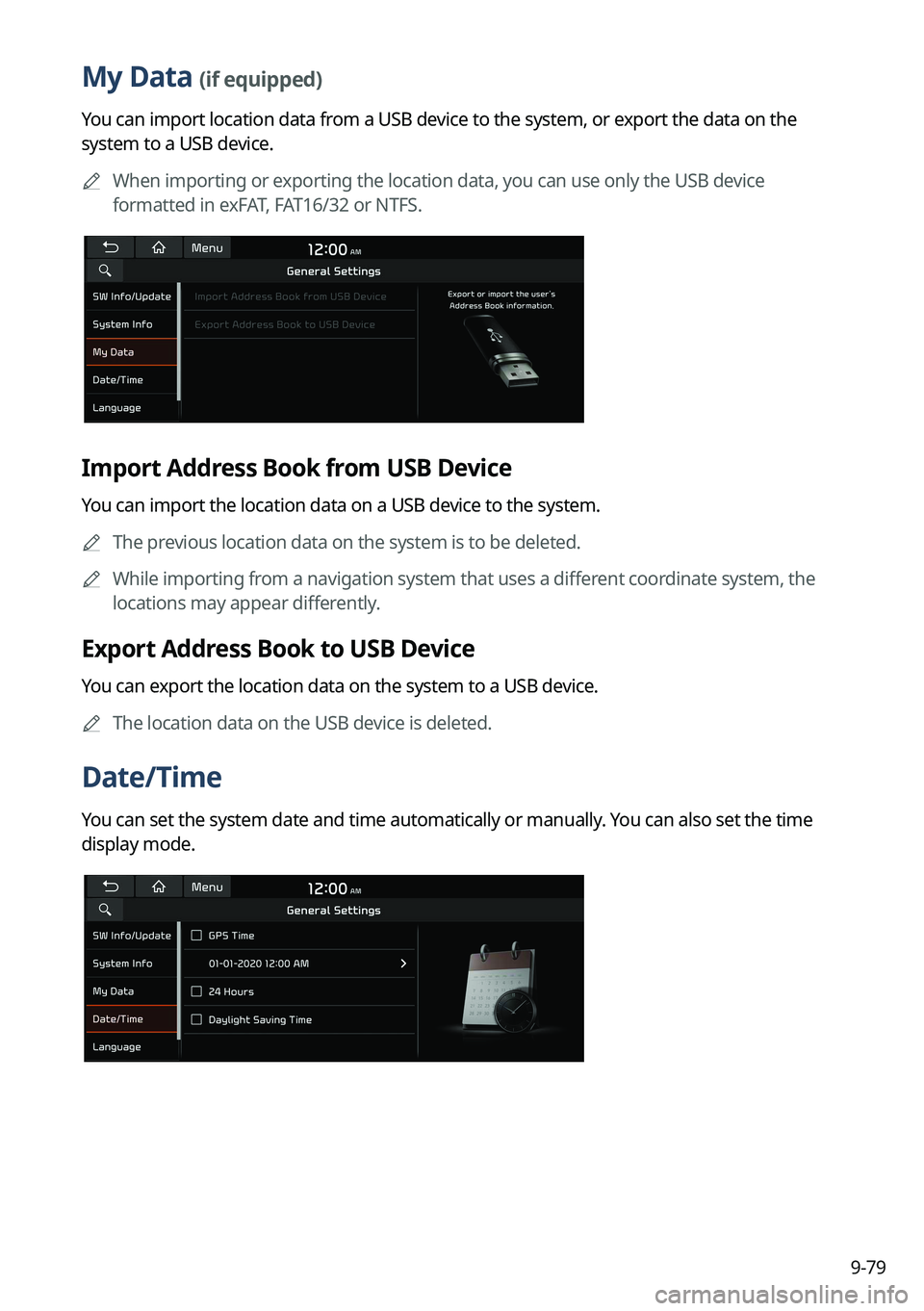
My Data (if equipped)
You can import location data from a USB device to the system, or export the data on the
system to a USB device.
A
When importing or exporting the location data, you can use only the USB device
formatted in exFAT, FAT16/32 or NTFS.
Import Address Book from USB Device
You can import the location data on a USB device to the system.
A
The previous location data on the system is to be deleted.
A
While importing from a navigation system that uses a different coordinate system, the
locations may appear differently.
Export Address Book to USB Device
You can export the location data on the system to a USB device.
A
The location data on the USB device is deleted.
Date/Time
You can set the system date and time automatically or manually. You can also set the time
display mode.
Page 280 of 332
9-80
GPS Time
After receiving the time from GPS, it sets the system date and time automatically.
A
To manually set the date and time, uncheck GPS Time, press the current date and time
below GPS Time, and then set the date and time.
24 Hours
The system time is displayed in the 24-hour format.
Daylight Saving Time
Displays the system time in the format of Daylight Saving Time.
Language
You can set the system display language.
A
Once the language has been changed, it takes a while to apply the new language to the
system. The notification pop-up window appears as soon as the new language is applied
to the system. When you wait a while or press anywhere outside the pop-up window, the
window automatically disappears.
A
When you change the system language, it does not affect the display of other unique
data such as MP3 music file name.
A
Depending on the system language, the Bluetooth phone message view and voice
recognition may not be supported.
Page 282 of 332
9-82
Configuring the general system settings
(Type2)
You can configure general settings for date, time, language, and the like. You can also check
information of the system.
1 On the All Menus screen, press Setup >
General.
The general settings screen appears.
2 Configure the settings required:
A
Press >
Search for Settings or press and enter a keyword to search for a
setting item. You can also search for a setting item by voice.
SW Info/Update
You can see the versions of system components. You can also update the system to the latest
version.
A
For details on how to update the system software: > see "How to Update the Map and
Software for your Infotainment System."
System Info
You can check the system storage space. You can also use your smartphone to access the
online user's manual of the system.
Page 283 of 332
9-83
Storage
You can check the storage space of the system memory where voice memos can be saved.
User's Manual on Web (QR Code)
You can access the online user's manual of the system by scanning the QR code with your
smartphone.
What's New (if equipped)
You can see the latest system update information.
A
After update is completed, the system will display the main update items on the screen.
Scan the QR code to view the update announcement.
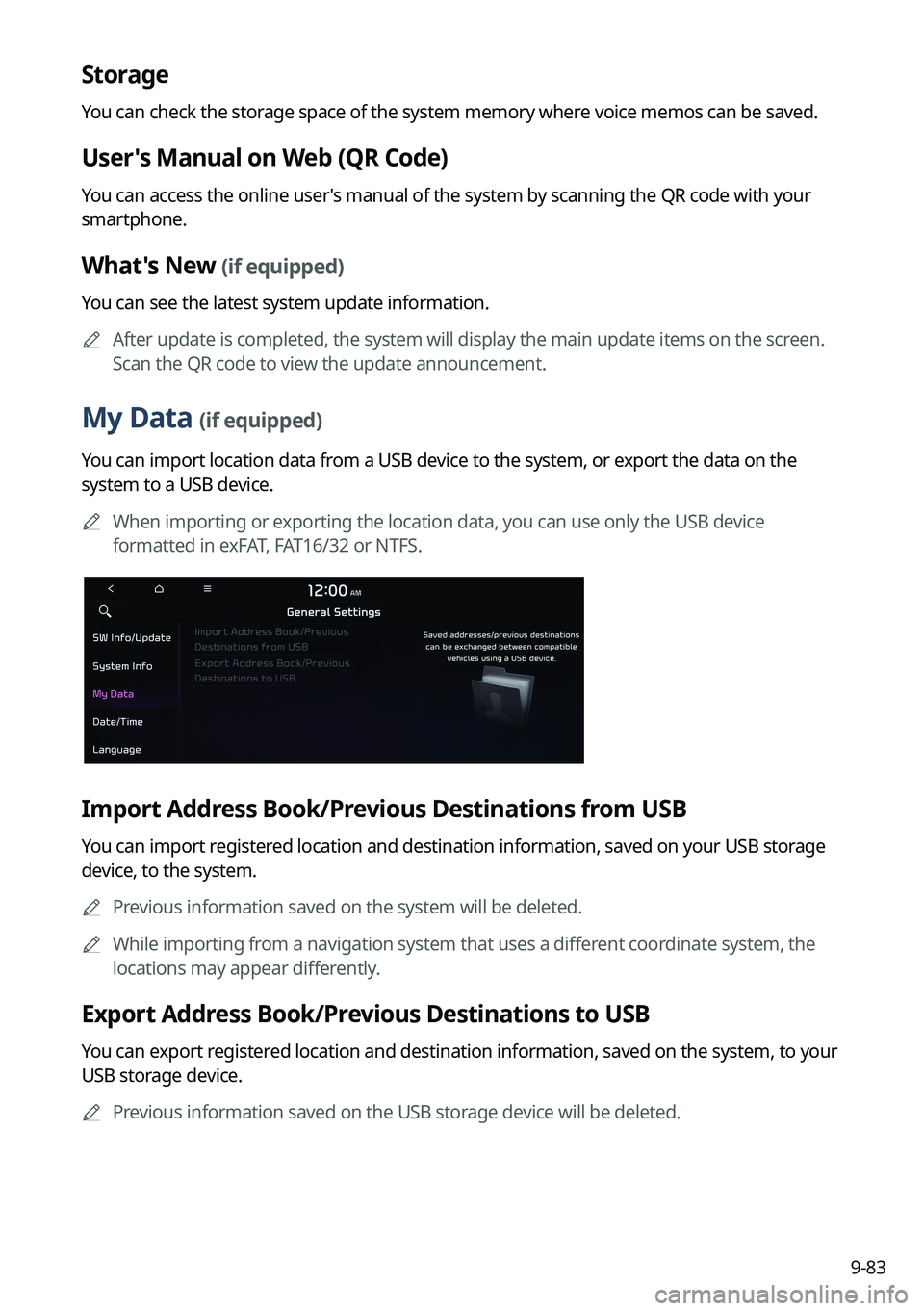
My Data (if equipped)
You can import location data from a USB device to the system, or export the data on the
system to a USB device.
A
When importing or exporting the location data, you can use only the USB device
formatted in exFAT, FAT16/32 or NTFS.
Import Address Book/Previous Destinations from USB
You can import registered location and destination information, saved on your USB storage
device, to the system.
A
Previous information saved on the system will be deleted.
A
While importing from a navigation system that uses a different coordinate system, the
locations may appear differently.
Export Address Book/Previous Destinations to USB
You can export registered location and destination information, saved on the system, to your
USB storage device.
A
Previous information saved on the USB storage device will be deleted.