Page 19 of 316
7
Contents
01 System overview
Component names and functions 1-2
Turning the system on or off 1-6
Using the touch screen 1-8
Using the Home screen 1-11
Seeing the All Menus screen 1-14
Using the split screen 1-15
02 Useful functions
Using the First Run Setup 2-2
Using the phone projection function 2-4
Viewing the driving assistance screen 2-9
Using the climate control system 2-14
Using the rear-seat climate control system 2-15
Using the Passenger Talk mode in the rear seat 2-17
Using the Rear-seat View 2-18
Using the Quiet mode in the rear seat 2-19
Using the sound mood lamp 2-20
Playing Sounds of Nature 2-21
Using the HD Radio Data 2-22
Seeing the driving information 2-25
Seeing notifications 2-26
Using the Valet mode 2-27
Page 39 of 316
Useful functions
Using the First Run Setup
Using the phone projection function
Viewing the driving assistance screen Using the climate control system
Using the rear-seat climate control system
Using the Passenger Talk mode in the rear seat Using the Rear-seat View
Using the Quiet mode in the rear seat Using the sound mood lampPlaying Sounds of NatureUsing the HD Radio Data
Seeing the driving information Seeing notifications
Using the Valet mode
02
Page 52 of 316

2-14
Using the climate control system (if equipped)
You can check and adjust the climate system settings on the screen.0000
A
For more information about how to use the heater and air conditioner, refer to Owner's
Manual of the vehicle.
1 Perform any of the following methods:
\225Press the [
CLIMATE] button on the climate control system.
\225On the All Menus screen, press Climate.
2 Select and then change the settings.
\037
\036
\035
\034
\033
\032\031
\030
\027
\026\025
a a Returns to the previous step.
b b Shows the set temperature for the driver's seat.
c c Shows the set temperature for the passenger seat.
d d Shows the current airflow direction.
e e Shows the current fan speed.
f f Shows whether the automatic temperature control function is on or off.
g g Shows whether the A/C is on or off.
h h Shows whether the SYNC function, which syncs the driver's seat temperature with the
passenger seat temperature, is on or off.
i i Configure specific climate control function settings.
0000
A
Available settings may differ depending on the vehicle model and specifications.
j j Shows the outside temperature of the vehicle.
k k The list of menu items appears.
\225Display Off: Turns off the screen. To switch the screen back on, press the screen or
briefly press the power button.
\225User's Manual on Web (QR Code): Displays the QR code that provides access to the
online user manual for the system.
Page 53 of 316

2-15
When you manipulate the climate control system while using the product, the climate
settings appear on the upper part of the screen.
\037\036\035\034\033\032\031
0000A
The temperature of the climate system can be adjusted by 1 ℉ increments. When the
temperature is set to the lower limit or upper limit, "LOW" or "HIGH" appears on the
screen.
0000
A
In Auto mode, the mode turns off in the following situations:
000DThe fan speed or air direction is changed.
000DThe air conditioner is turned on or off.
000DThe Auto Defog function is turned on to ensure driver's visibility.
0000
A
Available settings may differ depending on the vehicle model and specifications.
Using the rear-seat climate control system
(if equipped)
You can check or set the rear-seat climate status on the system screen.
1 Perform any of the following methods:
\225Press the [
REAR] button on the climate control system.
\225On the All Menus screen, press Rear Climate Controls.
2 Select and then change the settings.
\037
\036
\035
\034
\033
\032\031
\030
For automatic temperature control
Page 55 of 316
2-17
Using the Passenger Talk mode in the rear
seat
(if equipped)
When the driver's voice cannot be delivered well to the rear seat, you can use the microphone
of the driver's seat for smooth communication.
1 On the All Menus screen, press Passenger Talk.
The passenger talk icon appears at the top right of the system screen to display its status.
2 Make conversation through the microphone of the driver's seat.
0000
A
To end the Passenger Talk mode, press End.
0000
A
When you move to another screen without pressing End, shortly press the End Call
button on the steering wheel to end the passenger talk function.
0000
A
When the Passenger Talk mode is active, the Radio/Media functions are unavailable.
0000
A
To access the online user's manual on the Passenger Talk screen, press
>
User's
Manual on Web (QR Code) and then scan the displayed QR code.
Page 56 of 316
2-18
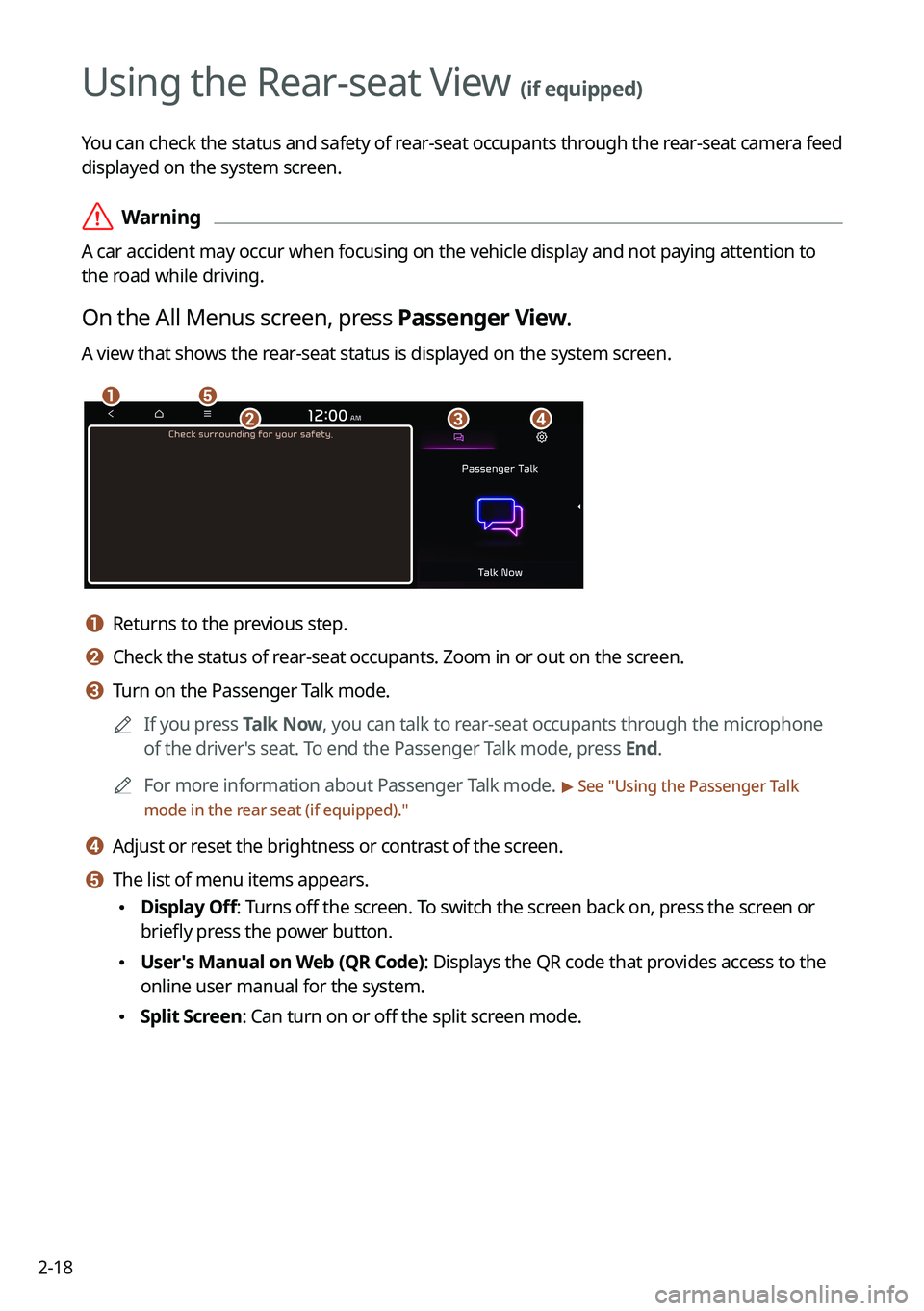
Using the Rear-seat View (if equipped)
You can check the status and safety of rear-seat occupants through the rear-seat camera feed
displayed on the system screen.
\335Warning
A car accident may occur when focusing on the vehicle display and not pa\
ying attention to
the road while driving.
On the All Menus screen, press Passenger View.
A view that shows the rear-seat status is displayed on the system screen.
\037\036
\035\034\033
a a Returns to the previous step.
b b Check the status of rear-seat occupants. Zoom in or out on the screen.
c c Turn on the Passenger Talk mode.0000
A
If you press Talk Now, you can talk to rear-seat occupants through the microphone
of the driver's seat. To end the Passenger Talk mode, press End.
0000
A
For more information about Passenger Talk mode.
> See "Using the Passenger Talk
mode in the rear seat (if equipped)."
d d Adjust or reset the brightness or contrast of the screen.
e e The list of menu items appears.
\225 Display Off: Turns off the screen. To switch the screen back on, press the screen or
briefly press the power button.
\225User's Manual on Web (QR Code): Displays the QR code that provides access to the
online user manual for the system.
\225Split Screen: Can turn on or off the split screen mode.
Page 57 of 316
2-19
Using the Quiet mode in the rear seat
(if equipped)
To allow occupants in the rear seat to have rest and sleep, you can set to adjust the system
volume.
1 On the All Menus screen, press Quiet Mode.
2 Press Quiet Mode.
The audio volume in the rear seat is muted. When the volume for the front seats is set too
high, the volume decreases automatically.
0000
A
To end the Quiet mode, press Quiet Mode once more.
0000ATo access the online user's manual on the Quiet Mode screen, press >
User's
Manual on Web (QR Code) and then scan the displayed QR code.
Page 159 of 316

7-7
Navigation commands
CommandFunction
Find You can search for a designated POI name or address.
For example, say "Find Kia dealerships" or "Find Kia dealerships
in Seattle."
Find Address in You can search for a location with its address in a designated
state. Say an address in order of the house number, street, and
city.
Find You can search for a designated category of POIs nearby.
> See "
POI names."
Frequently Visited Points You can select a location from the list of your frequently visited
points. Say the number of the location you want.
Address Book Access the address book screen.
Previous Destinations You can select a location from the list of your previous
destinations. Say the number of the location you want.
Previous Searches You can select a destination from the list of destinations that
have recently been searched for. Say the number of the location
you want.
Traffic Information Access the traffic information screen.
Go Home Set the location saved to the Home shortcut button in your
address book as your destination.
Go to Work Set the location saved to the Work shortcut button in your
address book as your destination.
Change Home You can change the location saved as your home.
Change Work You can change the location saved as your work.
Pause Route Pause the navigation guidance.
Resume Route Resume the navigation guidance.
Turn Guidance On Unmute the navigation guidance.
Turn Guidance Off Mute the navigation guidance.
Cancel Route Stop the navigation guidance and cancel your current
destination.
Destination Information View information on the distance and time to your current
destination.
Route Options Find another route.
Show Route View the entire route on the map.


